
How to get inference data over Bluetooth using ST AIoT Craft
- January 27, 2026
- 0 replies
- 1410 views
Introduction
Setting up an IoT system with a gateway and sensor board to get inference data over Bluetooth has never been easier. Through this guide, you build and deploy an IoT system with a Raspberry Pi and an STEVAL-MKBOXPRO board. Additionally, how to run a decision tree on the machine learning core (MLC) intelligent sensor, and send inference data to the cloud. This enables you to collect events on the cloud that you can use to create your own vertical application.
- Introduction
- 1. Hardware requirements
- 2. My IoT Systems view
- 3. Configure and deploy an IoT system
- 4. Gateway setup
- 5. Deploy cloud resources
- 6. Connect the IoT system
- 7. Leaf device setup
- 7.1 Setting up the leaf device with web portal
- 7.2 Setting up the leaf device with a mobile app
- 8. Complete the deployment
- 9. Monitor telemetries with Inference mode
- 10. Debugging and troubleshooting
- Conclusion
- Related links
1. Hardware requirements
- A STEVAL-MKBOXPRO board (BLE-based deployment is currently supported only with this board.)
- A Raspberry Pi board (either model 4 or 5 with 8 GB RAM recommended) and its official power supply to avoid undervoltage related issues (5.1 V and 15.3 W for Pi 4, 5.1 V and 27 W for Pi 5, see Troubleshooting section.)
- A USB-A to USB Type-C® cable.
- A microSD™ card to run the gateway image.
- A microSD™ to USB-A adapter to flash the gateway image.
The gateway connects to the Internet through either Wi-Fi or Ethernet. Gateway operation from behind a proxy/firewall is currently not supported.
2. My IoT Systems view
Open the "My IoT Systems" view to see the IoT systems related to your previously cloned "getting started" projects. Each entry represents a system that you can configure and deploy to a real setup.
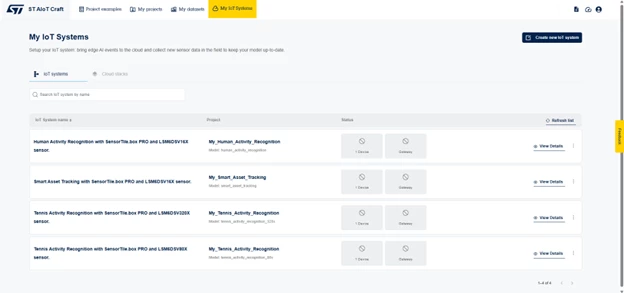 Figure 1: ST AIoT Craft – My IoT Systems
Click the [View Details] button of a selected system to access its information page.
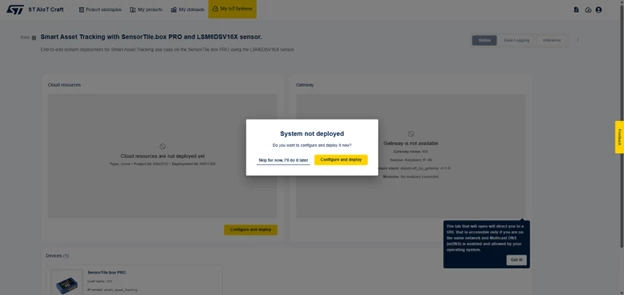 Figure 2: ST AIoT Craft – My IoT Systems, View Details
3. Configure and deploy an IoT system
In case the selected project has just been cloned, proceed with its deployment by clicking the [Configure and deploy] button. This brings you to the list of items needed to set up the system itself, as mentioned above.
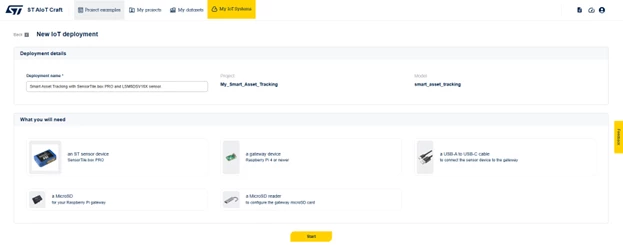 Figure 3: ST AIoT Craft – New IoT deployment (deployment details and what you will need)
The [Start] button opens a wizard that guides you through the configuration and deployment of the system. You can go back at any time to the previous steps by pressing the Back button.
4. Gateway setup
Setting up the gateway is the first step and implies provisioning the gateway so that it can connect to ST AIoT Craft and to the underlying IoT Hub.
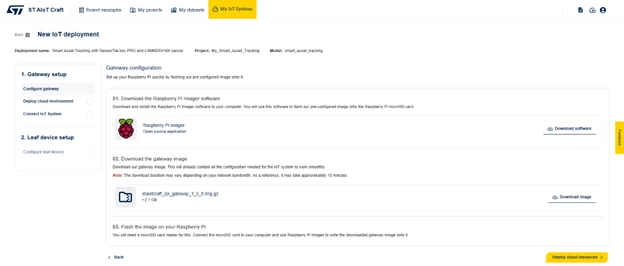 Figure 4: ST AIoT Craft – Gateway setup
Follow the steps below:
- Download the Raspberry Pi Imager software from the official website.
- Download the precanned Raspberry Pi image, which runs the Raspberry Pi OS operating system and comes with the Azure IoT Edge software stack installed, as well as the software modules needed to run the IoT system.
- Flash the image to the microSD™ card by using the Raspberry Pi Imager tool.
After selecting your device model, choose the image file downloaded during step 2. as the target operating system. Complete the configuration by plugging in a microSD™ card into your host and selecting the proper mass storage drive.
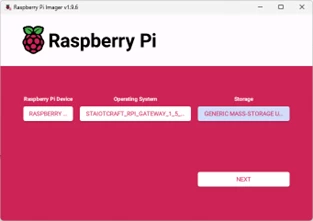 Figure 5: Raspberry Pi Imager - Select the proper mass storage drive
Do not apply any OS customization settings in the next view, as the image file has already everything set up and changing the expected configuration may result in system failures.
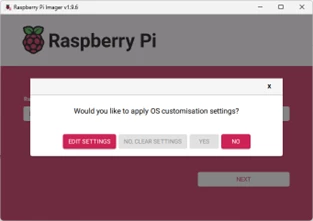 Figure 6: Raspberry Pi Imager - Do not apply any OS customization settings
Flash the image and remove the microSD™ card when done.
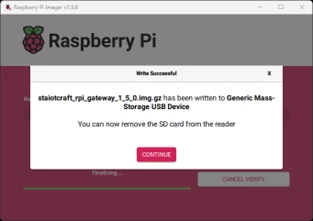 Figure 7: Raspberry Pi Imager - Flash the image and remove the microSD card when done
5. Deploy cloud resources
After flashing the image, click the [Deploy cloud resources] button to enter a view where you can trigger the deployment of the needed resources to the cloud.
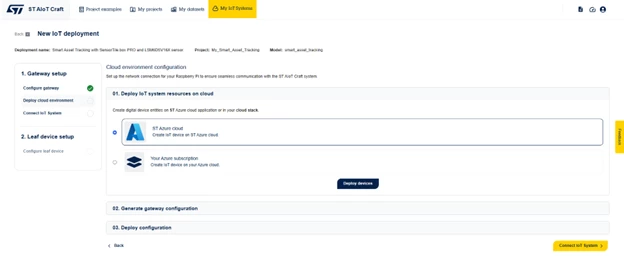 Figure 8: ST AIoT Craft – Deploy IoT system resources on cloud
For an initial evaluation, a preconfigured cloud environment, fully managed by ST, can be used by selecting ST Azure cloud.
If the solution fits your needs, you can deploy the entire IoT system to your own cloud subscription by selecting [Cloud stacks]. You can find specific instructions online.
Instantiate the resources needed by clicking the [Deploy devices] button.
Next, generate an staiotcraft_config.ini configuration file containing the necessary parameters for the gateway to connect to the Azure IoT Hub. This includes the DPS’ scope ID, the gateway’s registration ID, its security key, as well as the Wi-Fi credentials, if specified.
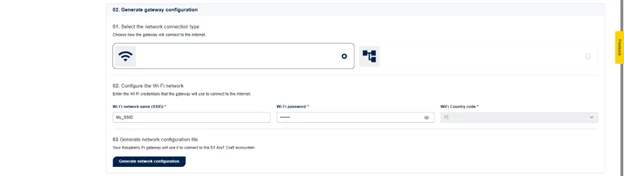 Figure 9: ST AIoT Craft – Generate gateway configuration
Download this configuration file and copy it to the bootfs partition of the microSD™ card (which maps to the /boot/firmware folder of the Raspberry Pi OS file system) and insert the card in the gateway.
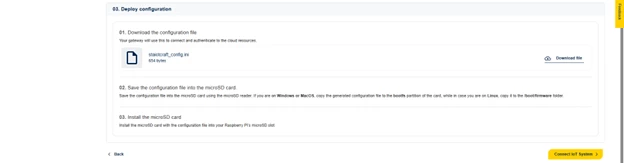 Figure 10: ST AIoT Craft – Deploy configuration
6. Connect the IoT system
Position the gateway and ensure it is ready to communicate with the cloud by checking your router and/or Ethernet cable.
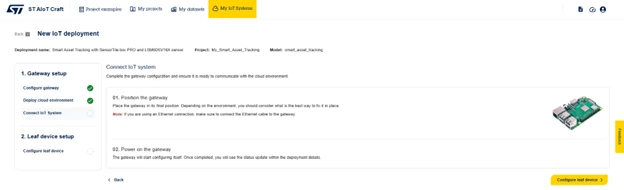 Figure 11: ST AIoT Craft – Connect IoT system
Power on the gateway to let it start configuring itself. Once completed, you see the status update within the deployment details.
7. Leaf device setup
This step prepares the leaf device by flashing it with the correct firmware. First, select the connectivity you want to use, such as Bluetooth® LE in this case.
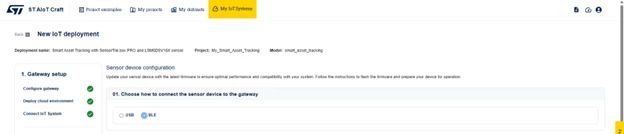 Figure 12: ST AIoT Craft – Choose how to connect the sensor device to the gateway
Switch to the USB-based IoT systems step-by-step guide in case you want to deploy the system wired with USB connectivity. You are able to the system again and select Bluetooth® LE connectivity at any time if needed.
Notes:
- In general, a USB connection is preferable in environments with significant radio interference, or when the sensor board is physically integrated with equipment that remains close to the gateway during operation. Additionally, USB offers a more secure connection, as it is not susceptible to over-the-air tampering.
- Conversely Bluetooth® LE connectivity is advantageous when security requirements are less stringent, the leaf device is attached to moving parts (for example, joints, arms), or when electromagnetic interference is minimal. Bluetooth® LE provides wireless flexibility, which is essential for mobile or dynamic applications.
- This preference is grounded in the fact that other devices operating in the 2.4 GHz band can generate noise and signal collisions, causing packet loss or retransmissions. High levels of interference consequently reduce the effective communication range and data throughput of Bluetooth® LE connections.
In case of Bluetooth® LE connection, the ai_ssm firmware is flashed onto the sensor board. It performs realtime inference on collected data by running a decision tree model on the MLC intelligent sensor and transmits results over Bluetooth® LE in beacon mode using a proprietary protocol.
Flashing the sensor board can be done in either of the following ways:
- By using the web portal on the host PC.
- By using the ST AIoT Craft mobile app.
Let us see how to deal with them in the following chapters.
7.1 Setting up the leaf device with web portal
The web portal can flash the firmware onto the board by connecting it to the host PC.
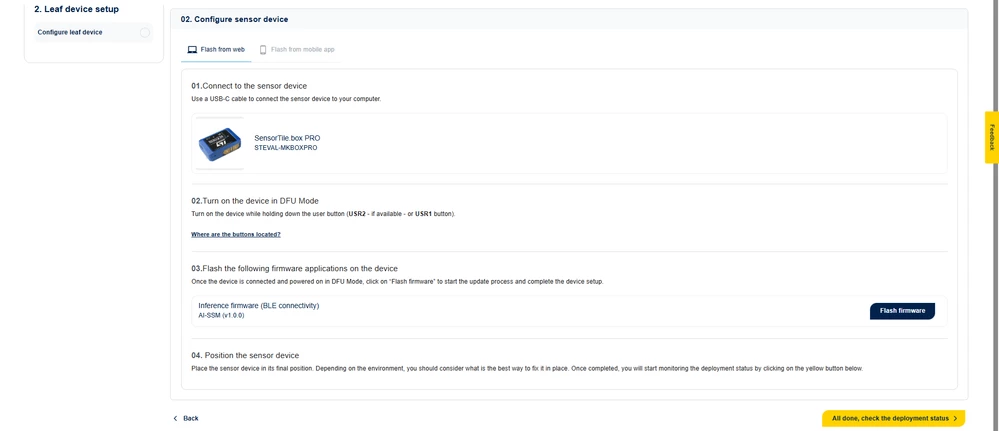 Figure 13: ST AIoT Craft – Configure sensor device
In particular:
- Connect the board to the host PC using the USB cable.
- Turn the board on, while keeping the user button pressed to enter DFU (Direct Firmware Update) mode.
- Let the programming panel flash the firmware on the board.
Notes:
- The firmware binary comes with the 7-characters name of the board inside, which is advertised along with inference data in beacon mode. The gateway recognizes it as a known device of the deployed project.
When the flashing is complete, turn the board on. If it has a charged battery inside, it boots in Bluetooth® LE direct-connection mode signaling that it is waiting for connection by means of a blue LED always on.
Jump to the "Complete the deployment" section to finish the deployment procedure.
7.2 Setting up the leaf device with a mobile app
Flashing the board in case the selected connectivity is Bluetooth® LE can also be handled by the official ST AIoT Craft mobile app. It is available at the QR codes shown on the right side of the following panel:
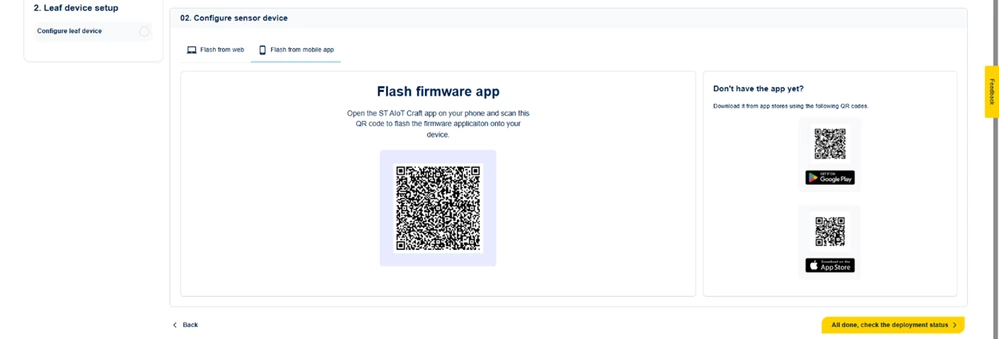 Figure 14: ST AIoT Craft – Flashing the board can also be handled by the official ST AIoT Craft mobile app
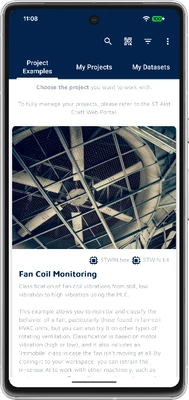
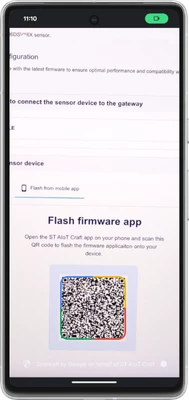
Once you have the mobile app installed on your mobile device, open it (a) and scan the QR code of the project (b) shown on the left side of the webpage above.
|
|
|
(a) |
(b) |
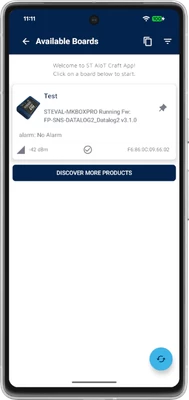
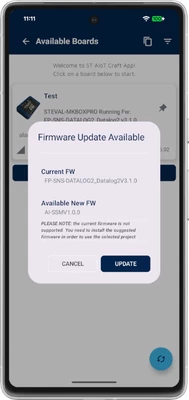
The app shows the boards nearby (a), tap on your target device and start updating the firmware over-the-air (b).
|
|
|
(a) |
(b) |
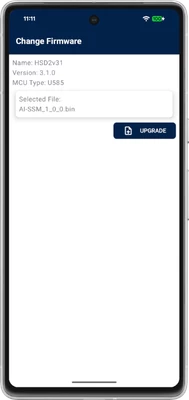
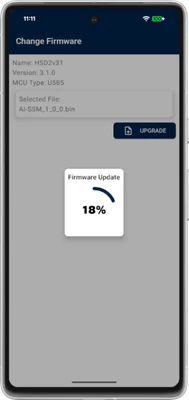
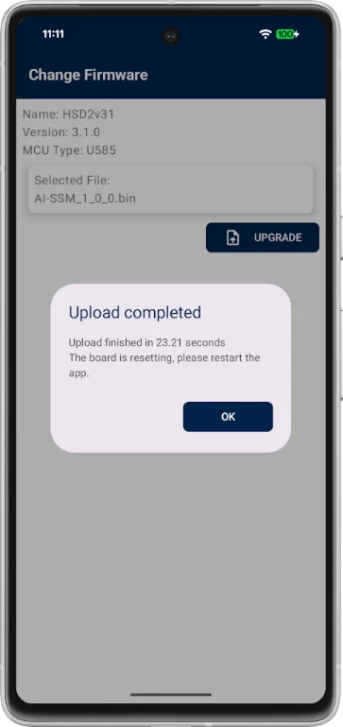
The updating process initiates (a) and goes on (b) until completion (c).
|
|
|
|
(a) |
(b) |
(c) |
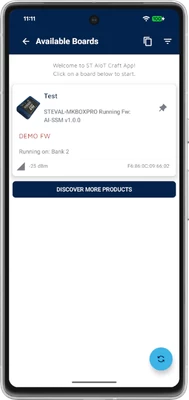
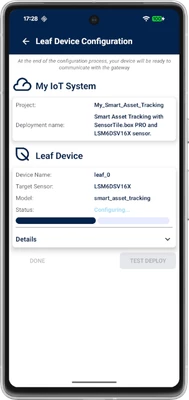
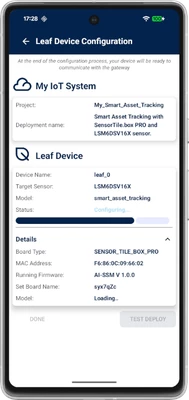
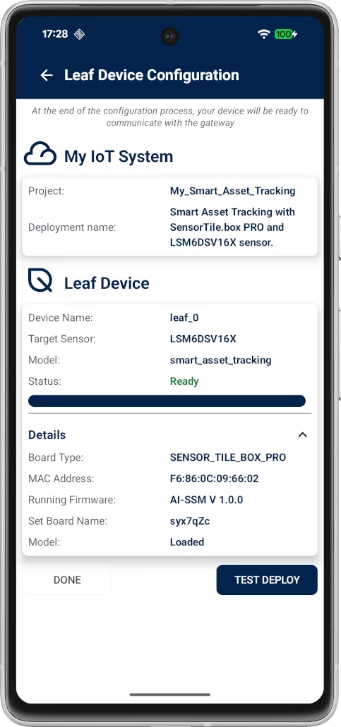
When done, your device reboots with the new firmware in Bluetooth® LE direct-connection mode signaling that it is waiting for connection by means of a blue LED always on. Tap on the board to let the app connect to it (a) and start configuring it (b) by setting its advertised name (syx7qZc in this case) (c) and uploading the MLC model available in the project (d).
|
|
|
|
|
(a) |
(b) |
(c) |
(d) |
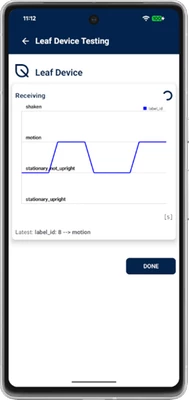
The 7-characters name is advertised along with inference data, so that the mobile app and the gateway recognize the sender device. You can now validate the model on the mobile app.
8. Complete the deployment
Press the All done, check the deployment status button to go ahead with the deployment of the IoT system.
During the first execution, the gateway configures itself and the sensor node. In particular, the gateway expands the file system partition on the microSD™ card to the available space and configures all required services. Moreover, the web portal sends a deployment manifest file to the gateway, to make it run the set of Docker modules required to handle the IoT system.
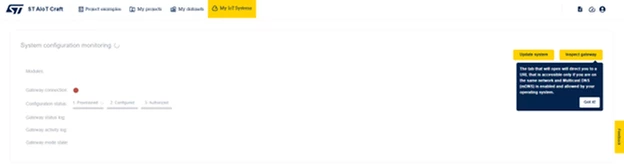 Figure 15: ST AIoT Craft – System configuration monitoring
This process may take several minutes, depending also on the speed of your Internet connection. Moreover, although the provided gateway image includes all the necessary edge modules, any new version must be downloaded from the official container registry, adding to the startup time.
Clicking on the Inspect gateway button opens a new tab in the browser that shows the modules running on the gateway in real time.
This view can be accessed by your host PC only if the gateway and the PC are connected to the same network, Multicast DNS (mDNS) is enabled, and the host OS allows it. For example, this might not be true behind a MITM proxy.
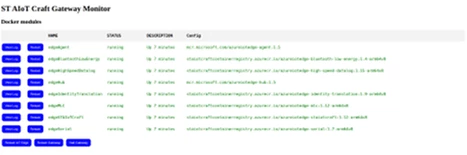 Figure 16: ST AIoT Craft Gateway Monitor – Docker modules
From this monitoring page, you can see modules’ log, restart modules, and reboot or shutdown the gateway at any time. For instance, the picture below shows the log of the edgeMLC main application module, from which you can get to know what is happening on the gateway.
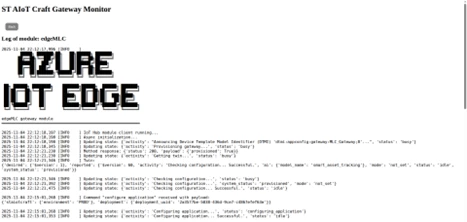 Figure 17: The log of the edgeMLC main application module
As soon as the system warms up, you see some modules going up and running.
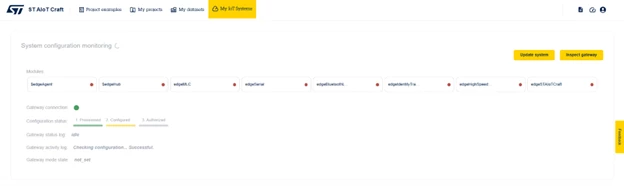 Figure 18: ST AIoT Craft – Some modules going up and running
At a certain point, you are asked to authorize the gateway to connect to the ST AIoT Craft services, just like you did for the browser or any other client.
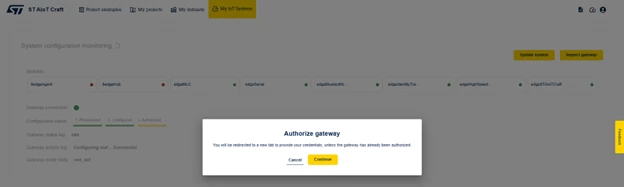 Figure 19: ST AIoT Craft – Authorize the gateway to connect to the ST AIoT Craft services
At the end of the deployment process, all the gateway modules are up and running. The devices are provisioned and visible in the IoT Hub being used as well as in the IoT systems view of the ST AIoT Craft web portal.
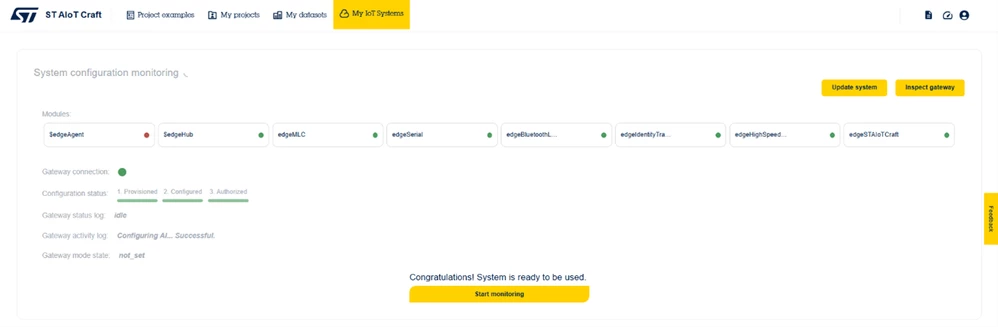 Figure 20: ST AIoT Craft – The system is ready to be used
Click the Start monitoring button to move forward and play with the inference mode.
Data logging is disabled with Bluetooth® LE connectivity, for the time being.
9. Monitor telemetries with Inference mode
From this view, you can set the system to Inference mode to assess the pretrained ML model on the MLC sensor of the real deployed system.
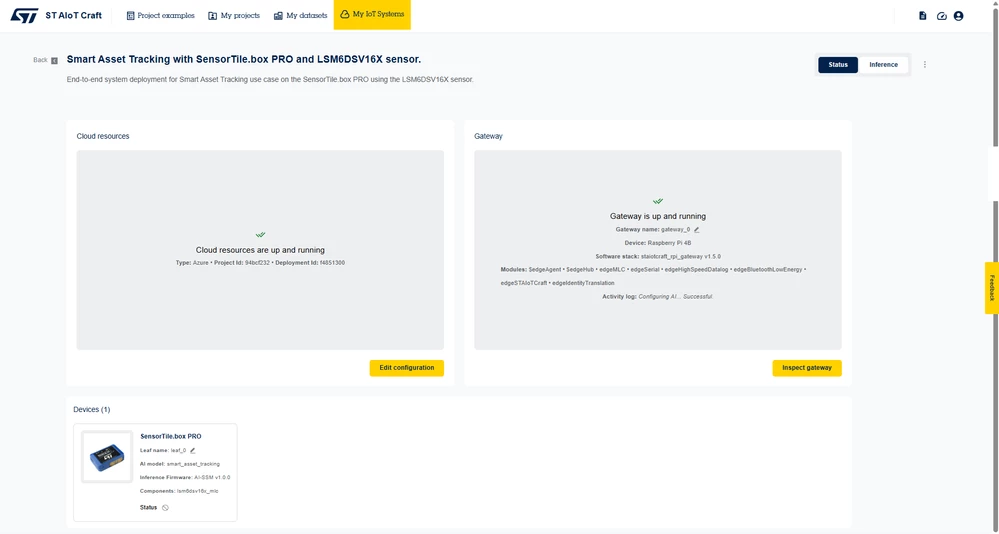 Figure 21: ST AIoT Craft – Set the system to Inference mode
The gateway downloads the model from your workspace in the cloud and flashes it to the sensor board in a few seconds. You can then start the inference algorithm on the target by pressing the Start button.
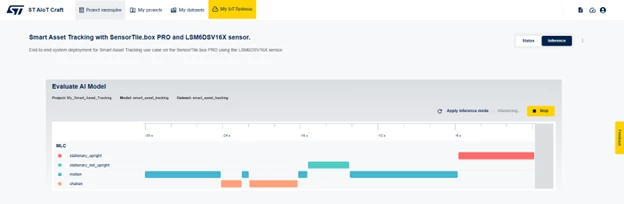 Figure 22: ST AIoT Craft – Start the inference algorithm on the target
In case of the Smart Asset Tracking get-started project, a plot like the one above is shown.
Events detected by the MLC in the sensor node are gathered by the gateway and forwarded to the cloud.
An orange LED turns on each time an advertisement message is sent over Bluetooth® LE.
10. Debugging and troubleshooting
Should you hit any issues when setting up an IoT system, refer to the Debugging and troubleshooting page.
Conclusion
In this article, we describe how to set up an IoT system with a gateway and sensor board to get inference data over Bluetooth. You can now build and deploy an IoT system with a Raspberry Pi and an STEVAL-MKBOXPRO board, run a decision tree on the machine learning core (MLC) intelligent sensor, and send inference data to the cloud. Try it out!
Refer to the online IoT Systems documentation for further information, where you also find how to deploy an IoT system based on USB connectivity.
Related links
- Deploy IoT systems based on USB connectivity
- Learn how to use your own cloud account and start building your IoT application based on ST edge AI solutions
- Learn about firmware for sensor nodes
- ST AIoT Craft
- Documentation: ST AIoT Craft
- ST blog: ST AIoT Craft
- Knowledge article: How to get started with ST AIoT Craft to develop your IoT solution
- Knowledge article: How to develop an end-to-end IoT solution with ST AIoT Craft
- Knowledge article: How to get started with ST AIoT Craft mobile app to develop your IoT solution
- Knowledge article: Discover MLC expert mode in ST AIoT Craft
- Knowledge article: Getting started with Smart Asset Tracking on ST AIoT Craft
- Knowledge article: Getting started with human activity recognition on ST AIoT Craft
- Knowledge article: Get familiar with ST AIoT Craft IoT API
- Knowledge article: Getting started with head gestures on ST AIoT Craft
- Knowledge article: How to classify the different actions performed by a drilling machine with ST AIoT Craft
