

How to configure the RTC to wake up the STM32 from Low Power modes
Introduction
The STM32’s integrated RTC (Real-Time Clock) peripheral can be used to wake it up from one of the various low-power modes. It is common for battery powered applications to have a power scheme where the application will run for a short period of time and then enter a low power mode to save power and extend battery life. The RTC can be used to wake up the STM32 from a low-power mode, even in the lowest power mode like Standby.
In this article we will present the basic configuration of the RTC (Section 3.1), and two schemes of configuring the RTC peripheral of the STM32 to wake up the STM32 periodically from a low-power mode like STOP2:
- Using the Internal WakeUp counter to wake-up the MCU after a specified delay (Section 3.2).
- Using the Calendar and Alarm features of the RTC to wake-up at specified timestamps (Section 3.3).
The basic configuration of the RTC (Section 3.1) is shared between these two implementations, but they must be configured separately.
1. Prerequisites:
- Hardware:
- Mini USB cable to power and program the board
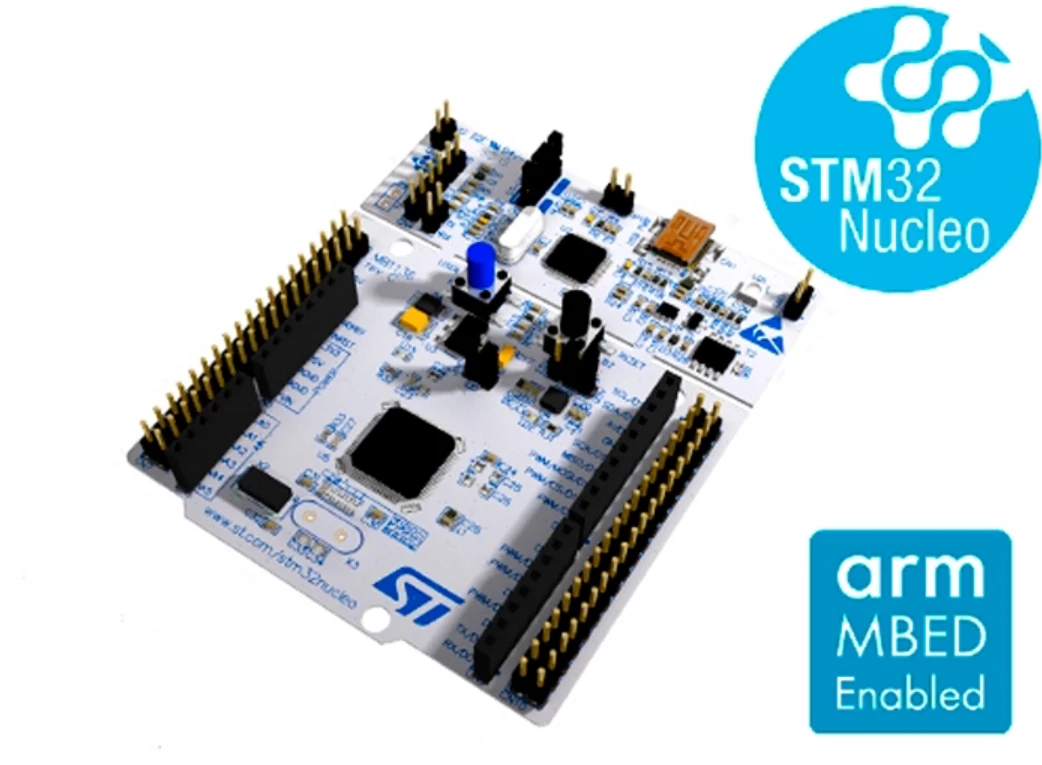
- Nucleo-L476RG
- Software
2. Theory
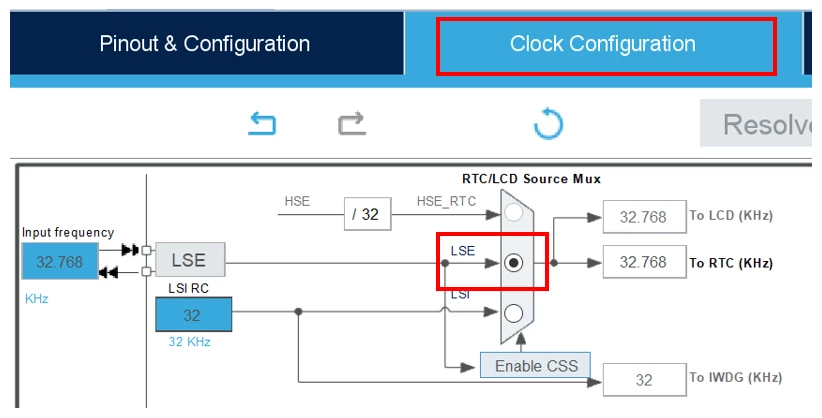
The RTC in the STM32 can be configured to generate EXTI interrupts, which wake-up the MCU if it is in a low-power mode. The RTC clock source for the STM32L476, the microcontroller used in this example on the Nucleo-L476RG board, can be provided by either the low-speed internal (LSI) oscillator or the low-speed external (LSE) oscillator. The Nucleo board includes a 32.768 kHz crystal connected to the LSE oscillator pins. For this exercise, the LSE oscillator is selected as the clock source for the RTC because it offers greater precision than the LSI oscillator.
Waking up after a delay with the Internal WakeUp Counter
The RTC features the Internal WakeUp Counter, which can be configured to count to a specific value while the MCU is in a low-power mode. Then, after this value is reached, the RTC generates an EXTI interrupt, waking the MCU up.
When configuring the RTC to generate interrupts with the WakeUp counter after a specified amount of time, it is necessary to calculate the counter value based on the clock provided to the RTC. The prescaler of the RTC clock is set to 16 in this example. The equations to calculate the wake-up counter settings are as follows:
- RTC_WAKEUPCLOCK_RTCCLK_DIV = RTCCLK_Div16 = 16
- Wakeup Time Base = (RTC_WAKEUPCLOCK_RTCCLK_DIV /(LSI))
- Wakeup Time = Wakeup Time Base * WakeUpCounter
= (RTC_WAKEUPCLOCK_RTCCLK_DIV /(LSI)) * WakeUpCounter
==> WakeUpCounter = Wakeup Time / Wakeup Time Base
In this example, the counter is set to trigger after 10 seconds:
- Wakeup Time Base = 16 /(~32.768KHz ) = 0.488 ms
- Wakeup Time = 0.488 ms * WakeUpCounter
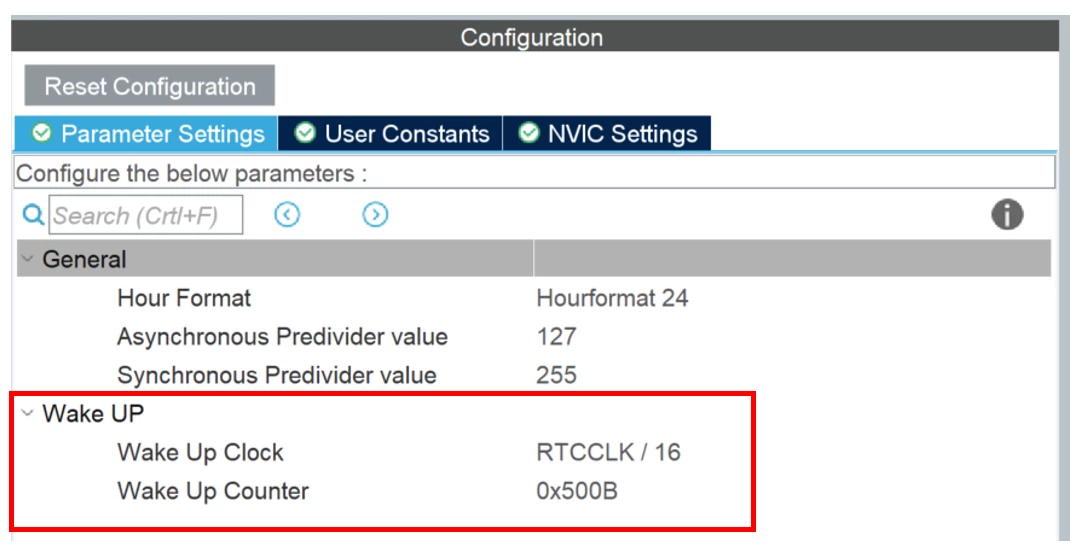
- WakeUpCounter = Wakeup Time / 0.488 ms = 10s / 0.488 ms = 20491 = 0x500B
This configuration is utilized in Section 3.2.
Waking up at a timestamp using the Calendar and Alarm(s)
In some applications, it may be necessary for the microcontroller unit (MCU) to remain in a low-power mode until a specified timestamp. To achieve this, the calendar and alarm features of the real-time clock (RTC) peripheral can be used.
The calendar only needs to be configured once when powering on the MCU, and its contents are retained throughout resets as long as the MCU is powered by VDD or VBAT, where available. Note that STM32CubeMX-generated code, by default, sets the calendar to the time provided in the peripheral setup window upon every MCU reset. For proper timekeeping, a custom implementation by the application is necessary to set the internal time and date of the RTC calendar.
An alarm can be set to trigger an EXTI interrupt when the calendar's timestamp matches the one specified by the alarm. Certain fields (date, hours, seconds, etc.) can be configured to be masked when checking for this equality, meaning that the RTC will ignore them during this check.
In Section 3.3 of this article, as an example, the RTC is configured to generate an alarm on the 5th second of every minute according to its internal reference time. This is achieved by enabling masking of all the time fields except for the Seconds field.
3. Application
3.1 Creating an STM32CubeIDE project and basic RTC configuration
- Open STM32CubeIDE.
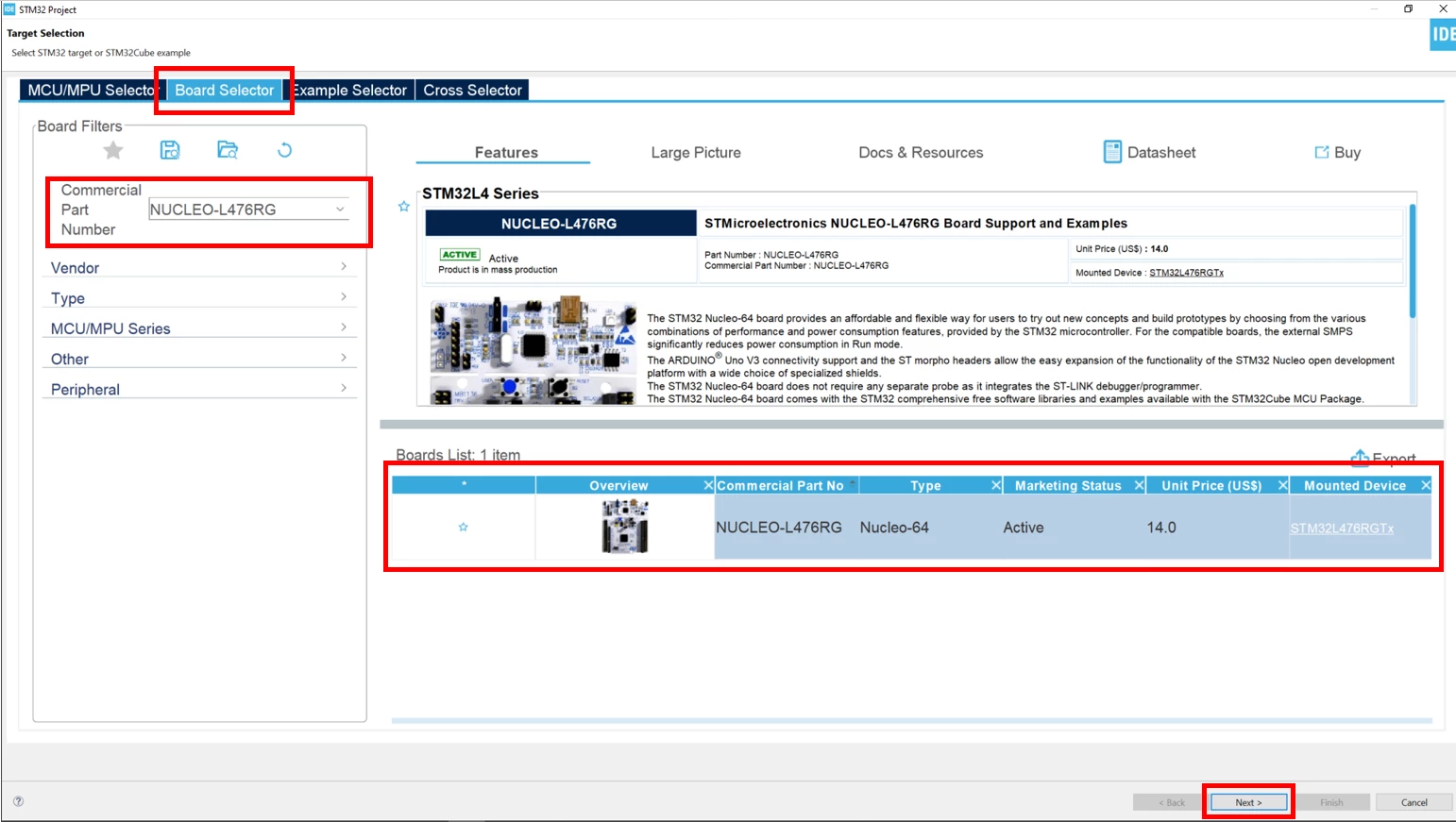
- Create a new project with the NUCLEO-L476RG board selected as the target.
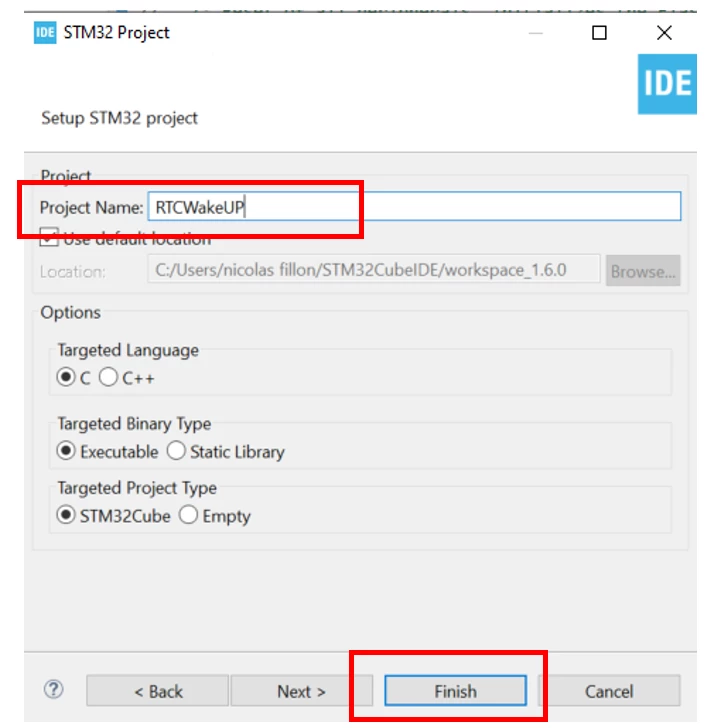
- Enter a name for the project.
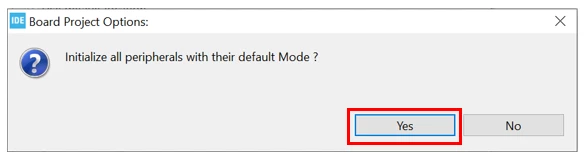
- Initialize all peripherals with their default settings by selecting [Yes] in the following dialog:
- Set the clock source of the RTC to LSE (external 32.768 KHz crystal that is on the Nucleo board) by selecting LSE for the RTC Source Mux in the Clock Configuration Tab as seen below:
- In the Pinout & Configuration Tab, under Timers, select RTC and check the Activate Clock Source option to enable it:
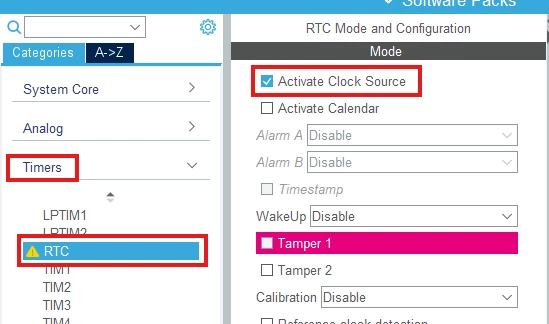
Now the RTC is enabled and can be further configured to use one of the two aforementioned schemes for generating the wake-up interrupts. These schemes are presented below and are to be implemented separately. Section 3.2 will describe the usage of the Internal WakeUp Counter, and Section 3.3 will describe the usage of the Calendar and Alarm features of the RTC.
3.2 Wake-up after a delay
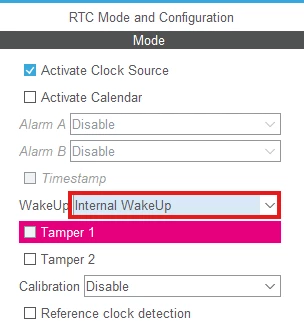
- Enable the Internal WakeUp feature of the RTC by selecting Internal WakeUp in the WakeUp dropdown of the RTC configuration panel.
- Configure the WakeUp counter. Select RTCCLK / 16 as the Wake Up Clock and then set the Wake Up Counter to 0x500B according to the calculation in Section 2 of this article.
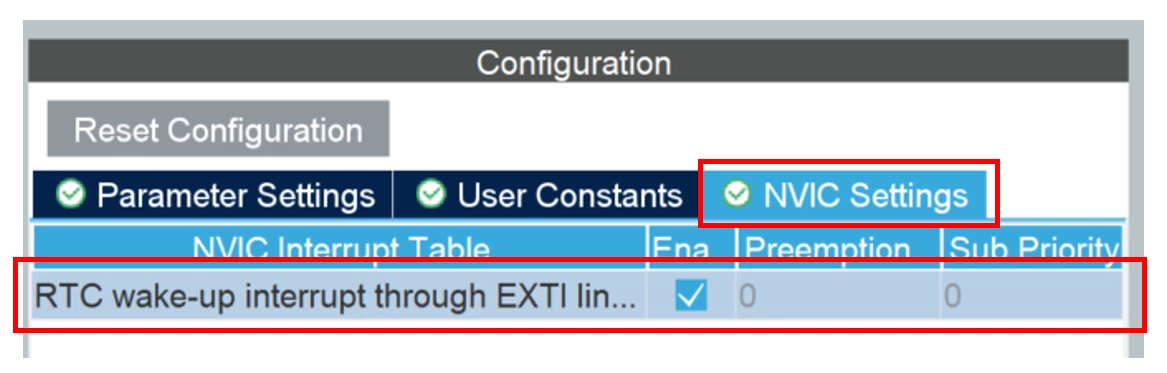
- Enable the wake-up EXTI interrupt in the NVIC settings tab.
- We will be entering STOP mode using WFI (Wait For Interrupts), so to wake up from STOP mode, we will need to enable interrupts for the RTC.
- Generate the Code by saving the MCU configuration.
- Add code utilizing the RTC's Internal WakeUp to the project.
- Now that the RTC and its Internal WakeUp are configured, we are going to add some code to put the STM32 in STOP2 mode and wake-up with the RTC that we have configured.
- STOP2 mode is one of the lowest power modes offered in the STM32L4 and that offers a fast wakeup time and preserved RAM and registers configuration.
- In main, execution loops on turning the LED on for 1 second, sets up the WakeUp Counter and enters STOP2 mode. Subsequently, the RTC wakes up the STM32 as soon as 10 seconds elapse.
/* USER CODE BEGIN WHILE */ while (1) { HAL_GPIO_WritePin(LD2_GPIO_Port, LD2_Pin, GPIO_PIN_SET); HAL_Delay(1000); HAL_GPIO_WritePin(LD2_GPIO_Port, LD2_Pin, GPIO_PIN_RESET); HAL_SuspendTick(); HAL_RTCEx_SetWakeUpTimer_IT(&hrtc, 0x500B, RTC_WAKEUPCLOCK_RTCCLK_DIV16); /* Enter STOP 2 mode */ HAL_PWREx_EnterSTOP2Mode(PWR_STOPENTRY_WFI); HAL_RTCEx_DeactivateWakeUpTimer(&hrtc); SystemClock_Config(); HAL_ResumeTick(); /* USER CODE END WHILE */ - Now build the code, load it and reset the board to start execution.
- You will see the LED turn on for one second and then turn off for 10 seconds (this indicates that the STM32 is in low power mode). Then, the RTC wakes up the STM32 and the LED will be turned on again repeatedly.
3.3 Wake-up at a specific timestamp
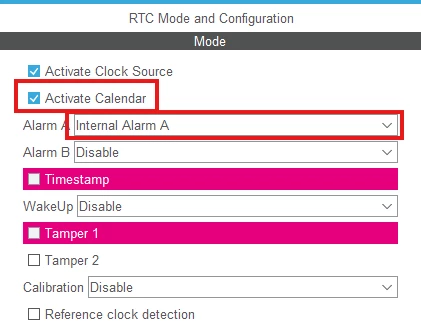
- Enable the Calendar and Alarm features in the RTC configuration panel:
- Check the Activate Calendar option.
- For one of the available alarms (Alarm A in this instance), select Internal Alarm from the appropriate dropdown.
- Configure Alarm A in the Parameter Settings tab:
- Set the Seconds field to 5.
- Enable masking for all fields of the Alarm except for Seconds.
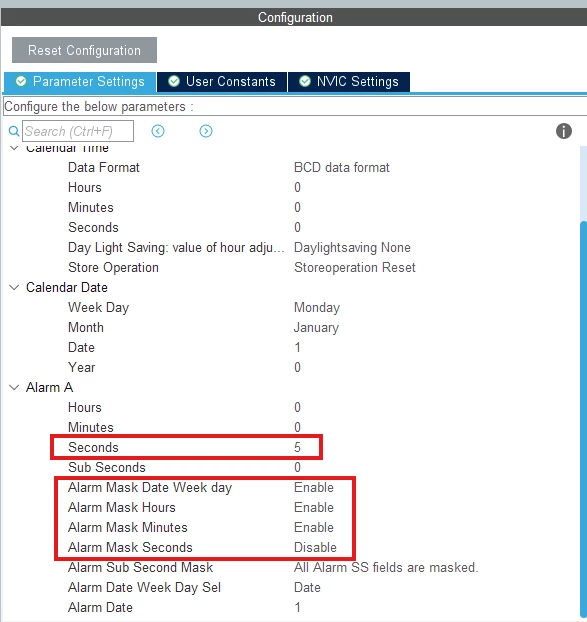
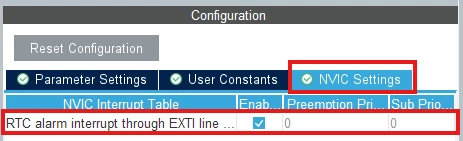
With proper time-keeping implemented by the user application, this setup can be modified and the masking removed to generate the EXTI interrupt at an arbitrary timestamp. - Enable the alarm EXTI interrupt in the NVIC settings tab.
- We will be entering STOP mode using WFI (Wait For Interrupts), so to wake up from STOP mode, we will need to enable interrupts for the RTC.
- Generate the Code by saving the MCU configuration.
- Add code utilizing the RTC's Calendar and Alarms to the project.
- Now that the RTC and its Calendar and Alarm A are configured, we are going to add some code to toggle the state of the Green LED available on the Nucleo, and then enter STOP2 mode. Note that the Alarm configuration code is generated automatically by STM32CubeMX in the MX_RTC_Init() function, so no code accessing the RTC is required in the main loop.
- Every time the LED changes state indicates that the MCU has exited STOP2 mode, toggled it, and entered STOP2 mode once more. With the previous alarm configuration, this will happen on the 5th second, and then every minute on, from the reset of the MCU.
- Note again that STM32CubeMX generates the code in such a way that the Calendar has its time and date set to the same value on every reset of the MCU. This means that time-keeping will not persist across resets in this example, but can be easily amended in your real-world application.
/* USER CODE BEGIN WHILE */ while (1) { /* Toggle LED */ HAL_GPIO_TogglePin(LD2_GPIO_Port, LD2_Pin); HAL_SuspendTick(); /* Enter STOP 2 mode */ HAL_PWREx_EnterSTOP2Mode(PWR_STOPENTRY_WFI); SystemClock_Config(); HAL_ResumeTick(); /* USER CODE END WHILE */ - Now build the code, load it and reset the board to start execution.
- You will see the LED turn on for 5 seconds and then toggle every minute, meaning that the alarm is getting triggered repeatedly.
4. Related Links
- STM32L476 - Datasheet
- STM32L47xxx, STM32L48xxx, STM32L49xxx and STM32L4Axxx advanced Arm®-based 32-bit MCUs - Reference manual
- STM32CubeIDE - Integrated Development Environment for STM32 - STMicroelectronics
- NUCLEO-L476RG - STM32 Nucleo-64 development board with STM32L476RG MCU, supports Arduino and ST morpho connectivity - STMicroelectronics
