


How to integrate TouchGFX and camera middleware on an STM32N6570-DK
Summary
This article is the first part of a two-part series focused on integrating middlewares on the STM32N6570-DK board. We cover the integration of TouchGFX for the graphical interface and the Camera middleware for real-time image capture. The goal is to show how these components can work together smoothly on the STM32N6 platform without conflicts, laying the groundwork for future AI integration.
- Summary
- Introduction
- 1. Prerequisites
- 2. Hardware setup
- 3. Project creation - TouchGFX
- 4. STM32CubeMX configuration
- 4.1 Activating the camera serial interface (CSI):
- 4.2 Activating the digital camera memory interface pixel pipeline (DCMIPP)
- 4.3 Activating the second layer of the LCD-TFT display controller (LTDC)
- 4.4 Handling interrupts
- 4.5 Clock configuration
- 4.6 RIFs
- 4.7 Generate code
- 5. STM32CubeIDE import and settings
- 5.1 Integrating BSP
- 5.2 Integrating STM32_ISP
- 5.3 Integrating STM32-mw-camera
- 5.4 Coding
- 6. Generating and programming the trusted firmware
- 7. Testing
- Conclusion
- Another approach
- Related links
Introduction
Embedded systems are evolving to support advanced features like graphics and vision. The STM32N6570-DK, with its powerful processor and peripherals, is well suited for these tasks. This project demonstrates how to integrate TouchGFX and Camera middleware on this platform, ensuring efficient resource use and a seamless user experience. This article guides you through the setup, configuration, and coding needed to achieve this integration.
1. Prerequisites
Before starting, ensure that you have:
-
- N6 development board: STM32N6570-DK
- STM32CubeMX (v6.17.0)
- STM32CubeProgrammer (v2.21.0)
- STM32CubeIDE (v1.19.0)
- TouchGFX (v4.26.1)
- stm32-mw-camera (v1.5.1)
- stm32-mw-isp (v2.0.0)
2. Hardware setup
The hardware used for demonstration is the STM32N6570-DK.
Ensure that the device is set to DEV boot mode to program the code.
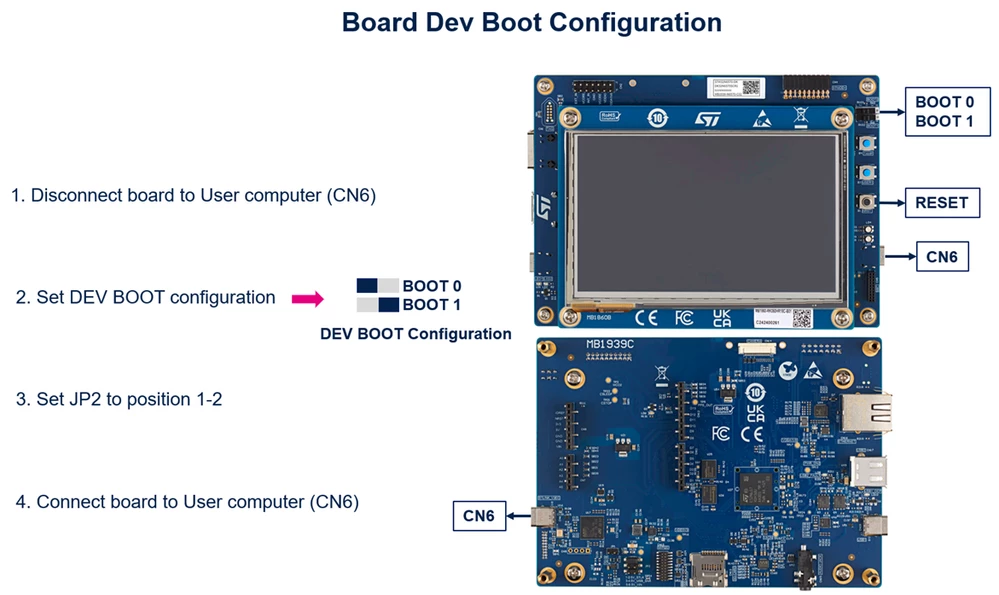
If you are familiar with TouchGFX and how to manipulate it, skip this section and proceed directly to the configuration using STM32CubeMX. Ensue that the following elements are included:
3. Project creation - TouchGFX
When creating a project with TouchGFX, it is important to note that this process depends on the user and their specific requirements. For this article, a simple graphical user interface (GUI) is created that includes only the elements necessary to illustrate the intended outcome. However, users can customize the GUI according to their individual goals and preferences.
Create a simple project using TouchGFX by clicking [Create New].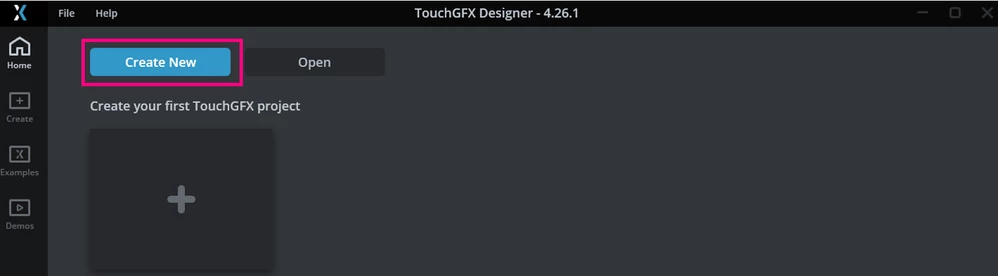
Select the board by filtering with "N6". Click on the board and configure the path and project name. In this example, the STM32N6570-DK board with the ThreadX operating system is used. The path remains unchanged, and the project is suggested to be named MyProject.
Please make sure that you are using the same versions to avoid any conflicts during development.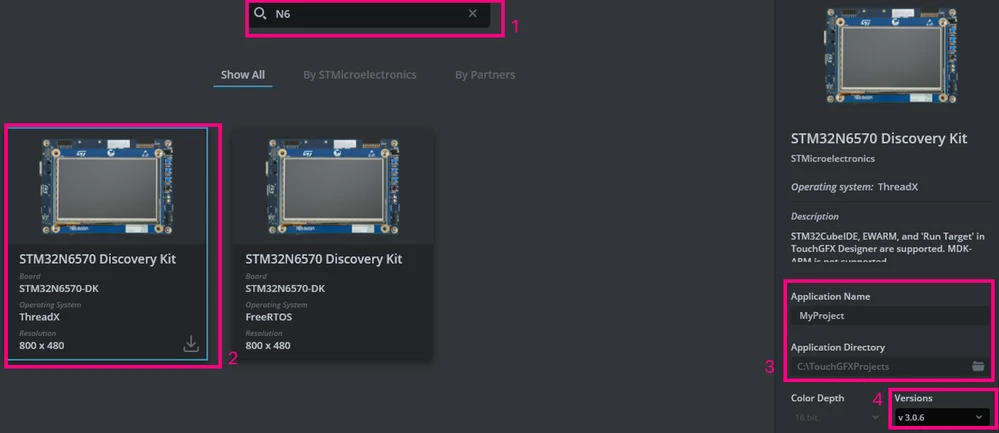 Click the [Create] button to generate your project.
To ensure that the camera operates correctly and the GUI remains responsive, it is crucial to follow these steps. Once completed, you can personalize the settings according to your preference: First, name the initial screen as the menu screen. This screen guides the user to the activate camera screen, followed by the activate AI model screen, which will be described in the second article.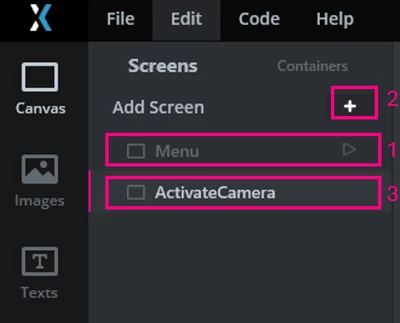
The "images_part1.zip", attached at the end of this article, contains all the images required for this application. Unzip the ZIP file and navigate to the Images section in TouchGFX. Click the + button located in the top-right corner and import the pictures. You can select all the pictures at once instead of adding them one by one.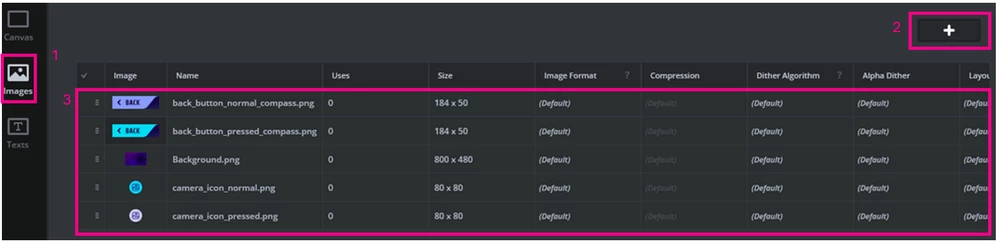
Proceed with each screen individually:
- Menu screen:
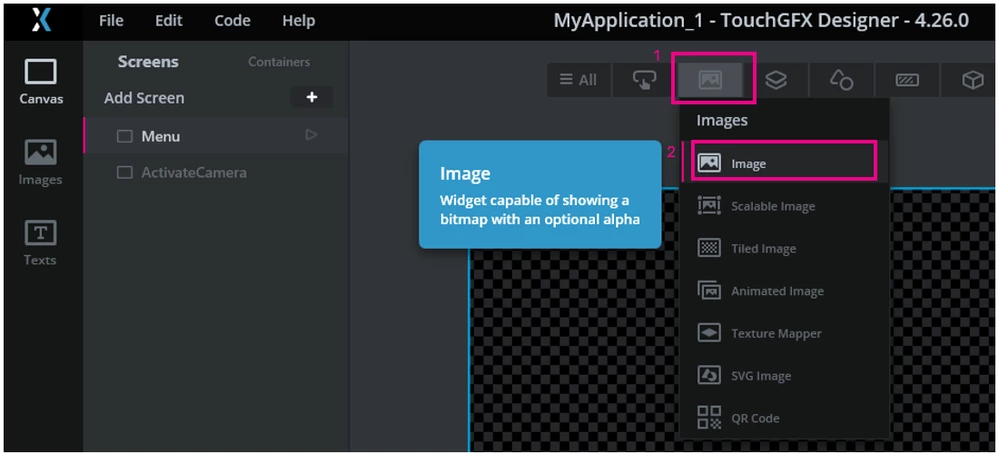
Go back to the Menu screen and add a simple image by clicking on the third widget in the top toolbar, represented by the image icon.
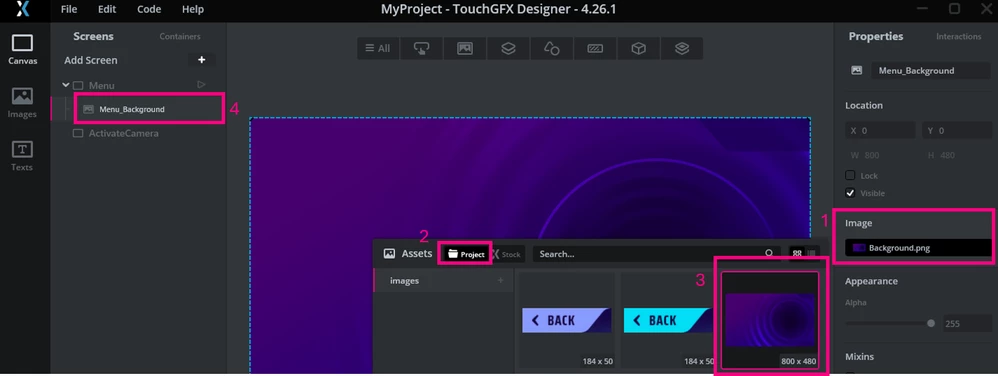
Select the image that matches the background for both the Menu and ActivateCamera views. Navigate to your project images, choose the background.png file, and rename it as desired. In this example, it has been renamed Menu_Background for the Menu view.
The second step involves adding a button to manage navigation between the Menu and ActivateCamera screens. To locate the button widget, navigate to the second item in the top toolbar. Its location and corresponding properties are shown in the screenshot below.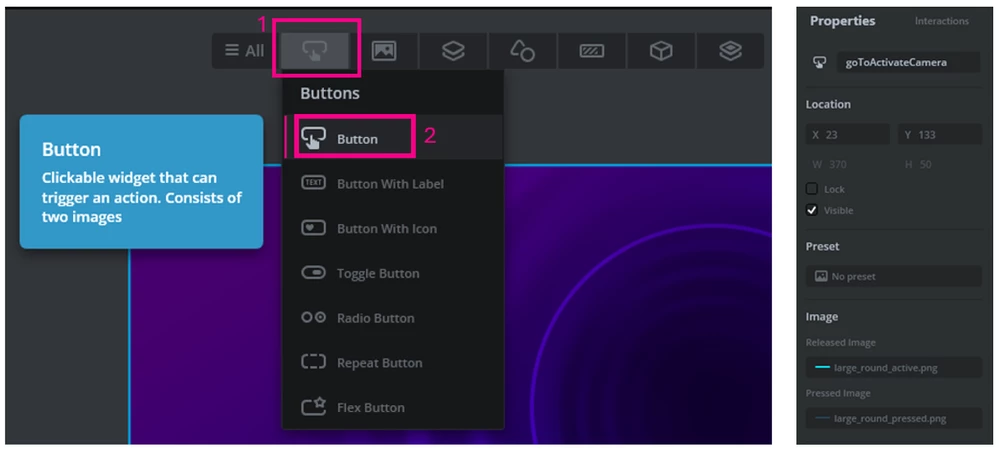
To add text above the button, select the Text Area widget from the seventh item in the top toolbar. The widget location and its corresponding properties are shown in the screenshot below.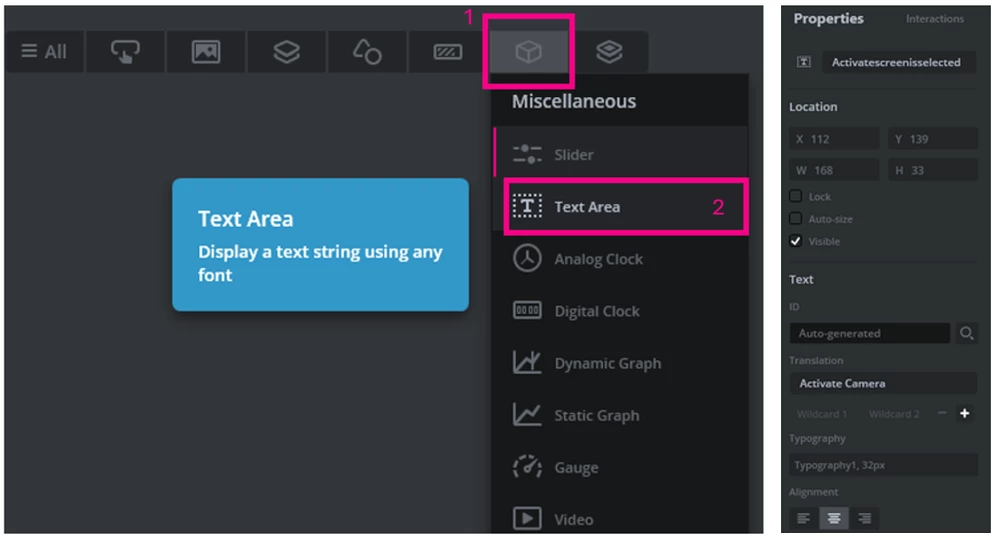
The typography used here is customized. It can be created by navigating to the Texts section, then Typographies, and applying the following properties:
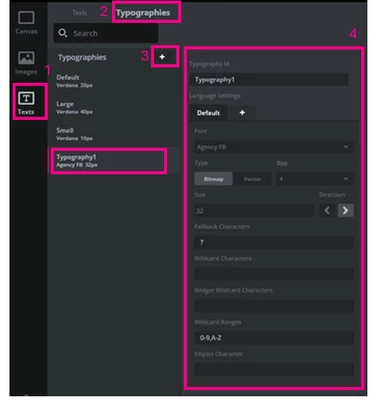
To configure the navigation interaction to go to the ActivateCamera screen, go to the Interactions section in the top-right corner and click the + button to add an interaction. The interaction location and its corresponding properties for this screen are shown in the screenshot below.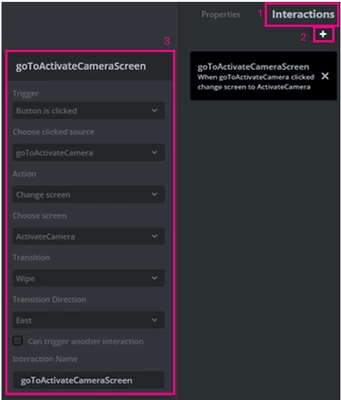
- ActivateCamera screen:
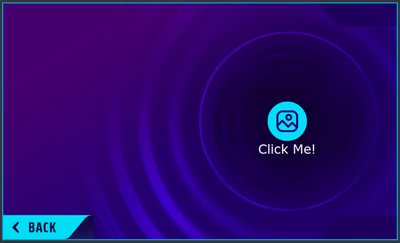
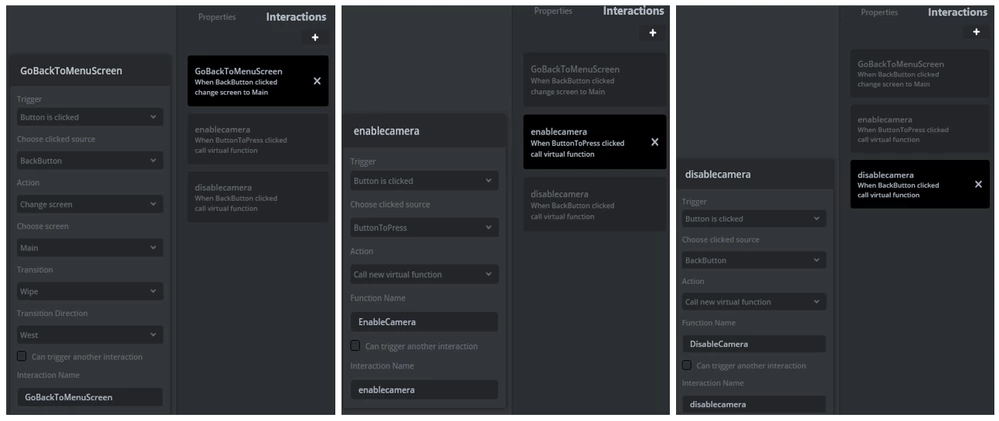
For the ActivateCamera screen, follow the same procedure as before with the same background image. Add a button and a text area that allows the user to enable the camera's pipeline. Additionally, include a back button that disables the camera's pipeline and navigates the user back to the menu.
Find below the button properties, the typography2 properties and the final screen appearance: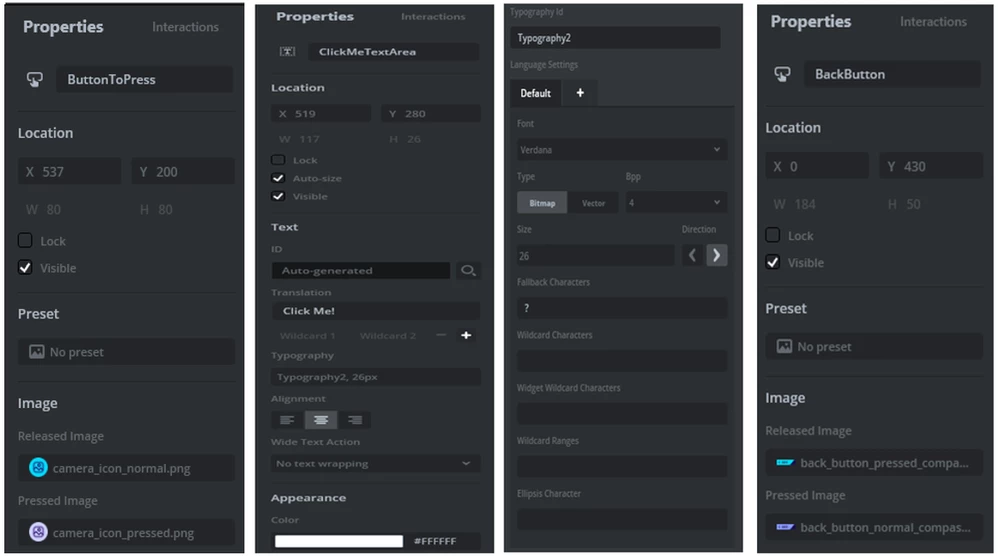
The interactions of the ActivateCamera screen are crucial to ensure a seamless user experience. You can find below the interactions required for this screen:
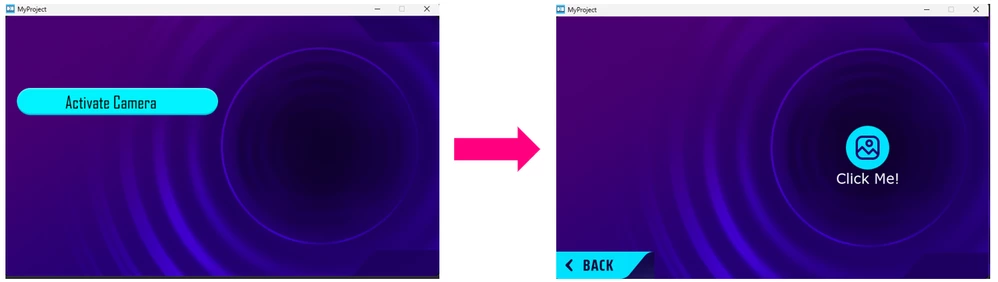
Before generating the project, you can test the GUI by clicking the button labeled [Run simulator] or by pressing the [F5] key.
This action enables the TouchGFX simulation feature, which allows you to preview and interact with your design as it is shown in the screenshot down below.
Once the design includes all desired features, generate the project by clicking the [Generate Code] button or by pressing the [F4] key.
4. STM32CubeMX configuration
After generating the code, navigate to the .ioc file of your project to configure the clocks, camera pipeline, second LTDC layer.
4.1 Activating the camera serial interface (CSI):
In the Pinout & Configuration tab, locate the Multimedia section, Select the CSI from the list of Multimedias. Enable the CSI by clicking on its checkbox in the Application section then on the Activated button.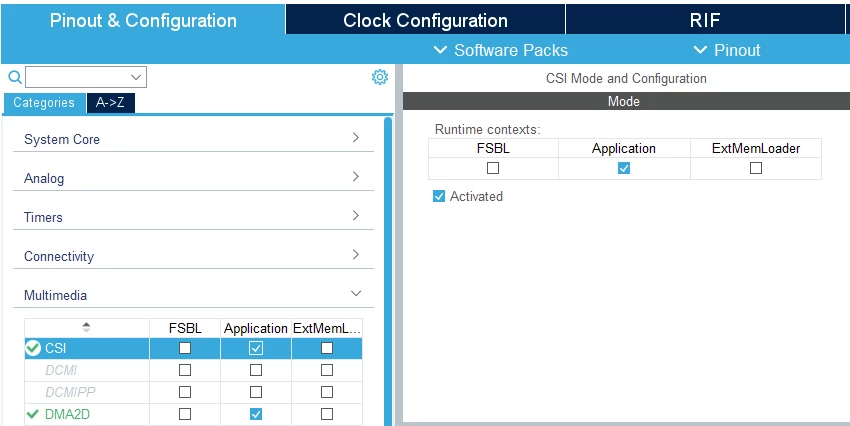
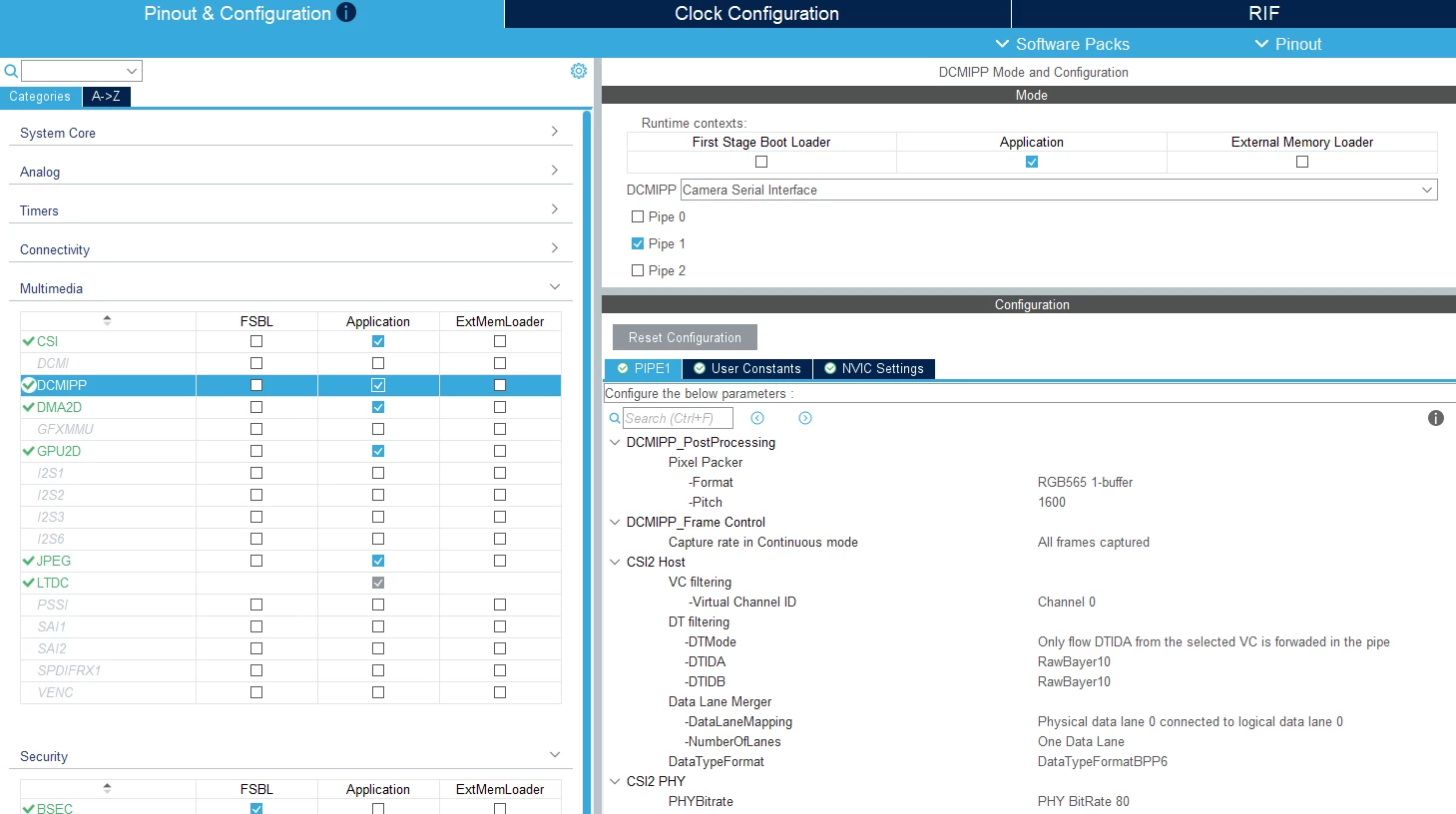
4.2 Activating the digital camera memory interface pixel pipeline (DCMIPP)
From the same tab, select the DCMIPP as a camera serial interface, configure the Pipe 1 as shown in the picture, and apply the configuration:
4.3 Activating the second layer of the LCD-TFT display controller (LTDC)
In the same tab, navigate the LTDC section. Go to Features and activate the second layer: 
Then set the configuration to use two layers and include the configuration details shown in this picture below:
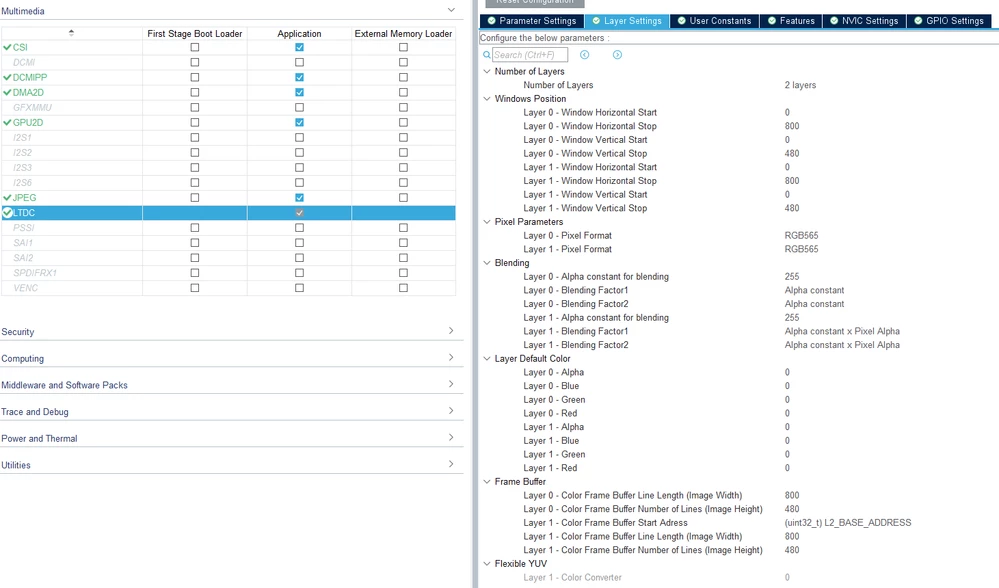
Note: Before configuring the Layer 1 - Color Frame Buffer Start Address, make sure to click on the small icon to the right and select [No check].

4.4 Handling interrupts
In the Pinout & Configuration tab, navigate to the System Core section. Go to NVIC1_S_Application and activate both DCMIPP global interrupt and CSI global interrupt. Set the preemption priority to 7. 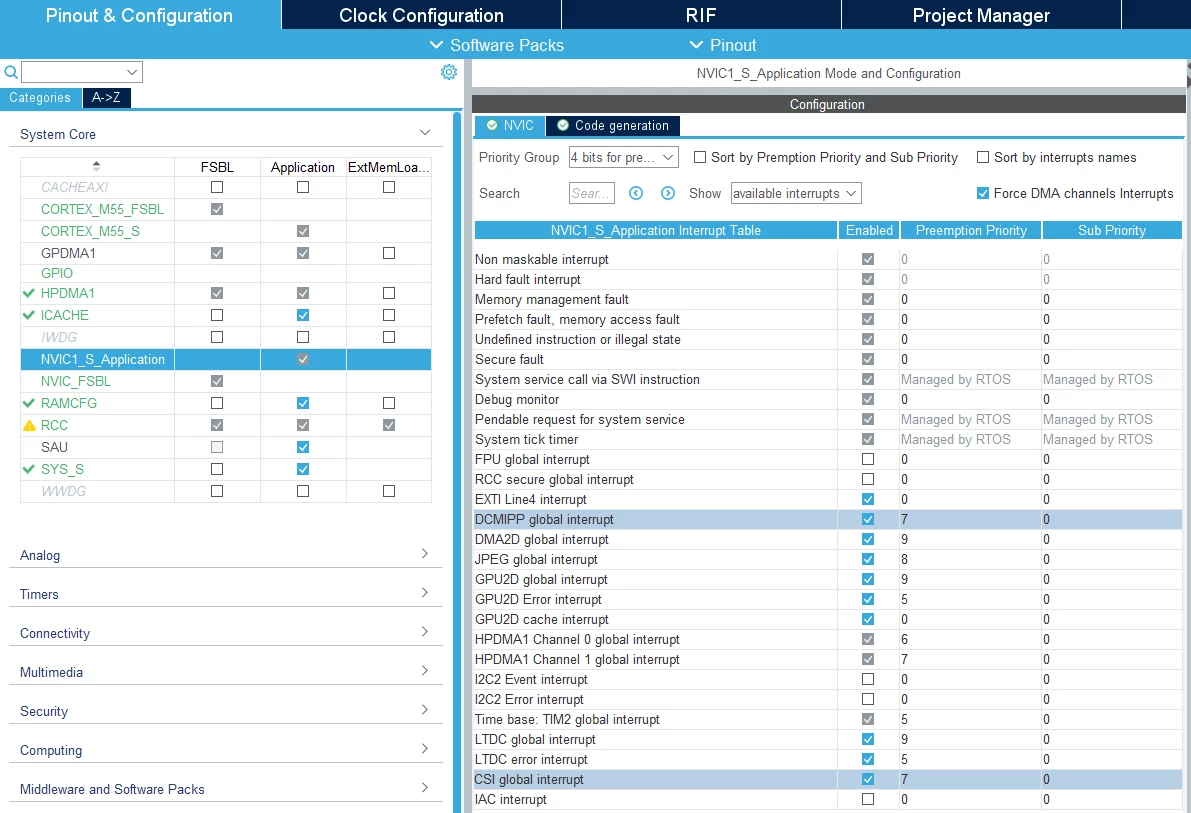
4.5 Clock configuration
Go to the Clock Configuration tab. To achieve the target clock frequency of 300 MHz for the DCMIPP peripheral, set its clock source to IC17, which is derived from PLL2 configured with a divider of 2. This provides a stable and accurate 300 MHz clock for high-speed camera data.
Based on the MCU reference manual, the CSI interface is physically connected to IC18, which supports a maximum clock frequency of 20 MHz. In this example, PLL2 with a divider of 30 is selected as the clock source for IC18 to obtain a CSI clock frequency of approximately 20 MHz.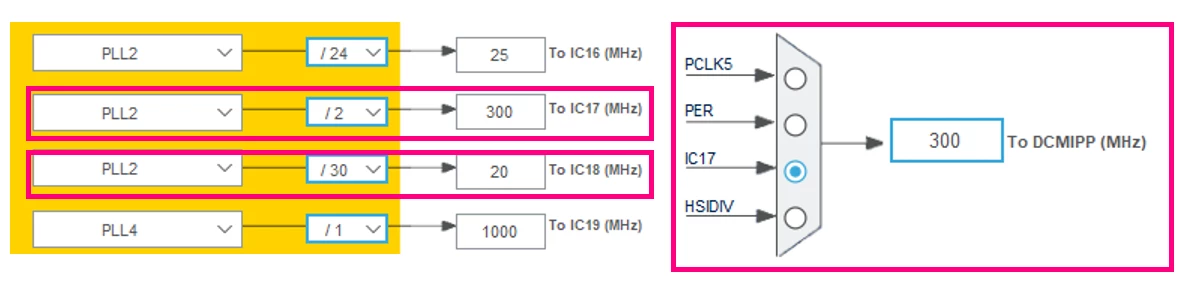
4.6 RIFs
Ensue both DCMIPP and LTDC_L2 peripherals have their Privilege checkboxes enabled in the RIF configuration tab. This grants them the necessary privileged access to the RAM interface for optimal performance.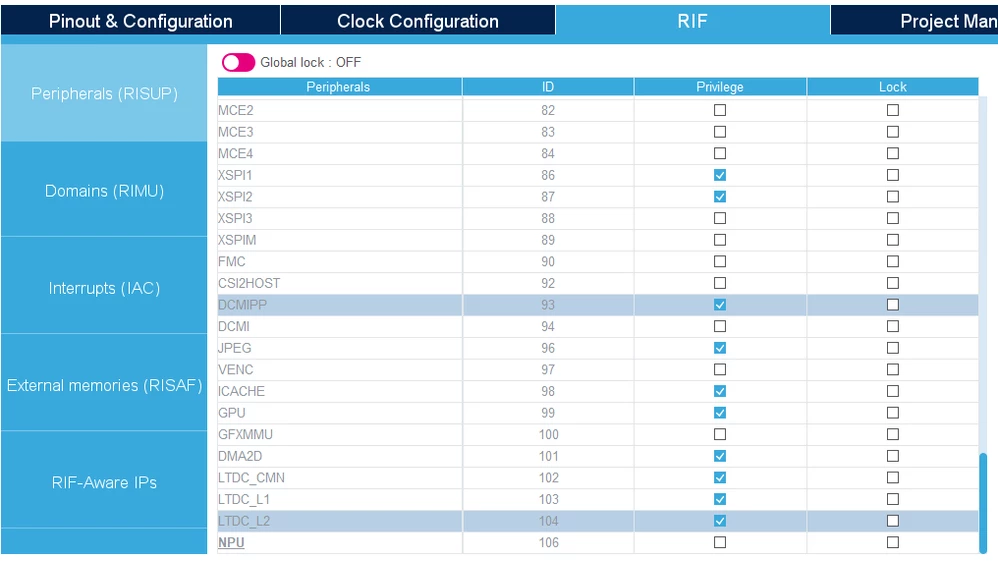
4.7 Generate code
After completing all necessary configurations, click [Generate code] to apply the settings and create the project
files.
A warning message appears.
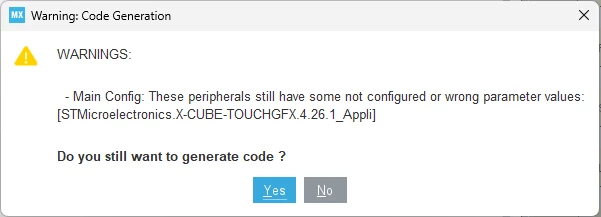
Press [Yes] to continue.
5. STM32CubeIDE import and settings
5.1 Integrating BSP
During this step we add the BSP drivers needed for the STM32N6570-Discovery Kit to have the necessary hardware abstraction and board-specific functionalities.
In a first explorer window, open the Drivers folder that should be in the STM32Cube_FW_N6_Vx.y.z Library folder that can be found in the following location on your disk:
C:\Users\xxxxxxxxxx\STM32Cube\Repository\STM32Cube_FW_N6_Vx.y.z\Drivers
where "xxxxxxxxxx" is your username if you are using Windows and “Vx.y.z” is the version of the STM32Cube Library. In my case, I am using version 1.3.0 (Users employing other versions may need to adapt file paths or configurations accordingly).
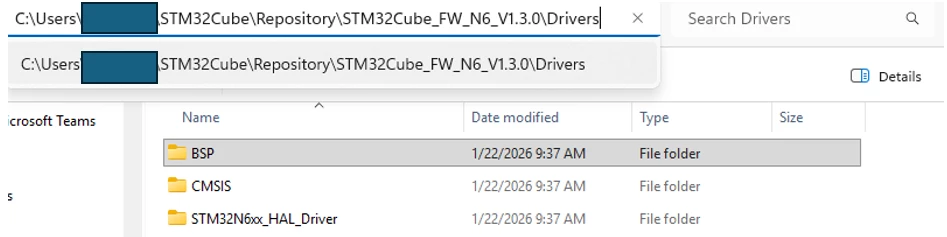
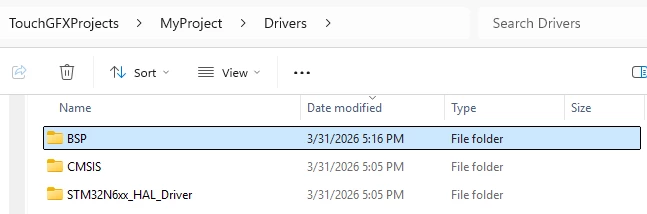
Copy that BSP folder and paste it into the Drivers folder of your project in another window.
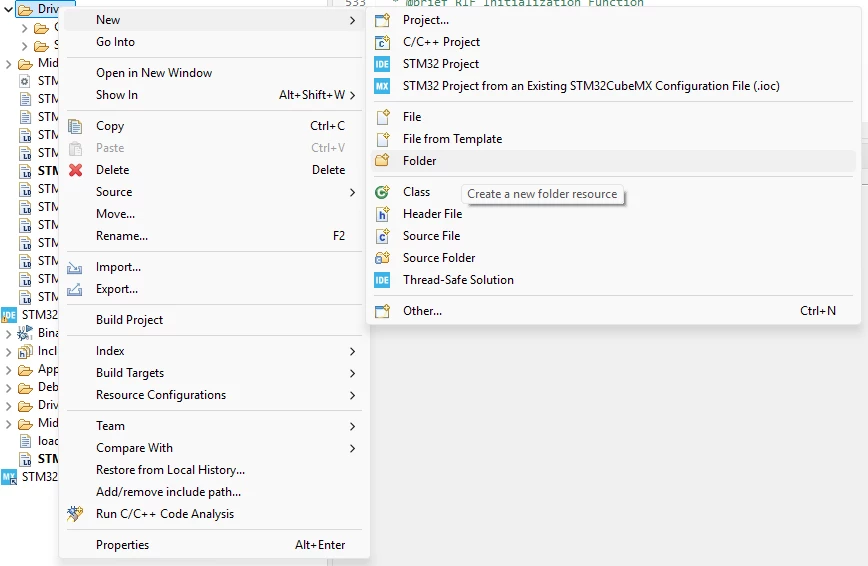
Now go back to your STM32CubeIDE, go to the Drivers section of your STM32N6570-DK_Appli, right-click and select [New] → [Folder].
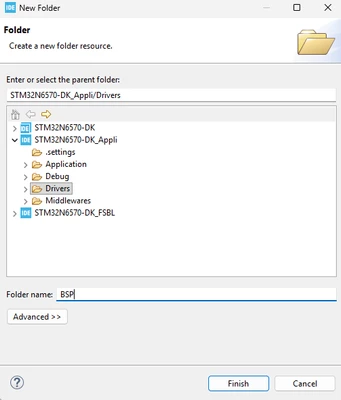
Name your folder "BSP":
Then do a right click on the created BSP folder → Import... → File System → Browse → STM32N6570-DK
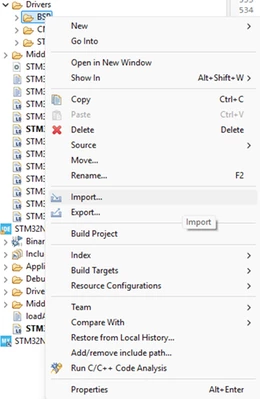
Import the file needed, which is the stm32n6570_discovery_bus.c.
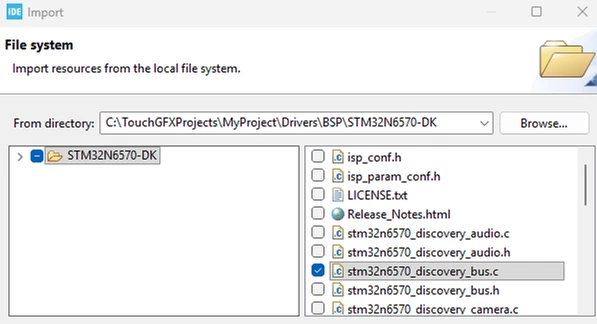
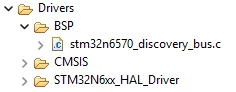
Click on [Finish] and your Driver's folder structure should be like this in the Project Explorer Window:
Now, for the Include paths configuration, we need to add the path for the BSP/STM32N6570-DK. This step is essential because it allows the compiler to locate the board-specific header files and source code necessary for proper hardware abstraction and peripheral control.
To do this, right-click on the project folder STM32N6570-DK_Appli, then select Properties → C/C++ Build → Settings → MCU/MPU GCC Compiler → Include paths. Click the Add button, choose File system, and navigate to the BSP/STM32N6570-DK folder, which is typically:
../../../Drivers/BSP/STM32N6570-DK
Click on [Apply and Close].
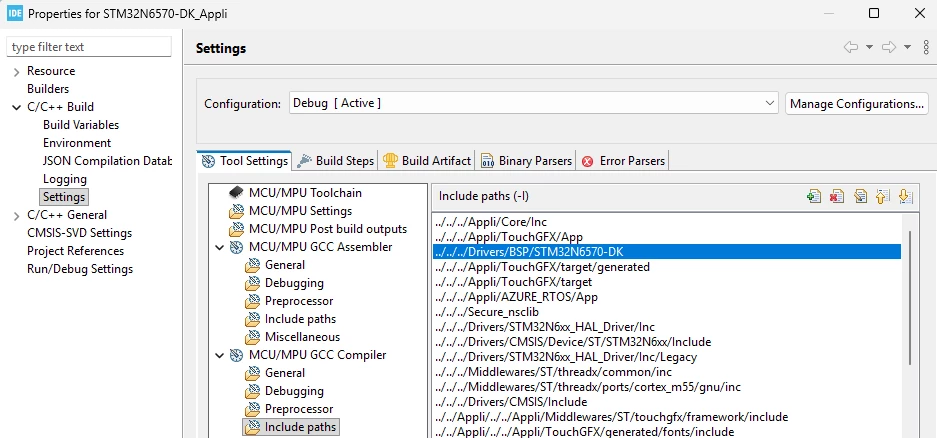
Note: Using relative paths ensures that the project remains portable and can be built correctly on different machines or directory structures.
If you build the project at this point, you might encounter the following error:
"../../../Drivers/BSP/STM32N6570-DK/stm32n6570_discovery.h:32:10: fatal error: stm32n6570_discovery_conf.h: No such file or directory"
This error occurs because the BSP folder contains a file named stm32n6570_discovery_conf_template.h, which serves as a template configuration file. The actual configuration file stm32n6570_discovery_conf.h is missing, and the compiler expects this file to be present.
To resolve this, simply copy the template file stm32n6570_discovery_conf_template.h and place it in the directory:
C:\TouchGFXProjects\MyProject\Appli\Core\Inc
then rename the copy to stm32n6570_discovery_conf.h.
5.2 Integrating STM32_ISP
The integration process for the stm32-mw-isp middleware section is essentially the same as previously done with the BSP folder. We need to add the necessary middleware files and configure the include paths accordingly to ensure that the compiler can locate all required headers and source files.
Unzip the STM32 middleware ISP folder downloaded from the link provided in the Prerequisites section in this article. Copy/Paste the unzipped folder to the following directory:
C:\TouchGFXProjects\MyProject\Middlewares\ST
Go back to the STM32CubeIDE. Create a folder under the STM32N6570-DK_Appli middleware's folder and name it STM32_ISP: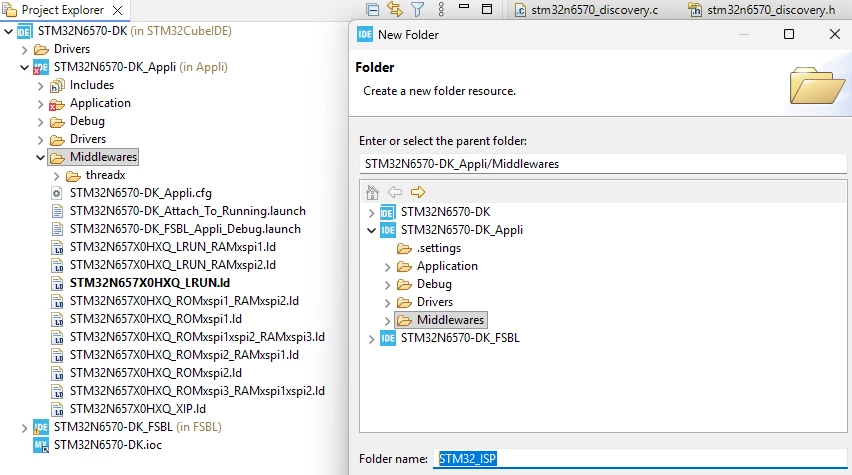
To import the necessary files, right-click on the folder created → import → File System → Browser and navigate to the stm32-mw-isp folder in your project directory. Select only the following necessary files:
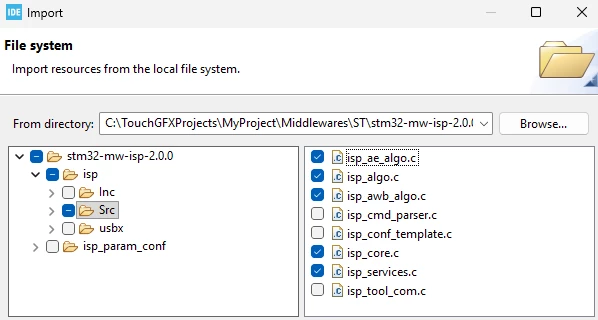
Finally click [Finish].
To make sure that everything is as intended, your middleware's folder structure should be like this in the Project Explorer Window:
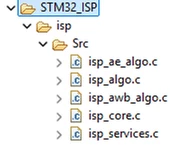
Add the corresponding include paths to your project by following the same procedure we used for the BSP folder.
For your convenience, here are the exact include paths you can copy and paste directly into your project settings:
../../../Middlewares/ST/stm32-mw-isp-2.0.0/isp/Inc
Alternatively, if you prefer, you can manually navigate to the specific folders to add the include paths. Ensure that the paths are correct to avoid build errors.
The include paths should look like the screenshot below:
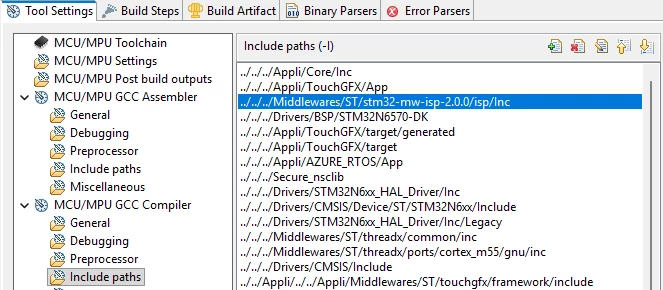
Finally click on [Apply and Close].
Next step, you need to proceed to the following directory:
C:\TouchGFXProjects\MyProject\Middlewares\ST\stm32-mw-isp-2.0.0\isp_param_conf
Copy the imx335_JudgeII_isp_param_conf.h. Paste the file into the C:\TouchGFXProjects\MyProject\Appli\Core\Inc directory then rename it to isp_param_conf.h.
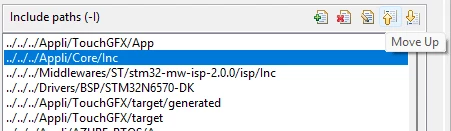
Note: Ensure that ../../../Appli/Core/Inc is at the top of the include paths list. This configuration prevents the compiler from using the file located in the BSP folder, as shown in the screenshot.
5.3 Integrating STM32-mw-camera
After downloading the stm32-mw-camera package from the link provided in the prerequisites section, we proceed to integrate the camera middleware into the STM32CubeIDE project. This process is similar to the integration steps that we followed for the previous two folders, with a few necessary adjustments specific to the camera middleware.
Paste the downloaded folder into your project's middleware directory:
C:\TouchGFXProjects\MyProject\Middlewares\ST
Use the same process described with the BSP and ISP in your STM32CubeIDE until your middleware's folder structure in the Project Explorer Window is aligned with the screenshot below:
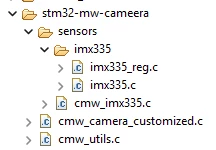
Note: The cmw_camera_customized.c file that you must import in this section is a customized user file. You can download it from this article, copy and paste it into the following directory: C:\TouchGFXProjects\MyProject\Appli\Core\Src.
Import it into your STM32CubeIDE project tree as shown in the previous screenshot.
Similarly to how we handled the BSP folder, go to the template file cmw_camera_conf_template.h.
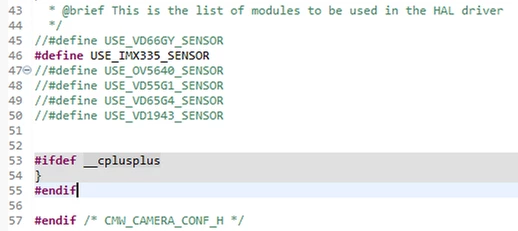
Open the file. Comment out every sensor that is not used. Leave only the IMX335 camera sensor:
//#define USE_VD66GY_SENSOR
#define USE_IMX335_SENSOR
//#define USE_OV5640_SENSOR
//#define USE_VD55G1_SENSOR
//#define USE_VD65G4_SENSOR
//#define USE_VD1943_SENSOR
Exactly as shown in the screenshot below:
Afterwards, place it in the following directory:
C:\TouchGFXProjects\MyProject\Appli\Core\Inc
rename it to cmw_camera_conf.h.
For the include paths, make sure to add all the necessary directories related to the STM32 camera middleware.
To simplify this step, here are the exact include paths you can copy and paste directly into your project settings:
../../../Middlewares/ST/stm32-mw-camera-main
../../../Middlewares/ST/stm32-mw-camera-main/sensors
../../../Middlewares/ST/stm32-mw-camera-main/sensors/imx335
Alternatively, you can manually navigate to these folders and add the include paths yourself. Please ensure that all required directories are included to avoid compilation errors.
After completing the configuration, your include paths should look like the example below: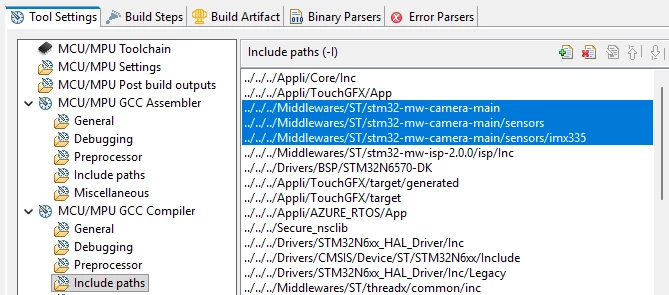
If you build the project at this stage, you should normally have no errors if you have followed all the steps correctly. The only error that may still appear is:
C:/TouchGFXProjects/MyProject/Appli/Core/Src/main.c:516:30: error: 'L2_BASE_ADDRESS' undeclared (first use in this function); did you mean 'CR_BYTE2_ADDRESS'? This error is expected because the buffer assigned for LTDC Layer 2 was intentionally left undefined. we will address and fix this issue later in the Coding section.
5.4 Coding
To fix the error mentioned previously, go to the main.c file and copy/paste this code snippet in your USER CODE BEGIN 0. Also add define the DCMIPP middleware's handler:
DCMIPP_HandleTypeDef *hDcmipp;
ALIGN_32BYTES(uint8_t __attribute__((section (".DCMI_RAM"))) u8DCMIPP_ImageArray[400*240*2]);
#define L2_BASE_ADDRESS &u8DCMIPP_ImageArray[0]
Update your linker script by defining DCMIBufferSection to be placed in the DCMI_RAM memory region. Ensure that the FB_RAM and DCMI_RAM regions have the correct origin addresses and lengths, as illustrated in the code snippet below. This configuration is required to allocate the camera frame buffer properly and avoid memory conflicts.
For your convenience, the exact lines to copy and paste directly into your linker script are provided below:
FB_RAM (xrw) : ORIGIN = 0x34146000, LENGTH = 0x001D6000
DCMI_RAM (xrw) : ORIGIN = 0x3431c000, LENGTH = 0x0002EE00DCMIBufferSection (NOLOAD) :
{
*(.DCMI_RAM)
} >DCMI_RAMAfter these changes, your linker script should resemble the example above:

In the main.c file; add this include file in the USER CODE BEGIN Includes:
/* Private includes ----------------------------------------------------------*/
/* USER CODE BEGIN Includes */
#include "cmw_camera.h"

/* USER CODE END Includes */
When adding the BSP folder, it is important to note that the I2C2 peripheral is already configured in CubeMX. This pre-configuration creates a conflict with the existing initialization function MX_I2C2_Init. To resolve this issue, rename the function MX_I2C2_Init to MX_I2C2_Init_Cube wherever it appears in the main.c file. This ensures compatibility and prevents conflicts during compilation.
static void MX_I2C2_Init_Cube(void);Go to your user /* USER CODE BEGIN PFP */ and add the following code:
int Camera_Config(DCMIPP_HandleTypeDef **hDcmipp, uint32_t Instance);Define the camera instance in the /* USER CODE BEGIN 1 */:
uint32_t camera_instance = 0;Go to /* USER CODE BEGIN 4 */, and define the two functions declared previously:
int Camera_Config(DCMIPP_HandleTypeDef **hDcmipp, uint32_t Instance)
{
	 int32_t ret;
		CMW_CameraInit_t initConf = {0};
		UNUSED(Instance);


		initConf.width = 0;
		initConf.height = 0;
		initConf.fps = 30;
		initConf.mirror_flip = CMW_MIRRORFLIP_MIRROR; /* CMW_MIRRORFLIP_NONE or CMW_MIRRORFLIP_FLIP or CMW_MIRRORFLIP_MIRROR or CMW_MIRRORFLIP_FLIP_MIRROR */

		CMW_Advanced_Config_t advancedConf = {0};
		advancedConf.selected_sensor = CMW_IMX335_Sensor;

		ret = CMW_CAMERA_Init(&initConf, &advancedConf);

		if (ret != CMW_ERROR_NONE)
		{
		 printf("ERROR: Failed to Initialize camera\r\n");
		 return 1;
		}

		*hDcmipp = CMW_CAMERA_GetDCMIPPHandle();

		DCMIPP_PipeConfTypeDef pPipeConf = {0};
		/* Configure the serial Pipe */

		pPipeConf.FrameRate = DCMIPP_FRAME_RATE_ALL;
		pPipeConf.PixelPackerFormat = DCMIPP_PIXEL_PACKER_FORMAT_RGB565_1;

		/* Set Pitch for Main and Ancillary Pipes */
		pPipeConf.PixelPipePitch = 1600 ; /* Number of bytes */

		/* Configure Pipe */
		if (HAL_DCMIPP_PIPE_SetConfig(*hDcmipp, DCMIPP_PIPE1, &pPipeConf) != HAL_OK)
		{
			Error_Handler();
		}

		/* Make sure manual exposure is set on camera sensor side
		 * This has no effect if the camera does not support it.
		*/

		ret = CMW_CAMERA_SetExposureMode(CMW_EXPOSUREMODE_MANUAL); /* CMW_EXPOSUREMODE_AUTO or CMW_EXPOSUREMODE_AUTOFREEZE */

		if ((ret != CMW_ERROR_NONE) && (ret != CMW_ERROR_FEATURE_NOT_SUPPORTED))
		{
		 printf("ERROR: Failed to set manual exposure\r\n");
		 return 1;
		}

		/* Get the sensor information to fill the Camera_SensorConf structure */
		ISP_SensorInfoTypeDef info;

		ret = CMW_CAMERA_GetSensorInfo(&info);

		if (ret != CMW_ERROR_NONE)
		{
		 printf("ERROR: Failed to get the sensor information\r\n");
		 return 1;
		}

		return 0;
}
Call the function inside the /* USER CODE BEGIN 2 */ section:
if (Camera_Config(&hDcmipp, camera_instance) != 0)
{
Error_Handler();
}
Due to certain issues that may occur when regenerating the project with STM32CubeMX, you might notice changes in the project structure. In some cases, the MX_TouchGFX_PreOSInit function is missing. If this function is not present, add it in the /* USER CODE BEGIN 2 */ section after the Camera_Config function callback.
Note: Perform this step only if MX_TouchGFX_PreOSInit has been removed after regenerating the project with CubeMX.
MX_TouchGFX_PreOSInit();Now that the implementation in main.c is complete, the next step is to move to app_threadx.c to integrate the camera thread.
The following code snippets provide the necessary elements to create the camera thread, define the message queue, and handle messages sent from the TouchGFX thread:
/* USER CODE BEGIN Includes */
#include "main.h"
#include "cmw_camera.h"
/* USER CODE END Includes */
/* USER CODE BEGIN PTD */
typedef enum {
MSG_CAMERA_ON ,
MSG_CAMERA_OFF ,
}CameraCommand_t;
/* USER CODE END PTD *//* USER CODE BEGIN PD */
#define THREAD_STACK_SIZE 1024
#define QUEUE_SIZE 128
/* USER CODE END PD *//* USER CODE BEGIN PV */
extern DCMIPP_HandleTypeDef hdmipp;
extern LTDC_HandleTypeDef hltdc;
extern DCMIPP_HandleTypeDef *hDcmipp;
extern uint8_t u8DCMIPP_ImageArray[];
uint8_t Camera_thread_stack[THREAD_STACK_SIZE];
uint8_t Camera_queue[QUEUE_SIZE];
TX_THREAD Camera_thread_ptr;
TX_QUEUE Camera_Queue_ptr;
/* USER CODE END PV *//* USER CODE BEGIN PFP */
VOID Camera_thread_entry(ULONG initial_input);
/* USER CODE END PFP */
/* USER CODE BEGIN App_ThreadX_Init */

 tx_queue_create(&Camera_Queue_ptr,
 		 "Camera_Queue",
 	 1,
 		 Camera_queue,
 	 QUEUE_SIZE);

 tx_thread_create(&Camera_thread_ptr,
 		 "Camera_thread",
 		 Camera_thread_entry,
 		 0x1234,
 			 Camera_thread_stack,
 		 THREAD_STACK_SIZE,
 		 15,
 		 15,
 		 1,
 		 TX_AUTO_START
 		 );

 /* USER CODE END App_ThreadX_Init */
/* USER CODE BEGIN 1 */

VOID Camera_thread_entry(ULONG initial_input)
{
	ISP_StatusTypeDef ret;
	DCMIPP_DecimationConfTypeDef pDecConfig = {0};
	uint32_t pitch_value ;
	ULONG received_State;
	uint8_t camstatus = 0;
	pitch_value = (800 * 2) / 2;
	pDecConfig.HRatio = DCMIPP_HDEC_1_OUT_2;
	pDecConfig.VRatio = DCMIPP_VDEC_1_OUT_2;
	HAL_DCMIPP_PIPE_SetDecimationConfig(hDcmipp, DCMIPP_PIPE1, &pDecConfig);
	HAL_DCMIPP_PIPE_EnableDecimation(hDcmipp, DCMIPP_PIPE1);
	HAL_DCMIPP_PIPE_SetPitch(hDcmipp, DCMIPP_PIPE1, pitch_value);
	/* Update LTDC Display window */
	HAL_LTDC_SetWindowSize(&hltdc, 800/2 , 480/2, LTDC_LAYER_2);

//initially disable the layer 2
	__HAL_LTDC_LAYER_DISABLE(&hltdc, LTDC_LAYER_2);
	HAL_LTDC_ReloadLayer(&hltdc, LTDC_RELOAD_VERTICAL_BLANKING, LTDC_LAYER_2);
	SCB_CleanDCache ();

	/* Start the main pipe */
	if (CMW_CAMERA_Start(DCMIPP_PIPE1, (uint8_t *) u8DCMIPP_ImageArray, CMW_MODE_CONTINUOUS) != CMW_ERROR_NONE)
	{
			Error_Handler();
	}

	HAL_Delay(1000);

	/* Application main loop */
	 while(1)
	{

		 UINT status = tx_queue_receive(&Camera_Queue_ptr,&received_State,10);
 		 if (status == TX_SUCCESS)
		 {
			 if (received_State == MSG_CAMERA_ON)
			 {
				 camstatus = 1;

				 SCB_CleanDCache ();
				 if (CMW_CAMERA_Resume(DCMIPP_PIPE1) != CMW_ERROR_NONE)
				 {
				 	 	 Error_Handler();
				 }

				 // Enable LTDC layer 1
				 __HAL_LTDC_LAYER_ENABLE(&hltdc, 1);
				 HAL_LTDC_ReloadLayer(&hltdc, LTDC_RELOAD_VERTICAL_BLANKING, 1);

		 SCB_CleanInvalidateDCache();
		 tx_thread_sleep(500);
	 }
			 else if (received_State == MSG_CAMERA_OFF)
			 {
				 camstatus = 0;
				 __HAL_LTDC_LAYER_DISABLE(&hltdc, 1);
				 HAL_LTDC_ReloadLayer(&hltdc, LTDC_RELOAD_VERTICAL_BLANKING, 1);
				 if(CMW_CAMERA_Suspend(DCMIPP_PIPE1) != CMW_ERROR_NONE)
				 {
				 	 	 Error_Handler();
				 }
				 SCB_CleanDCache ();
				 tx_thread_sleep(500);
			 }
		 }

		 if (camstatus == 1)
		 {
		 ret = CMW_ERROR_NONE;
		 	 ret = CMW_CAMERA_Run();
		 		 assert(ret == CMW_ERROR_NONE);
		 }
 }
}

/* USER CODE END 1 */
For the final part of the coding section, attention is given to the TouchGFX GUI layer located in the Core/gui/ActivateCameraView.cpp file. The objective is to enable the GUI to send commands to the camera thread. This happens through the message queue. It occurs when specific buttons are clicked, like the Click Me button or the Back button. The following code snippets demonstrate how to implement these event handlers and send messages to the queue effectively. They should be placed before ActivateCameraView::ActivateCameraView()
#include "main.h"
extern "C"
{
#include "tx_api.h"

extern TX_QUEUE Camera_Queue_ptr;
extern LTDC_HandleTypeDef hltdc;
typedef enum {
	MSG_CAMERA_ON ,
	MSG_CAMERA_OFF ,
}CameraCommand_t;
}
The implementation of the EnableCamera and DisableCamera after the tearDownScreen function definition:
void ActivateCameraView::EnableCamera()
{
	CameraCommand_t cmd = MSG_CAMERA_ON;
	UINT status = tx_queue_send(&Camera_Queue_ptr,&cmd,TX_NO_WAIT);
	if (status != TX_SUCCESS)
	{
		Error_Handler();
	}
	HAL_GPIO_WritePin(GPIOO, GPIO_PIN_1, GPIO_PIN_SET);

}

void ActivateCameraView::DisableCamera()
{
	 __HAL_LTDC_LAYER_DISABLE(&hltdc, 1);
		HAL_LTDC_ReloadLayer(&hltdc, LTDC_RELOAD_VERTICAL_BLANKING, 1);
		CameraCommand_t cmd = MSG_CAMERA_OFF;
		UINT status = tx_queue_send(&Camera_Queue_ptr,&cmd,TX_NO_WAIT);
		if (status != TX_SUCCESS)
		{
			Error_Handler();
		}
		HAL_GPIO_WritePin(GPIOO, GPIO_PIN_1, GPIO_PIN_RESET);
}
In the ActivateCameraView.hpp file, declare the two added public functions after the tearDownScreen function:
virtual void EnableCamera();
virtual void DisableCamera();
In this part, the camera operates at its full resolution, which is 2592x1944 pixels. Therefore, it is necessary to downsize to 800x480 pixels, as it matches the display size and fits the display window. Add the following code snippet in the /* USER CODE BEGIN DCMIPP_Init 2 */ section of the MX_DCMIPP_Init function after the Camera_Config function callback in the main.c file.
/* Configure the downsize */
DonwsizeConf.HRatio = 25656;
DonwsizeConf.VRatio = 33161;
DonwsizeConf.HSize = 800;
DonwsizeConf.VSize = 480;
DonwsizeConf.HDivFactor = 316;
DonwsizeConf.VDivFactor = 253;
if(HAL_DCMIPP_PIPE_SetDownsizeConfig(&hdcmipp, DCMIPP_PIPE1, &DonwsizeConf) != HAL_OK)
{
Error_Handler();
}
if(HAL_DCMIPP_PIPE_EnableDownsize(&hdcmipp, DCMIPP_PIPE1) != HAL_OK)
{
Error_Handler();
}Declare the DonwsizeConf structure by adding the following line in the /* USER CODE BEGIN DCMIPP_Init 0 */ section of the same MX_DCMIPP_Init function:
DCMIPP_DownsizeTypeDef DonwsizeConf ={0};6. Generating and programming the trusted firmware
Your project is now complete. You may proceed to build it. There should be no errors.
After building, you will find the binaries in their respective "Debug" folders.
Deploying the application requires signing the binary files using a signing tool. To generate and flash the signed binaries for both the FSBL and the application, navigate to C:\TouchGFXProjects\MyApplication_1\STM32CubeIDE\FSBL\Debug. Open a command prompt there, and run the following command.
Note: Add the path to the STM32_SigningTool_CLI.exe file to the system environment variable path so that the command line recognizes the tool and replace Project.bin with your project name. In this case, it is STM32N6570-DK_FSBL.bin.
STM32_SigningTool_CLI.exe -bin Project.bin -nk -of 0x80000000 -t fsbl -o Project-trusted.bin -hv 2.3 -dump Project-trusted.bin -alignThis creates a Project-trusted.bin file, which you should then flash with STM32CubeProgrammer at address 0x70000000.
Note: Before flashing the binaries, make sure that the external memory loader is properly configured in STM32CubeProgrammer. This step is required to ensure that the external memory is correctly initialized during deployment.

Repeat the same procedure for the application project (from its ...\Appli\Debug) and flash the resulting trusted application binary at address 0x70100000.
Flash the STM32N6570-DK_Appli_assets.hex file using STM32CubeProgrammer. Since you are flashing a .hex file, specifying a memory address is not necessary.
7. Testing
After you flash the board, the following images indicate what you should see on your board.
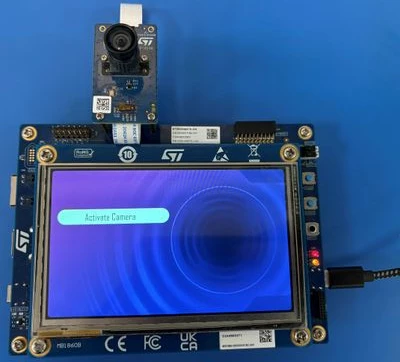
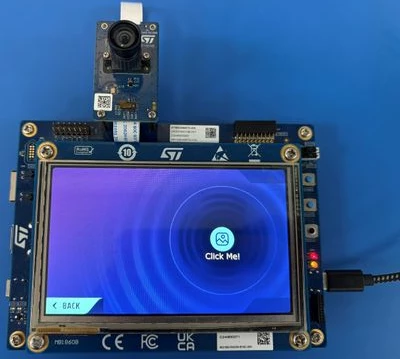
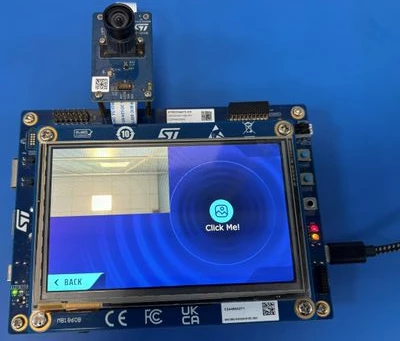
Note: Further enhancements and optimizations are possible, including implementing double buffering for the camera task, similar to the approach used in TouchGFX, which can improve image display performance.
Conclusion
To conclude, this first part shows how to integrate the TouchGFX, Camera, and ISP middlewares on the STM32N6570-DK. It also covers configuring the LTDC with two layers. Finally, it explains how to set up the camera pipeline. By establishing a clean and conflict-free integration of these three components, we have created a solid foundation. This foundation is used to build richer graphics, vision, and future AI features on the STM32N6 platform, which is described in the second part of this article series (coming soon).
Another approach
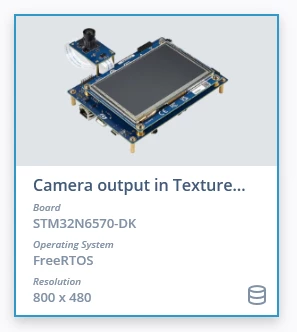
Starting from version 4.26.1 of STM32TouchGFX Designer, it is possible to use the new demo “Camera output in TextureMapper” to make equivalent camera feed. It also allows TouchGFX to e.g. move, scale and rotate the camera feed as desired.
An example of this can be found in a “Board Specific Demo” available in TouchGFX Designer:
However, the present article keeps the step-by-step camera integration flow, as it provides a clearer transition toward the next article and the AI-based use case.
Related links
- Reference manual RM0486: STM32N6x5/x7xx Arm®-based 32-bit MCUs
- User manual UM3300: Discovery kit with STM32N657X0 MCU
- TouchGFX Documentation
- Knowledge article: How to add a BSP to an STM32CubeIDE project