


How to solve debugger connection issues
Introduction
The debugger requires some specific pins to communicate with the MCU, if those pins are used for other purpose, the user won’t be able to assure this communication and track the code would not be achieved.
This article describes the ways to prevent or fix debugger connection issues
1. Prerequisites
STM32CubeMX
STM32CubeProgrammer
STM32CubeIDE
2. Steps
2.1 Preventing debug issues using CubeMX
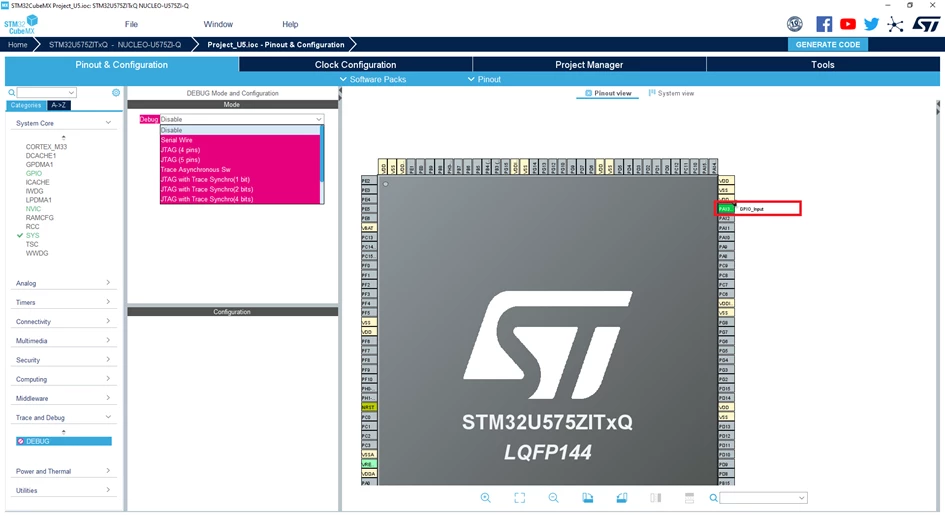
The easiest and only way to prevent connection issues using CubeMX is to make sure that your debug pins are Free, Reserved for Debug or Used by the Debug.
Generally, SWD is mapped on PA13 (SWDIO) and PA14 (SWCLK). This is the default state after reset.
Taking the example of Serial Wire Debugging for a NUCLEO-U575ZI-Q
| Free | Reserved for Debug | Used by the Debug |
|---|---|---|
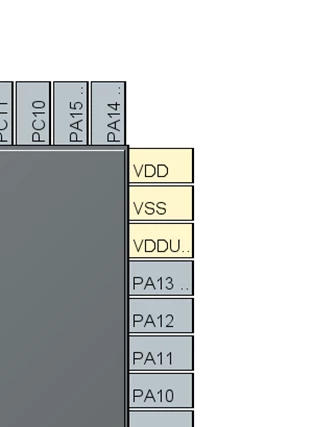 |
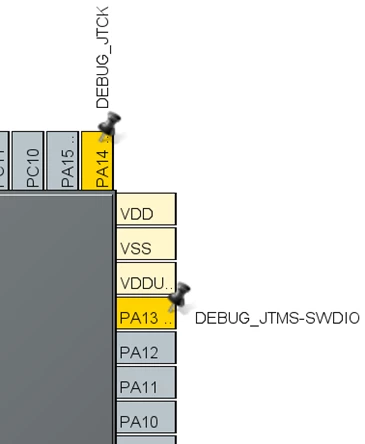 |
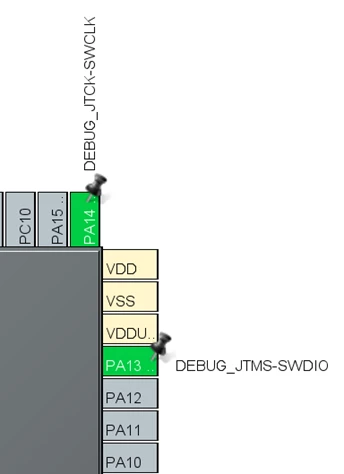 |
Note:
It is always recommended to activate the debug interface in MX, this will protect the IO pins from being used by another IP.
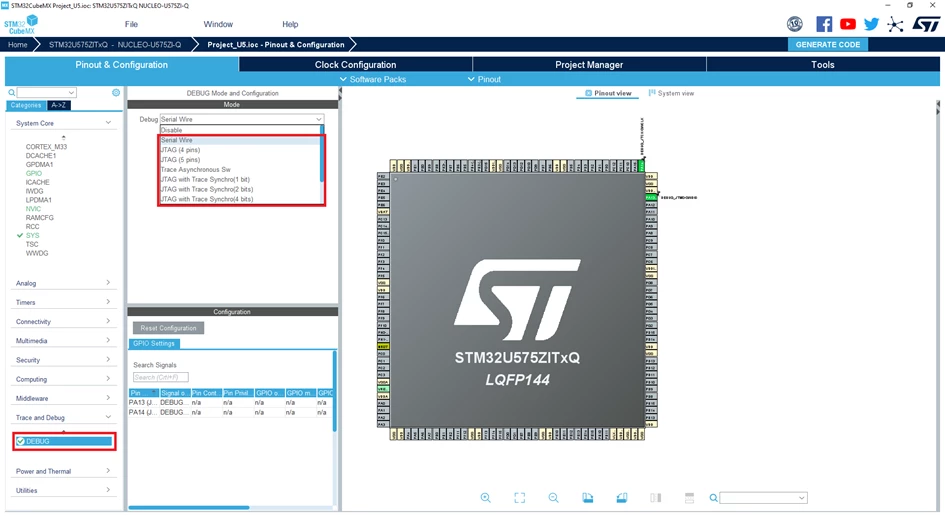
Note:
In CubeMX interface, the Debug section can be found under System Core > SYS IP for the legacy products.
2.2 Solving debug connection issues
In case, one of the debug pins have been set accidently to any other signal than SWDIO and SWCLK. Then you generated the code and loaded it in the MCU.
During Debug, the message “Target is not responding, retrying...” will keep showing up in the IDE console and eventually the connection will be lost.
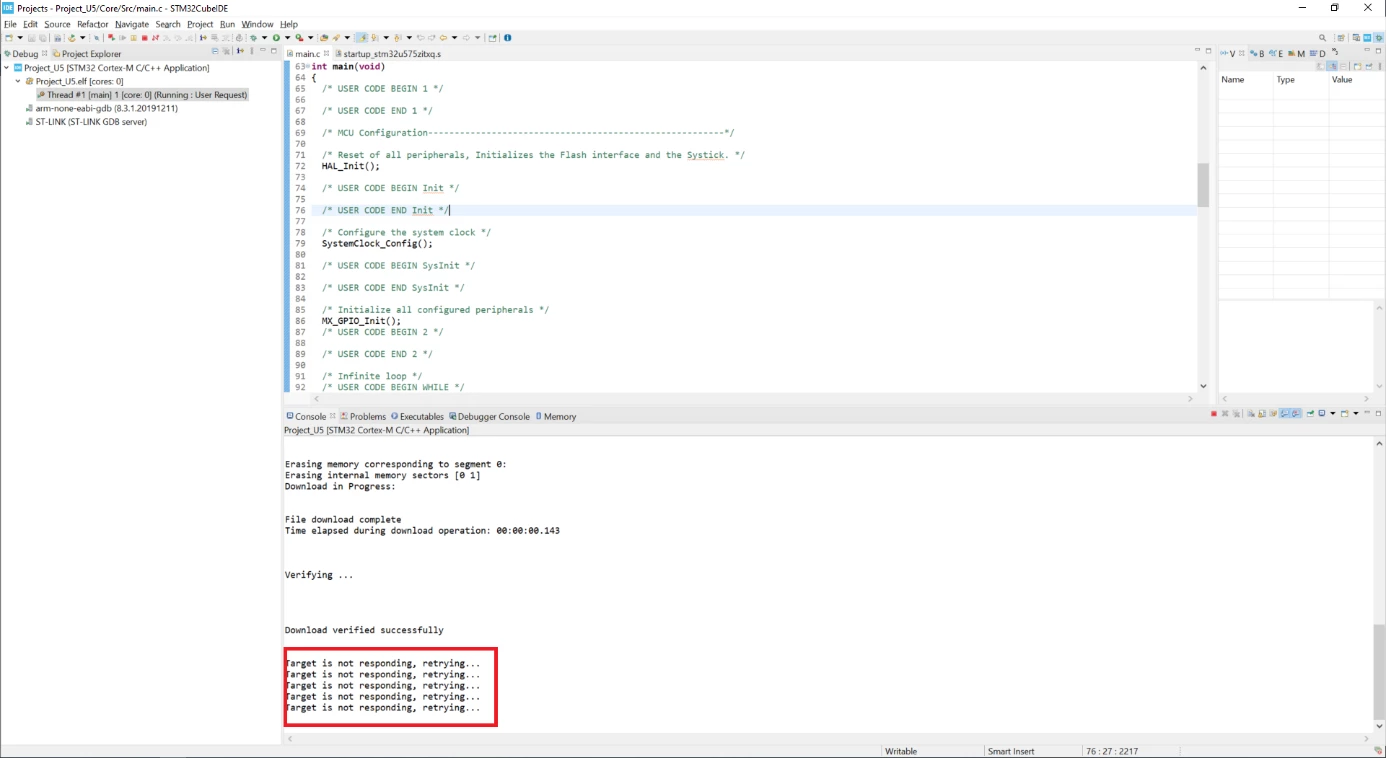
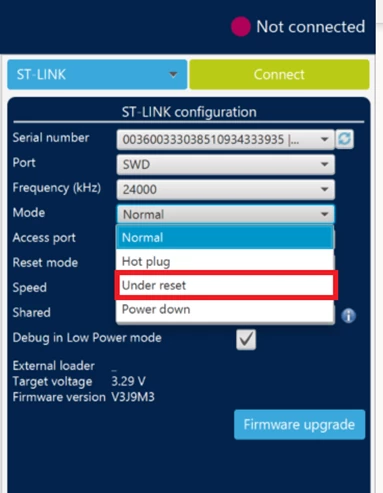
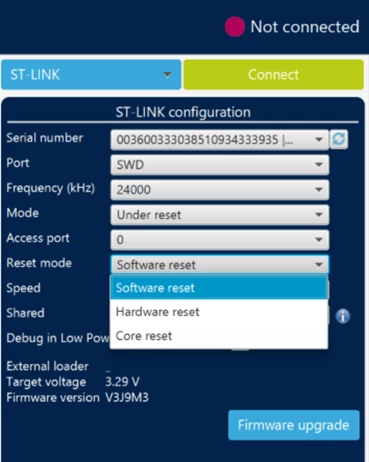
In this case, the only way to take back the control of the board is by connecting it under reset using the NRST pin.
Debug pins must be overwritten by the debugger to achieve the communication, this can be done using STM32CubeProgrammer or the IDE (CubeIDE, MDK-ARM or EWARM).
2.2.1. STM32CubeProgrammer
Step 1: Connect the board
Reset and Connection modes can be selected in the ST-LINK configuration Panel.
 |
 |
Step 2: Mass erase the MCU
Once connected, Mass erase the Chip
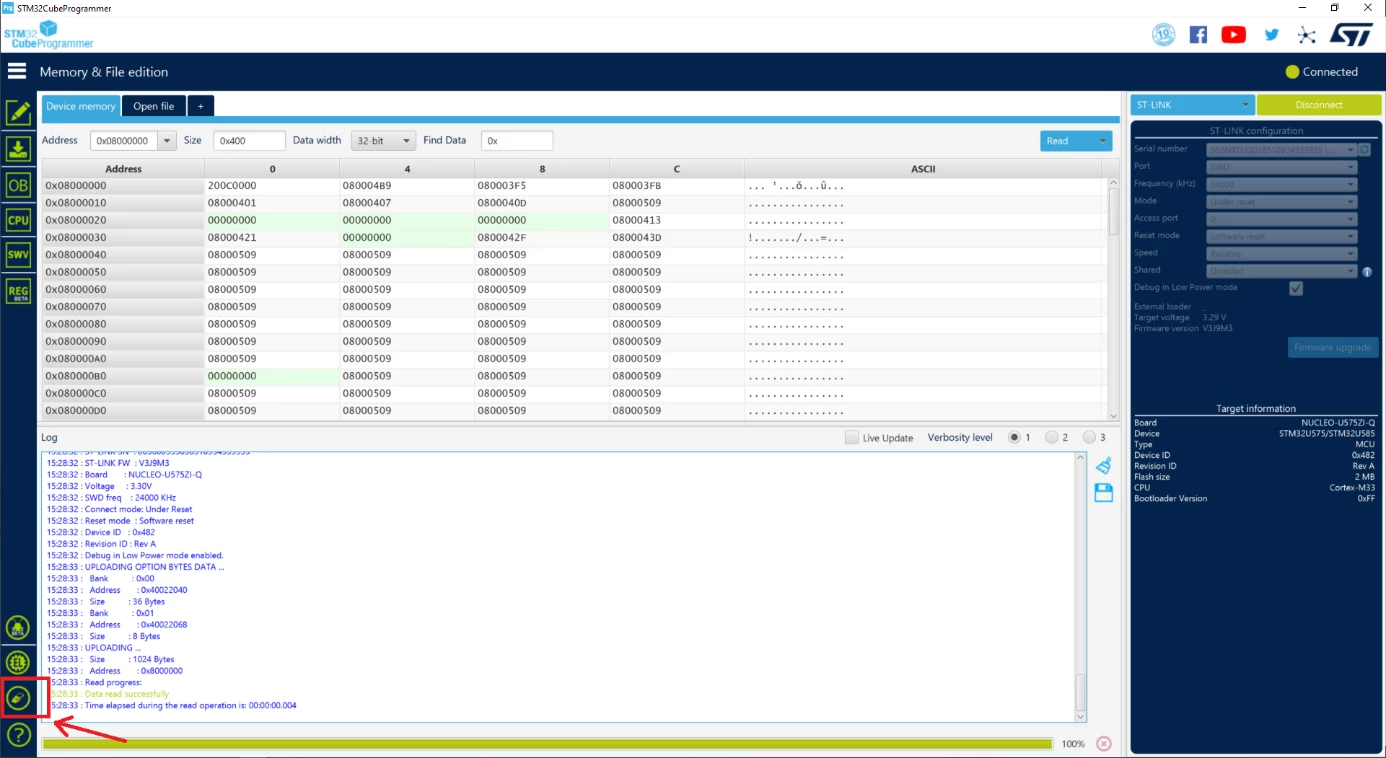
The Mass Erase function erases the full memory, A message “Mass erase successfully achieved” will be displayed in case of success.
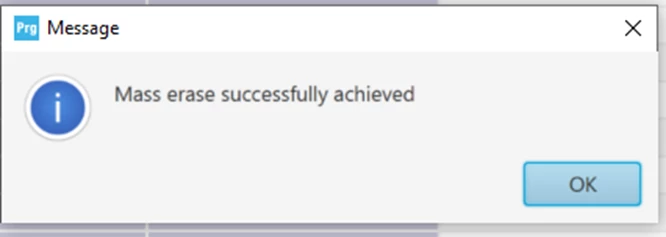
After doing these steps, the board will be able to communicate with the debugger.
2.2.2. STM32CubeIDE
Step 1: Debug interface check in MX
Return to CubeMX and activate the Debug.
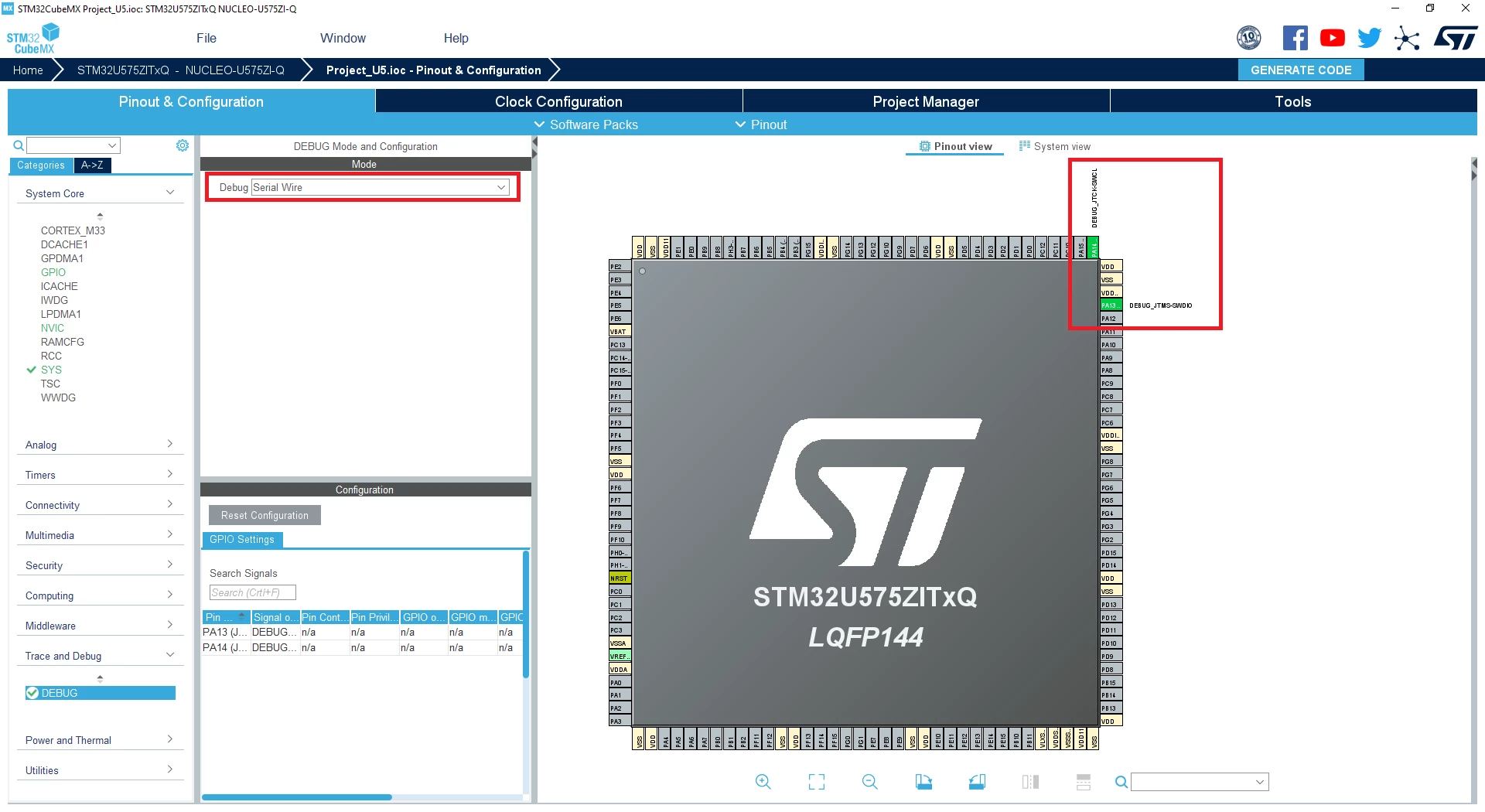
Step 2: Debug configuration in CubeIDE
After code re-generation, open debug configuration
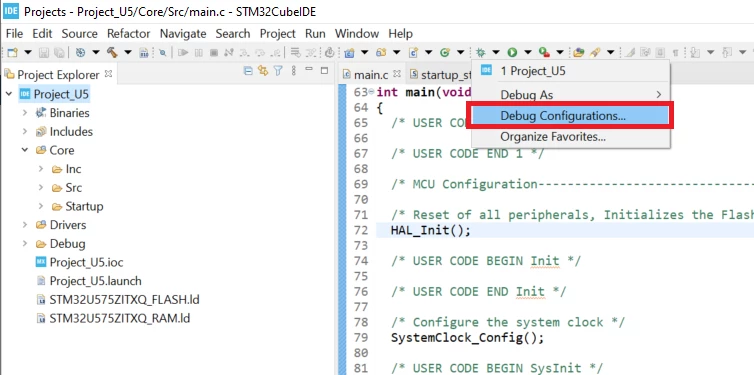
And change the Reset behavior type to “Connect Under Reset”
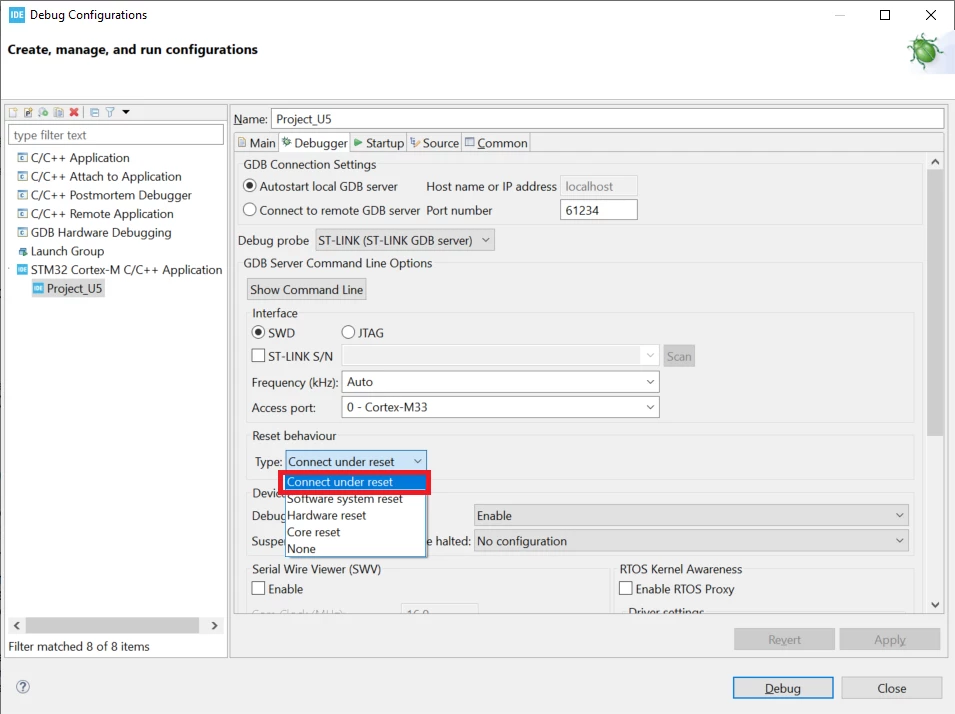
Click on Apply, then debug the board.
3. Related links
For more details, please check AN4989 , section 4,
- EWARM section 4.2.2
- MDK-ARM section 4.2.3
STM32CubeMX install link
STM32CubeProgrammer install link
STM32CubeIDE install link