

How to switch from one STM32 to another using STM32CubeMX
Introduction
In the field of embedded systems, it is very common to migrate an existing design from one STM32 microcontroller to another in response to changing application requirements. These changes can be dependent on, for example, flash memory, SRAM, GPIO count, or peripheral features. Fortunately, this transition can be performed easily and efficiently using the STM32CubeMX tool. In this article, we guide you step by step on how to migrate from one STM32 microcontroller to another using STM32CubeMX.
1. Prerequisite
Software: STM32CubeMX version 6.14.1
2. Understanding the theory behind the switch
The STM32CubeMX tool permits opening a project from another STM32 part number in the same family. For example, you can open a project created for an STM32F407 with an STM32F429 part number. This allows for easy migration from one part number to another within the same STM32 family. In this article, we guide you step by step on how to perform this migration.
3. Steps
To begin, we create a project with the STM32F407VGTx:
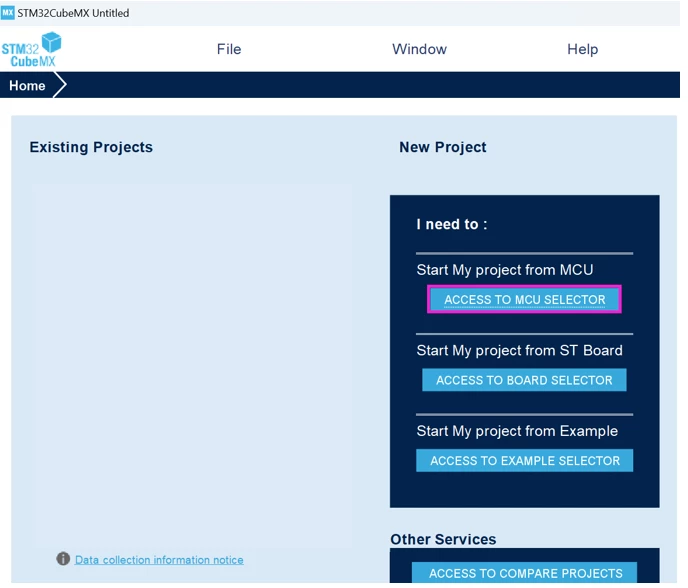
- Step 1: Open STM32CubeMX and click the [ACCESS TO MCU SELECTOR] button.
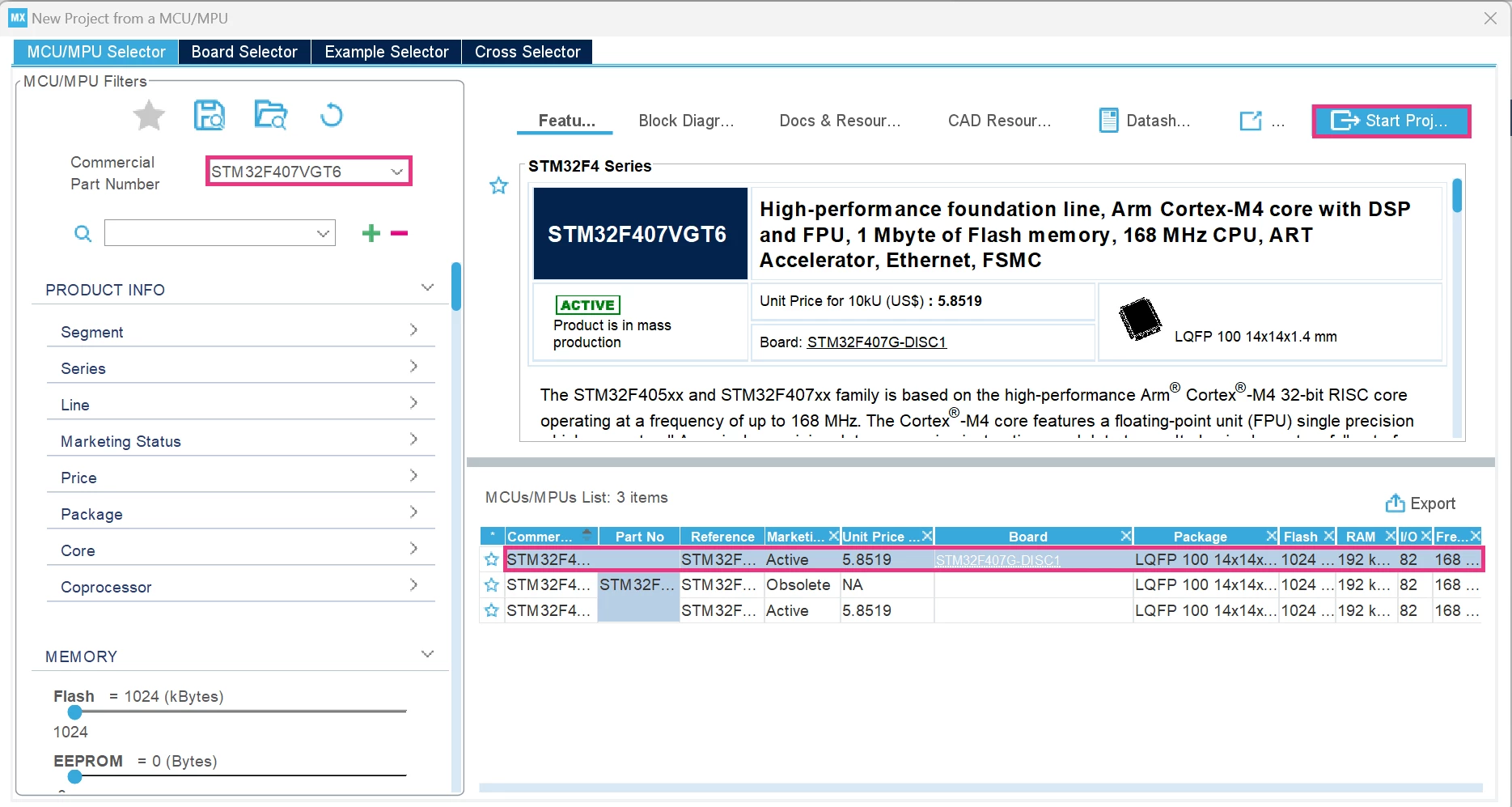
- Step 2: Enter the part number that you want to work on in the [Commercial Part Number] field. In this example we work on STM32F407VGTx. Select it, and then click on [Start Project].
A window opens as shown in the screenshot below:
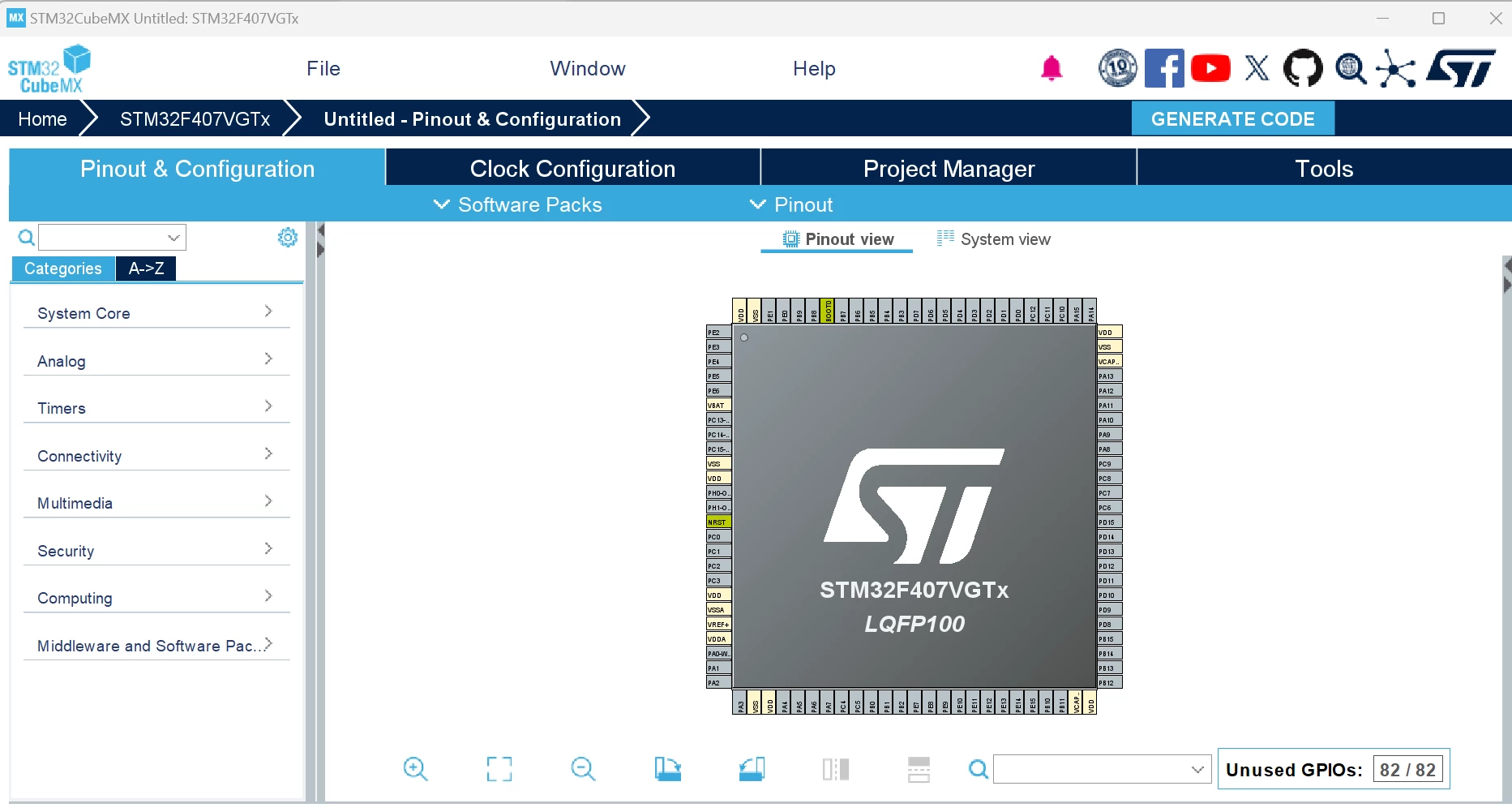
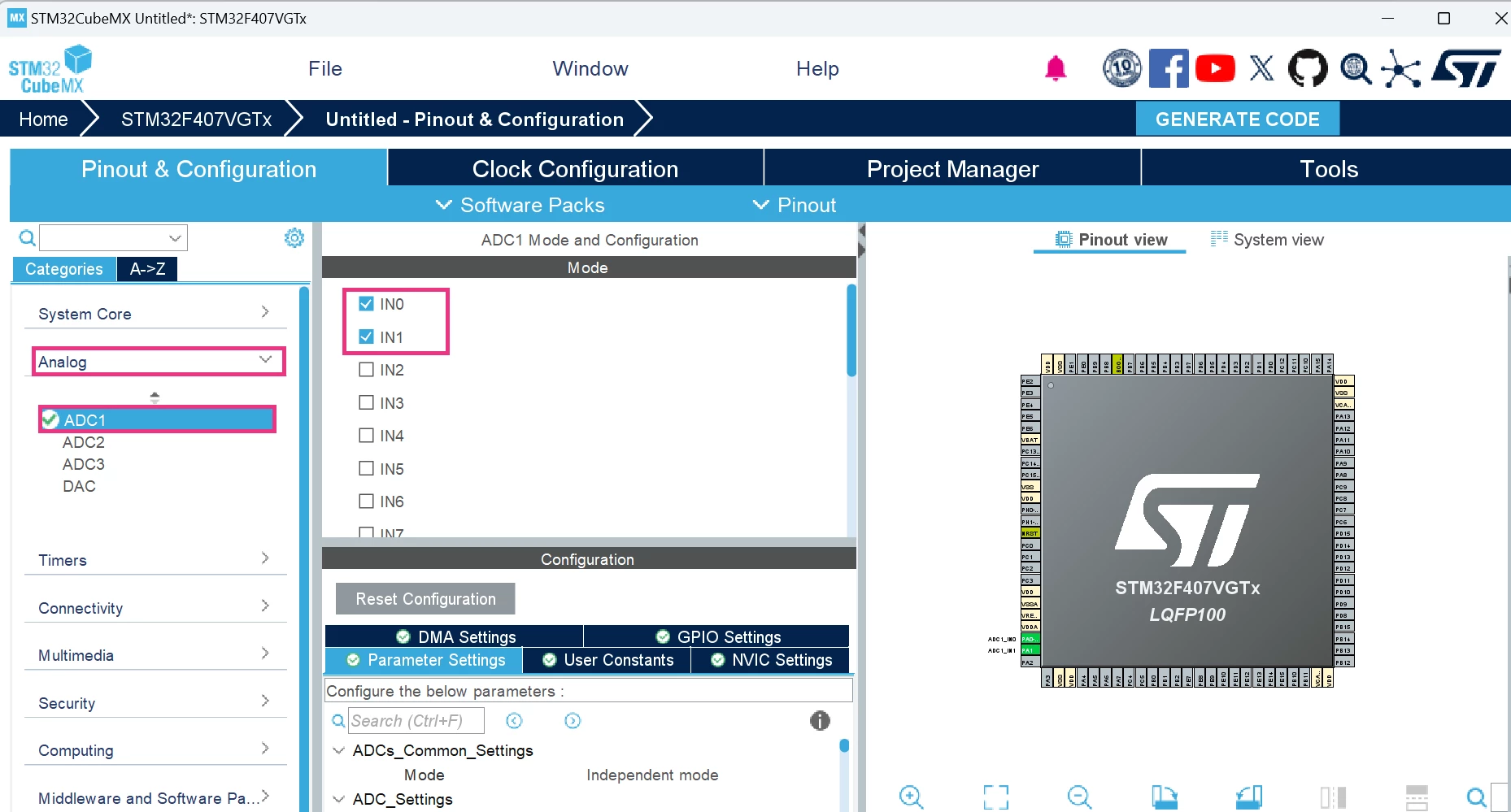
Add some peripherals and their associated configurations to our project. For example, we can add two ADC channels:
- Step 3: Click on the [Analog] button, select ADC1, and select “IN0” and “IN1”.
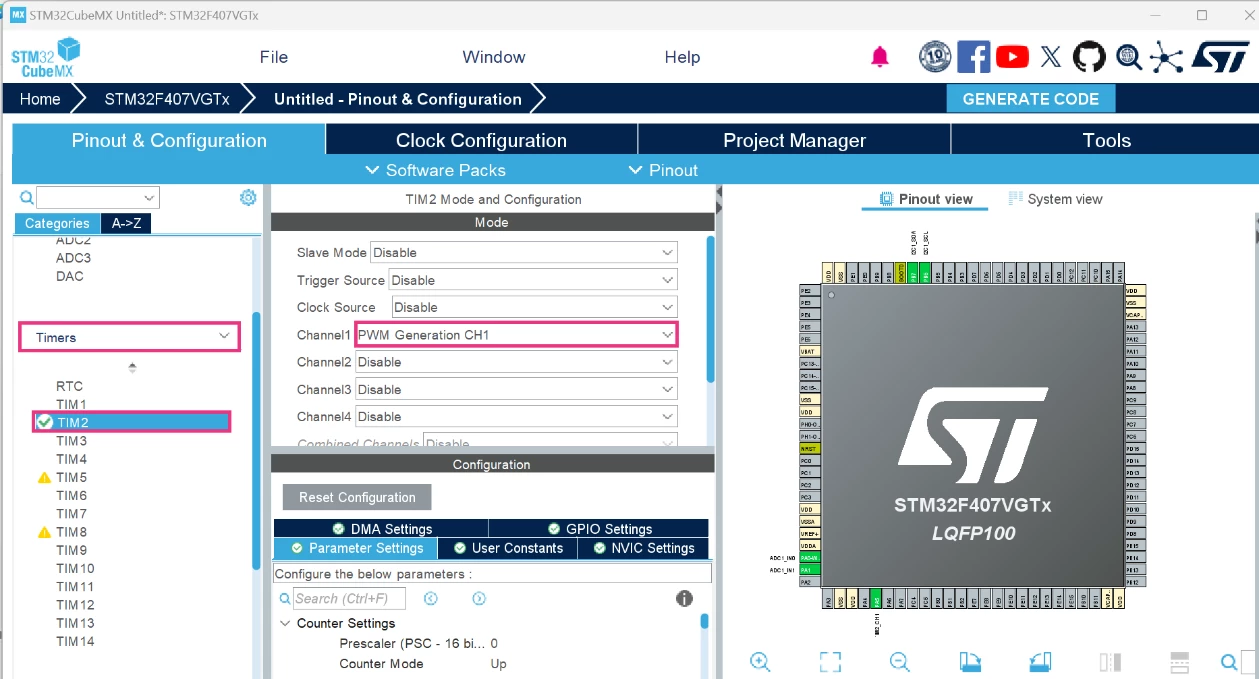
We also add a timer with a PWM output channel:
- Step 4: Click on the Timers button, select TIM2, choose “PWR Generation CH1” for the Channel1 field.
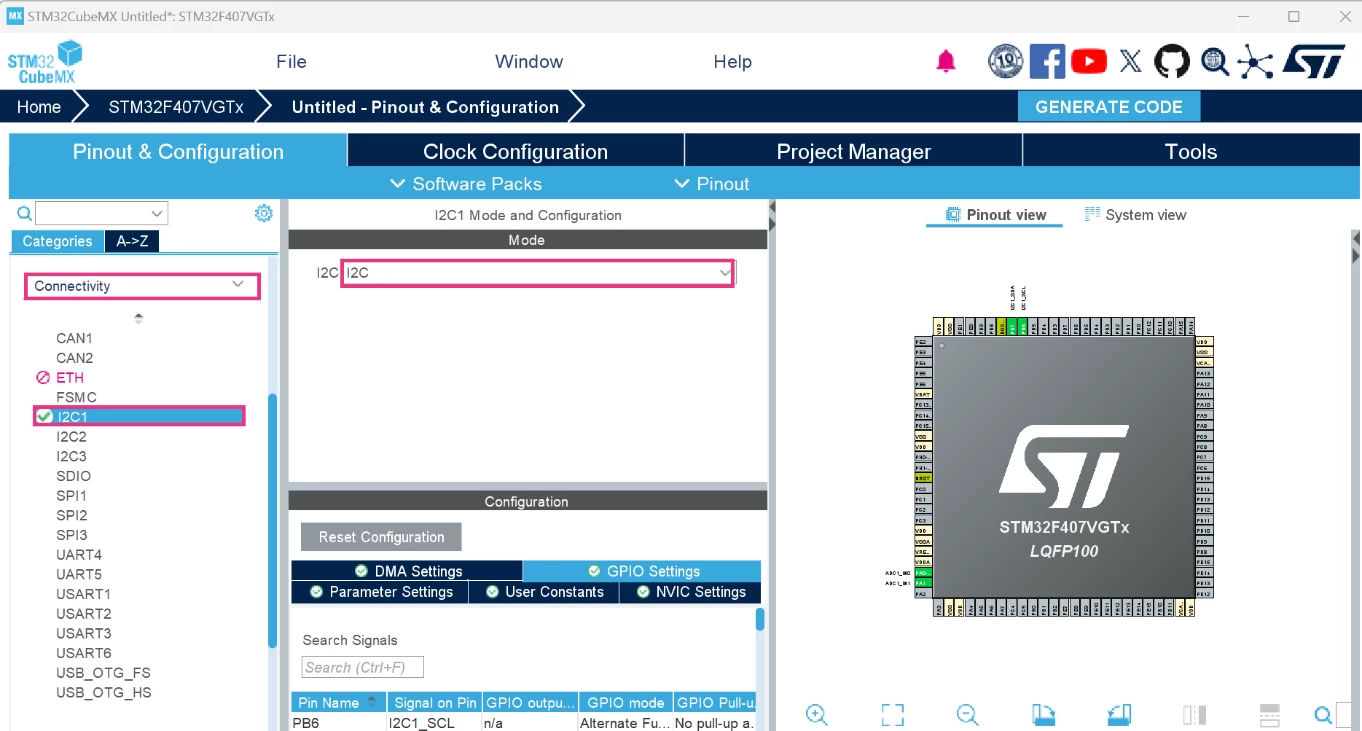
Let us also add I2C communication:
- Step 5: Click on the [Connectivity] button, select I2C1, choose “I2C" for I2C field.
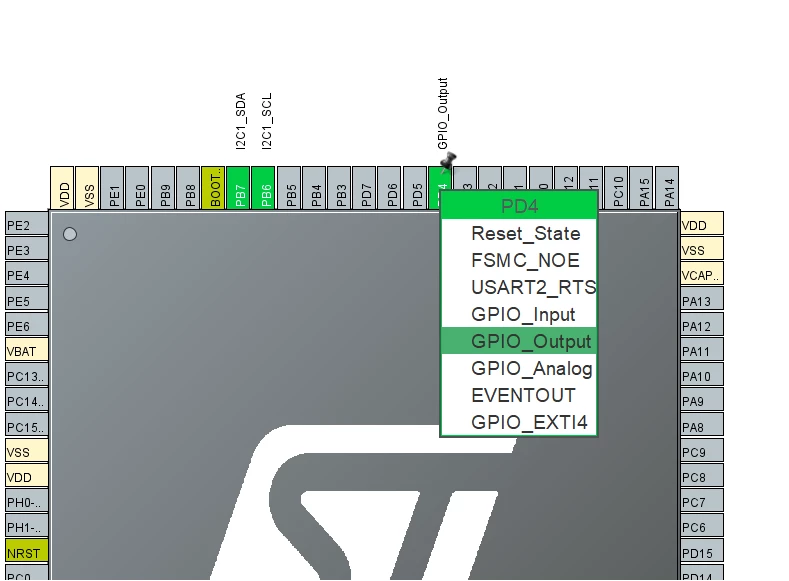
- Step 6: Add a few GPIOs.
GPIO output: Click on PD4 and choose “GPIO_Output”
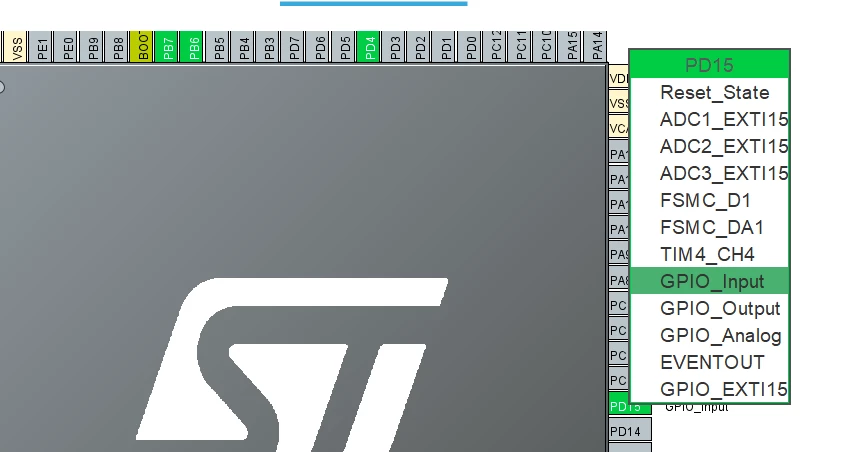
GPIO input: Click on PD15 and choose “GPIO_Input”
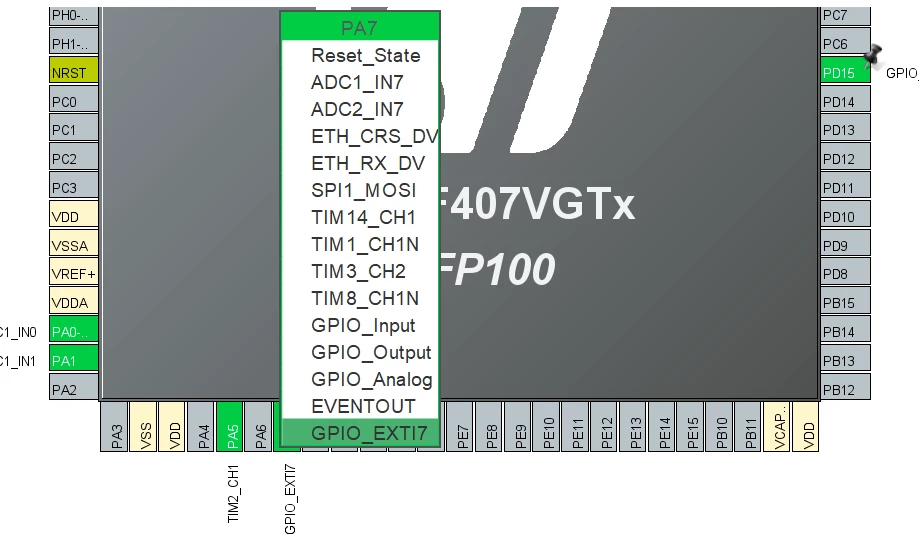
EXTI (external interrupt): Click on PA7 and choose “GPIO_EXTI7”
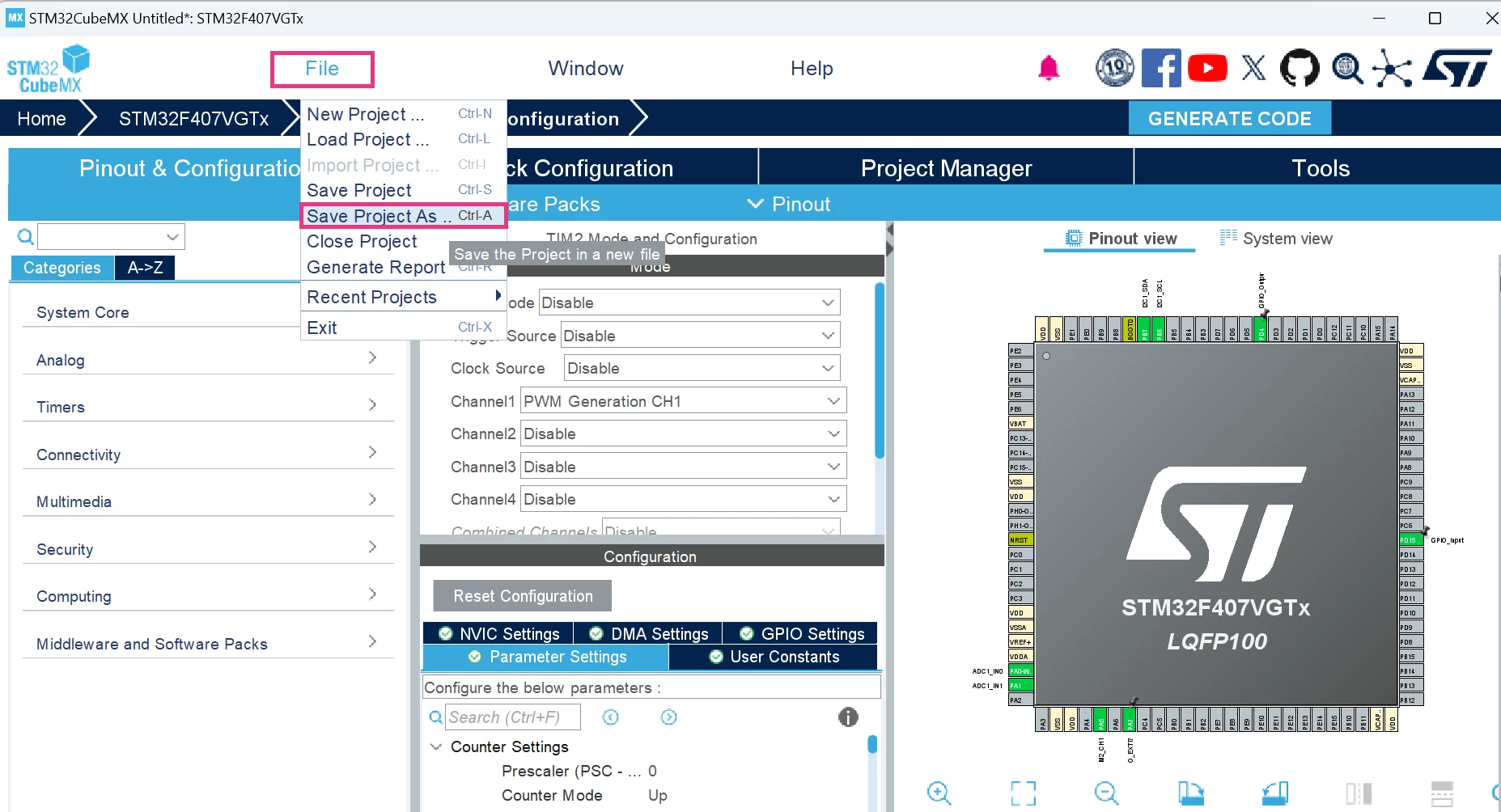
Now, let us save this example configuration:
- Step 7: Click on the [File] button located at the top and select [Save Project] with the name STM32F407_Project_V1.
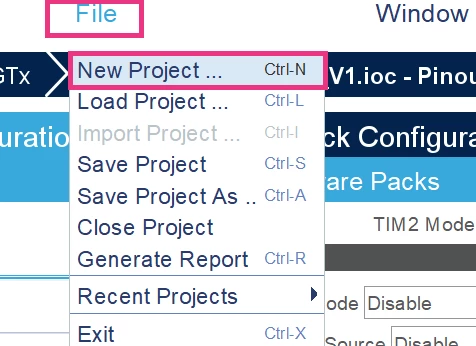
We switch and load the project configuration onto another STM32 of the same series:
- Step 8: Create a new project by clicking on the [File] button located at the top and select [New Project].
We select an STM32 belonging to the same series (STM32F4). As an example, you can select the STM32F429ZITx:
- Step 9: Enter the part number that you want to work on in the Commercial Part Number field. In this example we work on the STM32F429ZITx, select it, and then click on [Start Project].
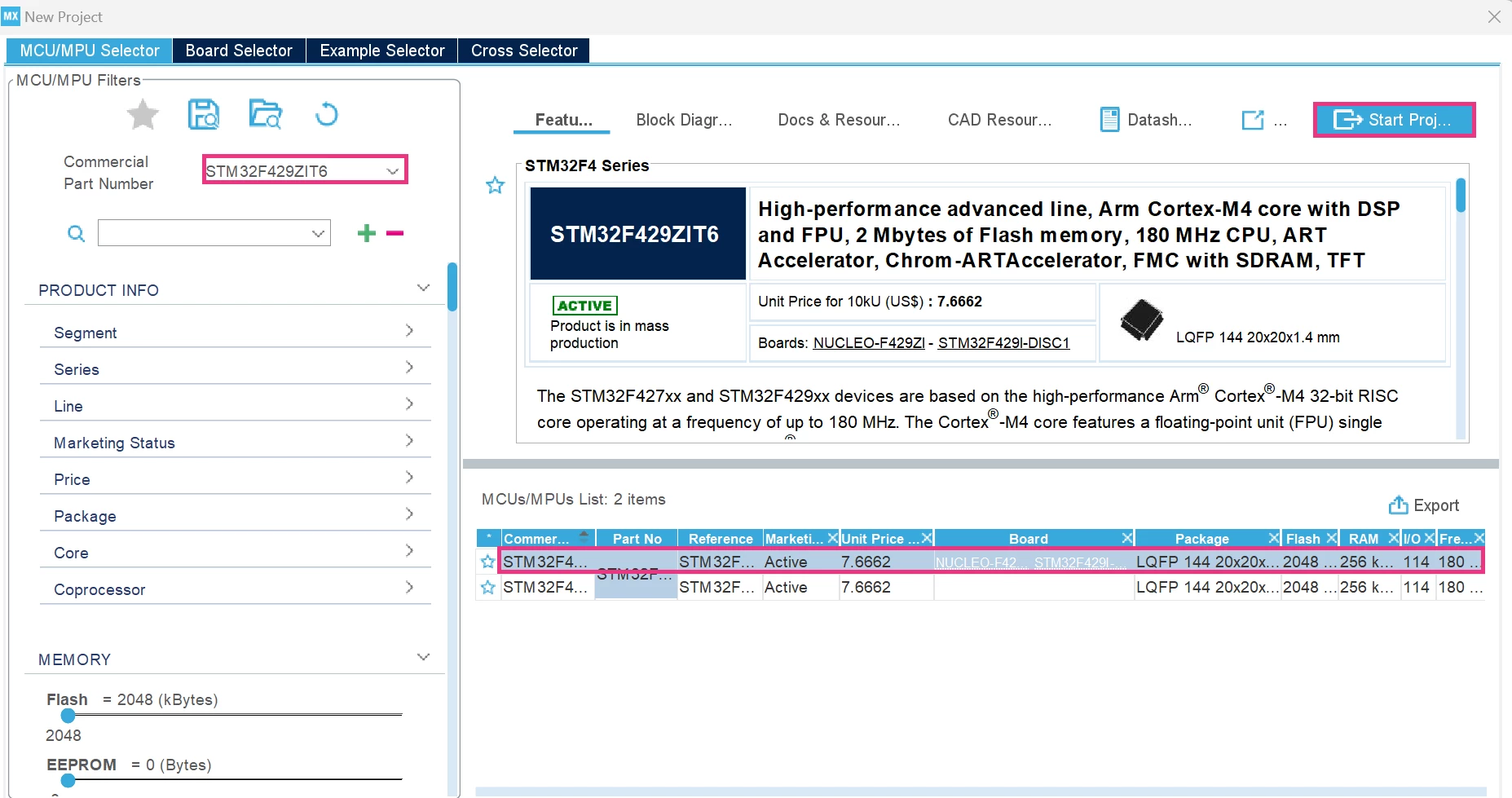
A window opens as shown in the screenshot below:
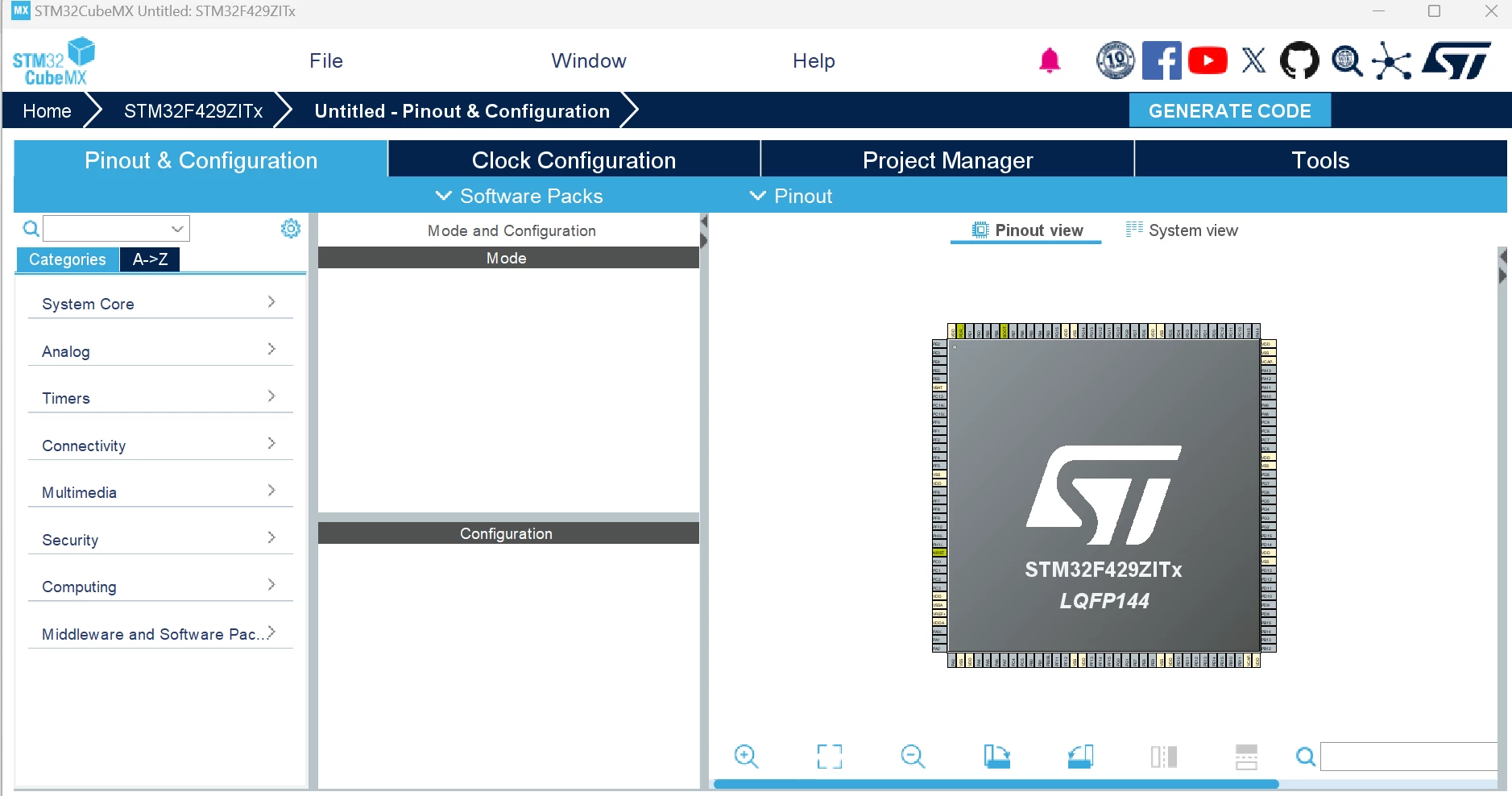
Now, we import our previous project:
- Step 10: Click on the [File] button located at the top and select [Import Project]:
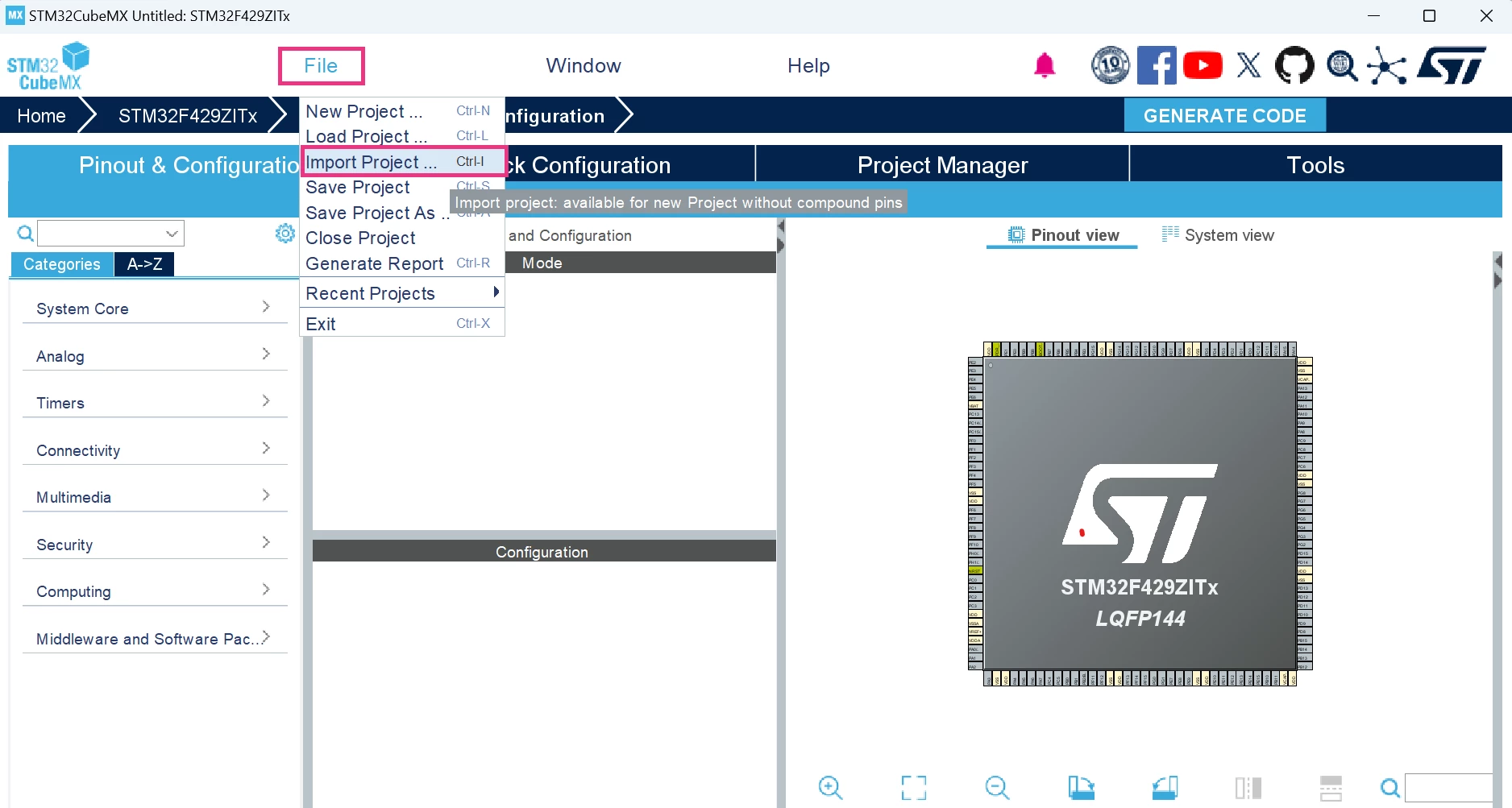
A window opens as shown in the screenshot below:
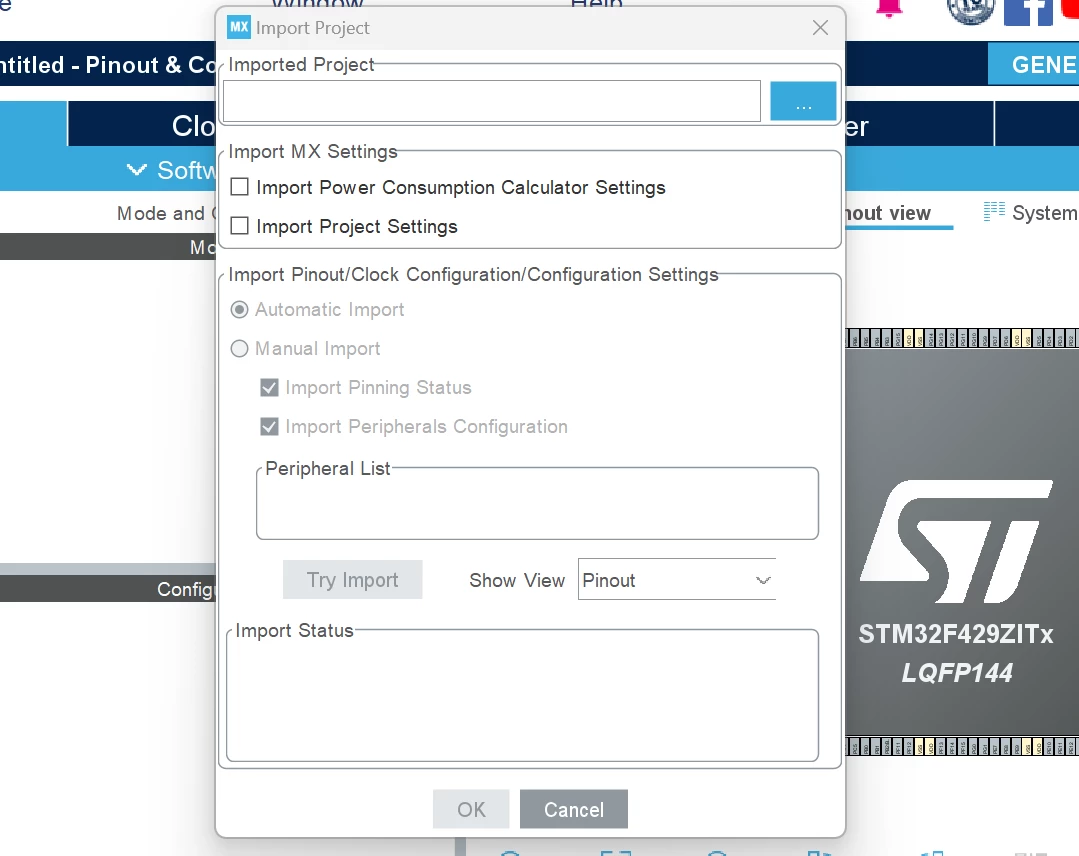
- Step 11: Locate the project we previously created for the STM32F407 by clicking on the three dots located at the top, selecting the project, and click [Open].
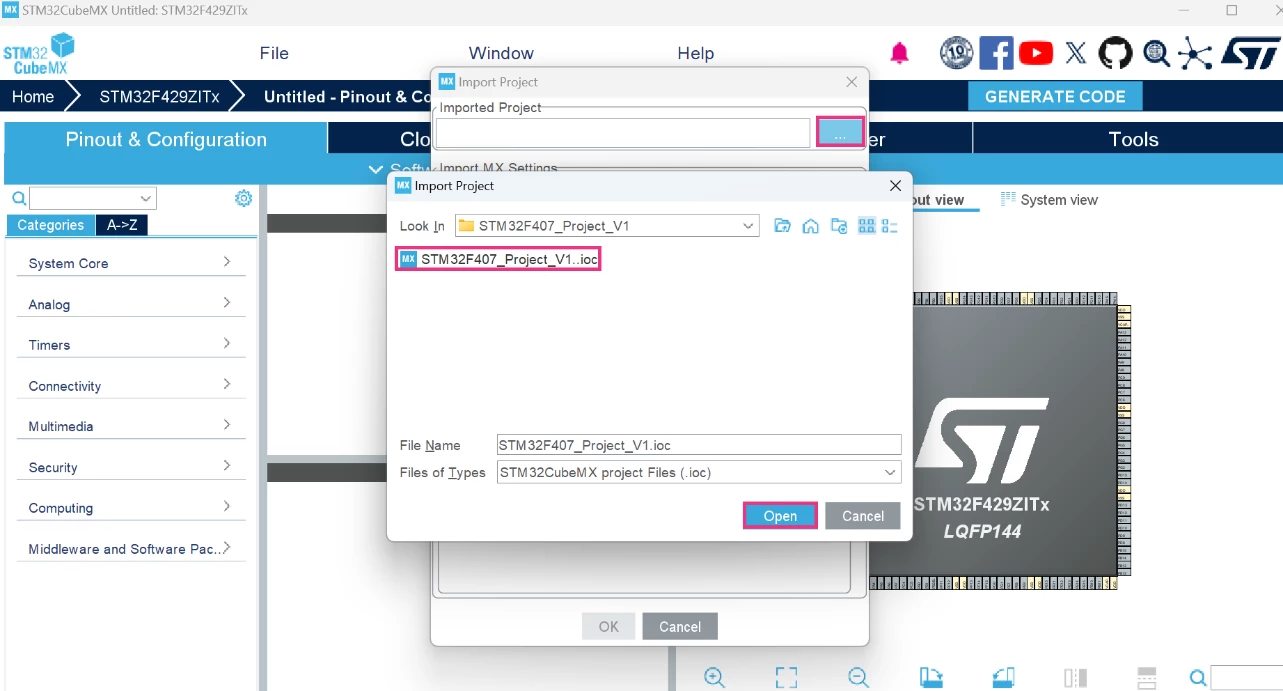
A window opens as shown in the screenshot below which contains an important remark:
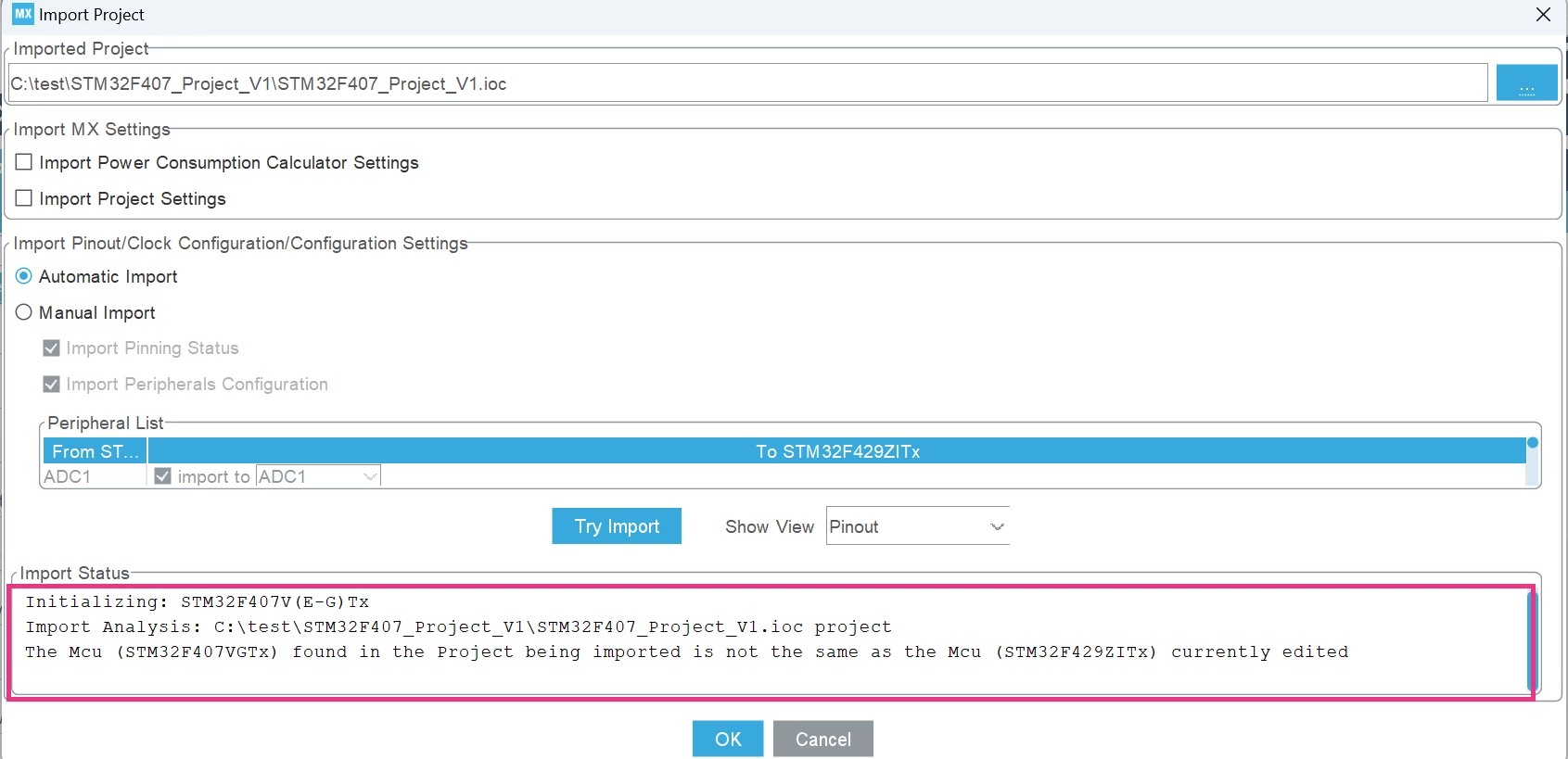
This message indicates that the MCU (STM32F407VGTx) found in the project being imported is not the same as the MCU (STM32F429ZITx) currently edited.
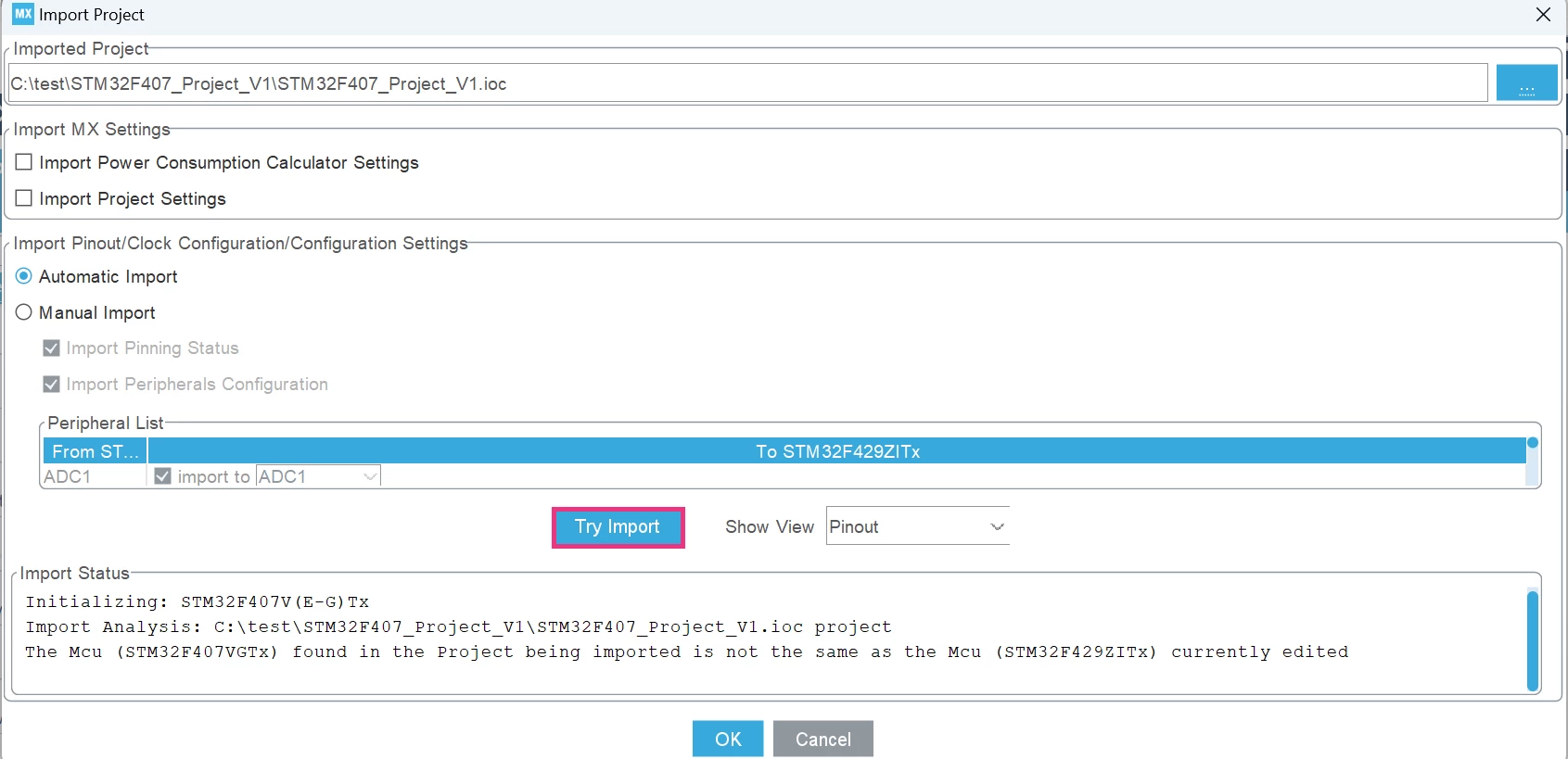
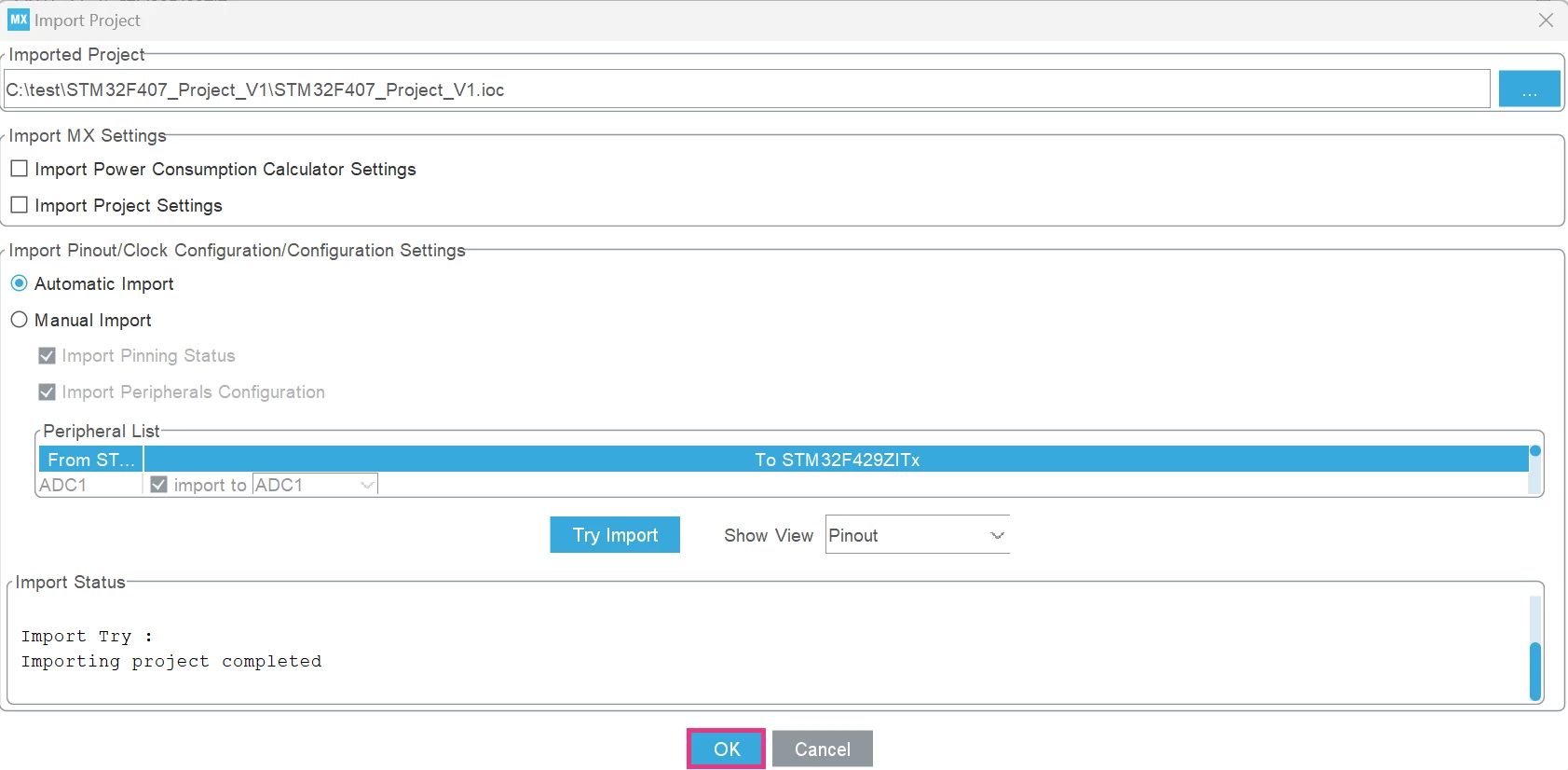
- Step 12: Click on the [Try Import] button and see the status of the import operation.
The tool returns that the importing project is completed as shown in the screenshot:
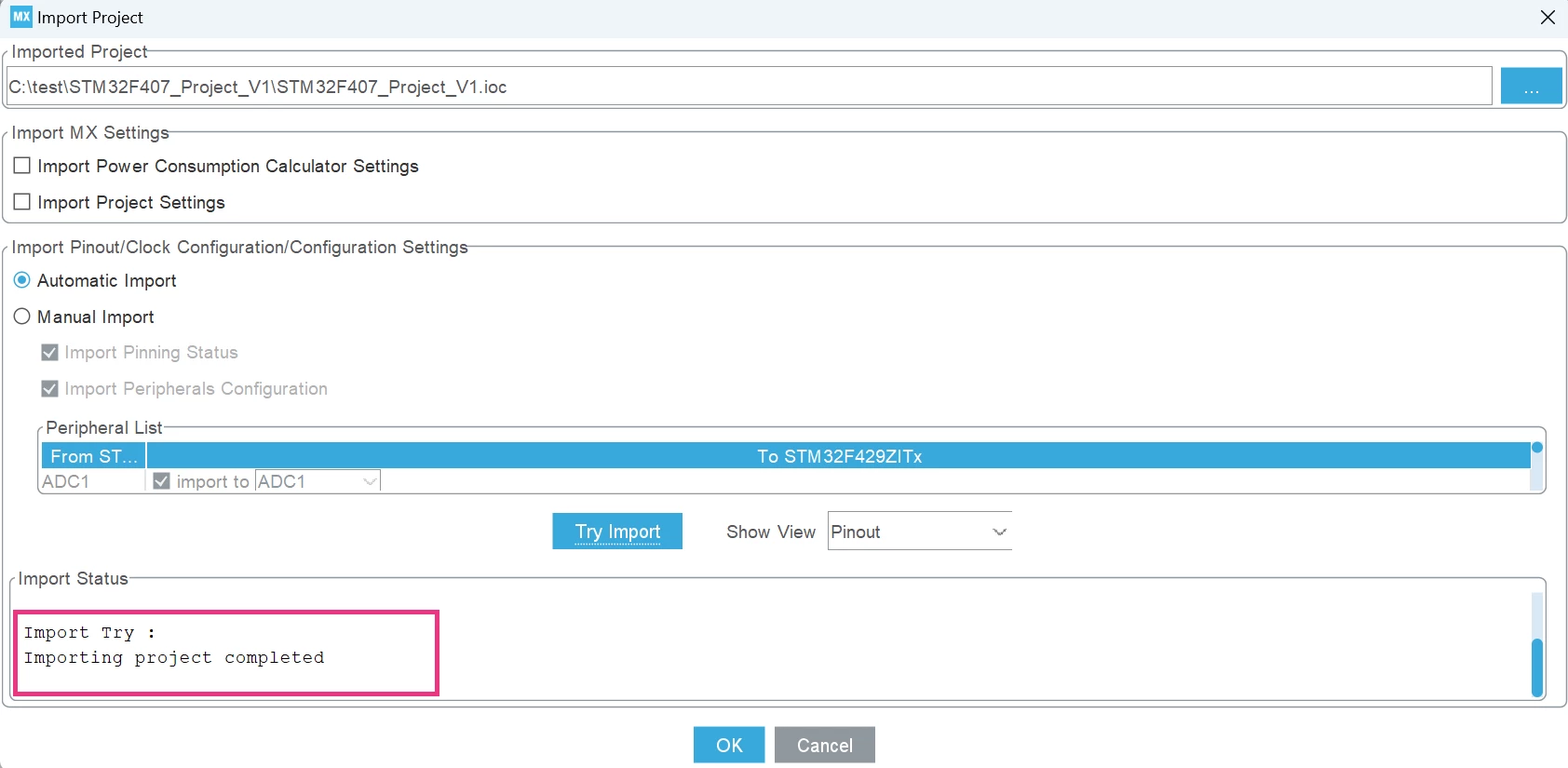
- Step 13: Now, click on [OK] to import the project.
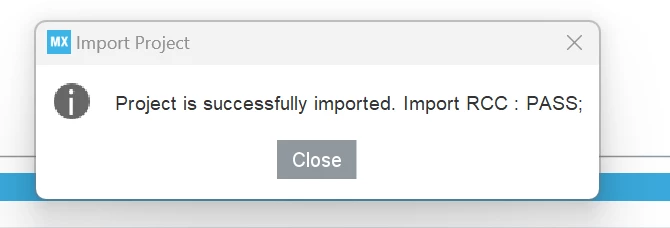
A pop-up is displayed indicating that the project has been successfully imported:
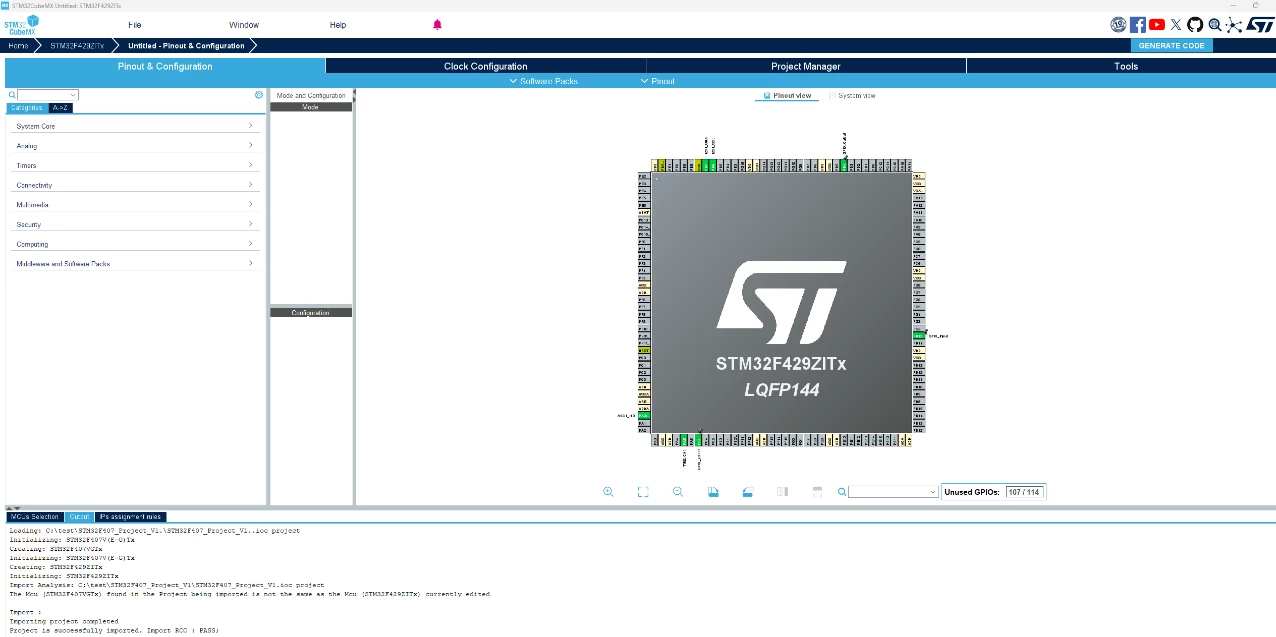
We have now completed the import of the configuration for the STM32F407 to the STM32F429:
Conclusion
Migrate from one STM32 to another using STM32CubeMX is simple and fast. By following these steps, you can easily transfer your configurations without starting from scratch, saving both time and effort.