


STM32H7 Ethernet with Mongoose: Getting started guide
- June 4, 2026 at 4:13 PM
- 2 replies
- 1404 views
Summary
This guide explains how to bring up Ethernet TCP/IP on an STM32H7 board using the lightweight Mongoose networking library, with the NUCLEO-H723ZG used as the reference platform. We walk through creating a STM32CubeMX project, configuring the key peripherals needed for Ethernet, UART debug, LEDs, and RNG. Additionally, adding Mongoose through the STM32CubeMX software pack so the project gets the required source files and include paths automatically.
- Summary
- Introduction
- Prerequisites
- 1. Configure the peripherals
- 2. Generate the project
- 3. Add Mongoose
- 4. Edit the linker script
- 5. Build and run
- Conclusion
- Related links
Introduction
This guide provides step-by-step instructions to integrate the Mongoose networking library into STM32H7 firmware for Ethernet connectivity. After integration, Mongoose enables a full set of networking features, including an embedded web dashboard, remote device control using MQTT, TLS security, and over-the-air (OTA) firmware updates. The goal of this guide is to bring up TCP/IP on STM32H7 and run a simple "Hello world" embedded web server as a foundation for more advanced connected applications.
Mongoose is a lightweight, open-source, dual-licensed network library that consists of two files. It includes a built-in embedded web server and networking stack. Mongoose works with existing TCP/IP stacks such as lwIP, or it can run independently using its built-in network stack. The same flexibility applies to TLS: you can use external libraries such as Mbed TLS or WolfSSL, or use the built-in TLS support provided by Mongoose.
For a quick and reliable start, use the built-in network stack. This approach reduces dependencies and makes integration easier. This guide uses the NUCLEO-H723ZG development board, but the same approach applies to any STM32 microcontroller with a built-in Ethernet MAC.
A preconfigured h723.ioc STM32CubeMX is included. If you want to get the result fast, generate the project from that *.ioc file, replace Core/Src/main.c with the provided main.c and adjust the linker script (STM32H723XG_FLASH.ld) with the provided STM32H723XG_FLASH.ld, build, and flash.
Prerequisites
Install the following tools:
- STM32CubeMX
- The latest STM32H7 HAL driver
- I-CUBE-Mongoose package
- STM32CubeIDE extension for Visual Studio Code
- STM32CubeProg
The hardware used in this tutorial is the NUCLEO-H723ZG board.
1. Configure the peripherals
Use STM32CubeMX to configure all required peripherals from scratch. This approach sets up the project correctly and helps you understand how to integrate Mongoose into existing STM32 projects.
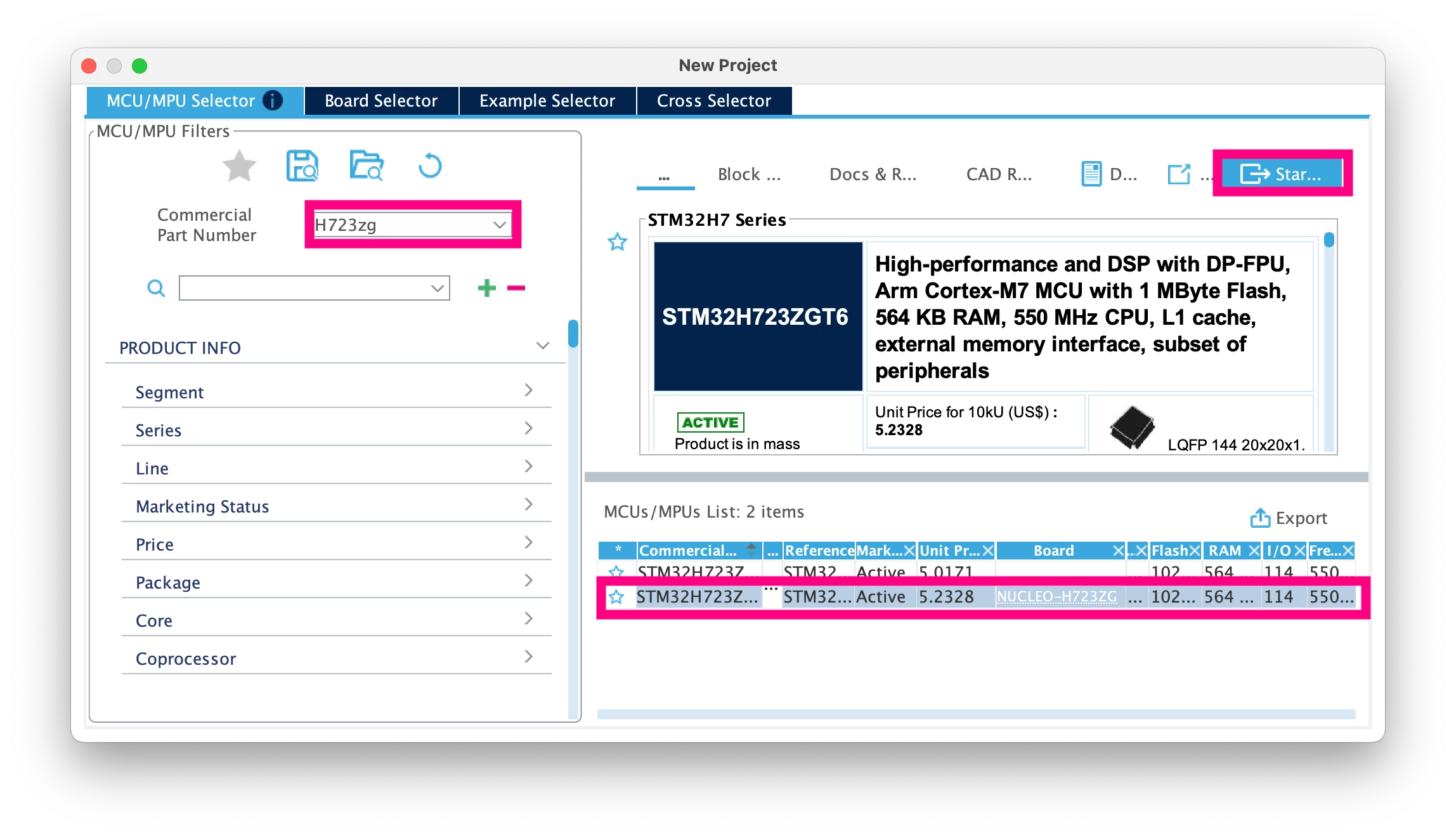
Open STM32CubeMX. In File → New project, type "H723ZG" in the part number field, select the microcontroller from the list at the bottom, and click [Start project] at the top right.
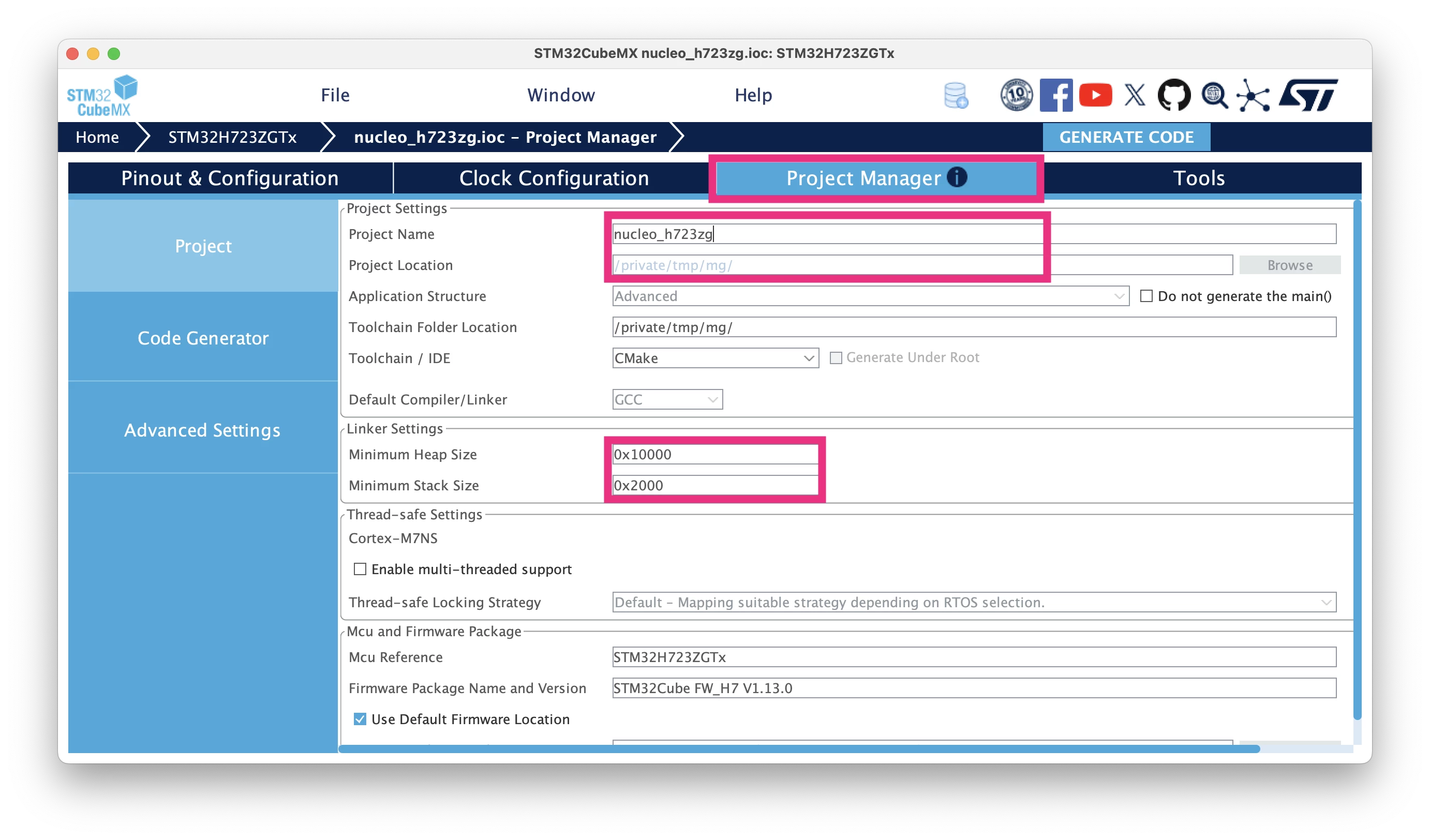
When the memory protection unit dialog appears, click [Yes]. In the "Project Manager" tab, select the project directory and enter a project name. Set heap size to 64Kb, and stack size to 8Kb:
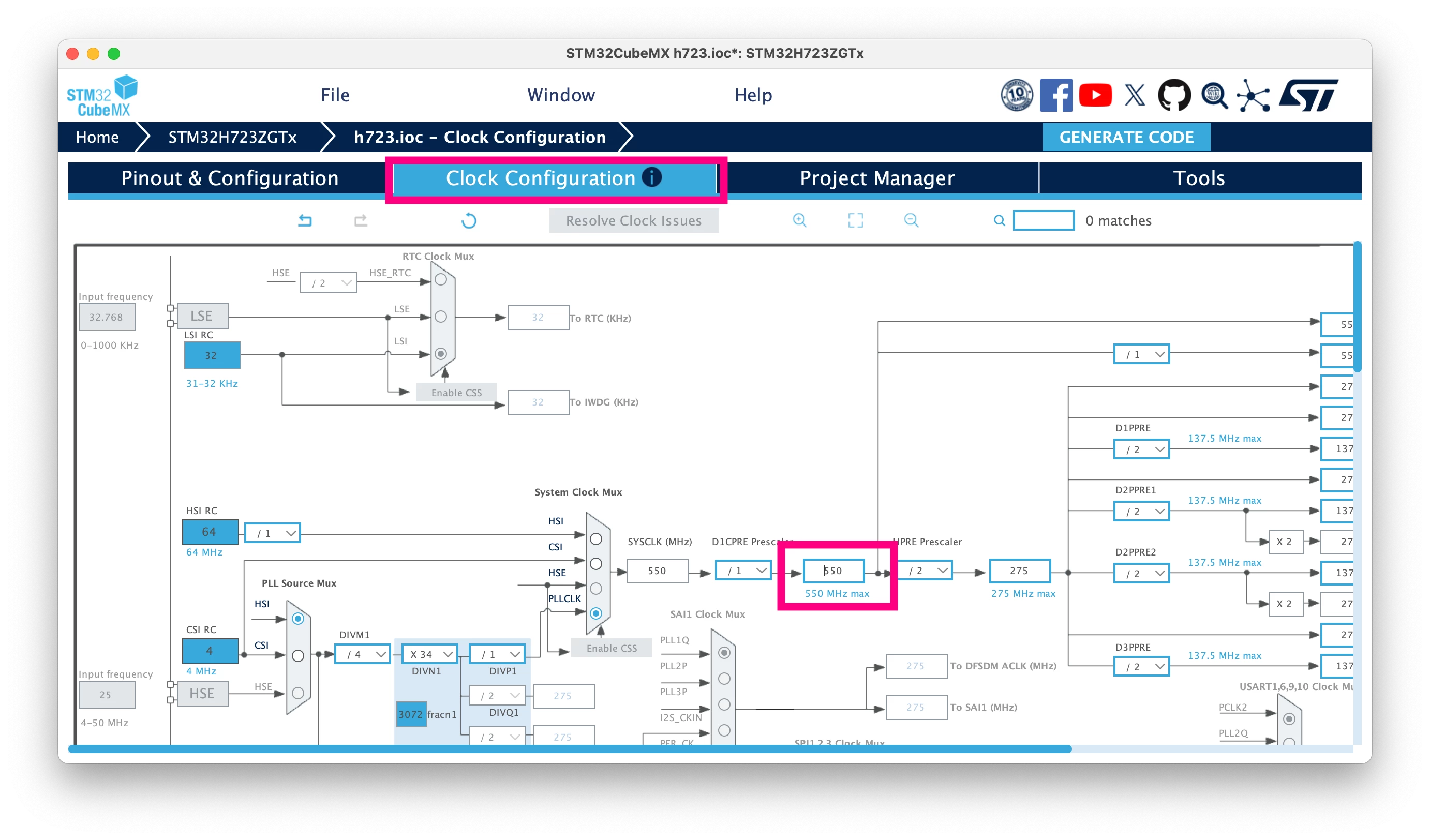
In the "Clock Configuration" tab, select the maximum system frequency and press Enter to auto-configure it.
Now, configure the following peripherals: LEDs, Ethernet MAC, UART for serial debug output, and RNG for TLS. For each development board, the pins for these peripherals are described in the respective User Manuals. The table below provides a quick overview of the required pins and links to the respective user manuals:
| Board | UART,TX,RX | Ethernet | LED |
|---|---|---|---|
| Nucleo-H723ZG | USART3,PD8,PD9 | PA1,PA2,PA7,PC1,PC4,PC5,PB13,PG11,PG13 | PB0,PE1,PB14 |
| STM32H747I-DISCO | USART1,PA9,PA10 | PA1,PA2,PA7,PC1,PC4,PC5,PG11,PG12,PG13 | PI12,PI13,PI14 |
| STM32H735G-DK | USART3,PD8,PD9 | PA1,PA2,PA7,PC1,PC4,PC5,PB11,PB12,PB13 | PC3,PC2 |
| STM32H573I-DK | USART1,PA9,PA10 | PA1,PA2,PA7,PC1,PC4,PC5,PG11,PG12,PG13 | PI8,PI9,PF1 |
| NUCLEO-N657X0-Q | USART1,PE5,PE6 | PF4,PF5,PF7,PF10,PF11,PF12,PF13,PF14,PF15 | PG0,PG8,PG10 |
| NUCLEO-H563ZI | USART3,PD8,PD9 | PA1,PA2,PA7,PC1,PC4,PC5,PB15,PG11,PG13 | PB0,PF4,PG4 |
| NUCLEO-H7S3L8 | USART3,PD8,PD9 | PA2,PA7,PB6,PG4,PG5,PG6,PG11,PG12,PG13 | PD10,PD13,PB7 |
| NUCLEO-H745ZI-Q | USART3,PB10,PB11 | PA1,PA2,PA7,PC1,PC4,PC5,PB13,PG11,PG13 | PI13,PJ2,PD3 |
| NUCLEO-H755ZI-Q | USART3,PD8,PD9 | PA1,A2,A7,C1,C4,C5,G11,G12,PG13 | PB0,PE1,PB14 |
| NUCLEO-H753ZI | USART3,PD8,PD9 | PA1,PA2,PA7,PC1,PC4,PC5,PB11,PB12,PB13 | PC3,PC2,PC2 |
| NUCLEO-H743ZI | USART3,PD8,PD9 | PA1,PA2,PA7,PC1,PC4,PC5,PB13,PG11,PG13 | PB0,PE1,PB14 |
| NUCLEO-Fxxxxx | USART3,PD8,PD9 | PA1,PA2,PA7,PC1,PC4,PC5,PB13,PG11,PG13 | PB0,PB7,PB14 |
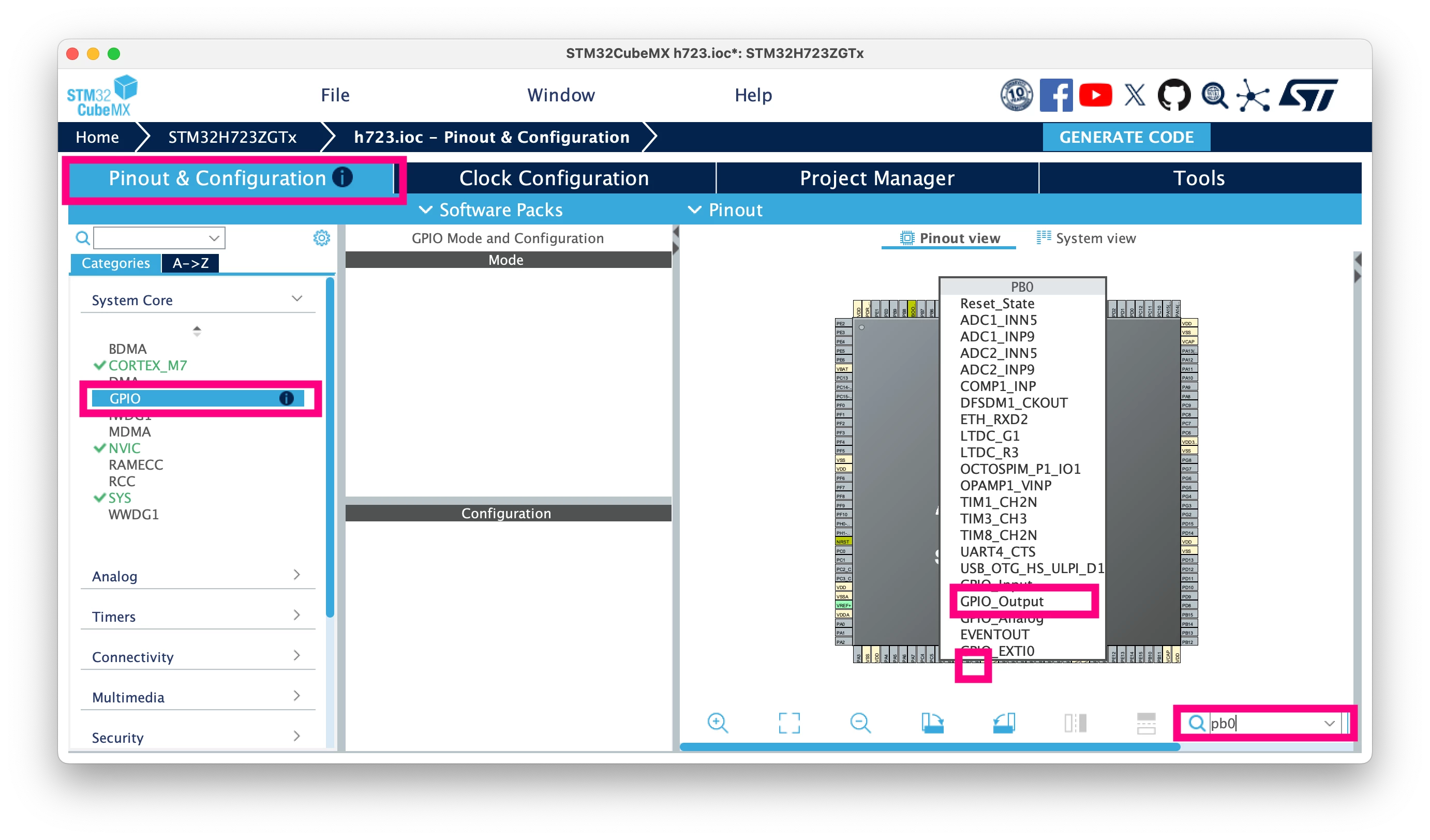
In "Pinout & Configuration" → "System Core" → "GPIO", configure the LED pins as [GPIO_Output].
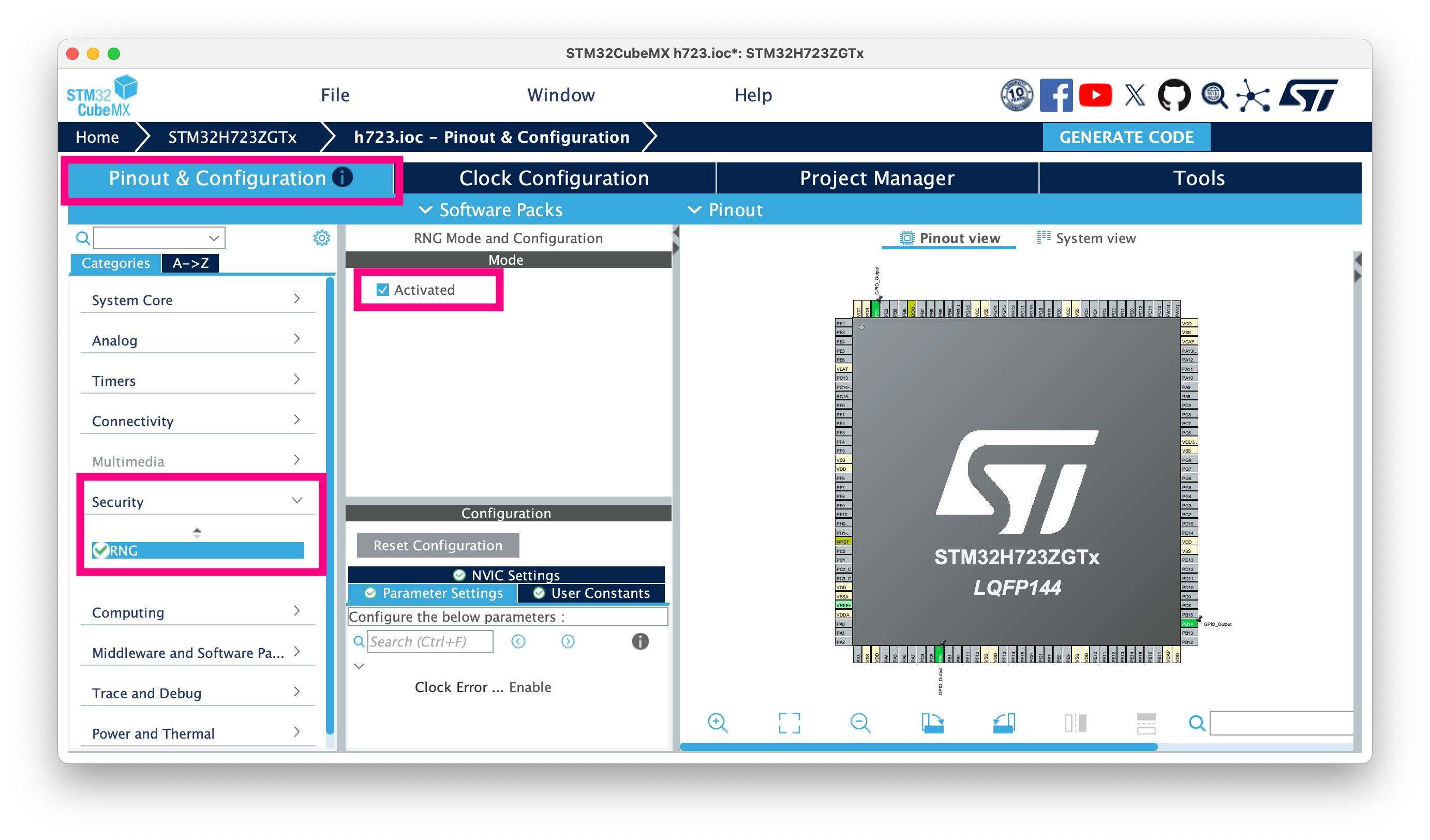
In "Pinout & Configuration" → "Security", select RNG and set the mode to [Activated].
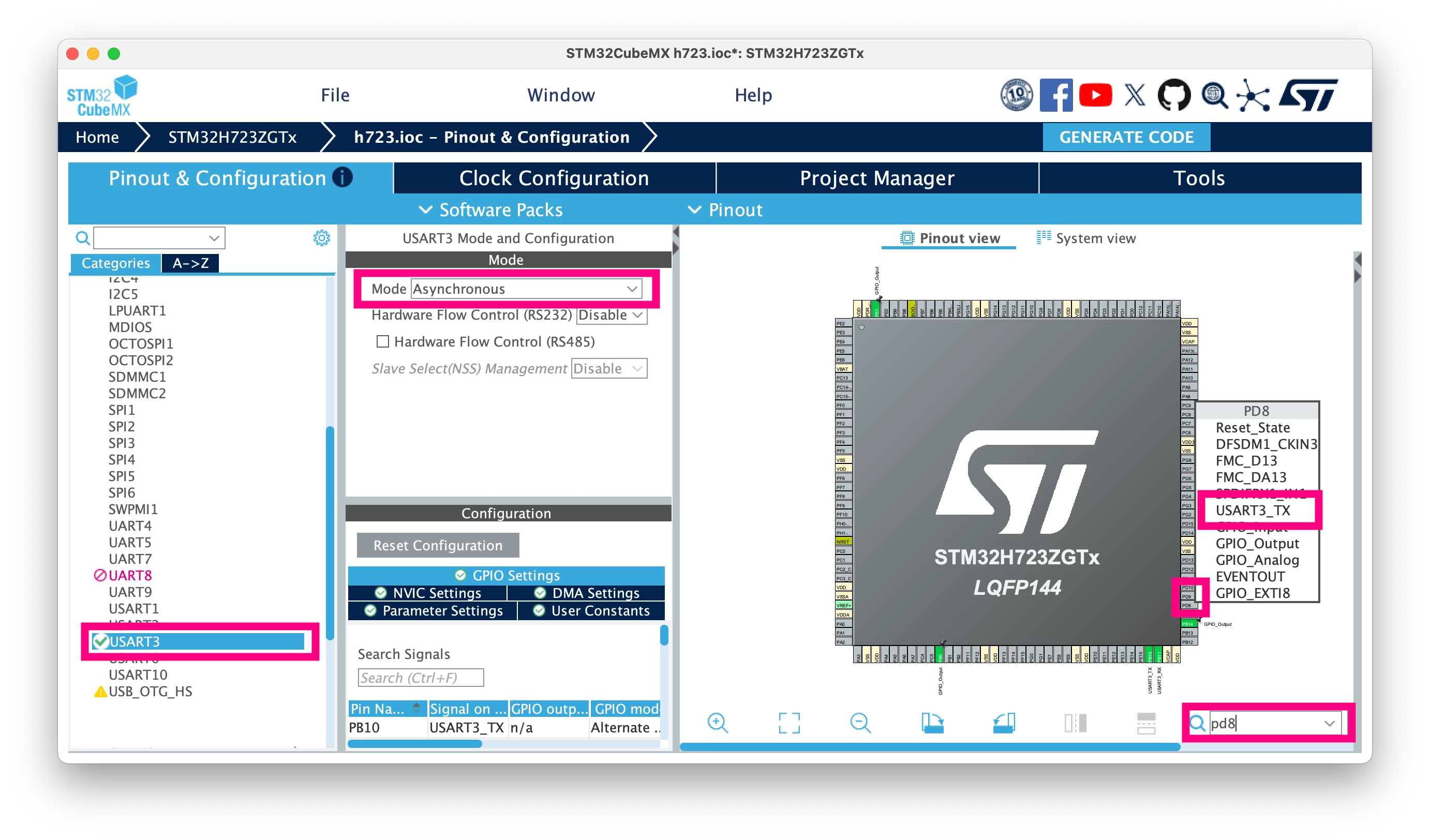
In "Pinout & Configuration" → "Connectivity", set USART to [Asynchronous mode] and configure the Tx and Rx pins.
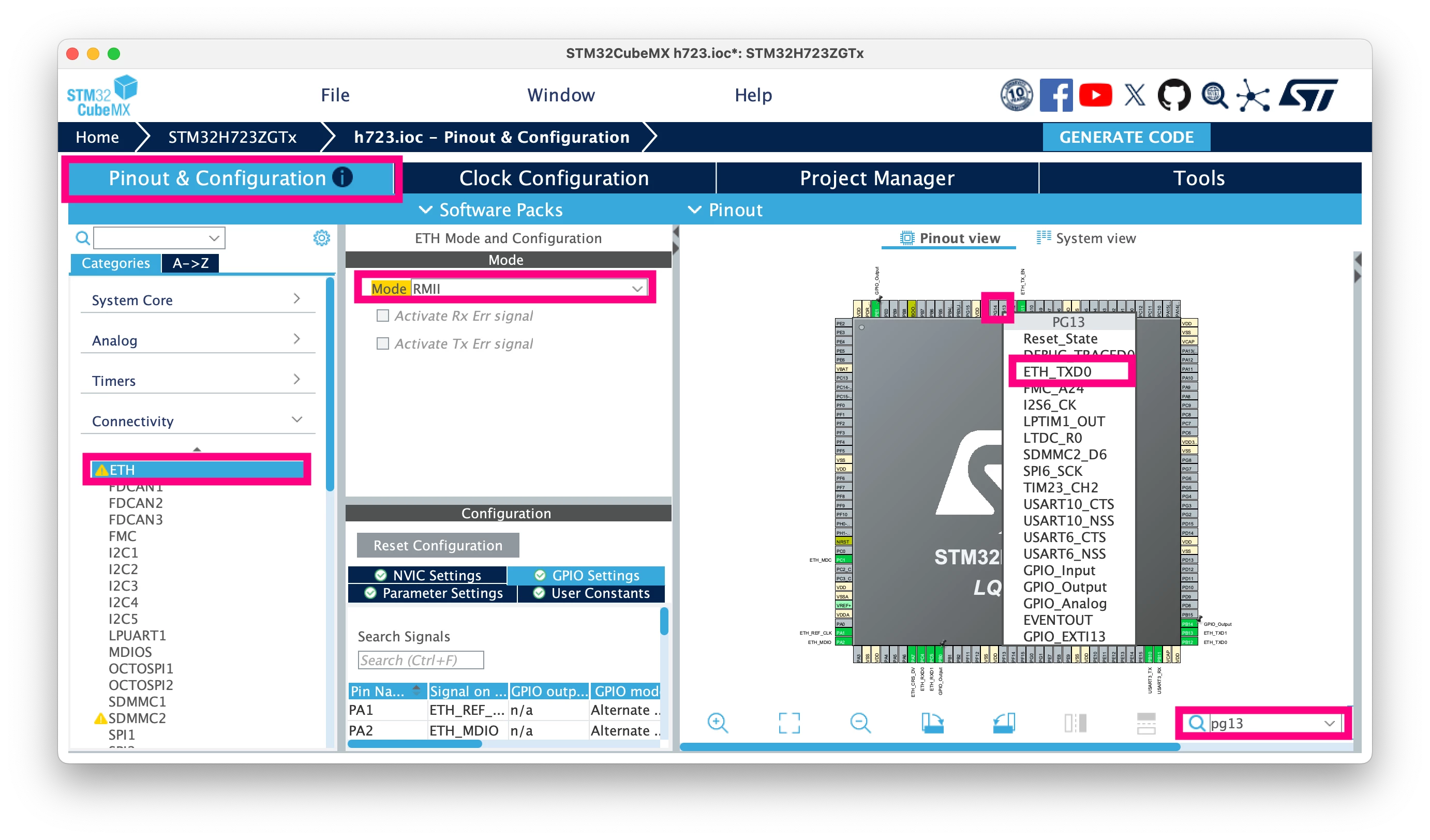
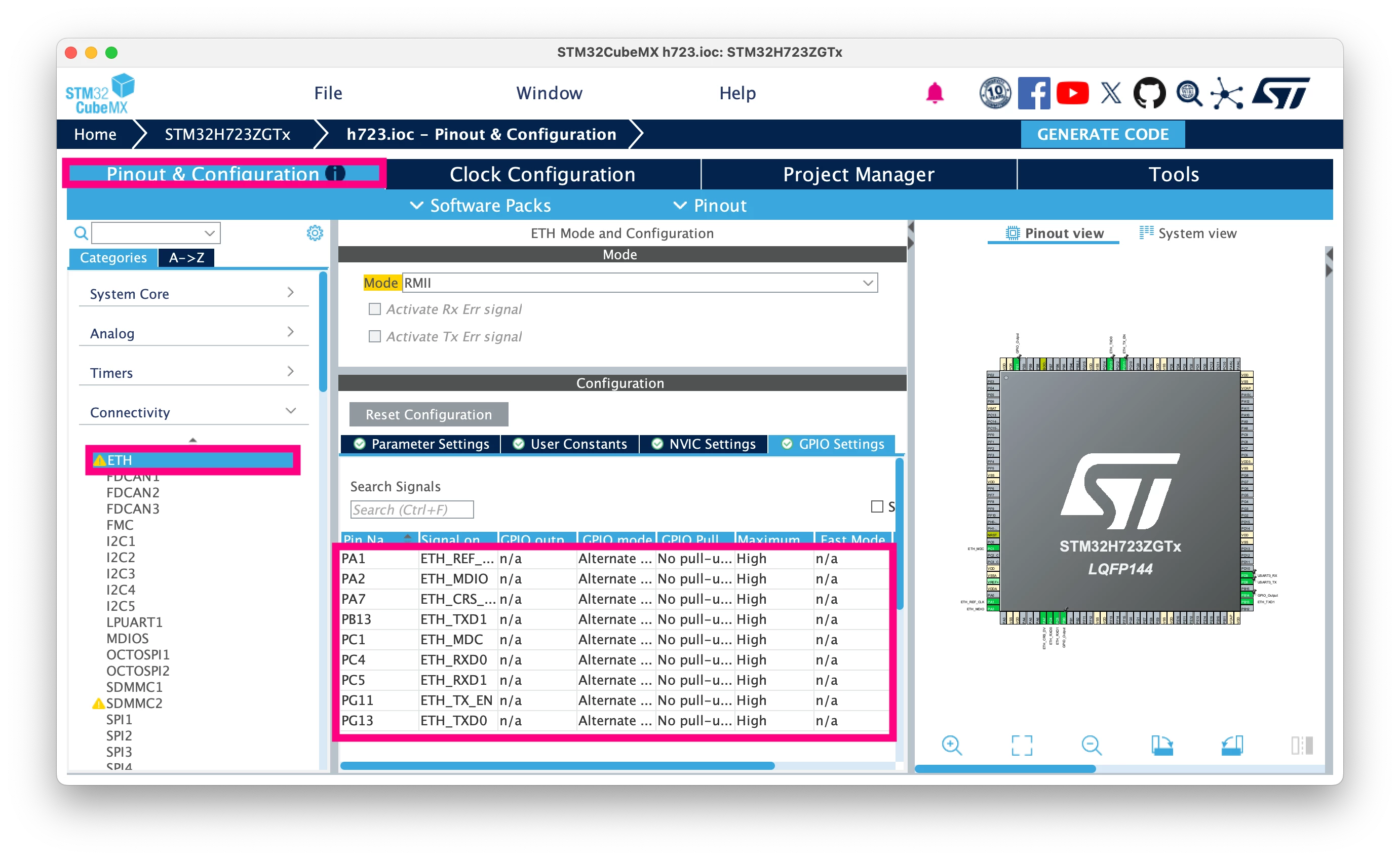
In "Pinout & Configuration" → "Connectivity", set "ETH" to [RMII mode] and configure the Ethernet pins.
 Ensure your pin mapping matches the table above. For NUCLEO-H723ZG, this is the pinout for USART and Ethernet you should obtain.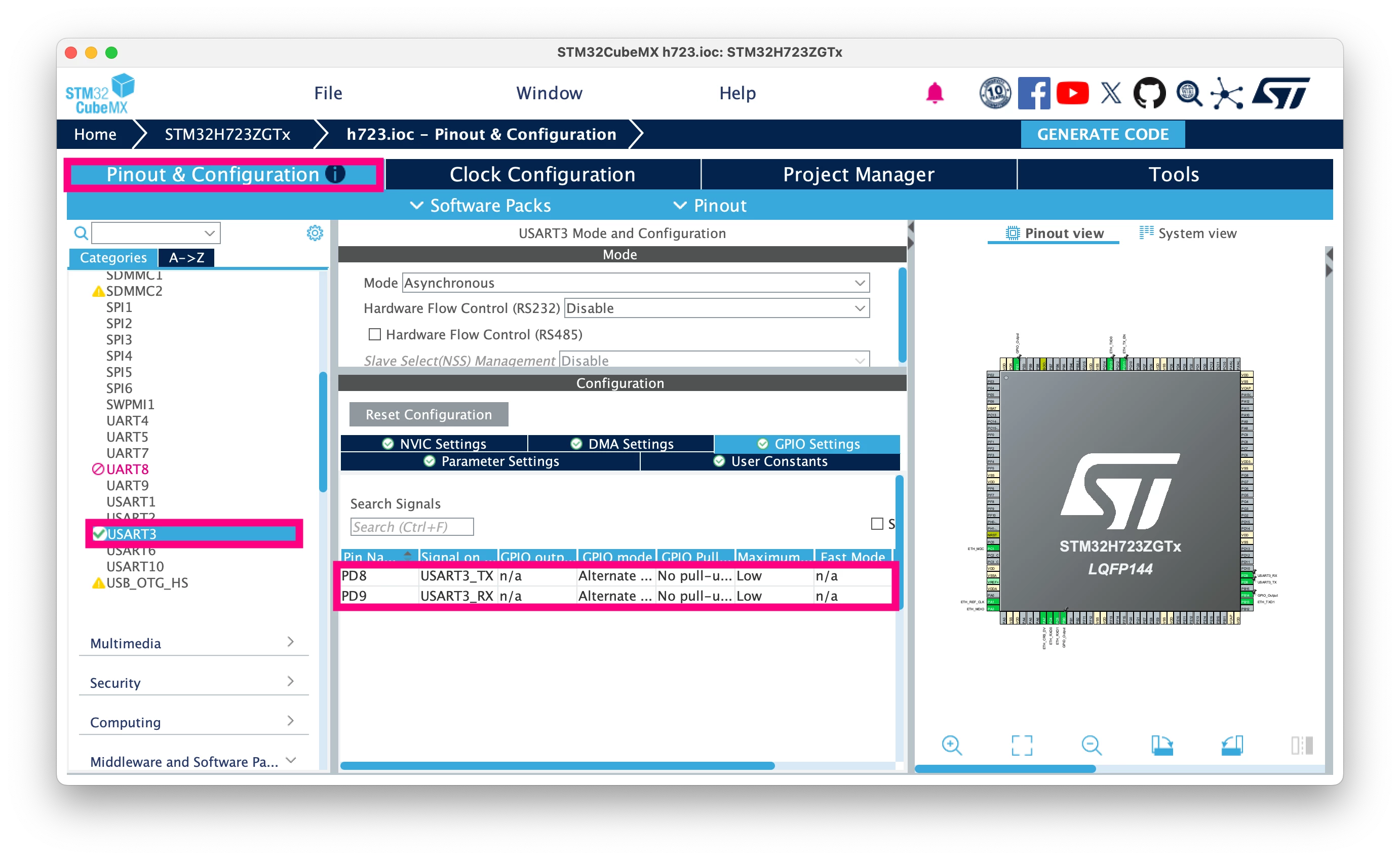
2. Generate the project
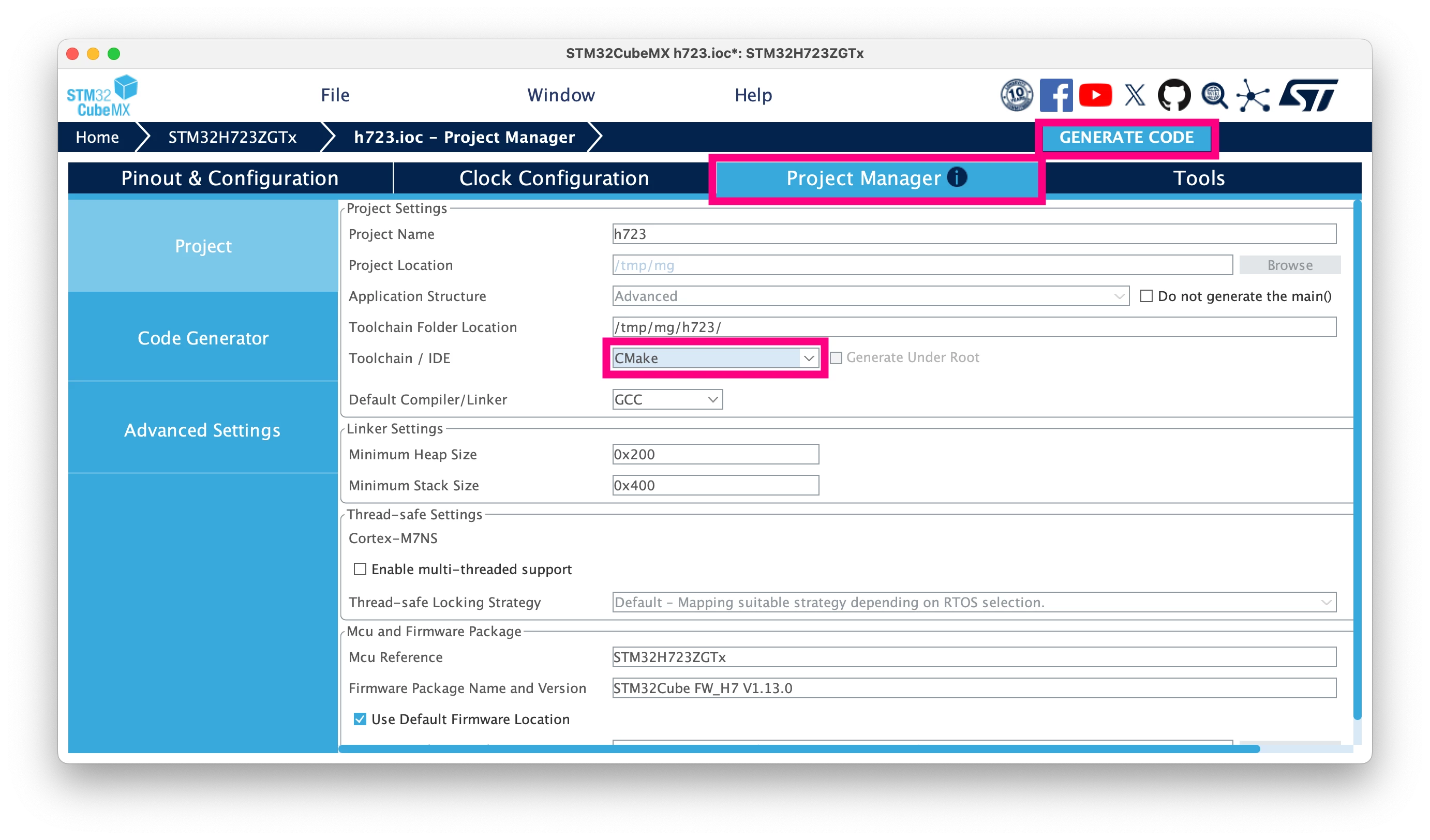
In the Project Manager tab, choose the target IDE and click [Generate Code]. You can select any available option, such as CMake or STM32CubeIDE. This guide uses VS Code STM32, so select CMake.
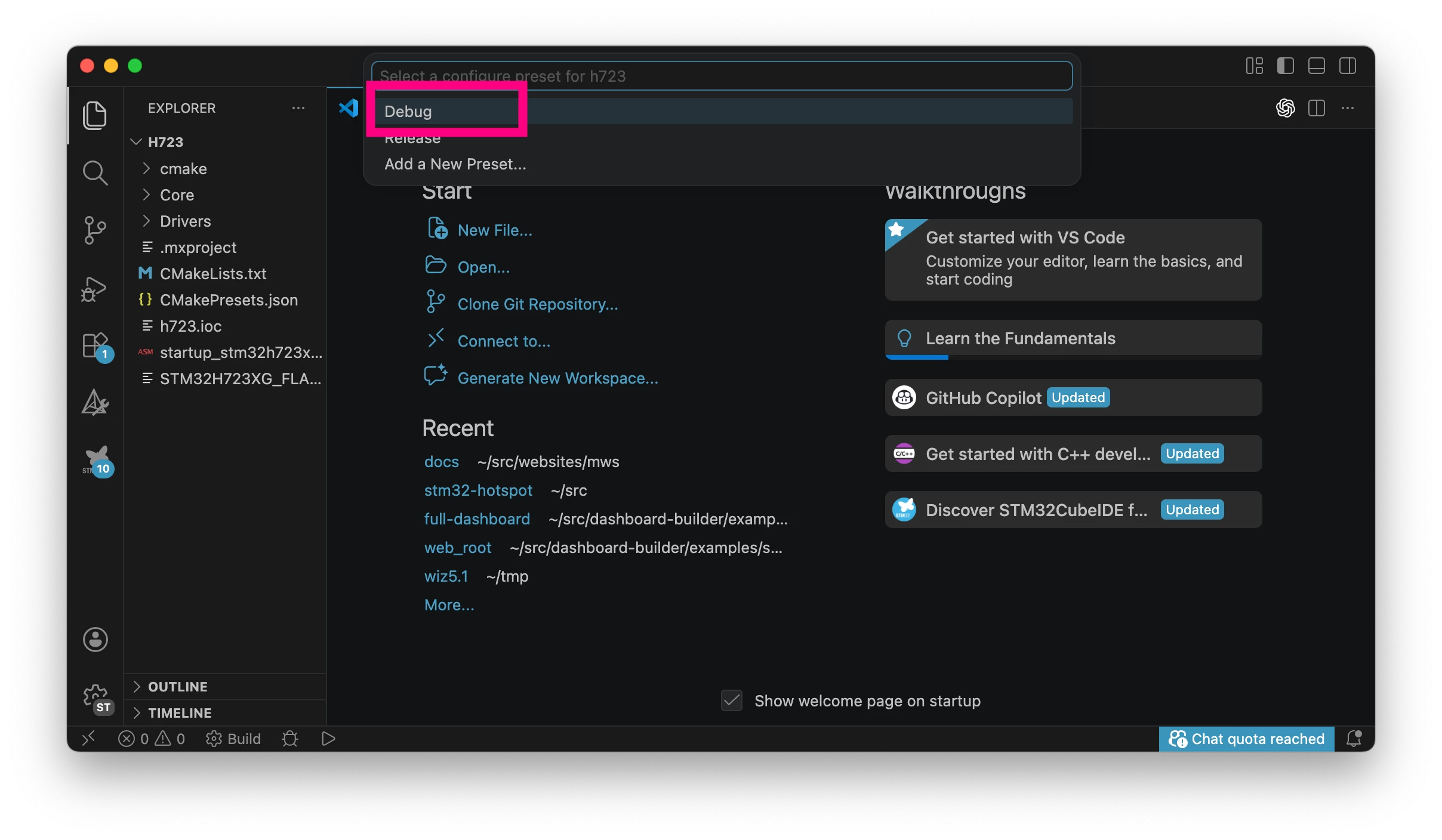
After the project is generated in your target directory, open that directory in VS Code.
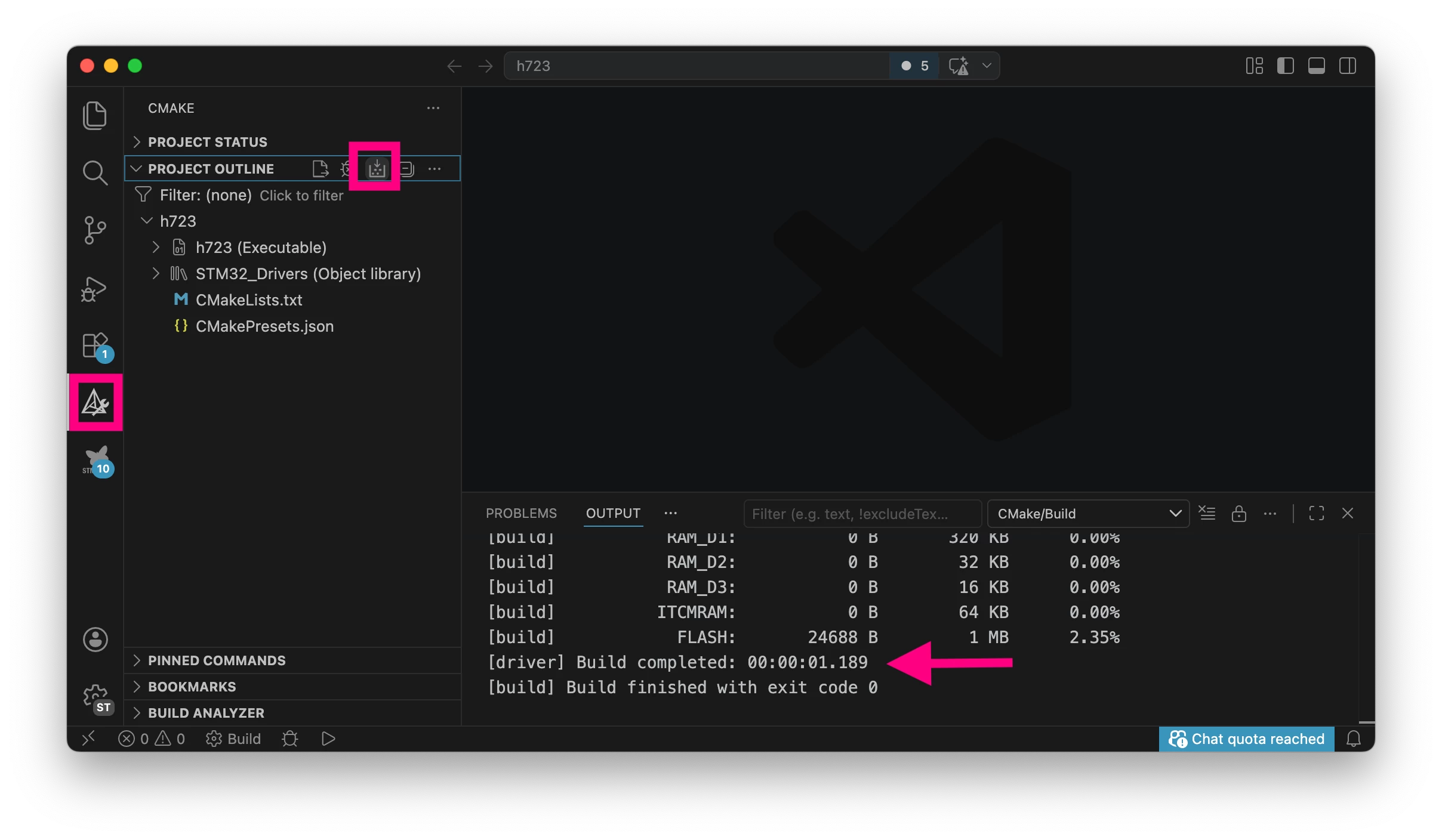
 Build the project to ensure that it builds with no errors.
3. Add Mongoose
It's time to add Mongoose to the project.
There are multiple ways to do this. One option is to copy mongoose.c and mongoose.h from the GitHub repository: https://github.com/cesanta/mongoose. Then, add a mongoose_config.h file with one line in it.
However, the best way is to use STM32CubeMX, since Mongoose is available as STM32CubeMX middleware. Adding middleware also automatically configures include paths and provides additional modules such as web dashboard and MQTT, which will be covered in future articles.
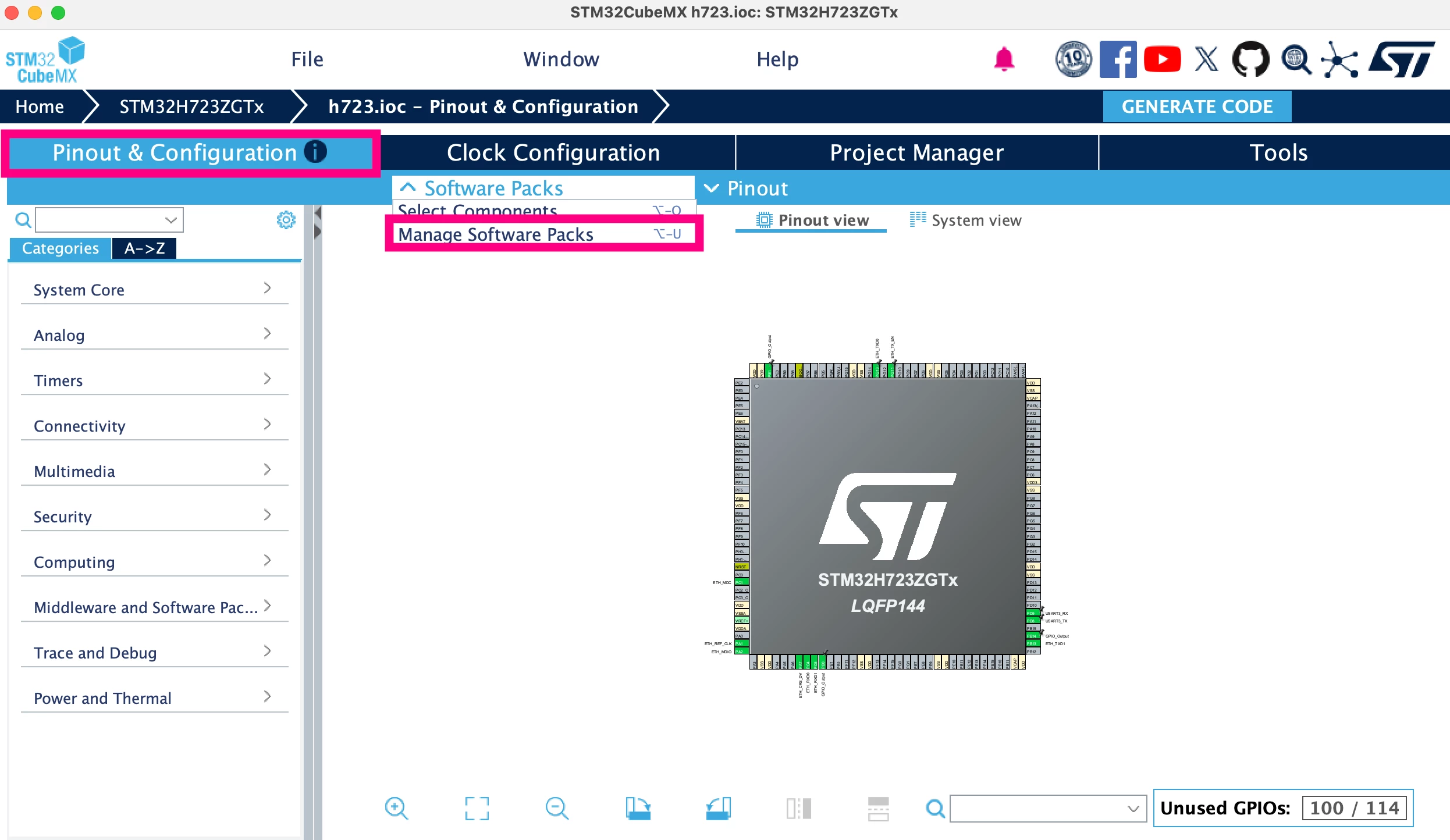
In STM32CubeMX, click "Pinouts & Configuration" → "Software Packs" → "Manage Software Packs."
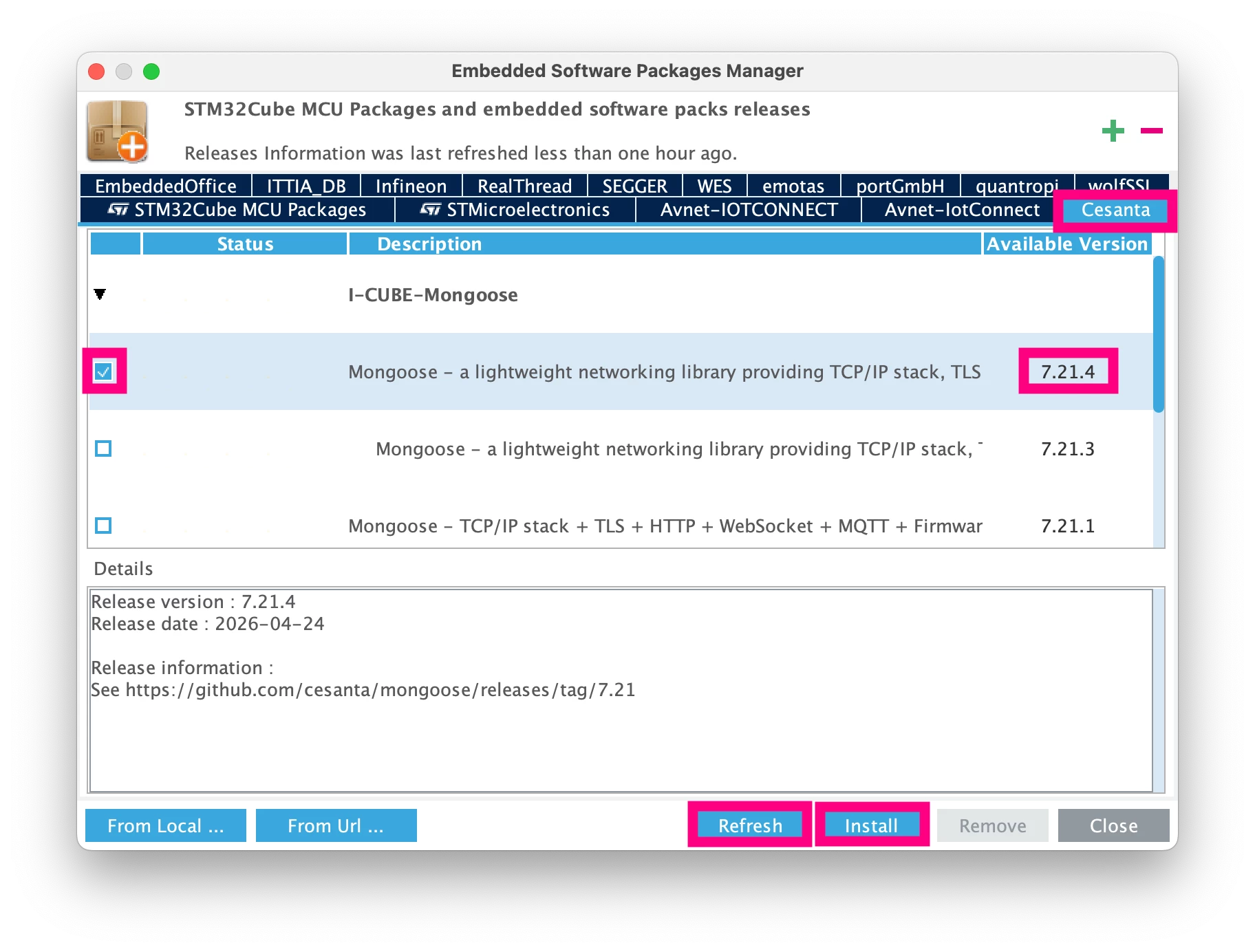
In the window, click [Cesanta], then click [Refresh]. Install the latest "I-CUBE-Mongoose" pack. Ensure it is version 7.21.4 or later.
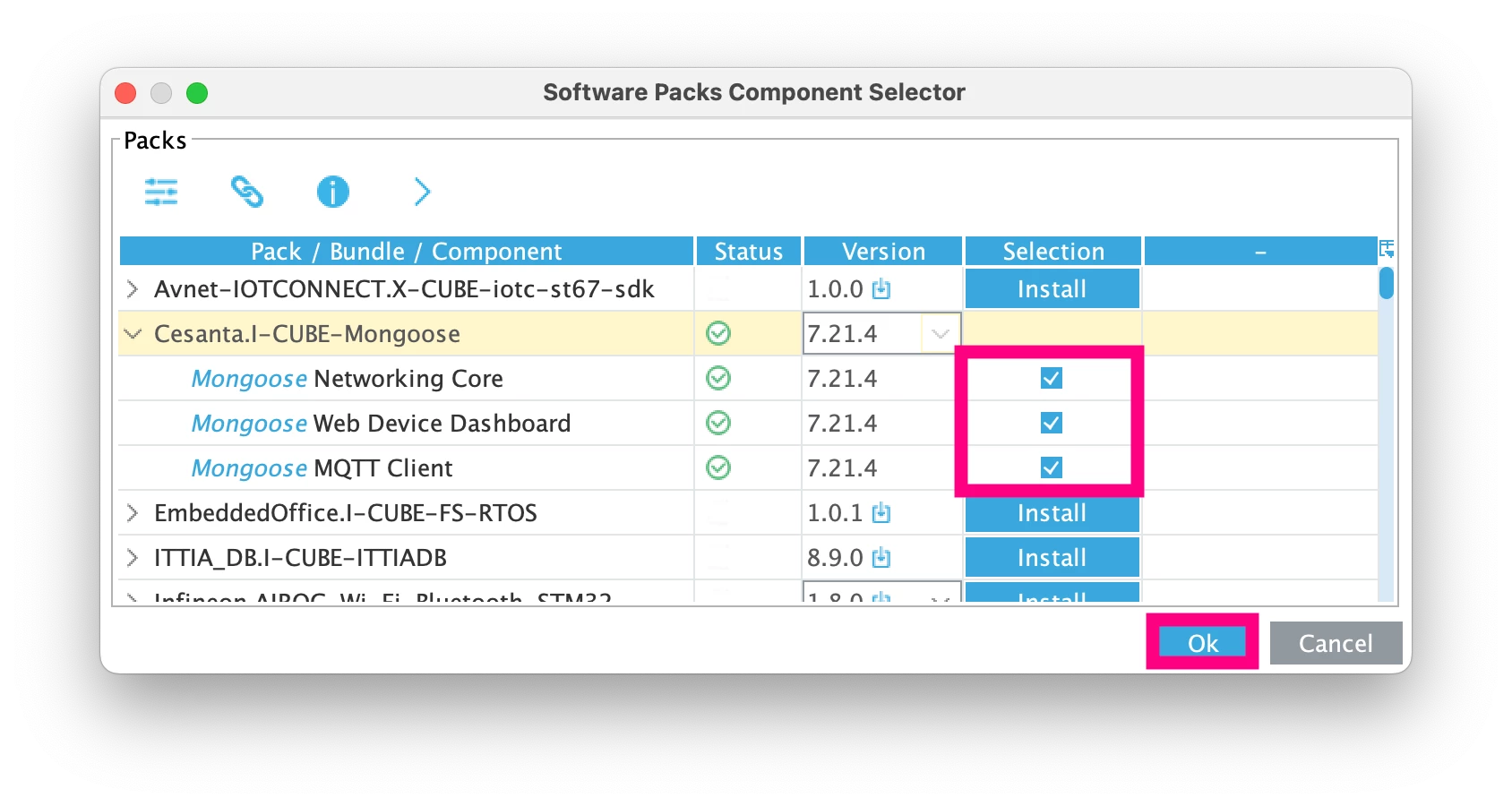
 Click "Software Packs" → "Select Components" and choose all Mongoose components.
  In "Pinouts & Configuration" → "Middleware and Software Packs", click [I-CUBE-Mongoose], enable [Mongoose Networking Core] and click [Generate Code].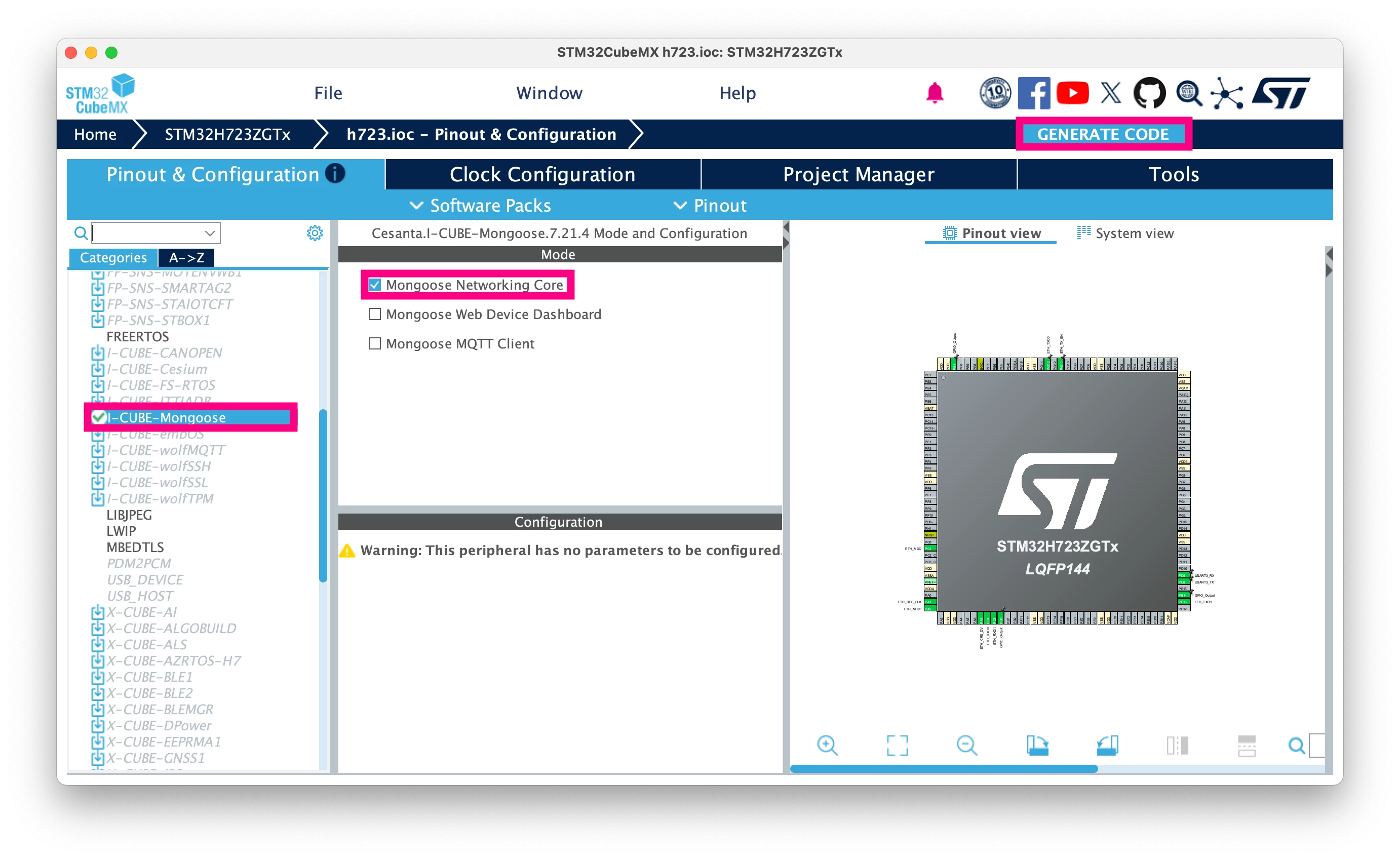
This action adds the Middlewares/Third_Party/Cesanta_Mongoose/ directory with three files: mongoose.c, mongoose.h, and mongoose_config.h.
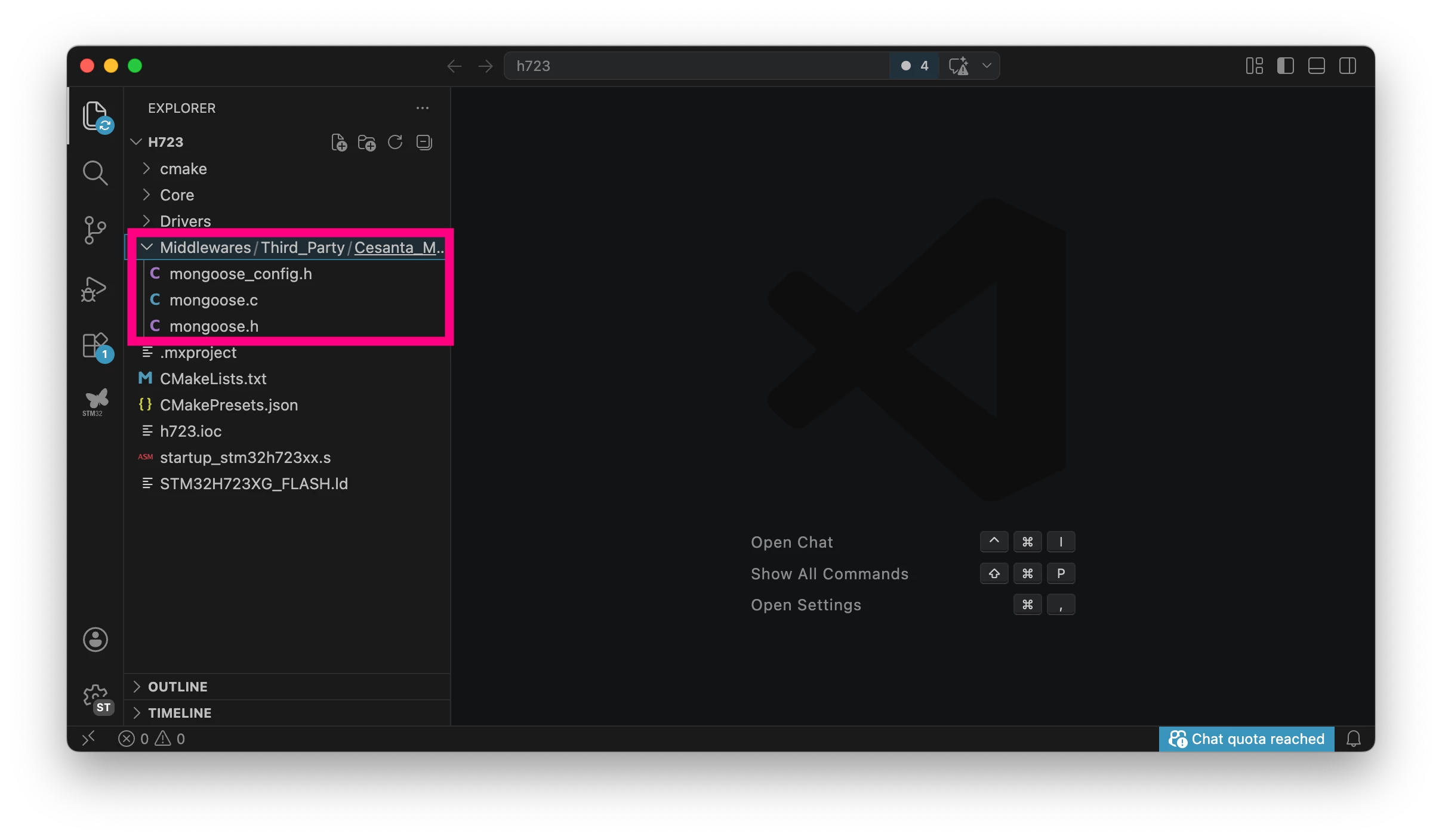 Open Core/Src/main.c and add the mongoose.h include file at the top of the file. Place it inside the user code block so that CubeMX code regeneration does not delete it:
/* USER CODE BEGIN Includes */
#include "mongoose.h"
/* USER CODE END Includes */Add the _write override to redirect printf debug output to the serial console. Also, add the HTTP event handler function that implements a basic web server. Insert these in the user code block:
/* USER CODE BEGIN 0 */
int _write(int fd, unsigned char *buf, int len) {
 HAL_UART_Transmit(&huart3, buf, len, HAL_MAX_DELAY);
 return len;
}

static void http_ev_handler(struct mg_connection *c, int ev, void *ev_data) {
 if (ev == MG_EV_HTTP_MSG) {
 mg_http_reply(c, 200, "", "Hi from Mongoose! Tick %lu\r\n", HAL_GetTick());
 }
}
/* USER CODE END 0 */
Add the following to the main function to initialize and run Mongoose. This runs the TCP/IP stack and the web server:
/* USER CODE BEGIN WHILE */
struct mg_mgr mgr;
mg_mgr_init(&mgr);
mg_http_listen(&mgr, "http://0.0.0.0:80", http_ev_handler, NULL);
while (1)
{
mg_mgr_poll(&mgr, 0);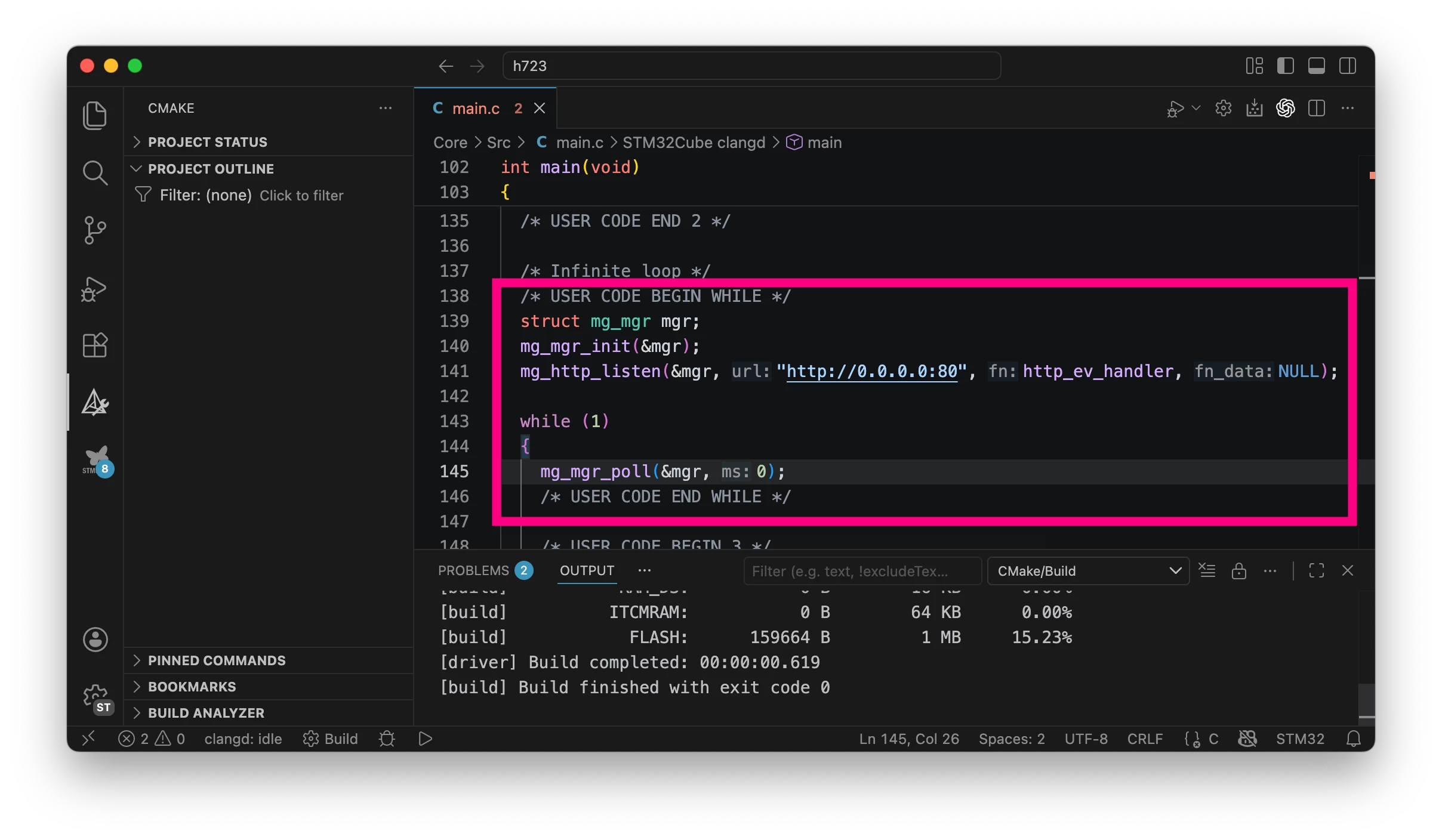 Mongoose uses an event-driven model to handle connections. This makes it easy to manage multiple connections within a single task.
If you use an RTOS, run the Mongoose event loop in a separate task. Allocate about 8 KB of stack space. Mongoose can run in both RTOS and bare-metal environments.
4. Edit the linker script
Open STM32H723XG_FLASH.ld and add the following line before the .bss (NOLOAD) line:
.eth_ram : { *(.eth_ram .eth_ram*) } > RAM_D2 AT > FLASH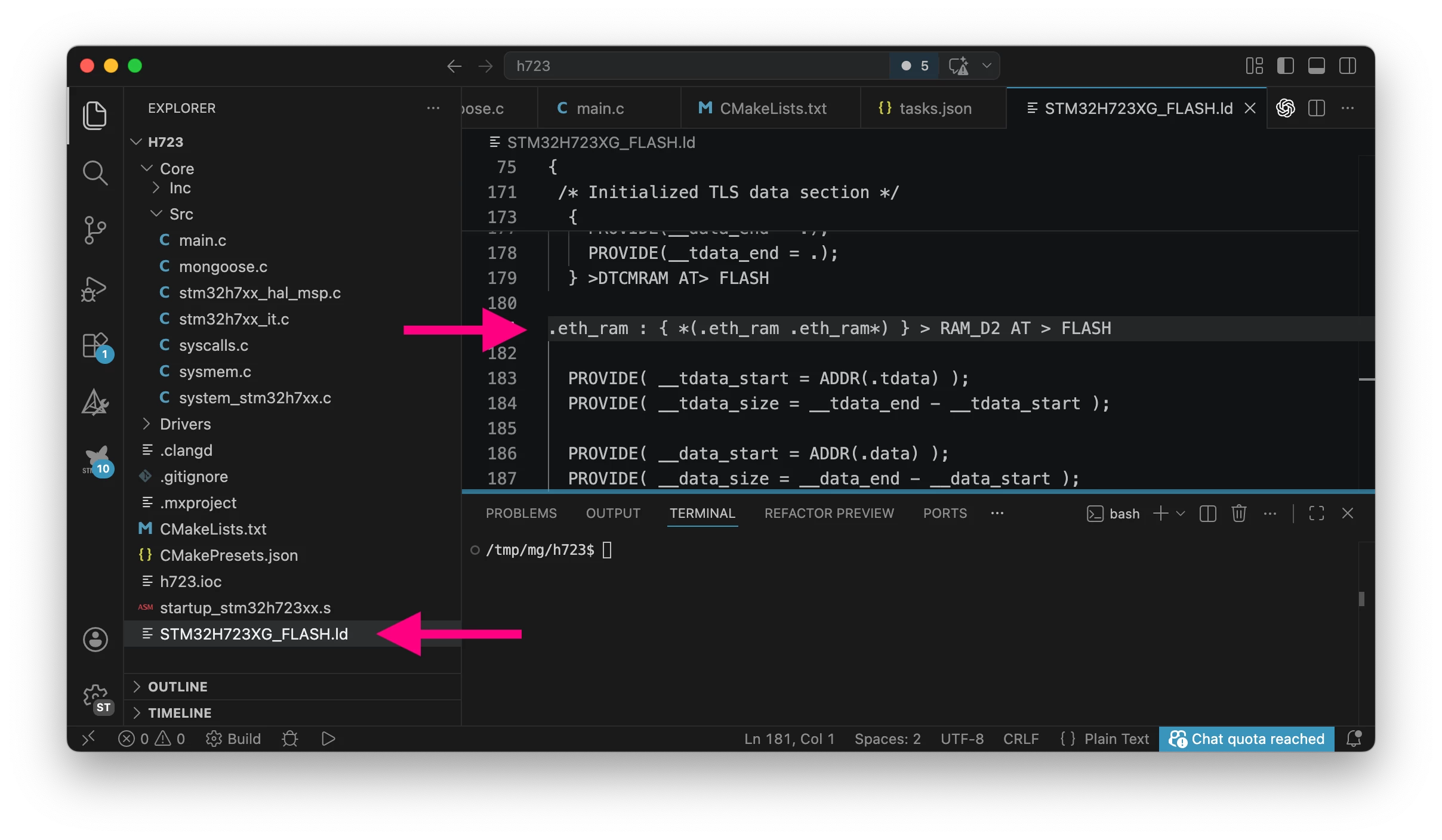 The Ethernet MAC uses a DMA controller to transfer data. The Ethernet driver defines DMA buffers using the .eth_ram ELF section. Therefore, in the linker script, .eth_ram must be placed in a memory region accessible by the Ethernet DMA controller.
If this is not done, .eth_ram ends up in the same region as .bss, which might not be accessible by the Ethernet DMA. The memory regions and their accessibility are described in the reference manual.
For STM32H723, see RM0468, section 2.4.
5. Build and run
Rebuild the firmware.
Open a serial console. On Windows, use your favorite terminal, either the integrated one in VS Code or others, such as putty.exe utility or Tera Term. On Linux or macOS, using the cu utility is recommended.
$ sudo cu -l /dev/cu.usb* -s 115200Ensure that your board is connected to an Ethernet network with a DHCP server. The easiest option is to use a USB to Ethernet dongle and enable internet sharing on the Ethernet interface.
Start STM32CubeProgrammer and flash the firmware.
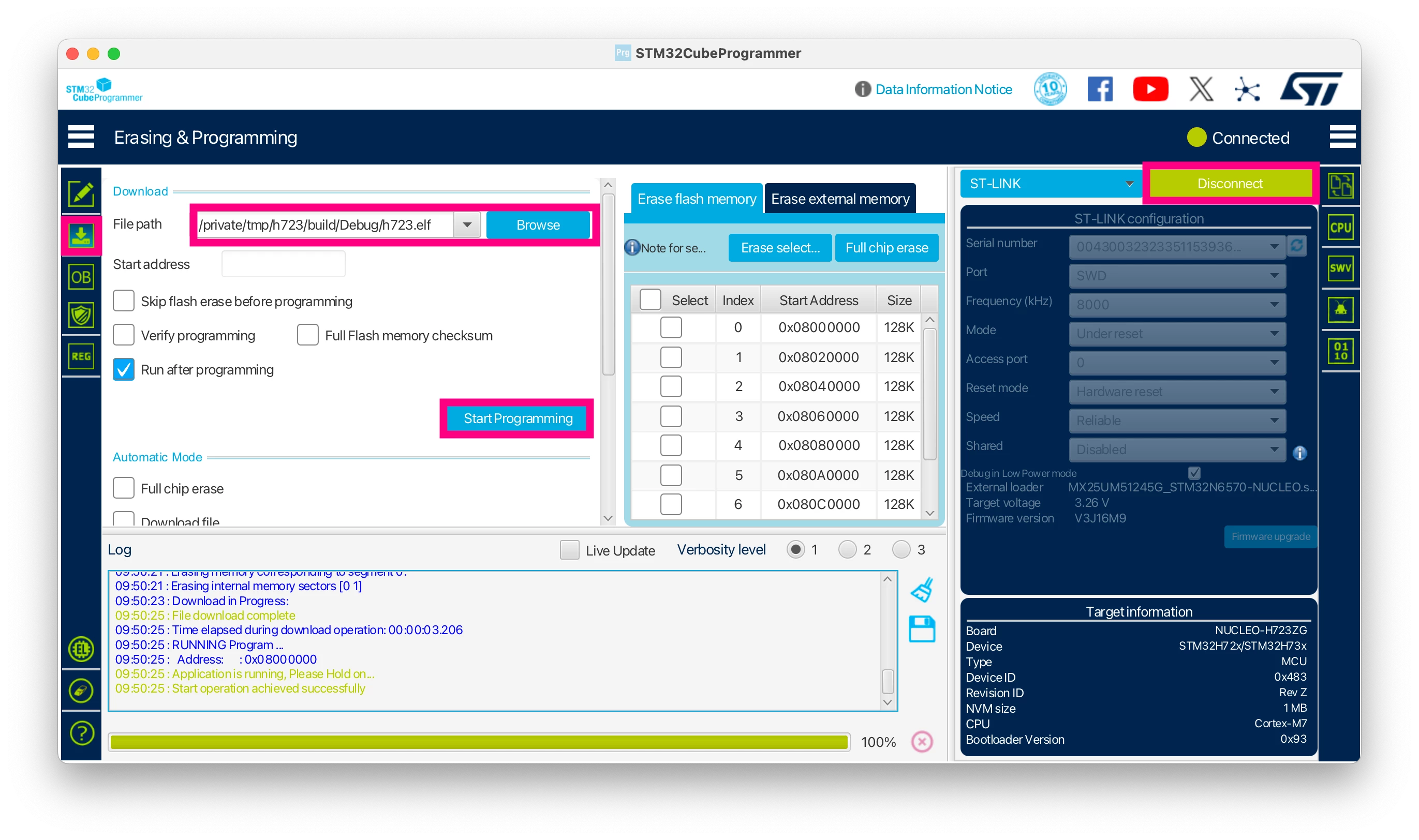 Alternatively, this integration can be done in VS Code by creating a custom task.json: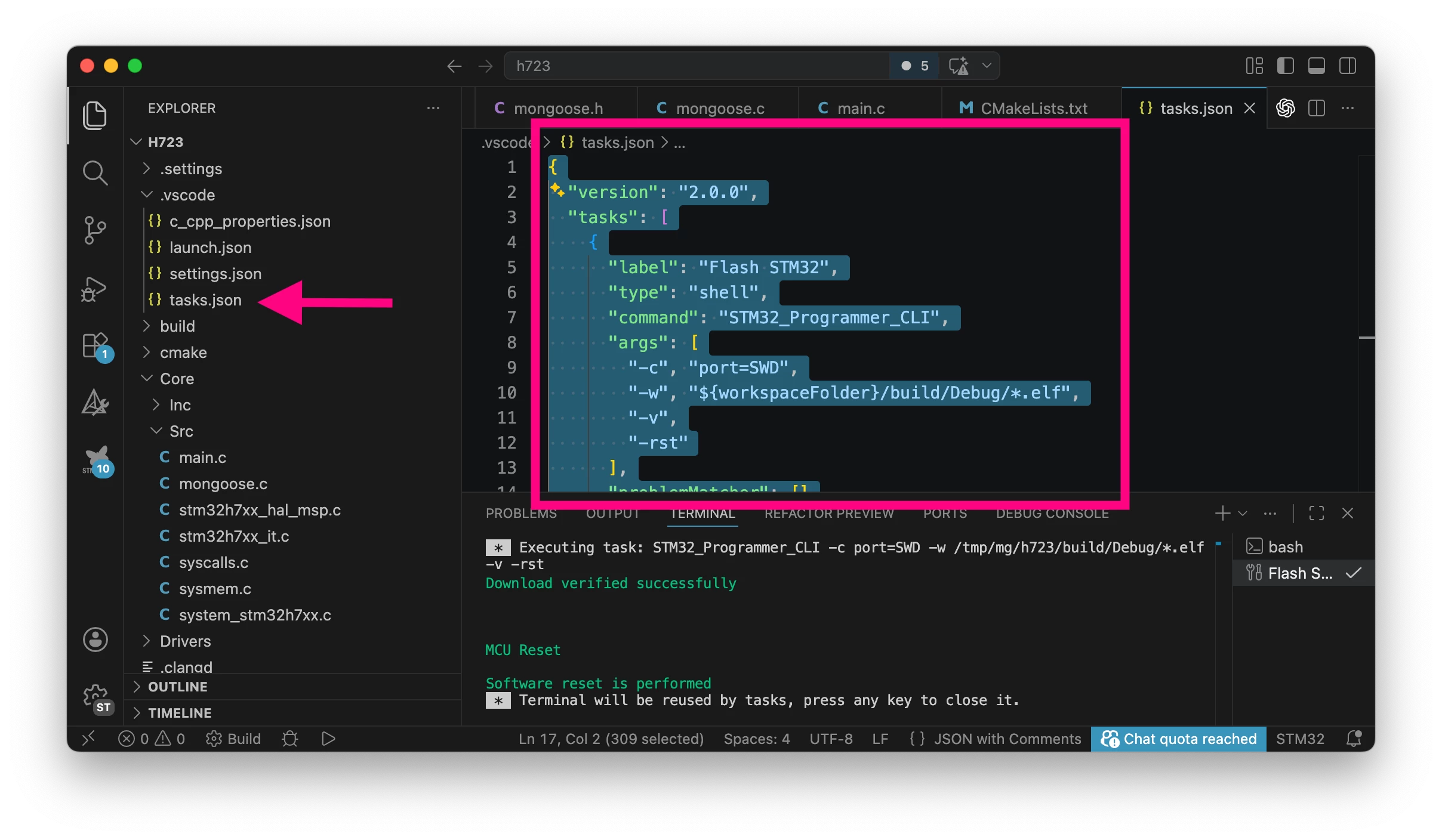
{
 "version": "2.0.0",
 "tasks": [
 {
 "label": "Flash STM32",
 "type": "shell",
 "command": "STM32_Programmer_CLI",
 "args": [
 "-c", "port=SWD",
 "-w", "${workspaceFolder}/build/Debug/*.elf",
 "-v",
 "-rst"
 ],
 "problemMatcher": []
 }
 ]
}0 2 mongoose.c:26153:mg_phy_init PHY ID: 0x07 0xc131 (LAN87x)
6 2 mongoose.c:5834:mg_mgr_init Driver: stm32h, MAC: 2a:37:94:03:d5:74
d 3 mongoose.c:5841:mg_mgr_init MG_IO_SIZE: 512, TLS: builtin
13 3 mongoose.c:5758:mg_listen 1 0 http://0.0.0.0:80
19 1 mongoose.c:6260:onstatechange Link down
1e 1 mongoose.c:7795:mg_tcpip_poll Network is down
3ee 1 mongoose.c:6260:onstatechange Link down
3f2 1 mongoose.c:7795:mg_tcpip_poll Network is down
7d6 3 mongoose.c:28424:mg_tcpip_driv Link is 100M full-duplex
7db 3 mongoose.c:6404:tx_dhcp_discov DHCP discover sent. Our MAC: 2a:37:94:03:d5:74
831 3 mongoose.c:6382:tx_dhcp_reques DHCP req sent
836 2 mongoose.c:6559:rx_dhcp_client Lease: 3600 sec (3602)
83c 2 mongoose.c:6249:onstatechange READY, IP: 192.168.2.31
842 2 mongoose.c:6250:onstatechange GW: 192.168.2.1
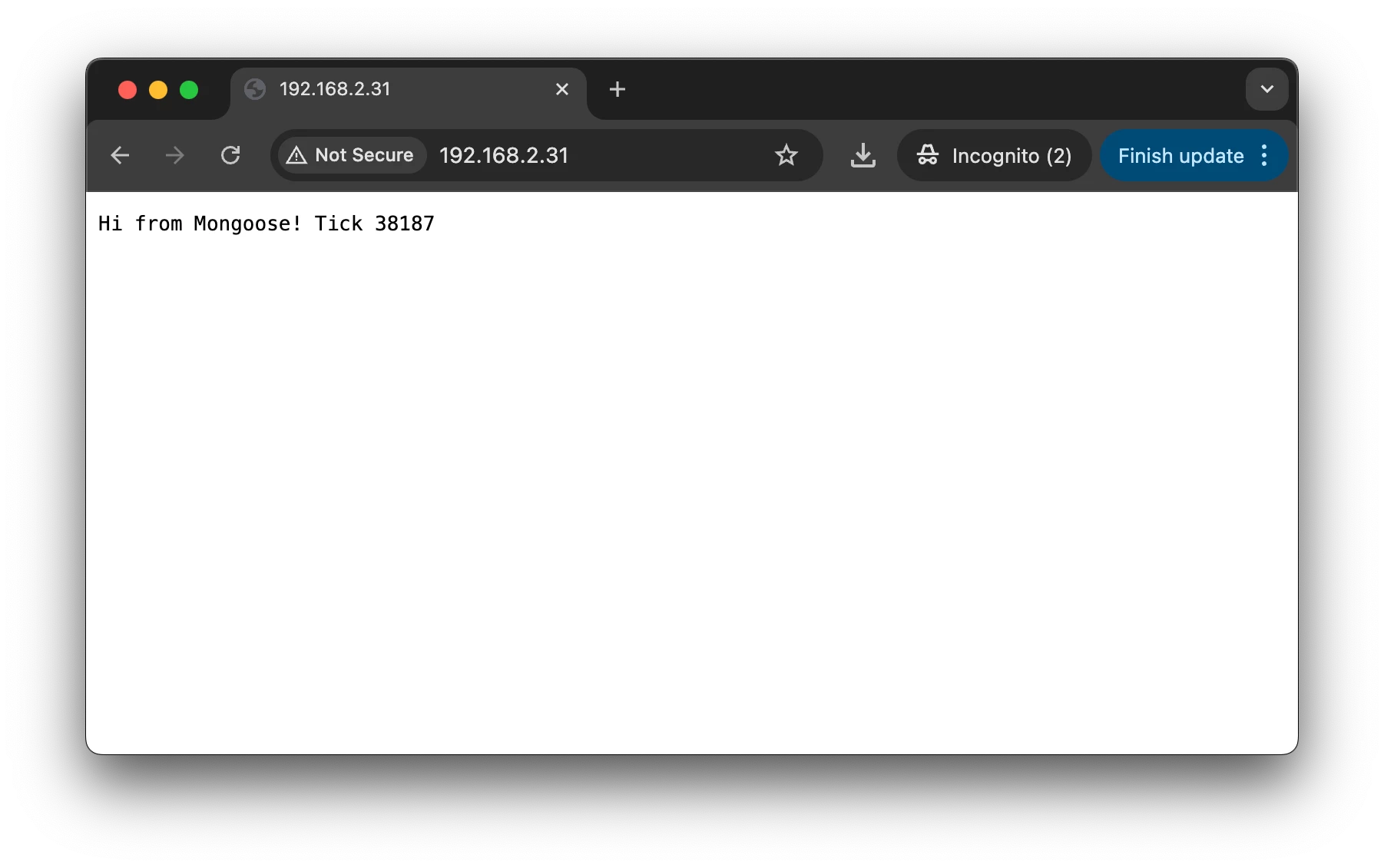
847 2 mongoose.c:6253:onstatechange MAC: 2a:37:94:03:d5:74Open the IP address in your browser. You should see the output from the web server.
Conclusion
Congratulations! Your STM32 device is now running Ethernet TCP/IP and a simple web server. Mongoose enables many possibilities, which will be covered in future articles.
Related links
