

How to use TIM with STM32CubeMX2
Summary
This tutorial provides a concise guide on how to enable and configure the general-purpose timer (TIM) peripheral using STM32CubeMX2. The demonstration uses the NUCLEO-C562RE board. The following TIM features are covered:
- Basic timer configuration and usage
- Timer interrupts for periodic events
- Summary
- Introduction
- Prerequisites
- 1. STM32CubeMX2 project creation and basic setup
- 1.1 Project creation
- 1.2 Pinout and Configuration
- 1.3 Code generation
- 2. Configuring the project in Visual Studio Code
- 3. Code editing (basic timer with interrupt)
- 3.1 Validation
- Conclusion
- Related links
Introduction
Timers in STM32 microcontrollers are versatile peripherals capable of generating precise time bases, PWM signals, input capture, output compare, and triggering events. They are essential for tasks such as periodic interrupts, pulse generation, and measuring time intervals.
STM32 timers support multiple modes and can be used with interrupts and DMA to optimize CPU usage and achieve accurate timing control.
With STM32CubeMX2 and the HAL2 driver, configuring and using TIM has changed. This tutorial provides a step-by-step guide on how to use the new tools.
Prerequisites
Install the following tools:
- STM32CubeMX2
- The latest STM32C5 HAL2 driver
- STM32CubeIDE extension for Visual Studio Code
The hardware used in this tutorial is the NUCLEO-C562RE board.
1. STM32CubeMX2 project creation and basic setup
Follow these steps to create a simple application that creates a periodic 1KHz interrupt for time base project for the NUCLEO-C562RE board.
1.1 Project creation
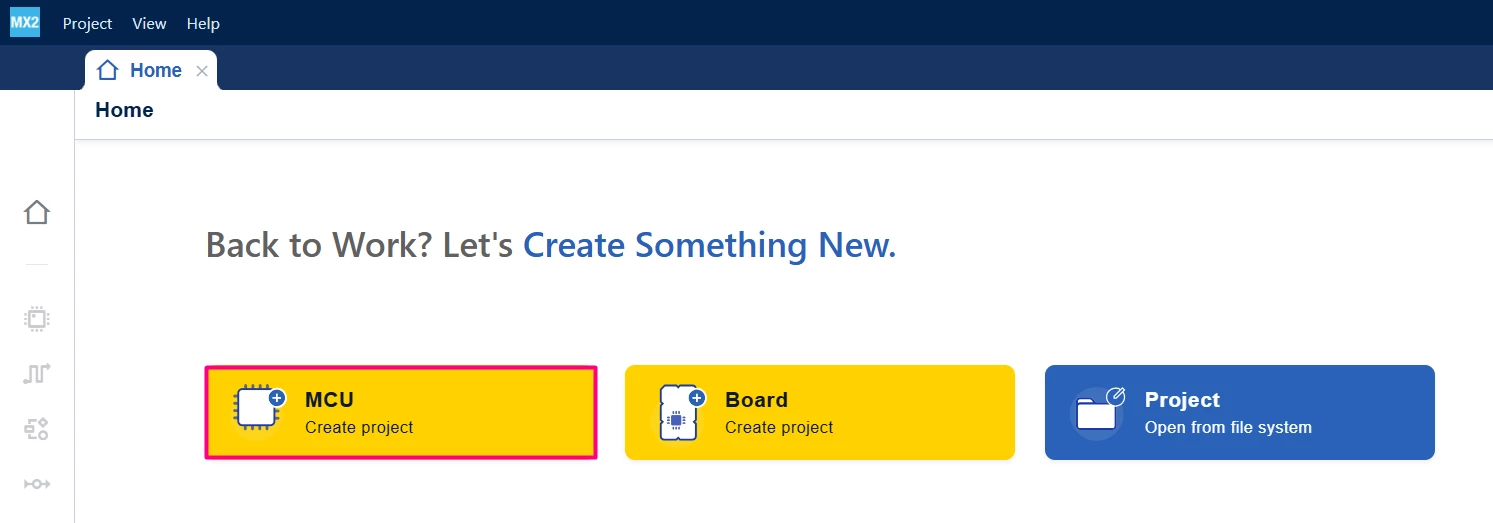
Open STM32CubeMX2. On the "Home" page, click the [MCU square] to create a new project
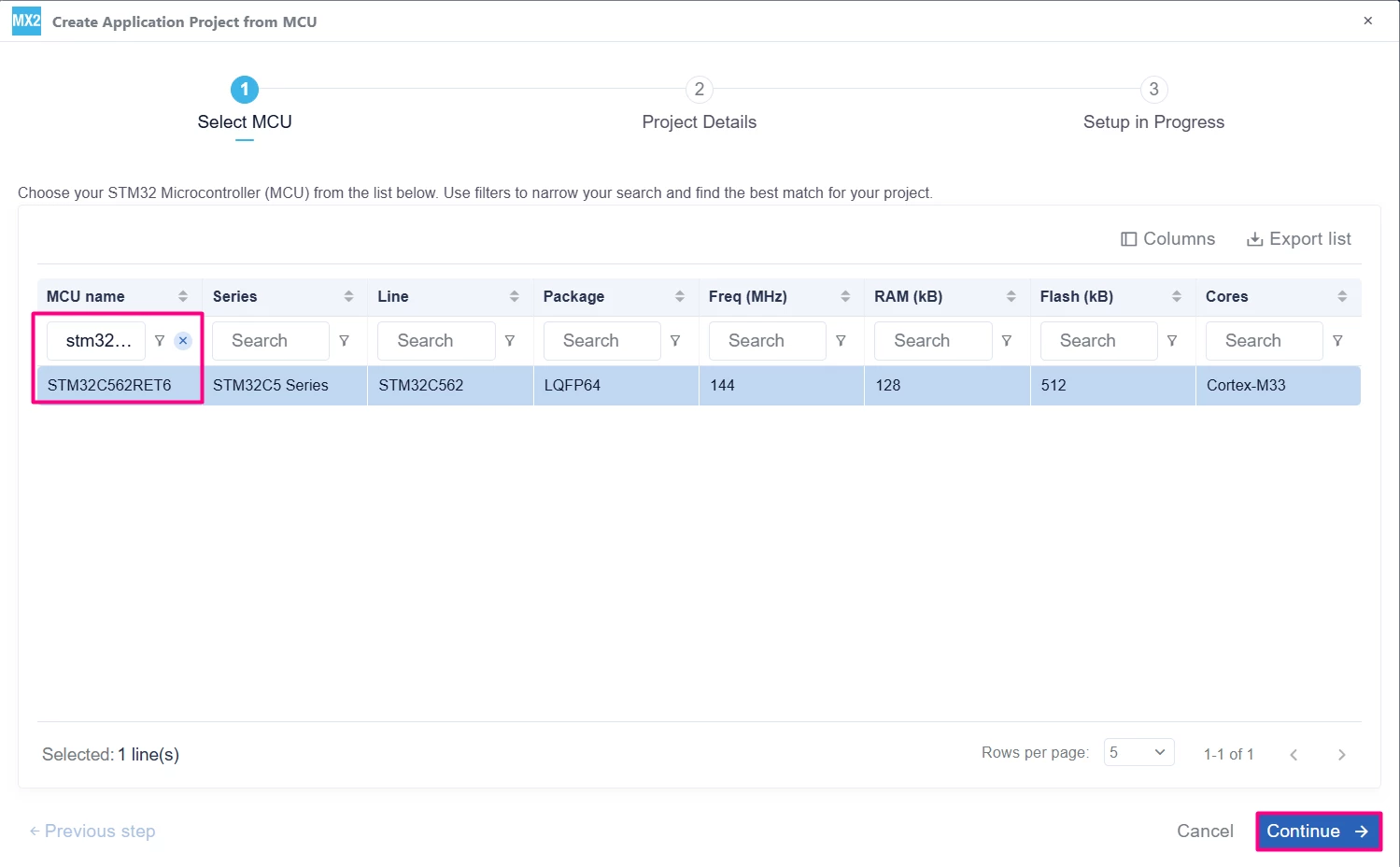
In the search field under MCU name, enter STM32C562RE and select the MCU. Click [Continue].
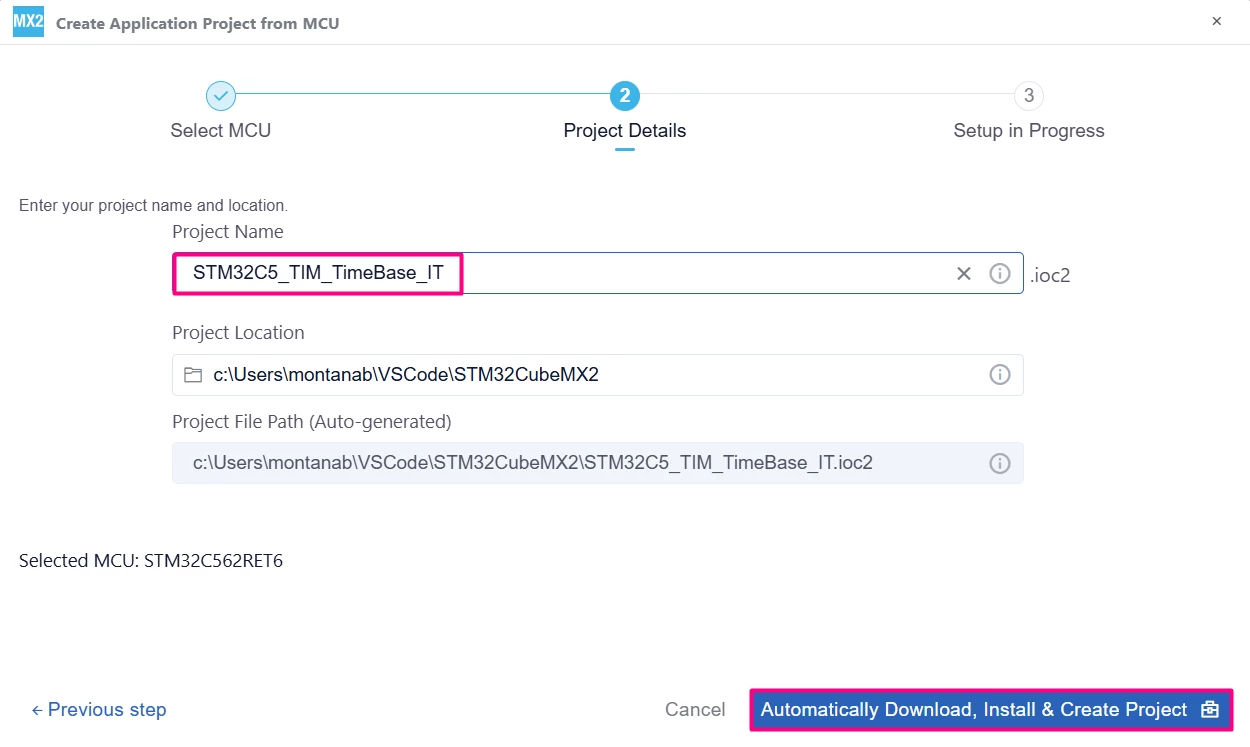
Enter the project name and location. Click [Automatically Download, Install & Create Project] to finish project creation.
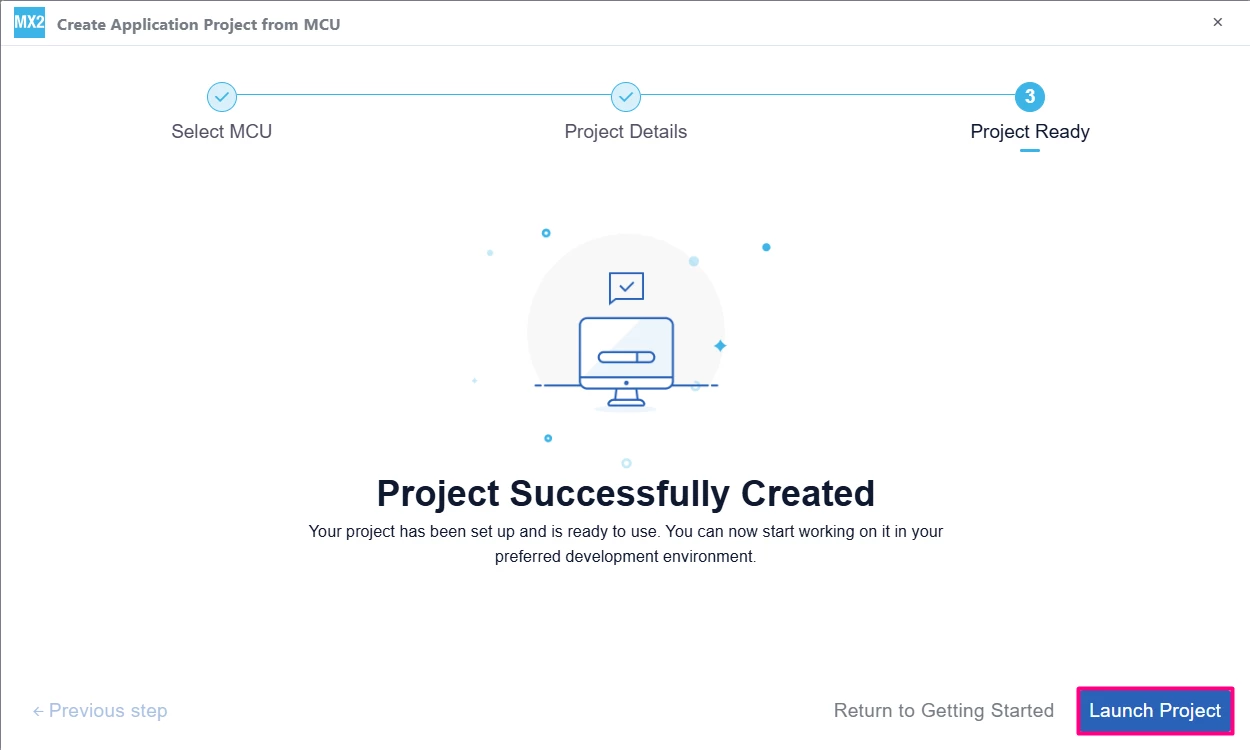
Select [Launch Project] to start.
1.2 Pinout and Configuration
Configure the green LED, available on PA5.
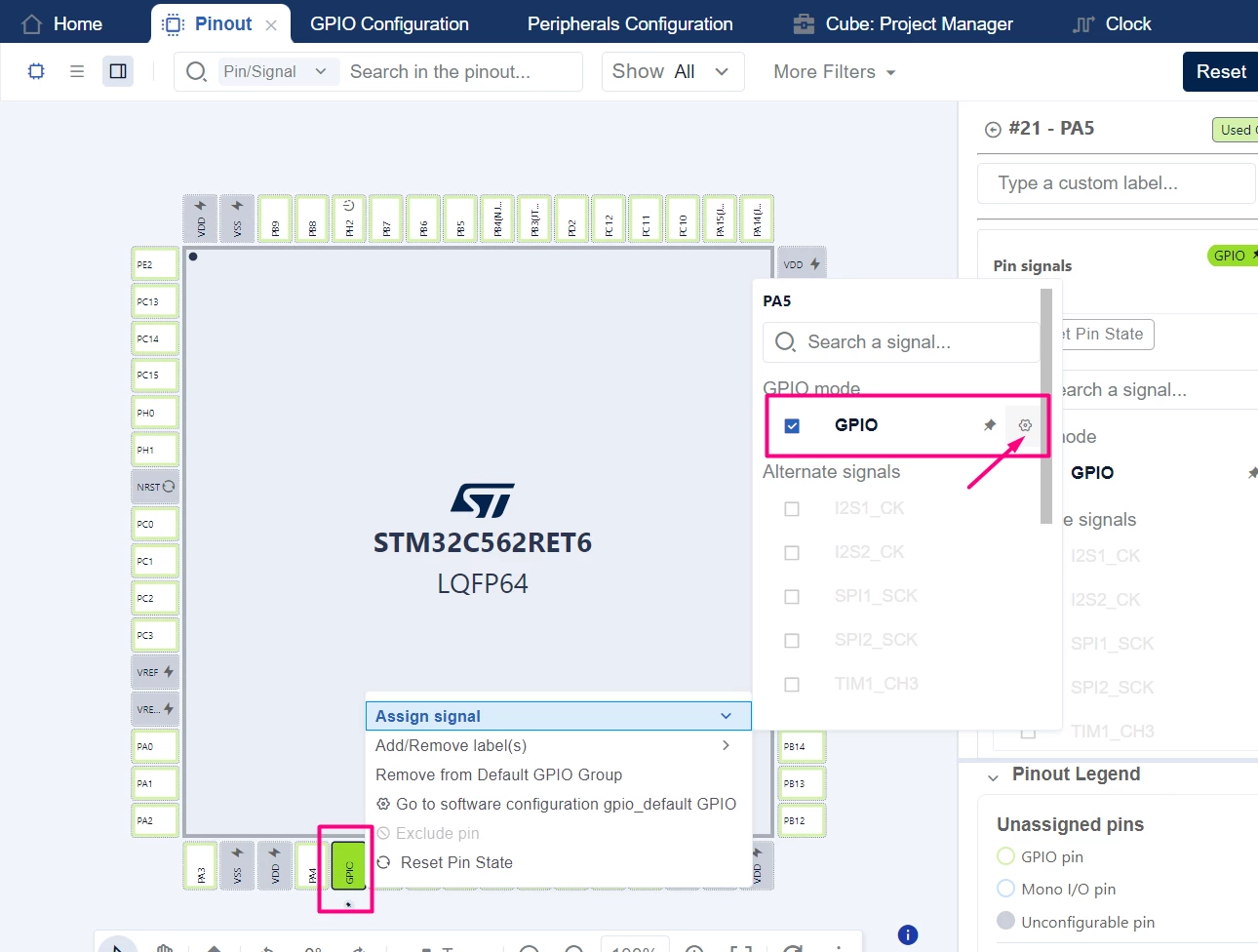
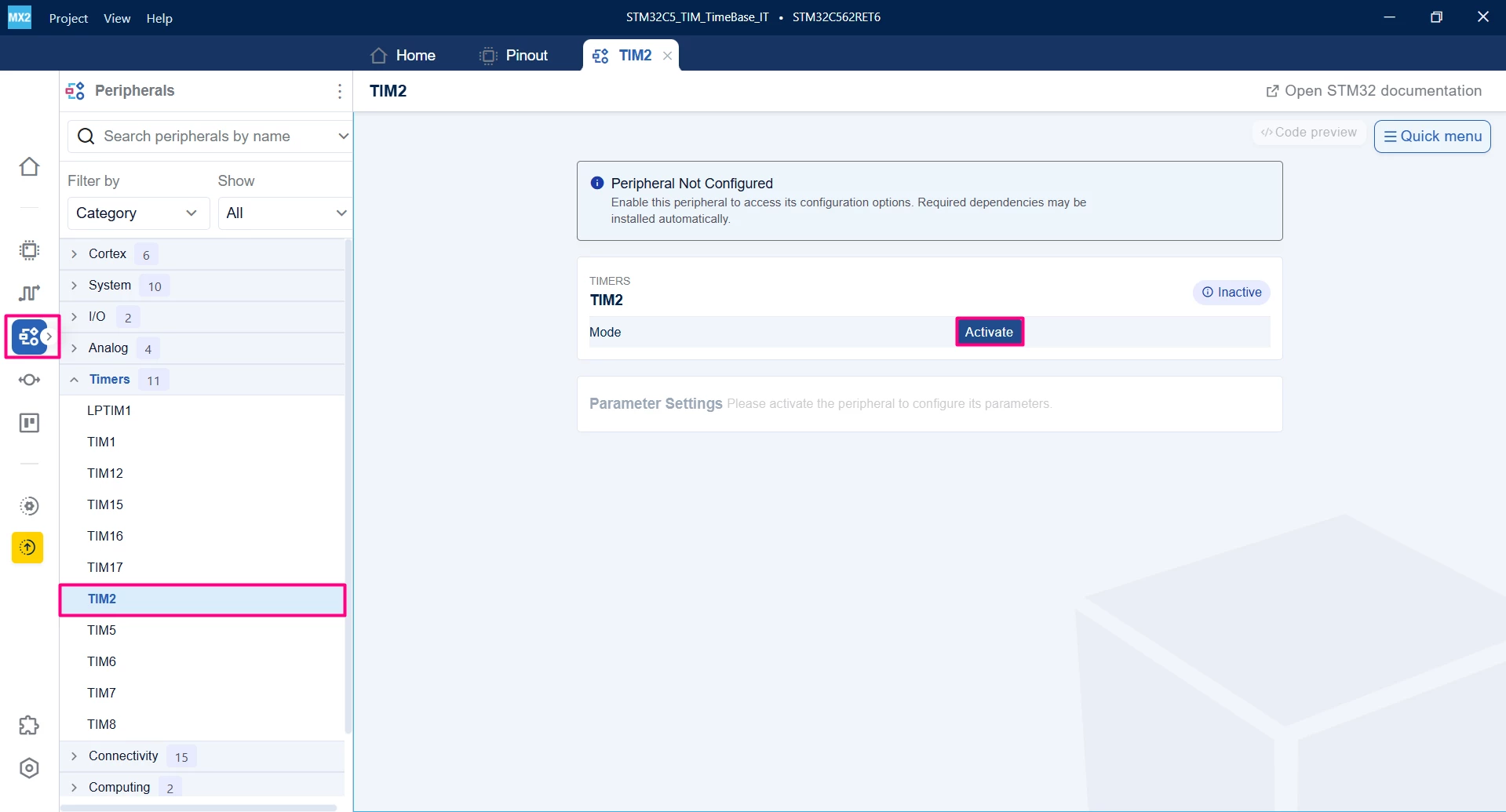
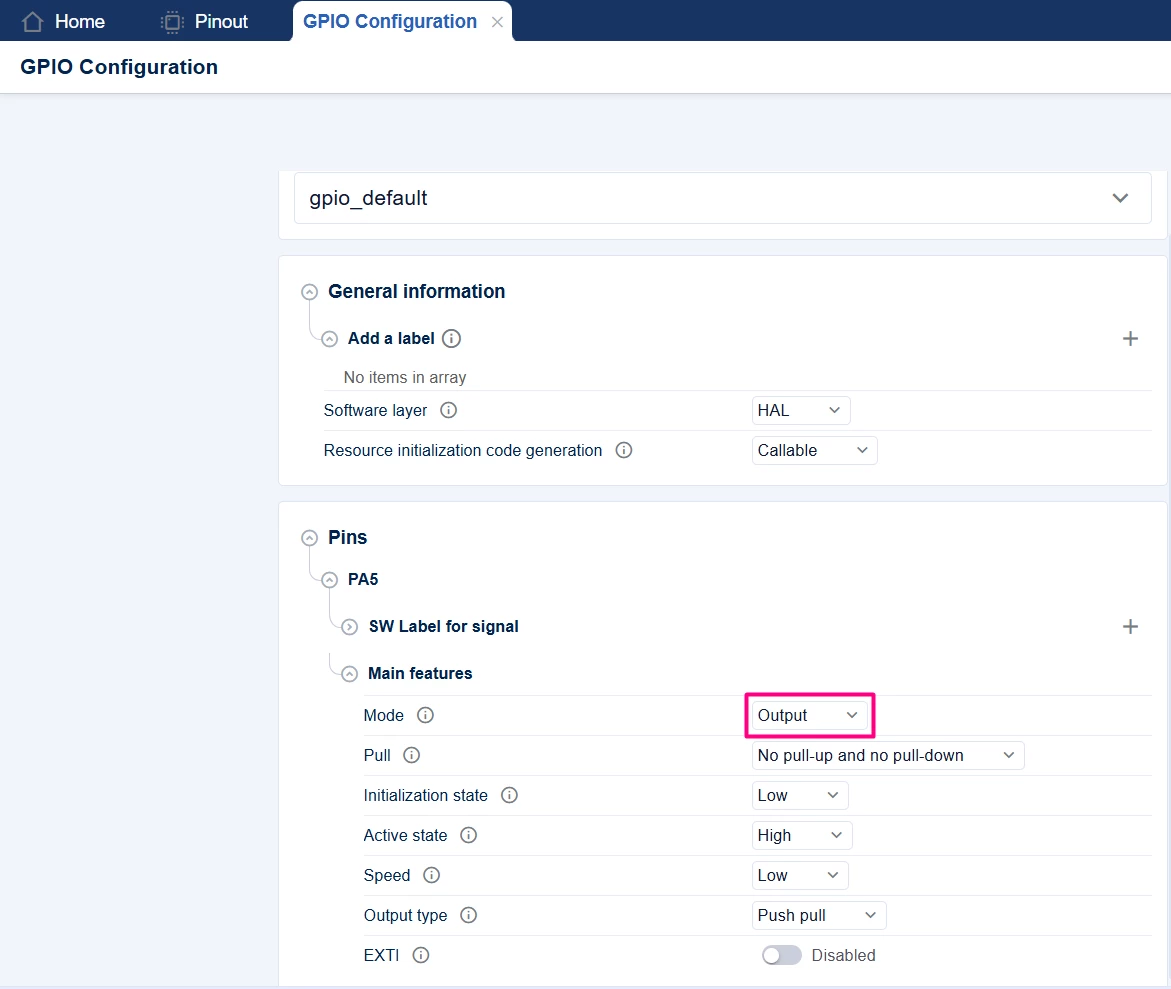 Navigate to the "Peripherals"section, then "Timers". Enable a general-purpose timer, for example, TIM2, and configure the timer mode for simple time base.
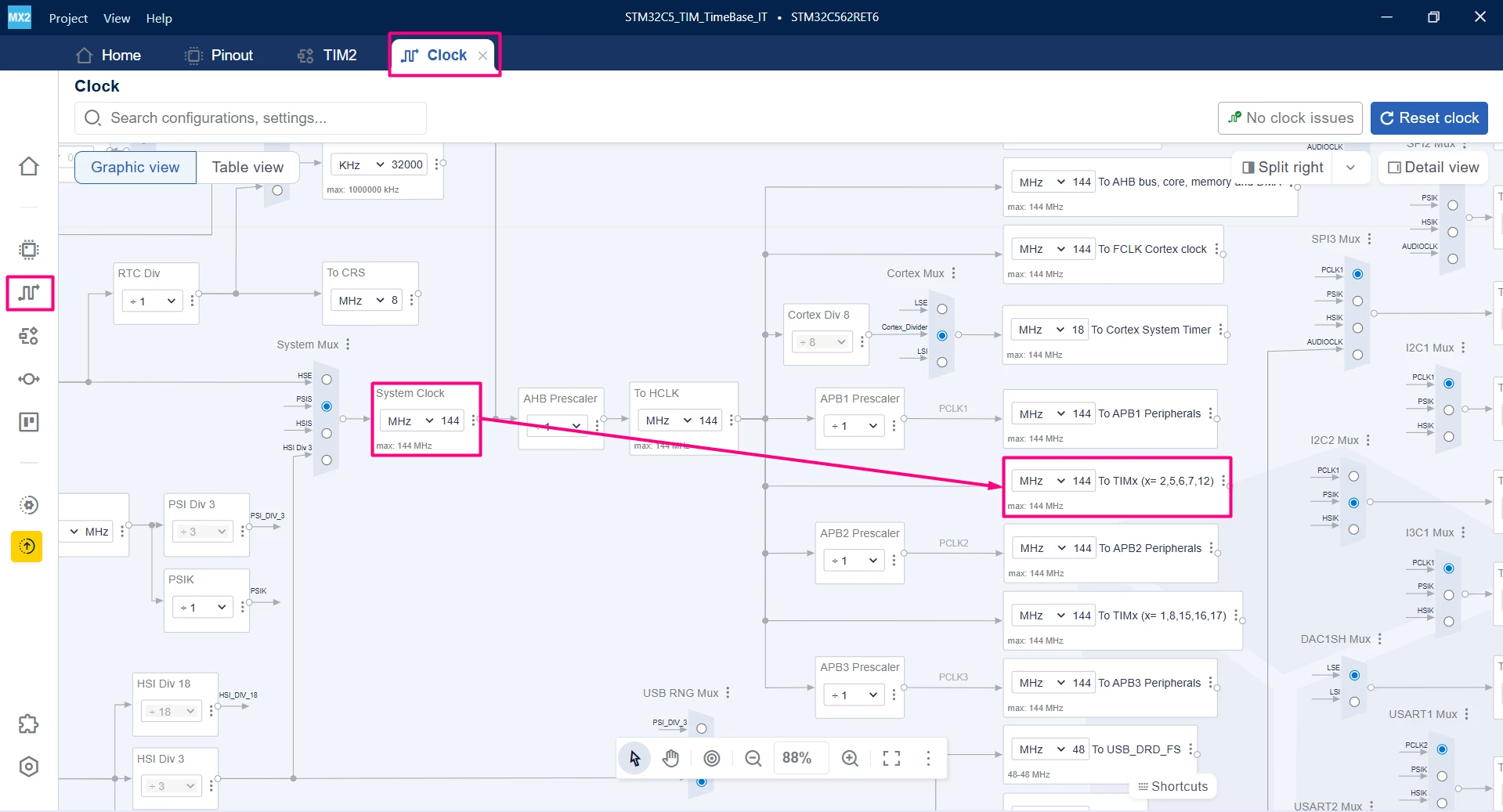
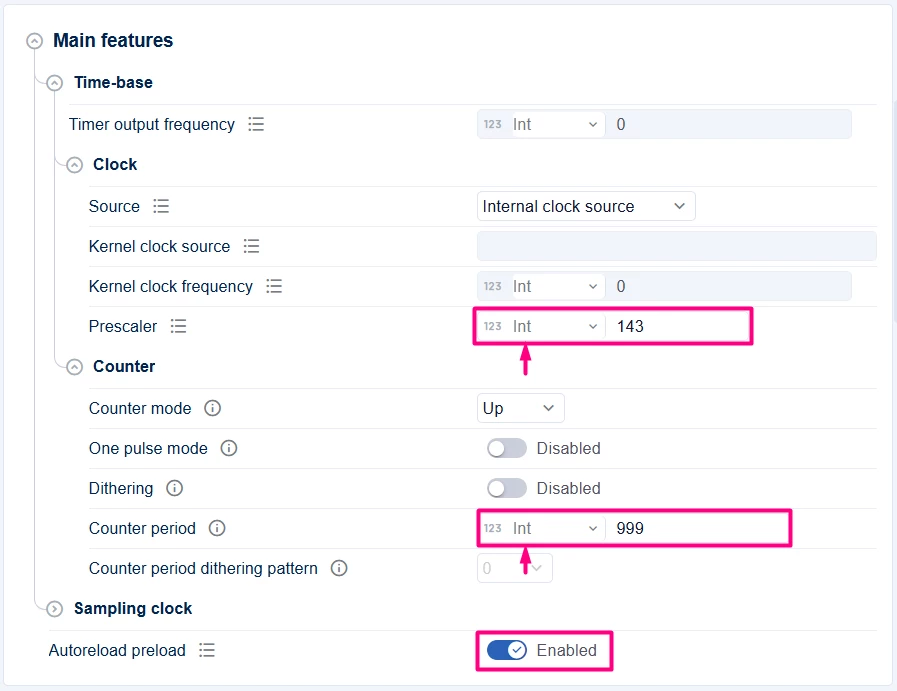
 Before setting the prescaler and counter period to define the timer frequency and period, configure the clock settings. Click the [Clock] icon and adjust the frequency as needed. For example, set the clock to its maximum of 144 MHz.
 Return to TIM and configure the prescaler to achieve a 1 ms time base. Use the standard formula:
Frequency = f_clk / [(PSC + 1) × (ARR + 1)]
Example calculation:
- Step 1 (Prescaler): 143 + 1 = 144
- Step 2 (Period): 999 + 1 = 1,000
- Step 3 (Total Divisor): 144 × 1,000 = 144,000
- Step 4 (Final Result): 144,000,000 / 144,000 = 1,000 Hz (1 kHz)
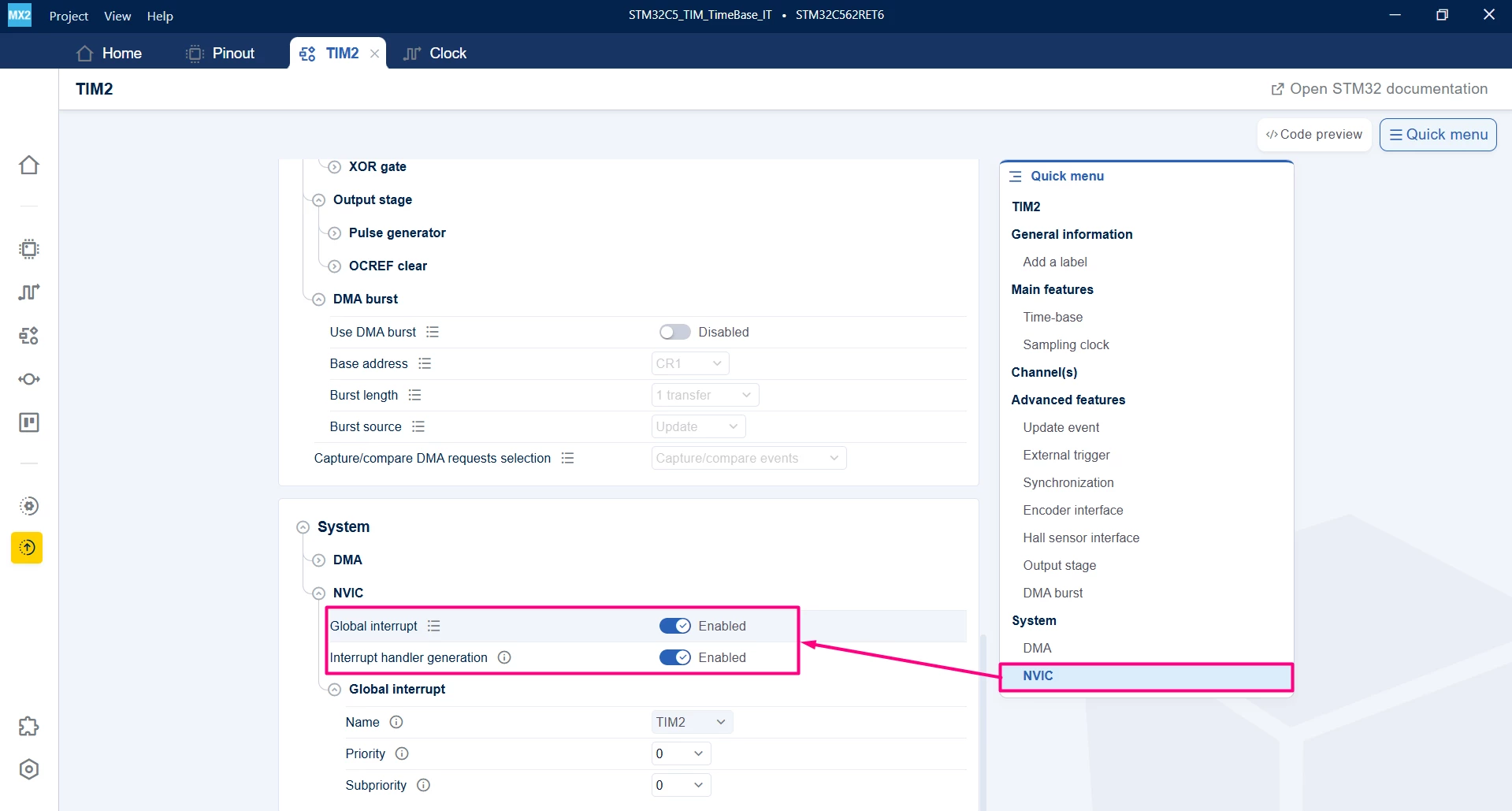
 Use the Quick menu to find the NVIC settings. Enable update interrupt to trigger an interrupt on timer overflow.
1.3 Code generation
To generate the code:
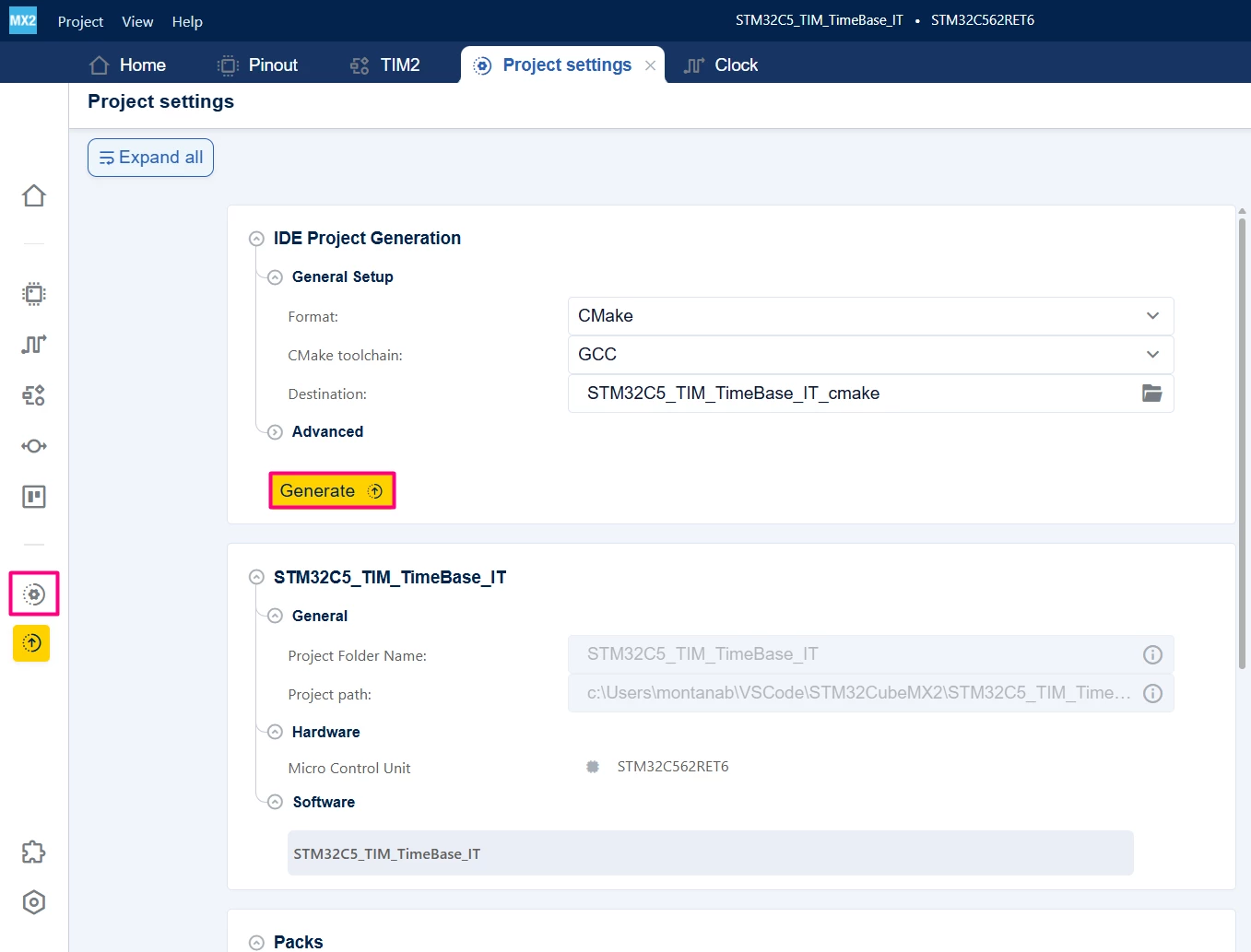
- Click on the [Project settings] icon and select the desired IDE.
- Click the Generate button.
2. Configuring the project in Visual Studio Code
Open Visual Studio Code and open the project folder.
If prompted, select the configuration. If not prompted, press Ctrl+Shift+P, type CMake: Select Configure Preset, and choose the debug configuration.

Build the project to ensure everything is set, then proceed to code implementation.

3. Code editing (basic timer with interrupt)
After opening the generated project in Visual Studio Code, edit main.c. This example
demonstrates how to configure a basic timer to generate periodic interrupts.
In main.c:
/**
 ******************************************************************************
 * file : main.c
 * brief : Main program body
 * Calls target system initialization then loop in main.
 ******************************************************************************
 *
 * Copyright (c) 2025 STMicroelectronics.
 * All rights reserved.
 *
 * This software is licensed under terms that can be found in the LICENSE file
 * in the root directory of this software component.
 * If no LICENSE file comes with this software, it is provided AS-IS.
 *
 ******************************************************************************
 */
/* Includes ------------------------------------------------------------------*/
#include "main.h"

/* Private typedef -----------------------------------------------------------*/
/* Private define ------------------------------------------------------------*/
/* Private macro -------------------------------------------------------------*/
/* Private variables ---------------------------------------------------------*/
hal_tim_handle_t *pTIM; // Timer handle pointer from generated code
volatile uint32_t timerTick = 0; // Timer tick counter
/* Private functions prototype -----------------------------------------------*/
/* Timer interrupt callback */
void HAL_TIM_UpdateCallback(hal_tim_handle_t *htim)
{
 if (htim == mx_tim2_gethandle())
 {
 timerTick++;
 }
 if(timerTick >= 1000)
 {
 HAL_GPIO_TogglePin(HAL_GPIOA,HAL_GPIO_PIN_5);
 timerTick = 0;
 }
}

/**
 * brief: The application entry point.
 * retval: none but we specify int to comply with C99 standard
 */
int main(void)
{
 /** System Init: this code placed in targets folder initializes your system.
 * It calls the initialization (and sets the initial configuration) of the peripherals.
 * You can use STM32CubeMX to generate and call this code or not in this project.
 * It also contains the HAL initialization and the initial clock configuration.
 */
 if (mx_system_init() != SYSTEM_OK)
 {
 return (-1);
 }
 else
 {
 /*
 * You can start your application code here
 */
 HAL_TIM_Start_IT(mx_tim2_gethandle());
 while (1) {}
 }
} /* end main */
3.1 Validation
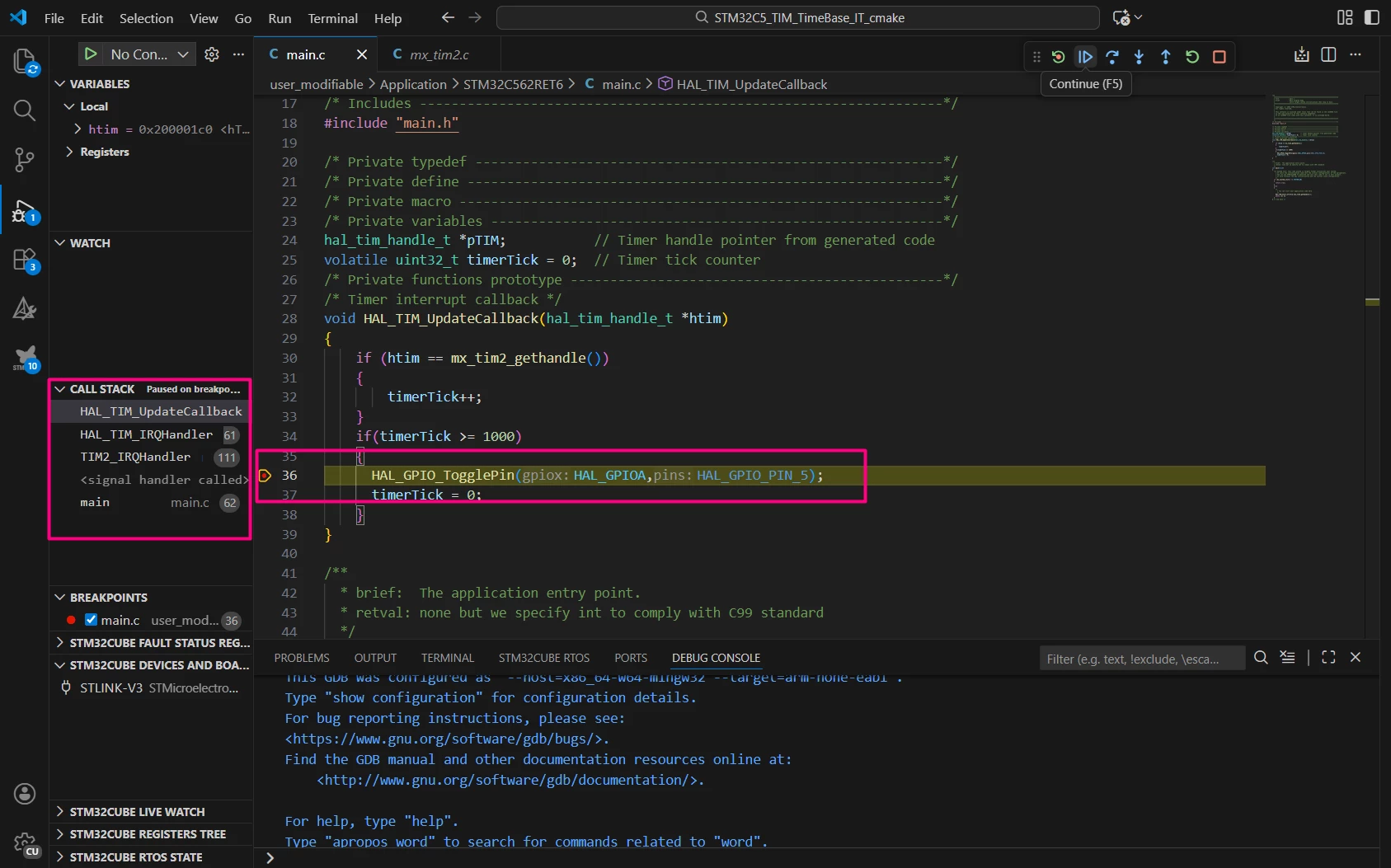
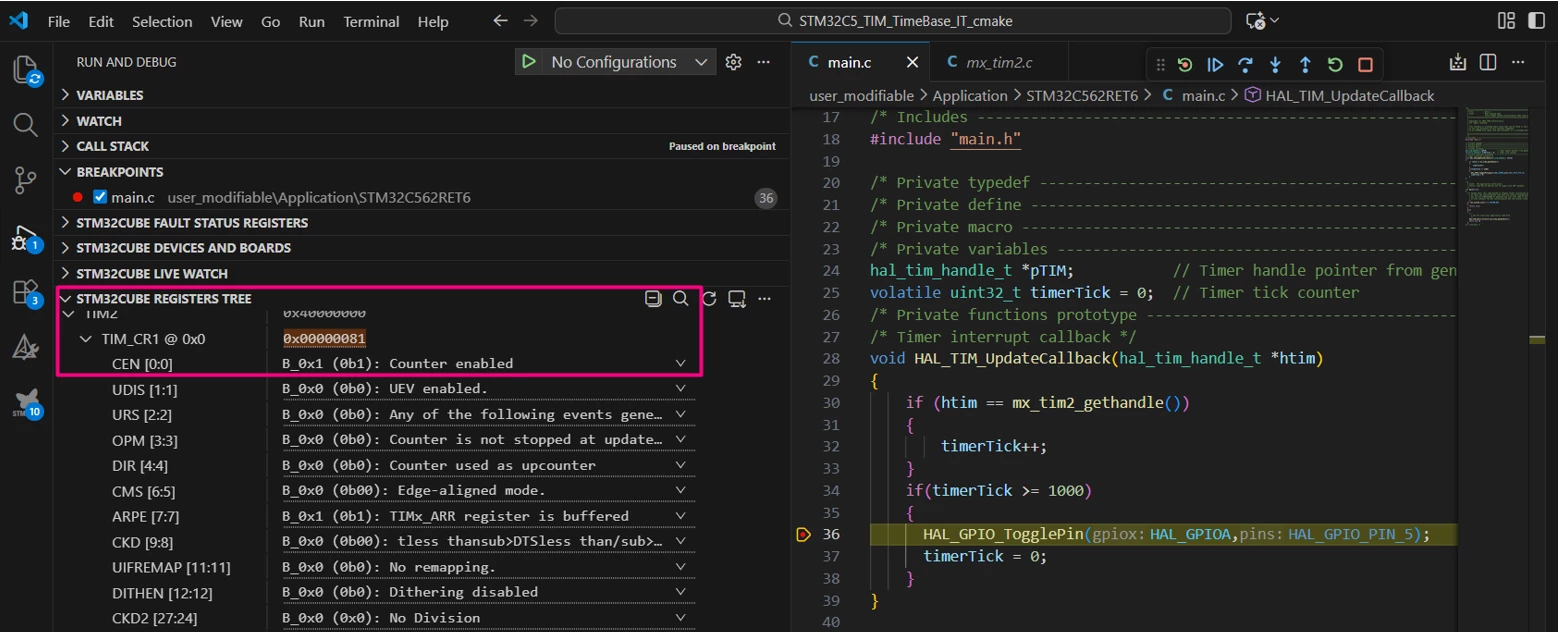
After building the application, locate the [Run and Debug] icon, create your debug session by selecting the [STM32Cube: STLINK GDB Server] option.
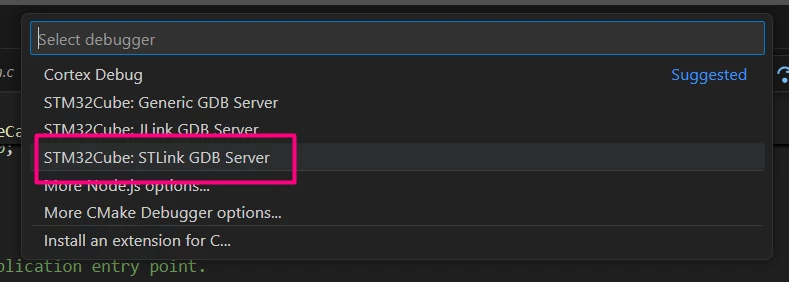
Once in debug mode, add a breakpoint in the callback or observe the LED blinking at a 1 second rate.
Conclusion
This tutorial guides you through setting up and using STM32 timers on the NUCLEO-C562RE board with STM32CubeMX2 and STM32Cube for Visual Studio Code. It demonstrates basic timer usage with interrupts, enabling you to implement precise timing and control functions in your embedded applications.
Related links
- STM32CubeMX2 user manual
- STM32Cube for Visual Studio Code
- NUCLEO-C562RE
- STM32CubeMX2
- STM32 Embedded software documentation
- STM32CubeMX2 software documentation
