

How to use the STM32CubeMX2 Part Drivers and BSP
- March 19, 2026
- 2 replies
- 785 views
Summary
This article guides you through using Part Drivers in STM32CubeMX2 (MX2), focusing on the Button and LED Part Drivers for the NUCLEO-C562RE board. You will learn how to enable, configure, and integrate these drivers into your project. This enables quick and reliable control of board peripherals while simplifying development and improving code consistency, all within the Visual Studio Code environment.
- Summary
- Introduction
- Prerequisites
- 1. STM32CubeMX2 project creation and basic setup
- 1.1 Project creation
- 2. Configuring peripherals and pins
- 2.1 Configure User LED
- 2.2 Configure the User button
- 2.2.1 Configure HAL EXTI Settings
- 3. Enabling Part Drivers
- 3.1 Add the [Button] Part Driver
- 3.2 Add the [LED] Part Driver
- 3.3 Code generation
- 4. Configuring the project in Visual Studio Code
- 5. Using Part Drivers APIs
- 6. Running the project
- Conclusion
- Related links
Introduction
STM32CubeMX2 (MX2) is the latest generation of STMicroelectronics’ graphical configuration and code generation tool for STM32 microcontrollers. It provides an intuitive interface to configure microcontroller peripherals, middleware, and project settings, while automatically generating initialization code tailored to your selected MCU and development environment.
A significant enhancement in MX2 is the support for Part Drivers, which are modular, reusable driver packages specifically designed for individual STM32 parts and evaluation boards. Part Drivers encapsulate the low-level hardware access and provide standardized APIs for common peripherals such as buttons, LEDs, sensors, and communication interfaces. This modular approach reduces development time, improves code consistency, and simplifies maintenance across projects.
In this article, we focus on how to use Part Drivers within MX2 by demonstrating the integration of two commonly used drivers: the Button and LED Part Drivers for the NUCLEO-C562RE development board. You will learn how to enable these drivers in your MX2 project, configure them properly, and utilize their APIs to control the board’s buttons and LEDs effectively. Visual Studio Code is used as the development environment.
This practical example helps you understand the workflow and best practices when working with Part Drivers.
Prerequisites
Install the following tools:
- STM32CubeMX2
- The latest STM32C5 HAL2 driver
- STM32CubeIDE extension for Visual Studio Code
The hardware used in this tutorial is the NUCLEO-C562RE board.
1. STM32CubeMX2 project creation and basic setup
Follow these steps to create an application project for the NUCLEO-C562RE board. This exercise creates a simple blink LED application using the Part Drivers support.
1.1 Project creation
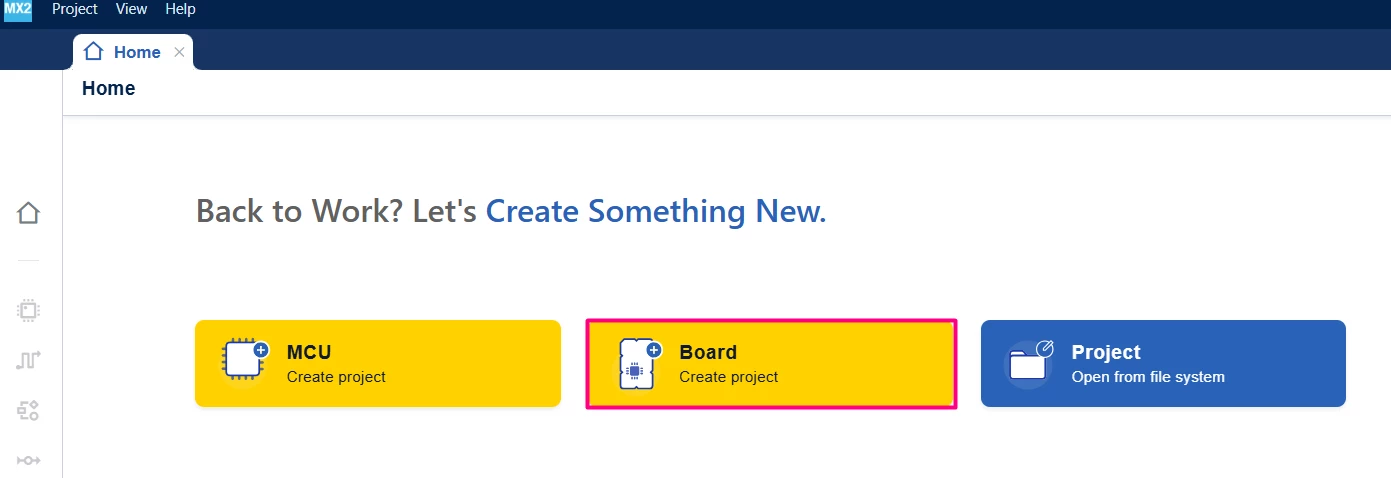
Open STM32CubeMX2. On the Home page, click the Board square to create a new project.
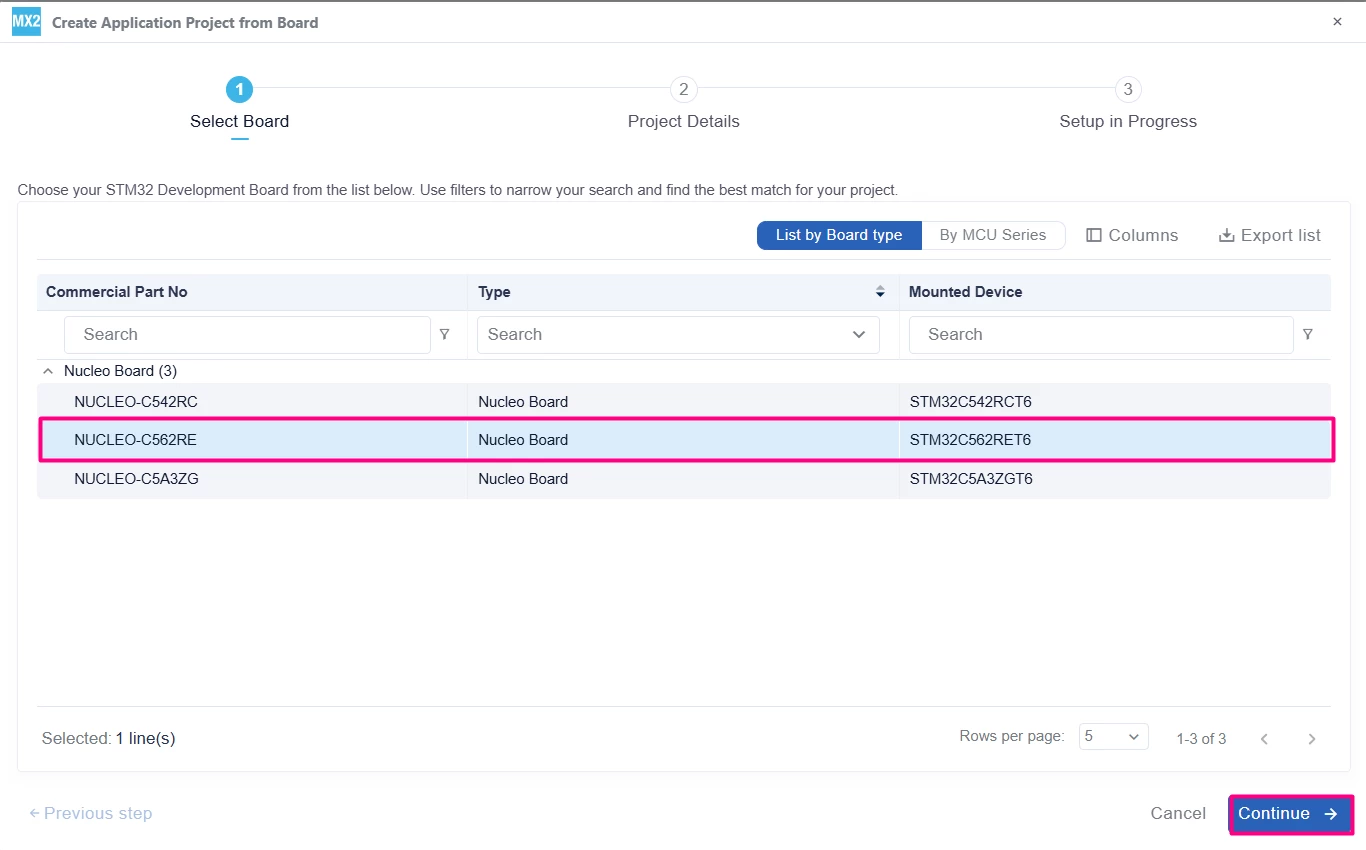
In the search field under MCU name, enter STM32C562RE and select the MCU. Click Continue.
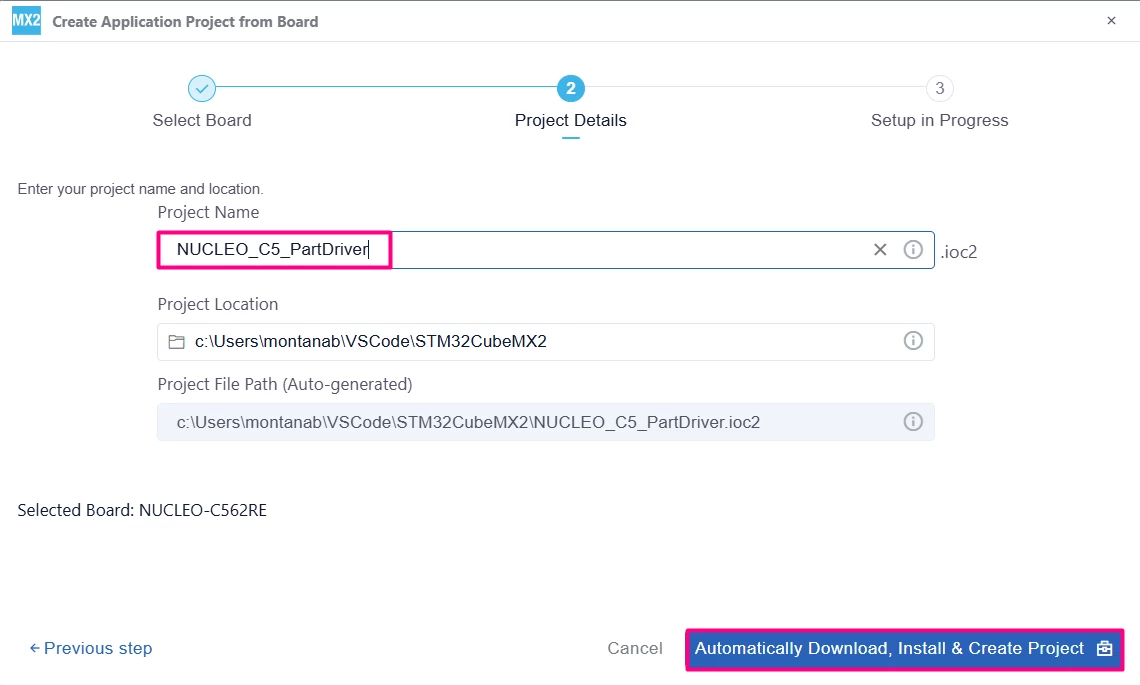
Enter the project name and location. Click [Automatically Download, Install & Create Project] to finish project creation.
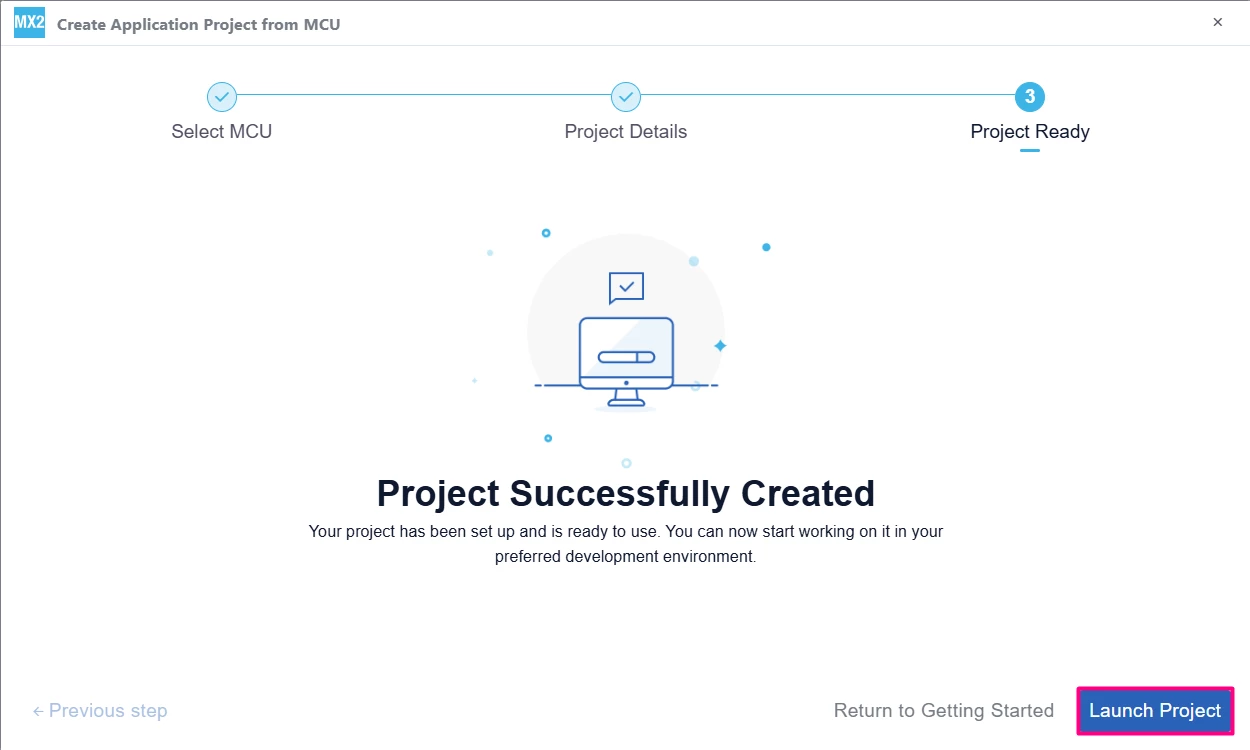
Click [Launch Project] to start.
2. Configuring peripherals and pins
2.1 Configure User LED
Use PA5 as GPIO Output, change from "Reserved" to "Configured".
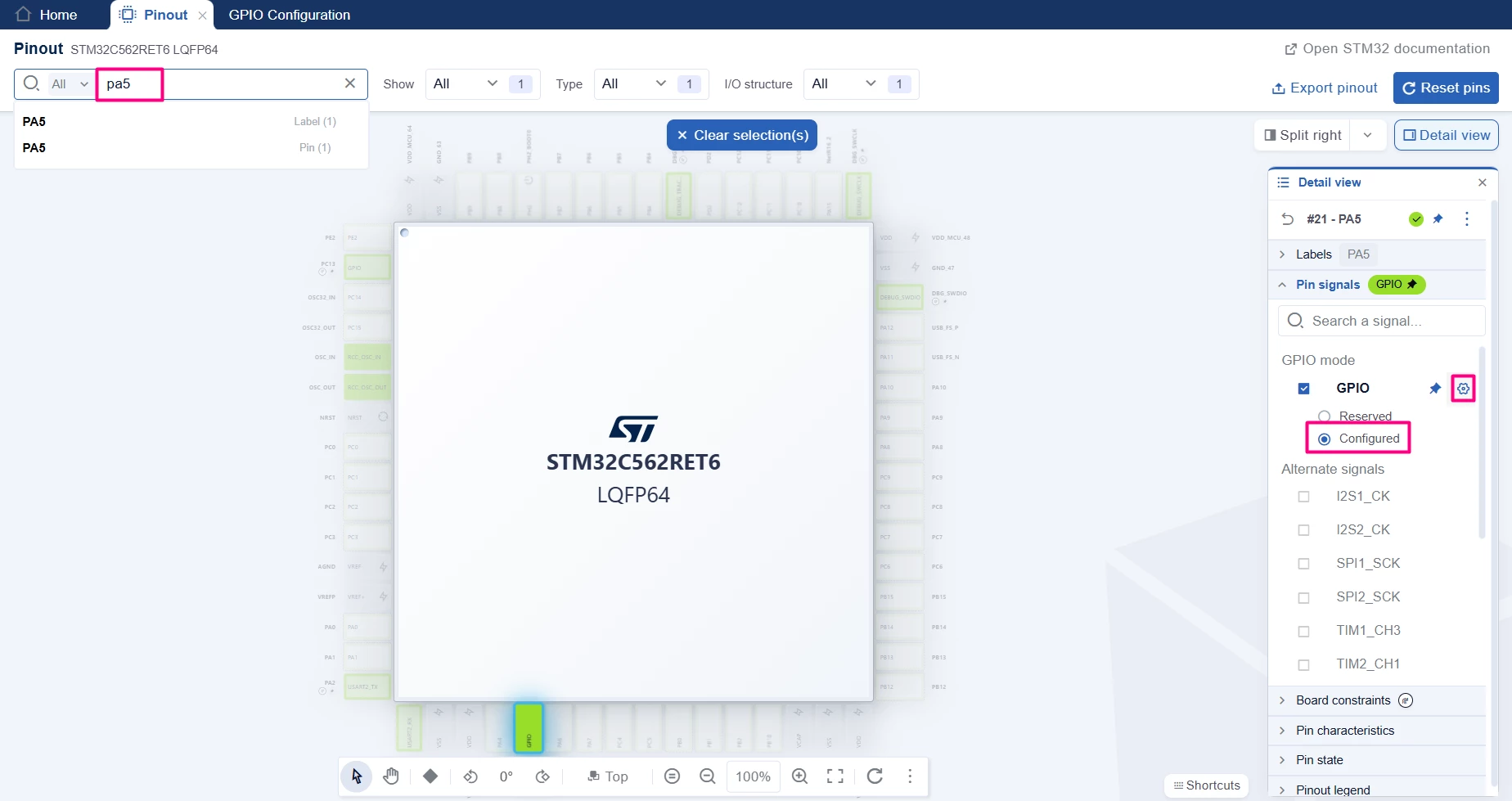 In [Pins] >> [PA5] >> [Main features] change PA5 Mode to [Output].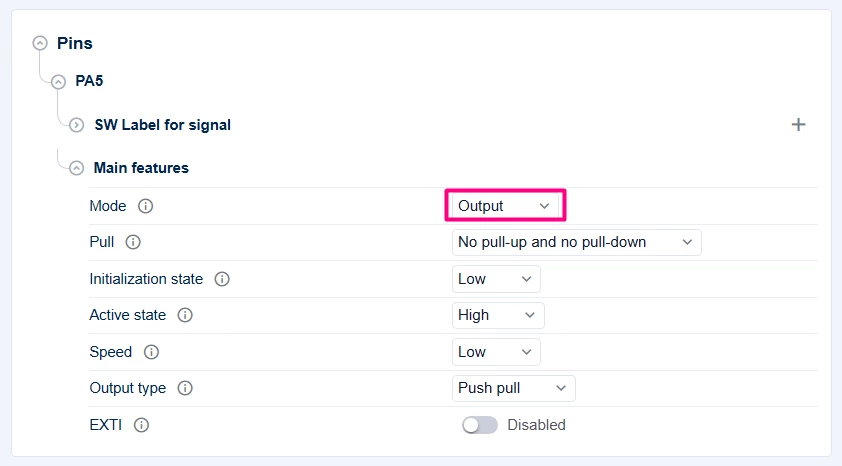
2.2 Configure the User button
Configure PC13 (User button) as EXTI Input. Locate PC13 in the Pinout tab.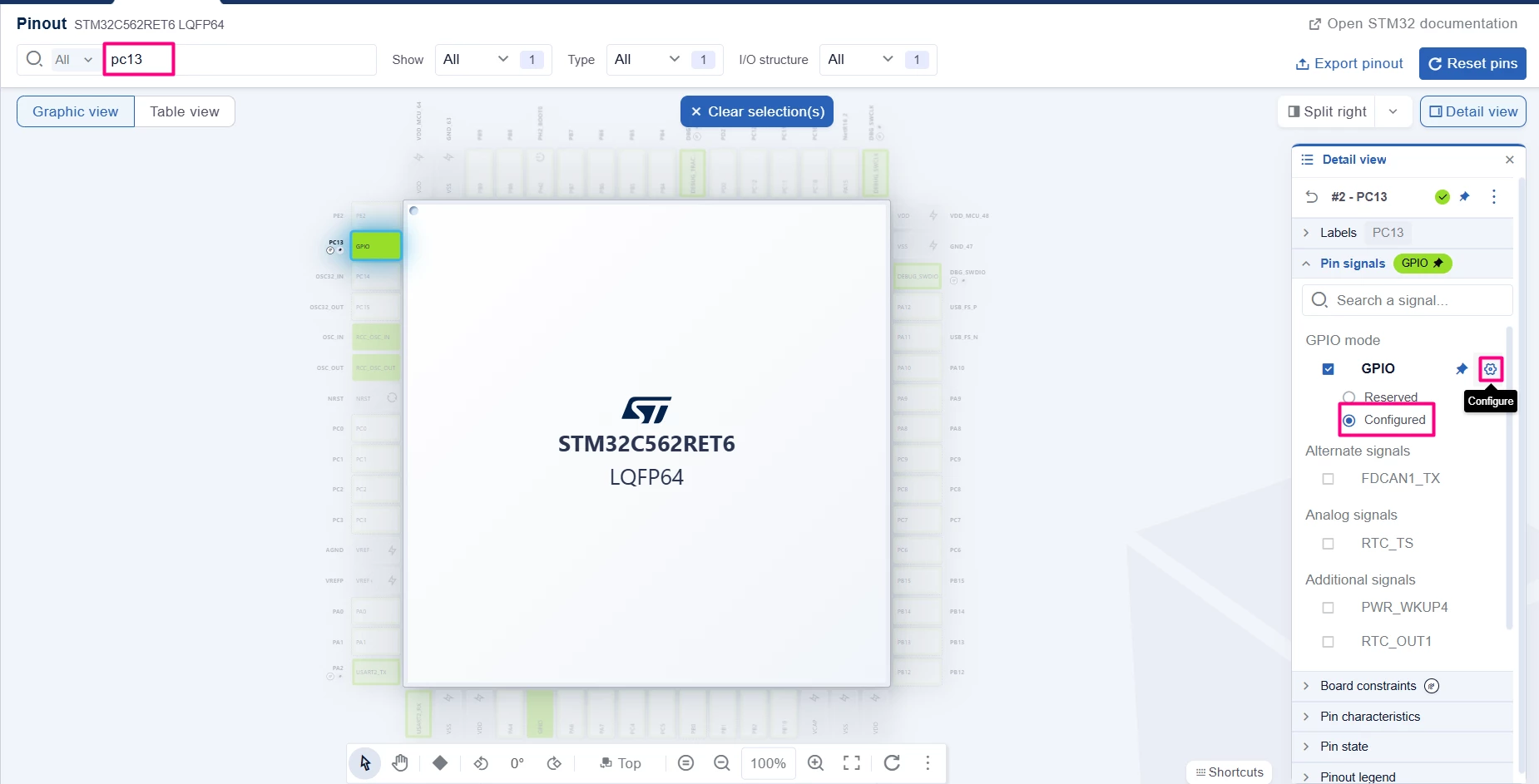 In [Pins] → [PC13] → [Main Features], change PC13 Mode to [input], and Pull to [Pull-down]. Enable the EXTI and change the trigger detection to [Falling edge]. Enable interruption and IRQ Handler generation.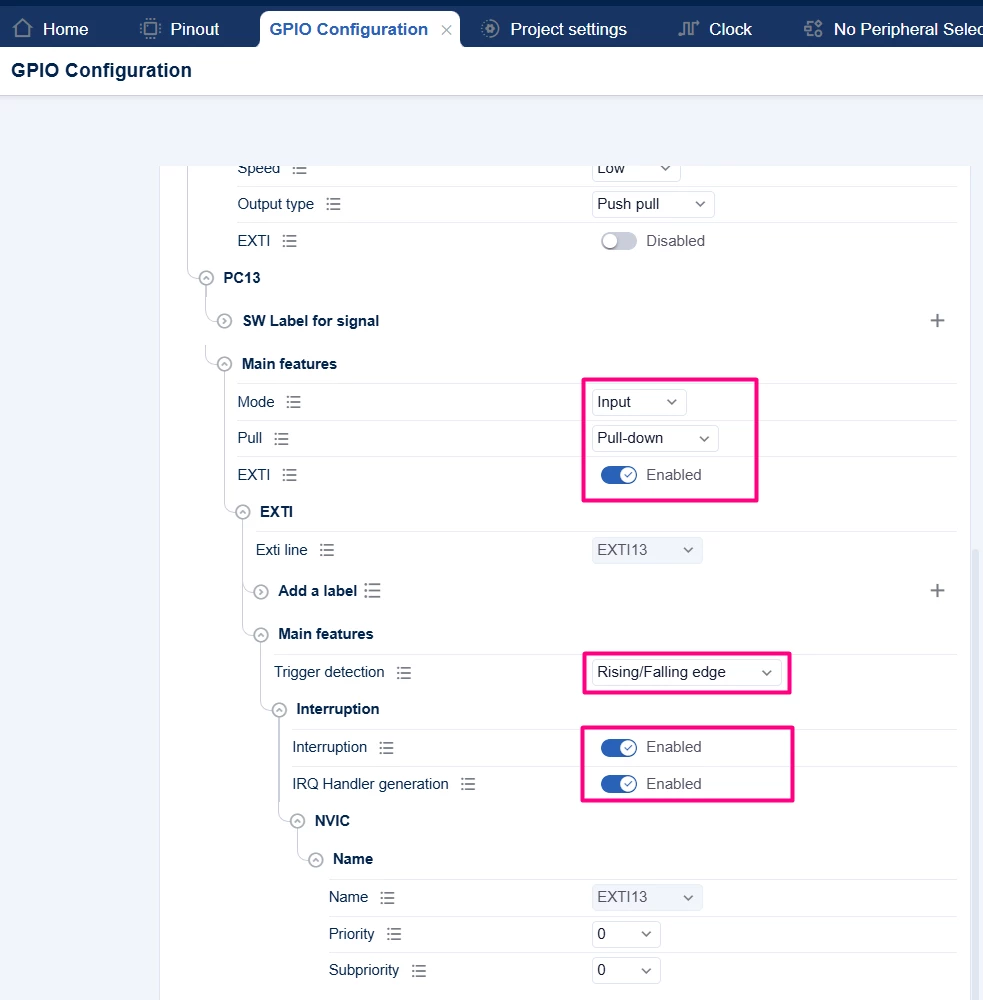
2.2.1 Configure HAL EXTI Settings
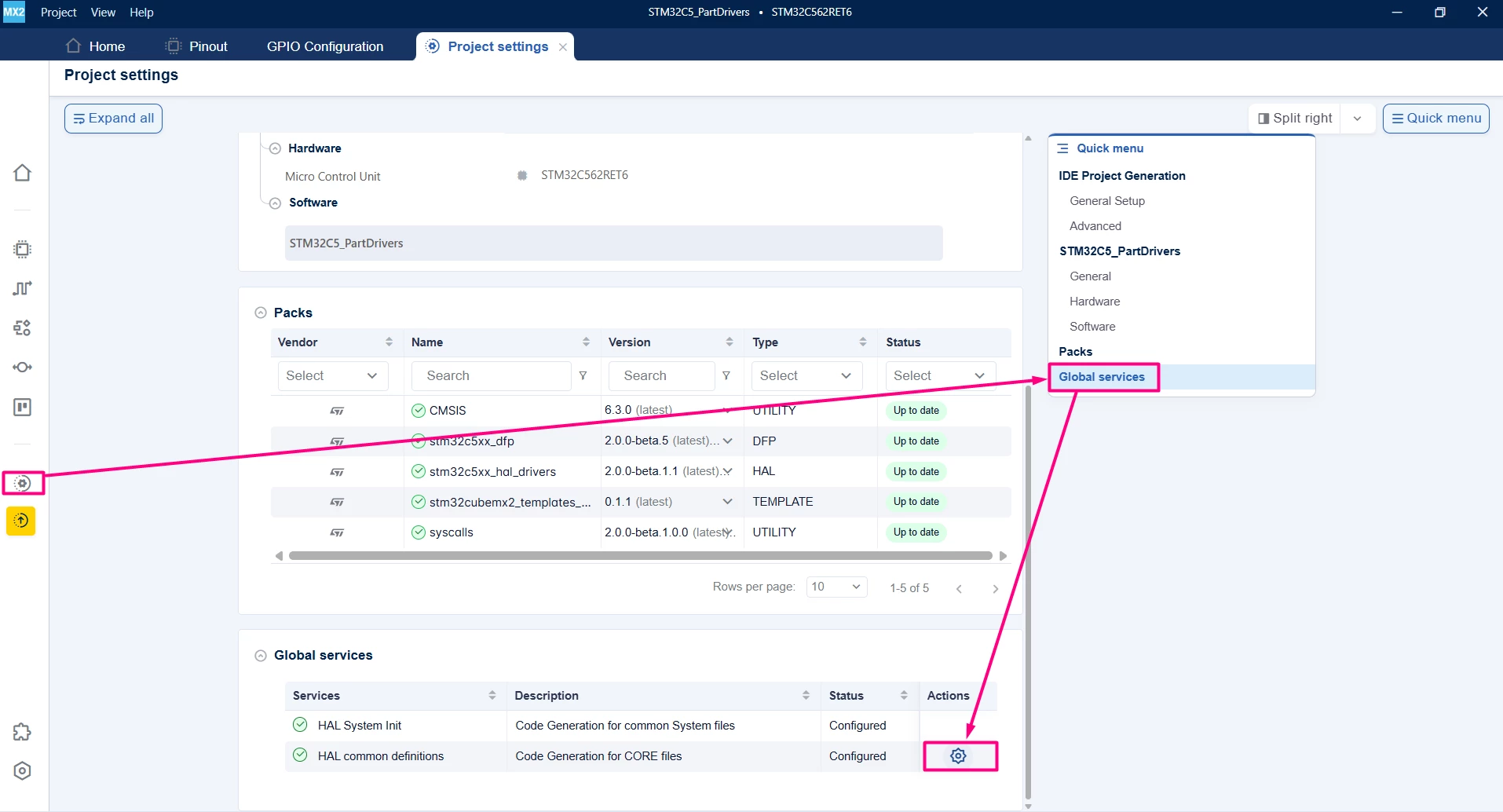
Navigate to the Project settings tab. In [Global services] locate [HAL common definitions] and configure.
 In the [HAL EXTI] section, enable [Use register callback] and [User data].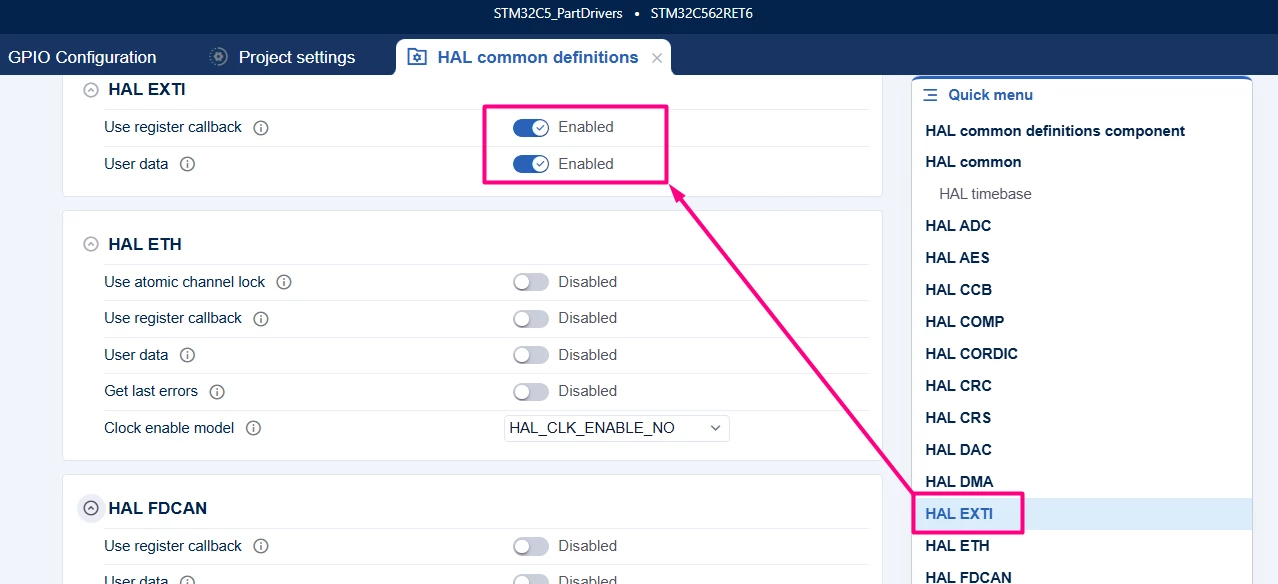
Enabling these options allows STM32CubeMX2 to generate the necessary EXTI driver files and support callback functions.
3. Enabling Part Drivers
3.1 Add the [Button] Part Driver
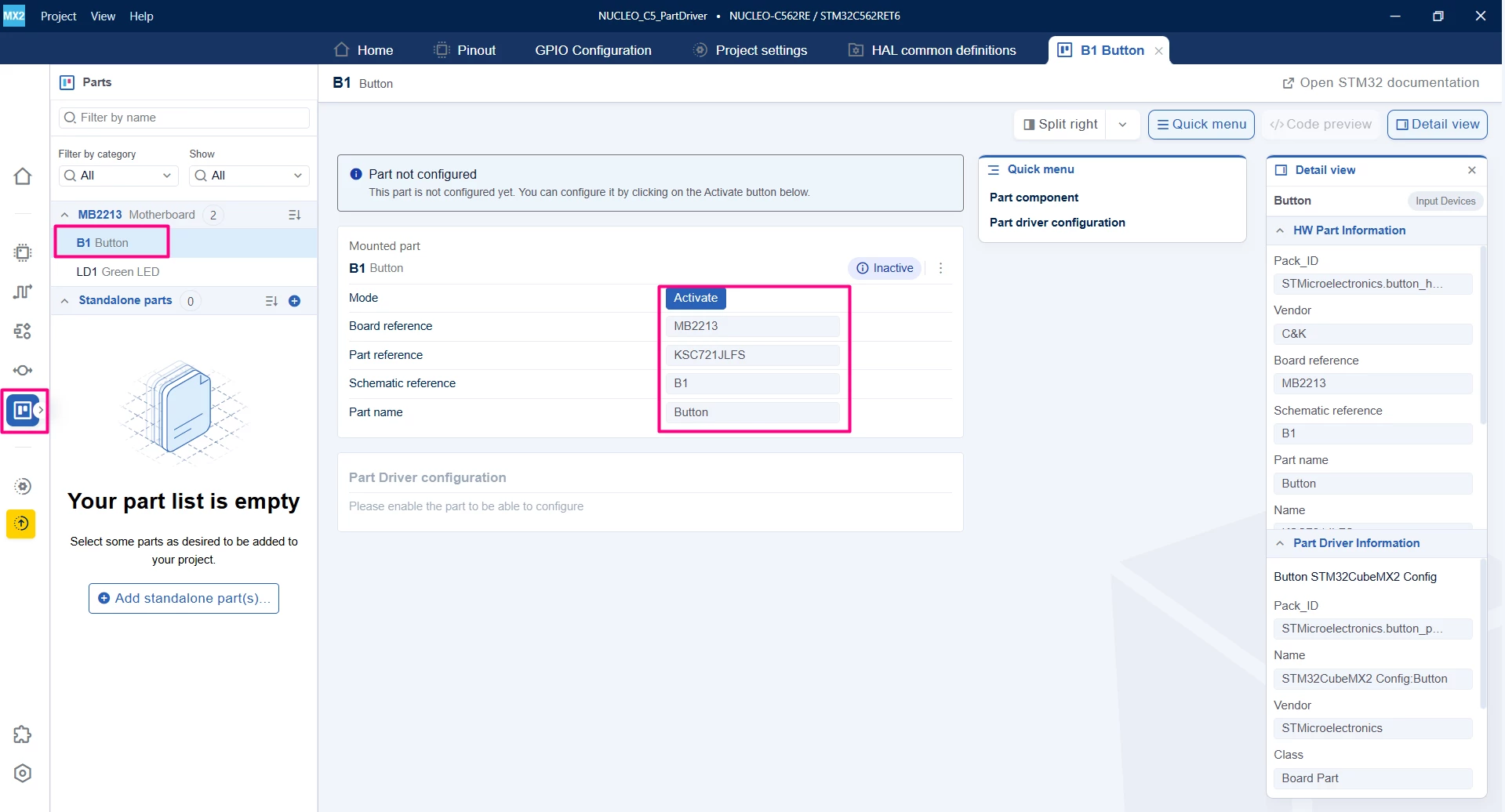 Activate the B1 and assign it to PC13.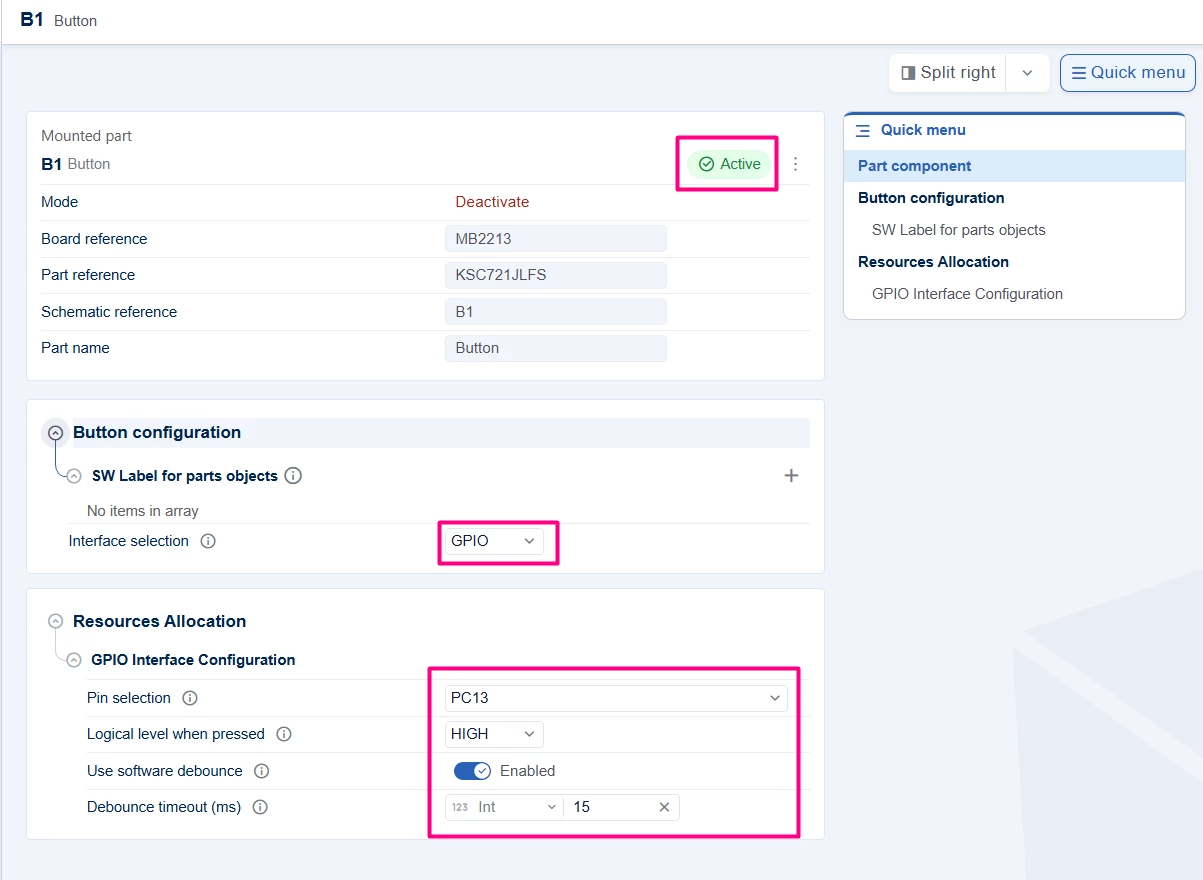
This setup ensures that the user button is correctly mapped (PC13) and debounced for reliable input detection.
3.2 Add the [LED] Part Driver
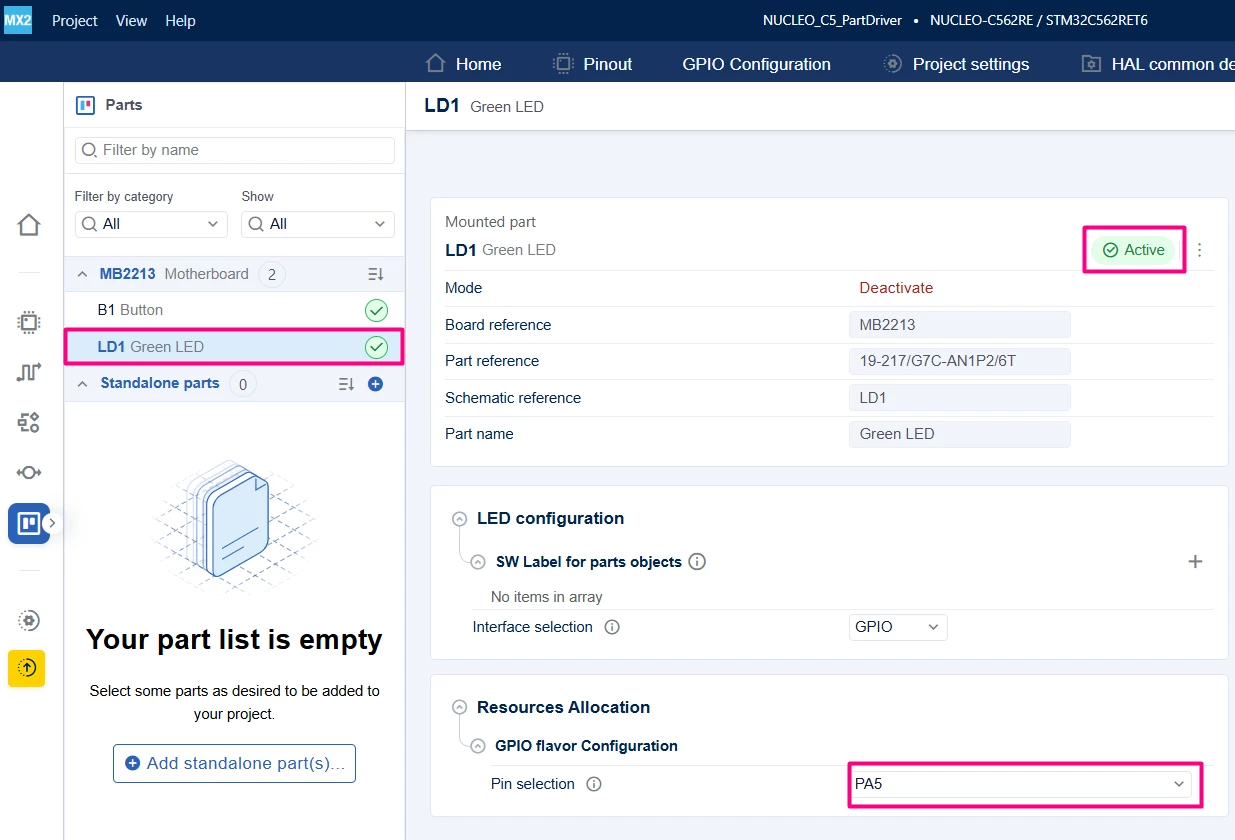
This configuration maps the main user LED to pin PA5 for GPIO control.
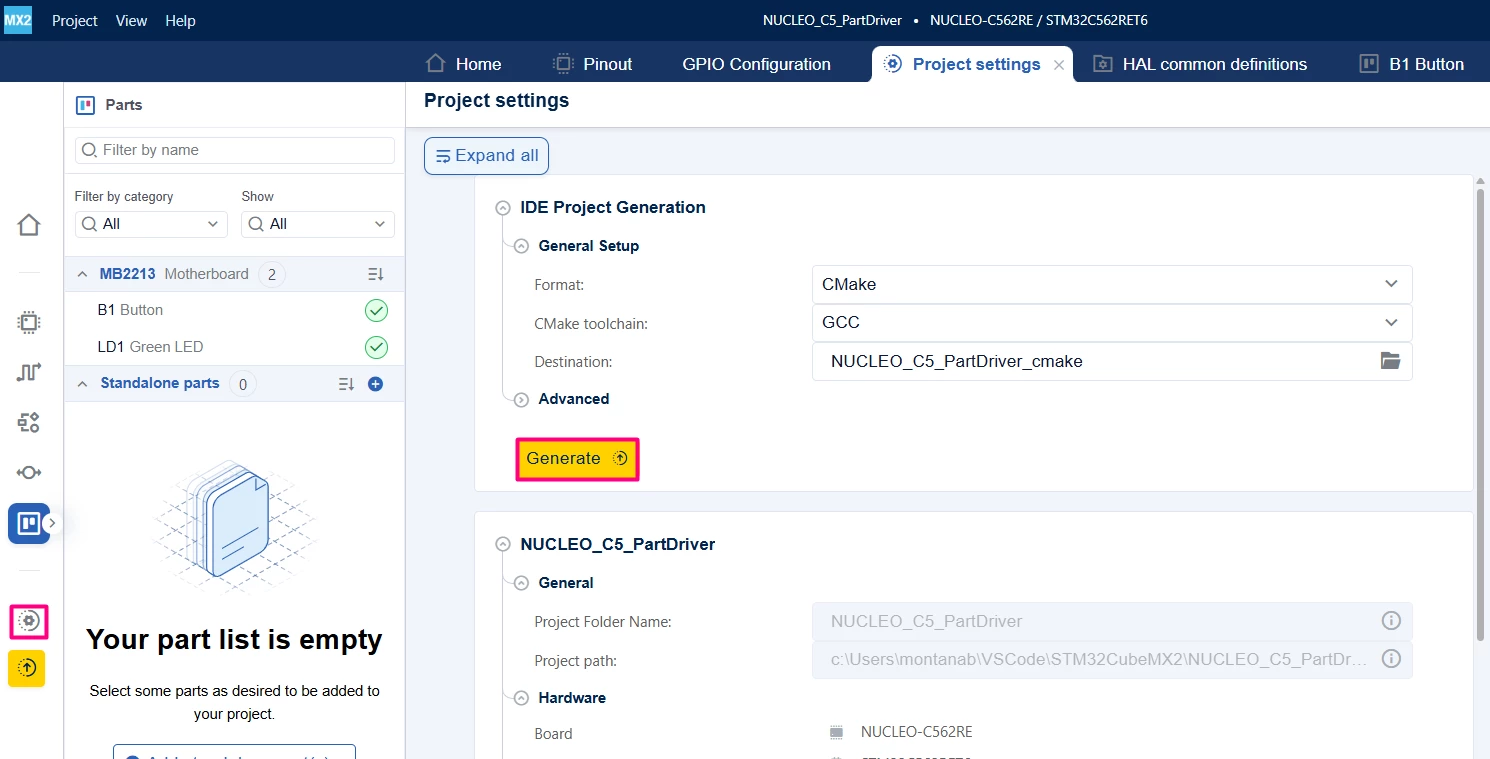
3.3 Code generation
To generate the code:
- Click on the Project settings icon and select the desired IDE.
- Click the [Generate] button.
4. Configuring the project in Visual Studio Code
Open Visual Studio Code and open the project folder.
If prompted, select the configuration. If not prompted, press Ctrl+Shift+P, type CMake: Select Configure Preset, and choose the debug configuration.
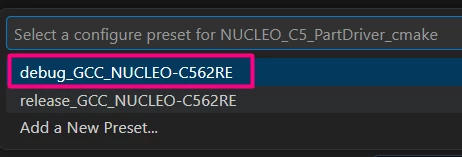
Build the project to ensure everything is set, then proceed to code implementation.
5. Using Part Drivers APIs
Once you’ve imported your STM32CubeMX2 project into Visual Studio Code with the Button and LED Part Drivers configured, you can start using the Part Driver APIs to interact with the hardware peripherals.
All the code changes described below are made within the main.c file.
The example provided demonstrates an event-driven approach where the user button generates interrupts that trigger a callback function. This callback updates the button state and signals the main loop via a flag. The main loop then reads this flag, processes the button state, and controls the LED accordingly, turning it on when the button is pressed and off otherwise. This design ensures responsive, nonblocking input handling and clear separation between interrupt context and application logic.
Note that LED_0 and BUTTON_0 (button_user) are software labels for parts objects configured during project generation in STM32CubeMX2. These labels correspond to the peripherals you enabled and named in the Part Drivers configuration.
Include the required headers
Include the main application header and the Part Driver headers for button and LED:
/* Includes ------------------------------------------------------------------*/
#include "main.h"
#include "mx_button.h"
#include "mx_led.h"
Declare the variables and callback prototype
Declare the variables and the callback prototype:
/* Private variables ---------------------------------------------------------*/
uint32_t NbButtonEvent = 0;
volatile button_state_t ButtonState;
volatile uint32_t EventFlag;
button_t *pUserButton;- NbButtonEvent counts button events.
- ButtonState stores the current button state.
- EventFlag signals the main loop of a button event.
- pUserButton points to the user button object.
Declare the callback function:
/* Private functions prototype -----------------------------------------------*/
static void ButtonCb(button_t *pbutton, void *arg);
System initialization
Initialize system peripherals and HAL:
if (mx_system_init() != SYSTEM_OK)
 {
 return (-1);
 }
Button initialization and callback registration
Retrieve and initialize the user button:
 pUserButton = mx_button_0_getobject();
 button_init(pUserButton, BUTTON_0);
Register the callback and enable interrupts:
 button_register_callback(pUserButton, ButtonCb, BUTTON_EVENT_ANY, NULL);
 EventFlag = 0;
 button_enableit(pUserButton);
Main loop: event handling and LED control
Wait for the event flag and update the LED state accordingly:
while (1) {
 while (EventFlag != 1);
 EventFlag = 0;
 NbButtonEvent++;
 /* Update the LED state to match the button state */
 if (ButtonState == BUTTON_PRESSED)
 {
 led_on(LED_0);
 }
 else
 {
 led_off(LED_0);
 }
 }
Callback function: button event notification
Define the callback to update the button state and set the event flag:
static void ButtonCb(button_t *pbutton, void *arg)
{
 /* Notify the main thread about the button event */
 ButtonState = button_get_state(pbutton);
 EventFlag = 1;
}
Complete code example
Below is the full main.c file illustrating the use of Button and LED Part Drivers with event-driven button handling and LED control.
/**
 ******************************************************************************
 * file : main.c
 * brief : Main program body
 * Calls target system initialization then loop in main.
 ******************************************************************************
 *
 * Copyright (c) 2025 STMicroelectronics.
 * All rights reserved.
 *
 * This software is licensed under terms that can be found in the LICENSE file
 * in the root directory of this software component.
 * If no LICENSE file comes with this software, it is provided AS-IS.
 *
 ******************************************************************************
 */
/* Includes ------------------------------------------------------------------*/
#include "main.h"
#include "mx_button.h"
#include "mx_led.h"
/* Private typedef -----------------------------------------------------------*/
/* Private define ------------------------------------------------------------*/
/* Private macro -------------------------------------------------------------*/
/* Private variables ---------------------------------------------------------*/
uint32_t NbButtonEvent = 0;
volatile button_state_t ButtonState;
volatile uint32_t EventFlag;
button_t *pUserButton;
/* Private functions prototype -----------------------------------------------*/
static void ButtonCb(button_t *pbutton, void *arg);
/**
 * brief: The application entry point.
 * retval: none but we specify int to comply with C99 standard
 */
int main(void) {
 /** System Init: this code placed in targets folder initializes your system.
 * It calls the initialization (and sets the initial configuration) of the
 * peripherals. You can use STM32CubeMX to generate and call this code or not
 * in this project. It also contains the HAL initialization and the initial
 * clock configuration.
 */
 if (mx_system_init() != SYSTEM_OK) {
 return (-1);
 } else {
 /*
 * You can start your application code here
 */
 pUserButton = mx_button_0_getobject();

 button_init(pUserButton, BUTTON_0);
 button_register_callback(pUserButton, ButtonCb, BUTTON_EVENT_ANY, NULL);
 EventFlag = 0;

 button_enableit(pUserButton);

 while (1) {
 while (EventFlag != 1)
 ;

 EventFlag = 0;
 NbButtonEvent++;

 /* Update the LED state to match the button state */
 if (ButtonState == BUTTON_PRESSED) {
 led_on(LED_0);
 } else {
 led_off(LED_0);
 }
 }
 }
}

static void ButtonCb(button_t *pbutton, void *arg)
{
 /* Notify the main thread about the button event */
 ButtonState = button_get_state(pbutton);
 EventFlag = 1;
}

/* end main */
6. Running the project
Build the Project: Press Ctrl+Shift+B to trigger the default build task, or press F7

The build output appears in the terminal panel, showing compilation progress and any errors or warnings.
Debug the application:
- Open the [Run and Debug] panel (Ctrl+Shift+D).
- Create a new debug configuration by clicking create a launch.json file.
- Select [STM32Cube: STLink GDB Server]
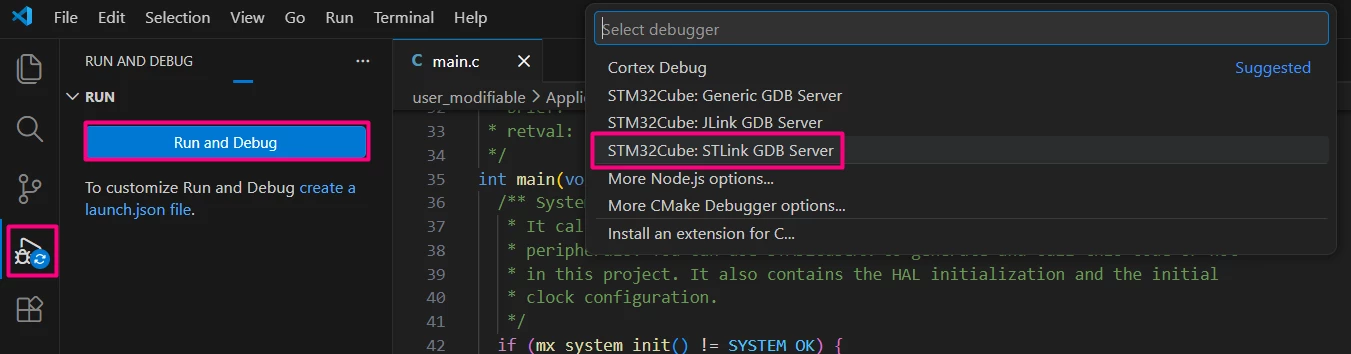
- Start the debug session by pressing [F5] or clicking the green [Start Debugging] button.

- The debugger halts at the reset vector or the first breakpoint.
To observe button events, set a breakpoint inside the callback function ButtonCb. This allows you to see when the button event handler is triggered.
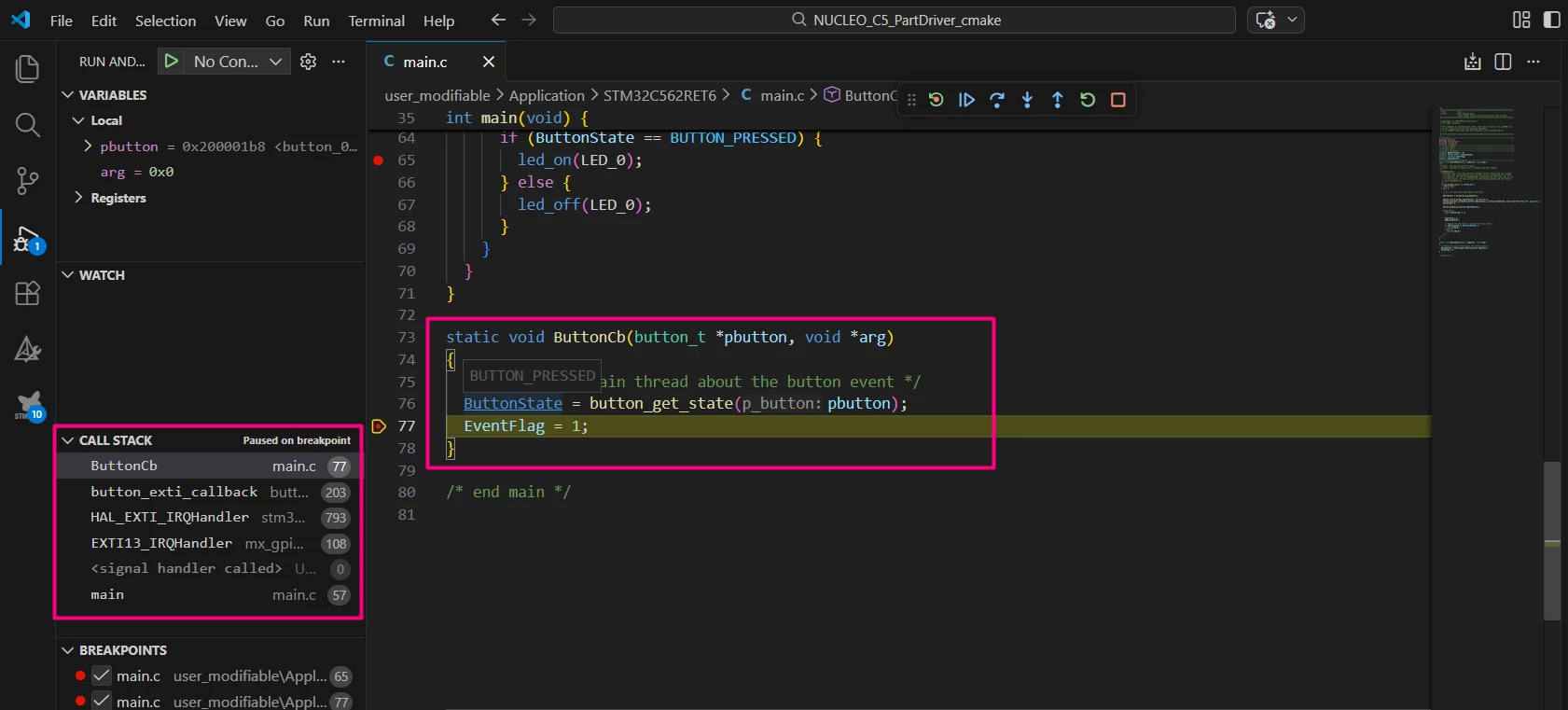
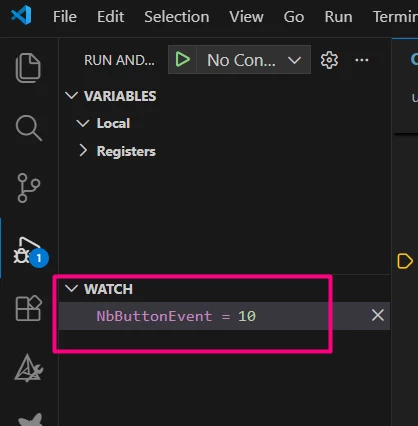
Add the variable NbButtonEvent to the Watch expressions in the debugger. This lets you monitor the number of button events detected in real time.
Use debugging features such as stepping through code, inspecting variables, and viewing call stacks to verify and troubleshoot your application.
For more detailed information on debugging features and workflows in Visual Studio Code with STM32CubeMX2, refer to the article "How to Generate a Code for VS Code".
Verify peripheral behavior:
- Observe the LED on your board.
- Press the user button and confirm that the LED turns on and off according to your application logic using the Part Driver APIs.
Conclusion
This article has provided a practical guide on how to use Part Drivers within STM32CubeMX2 to efficiently manage board peripherals such as buttons and LEDs on the NUCLEO-C562RE. You learned how to enable and configure Part Drivers, generate code compatible with Visual Studio Code, and implement an event-driven application using the Part Driver APIs.
Leveraging Part Drivers simplifies peripheral management, improves code maintainability, and accelerates development by abstracting low-level hardware details. Combined with the powerful integration of STM32CubeMX2 and Visual Studio Code, this approach enables a streamlined workflow for embedded application development on STM32 microcontrollers.
Related links
- RM0522 - STM32C5 Arm®-based 32-bit MCUs Reference manual
- DS14927 - STM32C562xx Datasheet
- STM32Cube for Visual Studio Code
- NUCLEO-C562RE
- STM32CubeMX code generator - STMicroelectronics
- STM32 Embedded software documentation
- STM32CubeMX2 software documentation
