

How to use the MCO with STM32CubeMX2
Summary
This article provides a step-by-step guide to configuring and verifying the master clock output (MCO) on an STM32 microcontroller. The workflow includes initial hardware configuration in STM32CubeMX2, project management using CMake, and project initialization and execution in Visual Studio Code. By the end of this guide, you have a functional project that outputs a 1 MHz clock signal from the microcontroller’s PA8 pin.
- Summary
- Introduction
- Prerequisites
- 1. STM32CubeMX2 project creation and basic setup
- 1.1 Pinout and peripheral configuration
- 1.2 Clock configuration
- 1.3 Code generation
- 2. Configuring the project in Visual Studio Code
- 2.1 Validation
- Conclusion
- Related links
Introduction
In embedded systems development, outputting internal clock signals to external pins is essential for debugging, synchronization, and driving peripheral components. The master clock output (MCO) feature in STM32 microcontrollers enables engineers to monitor internal oscillators or the system clock on a physical pin.
This guide describes the register settings and clock tree configurations required to generate a 1 MHz signal. It provides a clear path for developers to configure STM32 hardware in a professional Visual Studio Code environment.
Prerequisites
Install the following tools:
- STM32CubeMX2
- The latest STM32C5 HAL2 driver
- STM32CubeIDE extension for Visual Studio Code
The hardware used in this tutorial is the NUCLEO-C562RE board.
1. STM32CubeMX2 project creation and basic setup
Follow these steps to create the MCO application project for the NUCLEO-C562RE board:
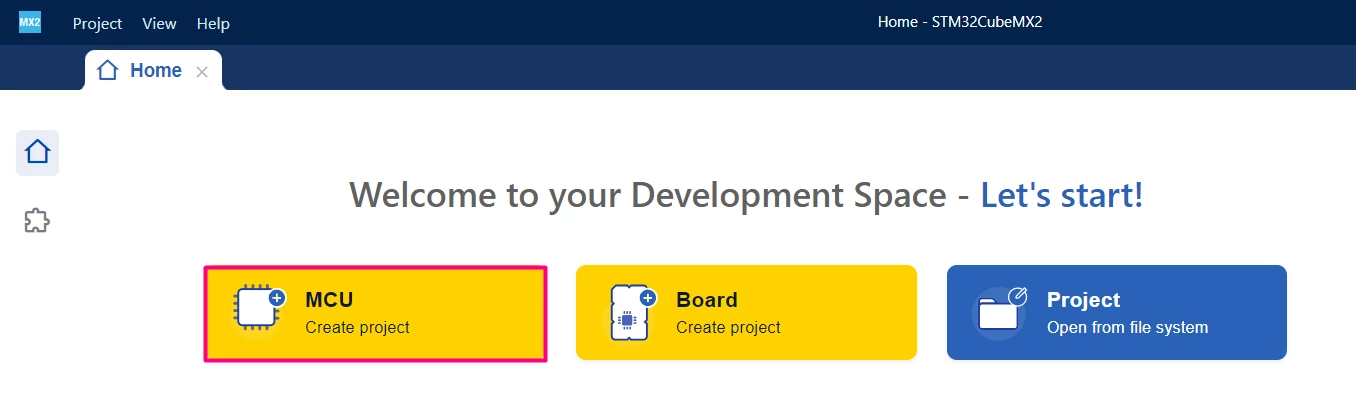
Open STM32CubeMX2. On the Home page, click the MCU square to create a new project.
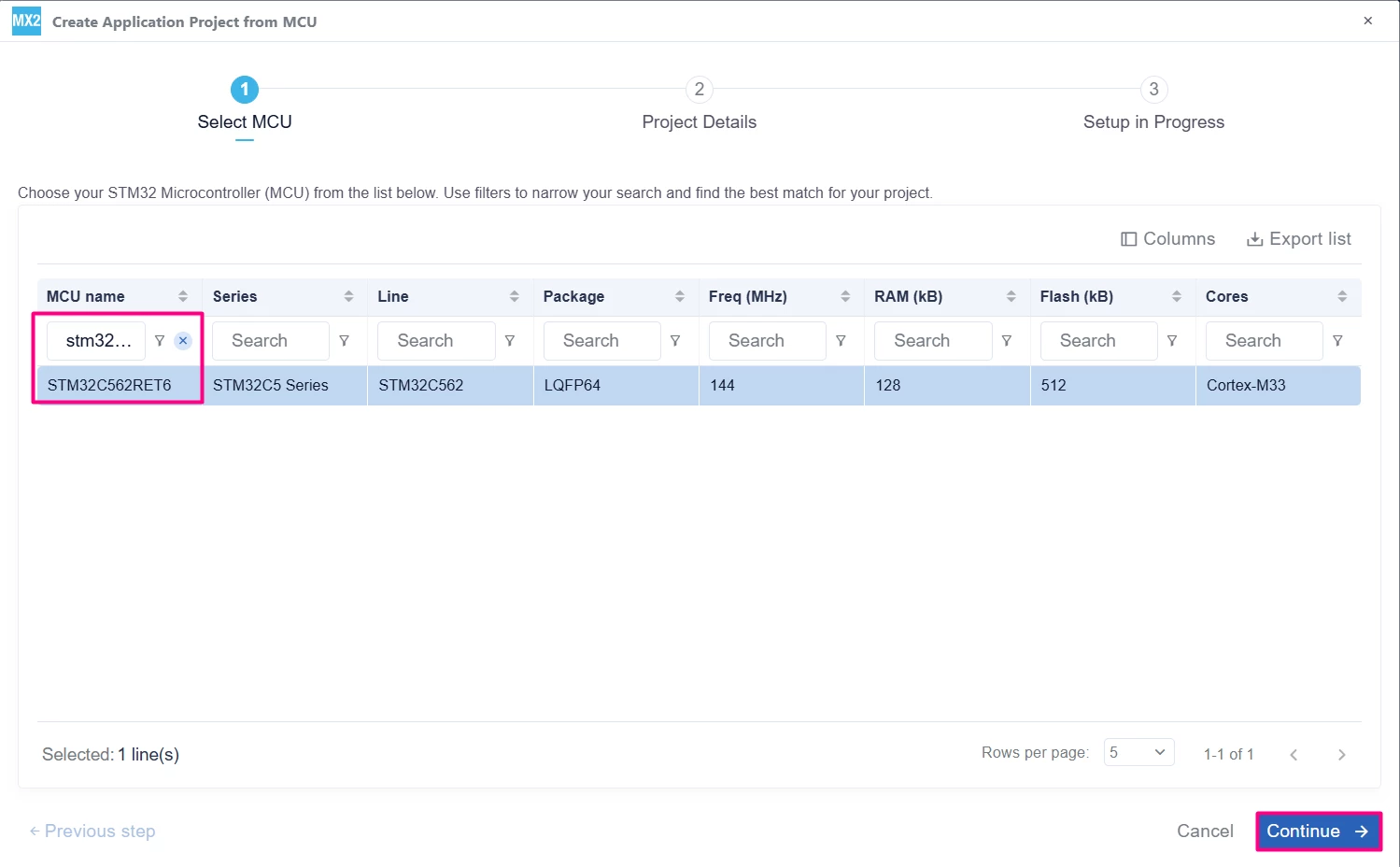
 In the search field under MCU name, enter STM32C562RE and select your board. Click Continue.
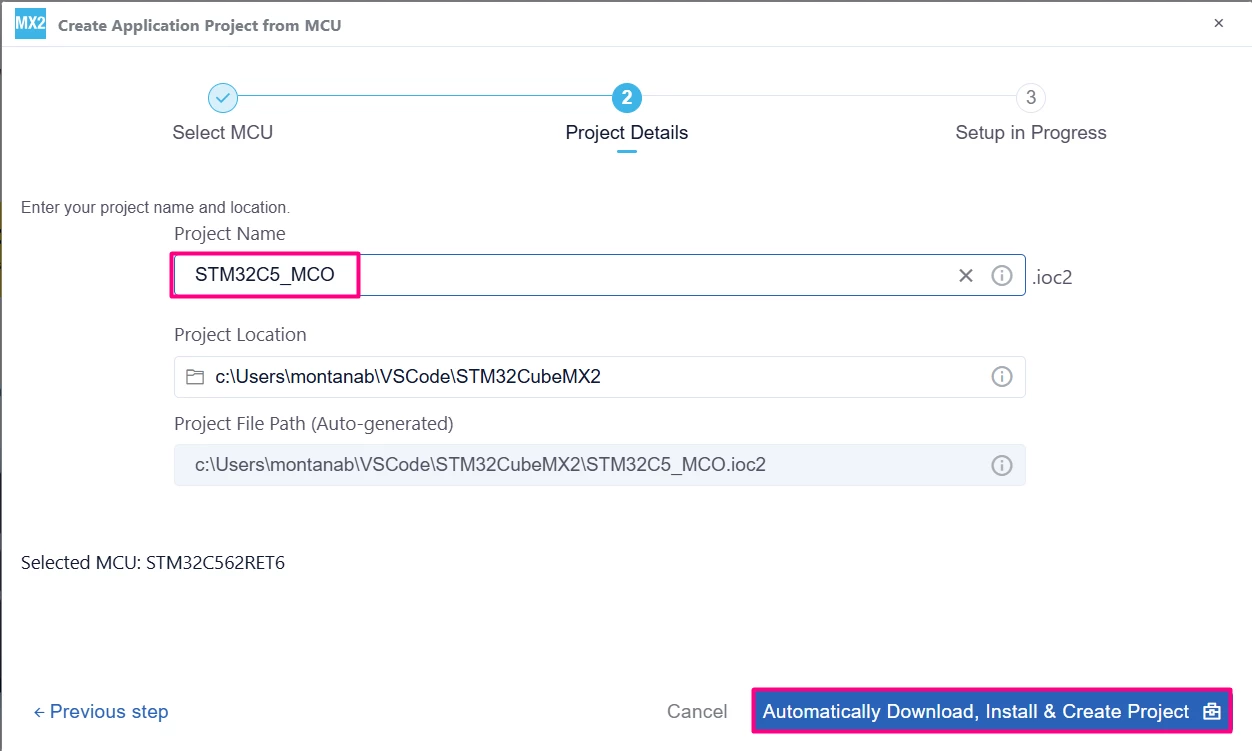
Enter your project name and location. Click [Automatically Download, Install & Create Project] to finish project creation.
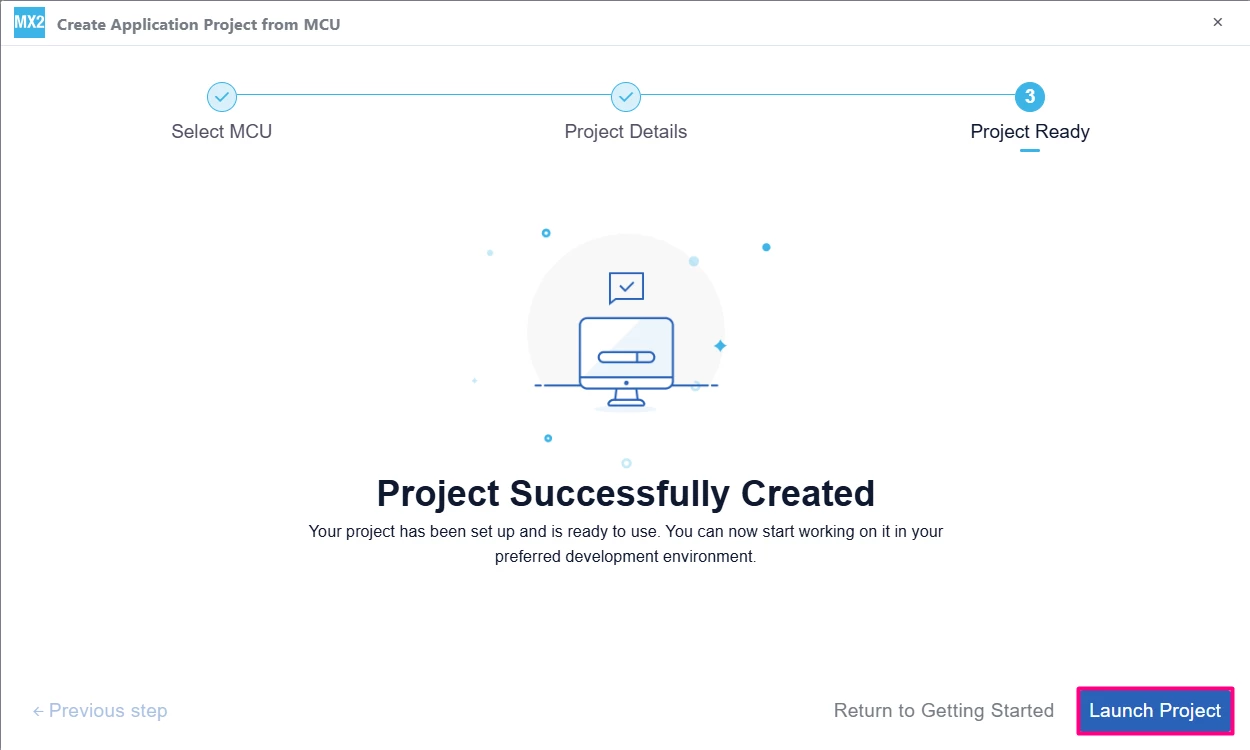
Click [Launch Project] to get started.
1.1 Pinout and peripheral configuration
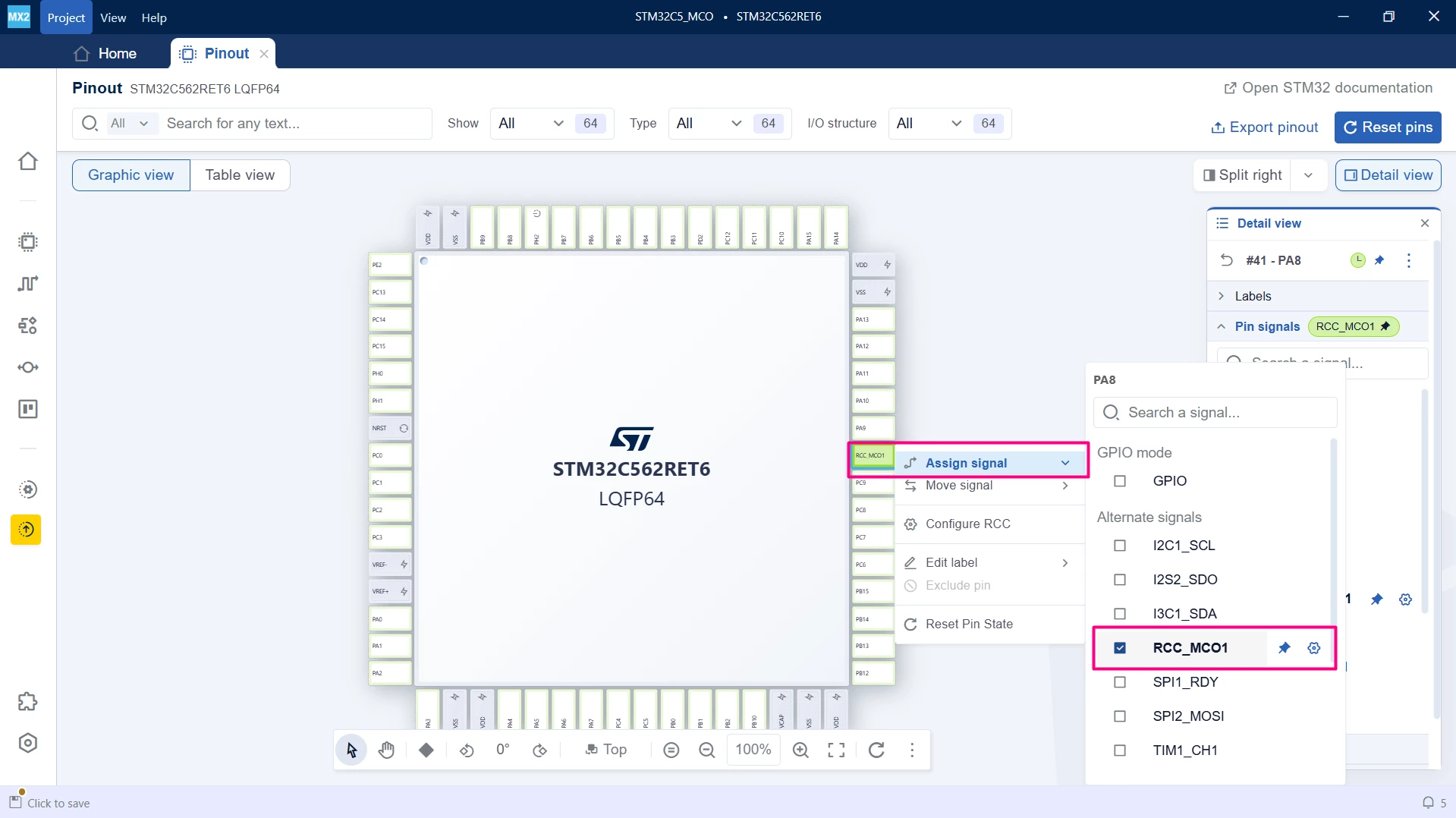
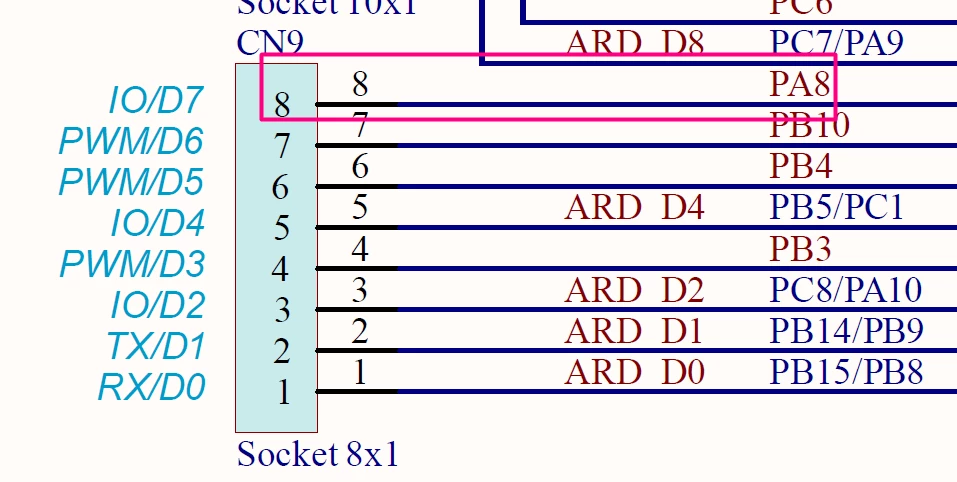
After the project workspace is ready, locate pin PA8 in the Pinout view. Right-click the pin and select RCC_MCO1 to assign it as the master clock output pin.
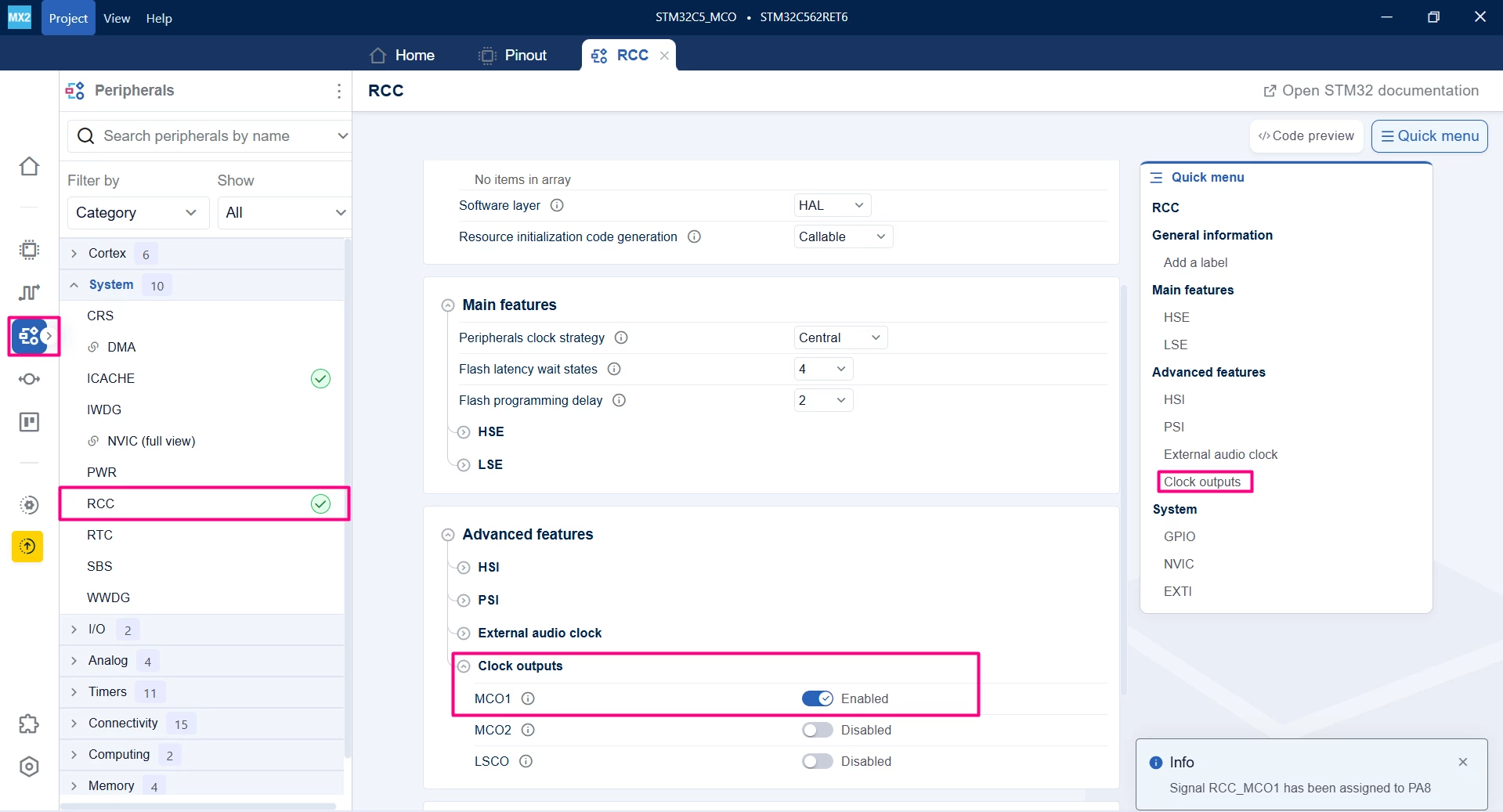
In the left Categories menu, navigate to System Core and select the RCC peripheral to open its configuration panel. In the RCC configuration settings, enable the MCO1 (master clock output 1) feature.
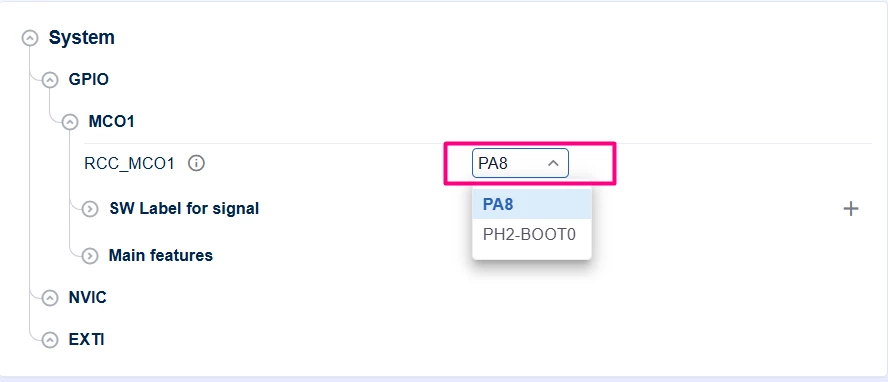
In case you failed to allocate it at PA8, you can use the System portion to specify which pin you want the MCO1 to be placed at.
1.2 Clock configuration
Switch to the Clock Configuration tab.
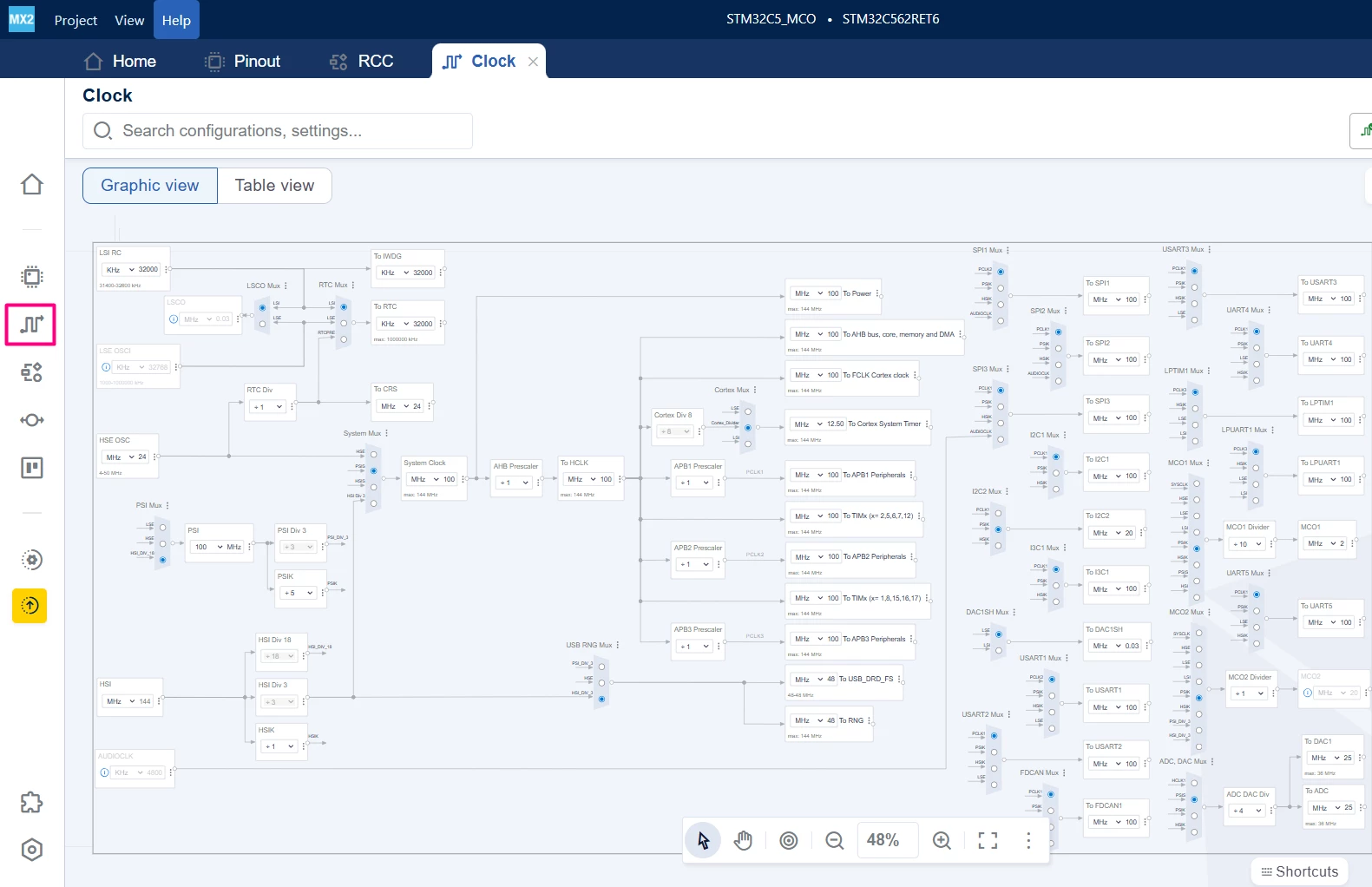
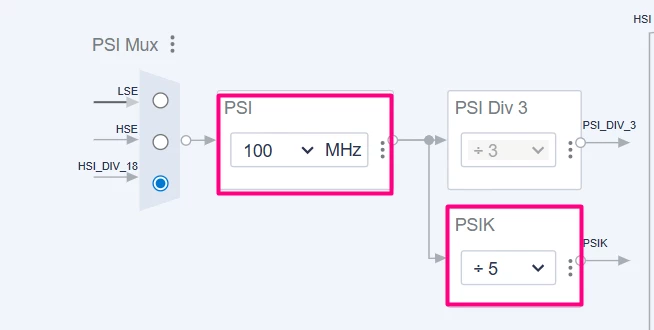
Adjust it in accordance with the desired clock branch that your application wants to evaluate. In this case, the selected output was adjusted for 2 MHz, coming from the PSIK:
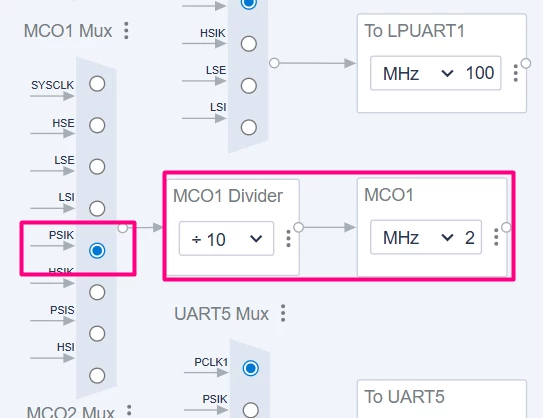
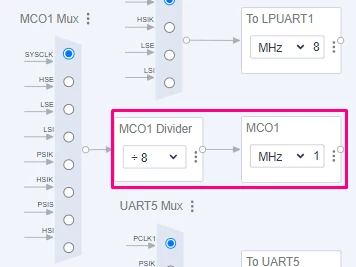
To achieve a 1 MHz output clock, locate the MCO1 Mux. Select the desired source and set the MCO1 prescaler (divider) to 8.
1.3 Code generation
To generate the code:
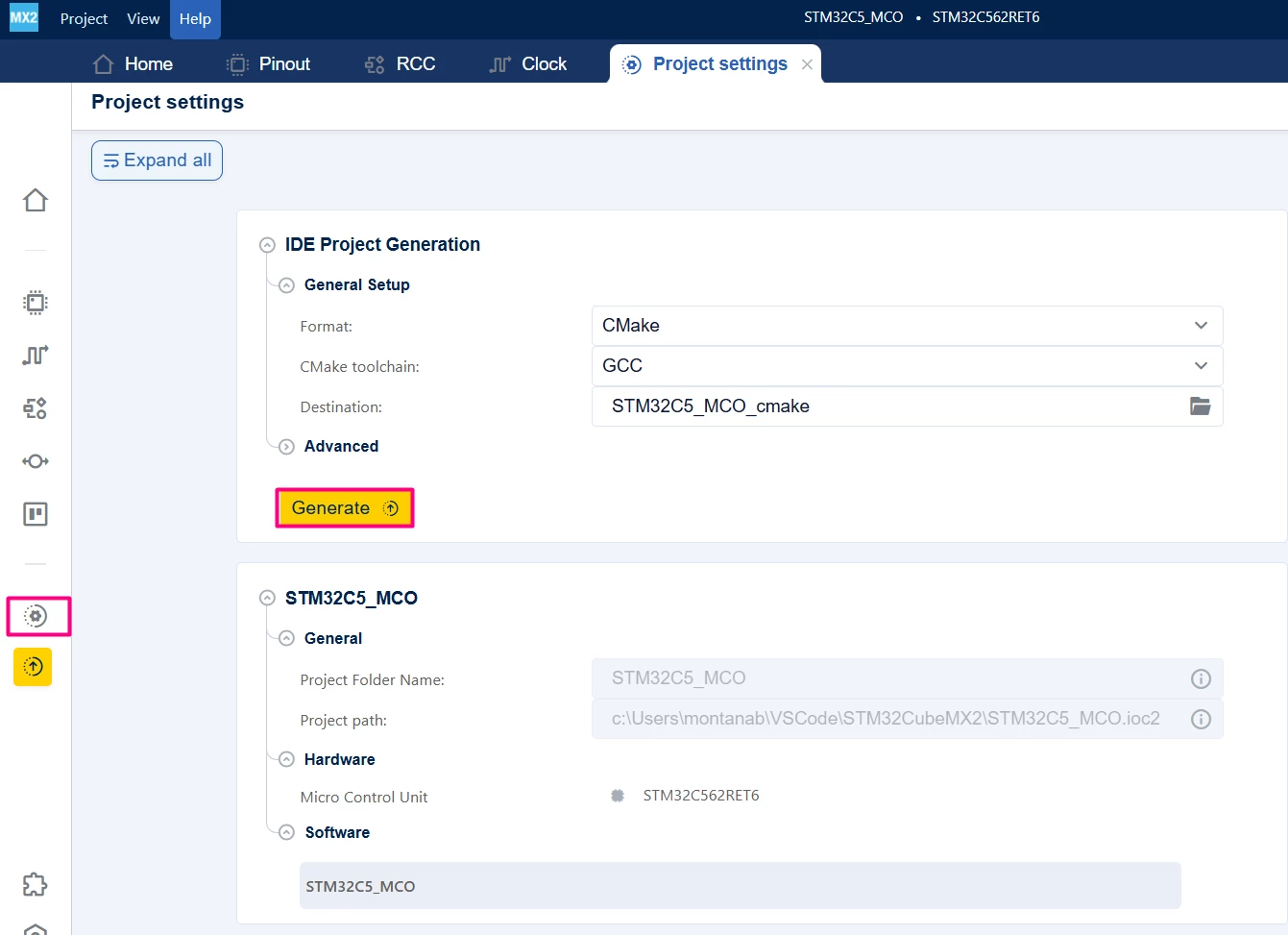
- Click on the [Project settings] icon and select the desired IDE.
- Click the [Generate] button.
2. Configuring the project in Visual Studio Code
Open Visual Studio Code and open the project folder.
You are prompted with a selection. In case you miss click or that does not appear, press Ctrl+Shift+P, type CMake: Select Configure Preset, and choose your debug configuration.
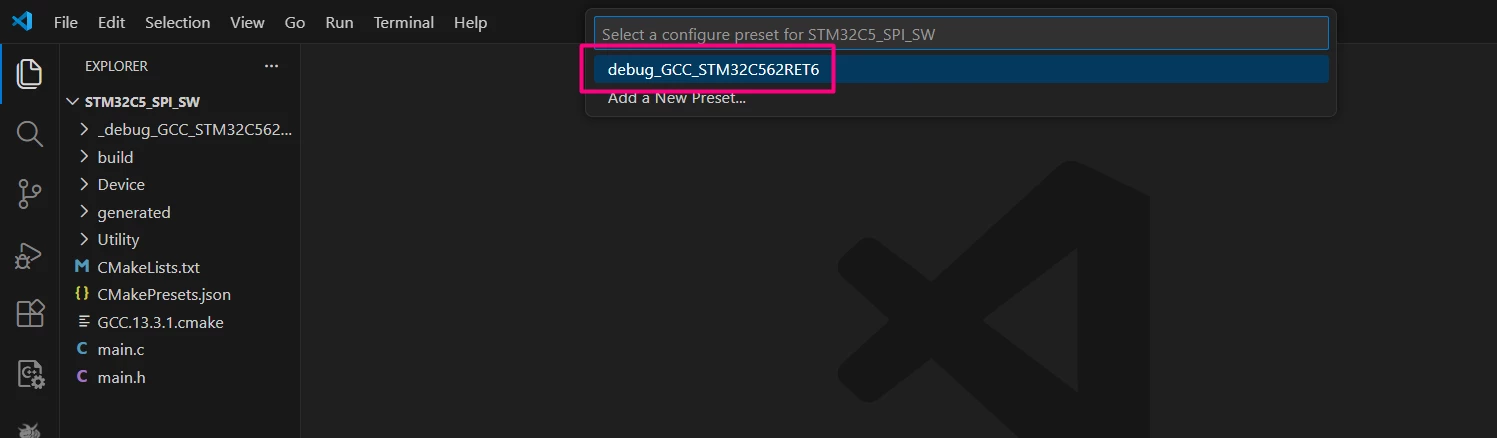
Build the project to ensure that everything is properly set and then go to the implementation code.

2.1 Validation
After building the application, locate the [Run and Debug] icon, create your debug session by selecting the STLINK GDB Server option:
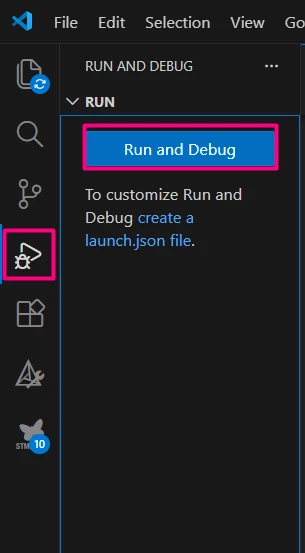
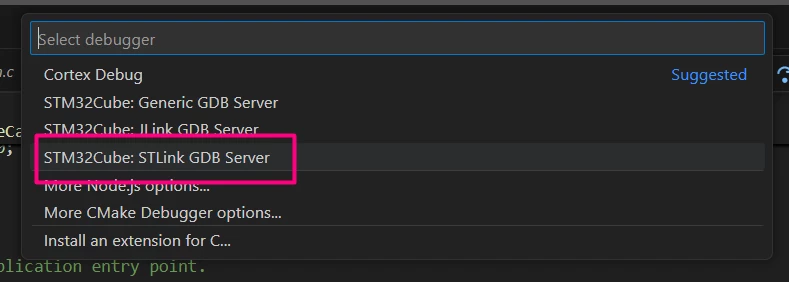
Connect the oscilloscope to PA8 and GND to verify the clock output.
Scope/Data trace image:

Conclusion
By following these steps, you have successfully configured and deployed your project. In this guide, we focused on enabling and verifying the Master Clock Output (MCO) using the STM32CubeMX2 configuration.
Related links
- STM32Cube for Visual Studio Code
- NUCLEO-C562RE
- STM32CubeMX code generator - STMicroelectronics
- STM32 Embedded software documentation
- STM32CubeMX2 software documentation
