

How to use the EXTI with STM32CubeMX2
Summary
This article provides a step-by-step guide to configure the EXTI (external interrupt) function for a GPIO in STM32CubeMX2. The tutorial uses the NUCLEO-C562RE board.
- Summary
- Introduction
- Prerequisites
- 1. Project setup
- 1.1 Project creation
- 1.2 GPIO and EXTI configuration
- 1.3 Code generation
- 2. Configuring the project in Visual Studio Code
- 2.1 Code editing
- 2.2 Validation
- Conclusion
- Related links
Introduction
The EXTI module in a microcontroller enables asynchronous event detection by generating an interrupt in response to signal transitions on external input lines. It can be configured to trigger on rising edges, falling edges, or both, allowing precise detection of external events such as button presses or sensor outputs. This capability is critical for real-time responsiveness in embedded systems.
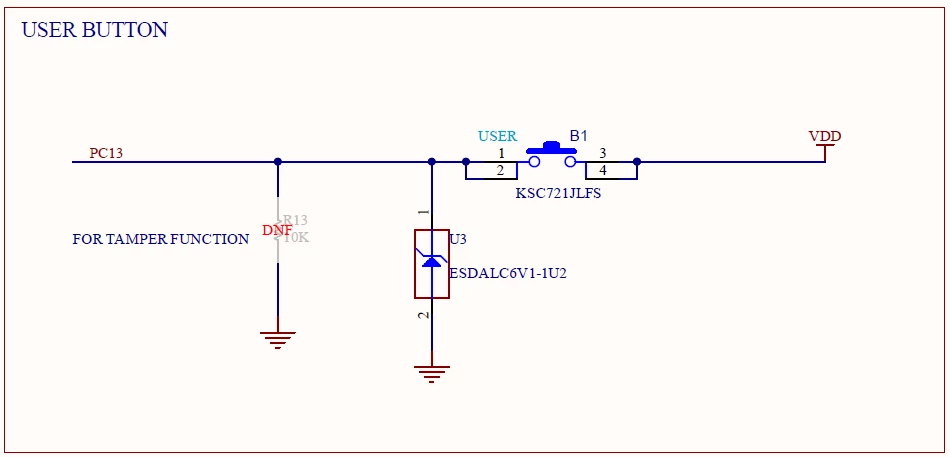
This article presents a demonstration in which pressing the user button on the board triggers an interrupt that causes the on-board LED to blink once.
Prerequisites
Install the following tools:
- STM32CubeMX2
- The latest STM32C5 HAL2 driver
- STM32CubeIDE extension for Visual Studio Code
The hardware used in this tutorial is the NUCLEO-C562RE board.
1. Project setup
Follow these steps to create an application project for the NUCLEO-C562RE board. The hands-on exercise creates a simple EXTI implementation that toggles the LED when the push button on the NUCLEO board is pressed.
1.1 Project creation
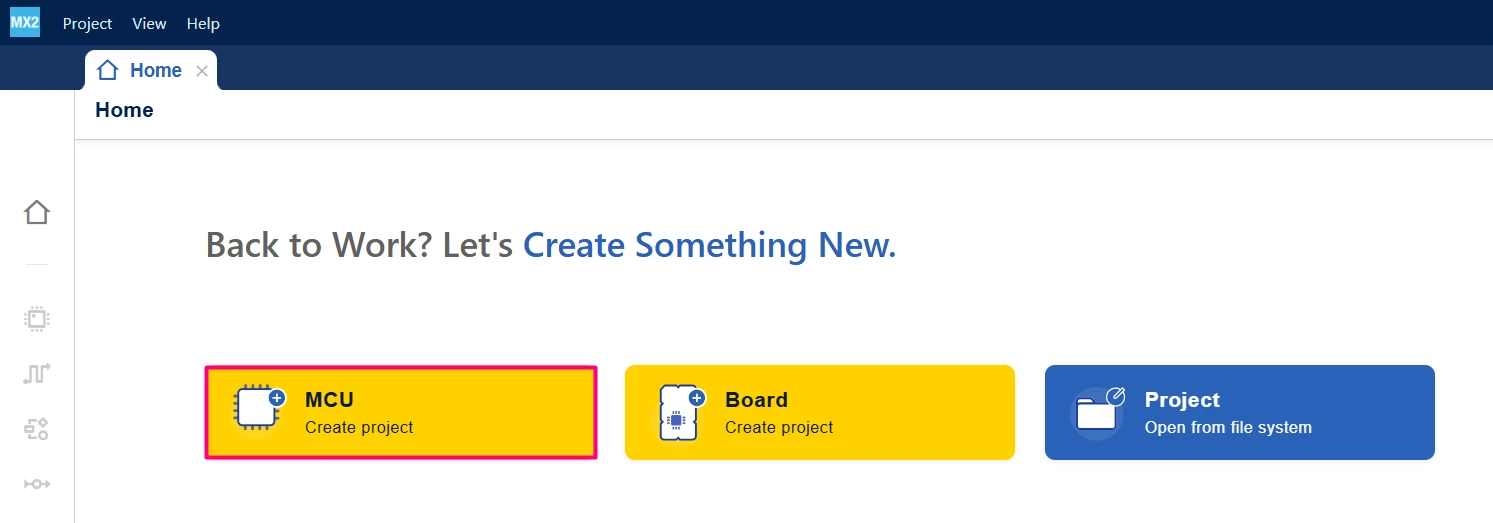
Open STM32CubeMX2. On the Home page, click the MCU square to create a new project.
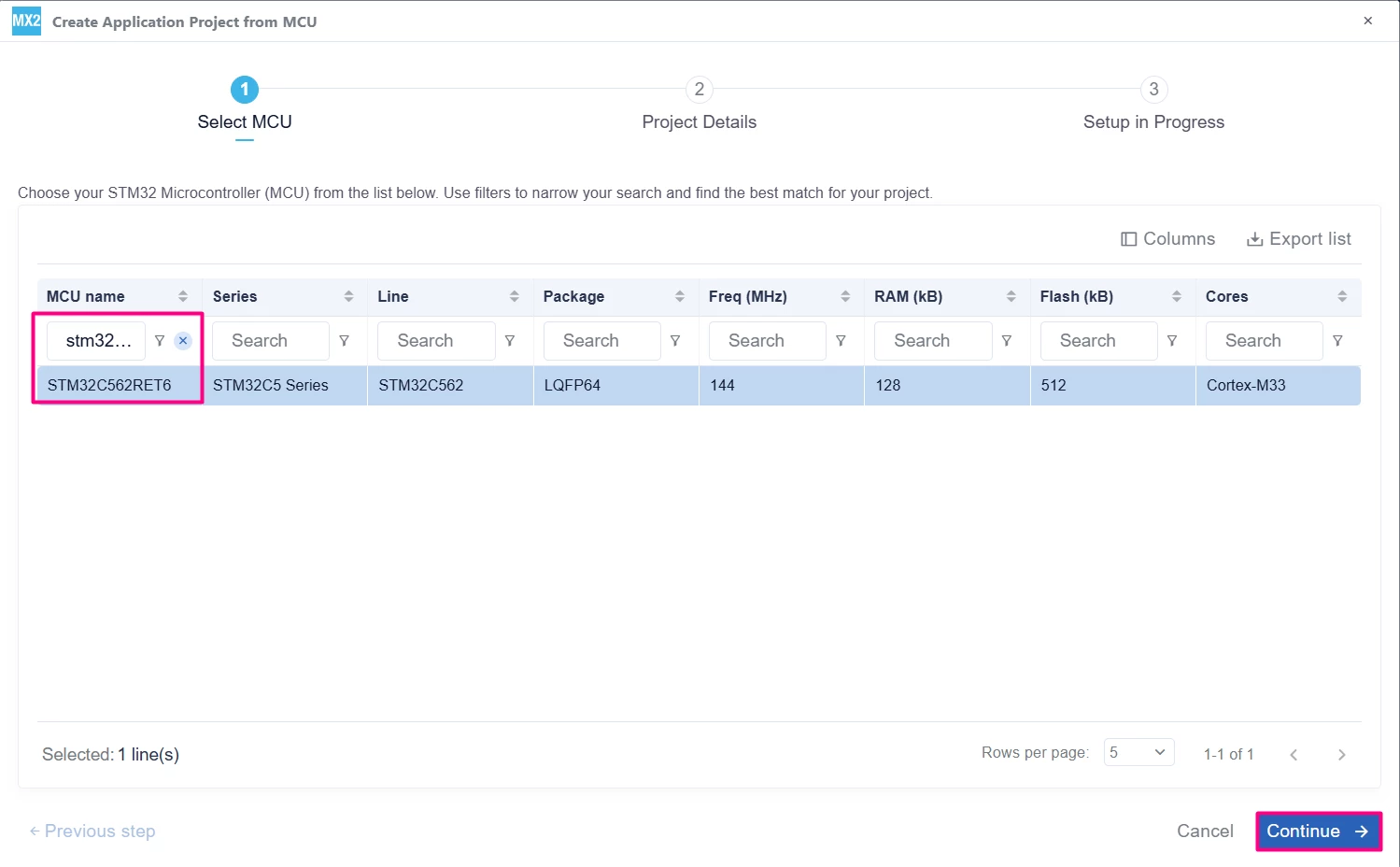
In the search field under MCU name, enter STM32C562RE and select the MCU. Click [Continue].
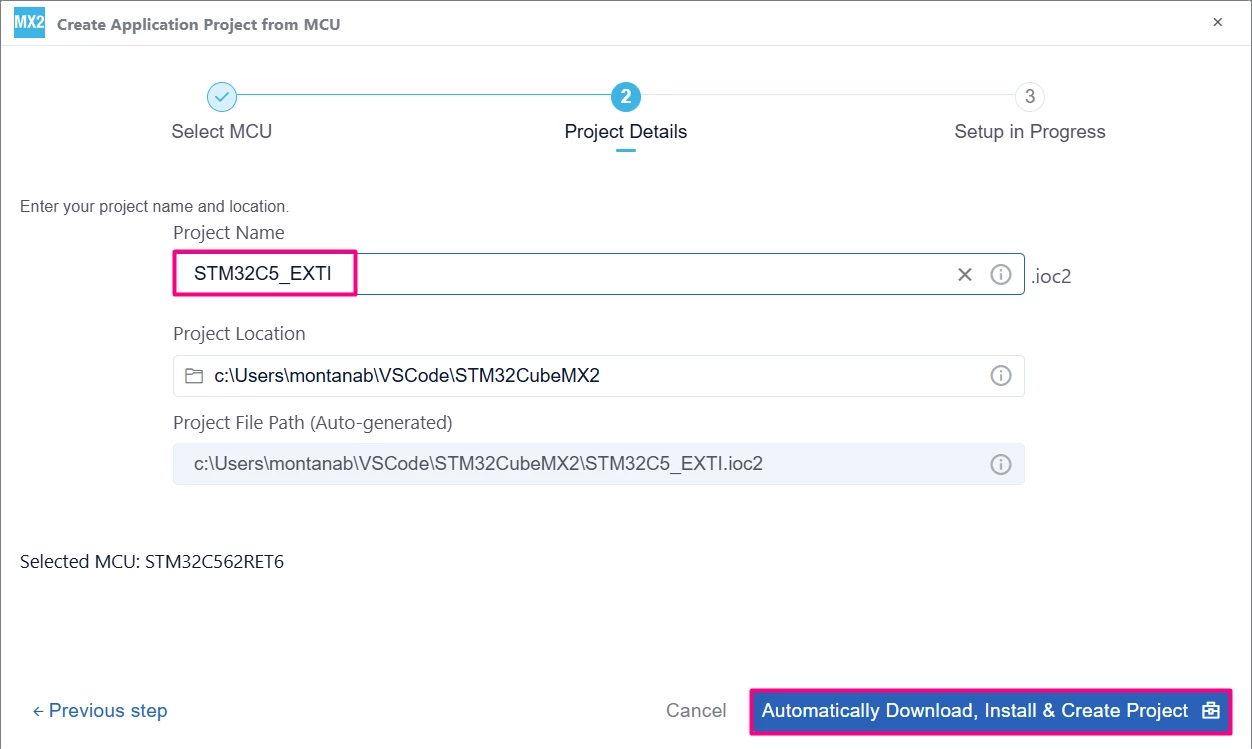
Enter the project name and location. Click [Automatically Download, Install & Create Project] to finish project creation.
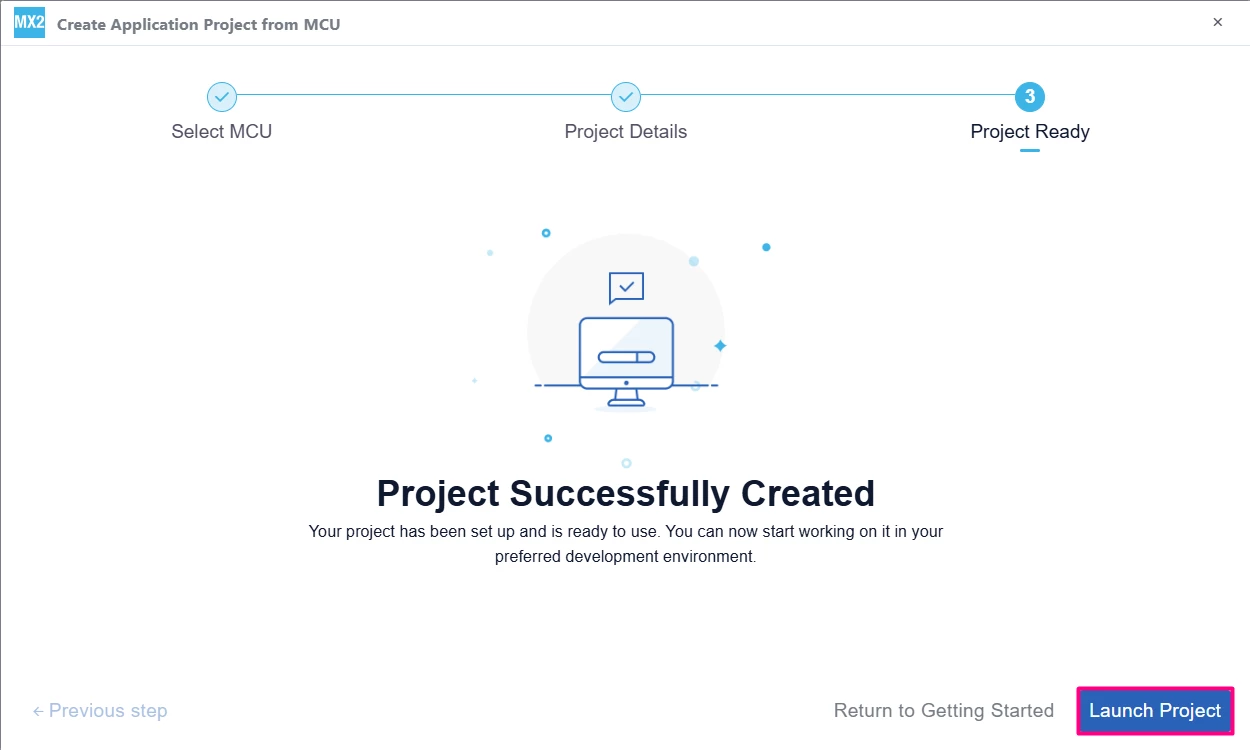
Select [Launch Project] to start.
1.2 GPIO and EXTI configuration
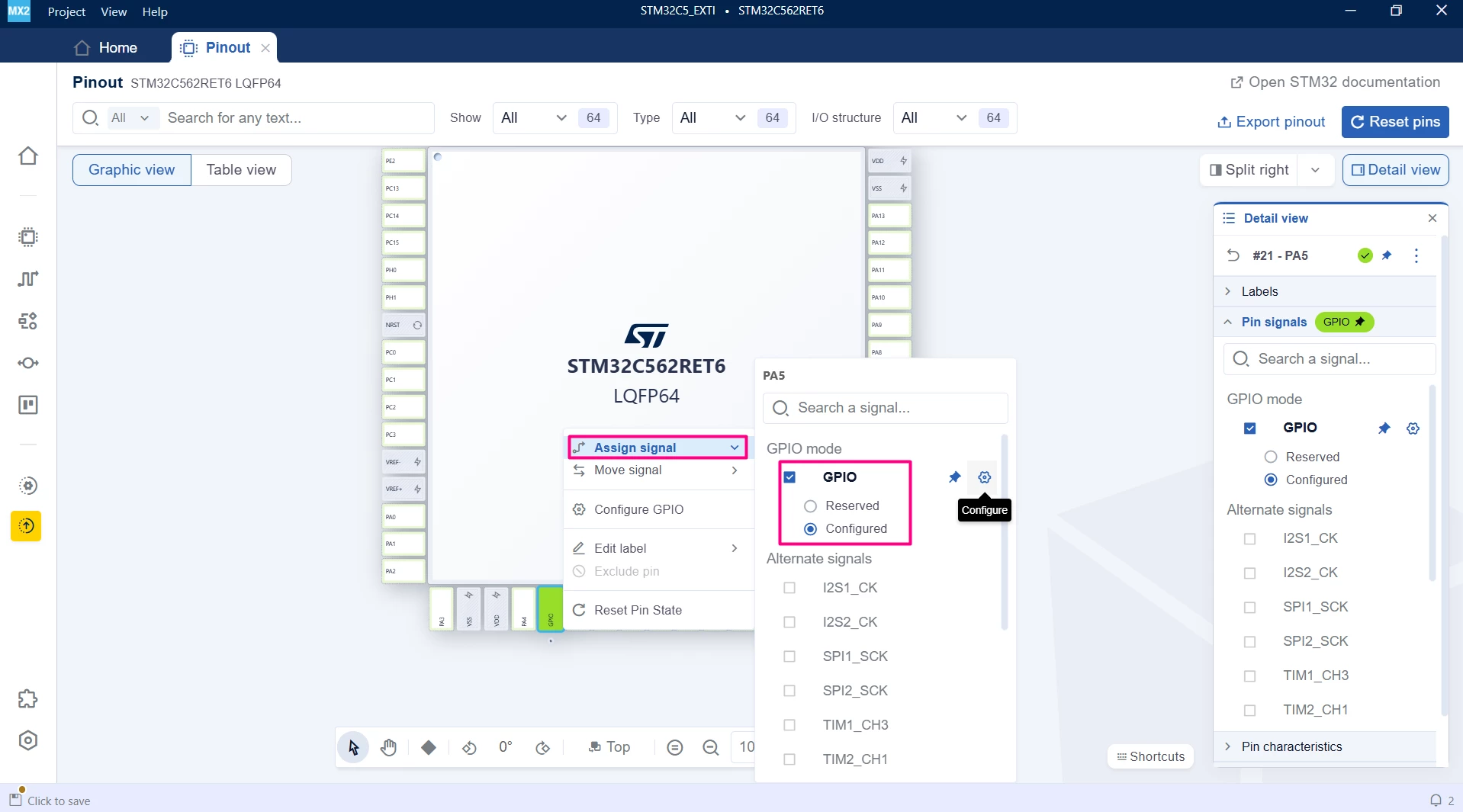
- In the Pinout view, click the [PA5] pin. In the menu, hover over [Assign Signal] to reveal additional options. In the GPIO mode section, check the box for [GPIO], and select [Configured].
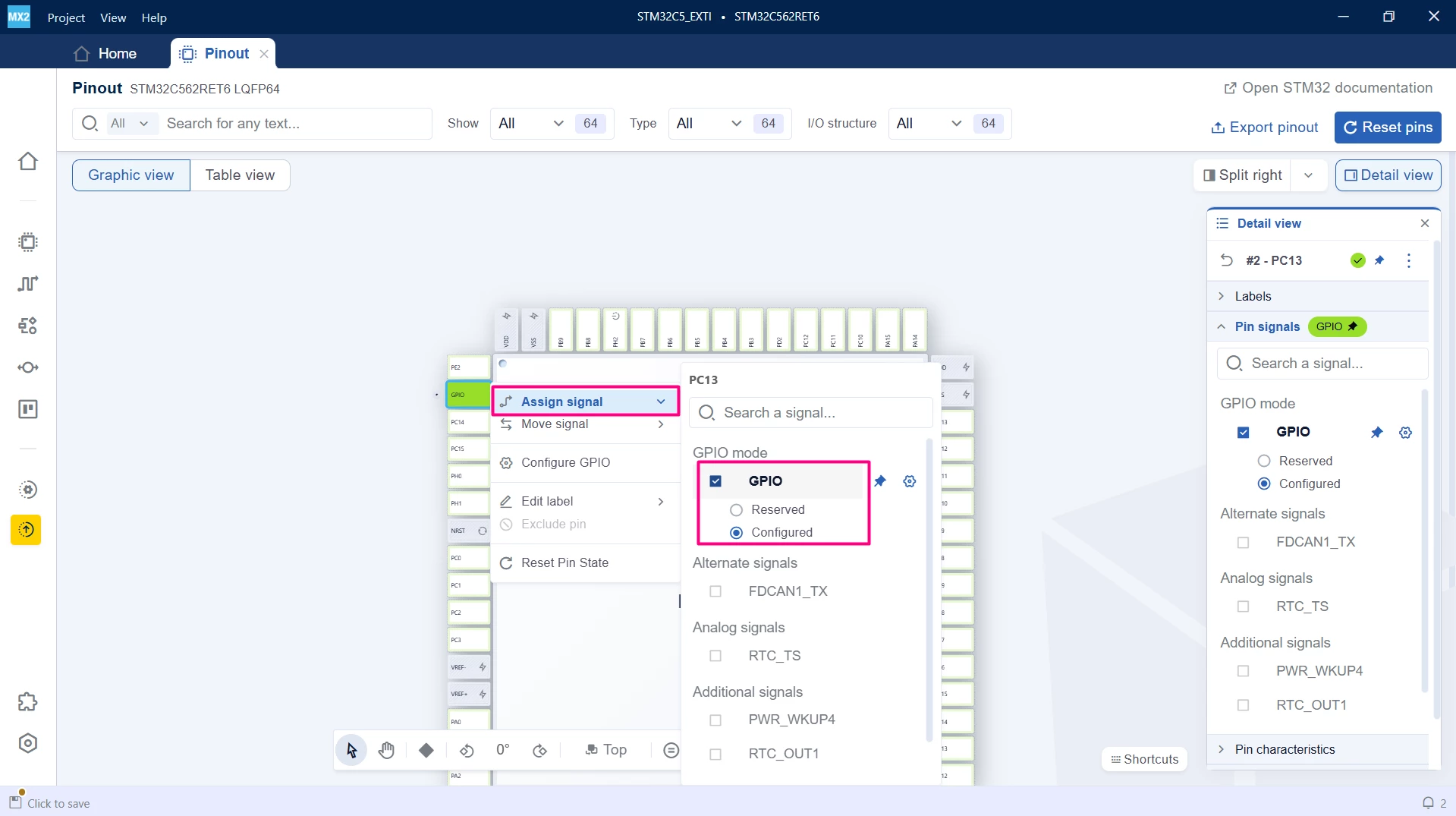
- Right-click the [PC13] pin and repeat the previous step.
- In the GPIO Settings, select the Pins drop-down menu. Configure the main features for each selected pin.
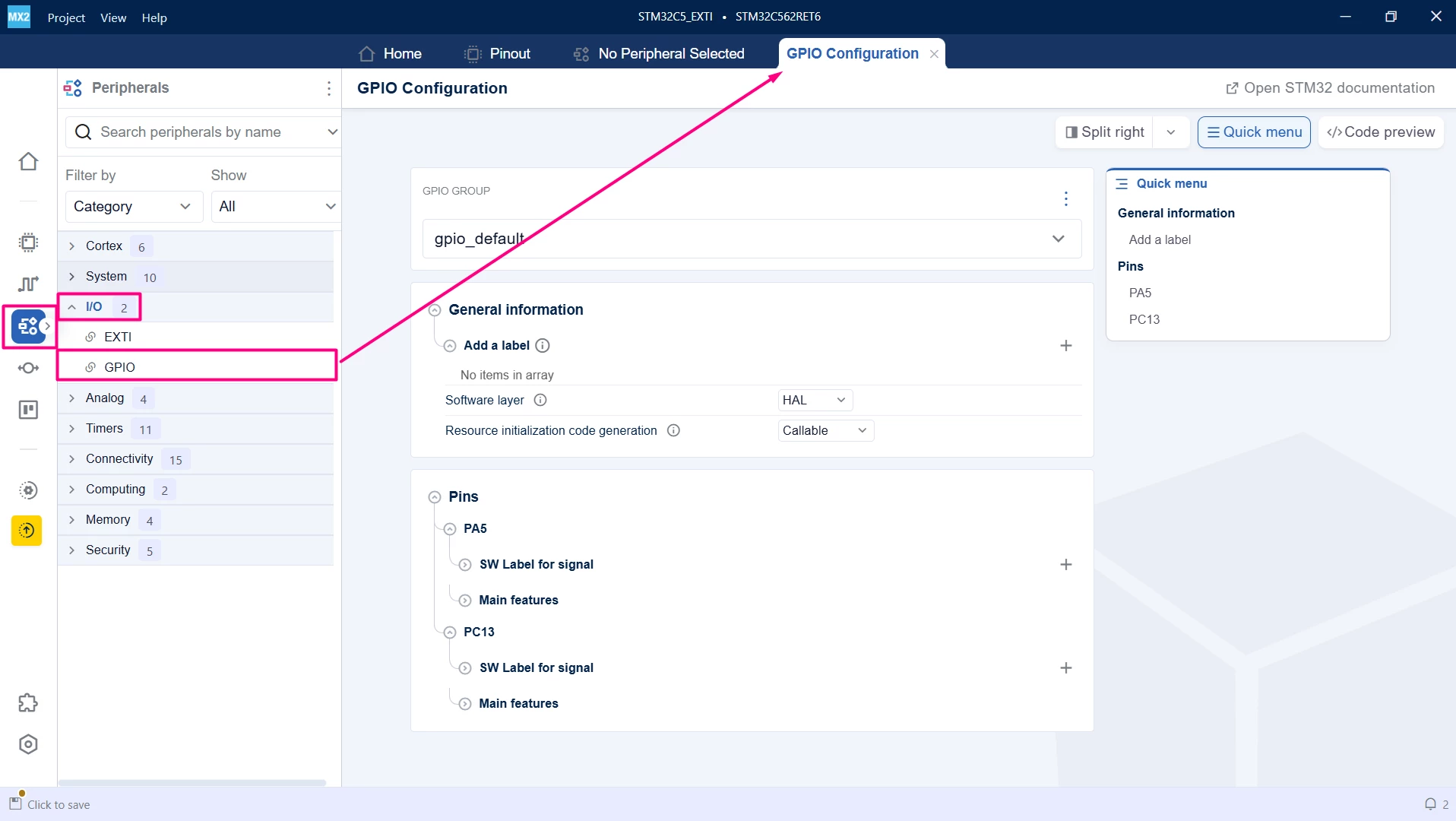
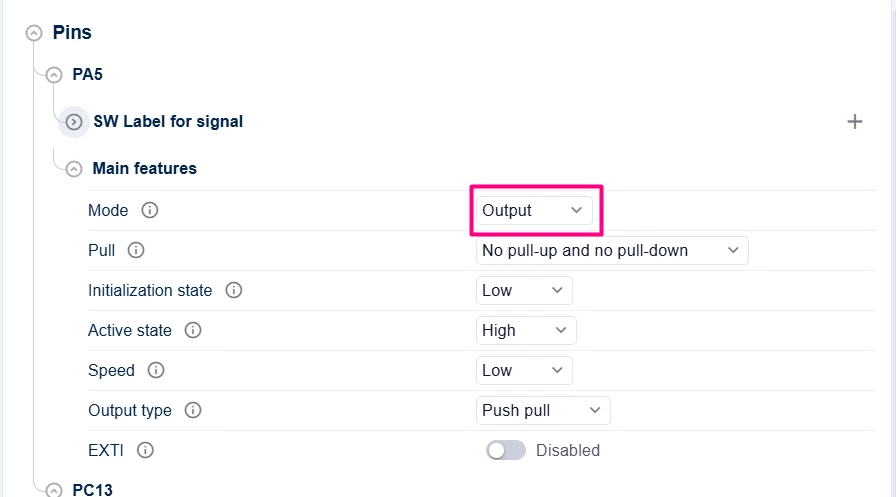
- Select [PA5]. In the "Main features" tab, set "Mode" to [Output].
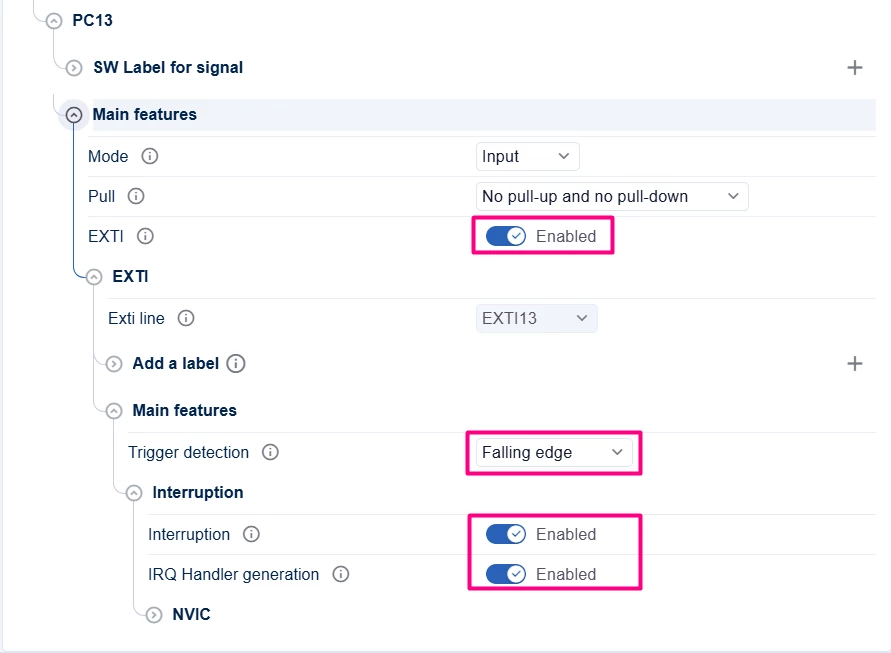
- Select [PC13]. In the "Main features tab", set "Mode" to [Input]. In "EXTI" → "Exti line" → "Main features" section, set "Trigger Detection" to [Falling Edge]. In the "Interruption" tab, enable [Enabled interruption] and [IRQ Handler Generation].
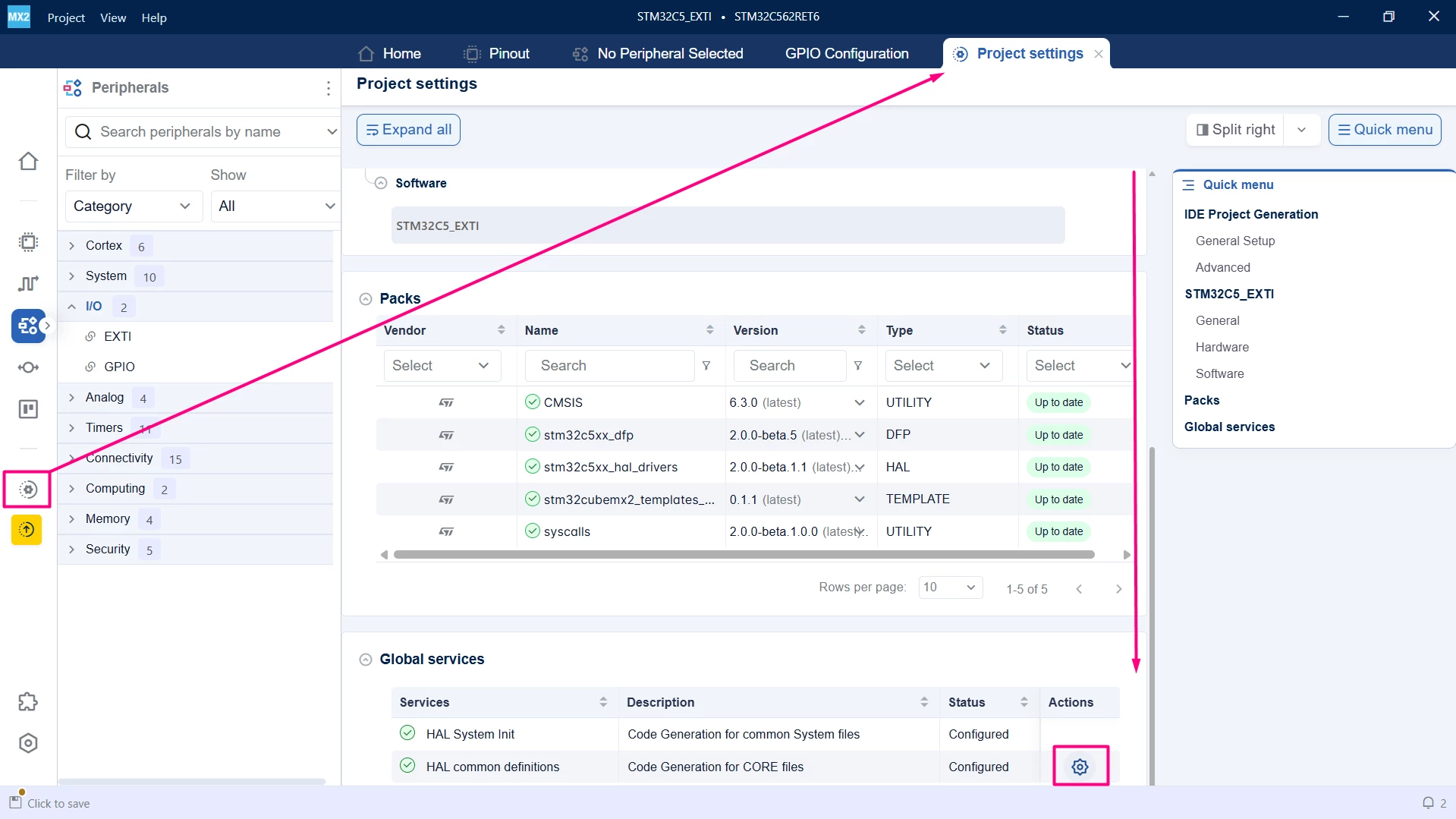
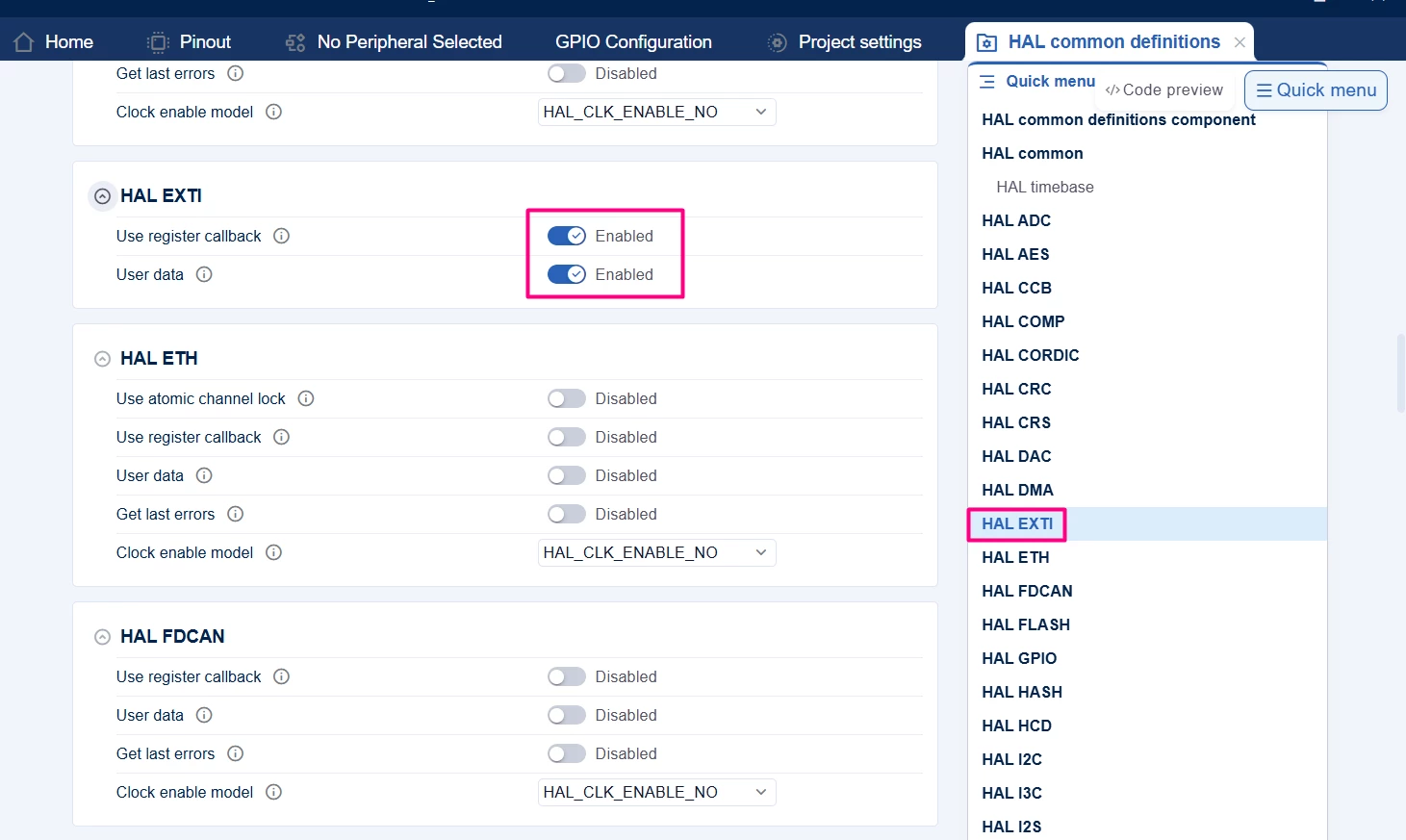
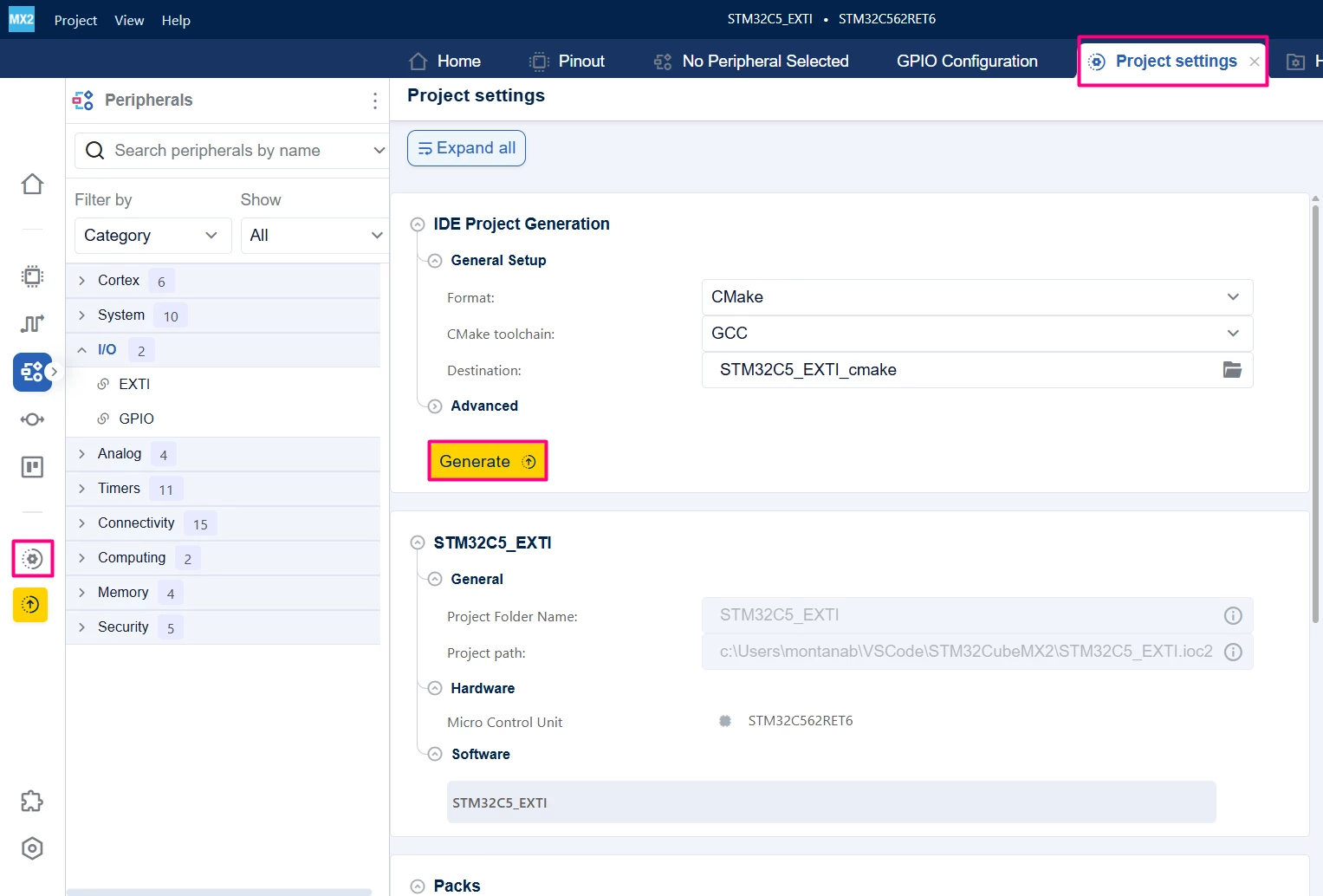
- Select the "Project settings" icon. In the HAL common definitions section, under HAL EXTI configuration, enable [Use Register Callback] and [User Data]. This configuration allows generation of the EXTI files.
1.3 Code generation
To generate the code:
- Click on the [Project settings] icon and select the desired IDE.
- Click the [Generate] button.
2. Configuring the project in Visual Studio Code
Open Visual Studio Code and open the project folder.
If prompted, select the configuration. If not prompted, press Ctrl+Shift+P, type CMake: Select Configure Preset, and choose the debug configuration.

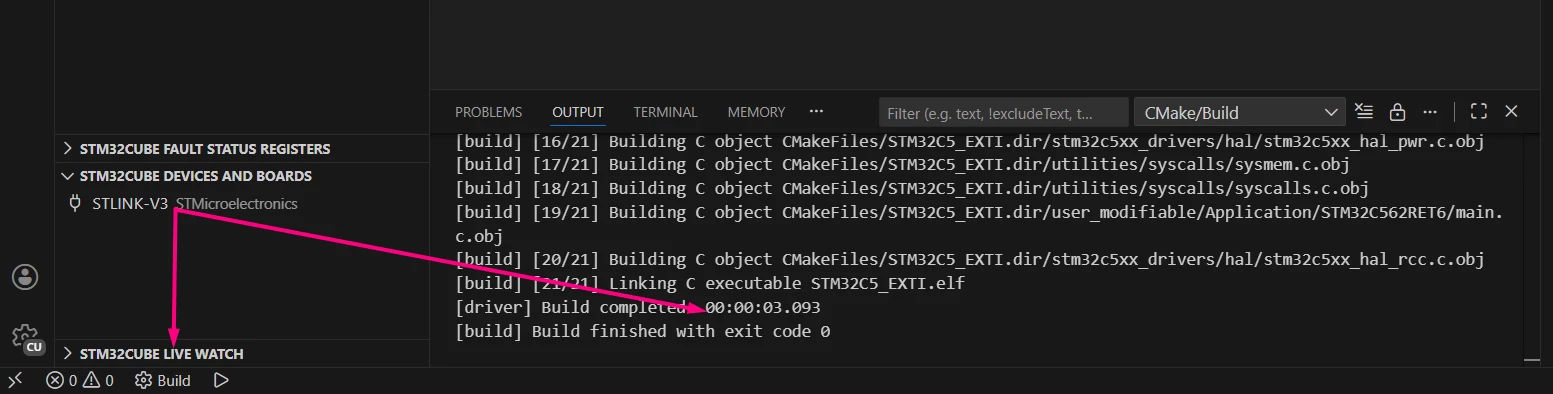
Build the project to ensure everything is set, then proceed to code implementation.
2.1 Code editing
After opening the generated project in Visual Studio Code, edit the main.c file as follows:
/**
 ******************************************************************************
 * file : main.c
 * brief : Main program body
 * Calls target system initialization then loop in main.
 ******************************************************************************
 *
 * Copyright (c) 2025 STMicroelectronics.
 * All rights reserved.
 *
 * This software is licensed under terms that can be found in the LICENSE file
 * in the root directory of this software component.
 * If no LICENSE file comes with this software, it is provided AS-IS.
 *
 ******************************************************************************
 */
/* Includes ------------------------------------------------------------------*/
#include "main.h"

/* Private typedef -----------------------------------------------------------*/
/* Private define ------------------------------------------------------------*/
/* Private macro -------------------------------------------------------------*/
/* Private variables ---------------------------------------------------------*/
hal_exti_handle_t *pEXTI13; /* Pointer to the EXTI handle from the generated code */
volatile uint8_t ExtiDetected = 0;
/* Private functions prototype -----------------------------------------------*/

/**
 * brief: The application entry point.
 * retval: none but we specify int to comply with C99 standard
 */
int main(void)
{
 /** System Init: this code placed in targets folder initializes your system.
 * It calls the initialization (and sets the initial configuration) of the peripherals.
 * You can use STM32CubeMX to generate and call this code or not in this project.
 * It also contains the HAL initialization and the initial clock configuration.
 */
 if (mx_system_init() != SYSTEM_OK)
 {
 return (-1);
 }
 else
 {
 /*
 * You can start your application code here
 */
 mx_cortex_nvic_init(); // Initialize the NVIC
 pEXTI13 = mx_gpio_default_exti13_gethandle(); // Get the EXTI13 handle

 HAL_EXTI_Enable(pEXTI13,
 HAL_EXTI_MODE_INTERRUPT); // Enable the EXTI13 interrupt
 while (1) {
 if (ExtiDetected == 1) {
 HAL_GPIO_TogglePin(HAL_GPIOA, HAL_GPIO_PIN_5);
 HAL_Delay(100);
 ExtiDetected = 0;
 }
 }
 }
}
void HAL_EXTI_TriggerCallback(hal_exti_handle_t *hexti, hal_exti_trigger_t trigger)
{
 /* Prevent unused argument compilation warning */
 STM32_UNUSED(trigger);
 if (hexti == pEXTI13) {
 ExtiDetected = 1;
 }
}
/* end main */
2.2 Validation
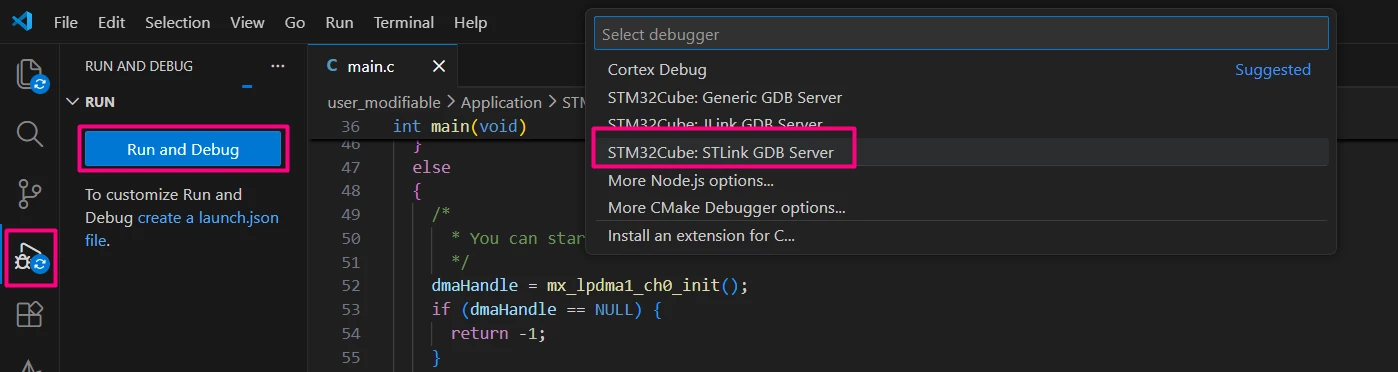
After building the application, select the [Run and Debug] icon. Create a debug session by selecting the [STM32Cube: STLINK GDB Server] option.
The USER_LED is off at the beginning of program execution. Pressing the USER_BUTTON toggles the LED state.
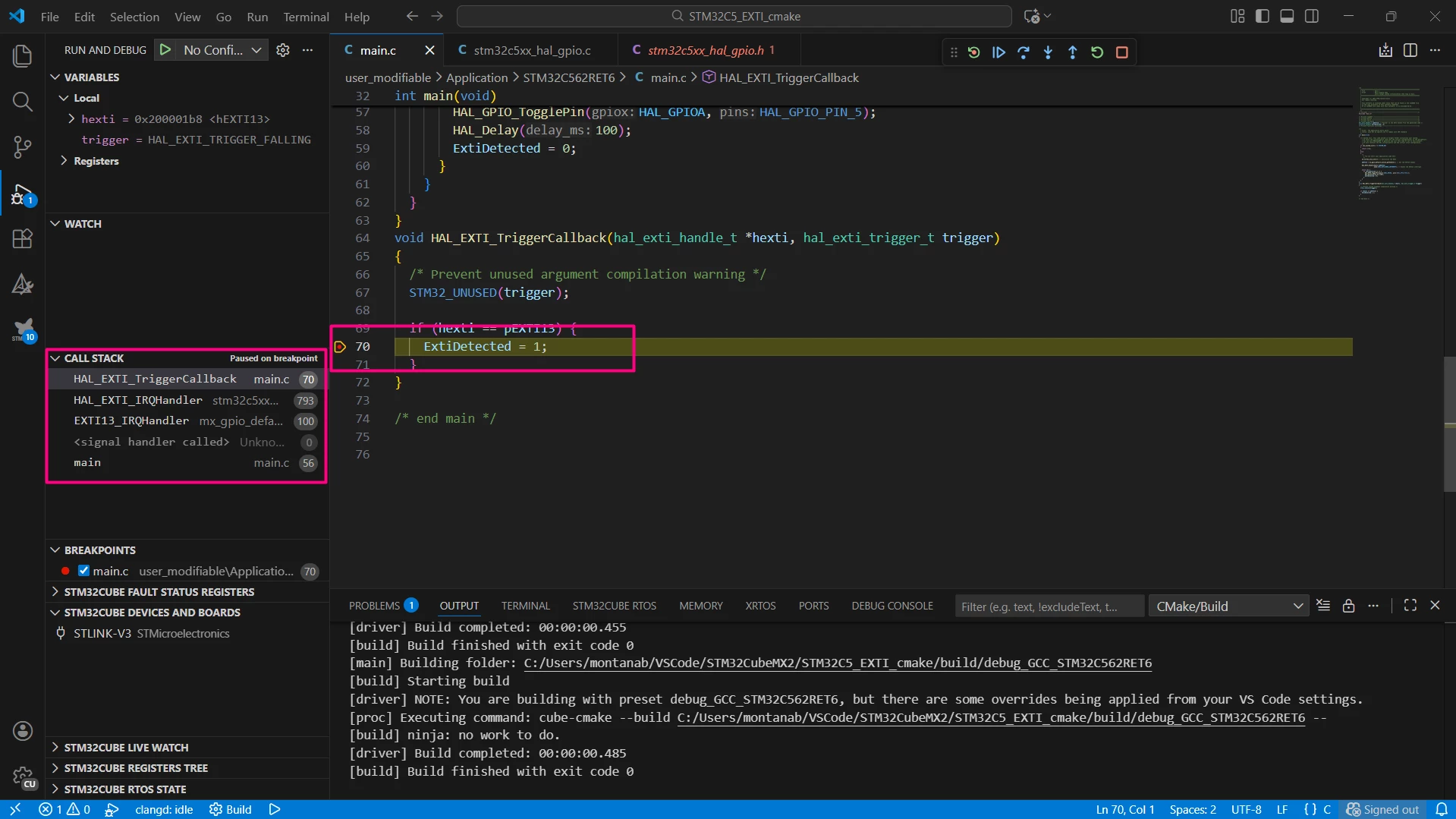
Insert a breakpoint inside HAL_EXTI_TriggerCallback to verify that the interrupt is triggered only when the button is pressed.
Conclusion
This article demonstrates the use of EXTI to enable asynchronous event detection using STM32CubeMX2. The example of blinking the on-board LED upon user button press highlights the practical application of EXTI in embedded systems, emphasizing its importance for responsive and efficient hardware interaction.
