

How to use DMA in normal mode with STM32CubeMX2
Summary
This guide describes how to enable and configure DMA in memory-to-memory mode using STM32CubeMX2. The example uses the NUCLEO-C562RE board.
- Summary
- Introduction
- Prerequisites
- 1. Project setup
- 1.1 Project creation
- 1.2 Enabling DMA
- 1.3 Code generation
- 2. Configuring the project in Visual Studio Code
- 2.1 Code editing
- 2.2 Validation
- Conclusion
- Related links
Introduction
Direct memory access (DMA) enables data transfers between memory and peripherals, or between memory regions, without CPU intervention. This nonblocking operation allows the CPU to perform other tasks while data transfer occurs in the background, improving system efficiency.
This guide provides an example of configuring a memory-to-memory DMA transfer.
Prerequisites
Install the following tools:
- STM32CubeMX2
- The latest STM32C5 HAL2 driver
- STM32CubeIDE extension for Visual Studio Code
The hardware used in this tutorial is the NUCLEO-C562RE board.
1. Project setup
Follow these steps to create an application project for the NUCLEO-C562RE board. The hands-on creates a simple memory-to-memory transfer using DMA.
1.1 Project creation
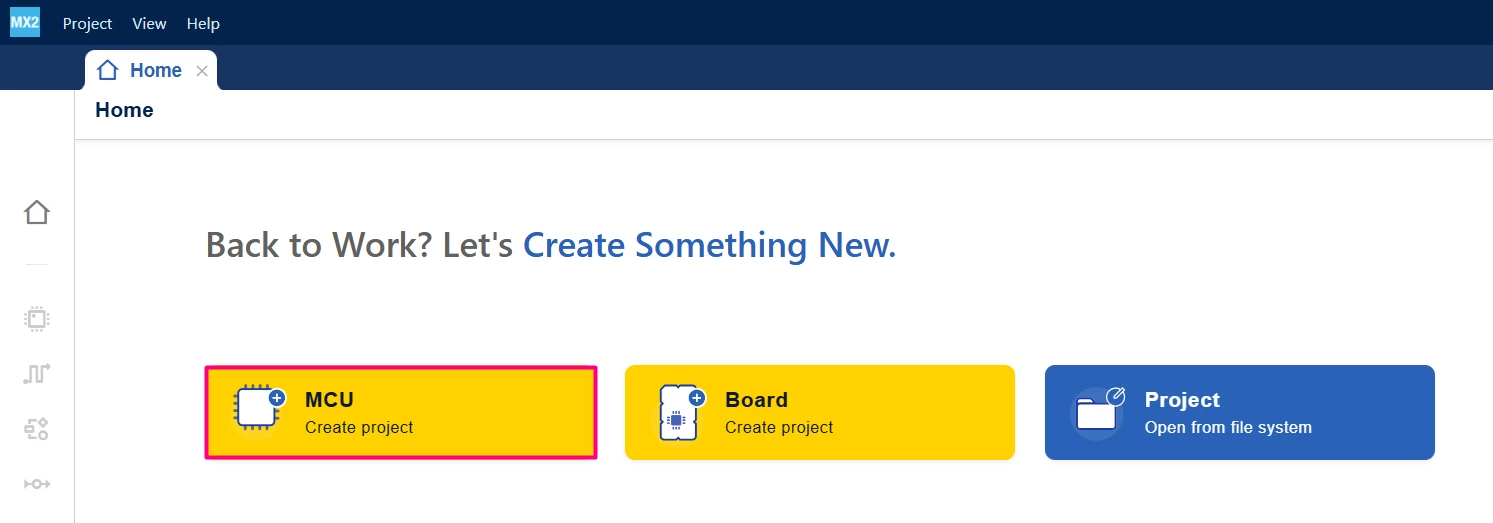
Open STM32CubeMX2. On the Home page, click the MCU square to create a new project.
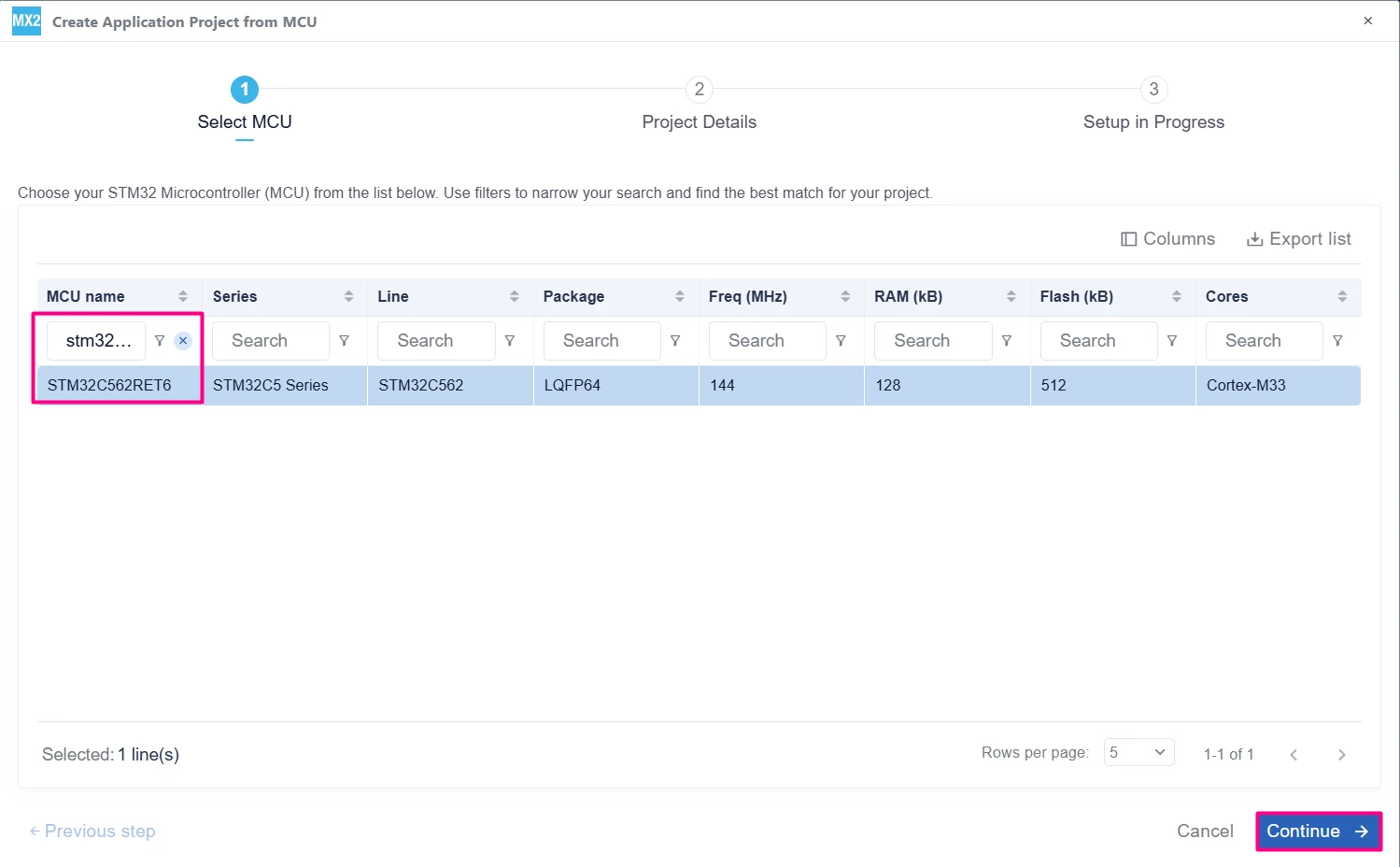
In the search field under MCU name, enter STM32C562RE and select the MCU. Click [Continue].
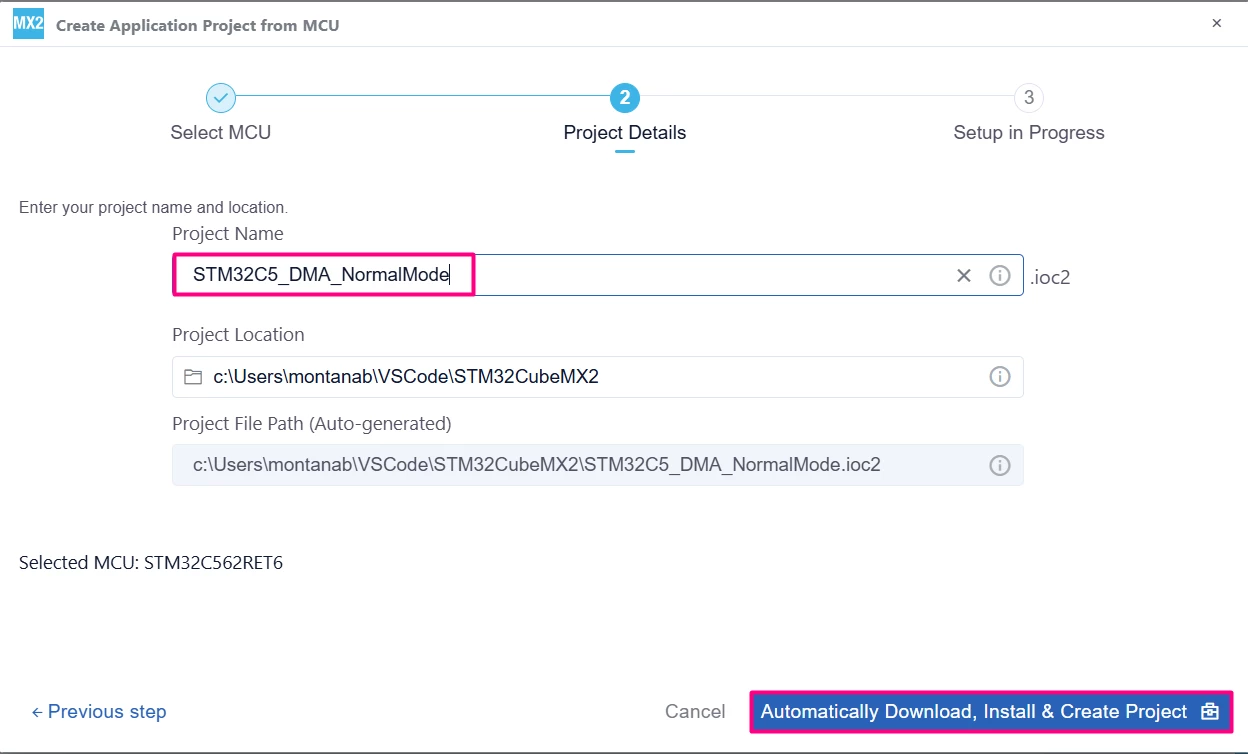
Enter the project name and location. Click [Automatically Download, Install & Create Project] to finish project creation.
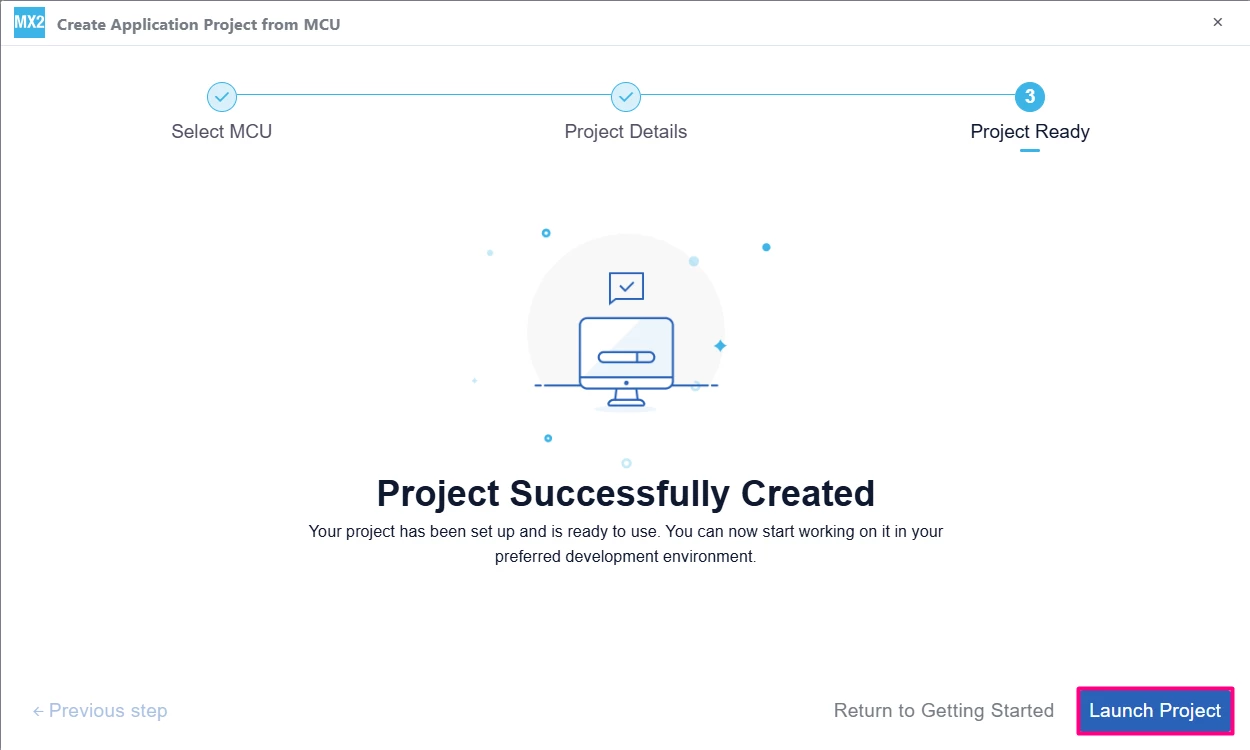
Select Launch Project to start.
1.2 Enabling DMA
To configure DMA in STM32CubeMX2:
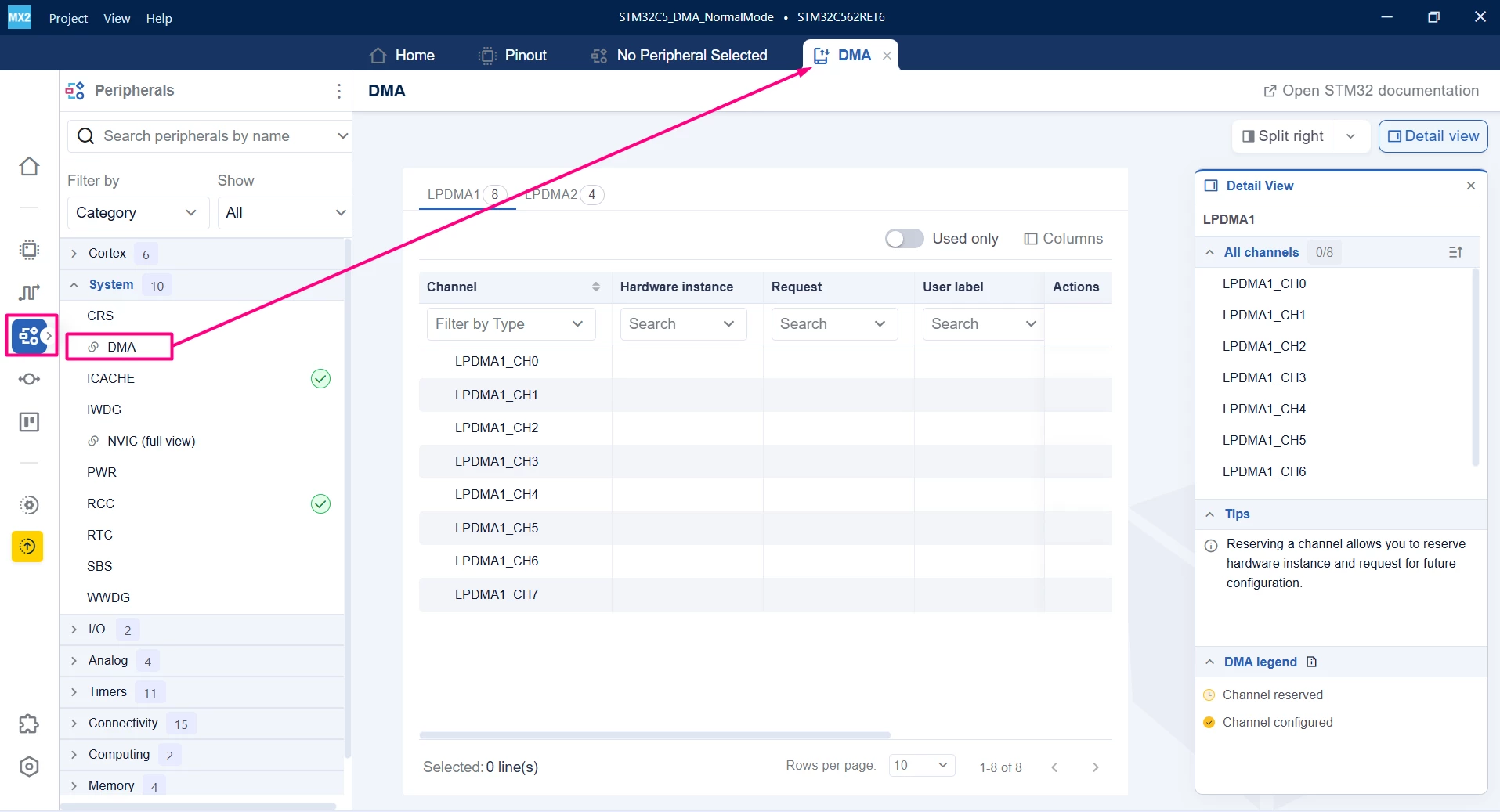
- Navigate to the Peripherals tab and open the System drop-down list and select [DMA].
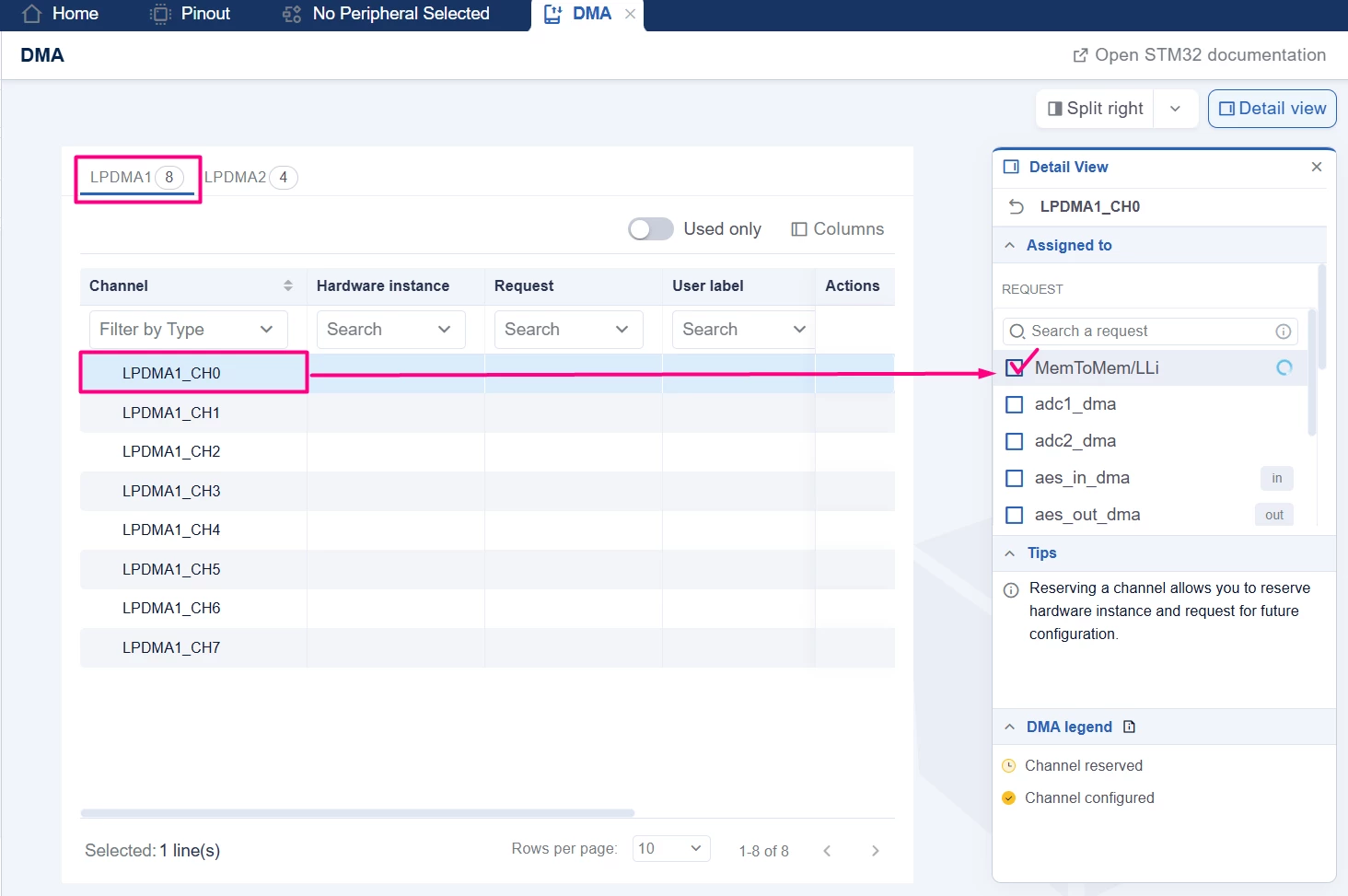
- In the DMA System View page, go to the LPDMA1 tab and select channel [LPDMA1_CH0]. Assign the selected channel to MemToMem/LLi.
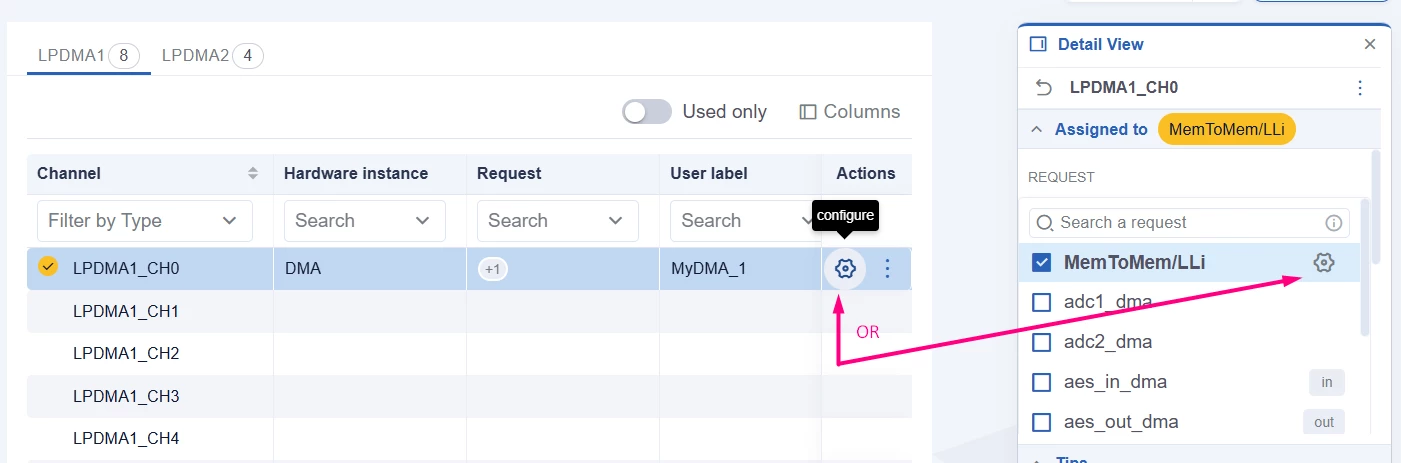
- Click the gear icon next to MemToMem/LLI to configure the channel.
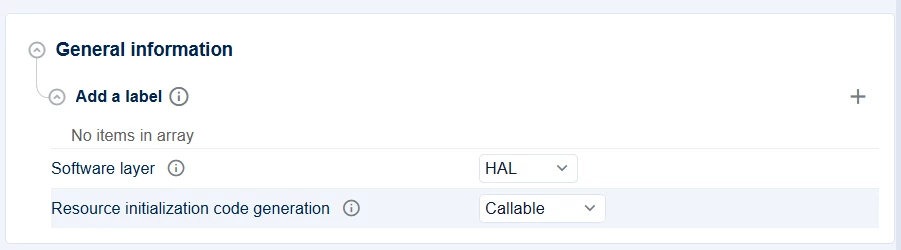
- In the LPDMA1_CH0 page, go to the "General information" tab and set Resource initialization code generation to [Callable].
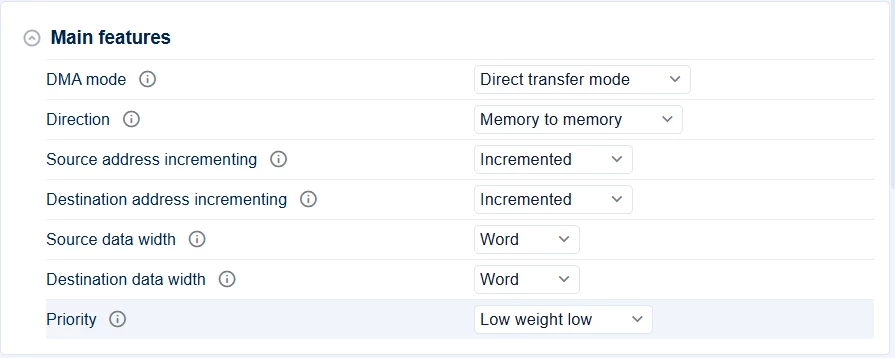
- In the Main features tab, configure the DMA channel as required. Use the "Memory to memory" direction, incrementing both Source and Destination address and set the data width for both as Word.
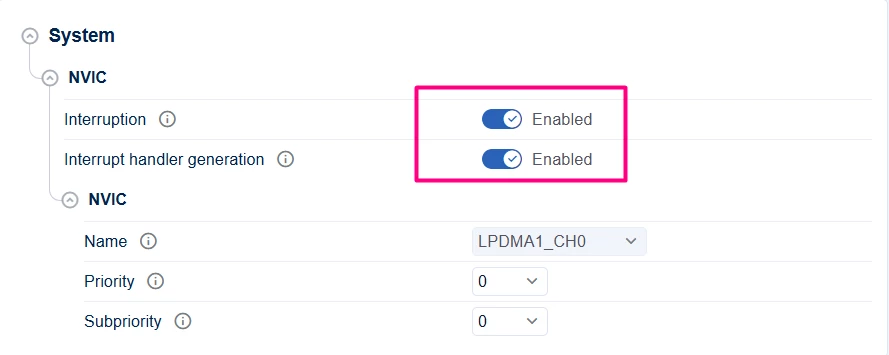
- In the System tab, enable both [Interruption] and [Interrupt handler generation] options.
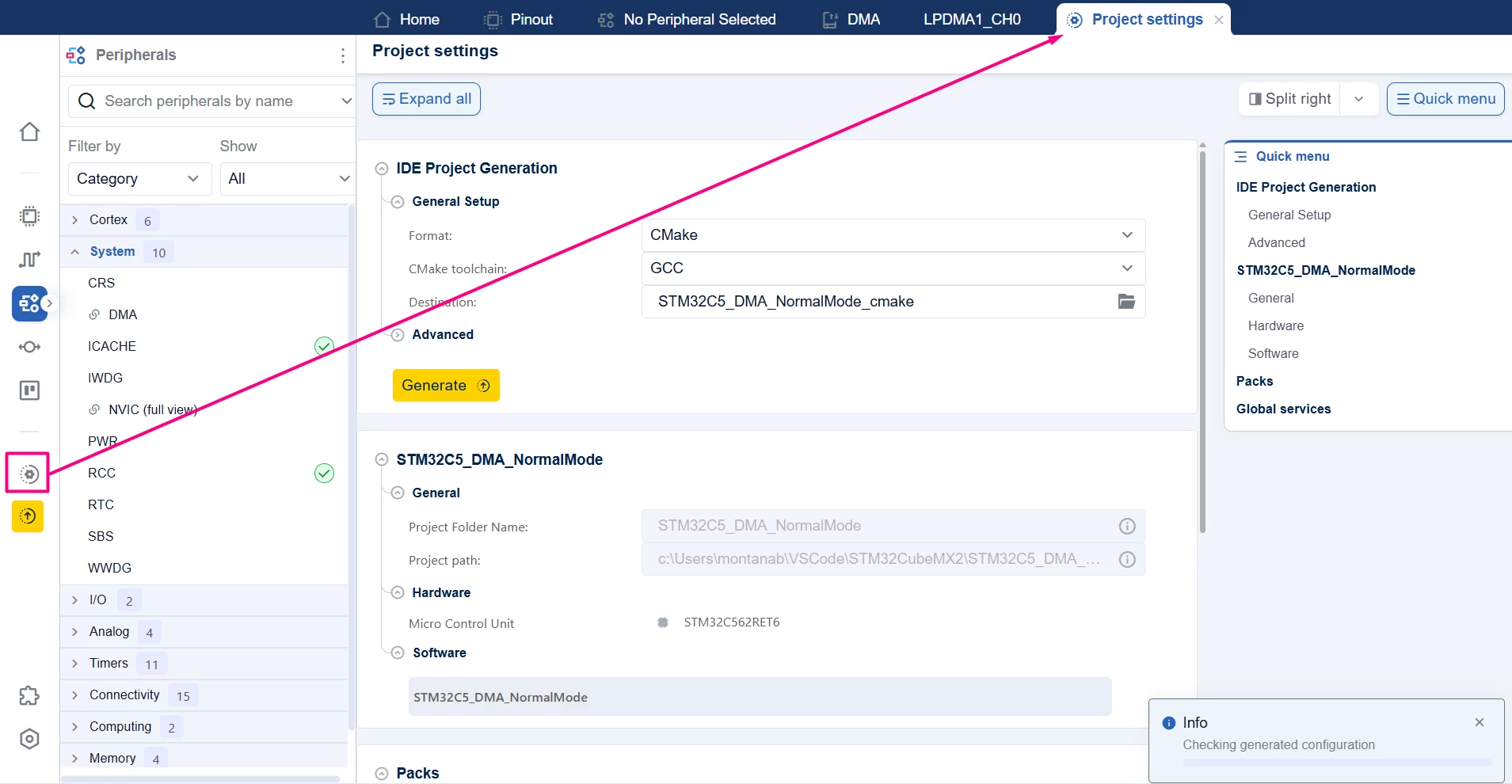
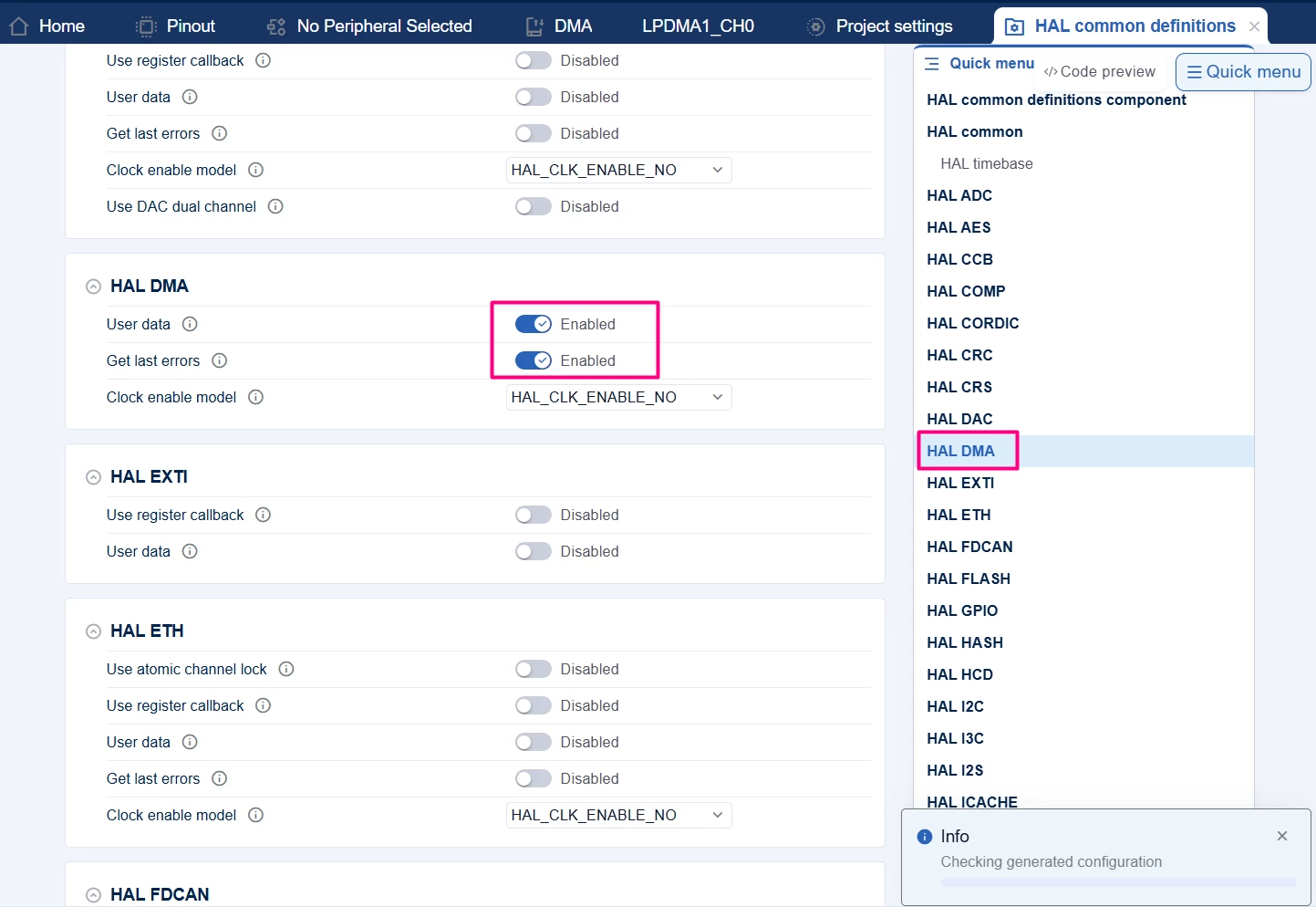
- Select the [Project settings] icon.
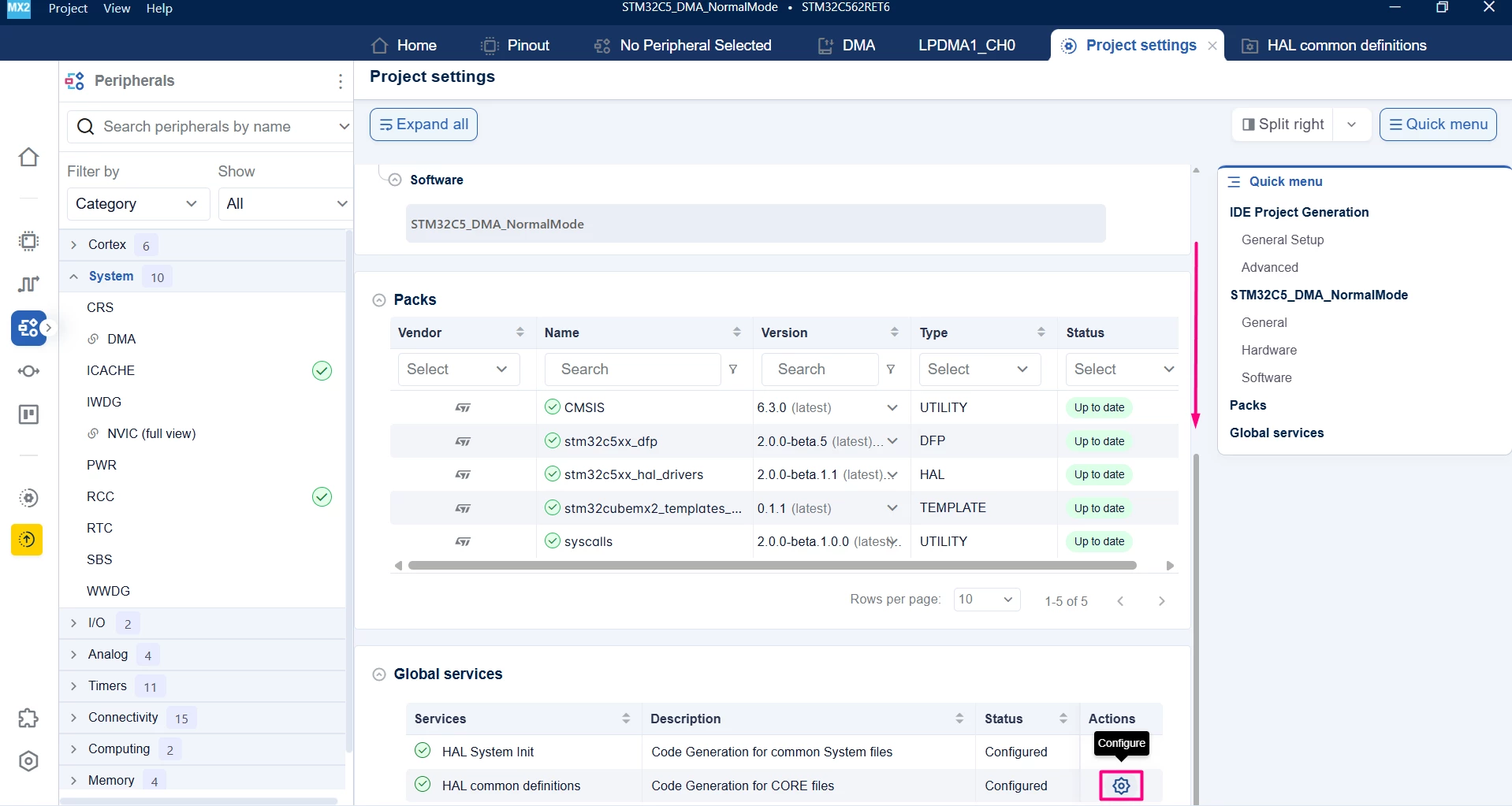
- In the HAL common definitions, use the quick menu to locate the "HAL DMA" category and enable [User Data] and [Get Last Errors].
1.3 Code generation
To generate the code:
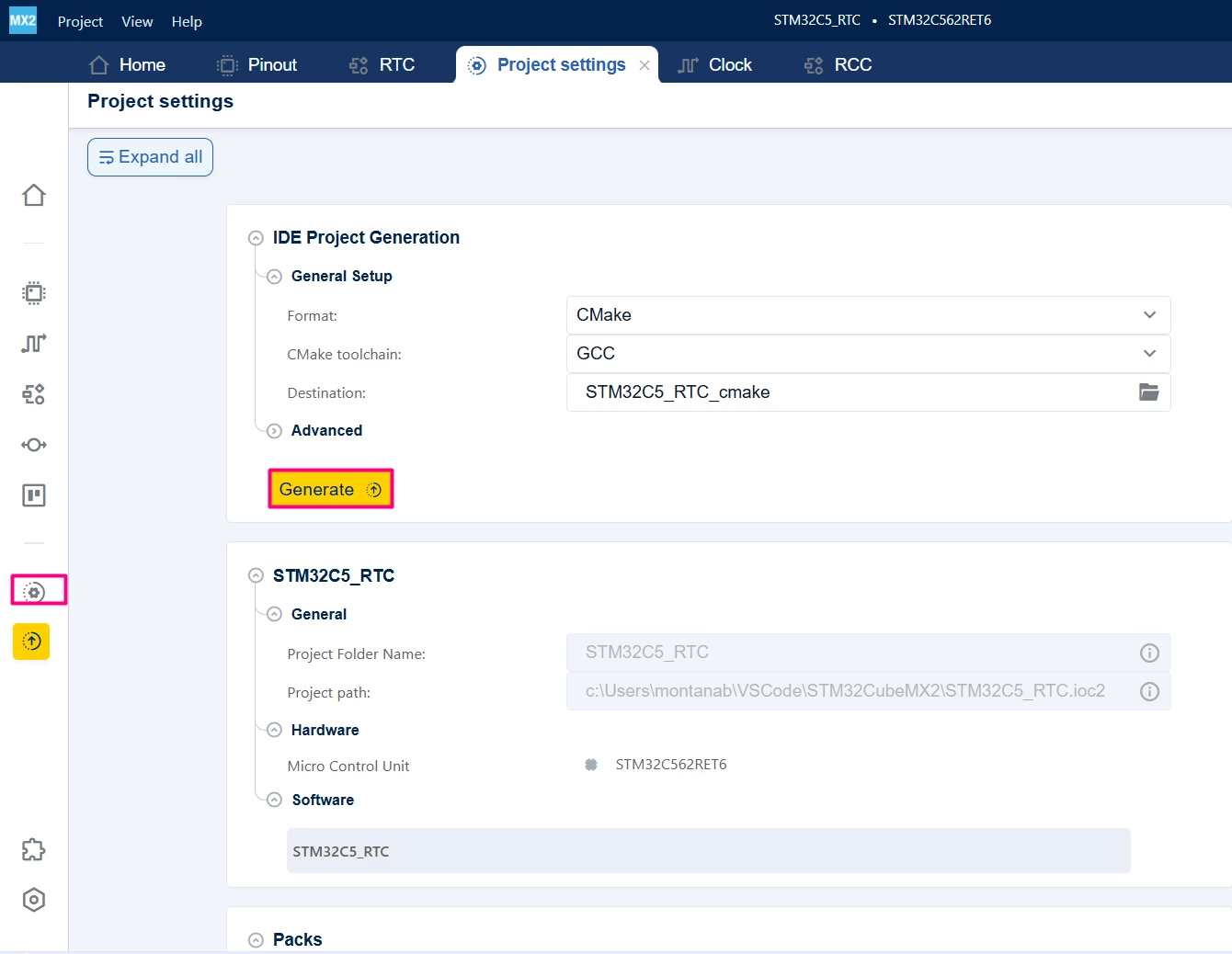
- Click on the [Project settings] icon and select the desired IDE.
- Click the [Generate] button.
2. Configuring the project in Visual Studio Code
Open Visual Studio Code and open the project folder.
If prompted, select the configuration. If not prompted, press Ctrl+Shift+P, type CMake: Select Configure Preset, and choose the debug configuration.

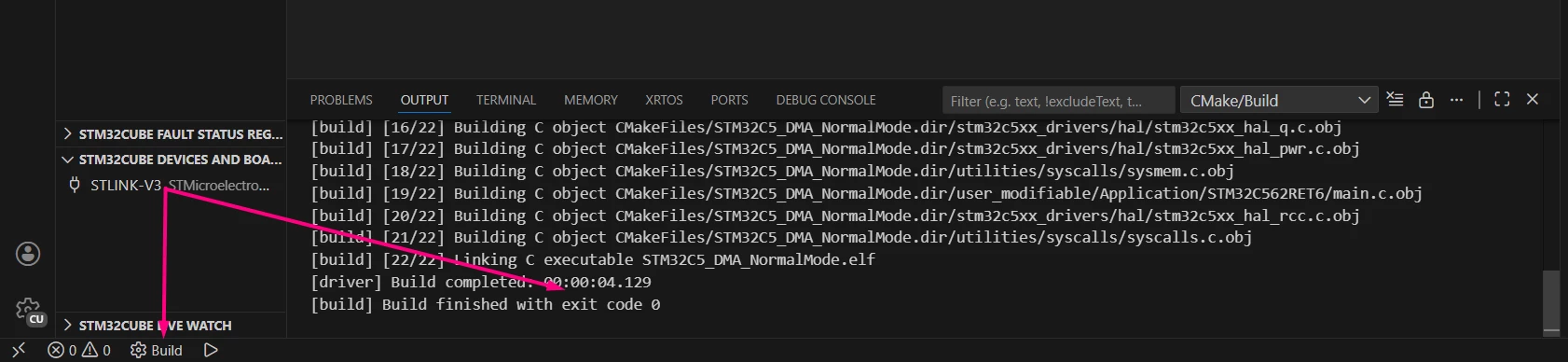
Build the project to ensure everything is set, then proceed to code implementation.
2.1 Code editing
Go to the main.c file and add the following code in the indicated sections. Setup an application to copy data from one buffer to another using DMA. The entire main.c is provided below to facilitate.
/**
 ******************************************************************************
 * file : main.c
 * brief : Main program body
 * Calls target system initialization then loop in main.
 ******************************************************************************
 *
 * Copyright (c) 2025 STMicroelectronics.
 * All rights reserved.
 *
 * This software is licensed under terms that can be found in the LICENSE file
 * in the root directory of this software component.
 * If no LICENSE file comes with this software, it is provided AS-IS.
 *
 ******************************************************************************
 */
/* Includes ------------------------------------------------------------------*/
#include "main.h"

/* Private typedef -----------------------------------------------------------*/
/* Private define ------------------------------------------------------------*/
#define BUFFER_SIZE 2
/* Private macro -------------------------------------------------------------*/
/* Private variables ---------------------------------------------------------*/
hal_dma_handle_t *dmaHandle;
uint32_t sourceBuffer[BUFFER_SIZE] = {32, 64};
__attribute__((section(".bss.non_cacheable_variables"), aligned(32U))) uint32_t destinationBuffer[BUFFER_SIZE];
volatile uint8_t completeDMA = 0U;

/* Private functions prototype -----------------------------------------------*/
/**
 * brief: The application entry point.
 * retval: none but we specify int to comply with C99 standard
 */
int main(void)
{
 /** System Init: this code placed in targets folder initializes your system.
 * It calls the initialization (and sets the initial configuration) of the peripherals.
 * You can use STM32CubeMX to generate and call this code or not in this project.
 * It also contains the HAL initialization and the initial clock configuration.
 */
 if (mx_system_init() != SYSTEM_OK)
 {
 return (-1);
 }
 else
 {
 /*
 * You can start your application code here
 */
 dmaHandle = mx_lpdma1_ch0_init();
 if (dmaHandle == NULL) {
 return -1;
 }
 if (HAL_DMA_StartDirectXfer_IT(dmaHandle, (uint32_t)sourceBuffer,
 (uint32_t)destinationBuffer,
 4 * BUFFER_SIZE) != HAL_OK) {
 return -1;
 }

 while (1) {
 if (completeDMA == 1U) {
 __NOP();
 }
 }
 }
}

void HAL_DMA_XferCpltCallback(hal_dma_handle_t *hdma)
{
 STM32_UNUSED(hdma);
 completeDMA = 1U;
}
/* end main */
2.2 Validation
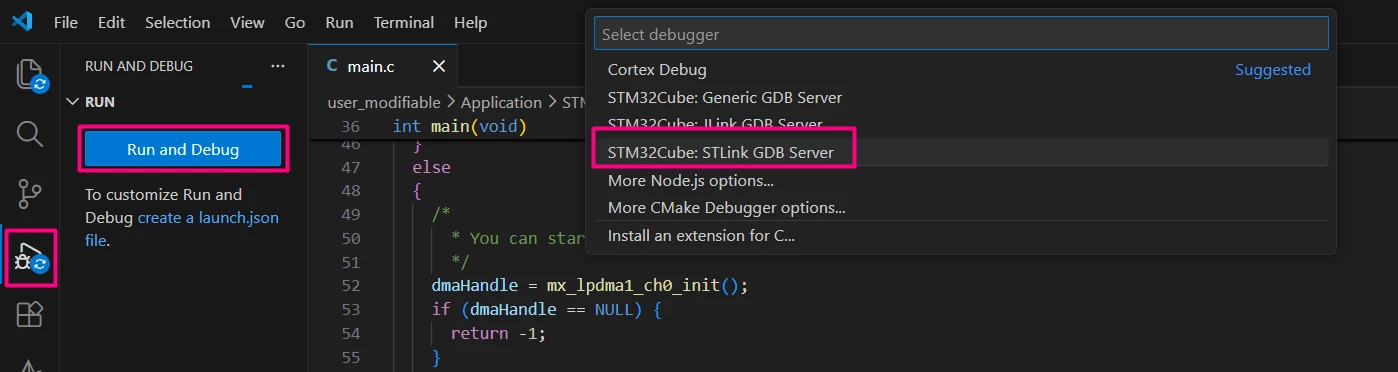
After building the application, select the [Run and Debug] icon. Create a debug session by selecting the [STLINK GDB Server] option.
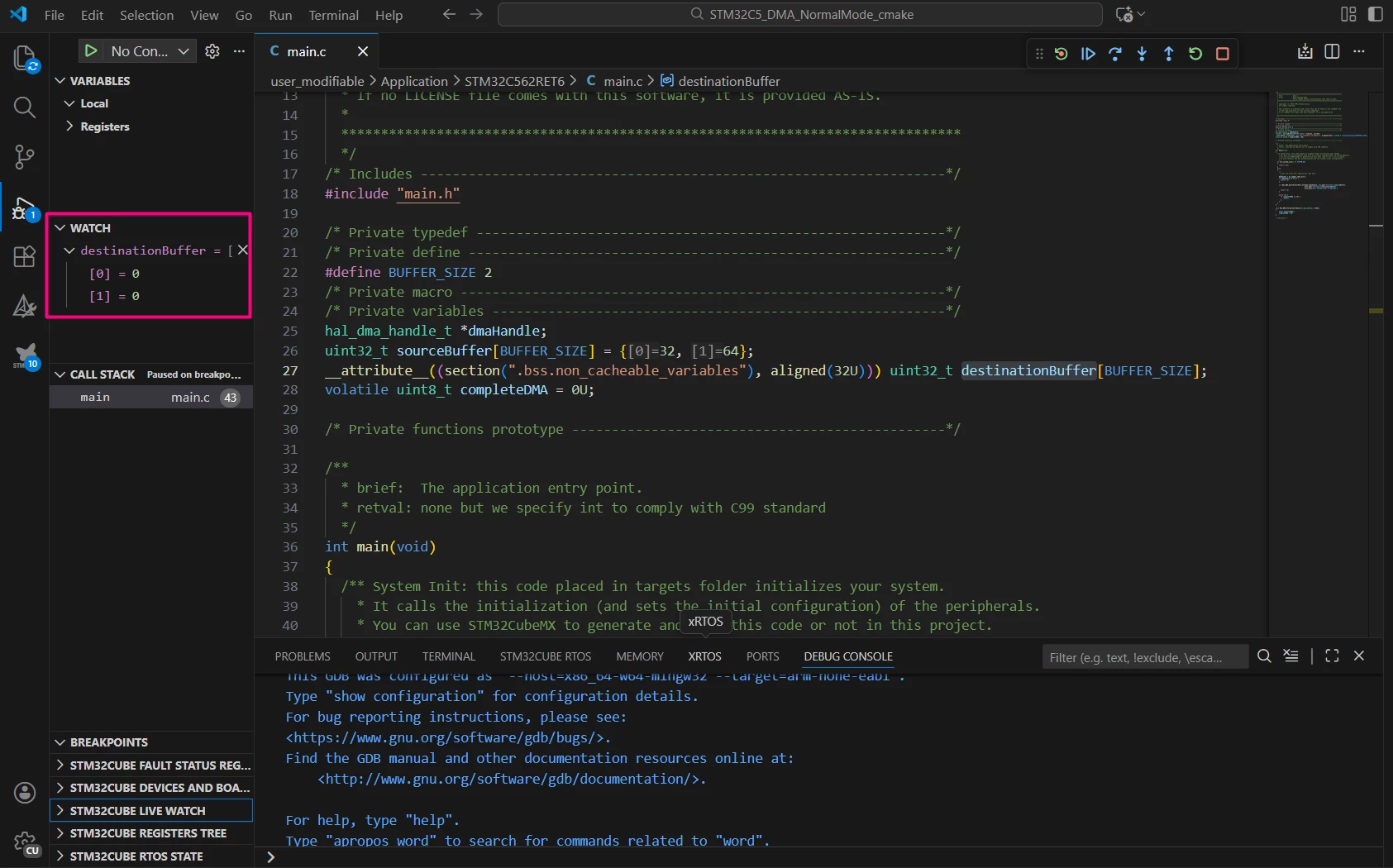
At the start of execution, the destination buffer contains zeros. Use the Watch feature in Visual Studio Code’s "Run and Debug" tab to monitor variable values in real time..
Add a breakpoint in the DMA callback and, after running the program, the DMA transfer complete callback function is called, indicating that the data transfer finished successfully.
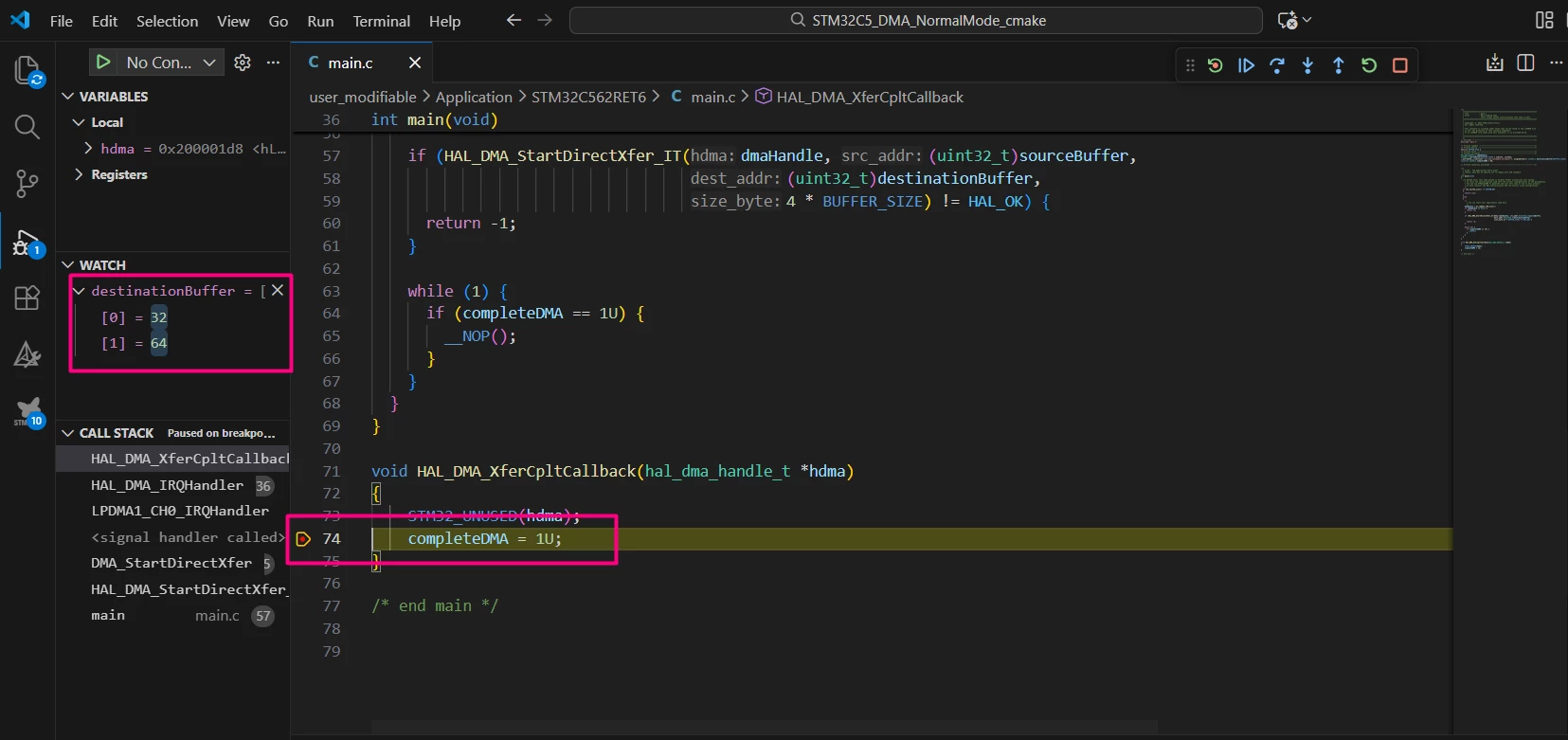
By observing the Watch window, verify that the source buffer’s contents were copied to the destination buffer.
Conclusion
This guide describes how to configure and use the DMA feature in STM32CubeMX2 with the NUCLEO-C562RE board. By enabling and setting up the LPDMA1 channel, configuring NVIC for interrupts, and generating the necessary code, you can perform memory-to-memory data transfers without CPU intervention. The example application demonstrates how to use DMA to copy data between buffers asynchronously, improving system performance by freeing the CPU for other tasks.
