

How to use RTC with STM32CubeMX2
- March 18, 2026
- 0 replies
- 465 views
Summary
This article provides a step-by-step guide to configure the hardware real-time clock (RTC) with a basic calendar in STM32CubeMX2. The tutorial uses the NUCLEO-C562RE board.
- Summary
- Introduction
- Prerequisites
- 1. Project setup
- 1.1 Project creation
- 1.2 LSE configuration
- 1.3 RTC configuration
- 1.4 Generate project
- 2. Configuring the project in Visual Studio Code
- 2.1 Code editing
- 3. Validation
- Conclusion
- Related links
Introduction
The real-time clock (RTC) is a low-power microcontroller peripheral that operates independently from the main clock. Its main functions include low-power wake up, date and time tracking, and, through backup registers, retaining data when powered by an external source. This article explains how to set up the RTC calendar in STM32CubeMX2.
Prerequisites
Install the following tools:
- STM32CubeMX2
- The latest STM32C5 HAL2 driver
- STM32CubeIDE extension for Visual Studio Code
The hardware used in this tutorial is the NUCLEO-C562RE board.
1. Project setup
Follow the steps described below to create the RTC application project for the NUCLEO-C562RE board.
1.1 Project creation
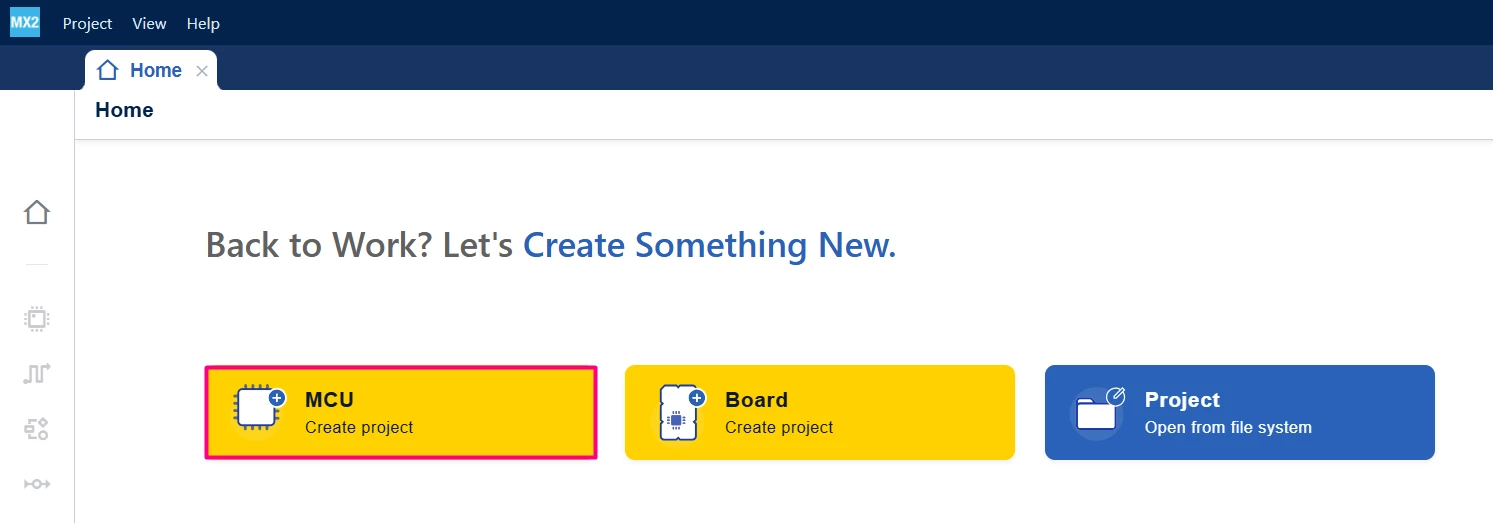
Open STM32CubeMX2. On the Home page, click the [MCU square] to create a new project.
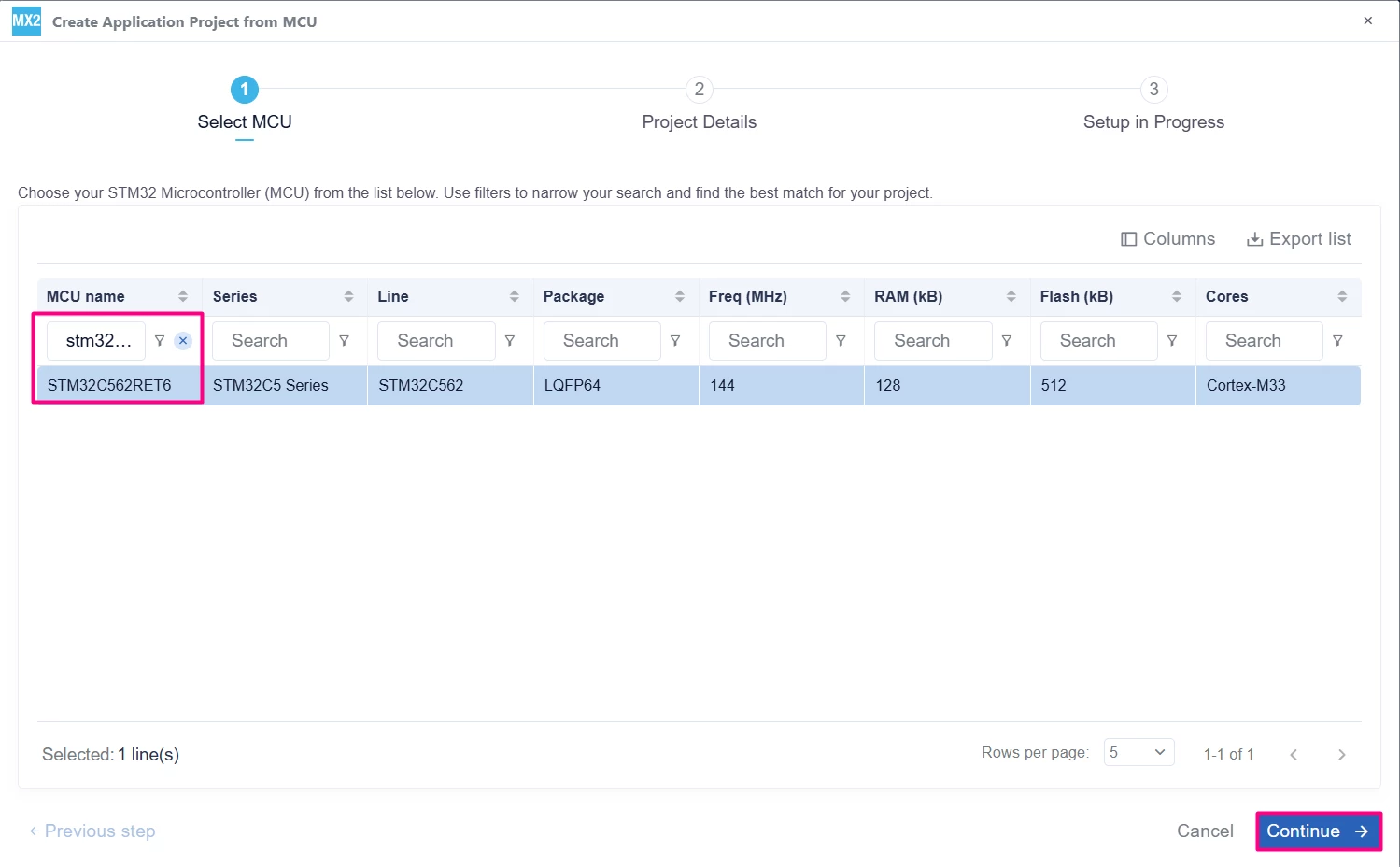
In the search field under MCU name, enter STM32C562RE and select your board. Click [continue].
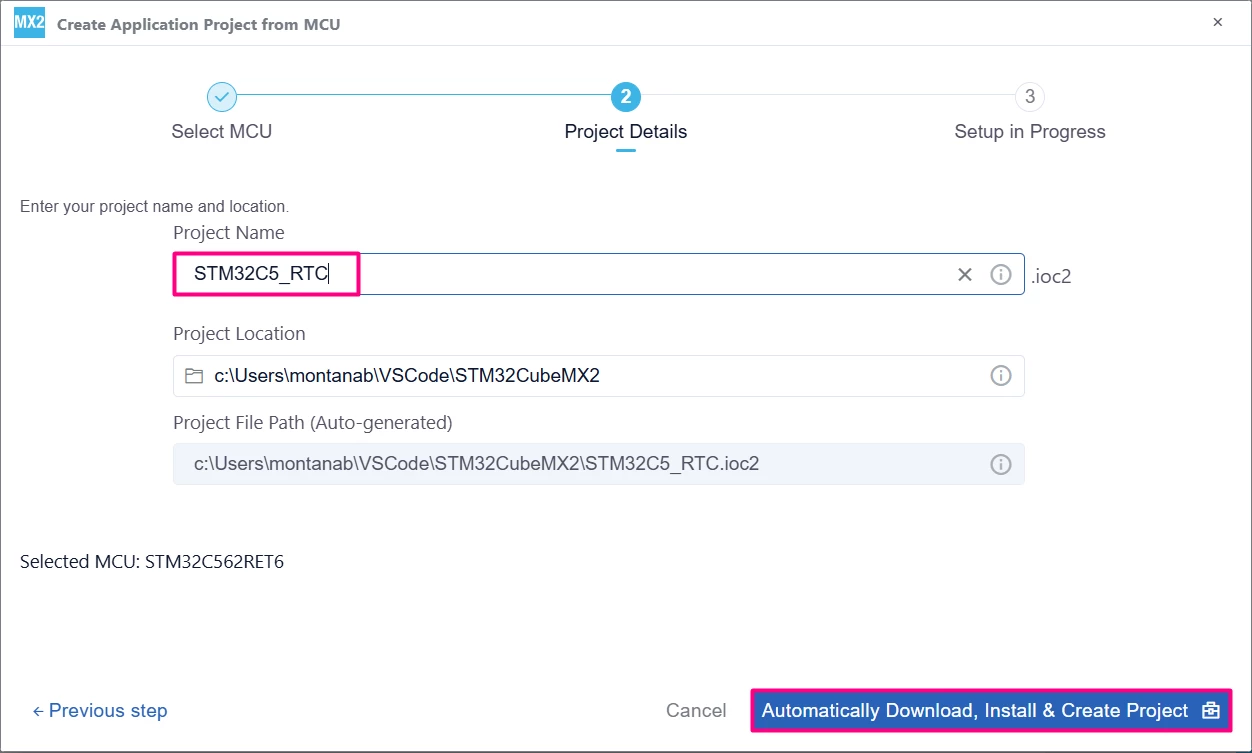
Enter your project name and location. Click [Automatically Download, Install & Create Project] to finish project creation.
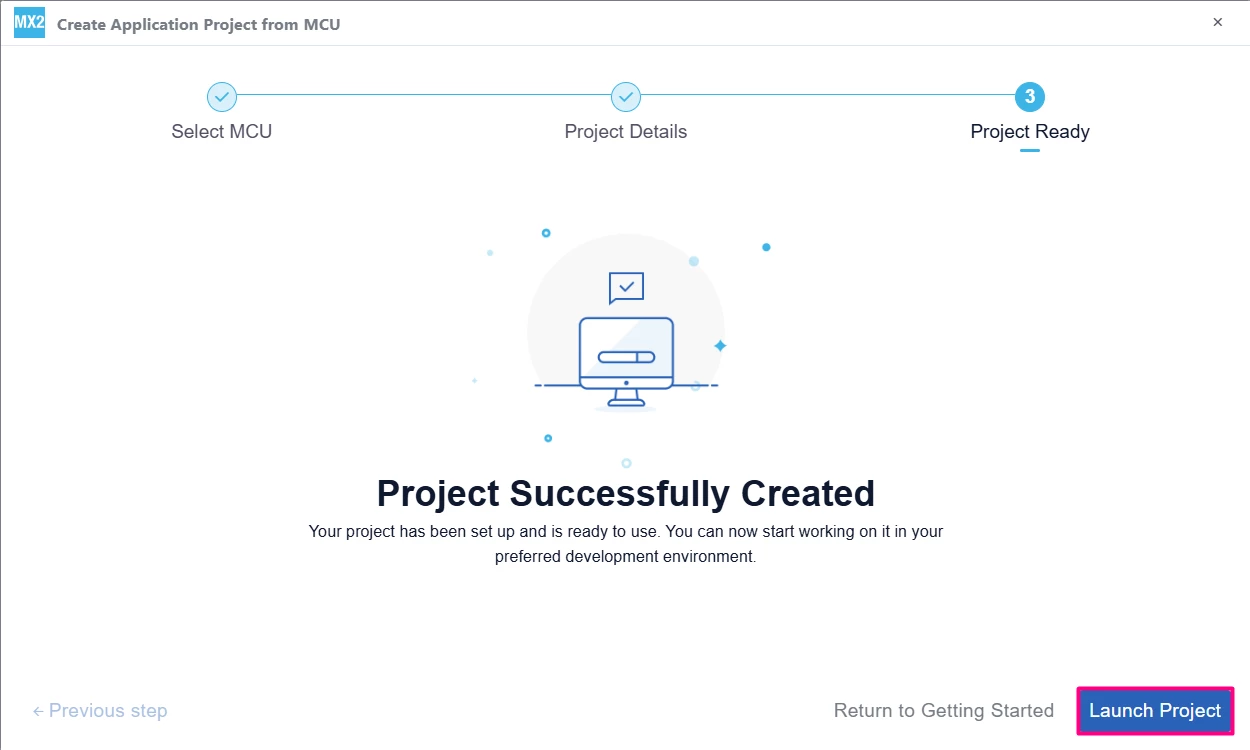
Select [Launch Project] to start.
1.2 LSE configuration
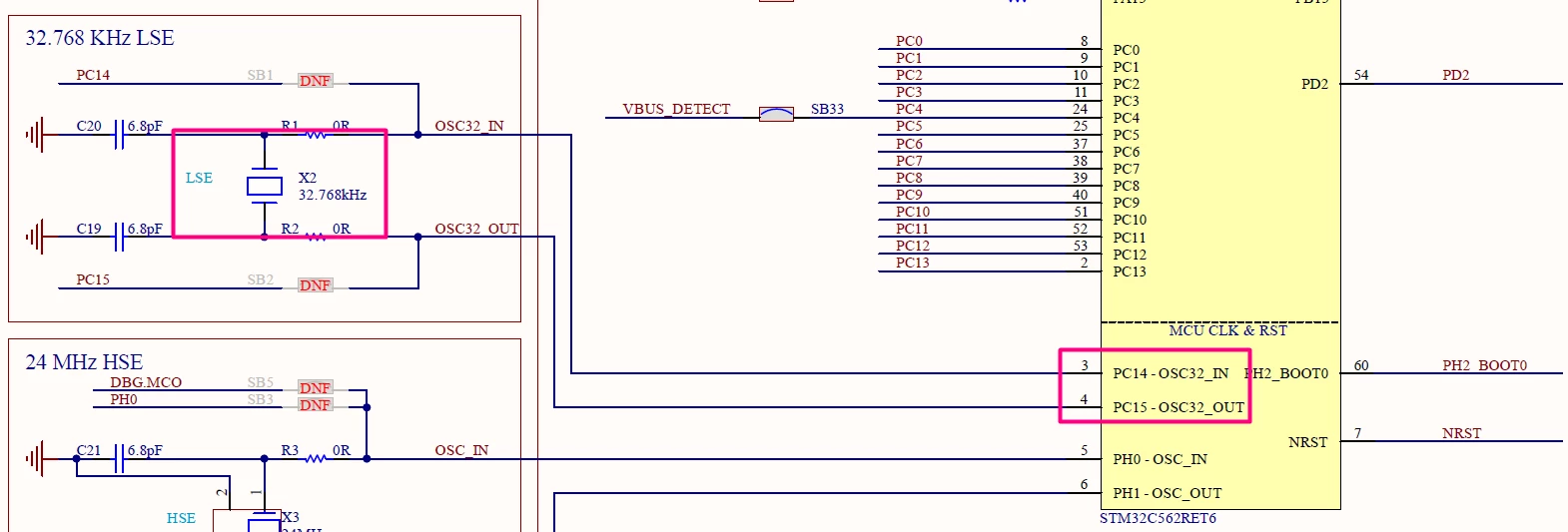
The LSE (Low Speed External) peripheral allows for the use of an external crystal or ceramic oscillator as a clock for RTC and other peripherals. The NUCLEO-C562RE is equipped with a 32.678 kHz LSE crystal oscillator.
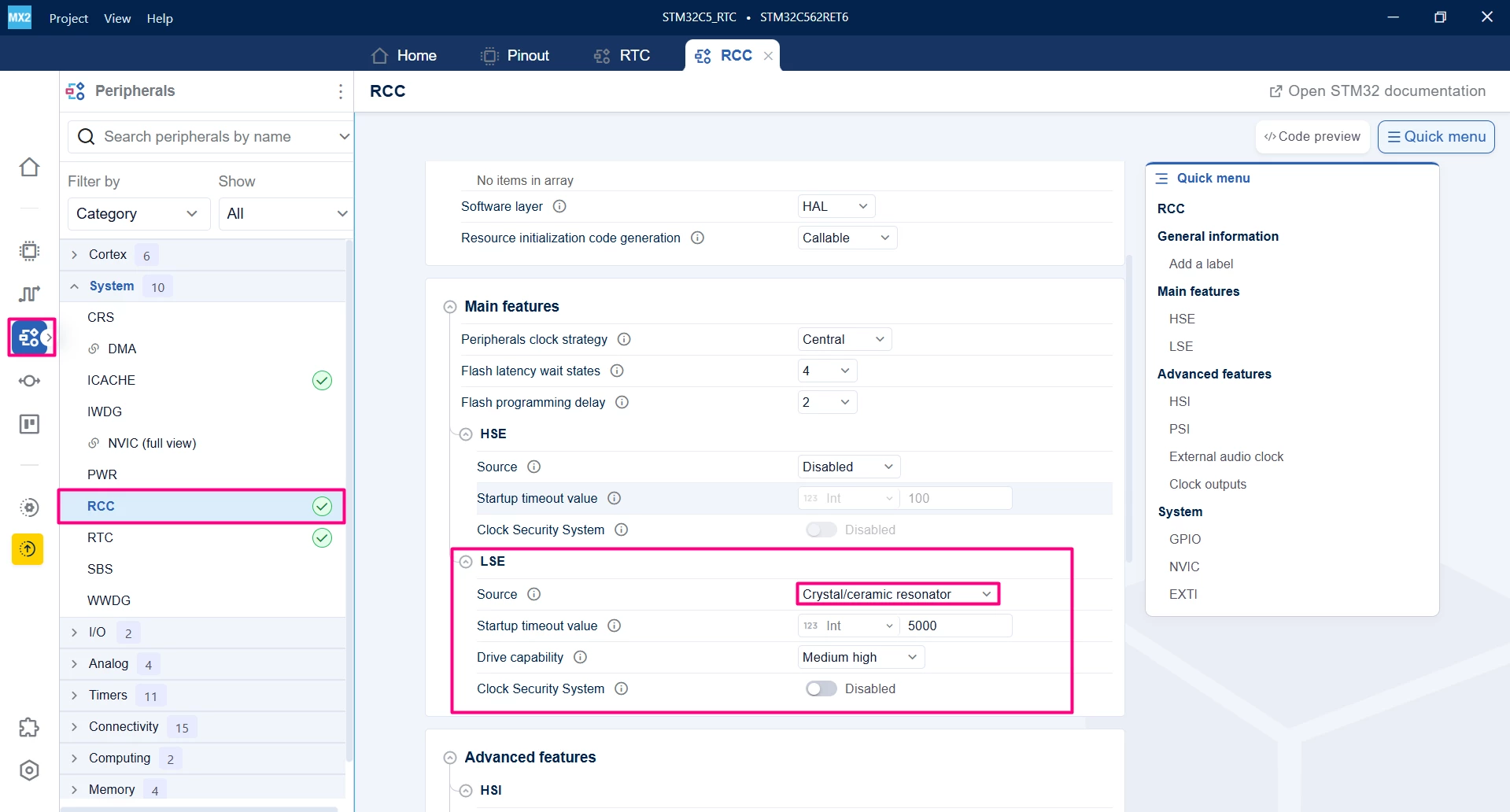
Select the [Peripheral] icon. In the System drop-down list, select [RCC] and Enable the LSE by selecting the Source as Crystal/ceramic resonator.
1.3 RTC configuration
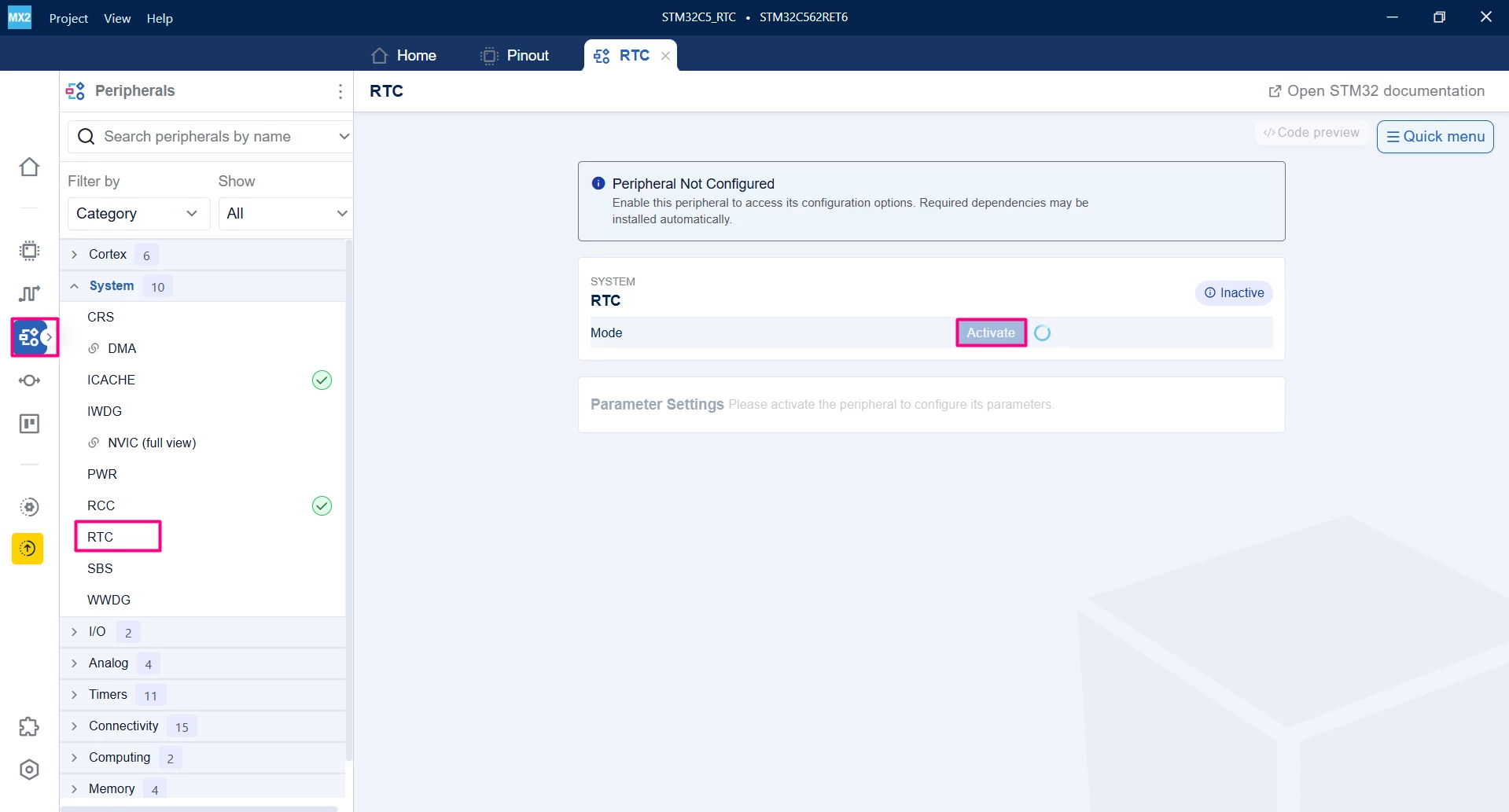
Enable and configure RTC in STM32CubeMX2. Navigate to the Peripherals tab. Open the System drop-down list and select [RTC]. A new page called RTC opens. In this page, select the [Activate] button to enable RTC.
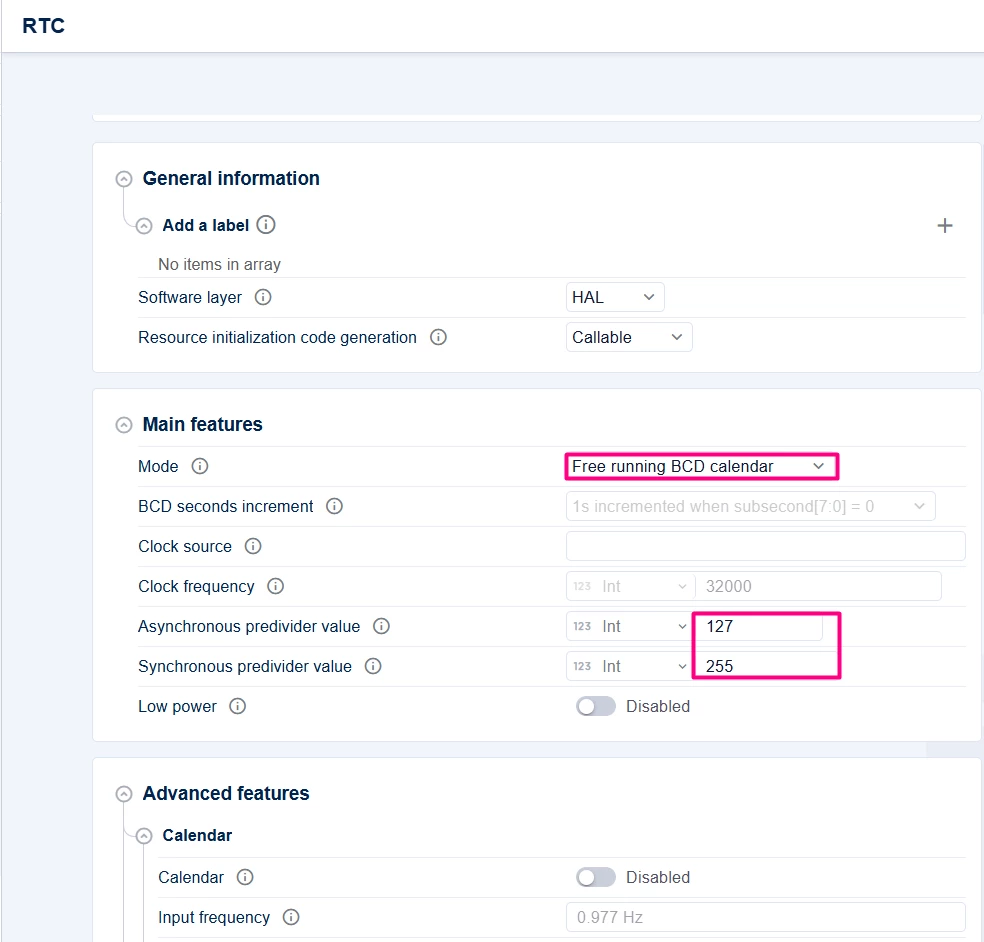
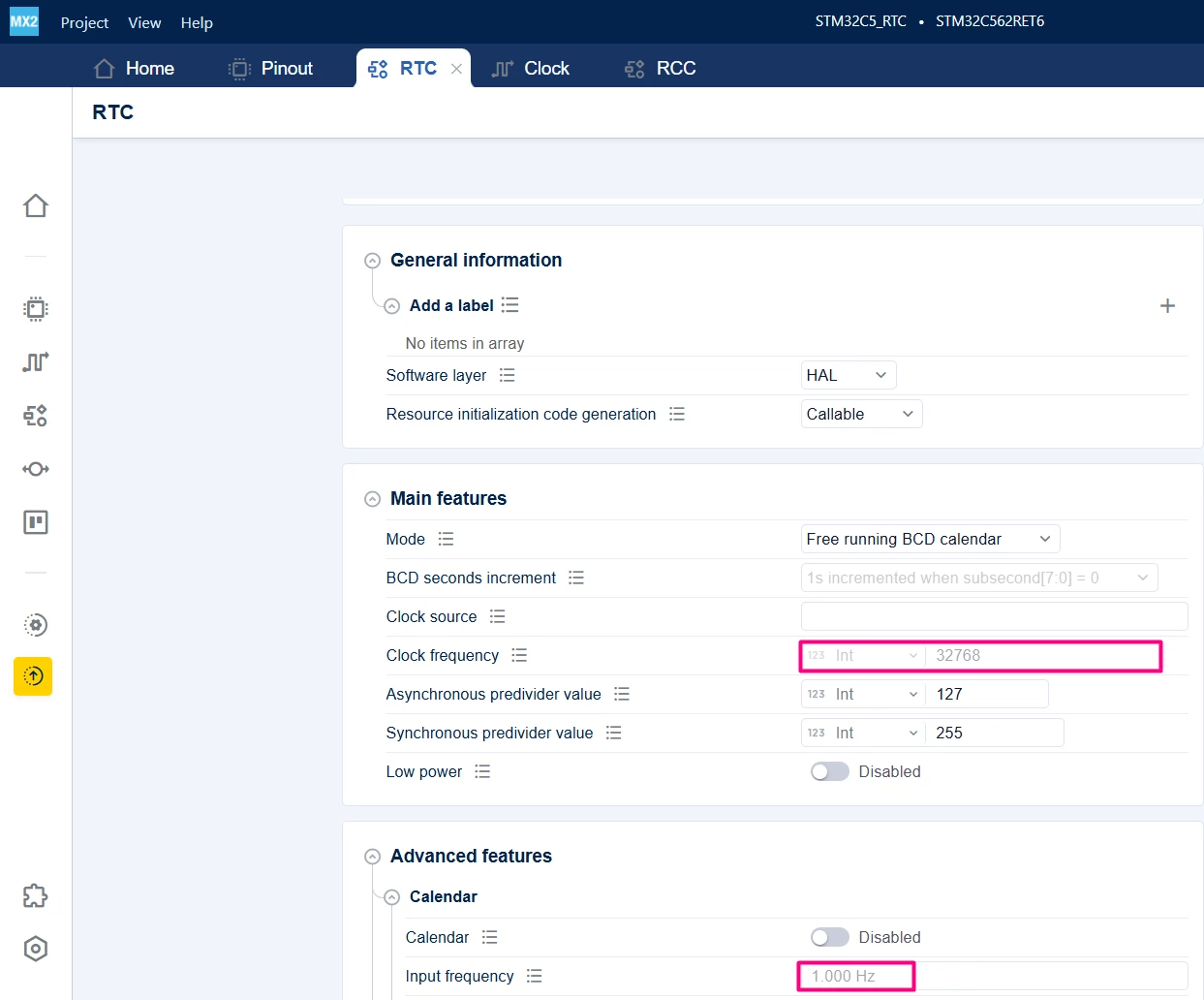
The default settings can be used, considering the Mode as Free running BCD calendar and the Asynchronous and Synchronous dividers with 127 and 255. You might notice that the Input frequency now is not 1 Hz, but rather 0.977 Hz. This happens because the clock source is still LSI. Once the RTC configuration is done, the LSE is added.
To use the embedded 32.678 kHz LSE crystal oscillator from the NUCLEO-C562RE board, go to the Clock tab and assign the LSE as the RTC clock input.
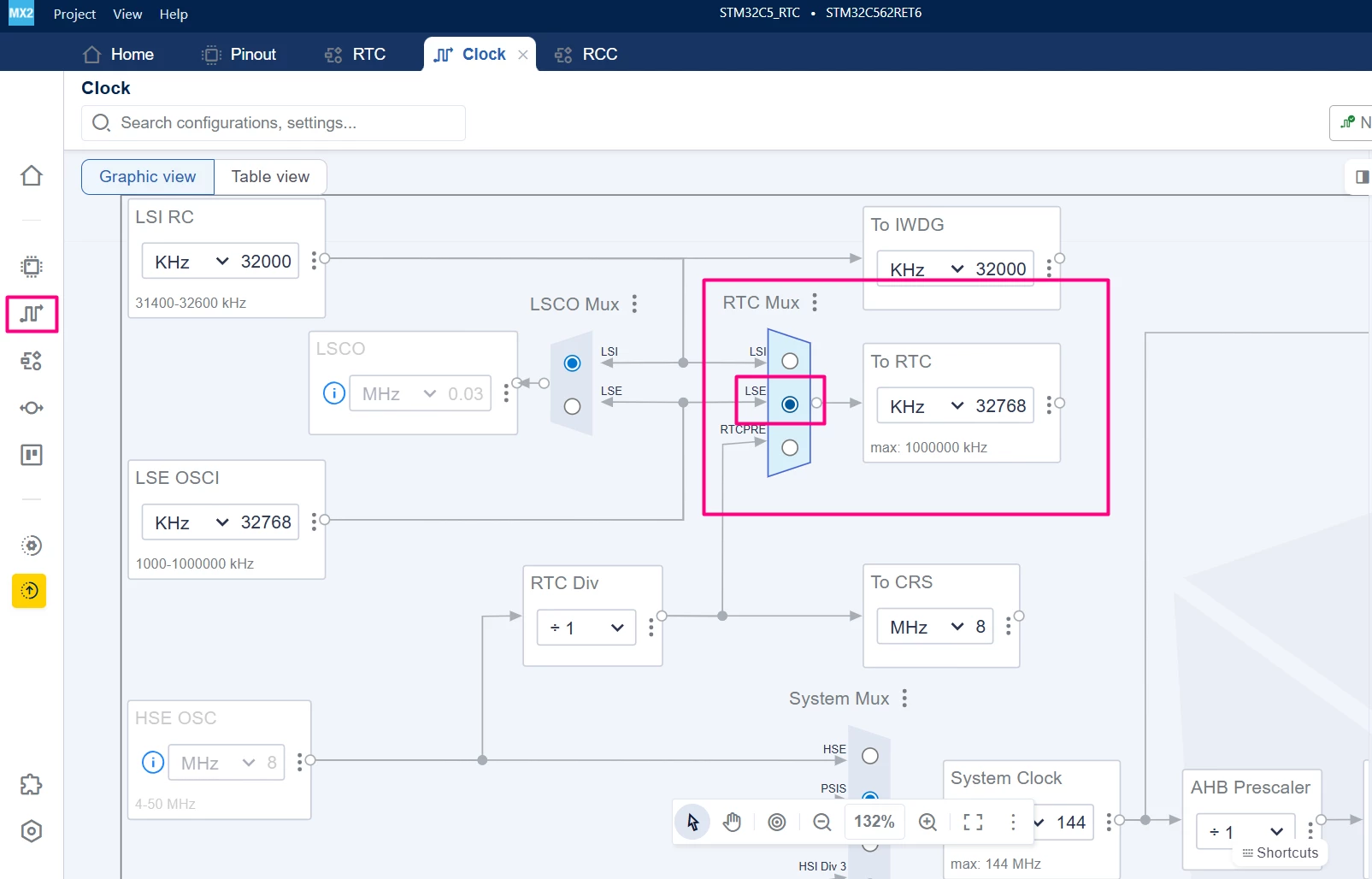
Go back to the RTC tab and observe the change in the clock frequency and input frequency.
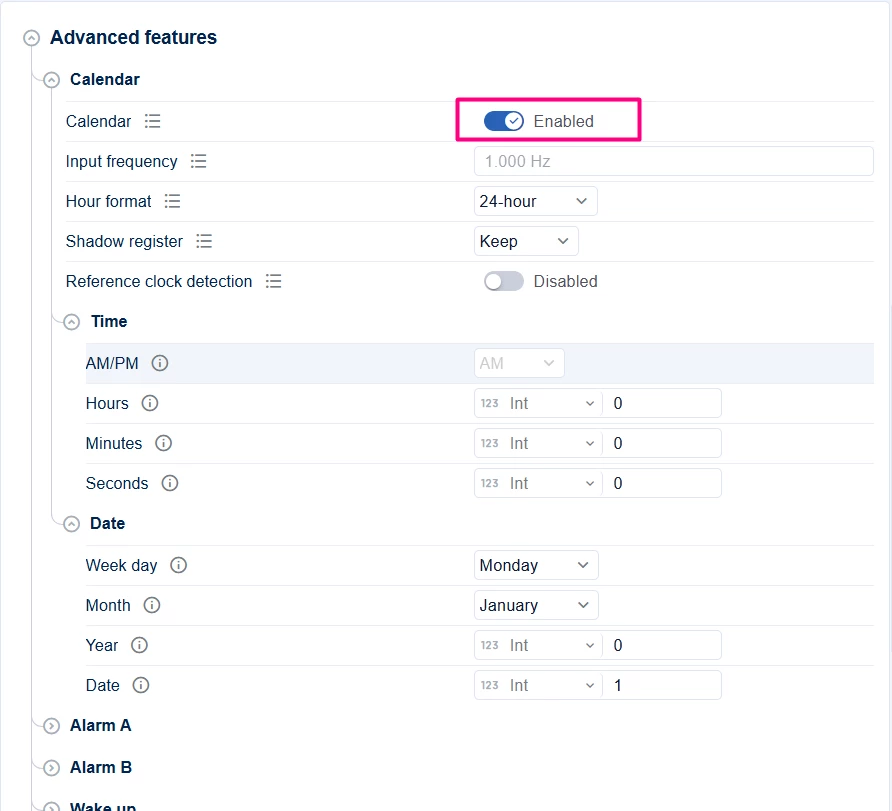
In the "Advanced features" section, go to Calendar and toggle it on. The default time and date will be kept for simplicity
1.4 Generate project
To generate the code:
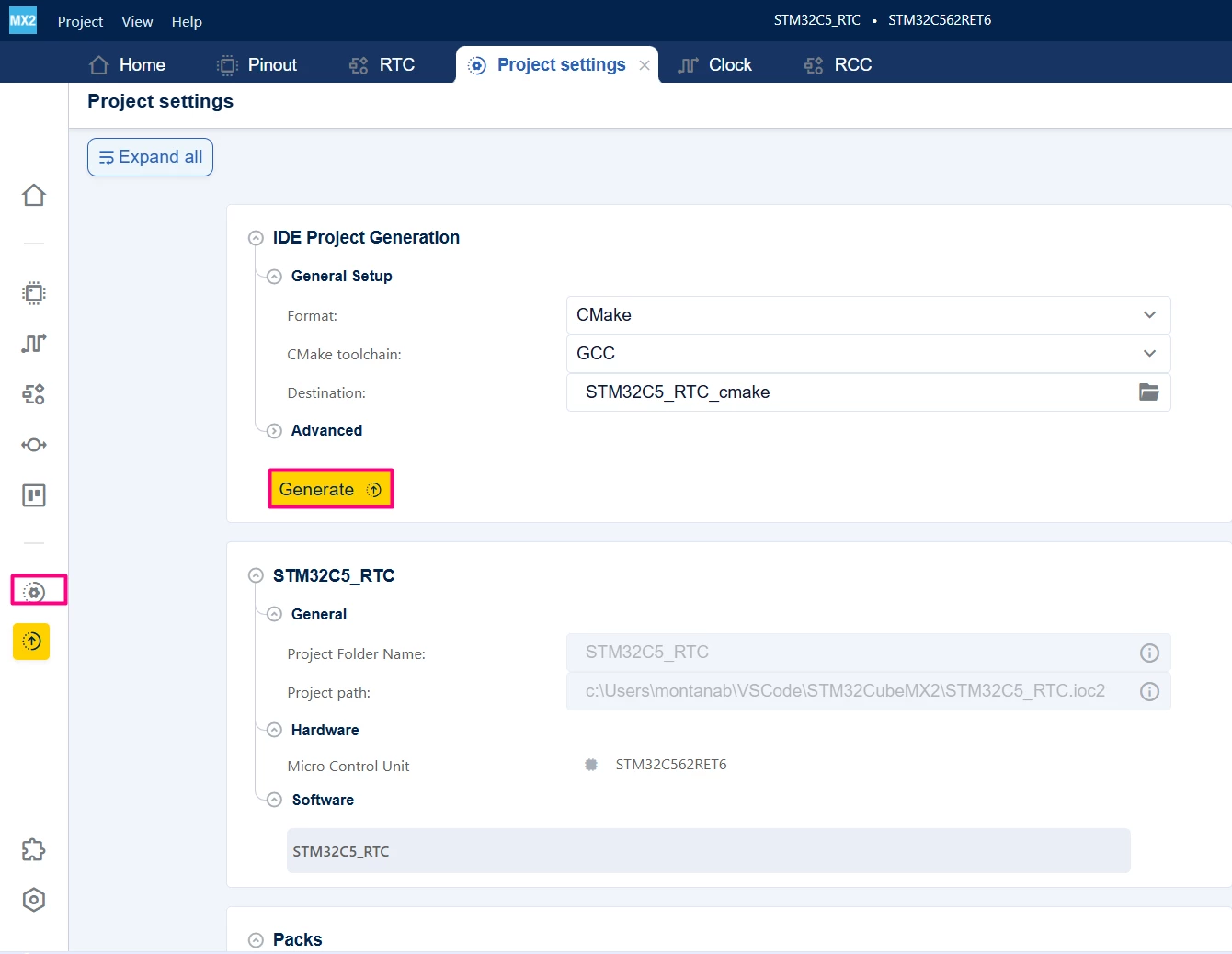
- Click on the [Project settings icon] and select the desired IDE.
- Click the [Generate] button.
2. Configuring the project in Visual Studio Code
Open Visual Studio Code and open the project folder.
If prompted, select the configuration. If not prompted, press Ctrl+Shift+P, type CMake: Select Configure Preset, and choose the debug configuration.
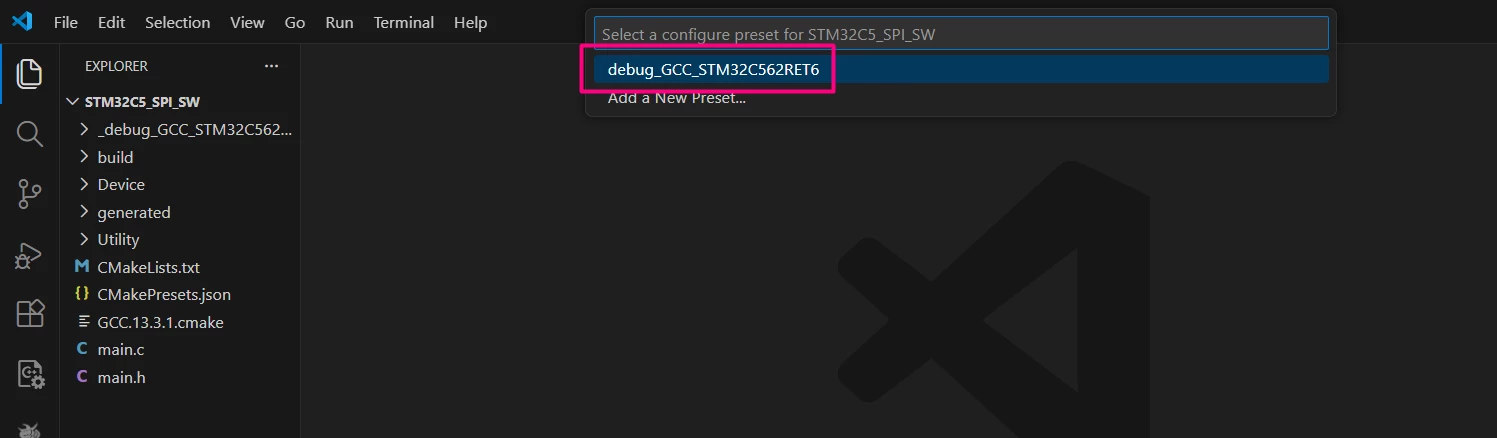 Build the project to ensure everything is set, then proceed to code implementation.
2.1 Code editing
Open the project generated in Visual Studio Code. Go to the main.c file and add the following code in the indicated sections. This code initializes RTC and two storage variables, RtcTime and RtcDate. The aim of this example is to verify that RTC retains the total time passed since peripheral initialization.
/**
 ******************************************************************************
 * file : main.c
 * brief : Main program body
 * Calls target system initialization then loop in main.
 ******************************************************************************
 *
 * Copyright (c) 2025 STMicroelectronics.
 * All rights reserved.
 *
 * This software is licensed under terms that can be found in the LICENSE file
 * in the root directory of this software component.
 * If no LICENSE file comes with this software, it is provided AS-IS.
 *
 ******************************************************************************
 */
/* Includes ------------------------------------------------------------------*/
#include "main.h"

/* Private typedef -----------------------------------------------------------*/
/* Private define ------------------------------------------------------------*/
/* Private macro -------------------------------------------------------------*/
/* Private variables ---------------------------------------------------------*/
hal_rtc_time_t RtcTime;
hal_rtc_date_t RtcDate;

/* Private functions prototype -----------------------------------------------*/

/**
 * brief: The application entry point.
 * retval: none but we specify int to comply with C99 standard
 */
int main(void)
{
 /** System Init: this code placed in targets folder initializes your system.
 * It calls the initialization (and sets the initial configuration) of the peripherals.
 * You can use STM32CubeMX to generate and call this code or not in this project.
 * It also contains the HAL initialization and the initial clock configuration.
 */
 if (mx_system_init() != SYSTEM_OK)
 {
 return (-1);
 }
 else
 {
 /*
 * You can start your application code here
 */
 if (HAL_RTC_CALENDAR_IsInitialized() != HAL_RTC_CALENDAR_INITIALIZED) {
 // Initialize the RTC configuration
 if (mx_rtc_init() != SYSTEM_OK) {
 return (-1);
 }
 } else {
 /* Check if the Power On Reset flag is set */
 if (LL_RCC_IsActiveFlag_BORRST() != 0) {
 }
 /* Check if Pin Reset flag is set */
 if (LL_RCC_IsActiveFlag_PINRST() != 0) {
 }
 }

 while (1) {
 // Get the data struct from RTC every 1 second
 HAL_RTC_CALENDAR_GetDateTime(&RtcDate, &RtcTime);
 HAL_Delay(1000);
 }
 }
} /* end main */
3. Validation
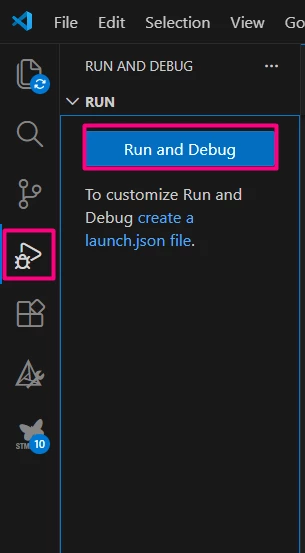
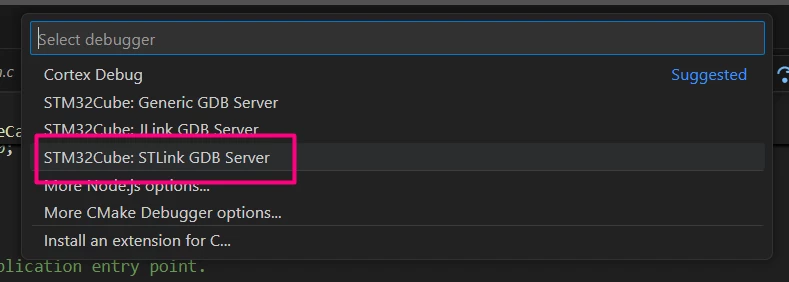
After building the application, select the Run and Debug icon. Create a debug session by selecting the STLINK GDB Server option:
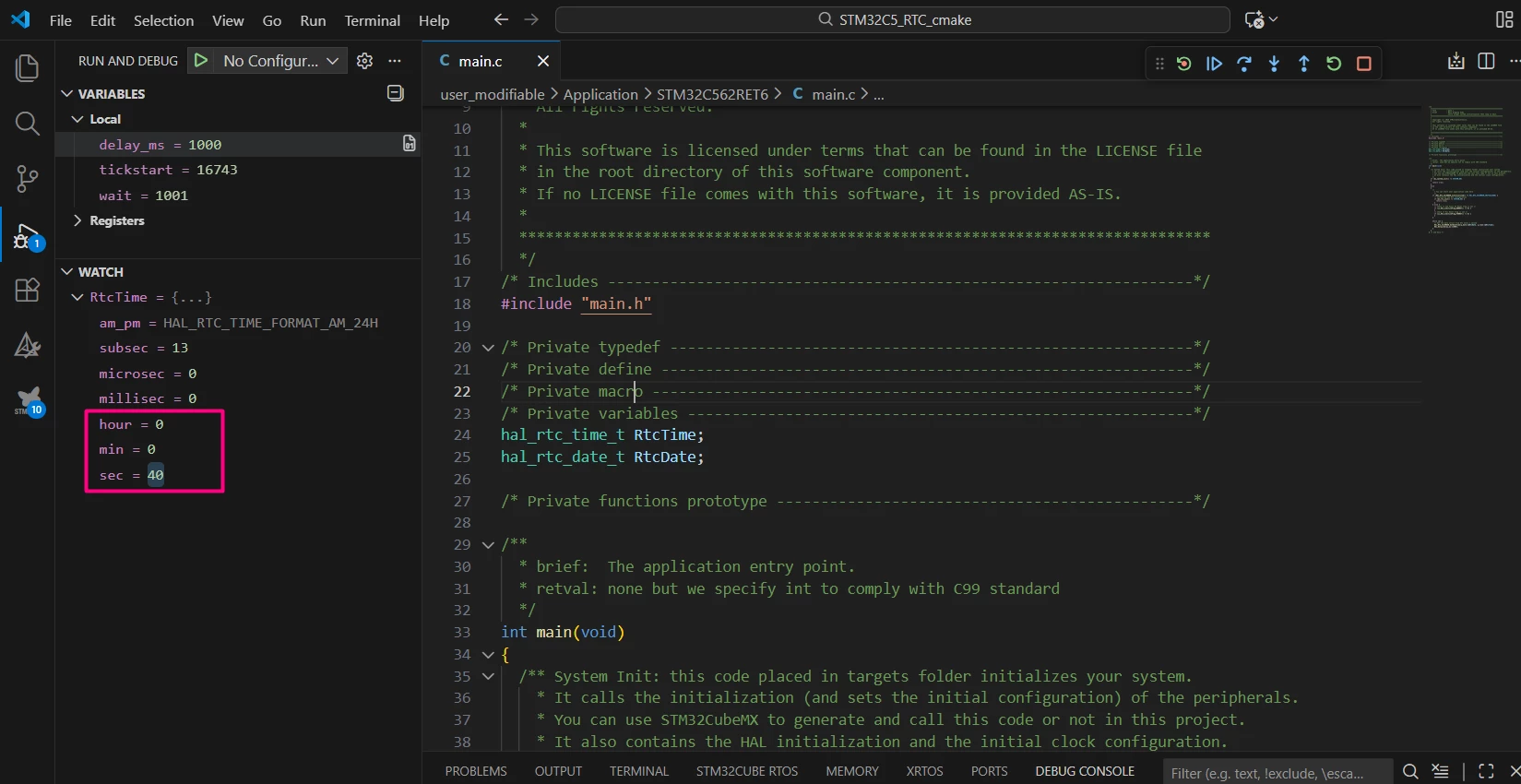
Use the Watch feature in Visual Studio Code’s Run and Debug tab to monitor the RTC date and time variables. Set a breakpoint inside the while loop. Note: RTC continues to run in the background even when the debug session is paused.
Conclusion
This article demonstrates how to set up RTC with an LSE ceramic oscillator to enable the calendar feature using STM32CubeMX2. The example allows developers to understand general development patterns in STM32CubeMX2.
Related links
- STM32Cube for Visual Studio Code
- NUCLEO-C562RE
- STM32CubeMX code generator - STMicroelectronics
- STM32 Embedded software documentation
- STM32CubeMX2 software documentation
