

How to use I2C with STM32CubeMX2
Summary
This tutorial provides a clear guide on how to enable and configure the inter-integrated circuit (I2C) peripheral using STM32CubeMX2. The demonstration uses the NUCLEO-C562RE board. The following I2C features are covered:
- Simple I2C communication in polling mode
- I2C communication with interrupts
- Summary
- Introduction
- Prerequisites
- 1. STM32CubeMX2 project creation and basic setup
- 1.1 Project Creation
- 1.2 Pinout and configuration
- 1.2 Code generation
- 2. Configuring the project in Visual Studio Code
- 3. Code implementation
- 3.1. Code snippets, polling master and interrupt slave
- 3.2 Debug and validation
- Conclusion
- Related links
Introduction
I2C is a popular synchronous, multi-master, multi-slave, packet switched, single-ended, serial communication bus widely used for interfacing sensors, memory devices, and other peripherals. STM32 microcontrollers provide flexible I2C peripherals supporting standard (100 kHz), fast (400 kHz), and fast-plus (1 MHz) modes.
This tutorial shows how to configure and use I2C with STM32CubeMX2 and STM32Cube for Visual Studio Code, including polling on master side and interrupt on slave side.
Prerequisites
Install the following tools:
- STM32CubeMX2
- The latest STM32C5 HAL2 driver
- STM32CubeIDE extension for Visual Studio Code
The hardware used in this tutorial is the NUCLEO-C562RE board.
1. STM32CubeMX2 project creation and basic setup
Follow these steps to create an application project for the NUCLEO-C562RE board. This exercise creates a simple USART application.
1.1 Project Creation
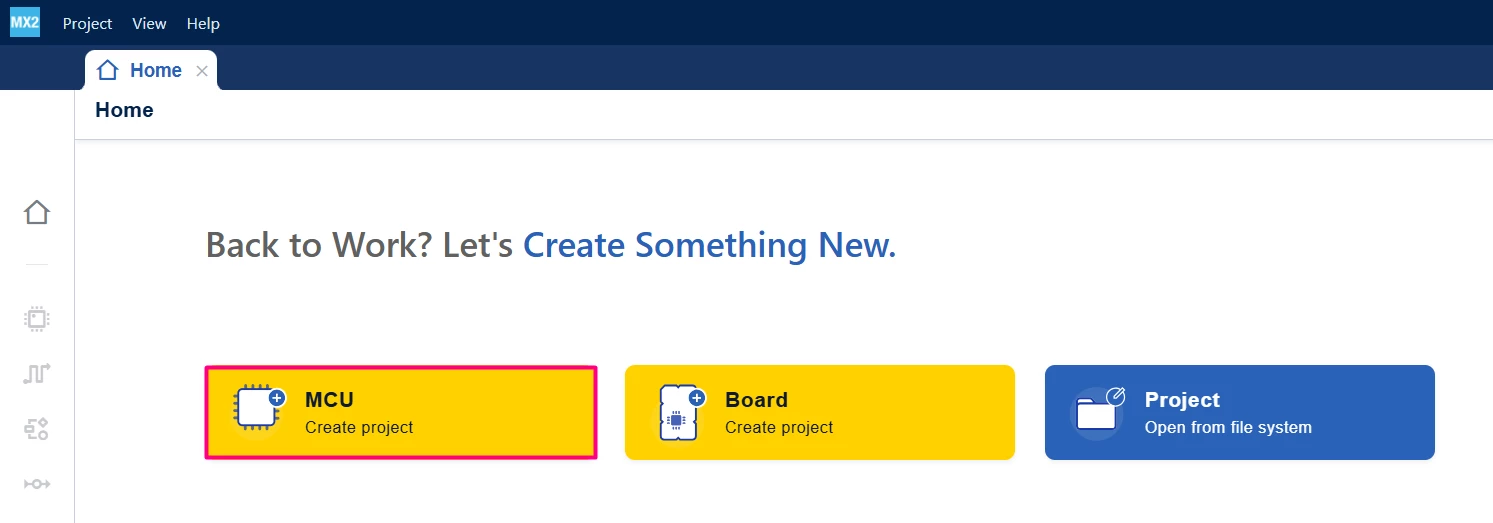
Open STM32CubeMX2. On the "Home" page, click the [MCU square] to create a new project
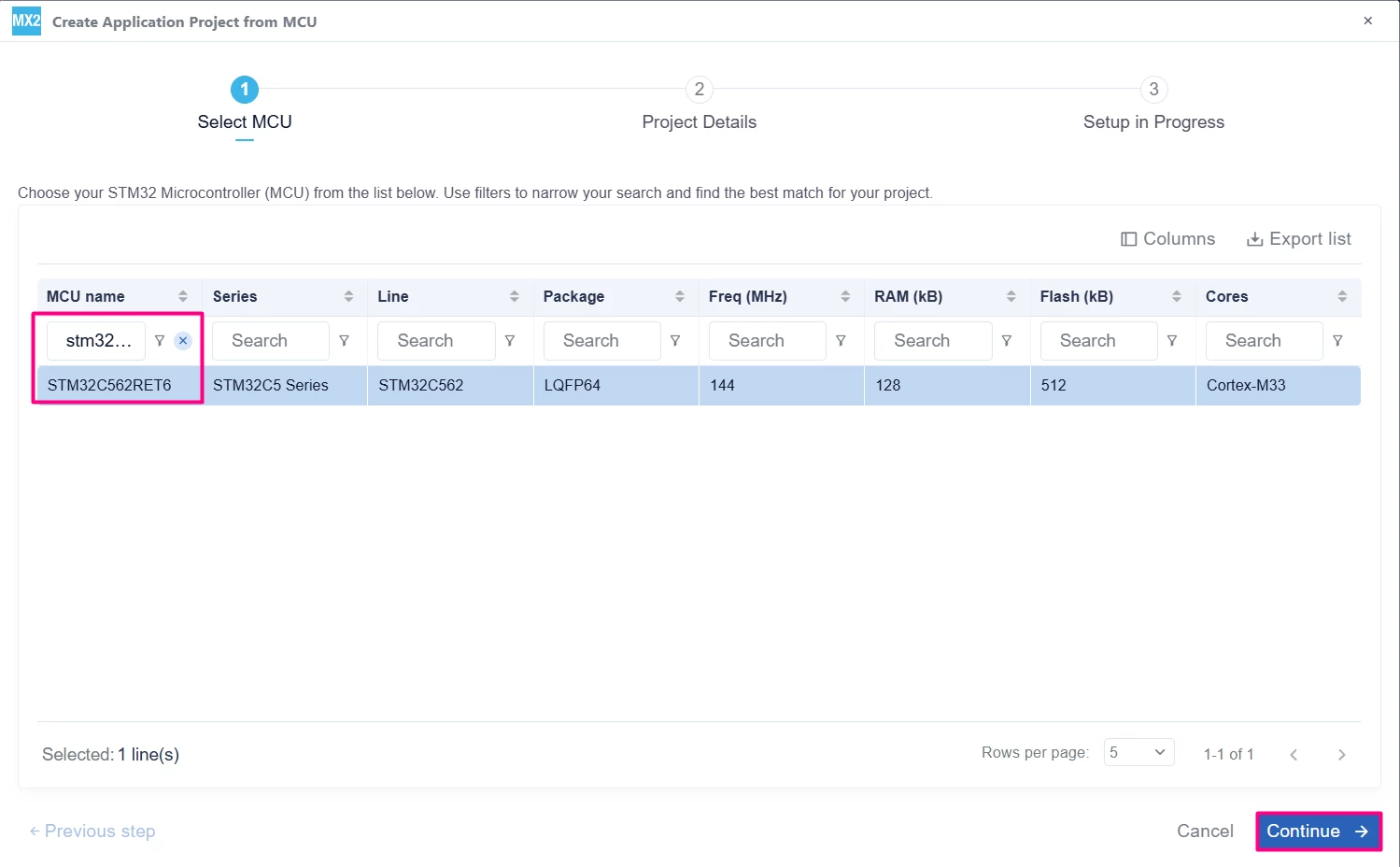
In the search field under MCU name, enter STM32C562RE and select the MCU. Click [Continue].
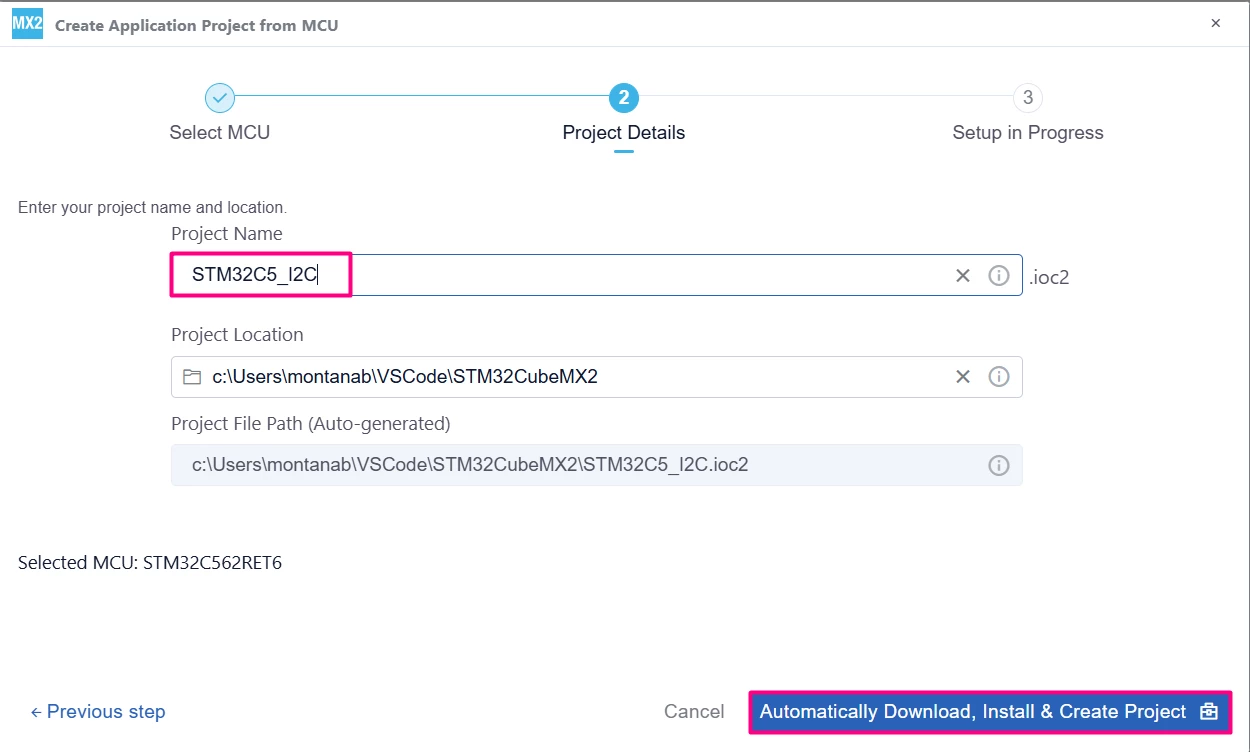
Enter the project name and location. Click [Automatically Download, Install & Create Project] to finish project creation.
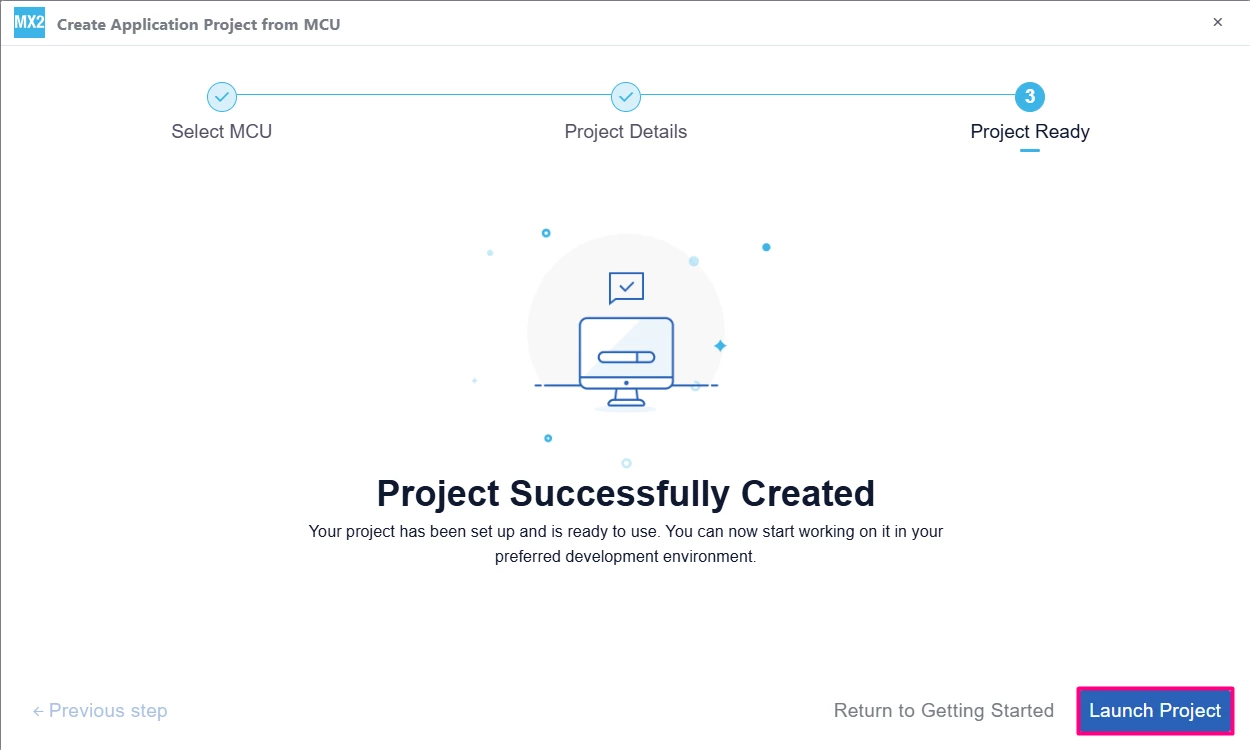
Select [Launch Project] to start.
1.2 Pinout and configuration
Navigate to the Peripherals section, then Connectivity → I2C.
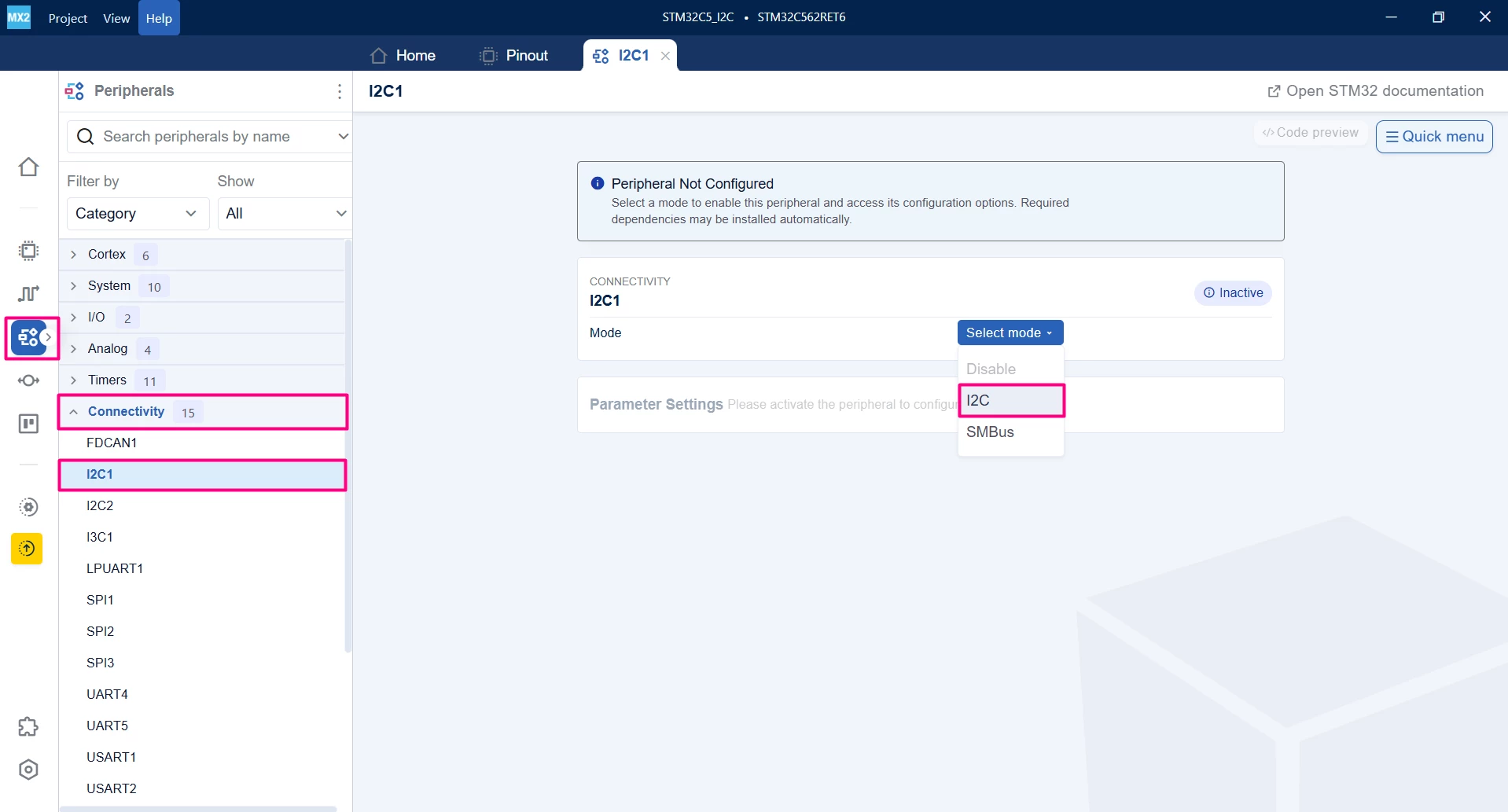
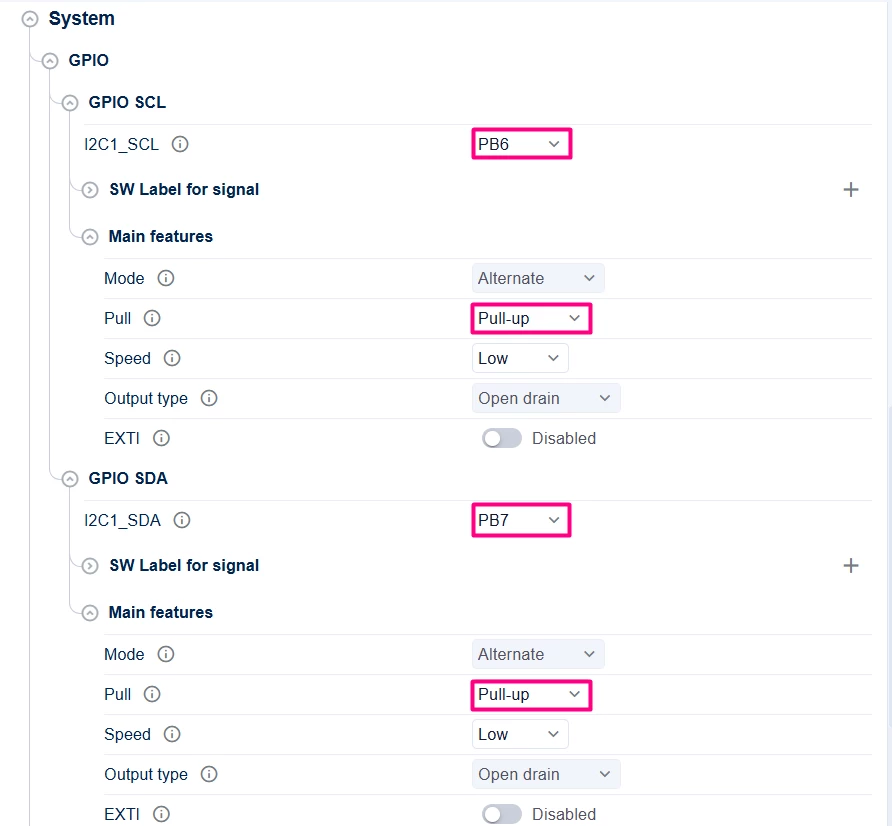
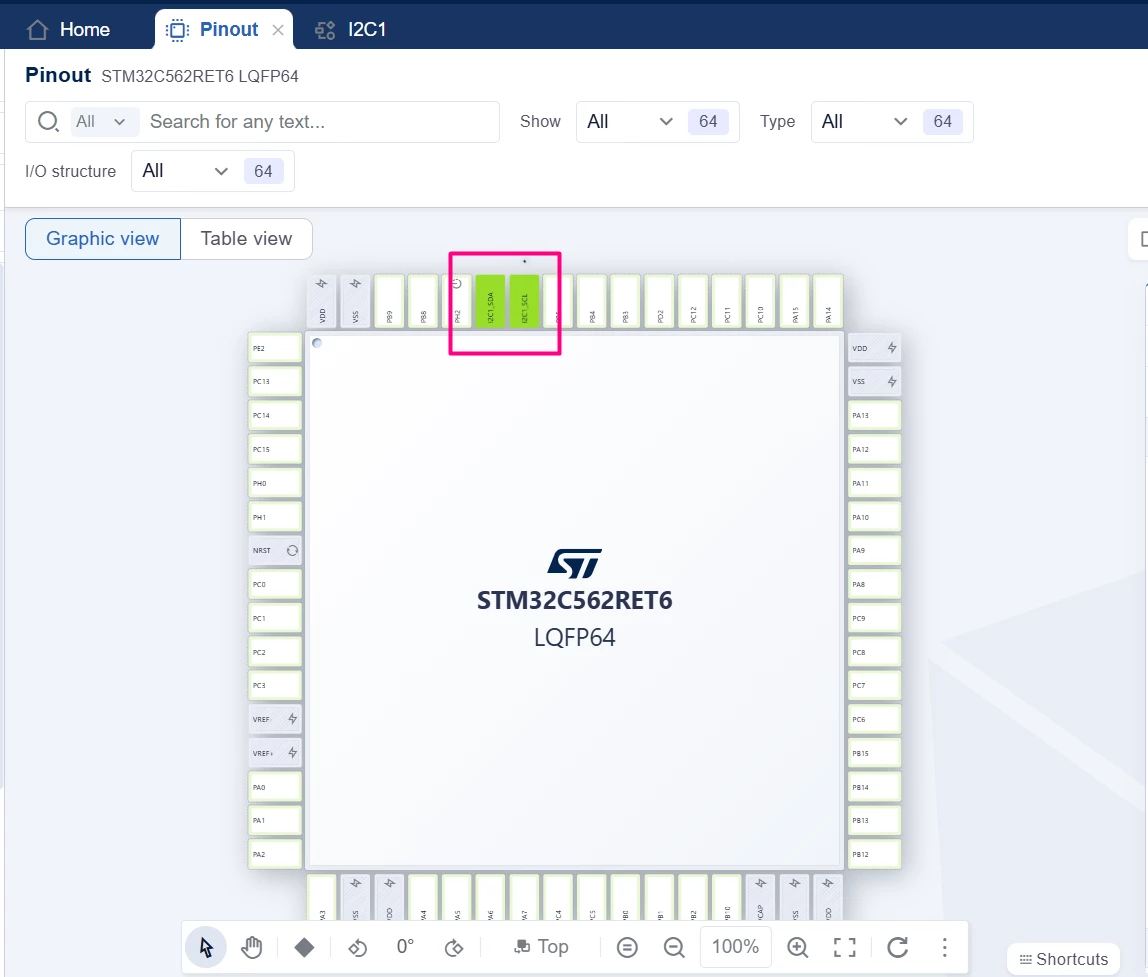
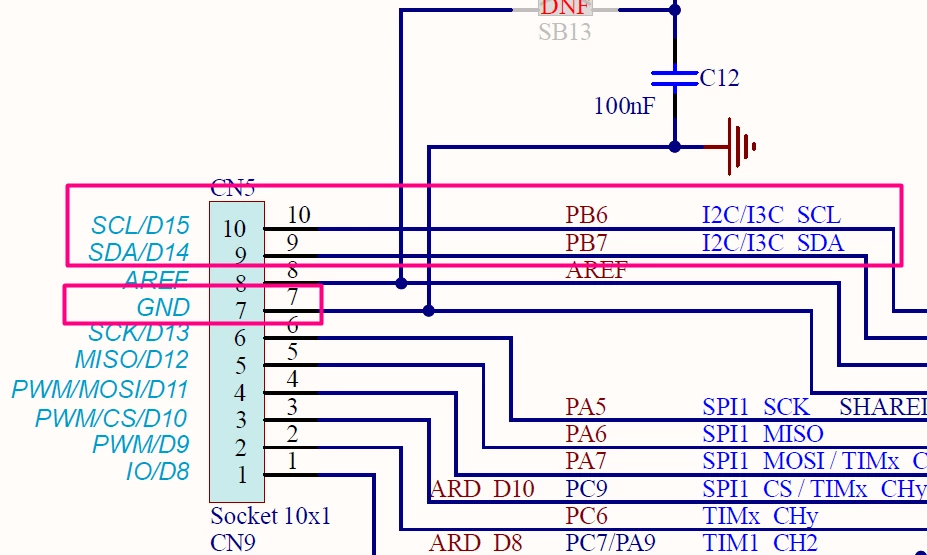
Enable the desired I2C peripheral, in this case, I2C1 with PB6 and PB7 and enable the pull-ups. I2C_SCL is CN5.10 and I2C_SDA is CN5.
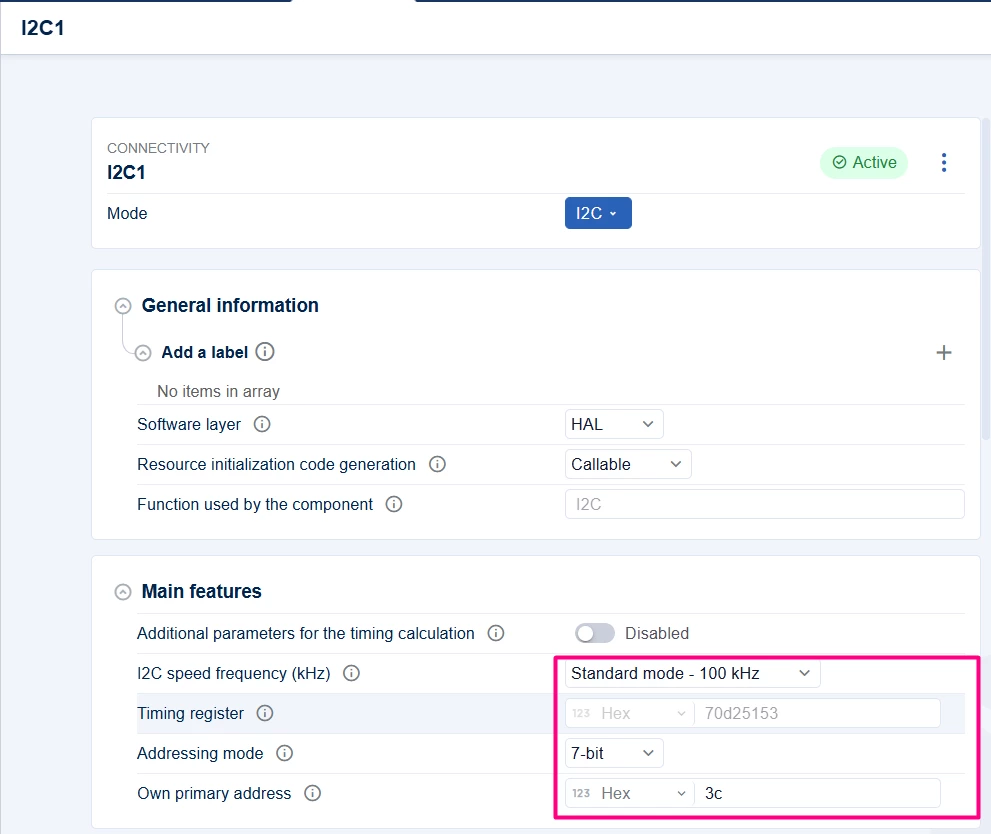
Configure the I2C mode in "standard mode" (100 kHz) and "addressing mode" with 7-bit. For the "own address", we use 0x3C.
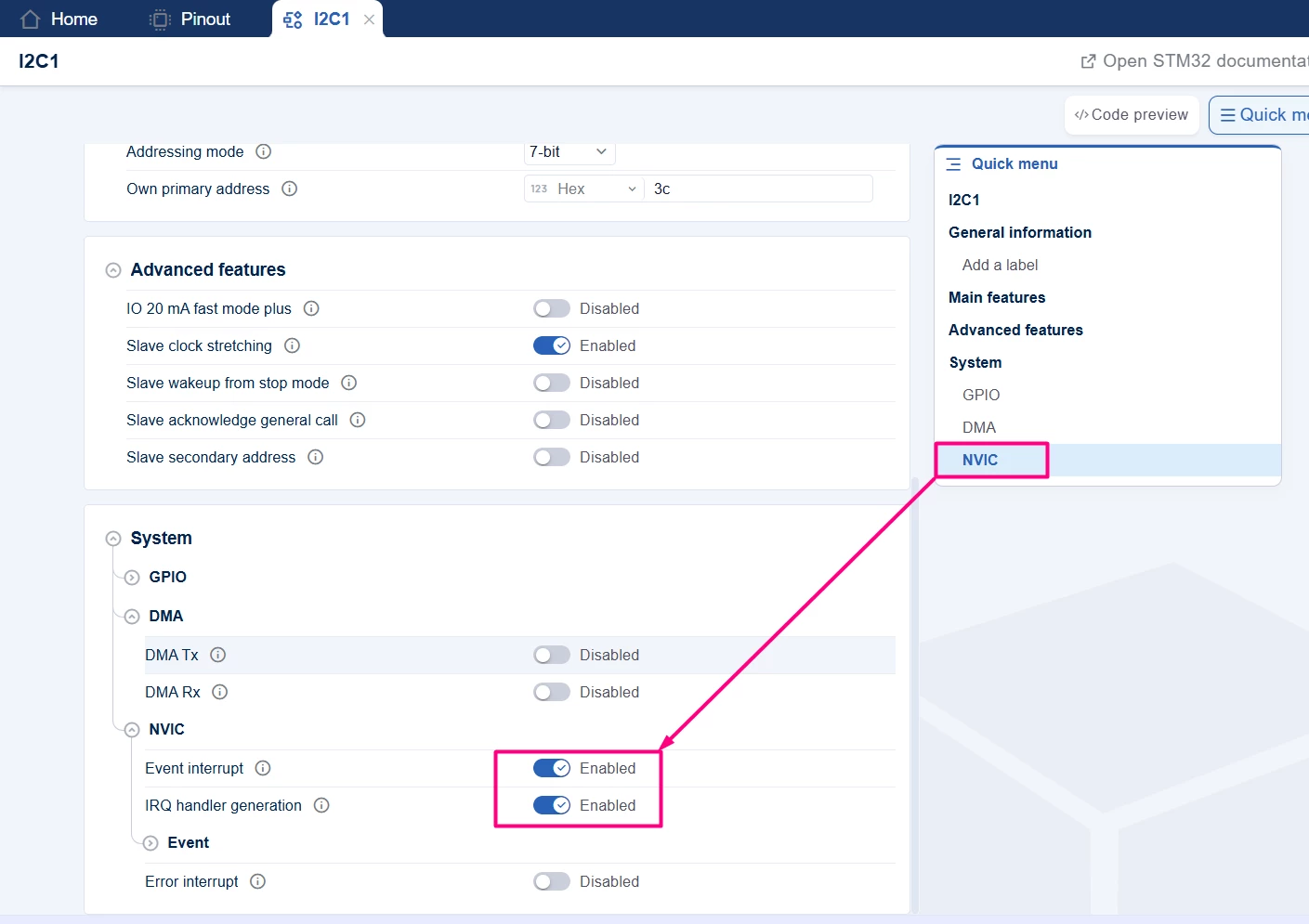
Enable [Global Interrupt] and [IRQ handler generation] under the "system" sub-menu if you plan to use interrupts.
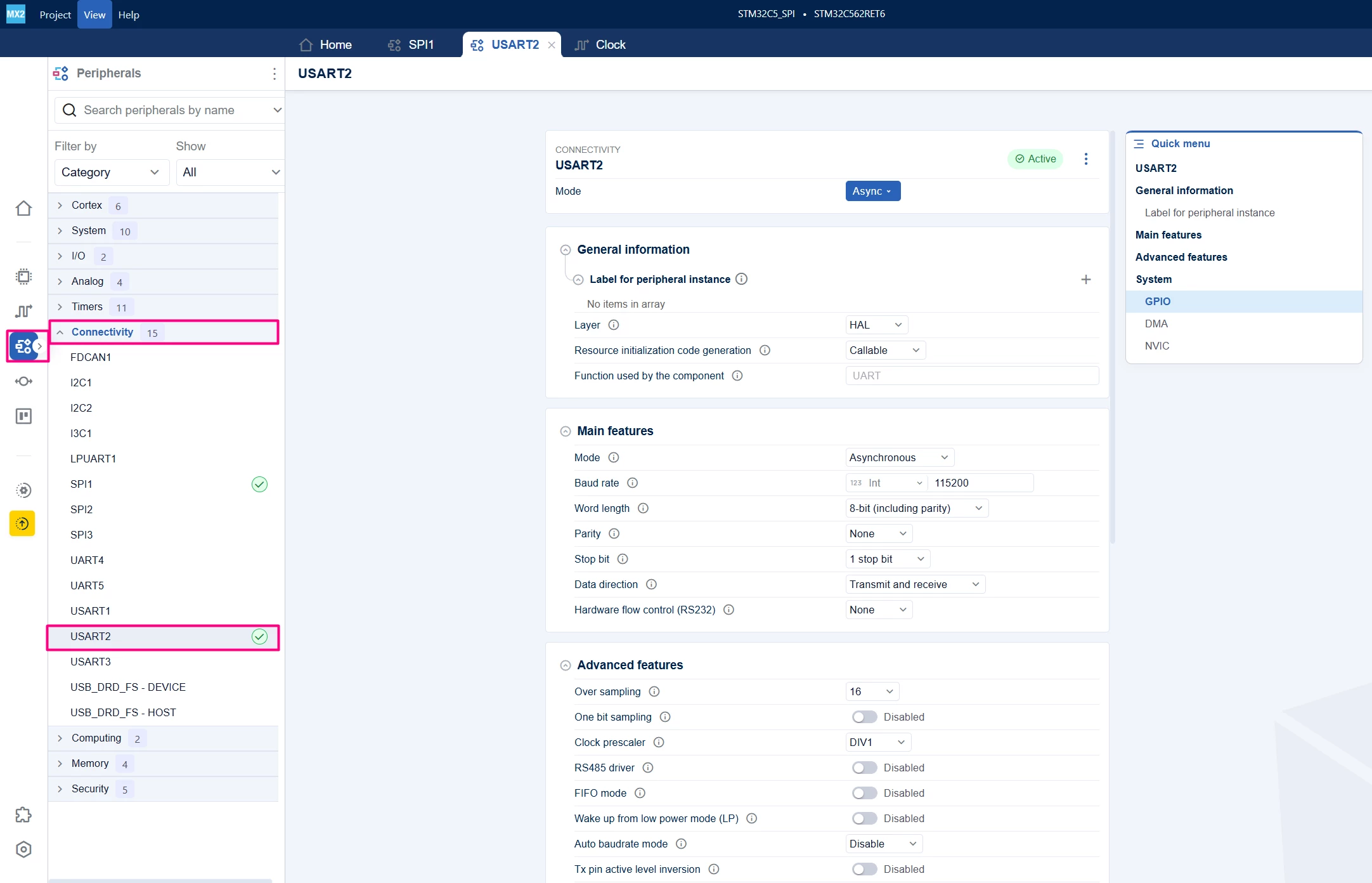
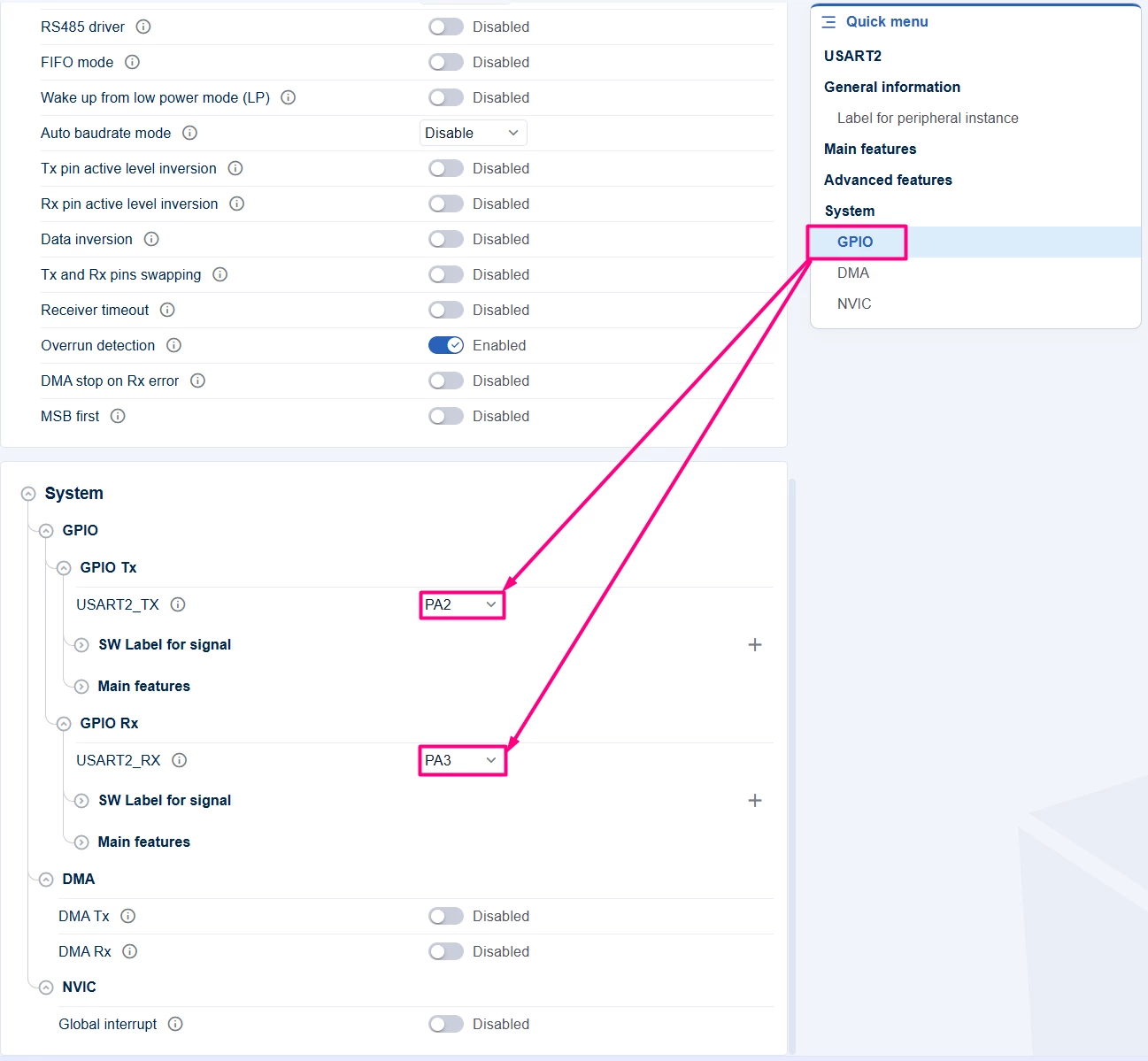
Optionally, configure an additional GPIO like LED or UART for status indication. In this case, a simple printf is used, so UART2 with PA2/PA3 is added:
1.2 Code generation
To generate the code:
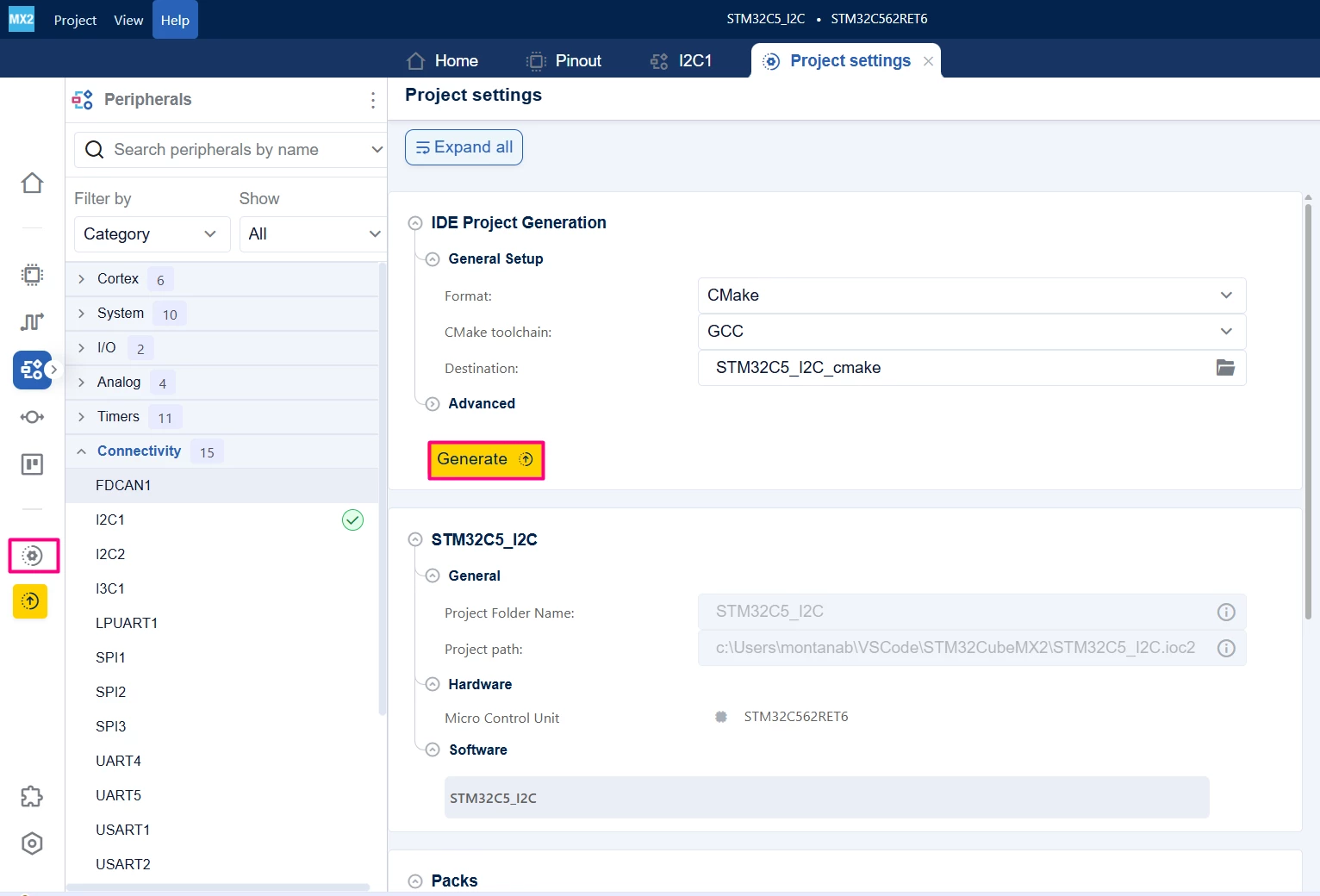
- Click on the [Project settings] icon and select the desired IDE.
- Click the [Generate] button.
2. Configuring the project in Visual Studio Code
Open Visual Studio Code and open the project folder.
If prompted, select the configuration. If not prompted, press Ctrl+Shift+P, type CMake: Select Configure Preset, and choose the debug configuration.

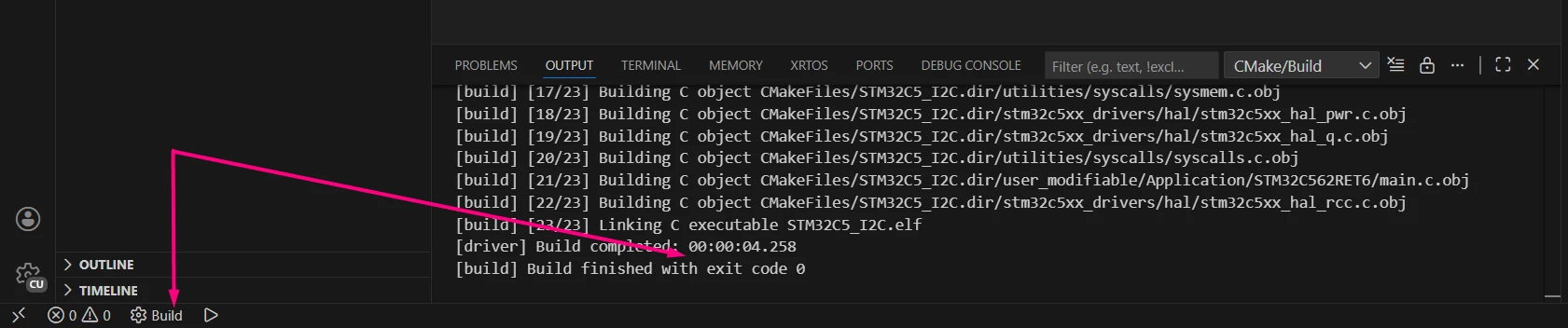
Build the project to ensure everything is set, then proceed to code implementation.
3. Code implementation
3.1. Code snippets, polling master and interrupt slave
This example demonstrates basic I2C master communication using polling mode to send data to a slave with interrupt mode.
Connect the two NUCLEO boards by associating the GNDs and I2C signals:
In main.c:
/**
 ******************************************************************************
 * file : main.c
 * brief : Main program body
 * Calls target system initialization then loop in main.
 ******************************************************************************
 *
 * Copyright (c) 2025 STMicroelectronics.
 * All rights reserved.
 *
 * This software is licensed under terms that can be found in the LICENSE file
 * in the root directory of this software component.
 * If no LICENSE file comes with this software, it is provided AS-IS.
 *
 ******************************************************************************
 */
/* Includes ------------------------------------------------------------------*/
#include "main.h"
#include <stdint.h>
#include <stdio.h>
#include <string.h>
/* Private typedef -----------------------------------------------------------*/
/* Private define ------------------------------------------------------------*/
#define MASTER_BOARD 1
#define I2C_TIMEOUT 1000U // Timeout for I2C operations in ms
#define SLAVE_ADDRESS 0x3C // Example 7-bit slave address
#define MAX_BUFFER_SIZE 23U // Buffer size for I2C communication
/* Private macro -------------------------------------------------------------*/
/* Private variables ---------------------------------------------------------*/
hal_i2c_handle_t *pI2C; // I2C handle pointer from generated code
uint8_t txBuffer[MAX_BUFFER_SIZE] = "Hello I2C Polling Mode!";
uint8_t rxBuffer[MAX_BUFFER_SIZE] = {0};
uint8_t i2cflagrxcplt = 0;

/* Private functions prototype -----------------------------------------------*/
int __io_putchar(int ch) {
 HAL_UART_Transmit(mx_usart2_uart_gethandle(), (uint8_t *)&ch, 1, 100);
 return ch;
}
/**
 * @brief Compares two buffers.
 * pBuffer1, pBuffer2: buffers to be compared.
 * BufferLength: buffer's length
 * @retval 0 : pBuffer1 identical to pBuffer2
 * >0 : pBuffer1 differs from pBuffer2
 */
static uint16_t Buffercmp(uint8_t *pBuffer1, uint8_t *pBuffer2,
 uint16_t BufferLength) {
 while (BufferLength--) {
 if ((*pBuffer1) != *pBuffer2) {
 return BufferLength;
 }
 pBuffer1++;
 pBuffer2++;
 }

 return 0;
}
void HAL_I2C_SLAVE_RxCpltCallback(hal_i2c_handle_t *hi2c) { i2cflagrxcplt = 1; }

/**
 * brief: The application entry point.
 * retval: none but we specify int to comply with C99 standard
 */
int main(void) {
 /** System Init: this code placed in targets folder initializes your system.
 * It calls the initialization (and sets the initial configuration) of the
 * peripherals. You can use STM32CubeMX to generate and call this code or not
 * in this project. It also contains the HAL initialization and the initial
 * clock configuration.
 */
 if (mx_system_init() != SYSTEM_OK) {
 return (-1);
 } else {
 /*
 * You can start your application code here
 */
 pI2C = mx_i2c1_i2c_gethandle(); // get the I2C1 handler
 printf("I2C Polling/Interrupt Mode Example\r\n");
 while (1) {
#ifdef MASTER_BOARD
 printf("Master Selected, press '1' when slave is ready to start\r\n");
 while (rxBuffer[0] != 0x31) {
 HAL_UART_Receive(mx_usart2_uart_gethandle(), (uint8_t *)rxBuffer, 1,
 10000);
 }
 rxBuffer[0] = 0;
 printf("Master will start the transfer/receive\r\n");
 /*##- Start the transmission process
 * #####################################*/
 /* While the I2C in reception process, user can transmit data through
 "aTxBuffer" buffer */
 /* Timeout is set to 10S */
 HAL_I2C_MASTER_Transmit(pI2C, SLAVE_ADDRESS << 1, txBuffer, MAX_BUFFER_SIZE, I2C_TIMEOUT);
 // Receive data from slave
 HAL_I2C_MASTER_Receive(pI2C, SLAVE_ADDRESS << 1, rxBuffer, MAX_BUFFER_SIZE, I2C_TIMEOUT);

#else
 /* The board receives the message and sends it back */
 /*##- Put I2C peripheral in reception process
 * ###########################*/
 HAL_I2C_SLAVE_Receive_IT(pI2C, (uint8_t *)rxBuffer, MAX_BUFFER_SIZE);
 printf("I2C Slave, waiting to receive\r\n");
 while (!i2cflagrxcplt)
 ;
 i2cflagrxcplt = 0;
 /*##- Start the transmission process
 * #####################################*/
 /* While the I2C in reception process, user can transmit data through
 "aTxBuffer" buffer */
 HAL_I2C_SLAVE_Transmit_IT(pI2C, (uint8_t *)rxBuffer, MAX_BUFFER_SIZE);
 printf("I2C Slave transmit back to Master\r\n");
#endif /* MASTER_BOARD */
 /*##- Compare the sent and received buffers
 * ##############################*/
 if (Buffercmp((uint8_t *)txBuffer, (uint8_t *)rxBuffer,
 MAX_BUFFER_SIZE)) {
 /* Processing Error */
 printf("Error\r\n");
 } else {
 printf("Received: %s \r\n", rxBuffer);
 }
 HAL_Delay(1000); // Delay 1 second
 }
 }
} /* end main */
3.2 Debug and validation
After building the application, locate the [Run and Debug] icon, create your debug session by selecting the STM32Cube: STLINK GDB Server option.
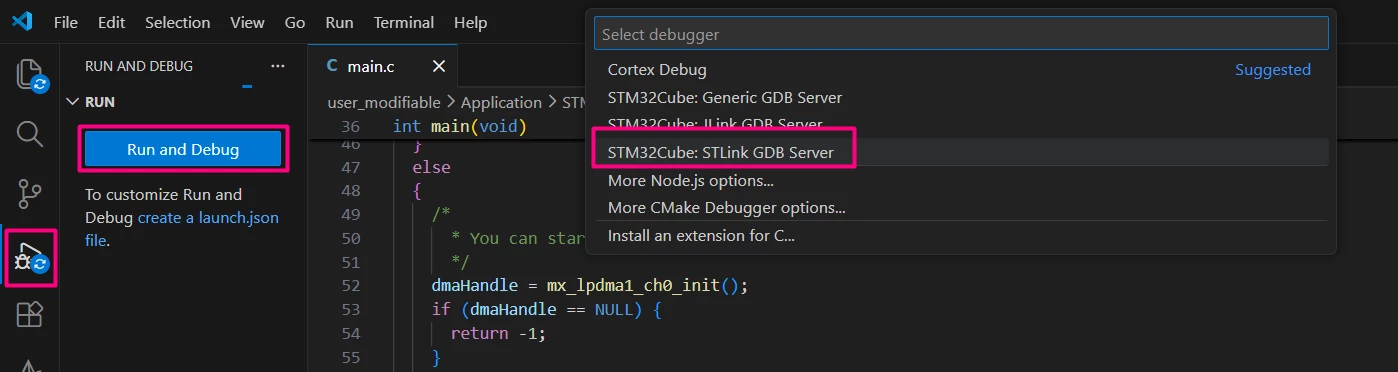
Once in debug mode and before running the code, press Ctrl+Shift+P and type [Open Serial] > COM40 (STMicroelectronics) > 115200 or select your preferred terminal. Using Tera Term, its possible to easily observe the controller and responder.

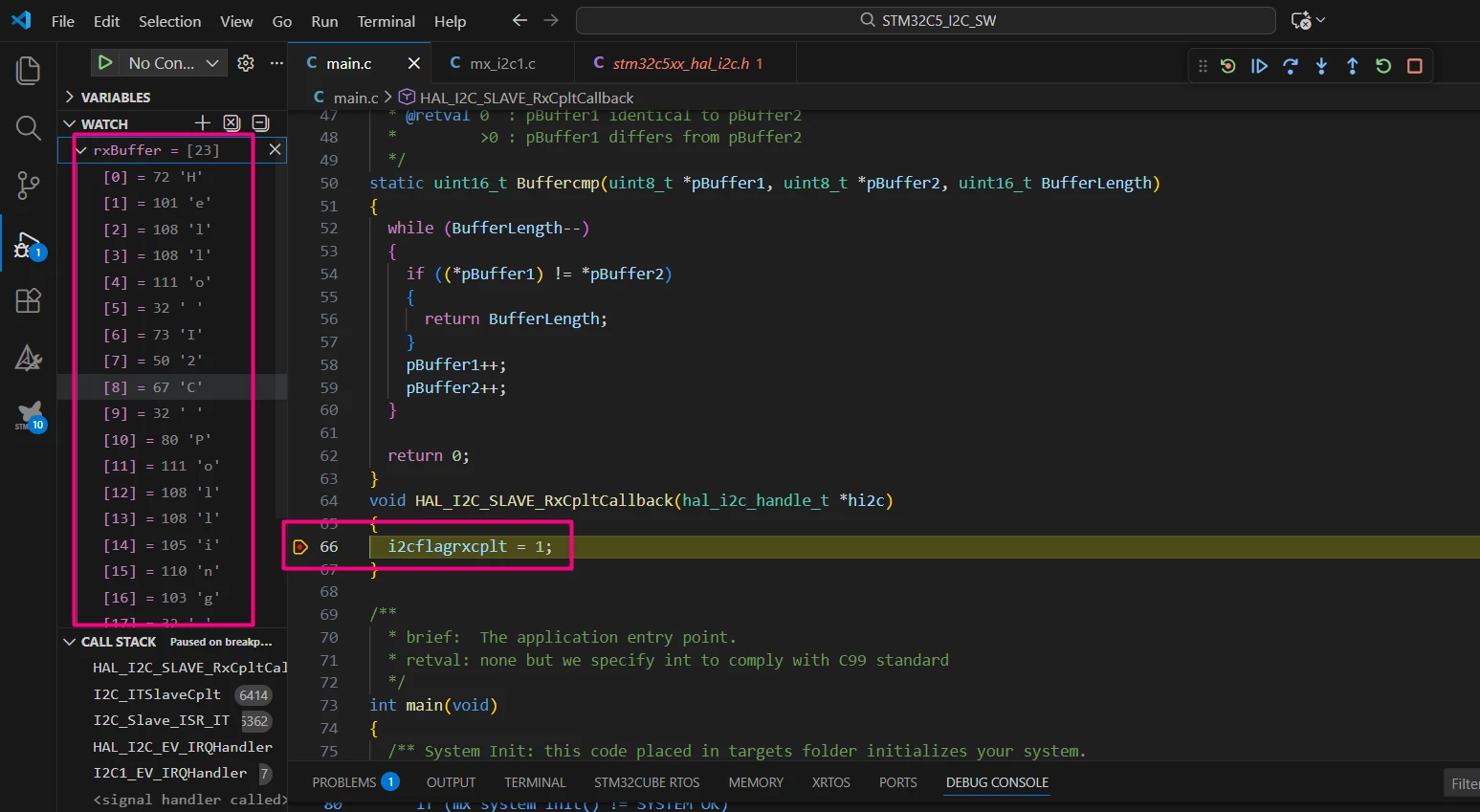
It's also possible to add a breakpoint on the Responder side at the callback, to verify the content received.
Conclusion
This tutorial provides a comprehensive guide to setting up I2C communication on the NUCLEO-C562RE board using STM32CubeMX2 and STM32Cube for Visual Studio Code. It covers polling and interrupt communication modes, enabling you to implement efficient and scalable I2C data transfers tailored to your application needs.
