


How to use FreeRTOS™ with STM32CubeMX2
Summary
This article provides a step-by-step guide to developing FreeRTOS™ applications on STM32 microcontrollers using STM32CubeMX2 and Visual Studio Code. It covers configuring FreeRTOS™ within STM32CubeMX2, generating and building the project in VSCode, and setting up debugging with the STM32CubeIDE extension. The tutorial also explains how to debug FreeRTOS™ tasks and synchronization primitives effectively to facilitate real-time troubleshooting and development.
- Summary
- Introduction
- Prerequisites
- 1. Create a new STM32CubeMX2 project
- 2. Configure the User LED GPIO
- 3. Configure HAL timebase to use Timer
- 4. Enable and configure FreeRTOS™ middleware
- 5. Generate and import the project code
- 6. Code editing and task implementation
- 7. Create and modify launch.json
- 8. FreeRTOS™ debugging with VS Code
- 9. Troubleshooting tip
- Conclusion
- Related links
Introduction
FreeRTOS™ is a widely used real-time operating system kernel designed for embedded devices, providing multitasking capabilities, task synchronization, and intertask communication. Leveraging FreeRTOS™ on STM32 microcontrollers enables developers to build responsive and efficient applications that can handle multiple concurrent operations with precise timing control.
STM32CubeMX2 simplifies the process of configuring FreeRTOS™ by providing an intuitive graphical interface to set up tasks, queues, semaphores, and other RTOS objects. Combined with Visual Studio Code and the STM32Cube extension, developers can seamlessly generate, build, and debug FreeRTOS™ projects in a modern, lightweight development environment.
This article guides you through the complete workflow of creating a FreeRTOS™-enabled STM32 project using CubeMX2. It covers importing into VS Code, building the application, and configuring the debugger to monitor and troubleshoot FreeRTOS™ tasks in real time. By following this tutorial, you gain practical knowledge to accelerate your embedded development with FreeRTOS™ on STM32 platforms.
Prerequisites
Install the following tools:
- STM32CubeMX2
- The latest STM32C5 HAL2 driver
- STM32CubeIDE extension for Visual Studio Code
The hardware used in this tutorial is the NUCLEO-C562RE board.
1. Create a new STM32CubeMX2 project
- Launch STM32CubeMX2.
- Create Application Project from Board.
- Select [NUCLEO-C562RE] and [Continue].
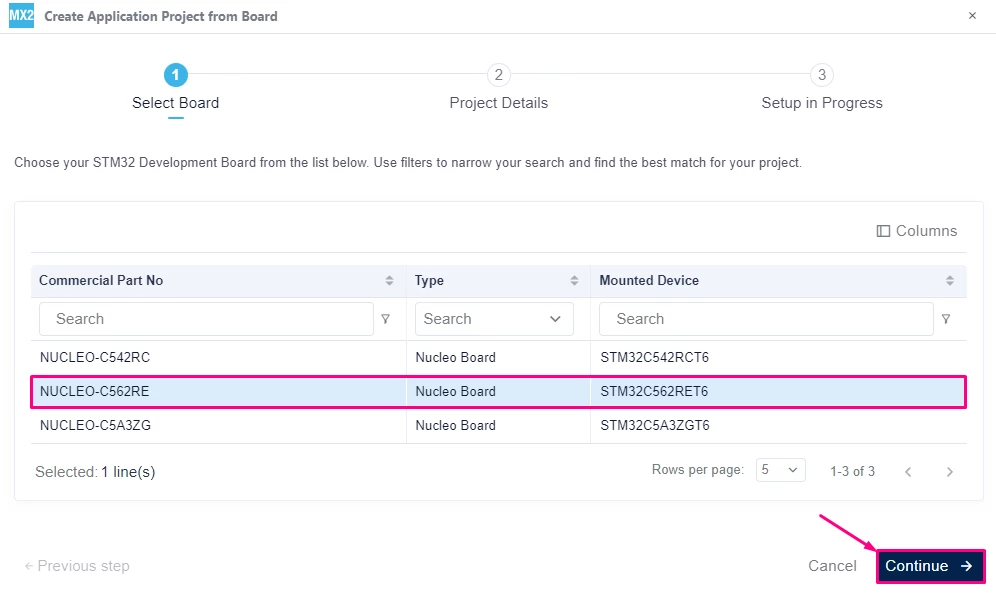
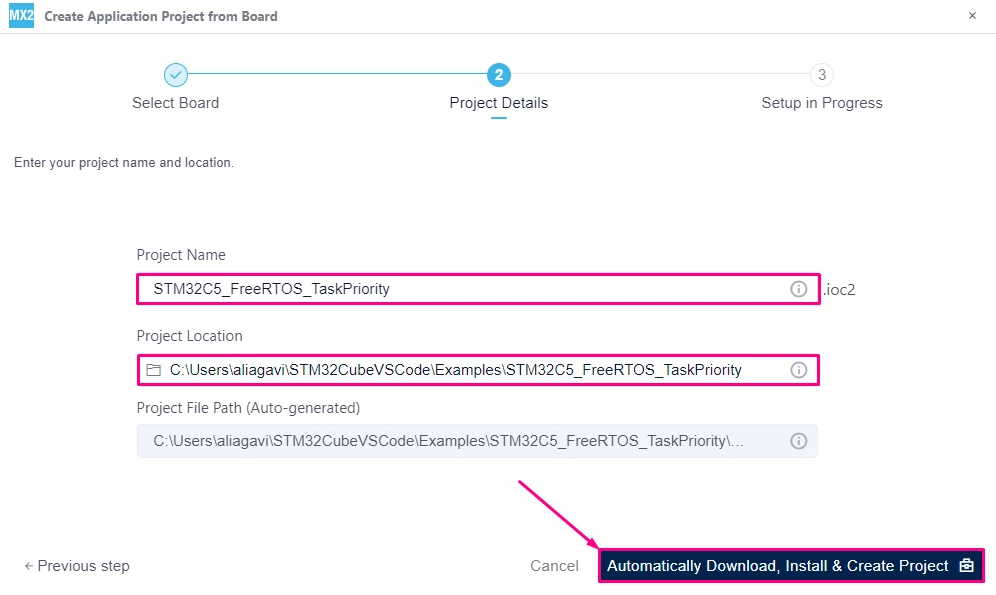
- Set the Project Name and Project Location.
- Continue with [Automatically Download, Install & Create Project].
2. Configure the User LED GPIO
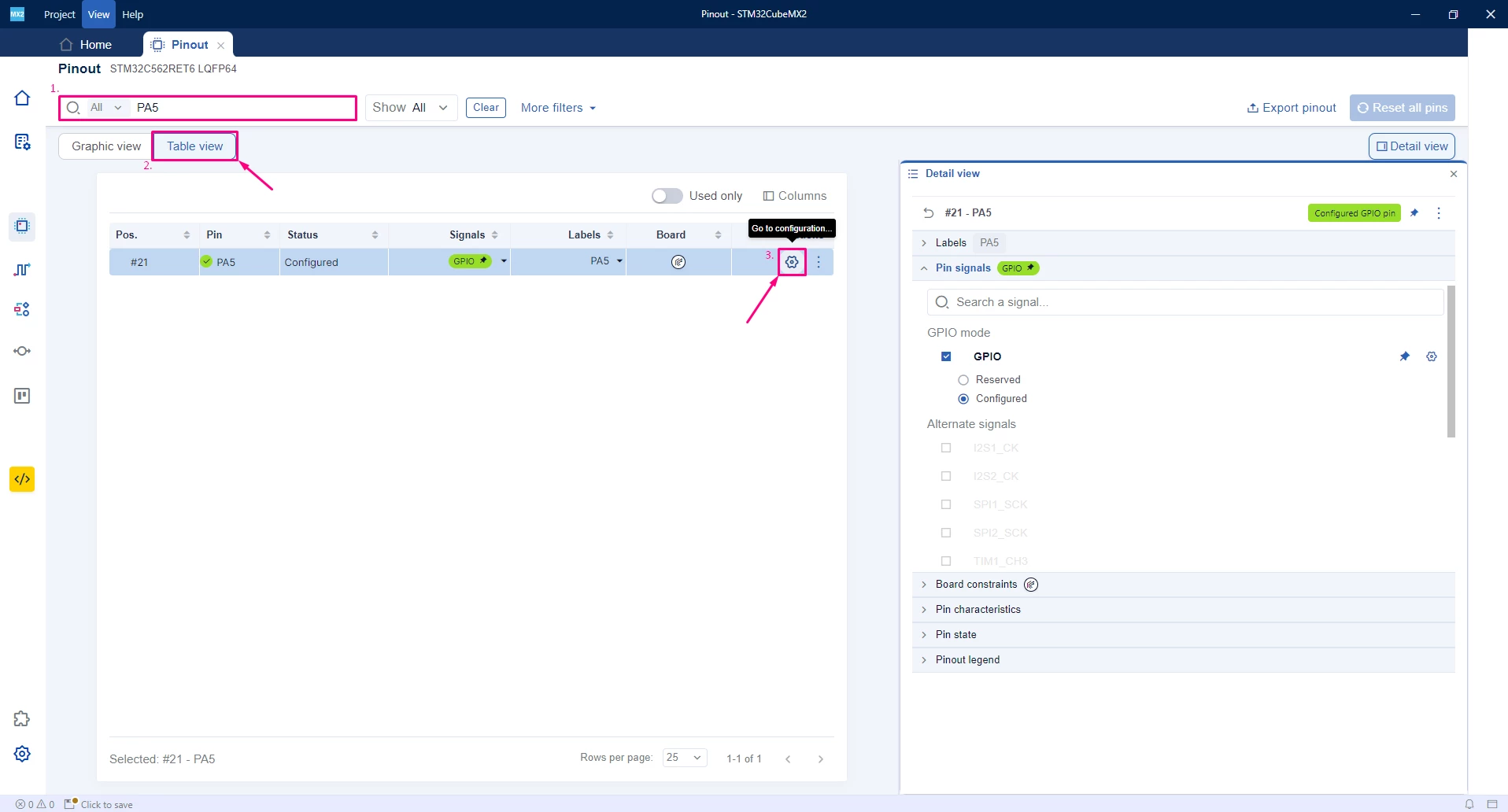
- In the Pinout tab [Table View], locate PA5 (User LED pin on the NUCLEO-C562RE).
- Go to configuration.
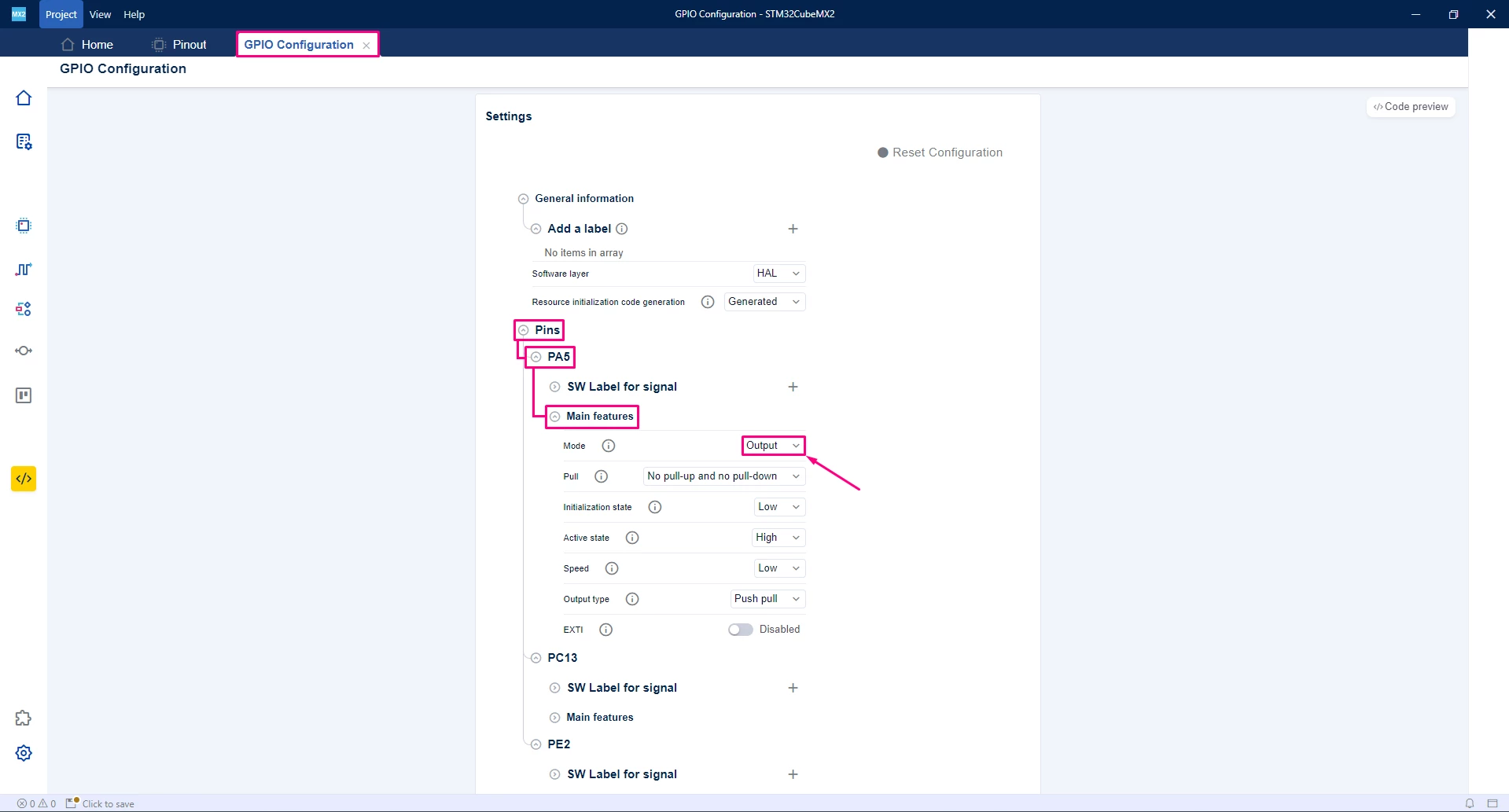
- In [Pins] → [PA5] → [Main features] change PA5 mode to [Output].
3. Configure HAL timebase to use Timer
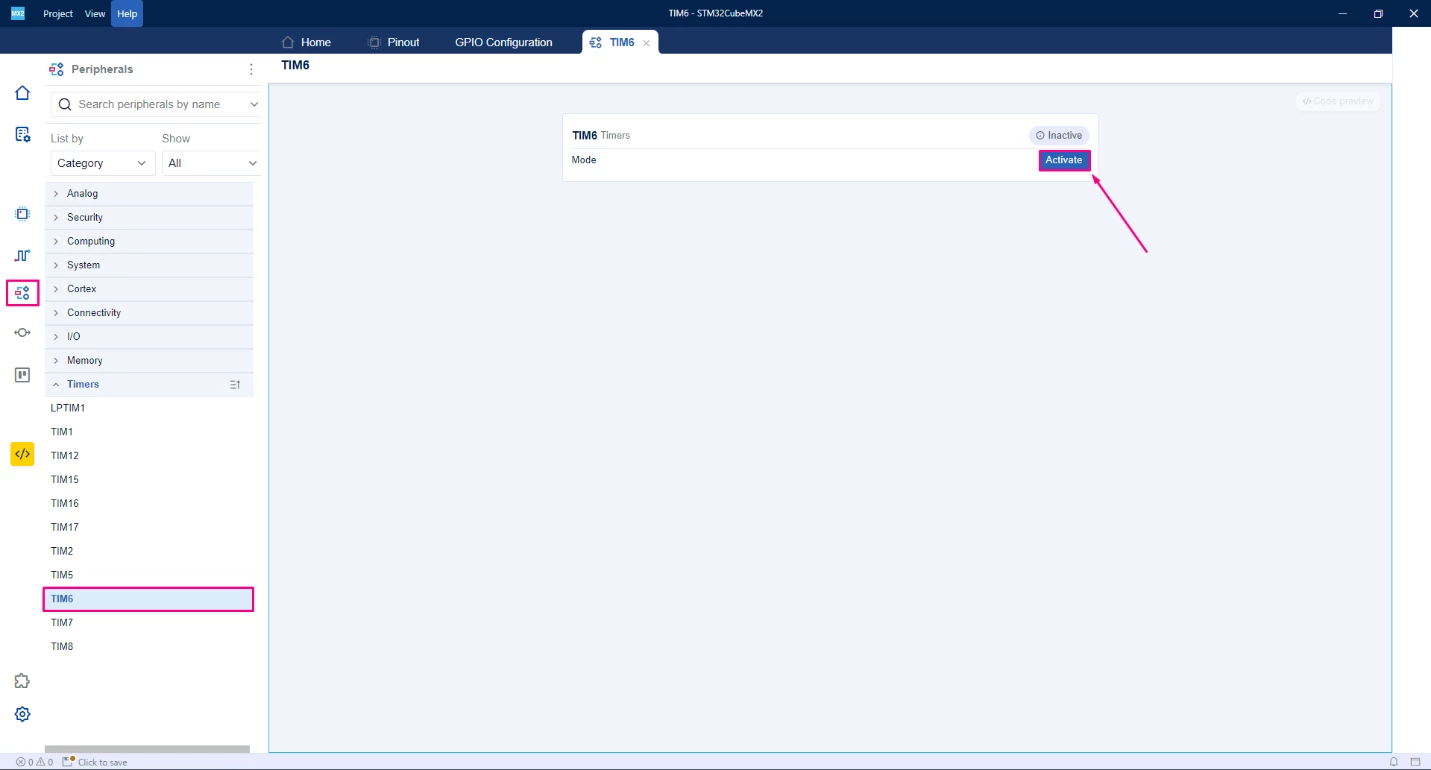
- Navigate to the Peripherals section.
- Select and [Activate] TIM6.
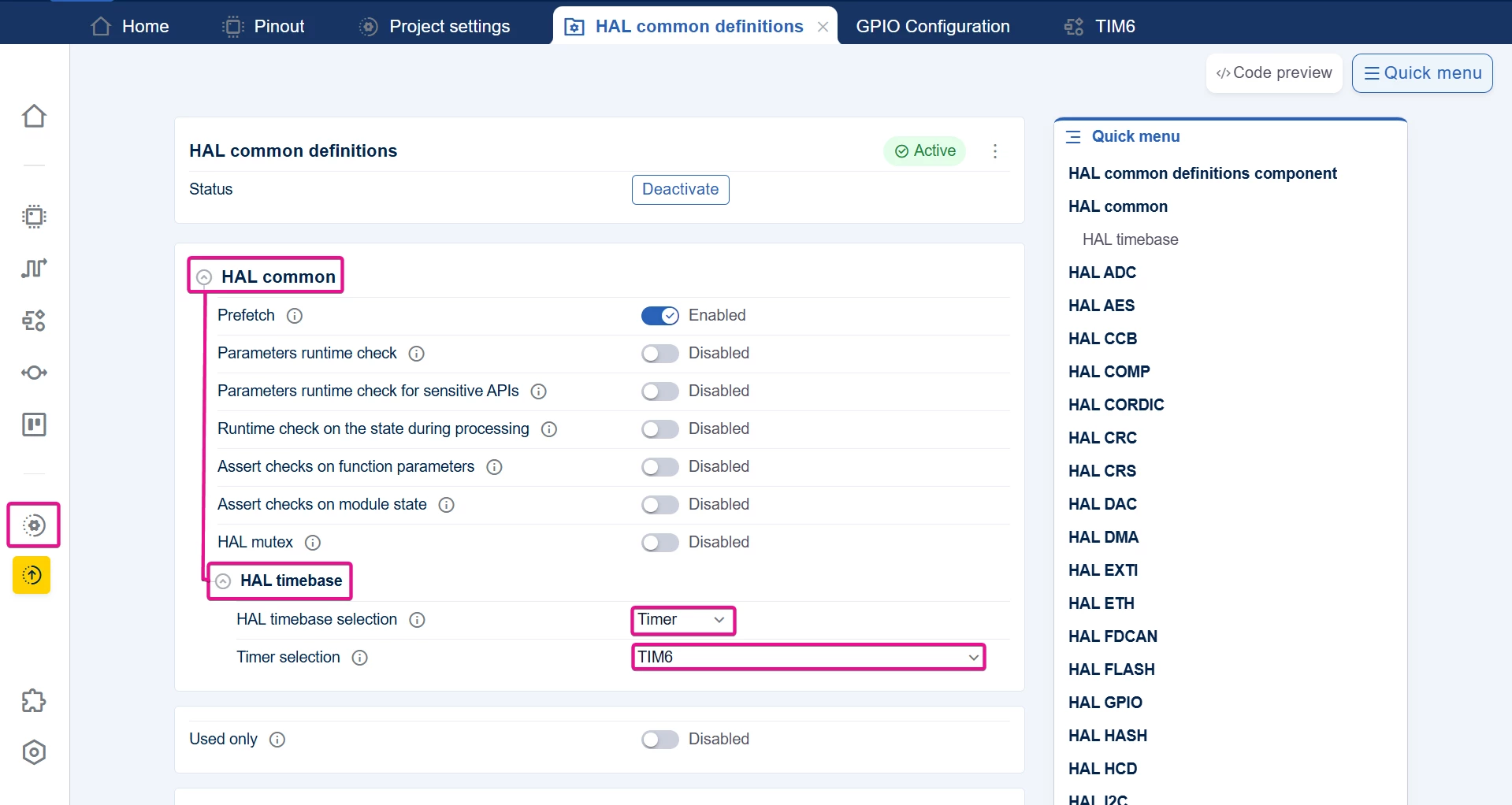
- Go to the Project Settings section.
- In [HAL Core] → [HAL common] → [HAL Timebase], change the HAL Timebase to Timer, and select TIM6.
4. Enable and configure FreeRTOS™ middleware
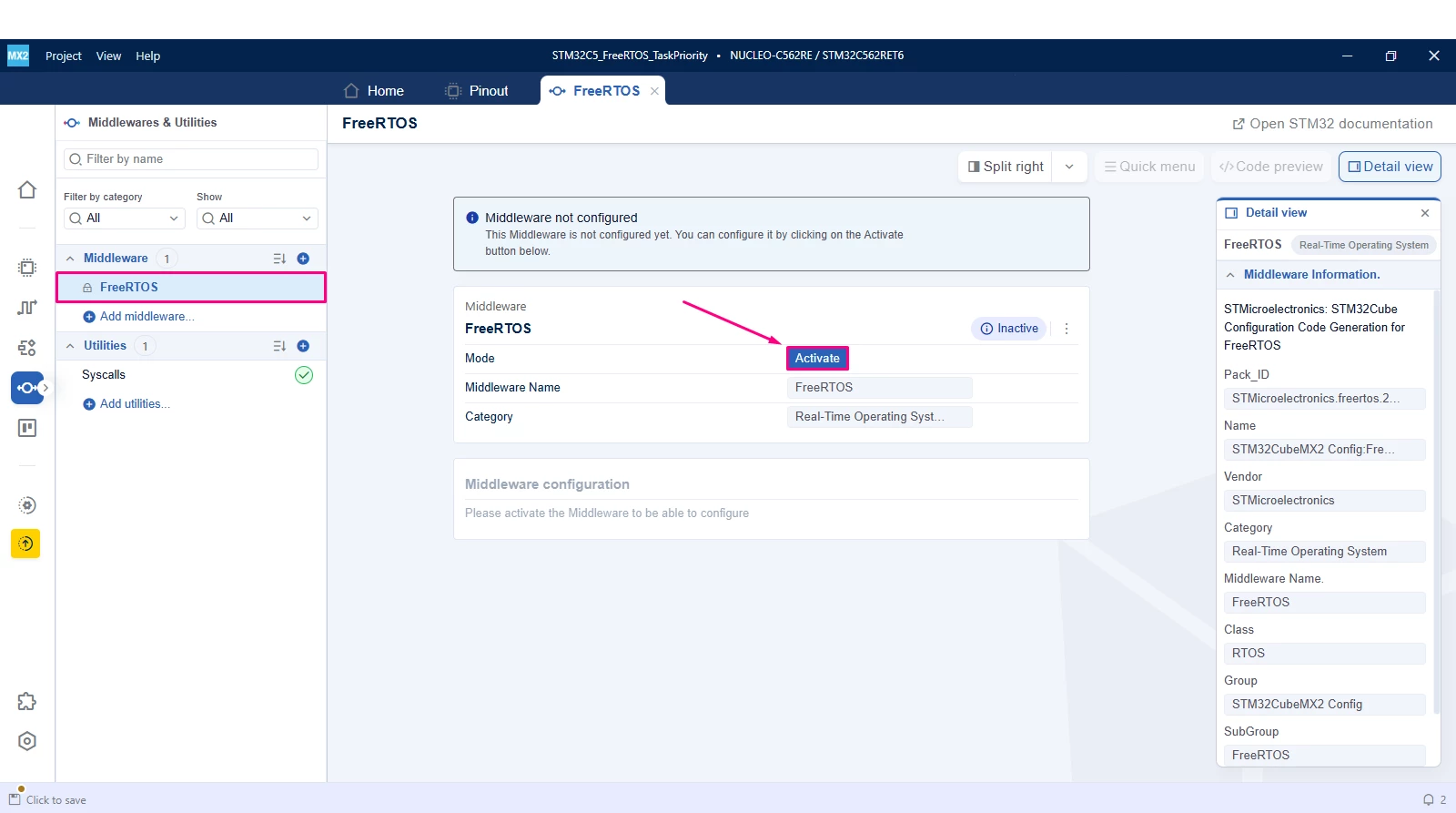
- Navigate to the Middleware section and [Add middleware(s)].
- Add [FreeRTOS].
- Activate FreeRTOS by checking the [Activate] box.
- No changes are needed in [Main Middleware Configuration] or [Security Features].
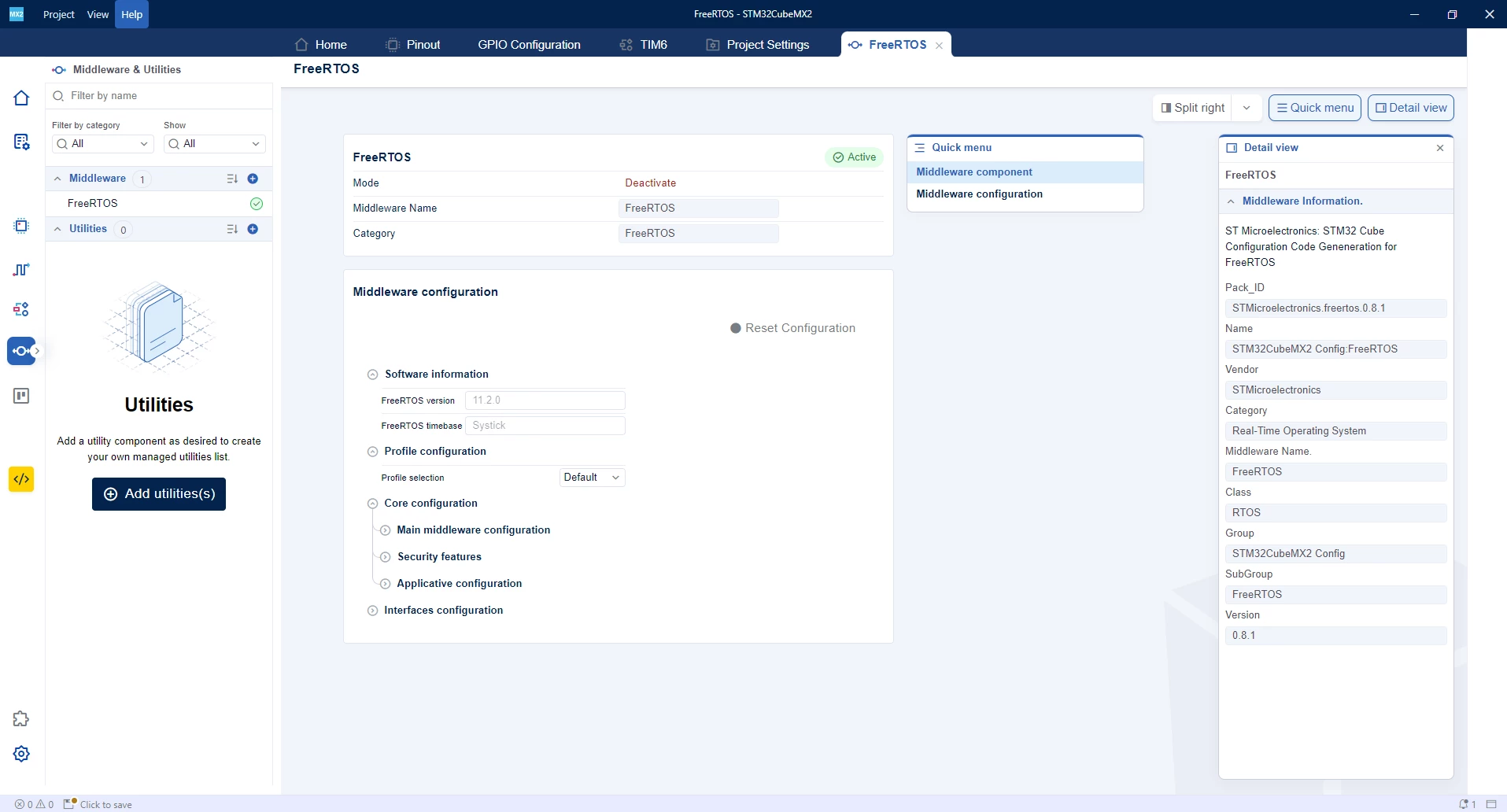
- By default, CubeMX creates an Idle task automatically with a priority of 0.
- The idle task runs only when no other tasks with higher priority are ready to execute. It essentially acts as a background task to keep the system active when no other work is pending.
- To illustrate task priority, in [Core configuration] → [Applicative configuration] → [Tasks], Add [+] a task.
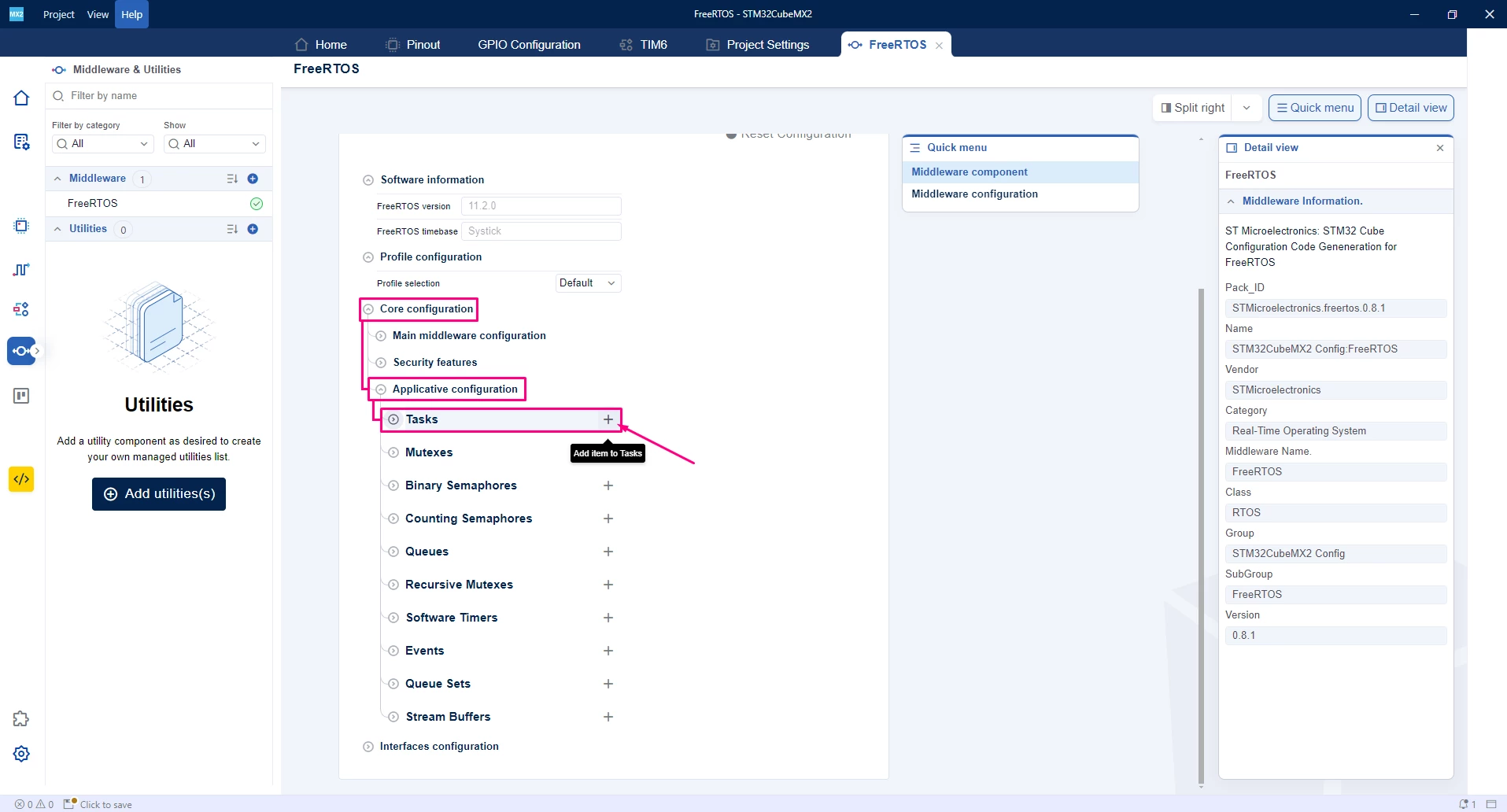
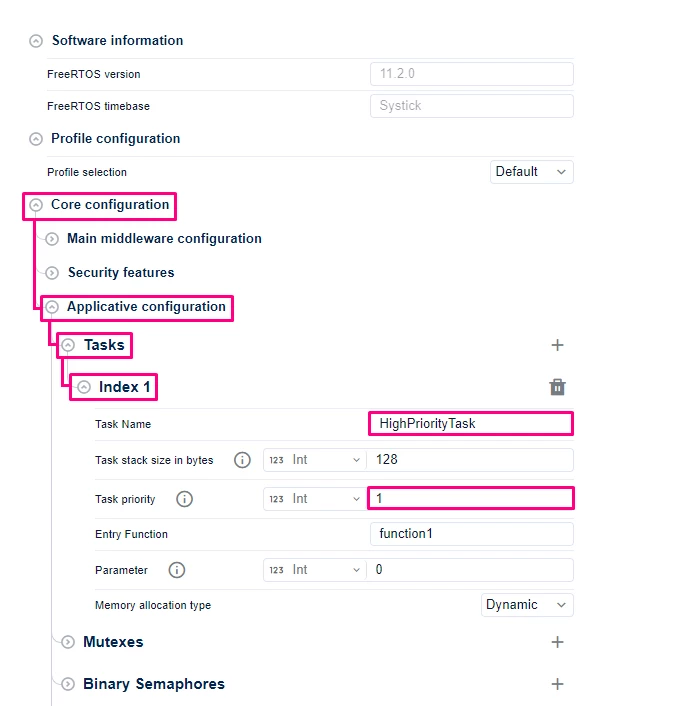
- Task configurations:
- Name the new task (HighPriorityTask).
- Set its priority to one level higher than the Idle task (for example, 1).
- Leave the other parameters as default.
5. Generate and import the project code
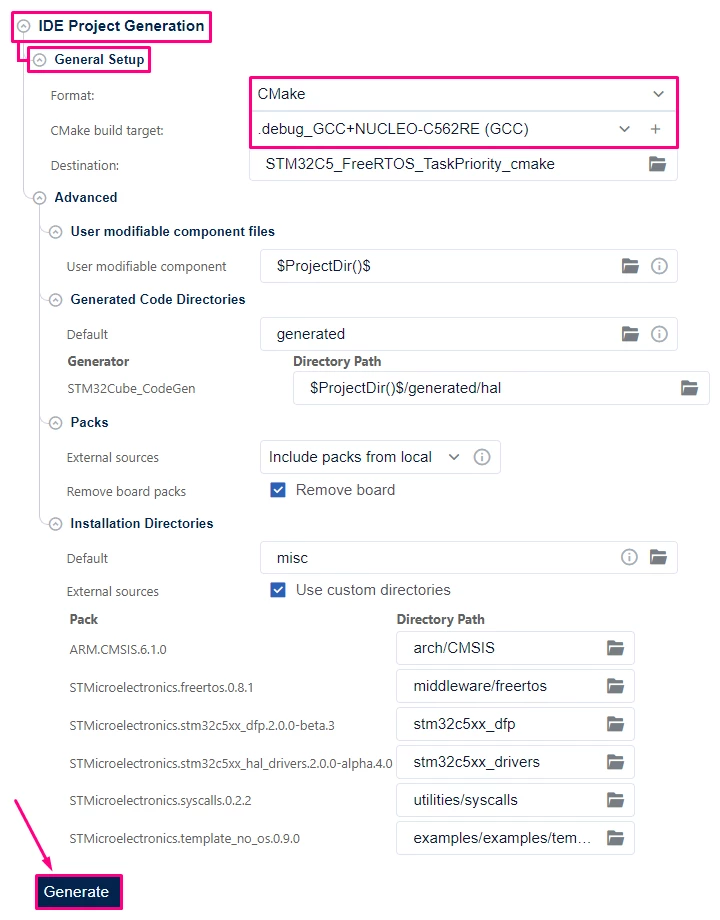
- In the [Project Settings] → [IDE Project Generation] → [General Setup] section.
- Ensure the Format is set to [CMake] and the build target is set to [.debug_GCC+NUCLEO-C562RE (GCC)].
- [Generate] the project.
- In VS Code, open the project folder.
- Select the configuration (Debug or Release). If not prompted, press Ctrl+Shift+P, type CMake: Select Configure Preset, and choose the debug configuration and select [debug_GCC_NUCLEO_C562RE].

- Build the project to ensure everything is set, then proceed to code implementation.
6. Code editing and task implementation
- In [generated] → [middleware] locate the mx_freertos_app.c file. This file contains the FreeRTOS™ task creation and task function generated by CubeMX2.
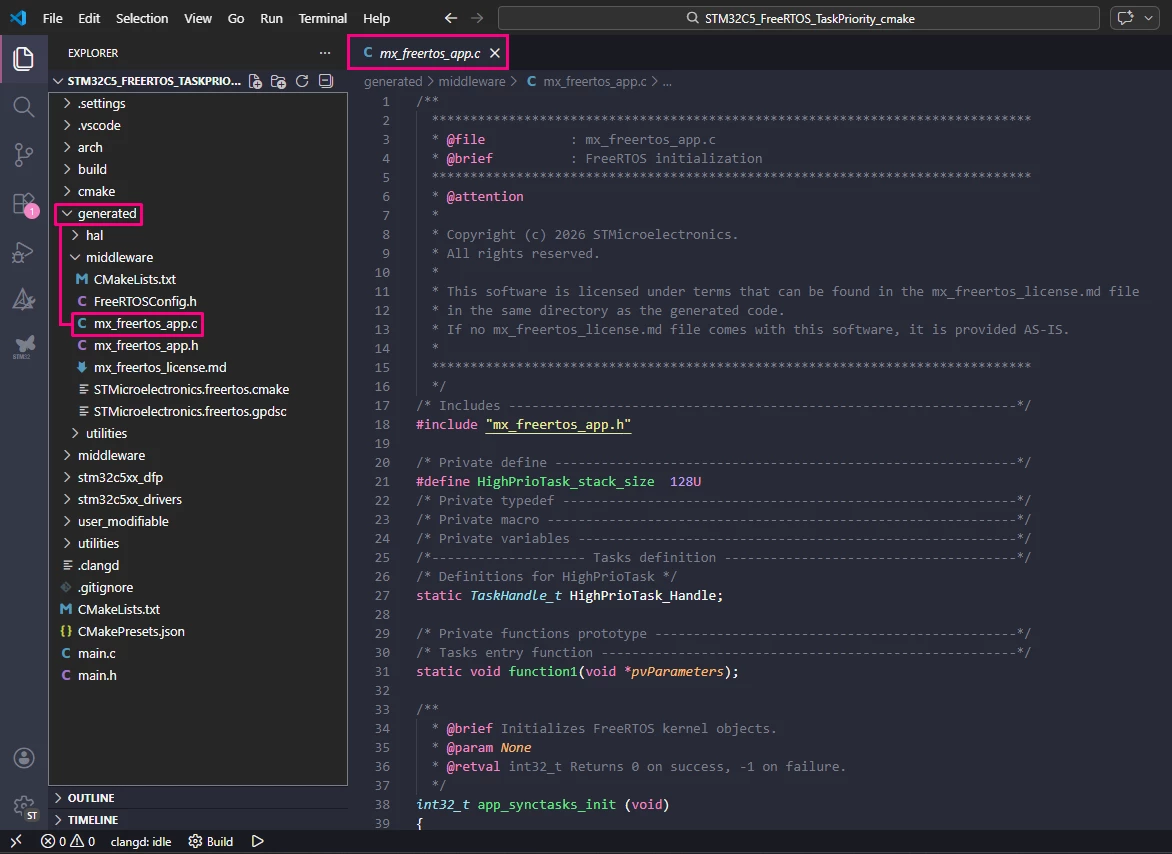
- Find the task function created for your HighPriorityTask (for example, function1).
- Add the following code to toggle the onboard LED every 500 ms.
static void function1(void *pvParameters)
{
 for(;;)
 {
 /* Infinite loop executing HighPriorityTask functionality. */
 HAL_GPIO_TogglePin(PA5_PORT, PA5_PIN); // Toggle User LED
 vTaskDelay(pdMS_TO_TICKS(500)); // Delay for 500 ms (task blocks here)
 }
}- In the main.c file, include the mx_freertos_app.h and mx_gpio_default.h headers.
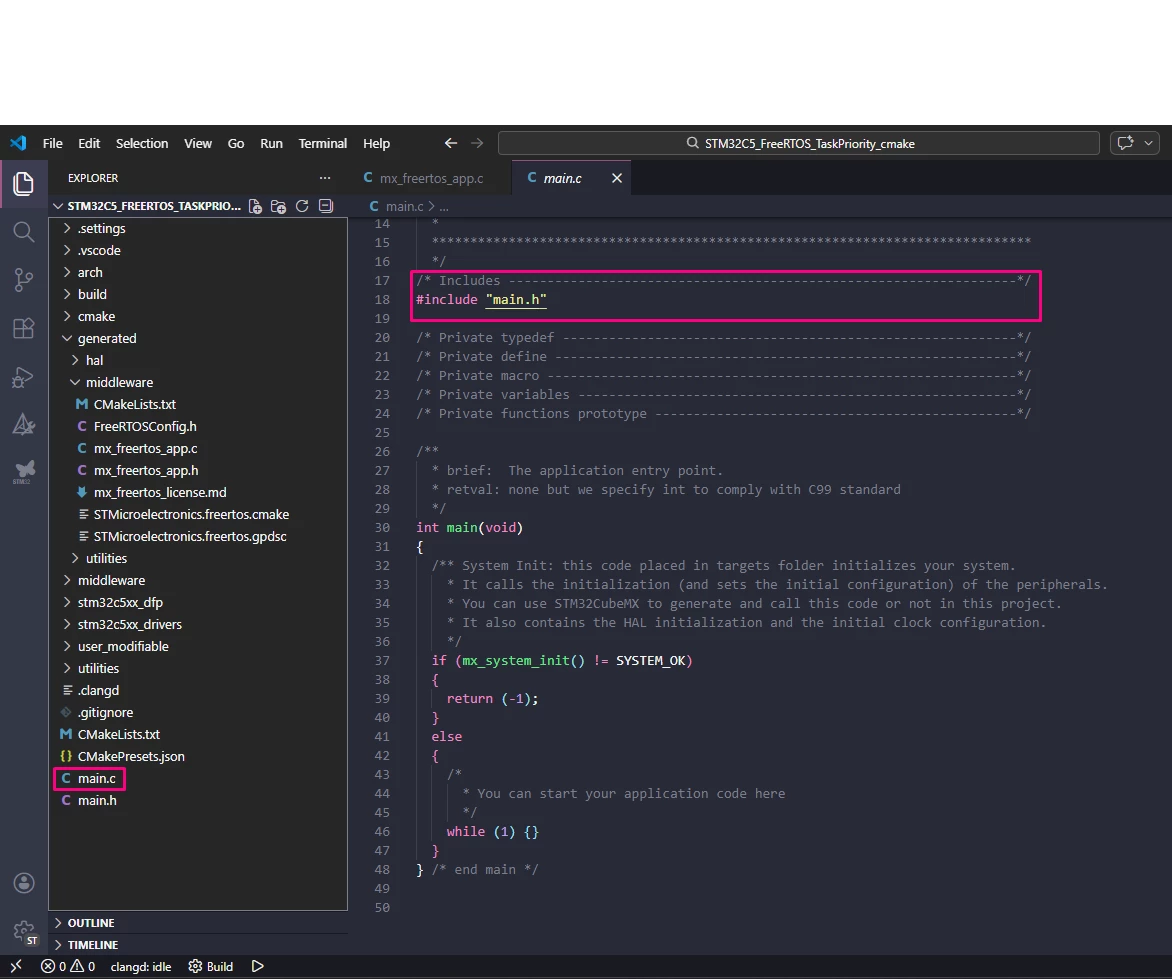
/* Includes ------------------------------------------------------------------*/
#include "main.h"
#include "mx_freertos_app.h"
#include "mx_gpio_default.h"
/* Private typedef -----------------------------------------------------------*/
/* Private define ------------------------------------------------------------*/
/* Private macro -------------------------------------------------------------*/
/* Private variables ---------------------------------------------------------*/
/* Private functions prototype -----------------------------------------------*/- After system initialization, add the following code to initiate the GPIOs create the tasks and start the RTOS kernel to initiate task scheduling.
mx_gpio_default_init();
app_synctasks_init ();
vTaskStartScheduler();- Full code:
/* Includes ------------------------------------------------------------------*/
#include "main.h"
#include "mx_freertos_app.h"
#include "mx_gpio_default.h"
/* Private typedef -----------------------------------------------------------*/
/* Private define ------------------------------------------------------------*/
/* Private macro -------------------------------------------------------------*/
/* Private variables ---------------------------------------------------------*/
/* Private functions prototype -----------------------------------------------*/

/**
 * brief: The application entry point.
 * retval: none but we specify int to comply with C99 standard
 */
int main(void)
{
 /** System Init: this code placed in targets folder initializes your system.
 * It calls the initialization (and sets the initial configuration) of the peripherals.
 * You can use STM32CubeMX to generate and call this code or not in this project.
 * It also contains the HAL initialization and the initial clock configuration.
 */
 if (mx_system_init() != SYSTEM_OK)
 {
 return (-1);
 }
 else
 {
 /*
 * You can start your application code here
 */
 mx_gpio_default_init();
 app_synctasks_init ();
 vTaskStartScheduler();
 while (1) {}
 }
} /* end main */
Note: Under normal operation, the scheduler takes control and the while loop is never executed.
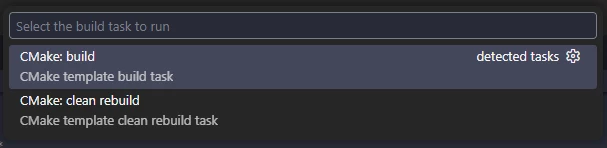
- Press Ctrl+Shift+P and [CMake: Clean Rebuild the project] to build the project.
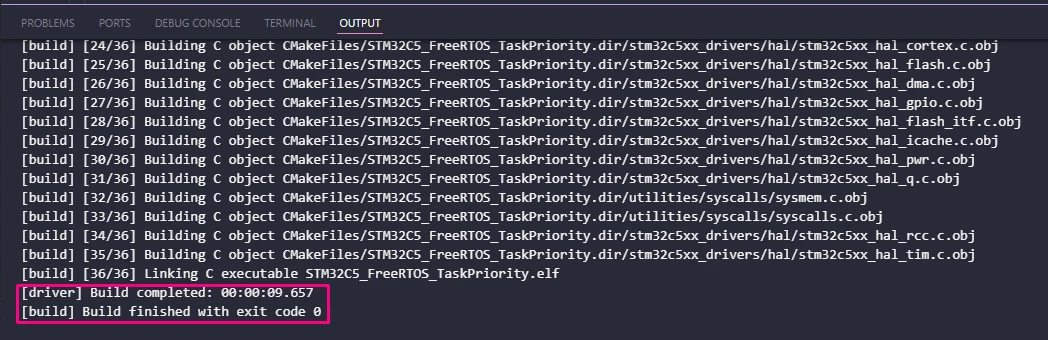
- Confirm that the project compiles without errors.
7. Create and modify launch.json
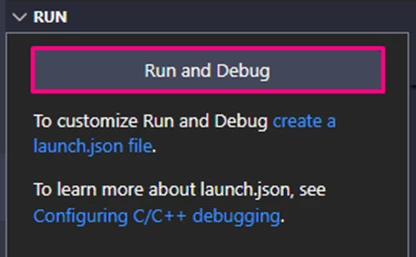
- Open the Run and Debug view (Ctrl+Shift+D).
- Click create a launch.json file.
- Select STM32Cube: STLink GDB Server from the list of debuggers provided by STM32CubeExtension.
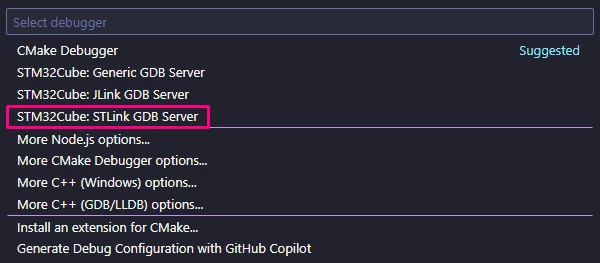
- The extension generates a default launch.json with configurations tailored for STLINK debugging.
Edit the generated launch.json to support debugging FreeRTOS™ with all features enabled.
(Before)
{
 "version": "0.2.0",
 "configurations": [
 {
 "type": "stlinkgdbtarget",
 "request": "launch",
 "name": "STM32Cube: STM32 Launch ST-Link GDB Server",
 "origin": "snippet",
 "cwd": "${workspaceFolder}",
 "preBuild": "${command:st-stm32-ide-debug-launch.build}",
 "runEntry": "main",
 "imagesAndSymbols": [
 {
 "imageFileName": "${command:st-stm32-ide-debug-launch.get-projects-binary-from-context1}"
 }
 ]
 }
 ]
}
(After)
{
 "version": "0.2.0",
 "configurations": [
 {
 "type": "stlinkgdbtarget",
 "request": "launch",
 "name": "STM32C5_FreeRTOS Debug",
 "origin": "snippet",
 "cwd": "${workspaceFolder}",
 "preBuild": "${command:st-stm32-ide-debug-launch.build}",
 "runEntry": "main",
 "imagesAndSymbols": [
 {
 "imageFileName": "${command:st-stm32-ide-debug-launch.get-projects-binary-from-context1}"
 }
 ],
 "serverRtos": {
 "enabled": true,
 "port": "60000", // Choose a free local TCP port
 "driver": "freertos"
 },
 }
 ]
}
Explanation of the changes:
- Changed the debug configuration name:
The "name" field was updated from a generic label to "STM32C5_FreeRTOS Debug" to identify the target board and make the configuration easier to recognize in the VS Code interface.
- Added the RTOS awareness feature:
The "serverRtos" block is what enables RTOS‑aware debugging in STM32/VSCode setup and tells the tools that you are using FreeRTOS™.
- "enabled": true
- Turns on the RTOS proxy.
- When true, the STM32Cube VS Code extension launches an extra helper process (“RTOS proxy”) in addition to the ST‑LINK GDB server.
- This proxy understands the internal data structures of RTOS (here, FreeRTOS) and extracts:
- Task list
- Task states (Running / Blocked / Suspended)
- Priorities, stack usage, etc.
- "port": "60000"
- TCP port used for communication between VS Code debug adapter ↔ RTOS proxy.
- Must be a free local port (no other process using it).
- If this port is blocked or mismatched, RTOS views (tasks list) does not work and you may see timeouts.
- "driver": "freertos"
- Tells the RTOS proxy which RTOS you are using.
- It loads the correct “driver” for parsing kernel structures.
- In this case: freertos.
Without "serverRtos", you still can debug normally (breakpoints, memory, peripherals), but you lose the RTOS‑aware features and see only raw threads/PC, not the FreeRTOS™ task model.
8. FreeRTOS™ debugging with VS Code
- Connect your STM32 board to your PC using the STLINK debugger.

- In VS Code, select the debug configuration you created.
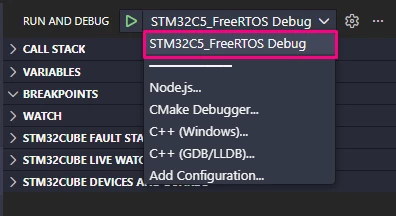
- Press F5 or click the green [Start Debugging] button.
- The application should halt at main.c
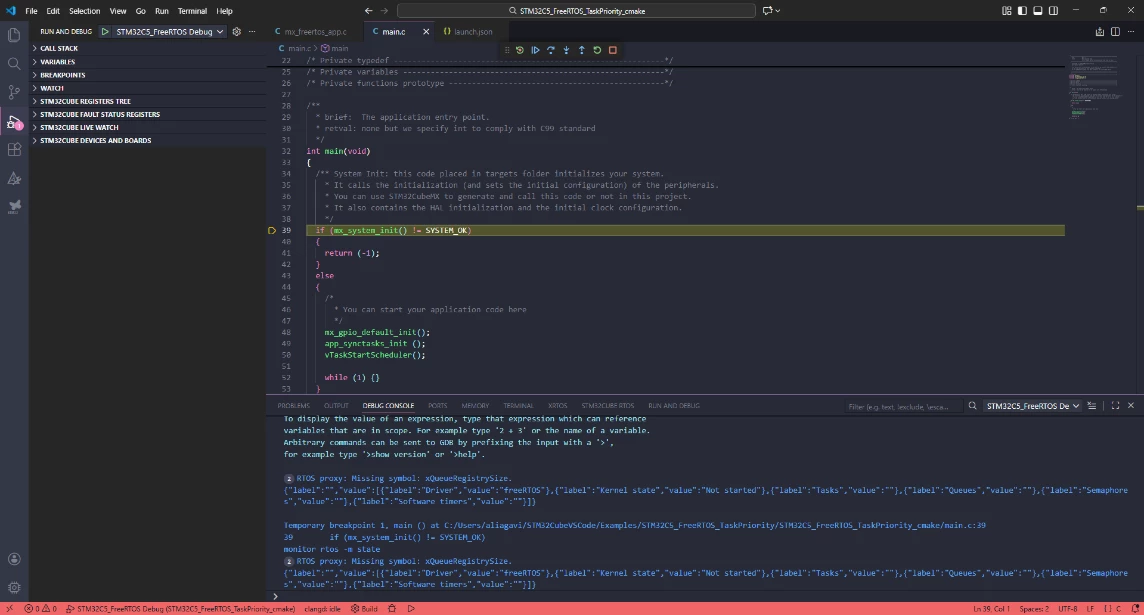
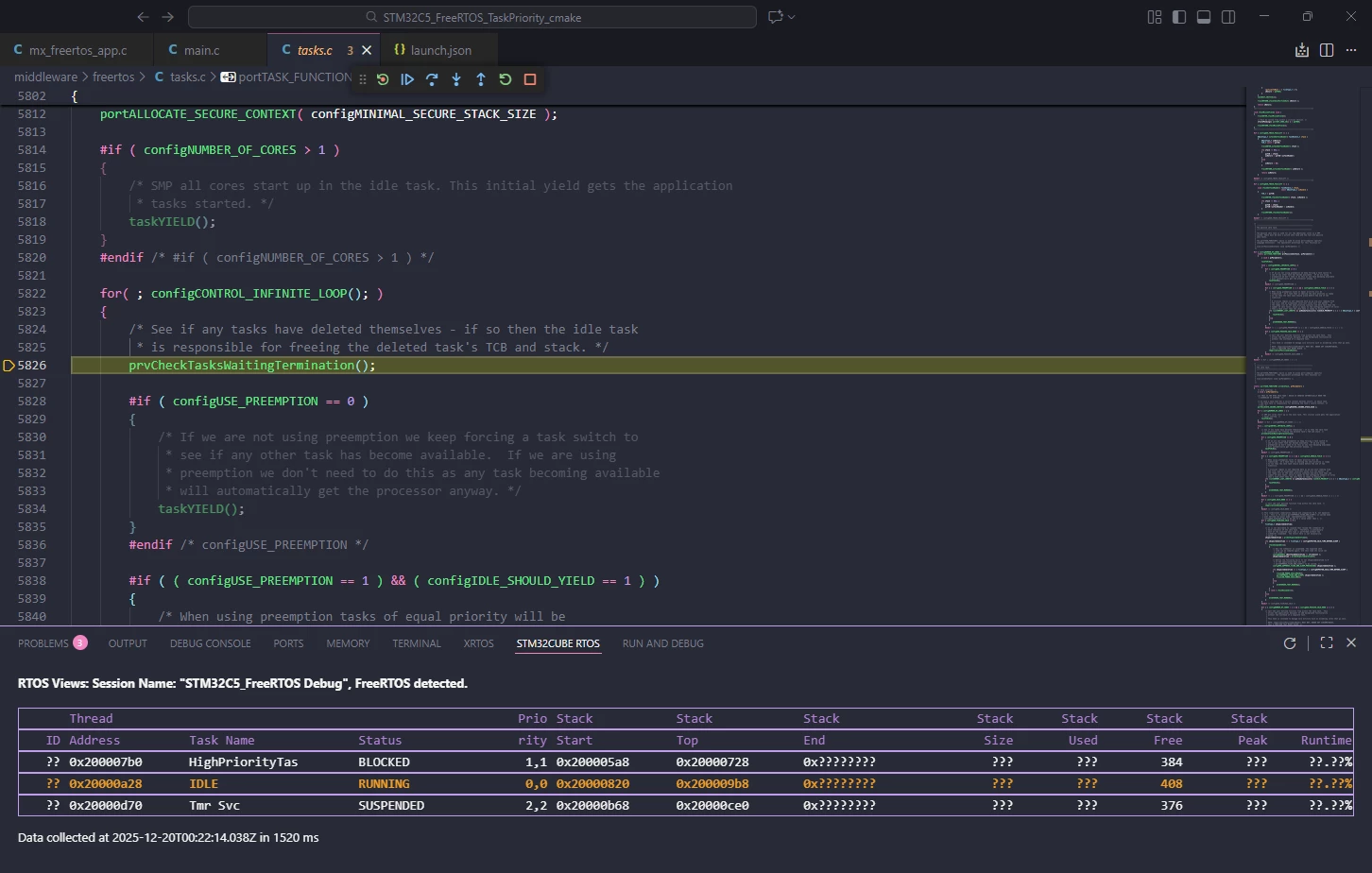
- Open the XRTOS or STM32CUBE RTOS pane in VS Code.
- This view displays all FreeRTOS™ tasks, their priorities, and states (Running, Ready, Blocked, Suspended).
- Run the program and observe the RTOS view:
- When the LED toggling code executes, your user task shows as [RUNNING].
- When the task calls vTaskDelay(), it enters the Blocked state, and the IDLE task becomes Running.
- When the delay expires, your user task wakes and preempts IDLE immediately due to higher priority.
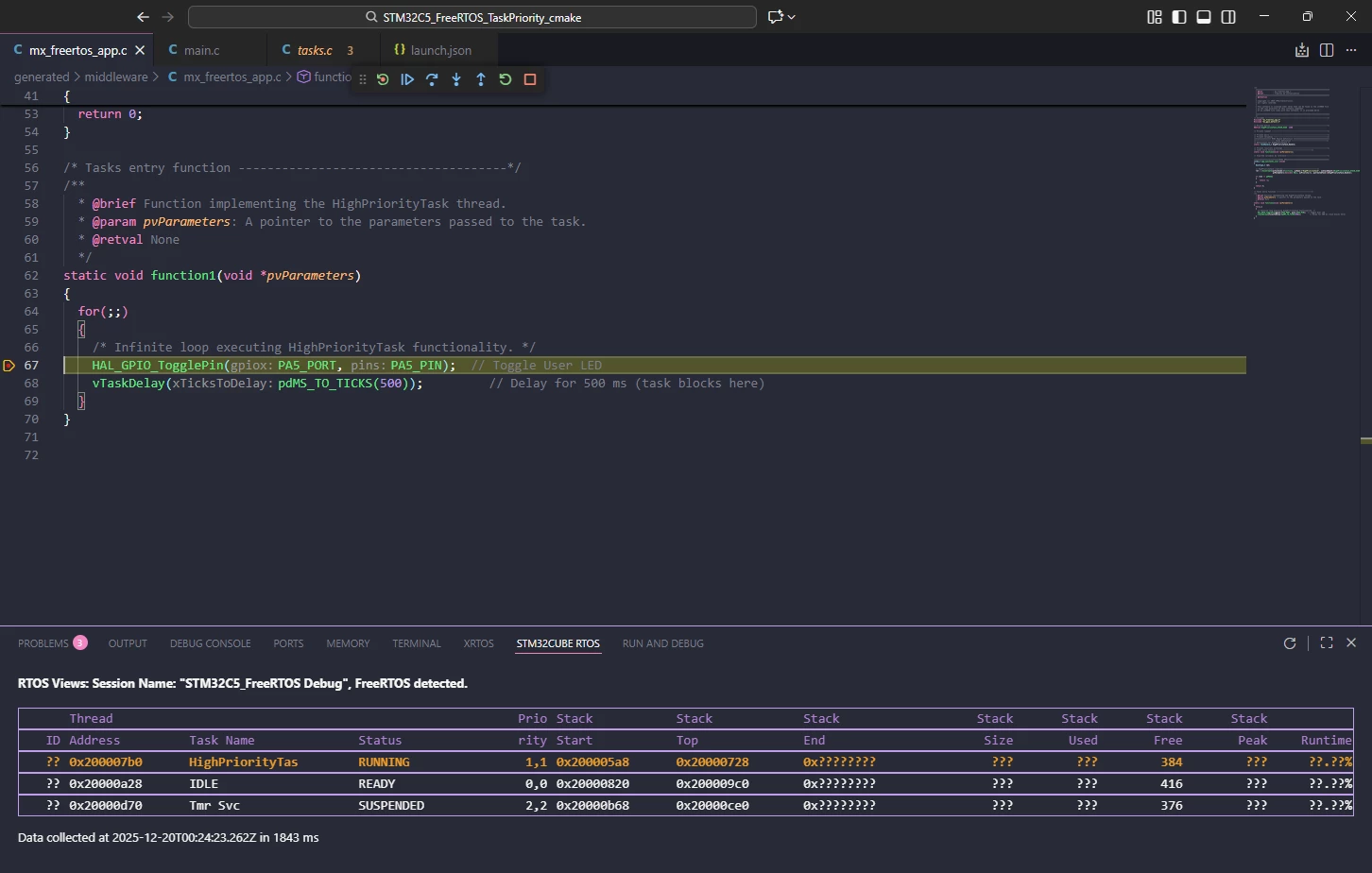
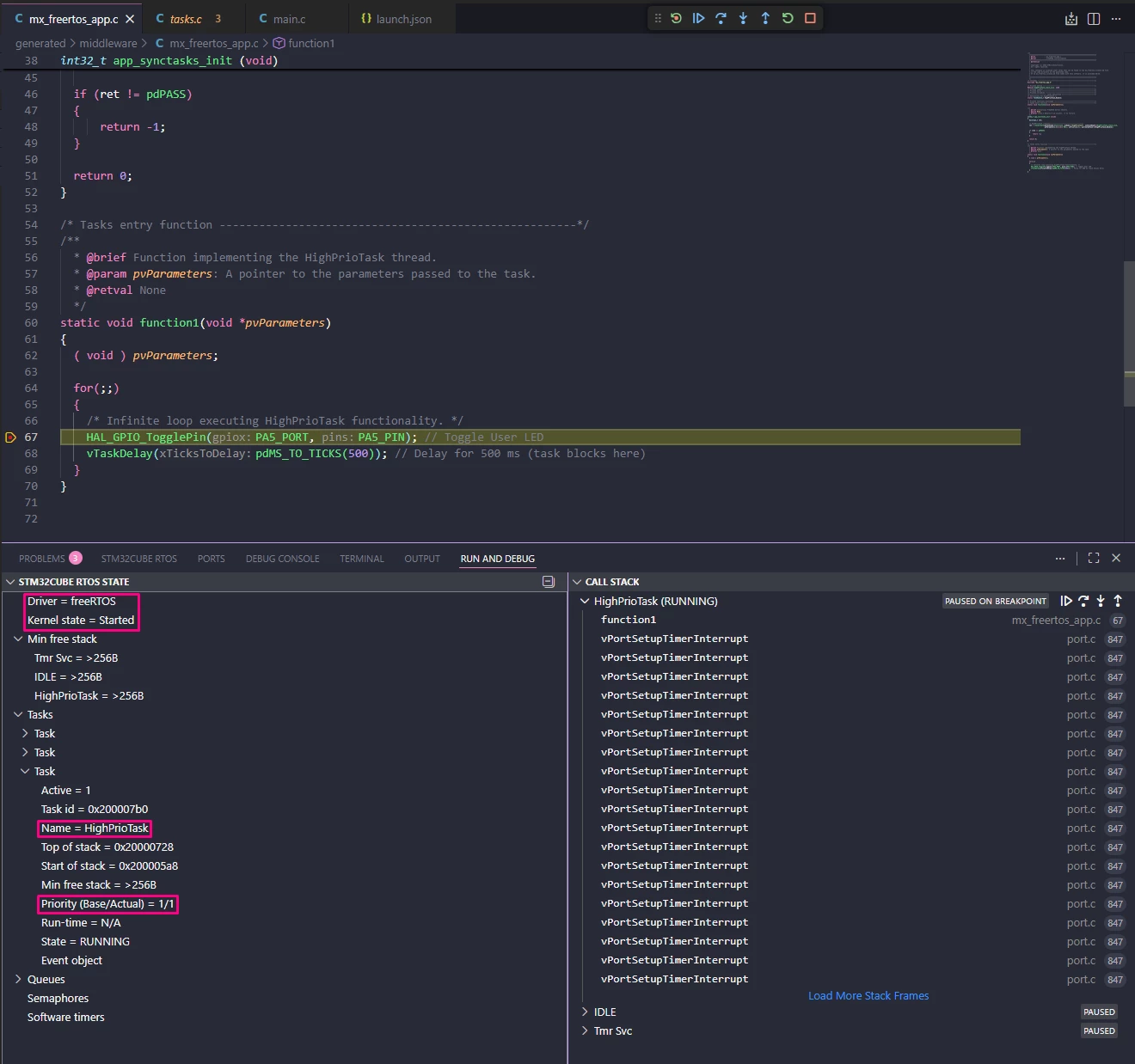
Additionally, with "serverRtos" enabled you get an additional RTOS panel in VS Code that shows richer information about the system at runtime. This makes it much easier to analyze and debug FreeRTOS behavior.
9. Troubleshooting tip
If the RTOS view does not show FreeRTOS tasks or states properly, you may need to add the stlinkgdbtarget debug type to your VS Code extension configurations.
- Open Command Palette in VS Code (Ctrl+Shift+P or F1).
- Type and select Preferences: Open User Settings (JSON).

- Add or modify the following configuration snippet to enable stlinkgdbtarget debugging support
"mcu-debug.rtos-views.trackDebuggers": [
 "stlinkgdbtarget",
 ],
Conclusion
By following the steps outlined in this article, you can successfully create, build, and debug FreeRTOS™ applications on STM32 microcontrollers using STM32CubeMX2 and Visual Studio Code. This tutorial provides a practical approach covering system initialization, task creation, scheduler startup, and real-time debugging with RTOS awareness.
Leveraging the modular initialization function (app_synctasks_init) for task setup and the powerful debugging features available in VS Code, you gain an efficient workflow to develop and troubleshoot FreeRTOS™-based embedded applications. This foundation helps ensure a smooth and effective development experience tailored to your project requirements.
Related links
- RM0522 - STM32C5 Arm®-based 32-bit MCUs Reference manual
- DS14927 - STM32C562xx Datasheet
- STM32Cube for Visual Studio Code
- NUCLEO-C562RE
- STM32CubeMX code generator - STMicroelectronics
- STM32 Embedded software documentation
- STM32CubeMX2 software documentation