


How to set up a VS Code profile for STM32CubeMX2
Summary
This article provides a detailed guide on how to create, configure, and use Visual Studio Code profiles specifically tailored for MX2 development. It covers setting up a dedicated VS Code profile to streamline the workflow, managing extensions and settings optimized for MX2 projects, and leveraging the profile for efficient building and debugging. By following this tutorial, developers can enhance their productivity and maintain a consistent development environment across multiple MX2 projects.
- Summary
- Introduction
- Prerequisites
- 1. Create a new profile
- 2. Switch to the new profile
- 3. Configuring user settings (settings.json)
- Conclusion
- Related links
Introduction
Visual Studio Code profiles allow developers to create customized, isolated development environments tailored to specific projects or workflows. For MX2 development, leveraging VS Code profiles helps maintain a clean, focused setup with the necessary extensions, settings, and configurations dedicated to MX2 projects.
Using a dedicated VS Code profile for MX2 ensures that your development environment is optimized for STM32CubeMX2-generated projects, reducing configuration overhead and minimizing conflicts with other projects or toolchains. This approach facilitates faster project setup, consistent debugging experiences, and streamlined build processes.
This article guides you through creating and configuring a VS Code profile for MX2, managing the profile, and using it effectively for building and debugging STM32 projects generated by MX2.
Prerequisites
Before proceeding with the setup and usage of a VS Code profile for MX2, ensure that you have the following installed and configured on your development system:
1. Create a new profile
- Launch Visual Studio Code.
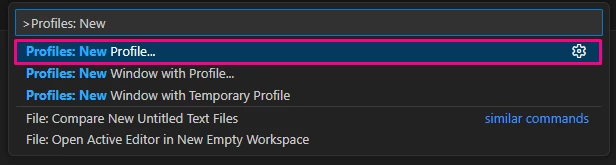
- Open the Command Palette by pressing Ctrl+Shift+P (Windows/Linux) or Cmd+Shift+P (macOS).
- Type and select Profiles: New Profile…
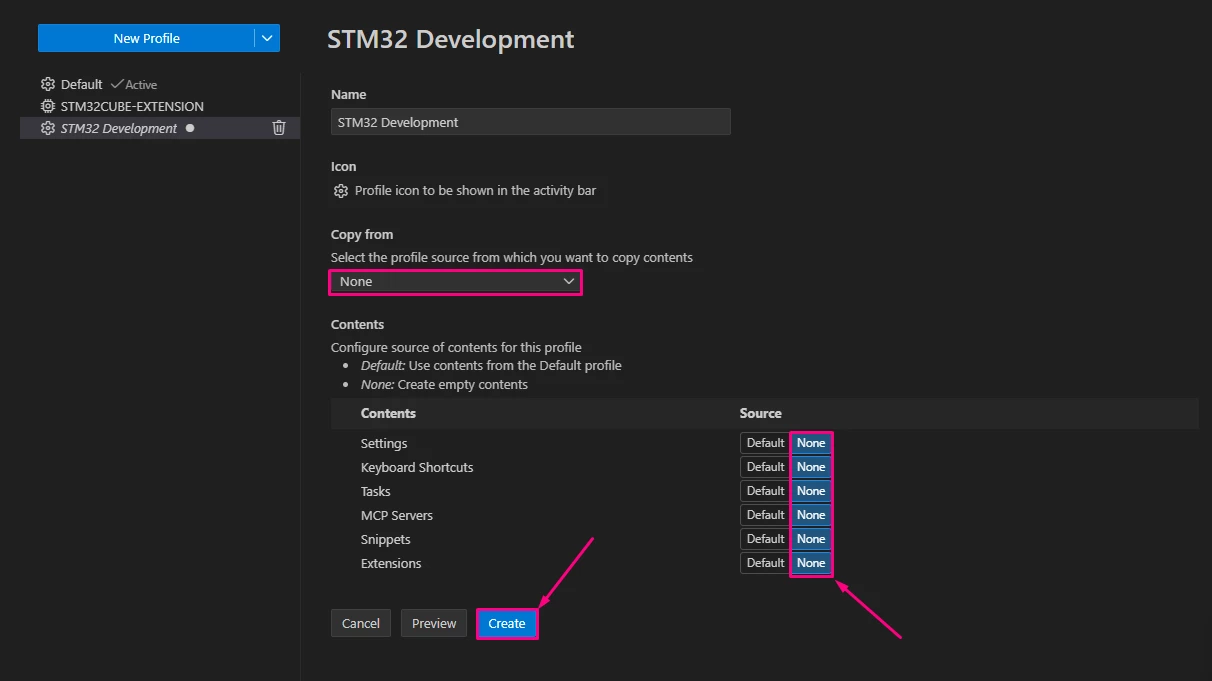
- Enter a descriptive name, such as "STM32 Development".
- For a clean profile, in "Copy from" and "Contents" select [None].
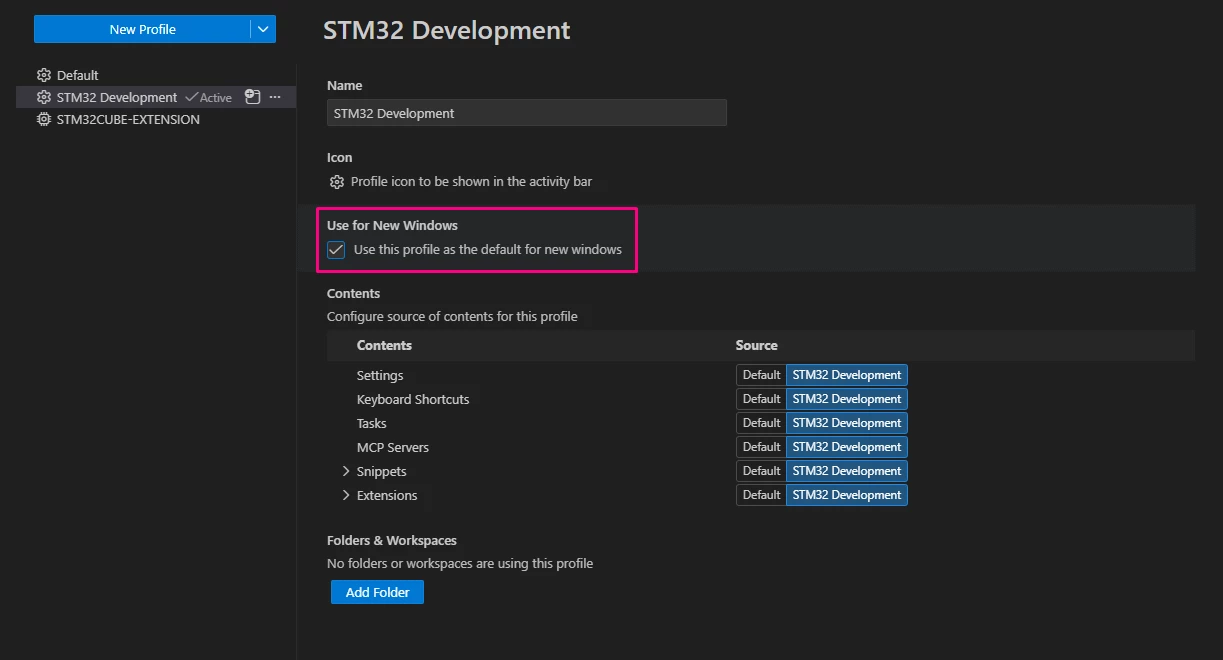
- [Create] your new profile and set it as default for new windows.
2. Switch to the new profile
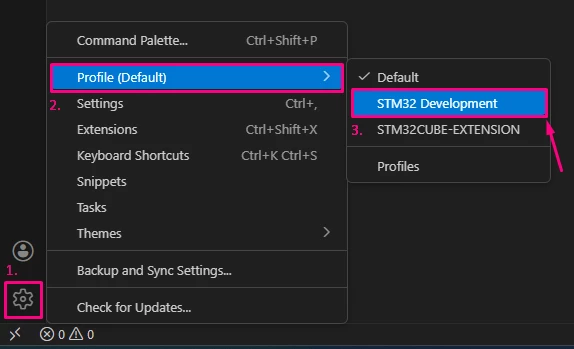
- After creation, VS Code will prompt you to switch to the new profile.
- Confirm to switch immediately or switch later via the profile selector in the bottom-left corner of the VS Code window.
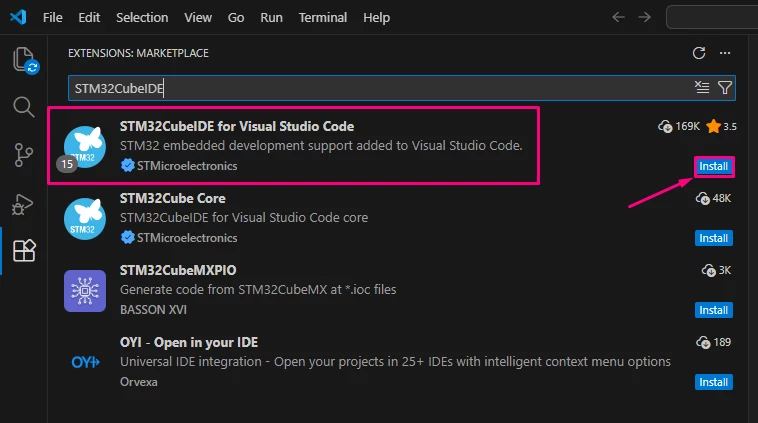
- With the new profile active, install the STM32CubeIDE for Visual Studio Code extension and any other dependencies.
3. Configuring user settings (settings.json)
To tailor the environment precisely for STM32 projects, you can customize the profile’s User Settings JSON file. This file controls environment variables, executable paths, and other preferences that VS Code uses during build and debug operations.
- Open Command Palette in VS Code (Ctrl+Shift+P or F1).
- Type and select Preferences: Open User Settings (JSON).

- Here is an example configuration that you can adapt for your profile.
{
 "cmake.environment": {
 "PATH": "c:/Users/%user%/.vscode/extensions/stmicroelectronics.stm32cube-ide-build-cmake-1.43.0/resources/cube-cmake/win32;c:\\Users\\%user%\\.vscode\\extensions\\stmicroelectronics.stm32cube-ide-core-1.1.0\\resources\\binaries\\win32\\x86_64;${env.PATH}"
 },
 "stm32cube-ide-core.configuration.productFinder.executablePath": "C:/Users/%user%/AppData/Local/Programs/STMCUFinder/STMCUFinder.exe",
 "stm32cube-ide-core.configuration.productSTM32CubeMX.executablePath": "C:/Users/%user%/AppData/Local/Programs/STM32CubeMX/STM32CubeMX.exe",
 "cmake.cmakePath": "cube-cmake",
}
Note: Adjust the [%user%] placeholders and paths according to your system environment.
- Now, all installed extensions and settings are saved within the profile context.
- When switching profiles, VS Code automatically applies the corresponding configurations.
Conclusion
This article has provided a comprehensive guide on how to create, configure, and use Visual Studio Code profiles tailored for STM32 development. By leveraging VS Code profiles, you can maintain isolated and optimized environments that streamline your workflow, improve build and debug consistency, and reduce configuration conflicts.
With a dedicated STM32 profile, managing extensions, settings, and toolchains becomes straightforward, enabling faster project setup and smoother development cycles. Adopting this approach helps ensure a productive and efficient embedded development experience with STM32CubeMX2-generated projects.