

How to generate code for IAR from STM32CubeMX2
Summary
This article provides a step-by-step guide on generating STM32 project code for IAR Embedded Workbench using the STM32CubeMX2 tool. It covers creating and configuring the project within STM32CubeMX2. This includes selecting the IAR toolchain, generating compatible project files, and importing them into IAR Embedded Workbench. Additionally, the article explains how to build and debug the generated project in IAR, offering practical tips to streamline your STM32 development workflow with this powerful combination.
- Summary
- Introduction
- Prerequisites
- 1. Creating the STM32CubeMX2 project
- 1.1 Selecting the target MCU or board
- 1.2 Configuring peripherals and pins
- 1.3 Setting the format for IAR
- 2. Importing the generated project into IAR embedded workbench
- 2.1 Opening the project
- 2.2 Reviewing project settings
- 2.3 Configuring debugger and flash settings
- 3. Building the project
- 3.1 Making the project
- 4. Debugging the project
- Conclusion
- Related links
Introduction
STM32CubeMX2 is a powerful graphical tool from STMicroelectronics that simplifies the configuration and initialization of STM32 microcontrollers. It enables developers to generate initialization code based on their selected peripherals, middleware, and project settings, accelerating embedded application development.
IAR Embedded Workbench is a widely used integrated development environment (IDE) known for its highly optimizing C/C++ compiler and comprehensive debugging capabilities tailored for embedded systems. It offers robust support for STM32 microcontrollers, making it a preferred choice for many professional developers seeking efficient code generation and reliable debugging.
By combining STM32CubeMX2 with IAR Embedded Workbench, developers can benefit from the ease of graphical configuration and code generation alongside the powerful build and debug features of IAR. This article guides you through the workflow of creating STM32 projects in STM32CubeMX2, generating code compatible with IAR, and seamlessly importing, building, and debugging the project within the IAR environment.
Prerequisites
Before starting the workflow to generate STM32 project code for IAR Embedded Workbench using STM32CubeMX2, ensure that you have the following installed and configured:
- IAR Embedded Workbench for Arm
- STM32CubeMX2
- The latest STM32C5 HAL2 driver
1. Creating the STM32CubeMX2 project
This section guides you through creating a new STM32 project using STM32CubeMX2, configuring peripherals, and preparing the project for IAR Embedded Workbench.
1.1 Selecting the target MCU or board
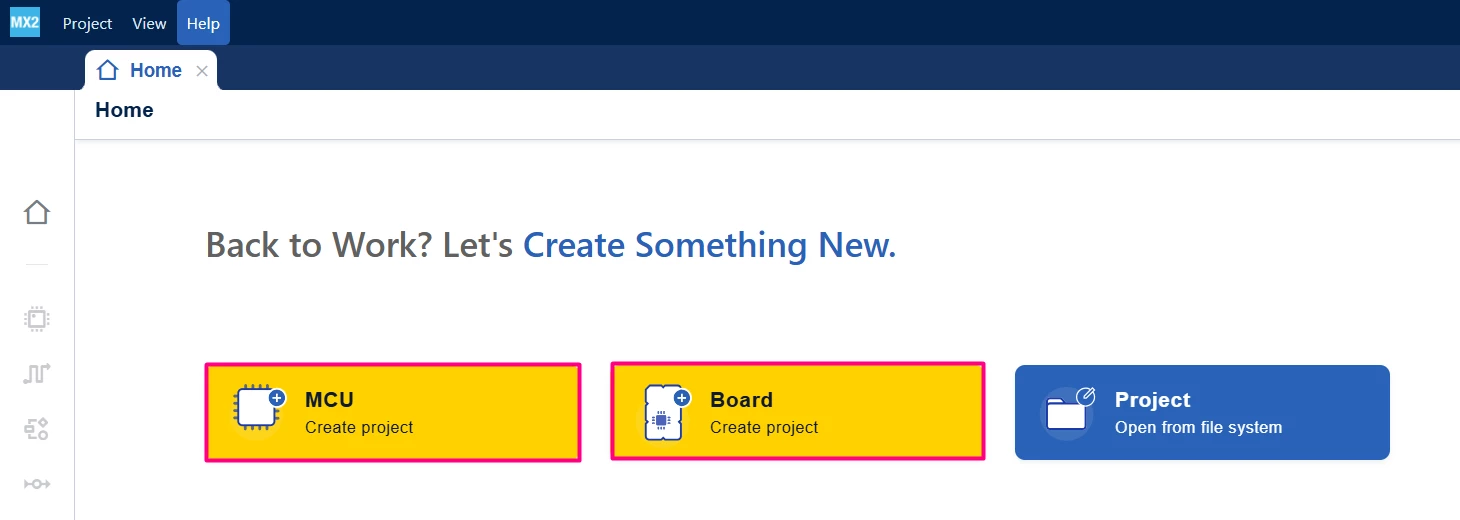
- Launch STM32CubeMX2.
- Select your target STM32 microcontroller or development board from the list.
- Confirm the selection to proceed to the project configuration.
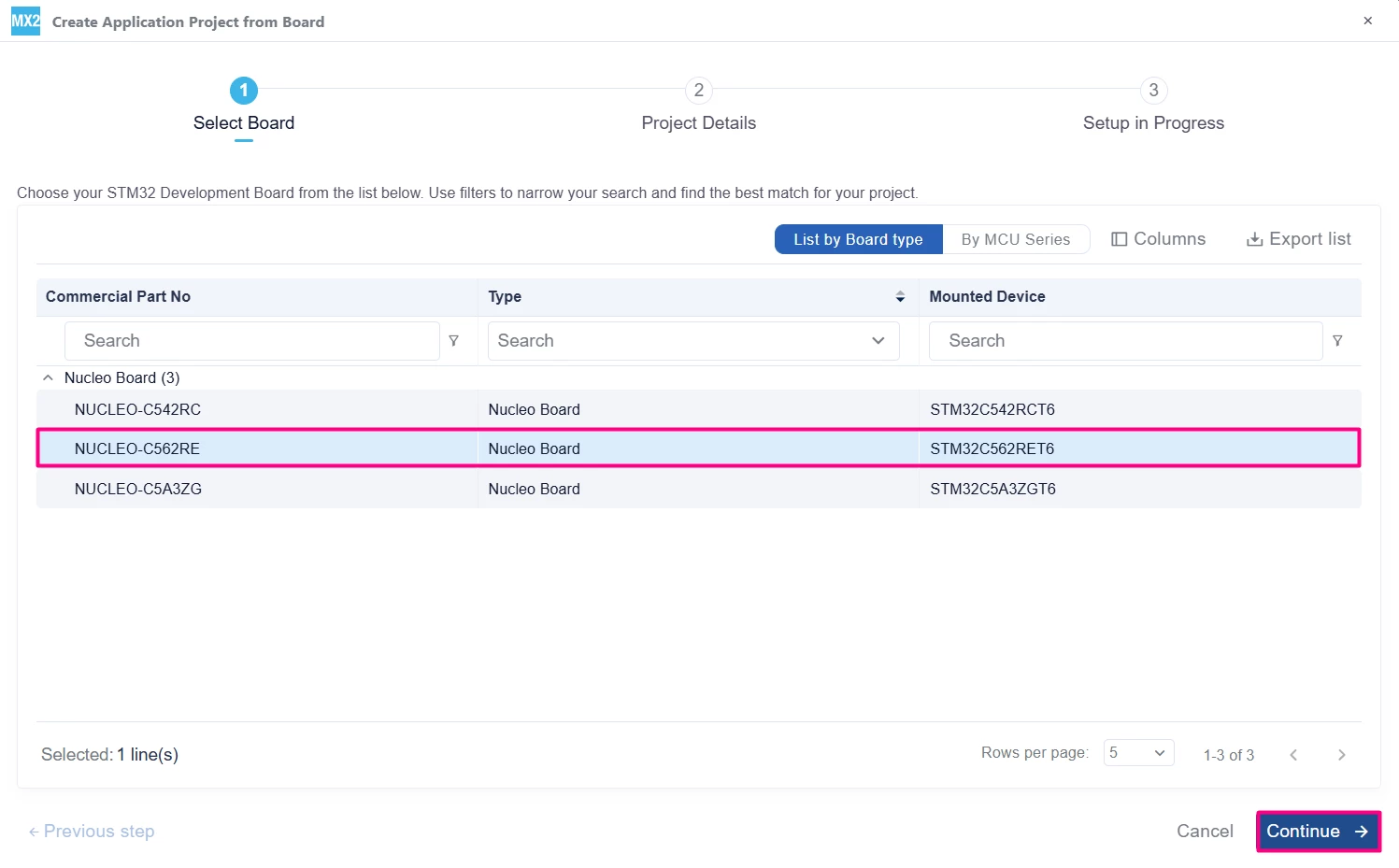
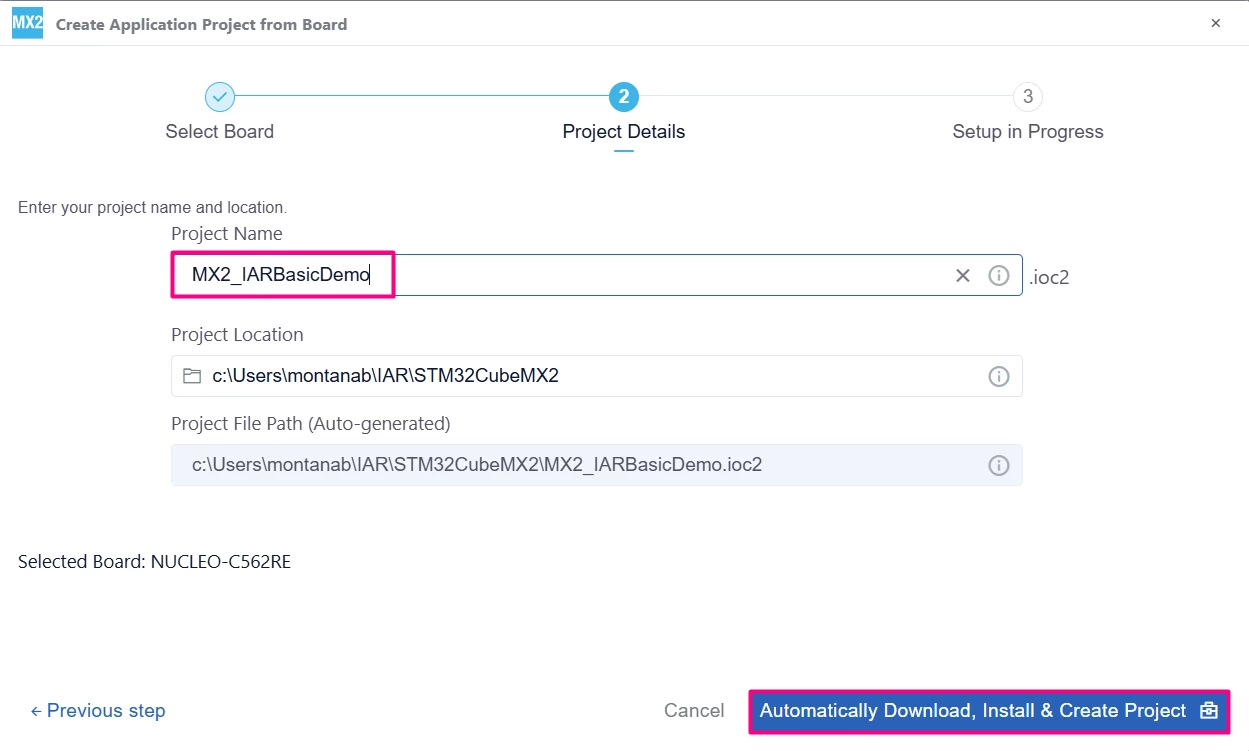
- Set the Project Name and Project Location.
- Continue with [Automatically Download, Install & Create Project].
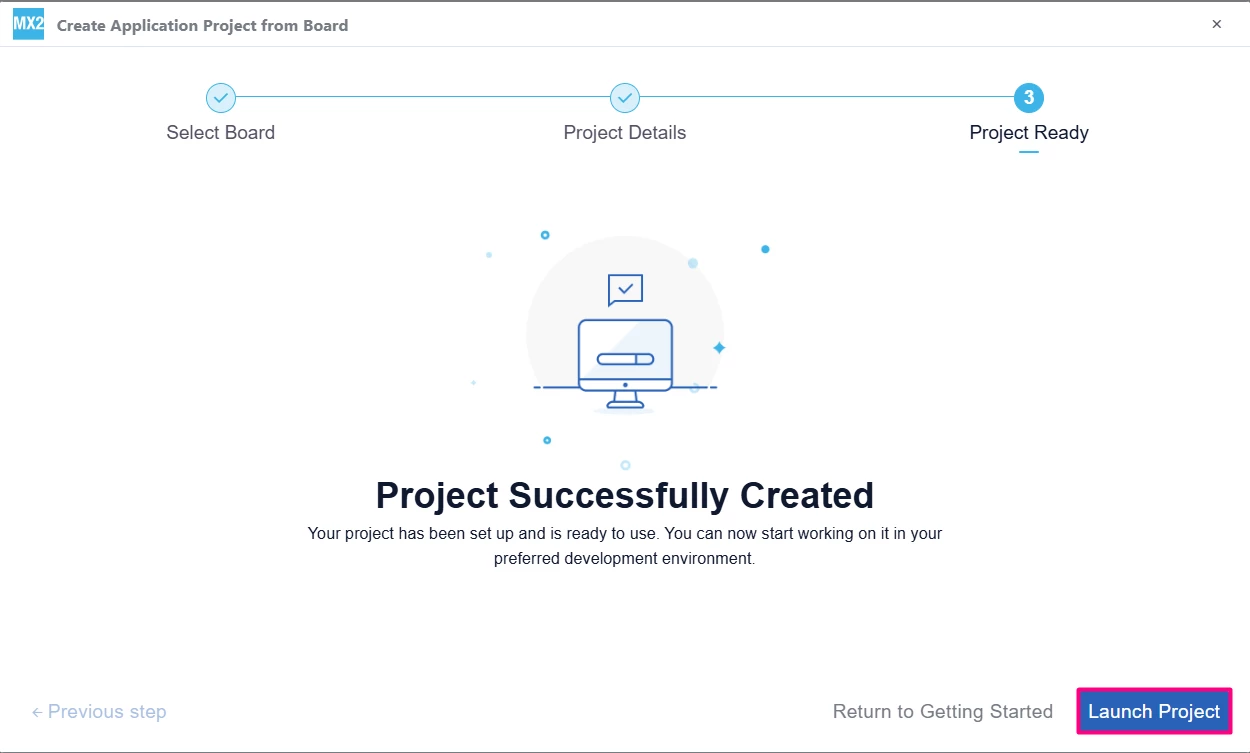
- [Launch Project]
1.2 Configuring peripherals and pins
- Use the [Pinout] tab to configure the pins you use in your application. For example, to create a simple LED blink application on the [NUCLEO-C562RE] board, configure PA5 as a GPIO output, which corresponds to the user LED.
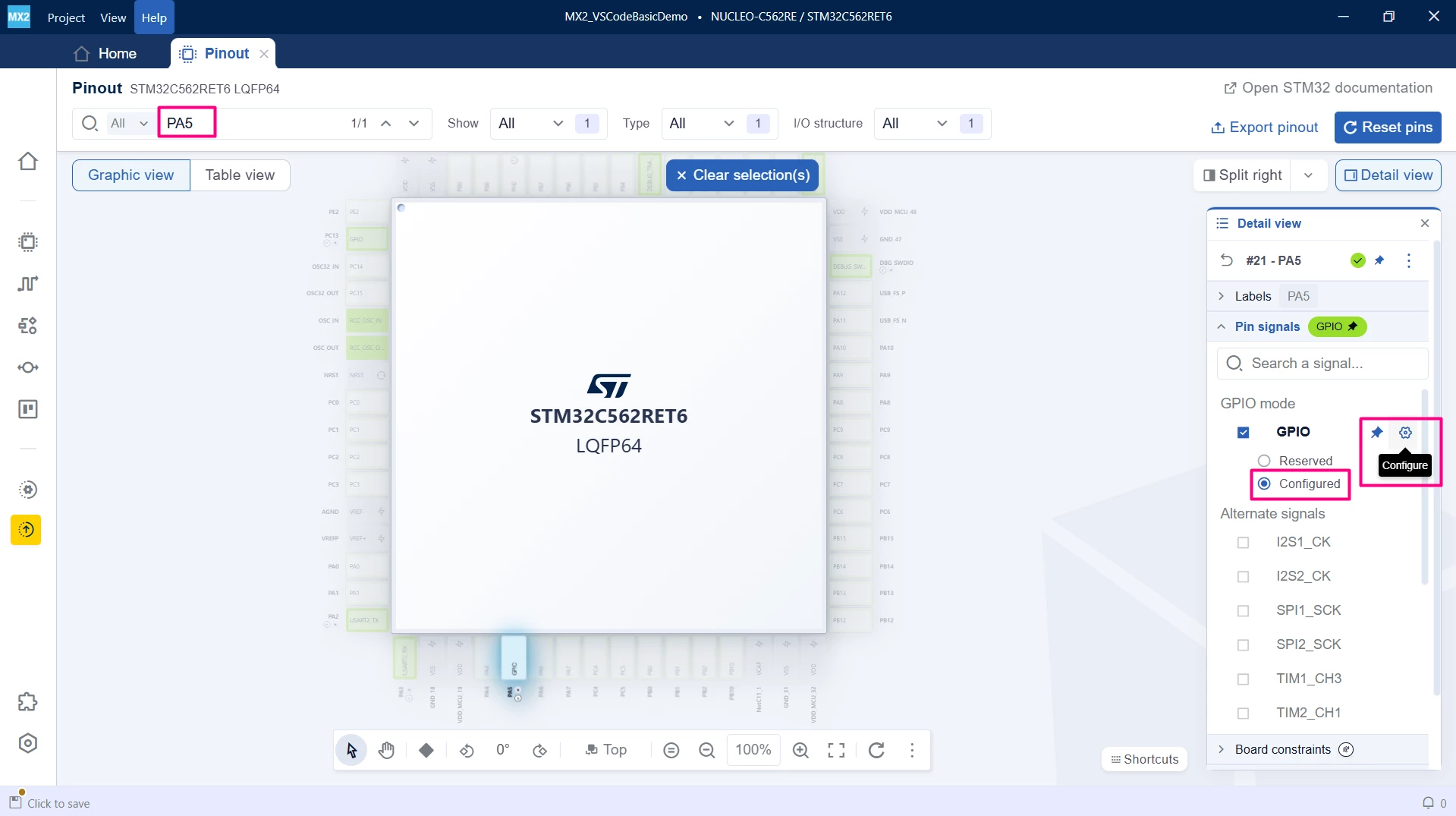
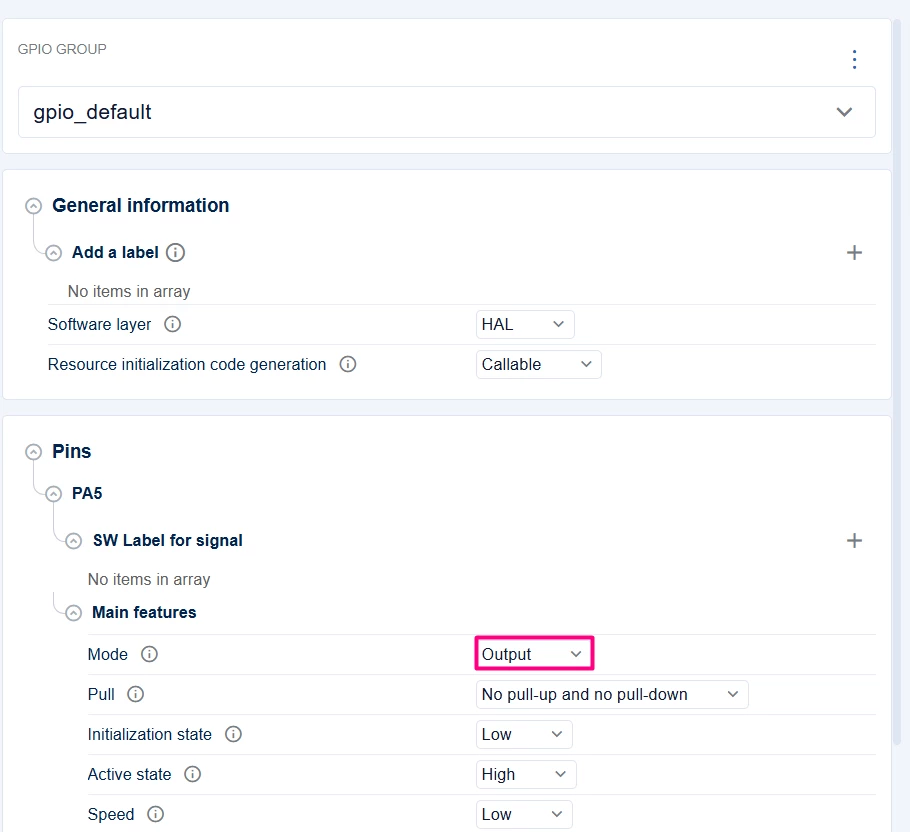
- In the [Clock] tab, review the clock settings. For this example, the default clock configuration is sufficient and does not require modification.
- In the [Peripheral] tab, configure the settings of the peripherals you intend to use. For this example, no additional peripherals are required beyond GPIO.
- Use the [Middleware] tab to enable and configure any middleware components if needed (for example, FreeRTOS™, USBX). For the LED blink example, middleware configuration is not necessary.
- The [Parts] tab allows you to configure part-specific drivers and settings. For this simple example, default settings are sufficient.
1.3 Setting the format for IAR
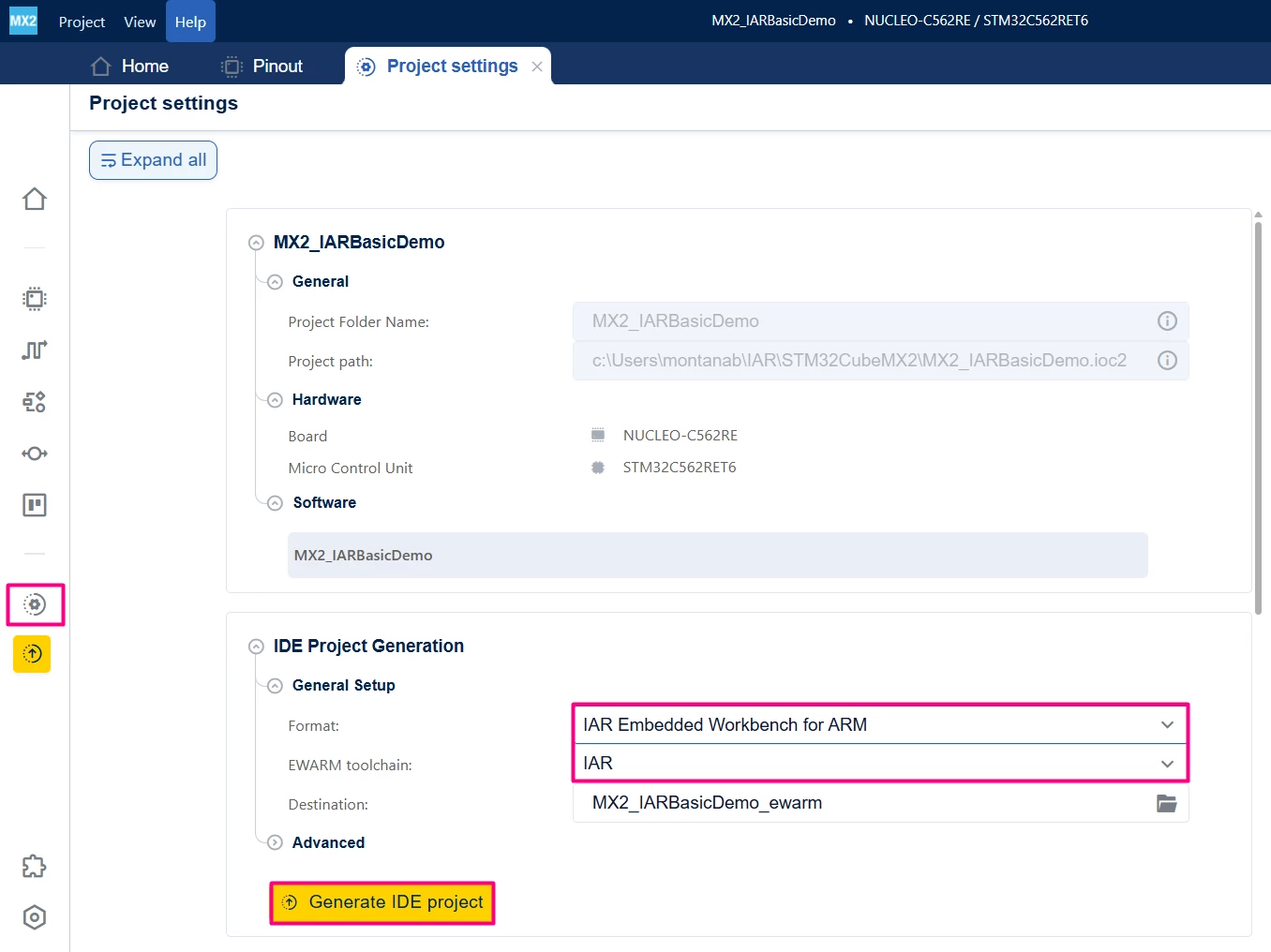
- In the [Project Settings] → [IDE Project Generation] → [General Setup] section.
- Ensure the Format is set to [IAR Embedded Workbench for ARM] and the EWARM toolchain is set to [IAR].
- [Generate] the project.
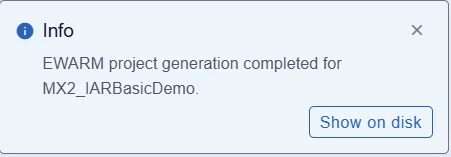
STM32CubeMX2 generatess the source code, header files, and essential project configuration files such as .ewp (IAR Embedded Workbench project) and .eww (workspace) files. These files are structured to be fully compatible with IAR Embedded Workbench, enabling seamless project import, build, and debug operations.
2. Importing the generated project into IAR embedded workbench
After generating your STM32CubeMX2 project with the IAR project format, follow these steps to open and configure it in IAR Embedded Workbench:
2.1 Opening the project
- Launch IAR Embedded Workbench for ARM.
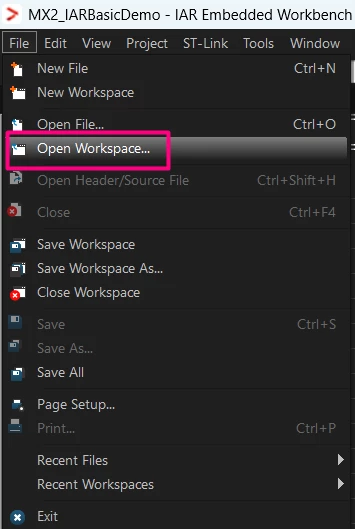
- Select [File] → [Open Workspace…].
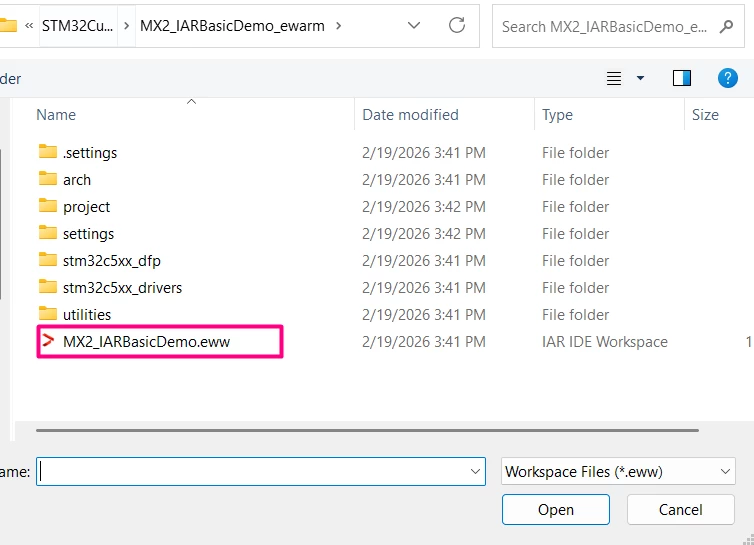
- Browse to the folder where STM32CubeMX2 generated your project.
- [Open] the .eww workspace file associated with your project.
2.2 Reviewing project settings
- In the Workspace window, locate your project in the project tree.
- Right-click on the project name and select [Options...] from the context menu.
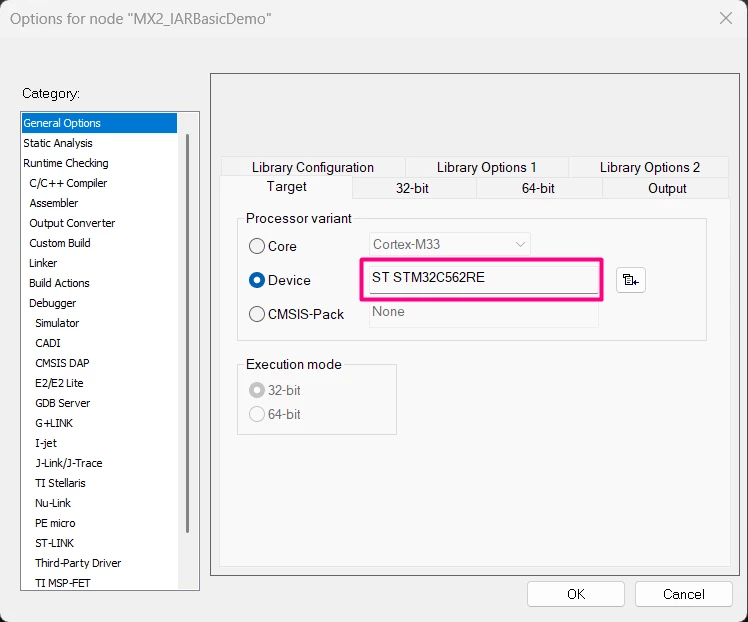
- In the [Options] dialog, verify the following:
- Under the [General Options] → [Target] category, confirm that the correct STM32 device is selected.
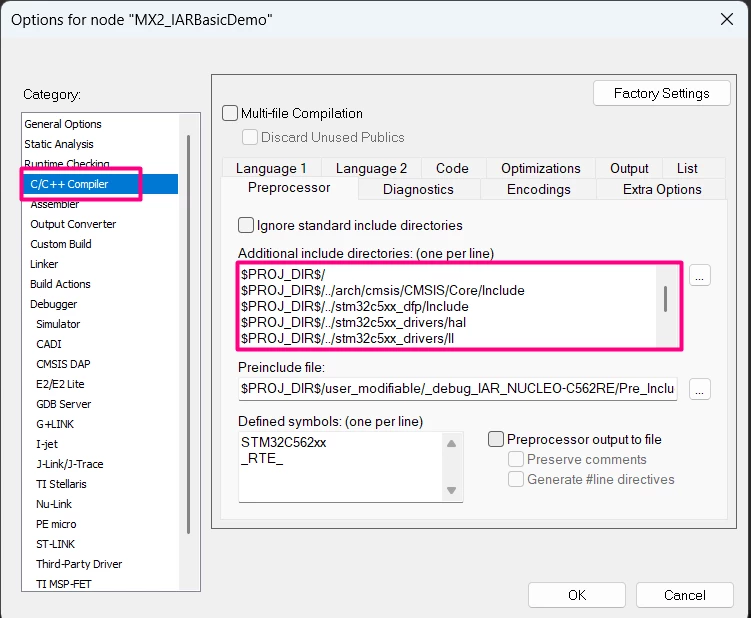
- Under [C/C++ Compiler] and [Linker] categories, review the settings to ensure that they align with your application requirements and target MCU.
- Adjust optimization levels, include paths, or other compiler/linker options as needed.
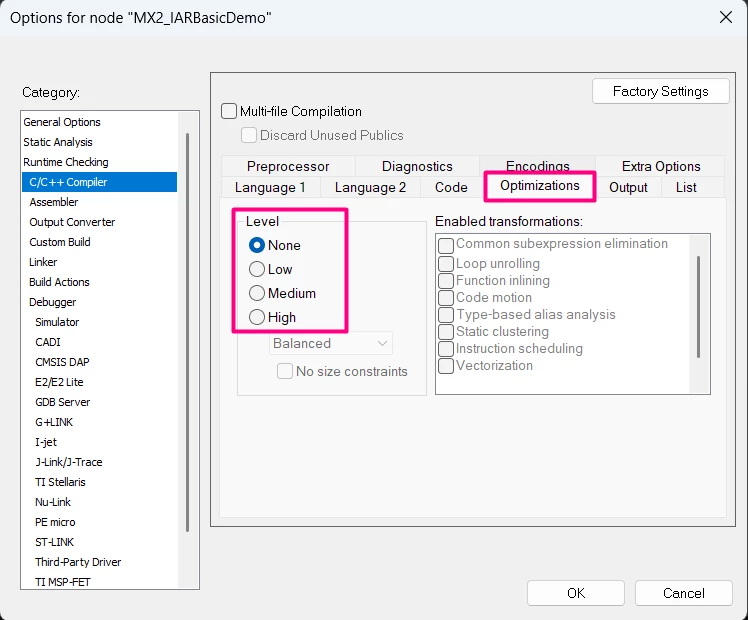
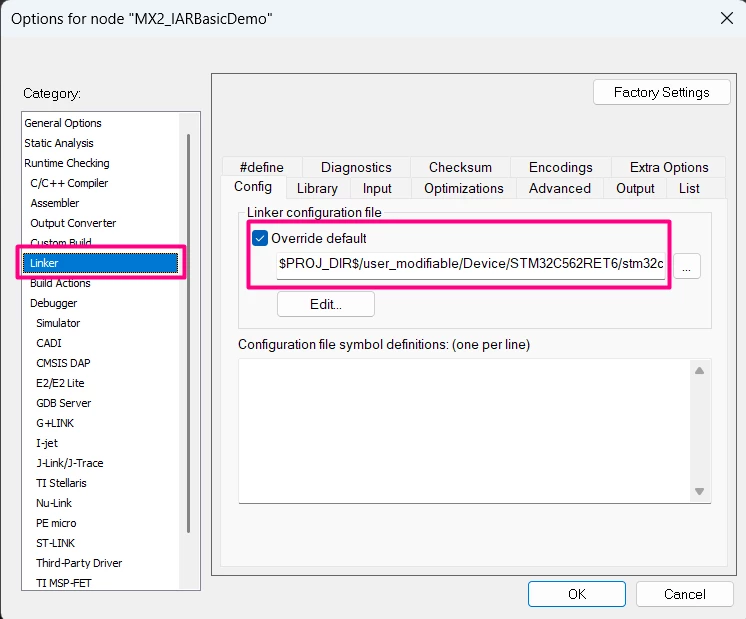
2.3 Configuring debugger and flash settings
- While still in the [Options] dialog, navigate to the [Debugger] category.
- Confirm that the debug interface is set to ST-LINK or your preferred debugger.
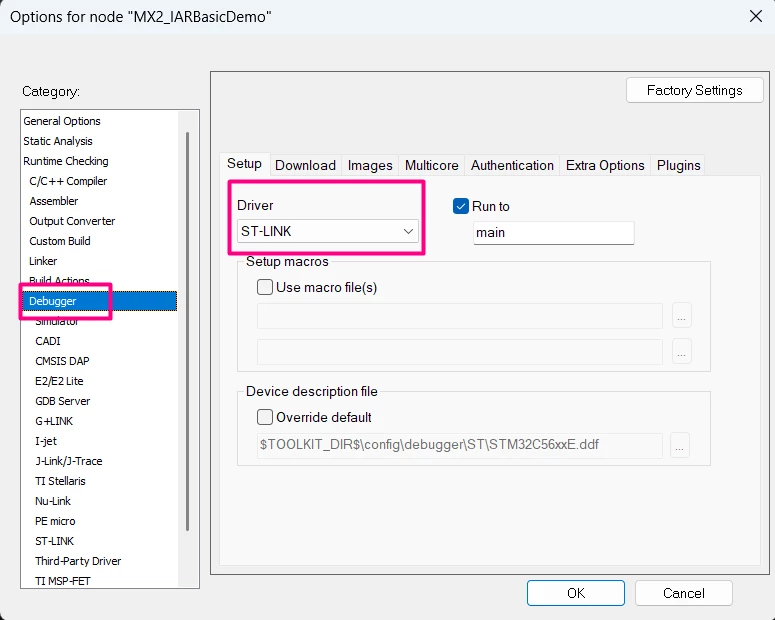
- Under the [Download] options, verify that the programming algorithm and flash settings are correctly configured for your device.
3. Building the project
After importing and configuring your STM32CubeMX2 project in IAR Embedded Workbench, you can proceed with building your application using the integrated tools.
3.1 Making the project
Add a simple LED toggle code:
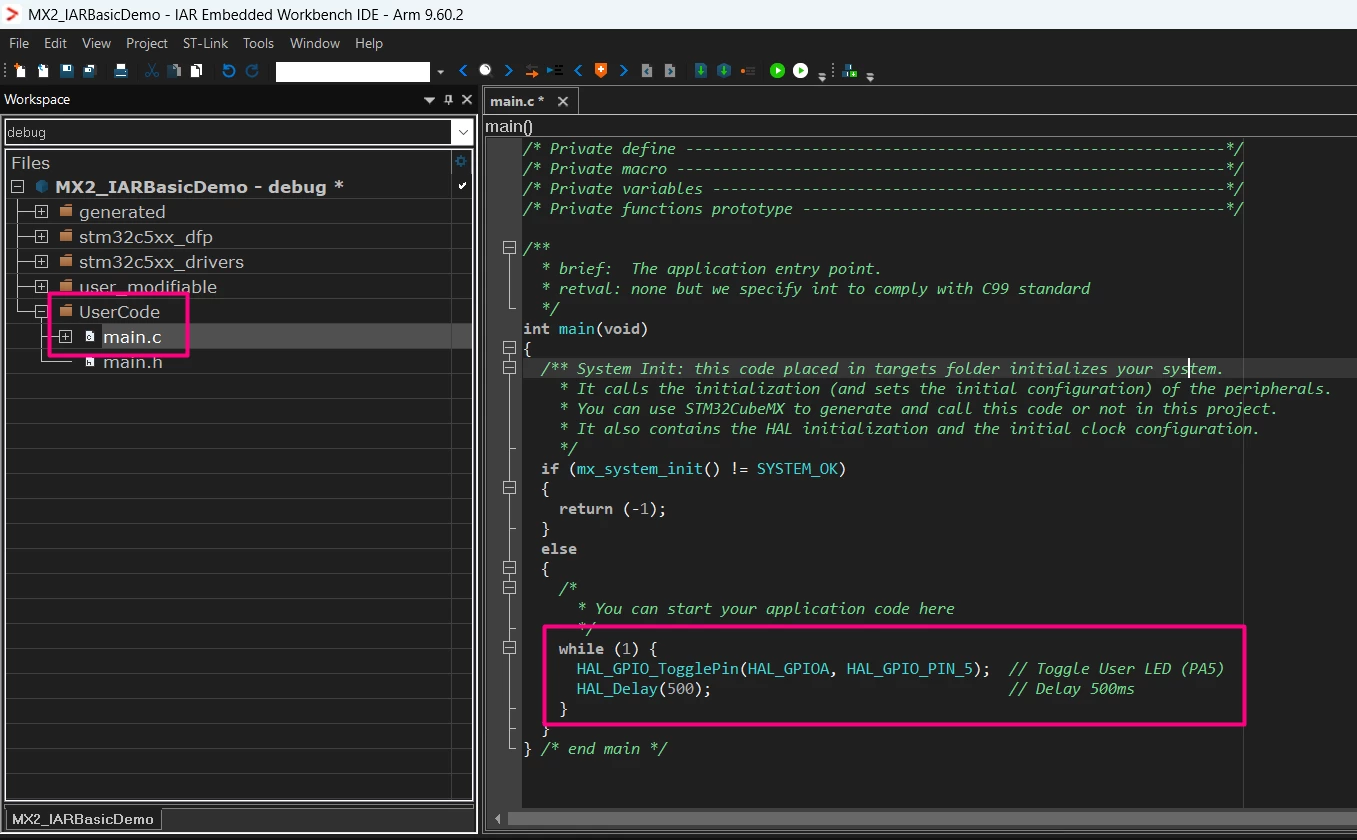
Before building, for this example, let’s add a simple LED toggle implementation to verify the setup. In the user_modifiable/Application/STM32C562RET6 folder, open the main.c file and add the following code inside the while (1) loop to toggle the user LED (PA5)
while (1) {
 HAL_GPIO_TogglePin(HAL_GPIOA, HAL_GPIO_PIN_5); // Toggle User LED (PA5)
 HAL_Delay(500); // Delay 500ms
 }
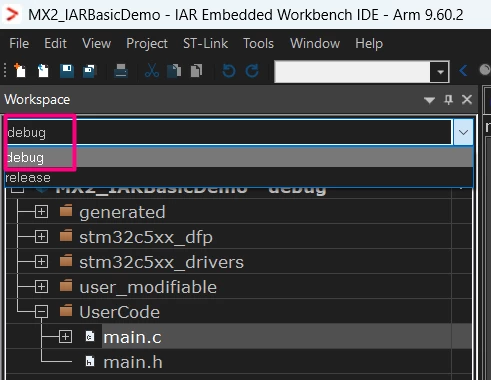
Select the Make Configuration:
Select the desired make configuration from the workspace dropdown.
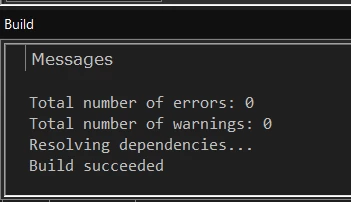
Make the project:
Use the [Project] → [Make] menu option, press F7, or click the [Make] button to make the active project. This action builds all necessary files and dependencies.

4. Debugging the project
Connect the debugger:
Connect your STM32 board to your PC using the STLINK or compatible debug interface. Ensure drivers and firmware are up to date.
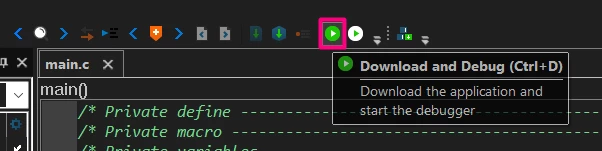
Start debugging:
Select [Project] → [Download and Debug], press Ctrl+D, or click the [Download and Debug] button. IAR programs the device and halts at the reset vector or the first breakpoint.
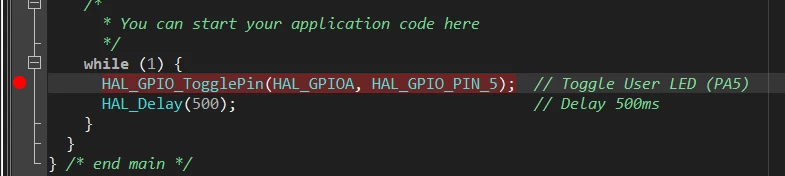
Set Breakpoints:
Click in the left margin next to the code lines where you want to pause execution.
 Step through code:
Use the debugging toolbar to:
- Step Over (F10) to execute the next line without entering functions.
- Step Into (F11) to dive into function calls.
- Step Out (Shift+F11) to exit the current function.
View call stack:
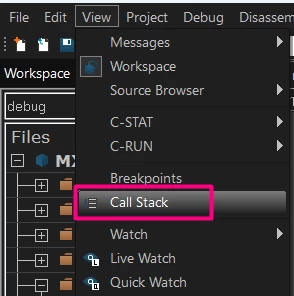
Open the [Call Stack] view from the [View] menu to see the sequence of function calls leading to the current execution point. This helps trace program flow and debug complex call hierarchies.
Inspect variables:
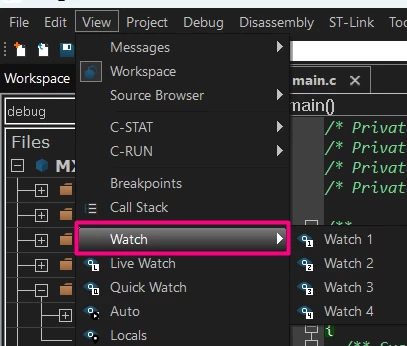
Use the [Watch], [Live Watch], and [Quick Watch] views to monitor variables and expressions during execution. The [Auto], [Locals], and [Statics] views display variables in different scopes for easier inspection.
Inspect registers:
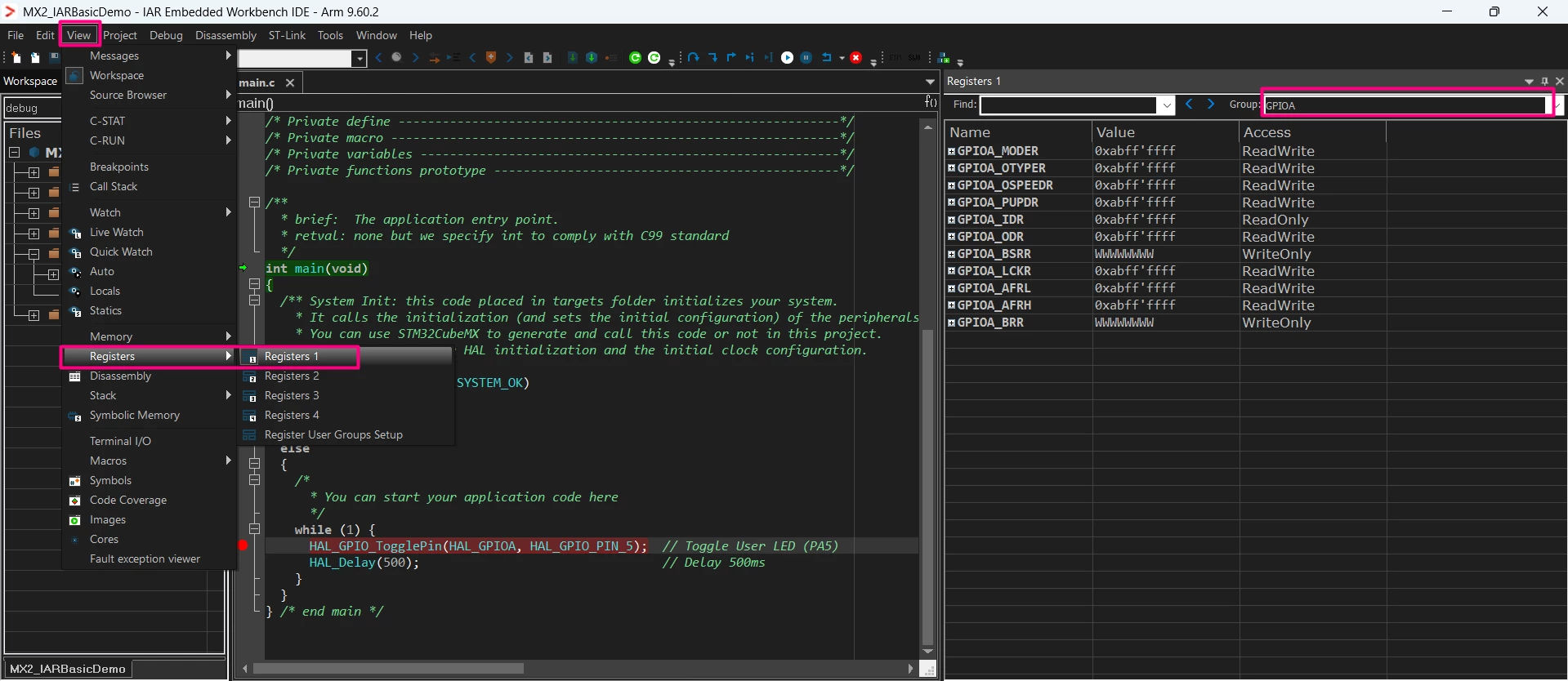
Use the [Registers] view to examine and modify CPU register values, providing insight into processor state and control.
 Inspect memory:
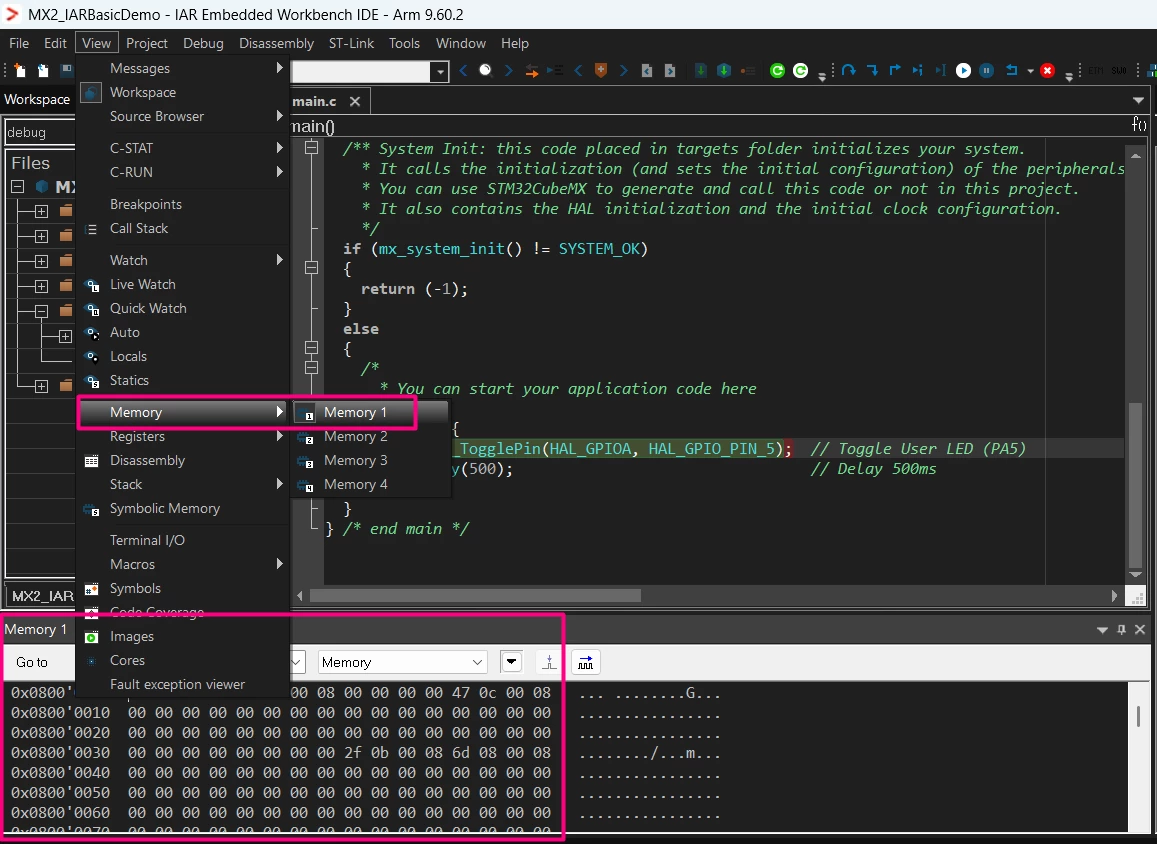
Open the [Memory] view to inspect memory contents directly during debugging. This is useful for low-level verification and troubleshooting.
 Disassembly:
The [Disassembly] view shows the assembly code corresponding to your source, aiding in low-level debugging and performance analysis.
Stack:
The [Stack] view displays the current call stack and stack usage, helping detect stack overflows or memory issues.
Fault Exception Viewer:
Use this view to analyze faults and exceptions during debugging, assisting in diagnosing critical errors.
Serial communication:
IAR does not include a full UART serial monitor.
You can use the [Terminal I/O] view for debugger/semihosting output, and an external terminal program for standard UART communication, configuring the COM port and baud rate to match your device.
RTOS Debugging (if applicable):
If your project uses FreeRTOS™ or another RTOS, IAR provides RTOS‑aware debugging features.
When RTOS awareness is enabled and you start a debug session, an additional RTOS/Tasks window becomes available (via the View menu). This window lists all active tasks and shows, in real time, their state (Running, Ready, Blocked, Suspended), priority, and stack usage. This makes it easier to understand and debug the system’s runtime behavior.
Conclusion
This article has provided a comprehensive guide on generating STM32 project code for IAR Embedded Workbench using STM32CubeMX2. You can create and configure a project using STM32CubeMX2. Then, you can import, compile, and debug the project in IAR. This process helps you establish an efficient and reliable development environment for STM32 microcontrollers.
Leveraging STM32CubeMX2’s intuitive configuration capabilities alongside IAR’s powerful compiler and debugging tools enables developers to accelerate embedded application development while maintaining high code quality and debugging precision.
Adopting this integrated workflow helps streamline your STM32 development process, reduce setup complexity, and enhance productivity.
Related links
- RM0522 - STM32C5 Arm®-based 32-bit MCUs Reference manual
- DS14927 - STM32C562xx Datasheet
- NUCLEO-C562RE
- STM32CubeMX2
- STM32 Embedded software documentation
- STM32CubeMX2 software documentation
