


How to configure the MPU with STM32CubeMX2
- 0 replies
- 483 views
Summary
This article provides a step-by-step guide to enable the memory protection unit (MPU) and configure a memory region in STM32CubeMX2. The example uses the NUCLEO-C562RE board.
- Summary
- Introduction
- 1. Prerequisites
- 2. Project setup
- 2.1 Project creation
- 2.2 Enabling the MPU
- 2.3 MPU region configuration
- 2.4 Code generation
- 3. Configuring the project in Visual Studio Code
- Conclusion
- Related links
Introduction
The memory protection unit (MPU) is a microcontroller feature that allows developers to configure access and execution permissions for memory regions. The MPU can make an embedded system more robust and secure by, for example, defining a SRAM region as non-executable to prevent code injection attacks.
This article demonstrates how to configure a memory region as read-only and shows the error triggered when attempting to write to this region.
1. Prerequisites
- STM32CubeMX2
- Visual Studio Code with STM32CubeIDE extension
- NUCLEO-C562RE
- USB Type-C® cable
2. Project setup
2.1 Project creation
Follow the steps below to create an application project for the NUCLEO-C562RE board.
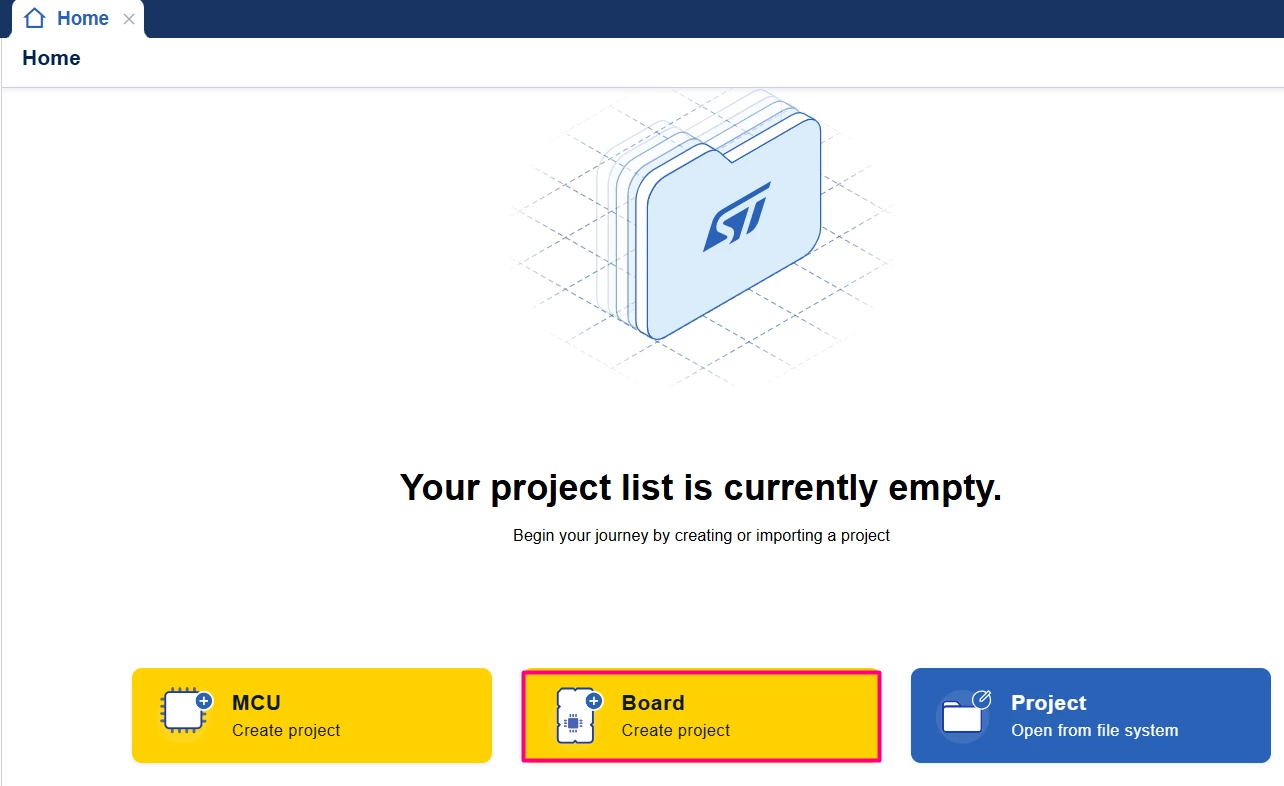
- Open STM32CubeMX2. On the Home page, locate and click the Board square to create a project.
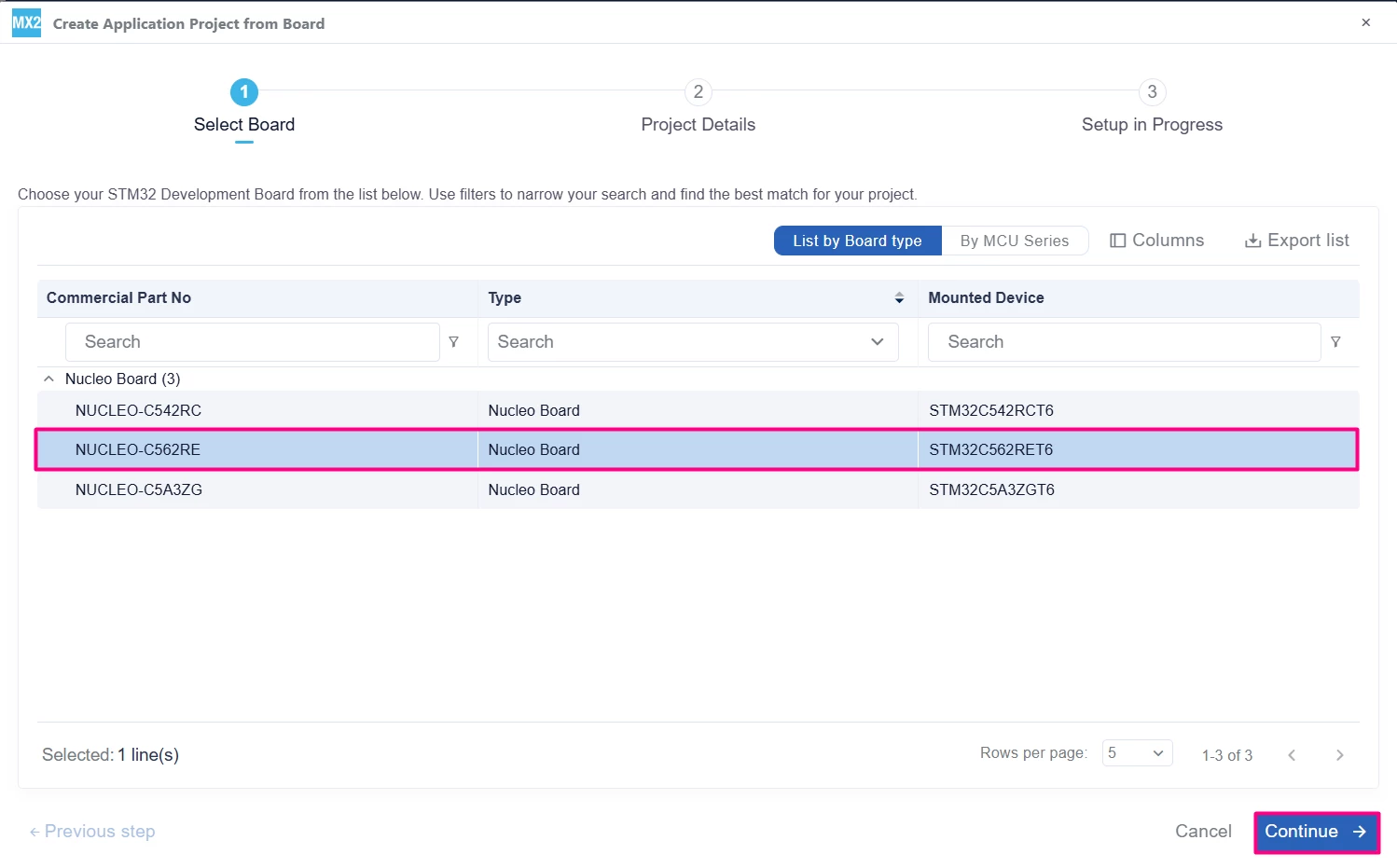
- In the new screen, use the field below Commercial Part No to search for your board (NUCLEO-C562RE). After selecting the board, click the [Continue] button in the lower right corner.
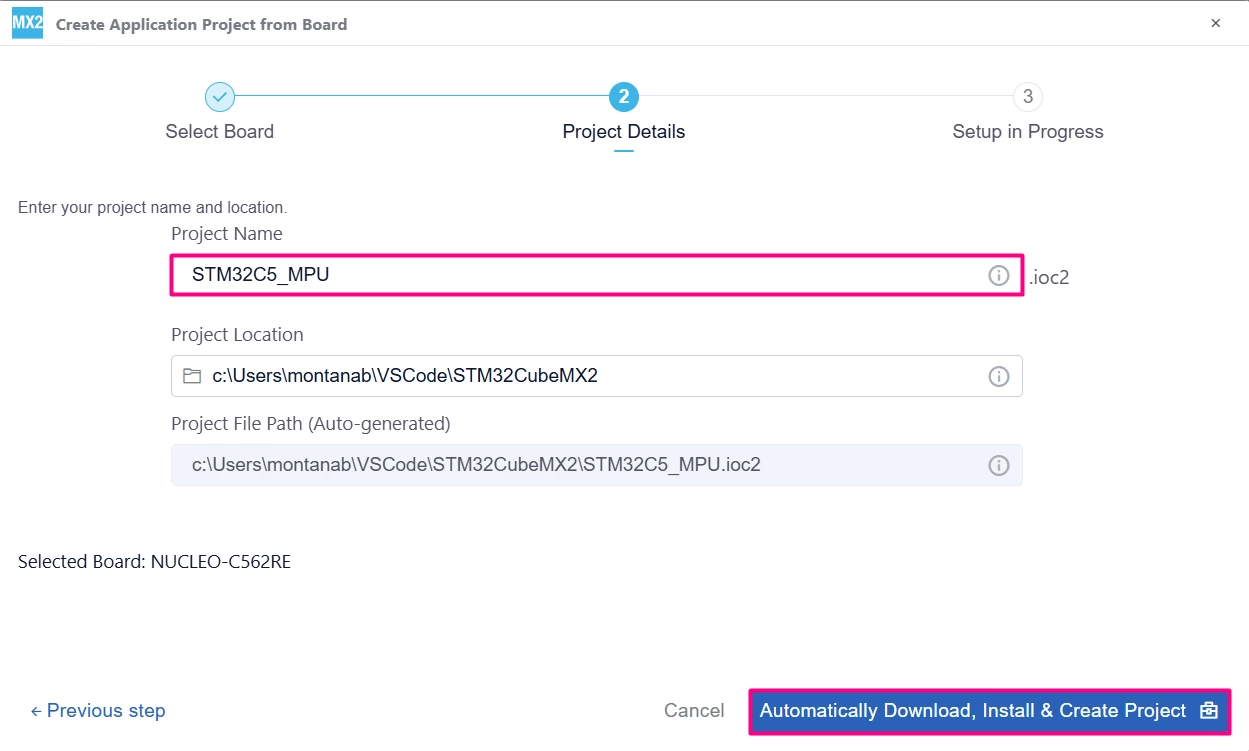
- Enter a name for your project in the Project Name field. To choose the project location, click the folder icon next to Project Location. Click the [Automatically Download, Install & Create Project] button in the lower right corner to finish this step.

2.2 Enabling the MPU
The MPU configuration is available under the Peripherals tab. To facilitate the workflow, observe the image below with the numberings for a quick identification:
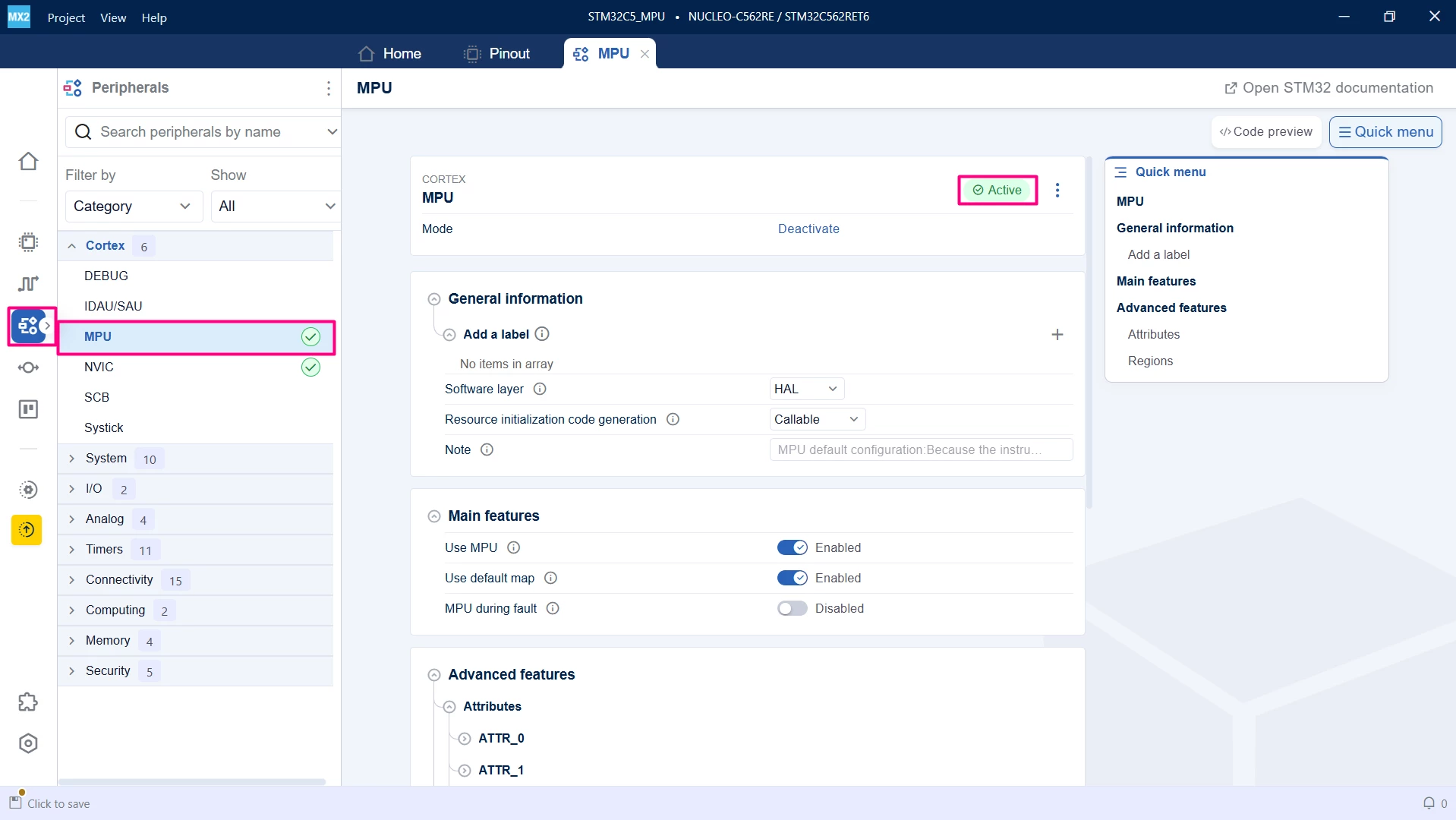
- Click the Peripherals tab icon. A list appears on the left side of the screen.
- Select [Cortex] option] to open a drop-down menu.
- Choose [MPU] from the menu to open the MPU tab in STM32CubeMX2.
- In this tab, click the [Activate] button to enable the MPU settings.
- In Main Features, verify that the Use MPU feature is [Enabled].
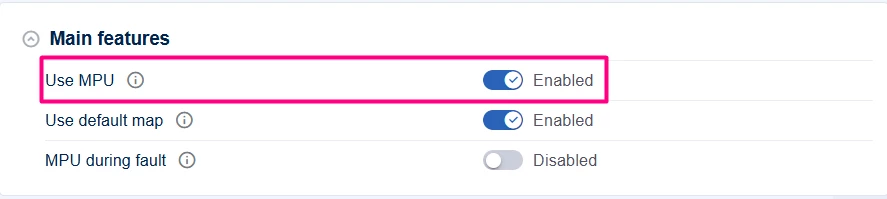
- The main MPU configuration occurs in the Advanced features section, where you can configure MPU attributes and region settings.
2.3 MPU region configuration
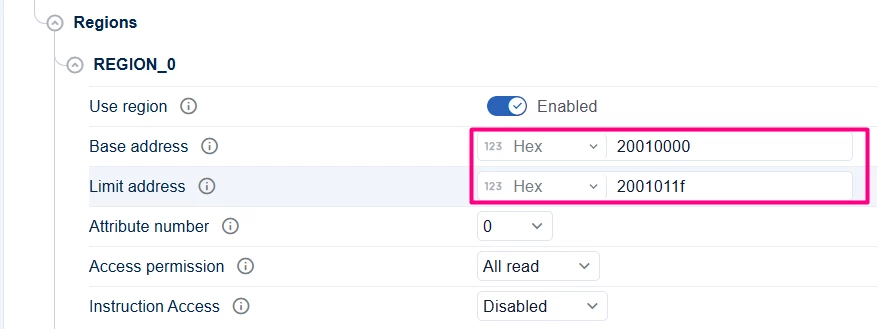
For this example, configure a region from 0x20010000 to 0x20010100 as non-cacheable and read-only. Any write operation within this region should fail. For more information about MPU memory types and attributes, see Managing memory protection unit in STM32 MCUs - Application note.
- In the Advanced features drop-down menu, navigate to the Attributes section and select ATTR_0.
- Set "Memory Type" to [Normal] and "Write Policy" to [Not cacheable].
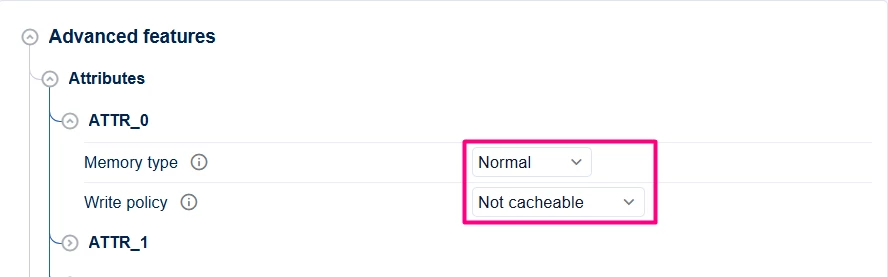
- Open the "Regions" drop-down menu and select [REGION_0].
- Enable the [Use region] option.
- Set the "base address" to 0x20010000 and the limit address to 0x2001011F.
- Set the "Attribute number" to 0 to apply the ATTR_0 settings.
- Set the "access permission" to [All read].
2.4 Code generation
To generate the code:
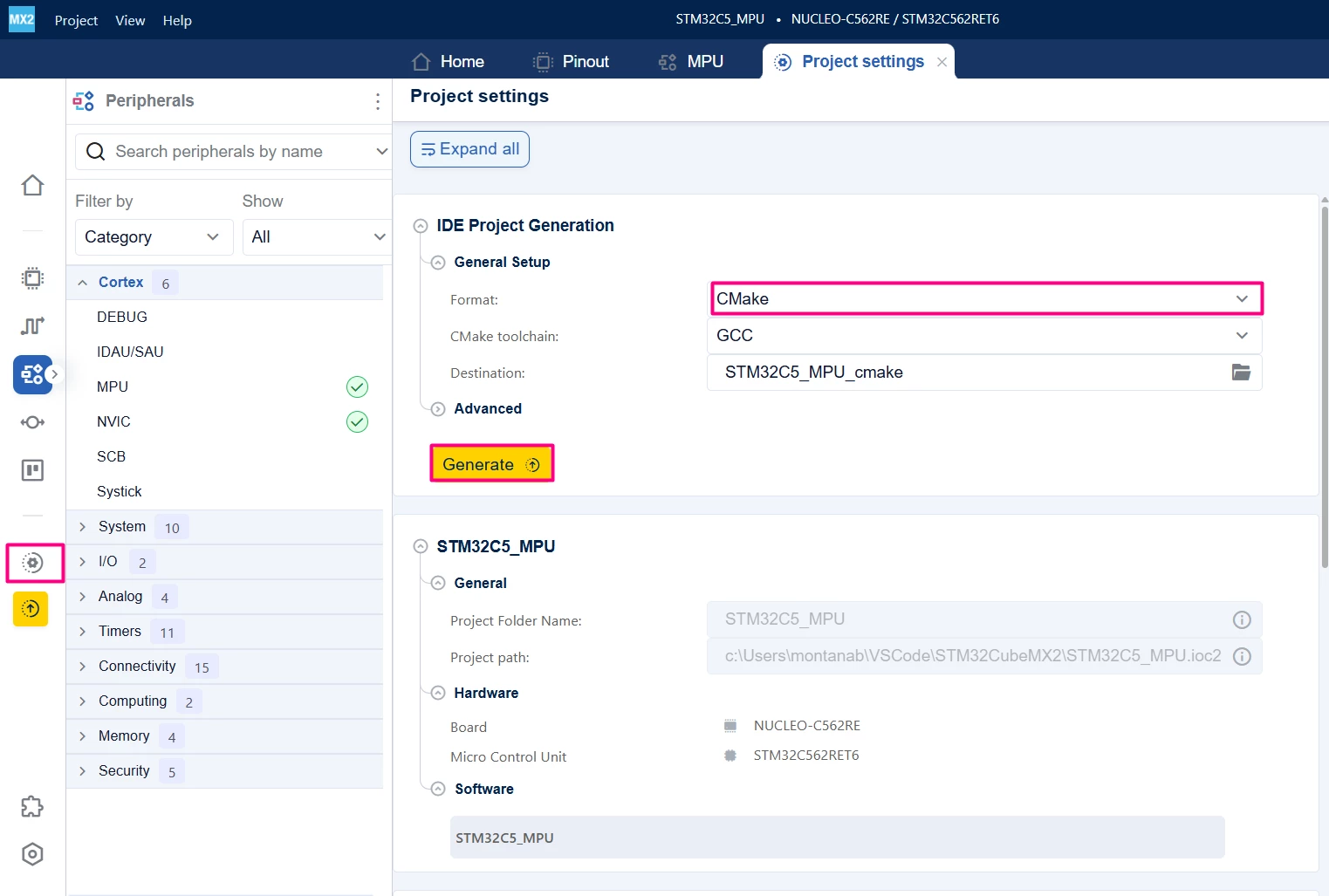
- Click on the [Project settings] icon and select the desired IDE.
- Click the [Generate] button.
3. Configuring the project in Visual Studio Code
1. Open Visual Studio Code and open the project folder.
2. You are prompted with a selection. In case you miss click or that does not appear, press Ctrl+Shift+P, type CMake: Select Configure Preset, and choose your debug configuration.
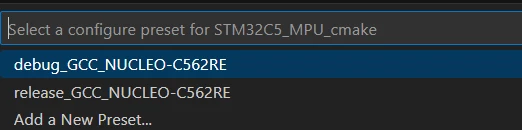 3. Build the project to ensure that everything is properly set and then move to the implementation code.
After opening the generated project in Visual Studio Code, verify the MPU configuration by attempting to write data inside the protected region.
- In the main.c file, located at user_modifiable\Application folder, add the following code before the while loop:
*(volatile uint32_t*) 0x20000050 = 0x12345678; // Writing outside read-only region.
*(volatile uint32_t*) 0x20010000 = 0x12345678; // Writing inside the read-only region. Error expected- After the main function, add the MemManage_Handler function. This function is declared but not defined in the base code. If not defined, the code jumps to the Default_IRQHandler function in the startup file.
void MemManage_Handler(void)
{
 // User code if required
 while (1);
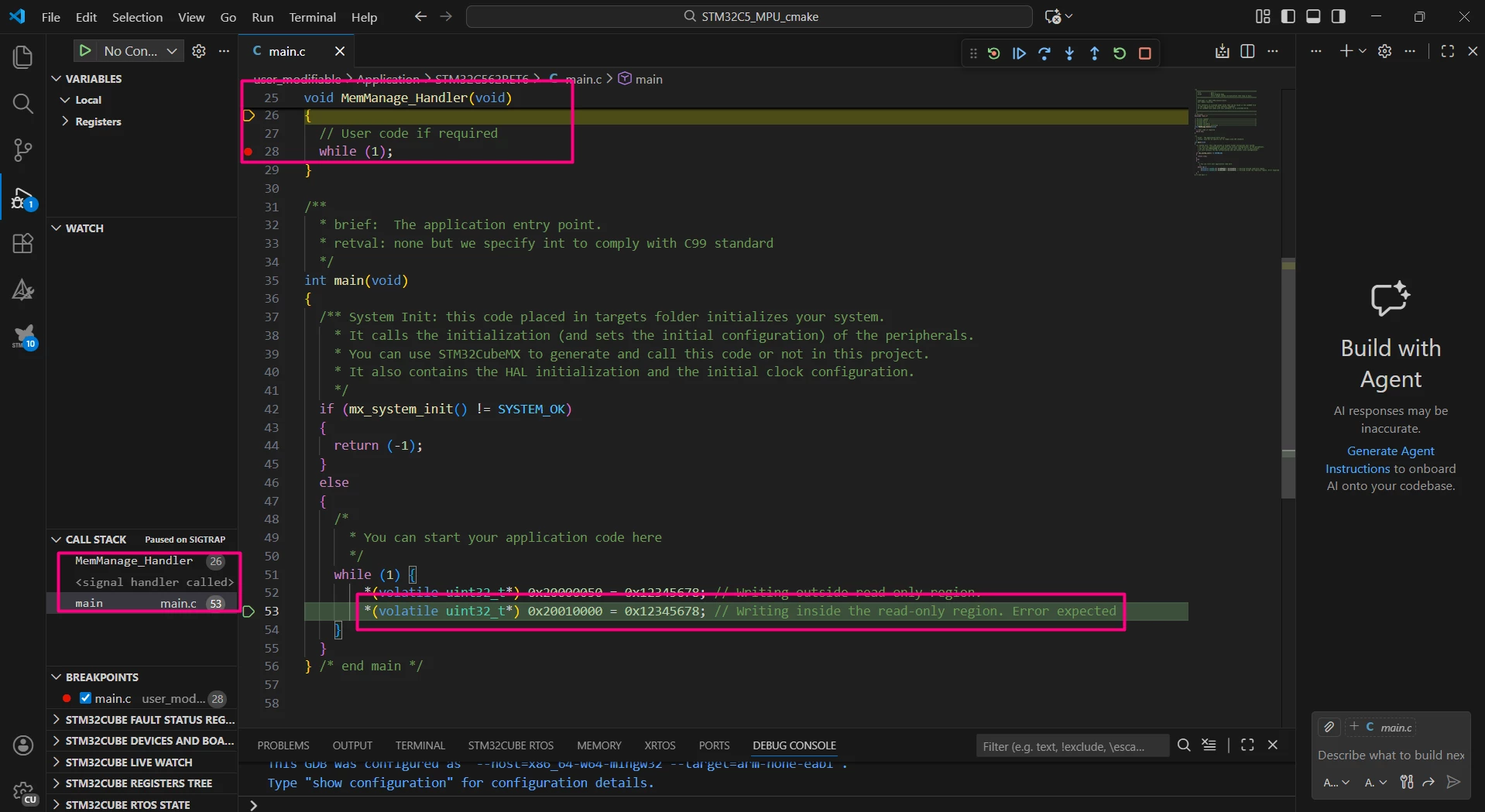
}- Build the project and start a debug session. Add a breakpoint in the while(1) inside MemManager_Handler and execute the code.
- When attempting to write to address 0x20010000, the code fails and jumps to the MemManage_Handler function. It is possible to check the call stack to verify the fault origin.
Conclusion
This article demonstrates how to enable and configure the MPU in STM32CubeMX2 using the NUCLEO-C562RE board. By setting up a memory region as read-only, the example shows how the MPU enforces access permissions and protects against unauthorized writes. Proper MPU configuration is essential for preventing memory-related errors and safeguarding microcontroller operation.
Related links
- Apllication note AN4838: Introduction to memory protection unit management on STM32 MCUs
- STM32Cube for Visual Studio Code
- NUCLEO-C562RE
- STM32CubeMX2
- STM32 Embedded software documentation
- STM32CubeMX2 software documentation