


How to configure STM32 as a USB device game controller
- 1 reply
- 763 views
Summary
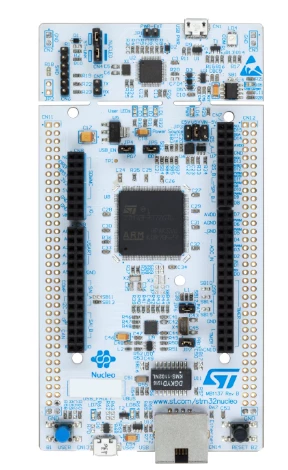
This article presents a step-by-step tutorial on how to configure the STM32H7 as a USB HID class gamepad using ST middleware. The tutorial is based on NUCLEO-H743ZI2 and can be easily tailored to any other STM32
Introduction
If you want to learn how to configure an STM32 microcontroller as a USB device HID class game controller. This article is for you. This tutorial uses the STM32H743ZI2 Nucleo board, which features a USB micro-B connector interface.
The following software versions were used to build this tutorial: STM32CubeIDE 2.0.0, STM32CubeMX 6.16.0, and STM32CubeH7 1.12.1.
For a detailed explanation of the classic USB library, refer to the ST wiki and the STM32 USB training.
1. Development
1.1 Project configuration
Start by creating a new project using the STM32CubeMX by clicking [file -> New -> STM32 Project]. Use the [Board Selector] tab and select the [NUCLEO-H743ZI2].
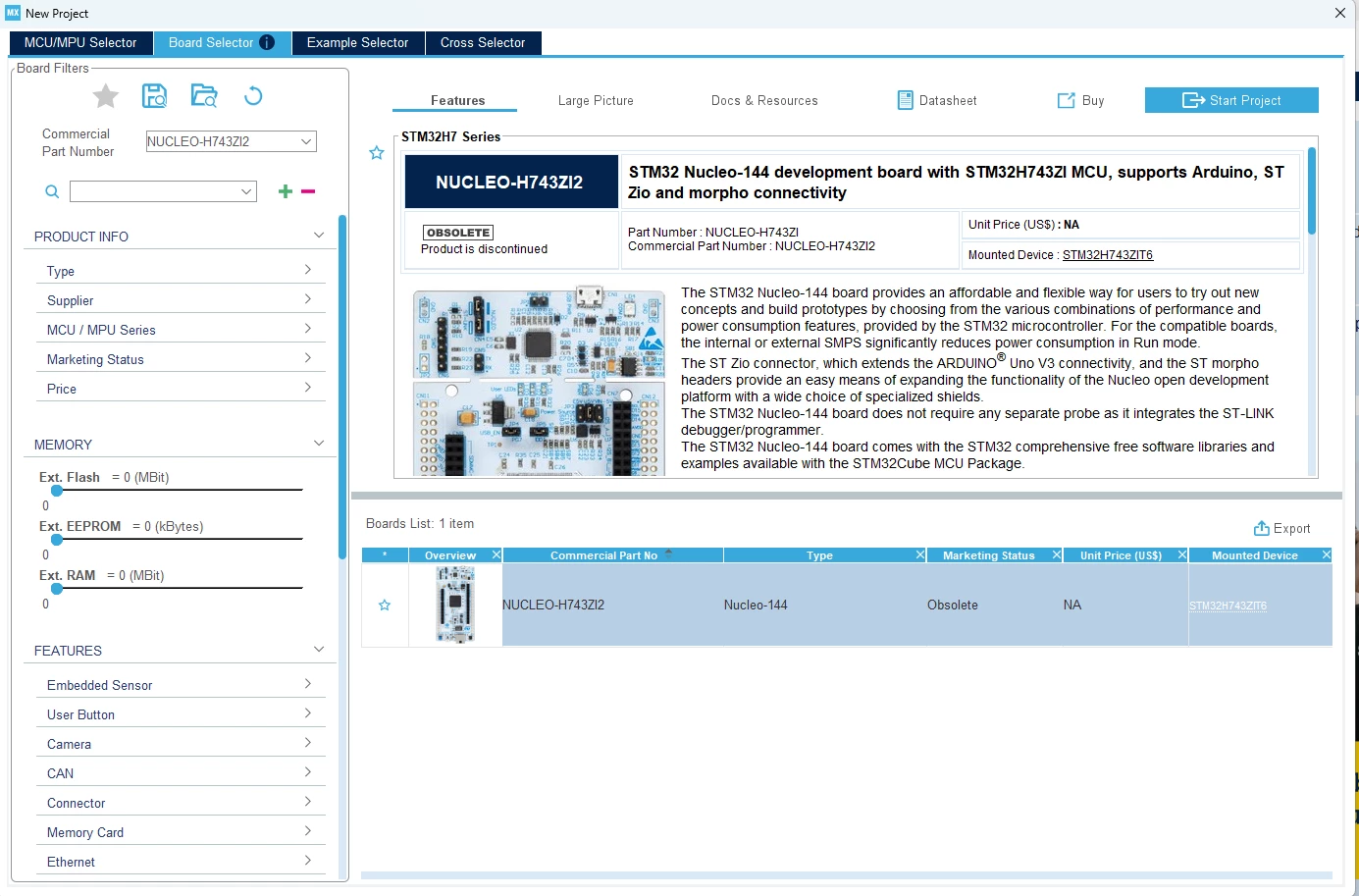
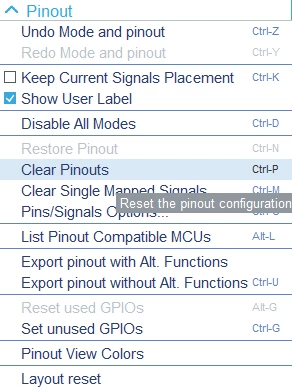
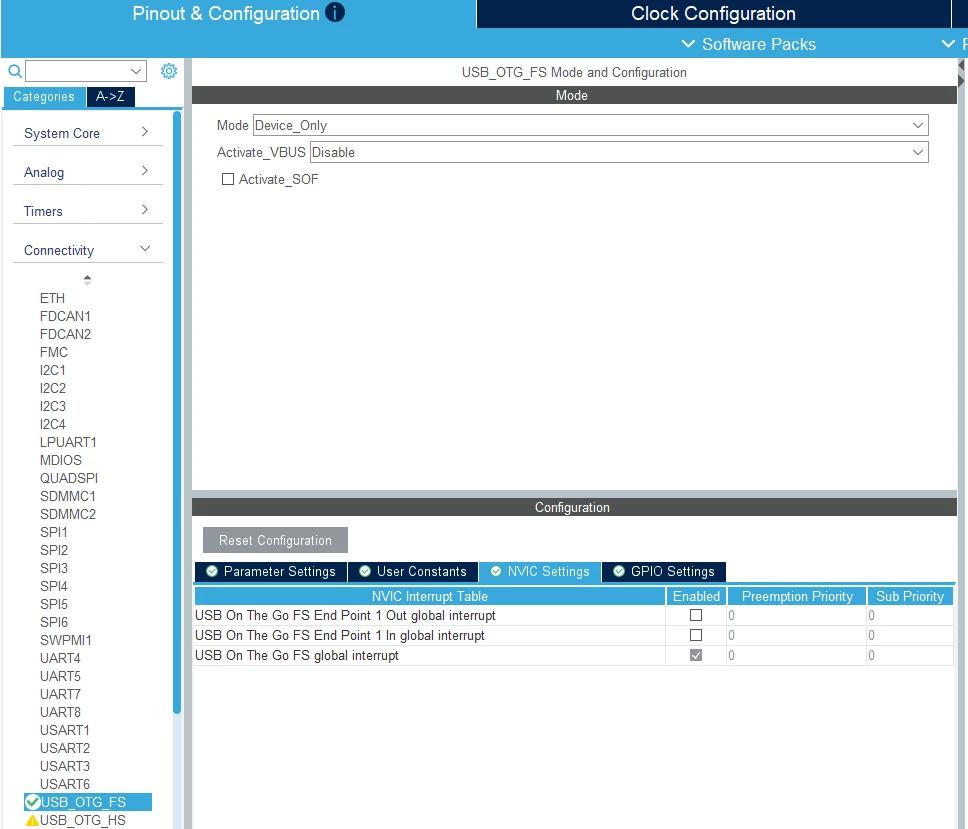
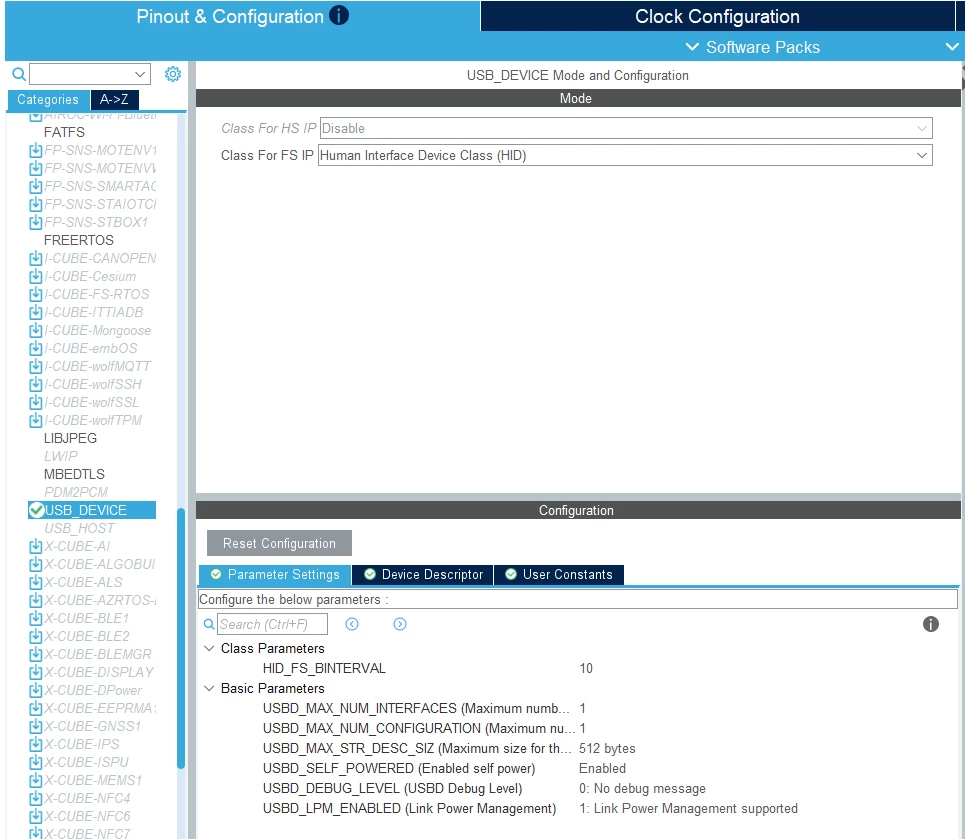
Select [Human Interface Device Class (HID)] in the class for FS IP in [USB_DEVICE] under "Middleware and Software Packs].
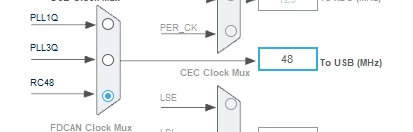
In "clock configuration", ensure that USB is receiving 48 MHz.
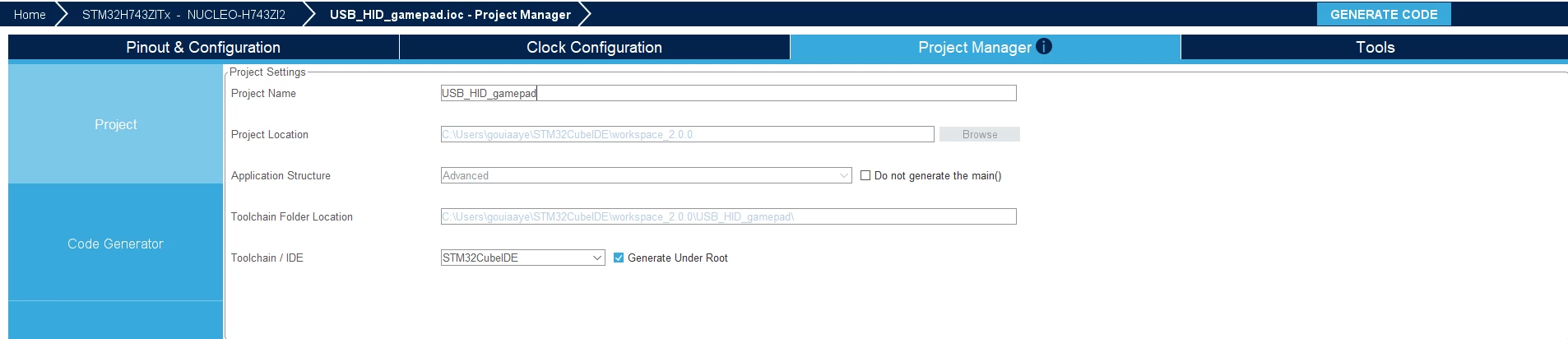
Select a name for your project and click the [Generate Code] button.
Now, we just need to add these parts of code in our project:
Open [usbd_hid.c] file under [middleware/ST/STM32_USB_Device_Library/Class/HID/Src]
Search for [HID_MOUSE_ReportDesc] and change it with the provided code.
This original descriptor provides a mouse descriptor by default, we need to change it to a gamepad descriptor.
__ALIGN_BEGIN static uint8_t HID_GAMEPAD_ReportDesc[HID_MOUSE_REPORT_DESC_SIZE] __ALIGN_END =
{
 0x05, 0x01, /* Usage Page (Generic Desktop Ctrls) */
 0x09, 0x04, /* Usage (Joystick) */
 0xA1, 0x01, /* Collection (Application) */
 0x09, 0x01, /* Usage (Pointer) */
 0xA1, 0x00, /* Collection (Physical) */

 0x05, 0x09, /* Usage Page (Button) */
 0x19, 0x01, /* Usage Minimum (0x01) */
 0x29, 0x04, /* Usage Maximum (0x04) */
 0x15, 0x00, /* Logical Minimum (0) */
 0x25, 0x01, /* Logical Maximum (1) */
 0x95, 0x04, /* Report Count (4) */
 0x75, 0x01, /* Report Size (1) */
 0x81, 0x02, /* Input (Data,Var,Abs) */
 0x95, 0x01, /* Report Count (1) // PADDING */
 0x75, 0x04, /* Report Size (4) */
 0x81, 0x03, /* Input (Const,Array,Abs) */

 0x05, 0x01, /* Usage Page (Generic Desktop Ctrls) */
 0x09, 0x30, /* Usage (X) */
 0x09, 0x31, /* Usage (Y) */
 0x09, 0x32, /* Usage (Z) */
 0x09, 0x33, /* Usage (Rx) */
 0x15, 0x81, /* Logical Minimum (-127) */
 0x25, 0x7F, /* Logical Maximum (+127) */
 0x75, 0x08, /* Report Size (8) */
 0x95, 0x04, /* Report Count (4) */
 0x81, 0x02, /* Input (Data,Var,Abs) REL */

 0xC0, /* End Collection */
 0xC0 /* End Collection */
};
Open now [usbd_hid.h] file and search for a define with the name [HID_GAMEPAD_REPORT_DESC_SIZE] with 54u as size.
#define HID_GAMEPAD_REPORT_DESC_SIZE 54UThere are a few other tweaks that need to be done.
In [usbd_hid.c] file, in [Descriptor of Joystick Mouse HID] and [__ALIGN_BEGIN static uint8_t USBD_HID_Desc[USB_HID_DESC_SIZ] __ALIGN_END] and change:
HID_MOUSE_REPORT_DESC_SIZEto
HID_GAMEPAD_REPORT_DESC_SIZEAlso, in [USBD_HID_Setup], search for [case USB_REQ_GET_DESCRIPTOR]
and change [HID_MOUSE_REPORT_DESC_SIZE] to [HID_GAMEPAD_REPORT_DESC_SIZE]
and [HID_MOUSE_ReportDesc] to [HID_GAMEPAD_ReportDesc].
That part of the function will be as shown:
case USB_REQ_GET_DESCRIPTOR:
 if ((req->wValue >> 8) == HID_REPORT_DESC)
 {
 len = MIN(HID_GAMEPAD_REPORT_DESC_SIZE, req->wLength);
 pbuf = HID_GAMEPAD_ReportDesc;
 }
All the code implementation is done! You can build and flash the code into your device and try it!
2. Results
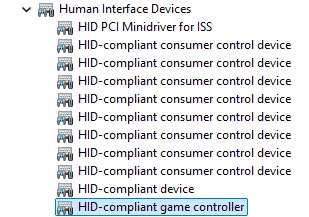
After flashing the code, you can open Device manager or any other tool, and you will see that your STM32 enumerated as a game controller

Conclusion
That concludes our article. Now, you have the needed information to start developing your own HID gamepad project.
If you face any difficulties while developing, refer to our demonstration projects available in our GitHub or contact us through the community or by the Online Support Center.
We hope this article was helpful!