


How to change the HAL2 timebase from SysTick to a timer in STM32CubeMX2
Summary
STM32CubeMX2 allows you to change the clock source for the hardware abstraction layer (HAL2) driver to any supported timer. This configuration is typically required when using a real-time operating system (RTOS). This article provides a concise guide on how to perform this configuration.
- Summary
- Introduction
- Prerequisites
- 1. STM32CubeMX2 project creation and basic setup
- 1.1 Pinout and peripheral configuration
- 1.2 Code generation
- 2. Configuring the project in Visual Studio Code
- 2.1 Validation
- Conclusion
- Related links
Introduction
In STM32 microcontrollers, a time base clock is essential for generating precise time intervals. These intervals are crucial for implementing delays, periodic events, and real-time operating system (RTOS) scheduling. The SysTick timer is one of the most used peripherals for this purpose.
SysTick is a dedicated 24-bit timer integrated into the Arm® Cortex®-M core, present in all STM32 devices. It provides a simple and consistent time base for the system. SysTick can generate periodic interrupts at configurable intervals, making it suitable for system ticks in RTOS environments or for implementing regular timing events in bare-metal applications. Its integration with the core and ease of use make it a preferred choice for timekeeping and scheduling tasks in STM32 projects.
This article uses the NUCLEO-C562RE board as an example, but the procedure applies to any STMicroelectronics microcontroller compatible with STM32CubeMX2.
Prerequisites
Ensure that you have installed:
- STM32CubeMX2
- The latest STM32C5 HAL2 driver
- STM32CubeIDE extension for Visual Studio Code
The hardware used in this tutorial is the NUCLEO-C562RE board.
1. STM32CubeMX2 project creation and basic setup
Follow these steps to create the MCO application project for the NUCLEO-C562RE board:
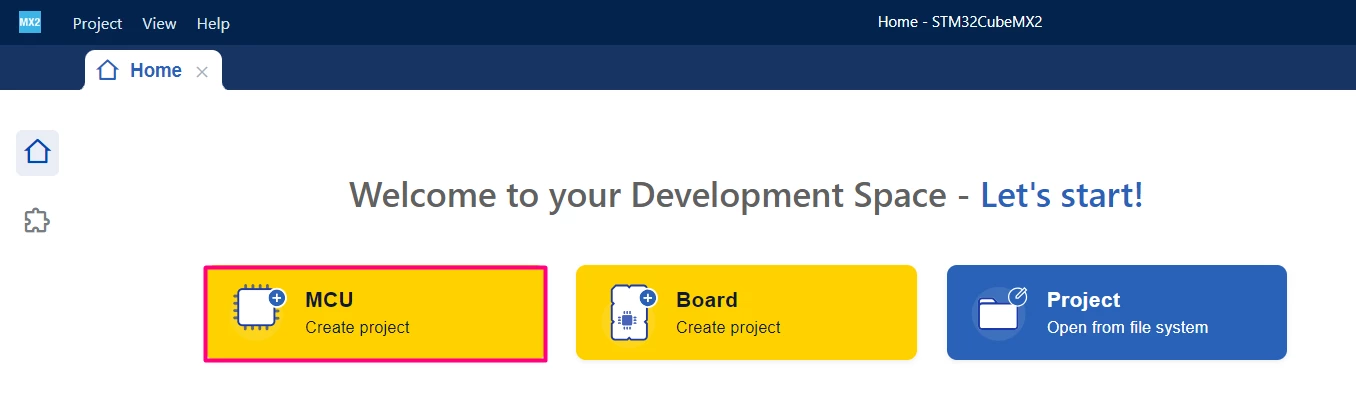
Open STM32CubeMX2. On the Home page, click the [MCU square] to create a new project.
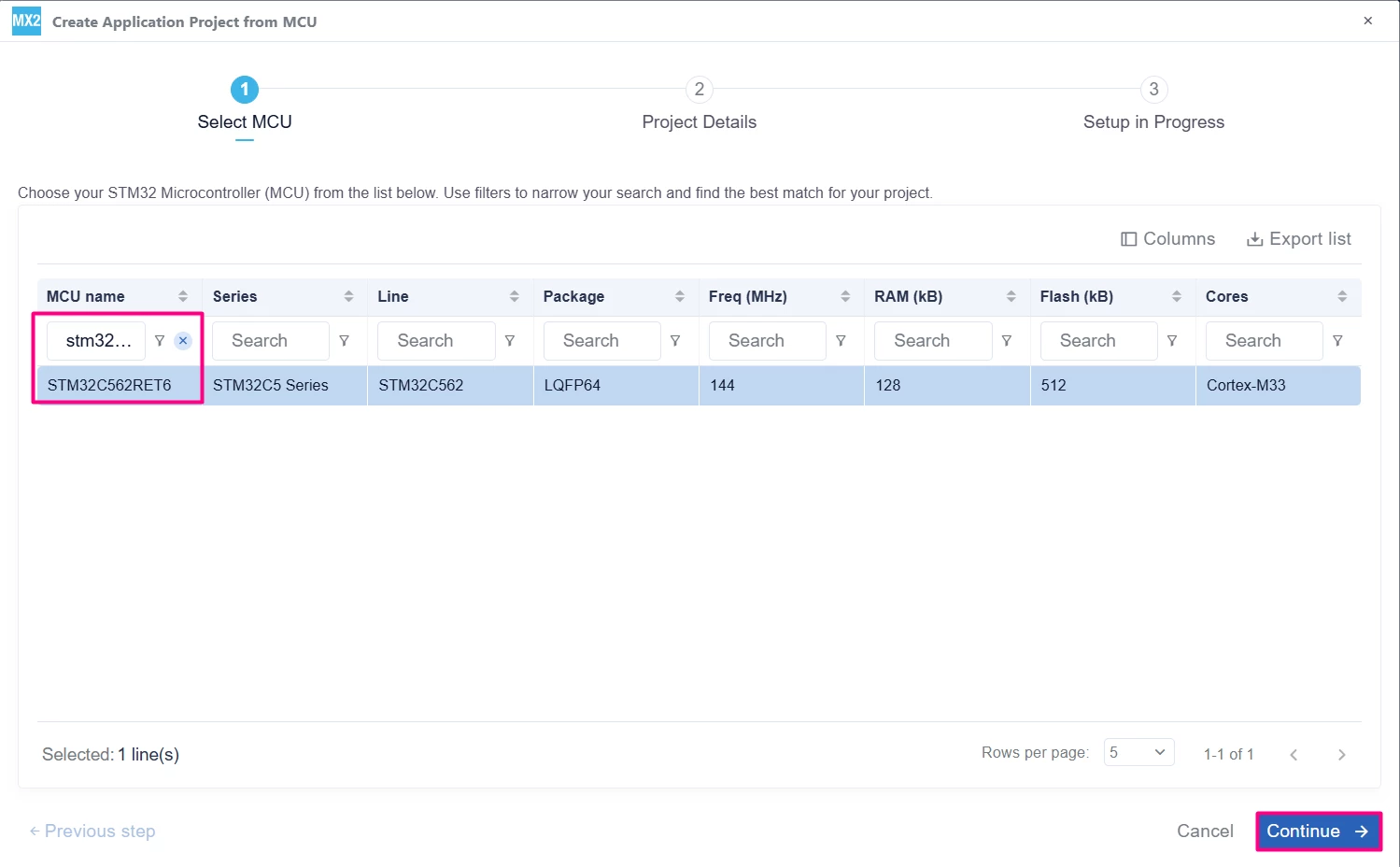
In the search field under MCU name, enter STM32C562RE and select your board. Click [Continue].
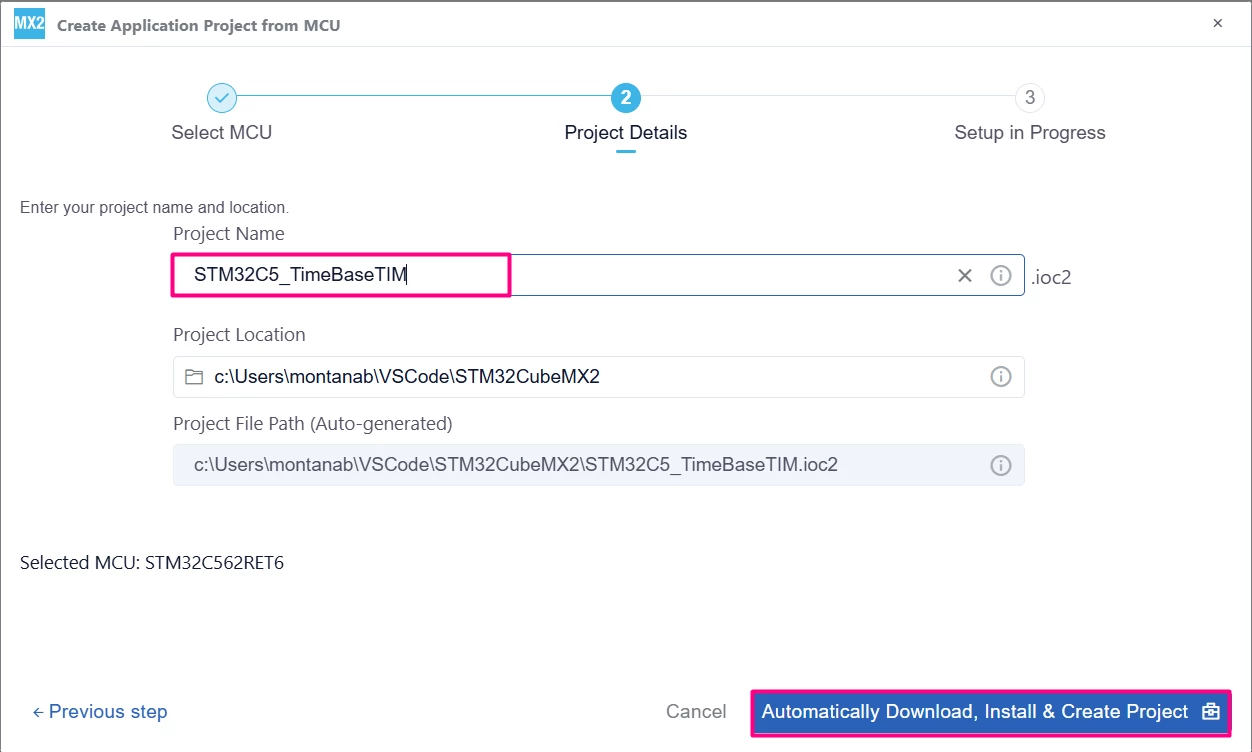
Enter your project name and location. Click [Automatically Download, Install & Create Project] to finish project creation.
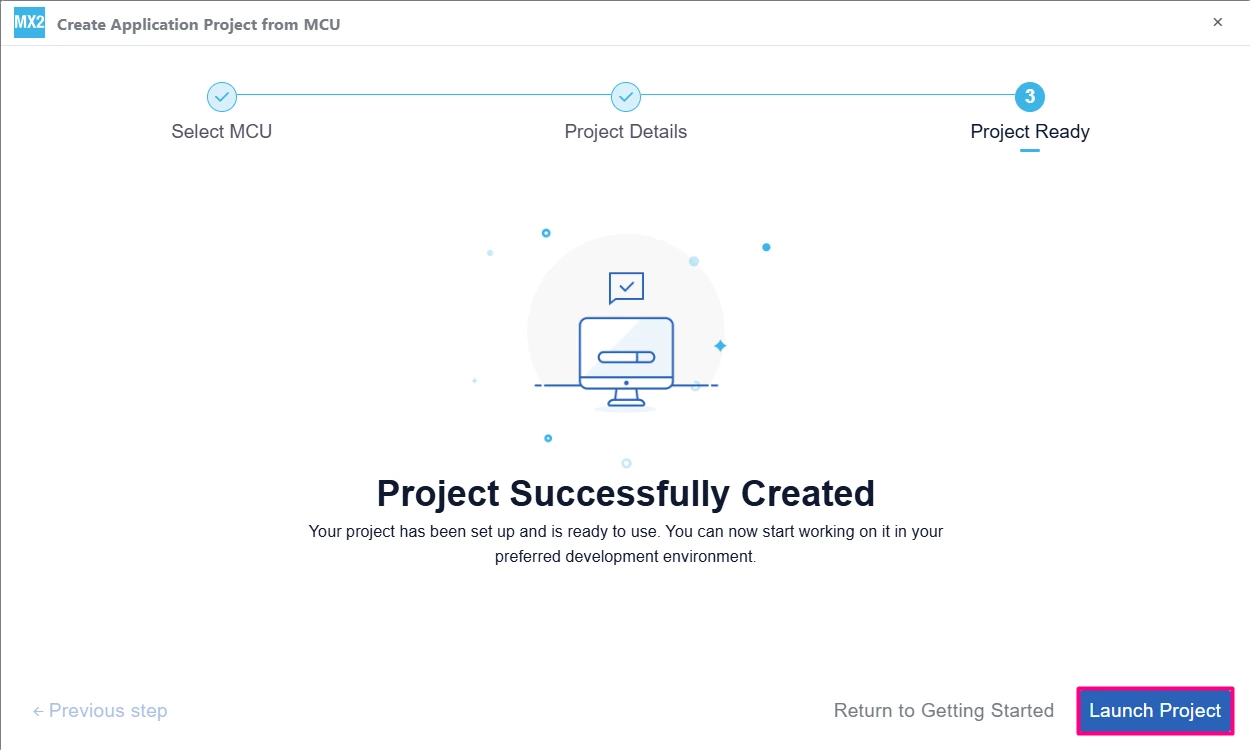
Select [Launch Project] to start.
1.1 Pinout and peripheral configuration
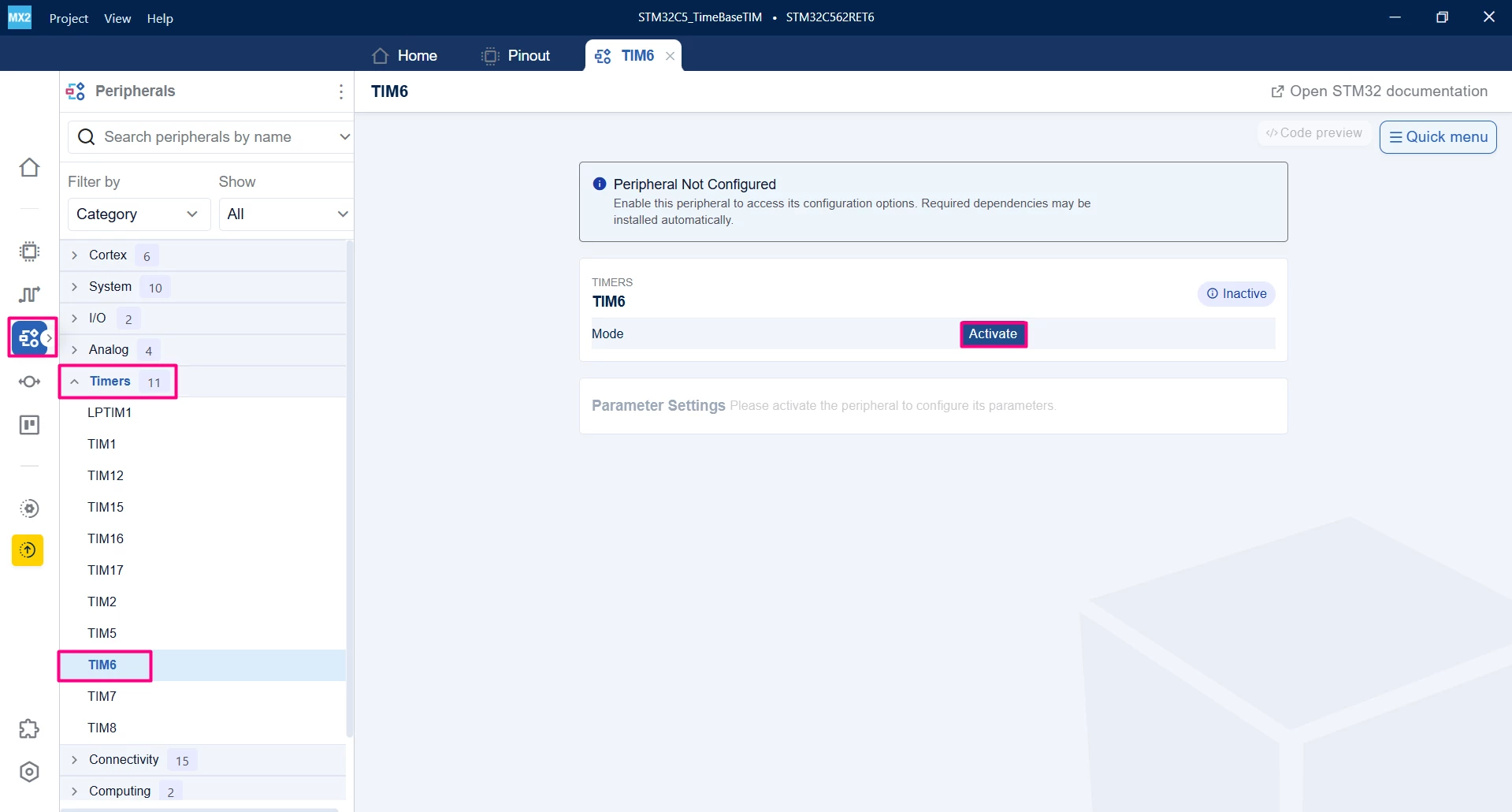
In the Peripherals tab, select Timers.
Select the timer that you want to use to replace SysTick and click [Activate]. For example, use TIM6.
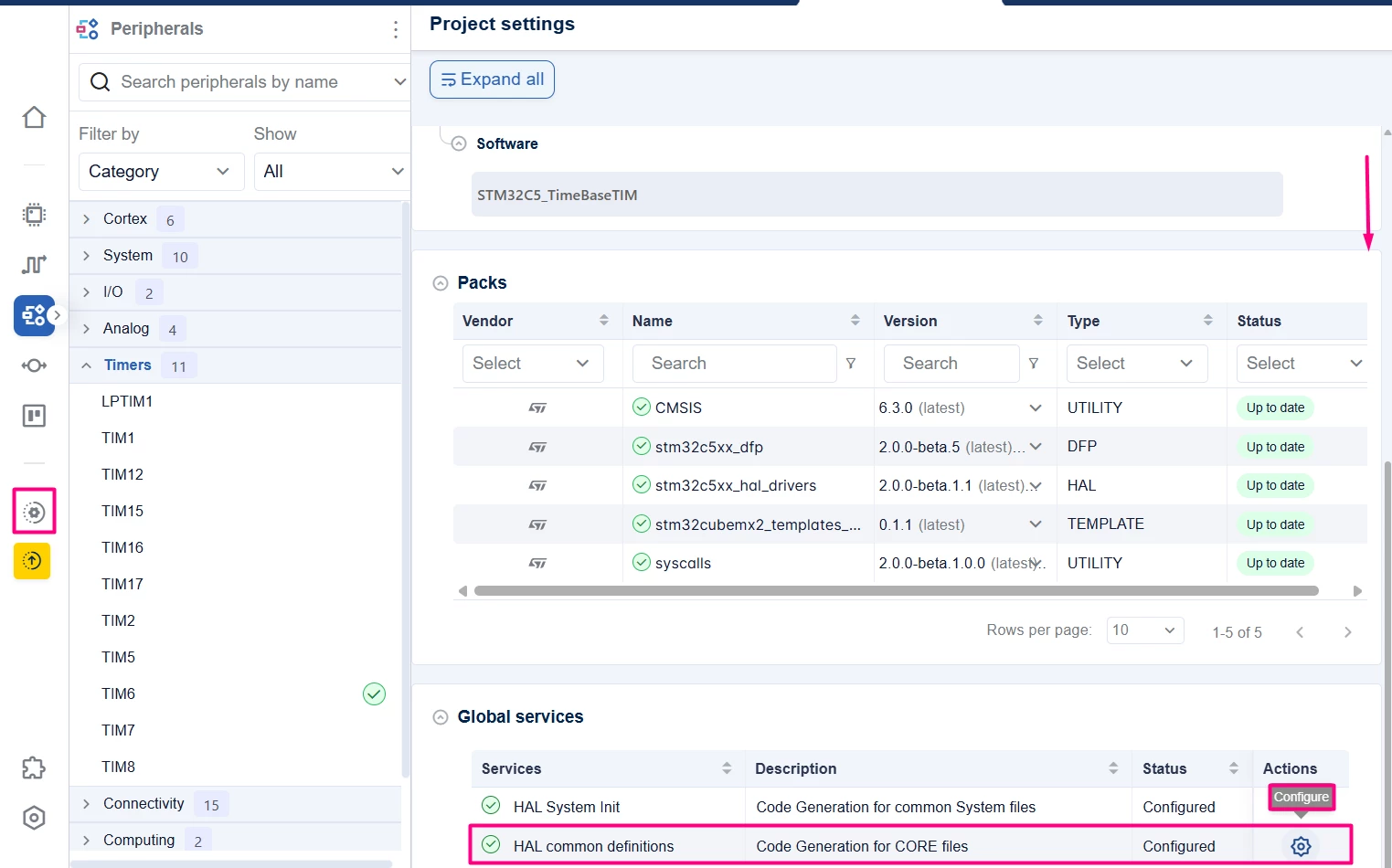
Go to the "Project Settings" tab, then scroll to the "HAL common definitions - Code Generation for Core" files.
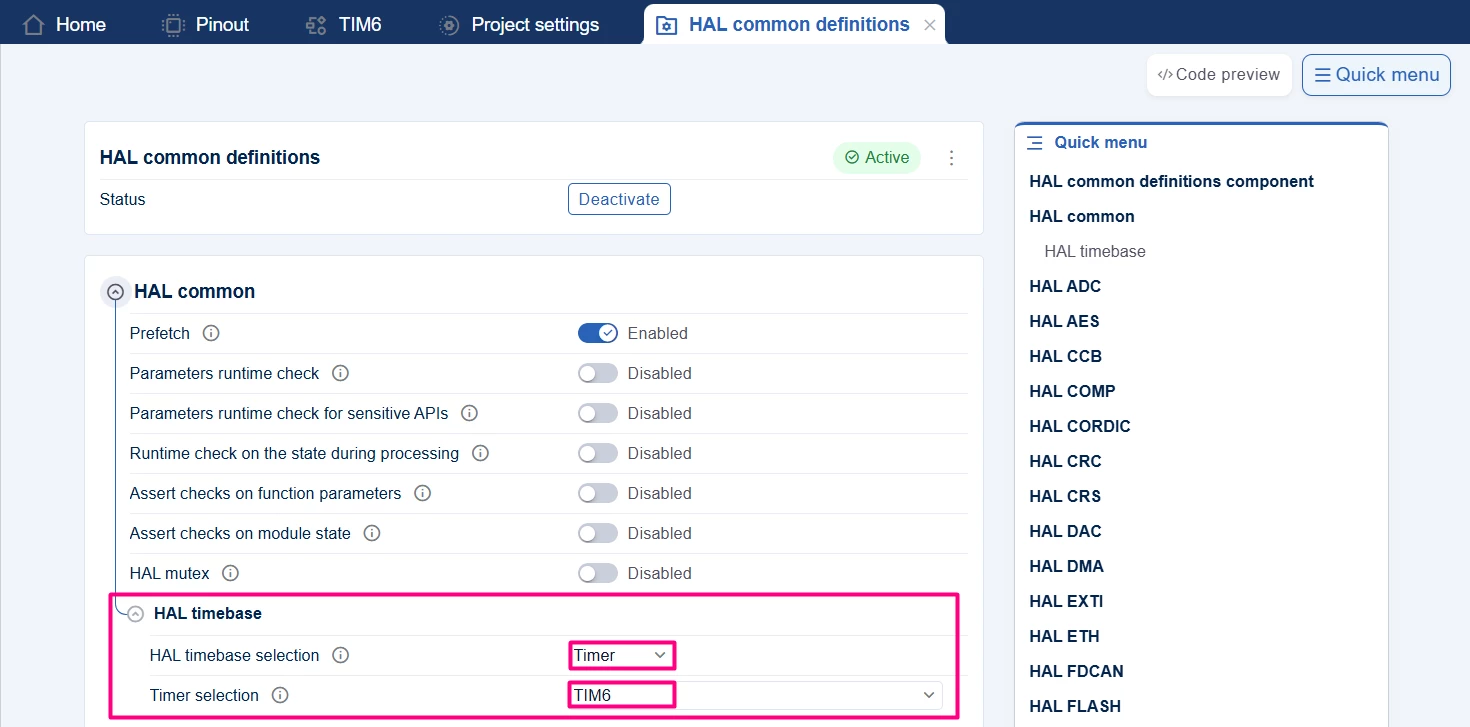
In this section, select the resource you want to assign as the HAL timebase, in this case, TIM6.
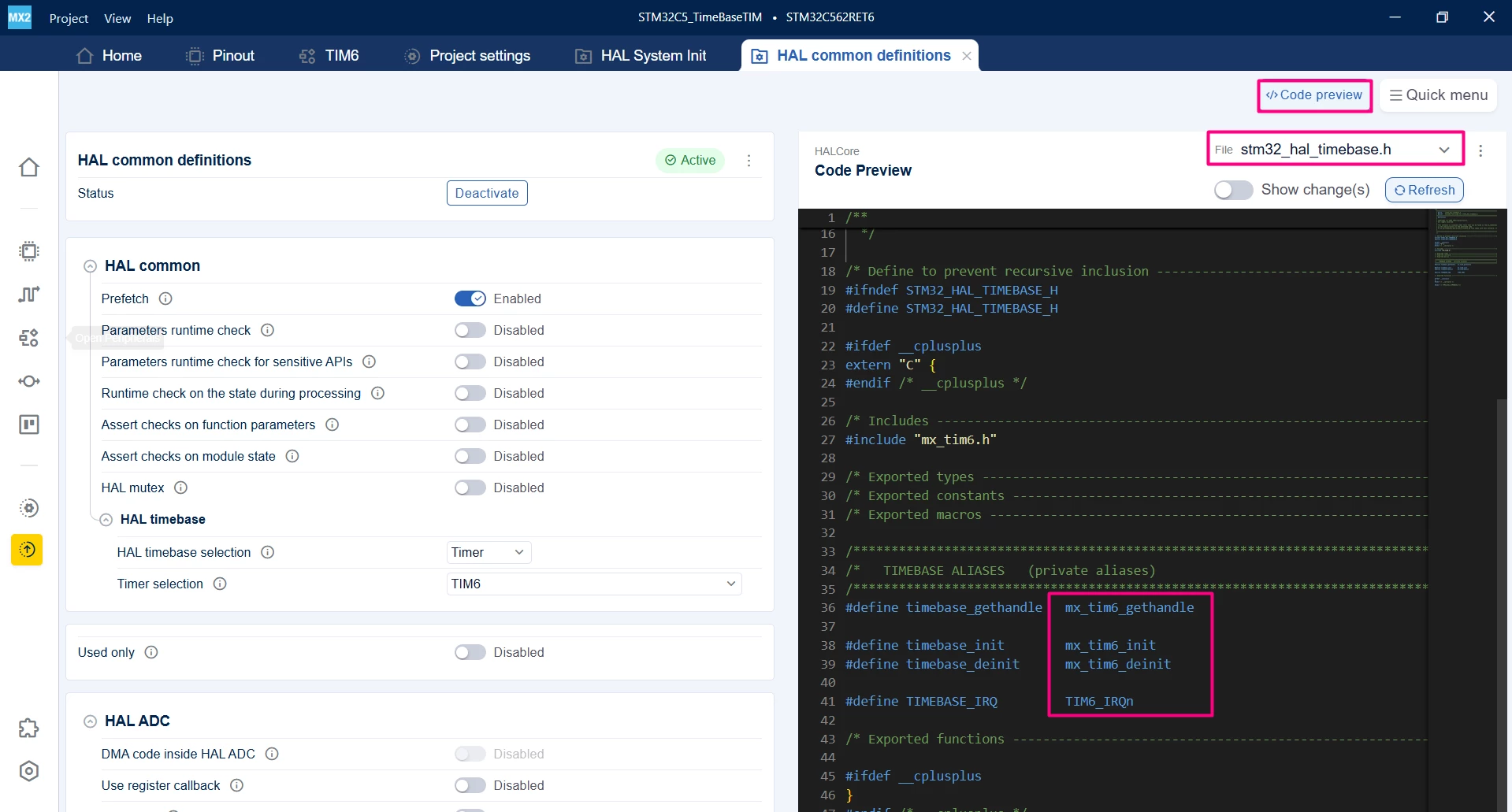
It is also possible to check the generated code and the change on the stm32_hal_timebase.h to associate the time base with the selected TIM.
1.2 Code generation
To generate the code:
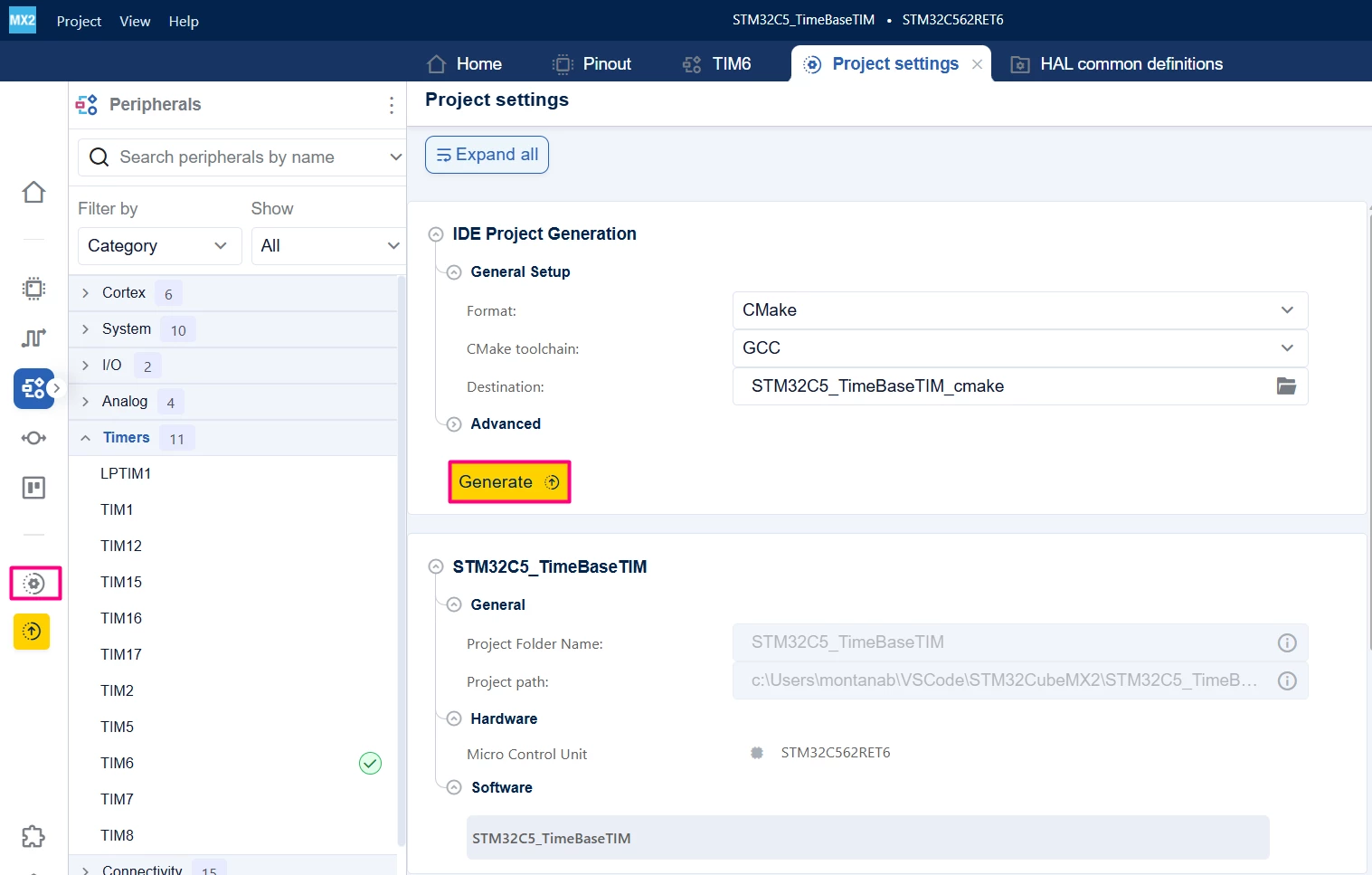
- Click on the [Project settings] icon and select the desired IDE.
- Click the [Generate] button.
2. Configuring the project in Visual Studio Code
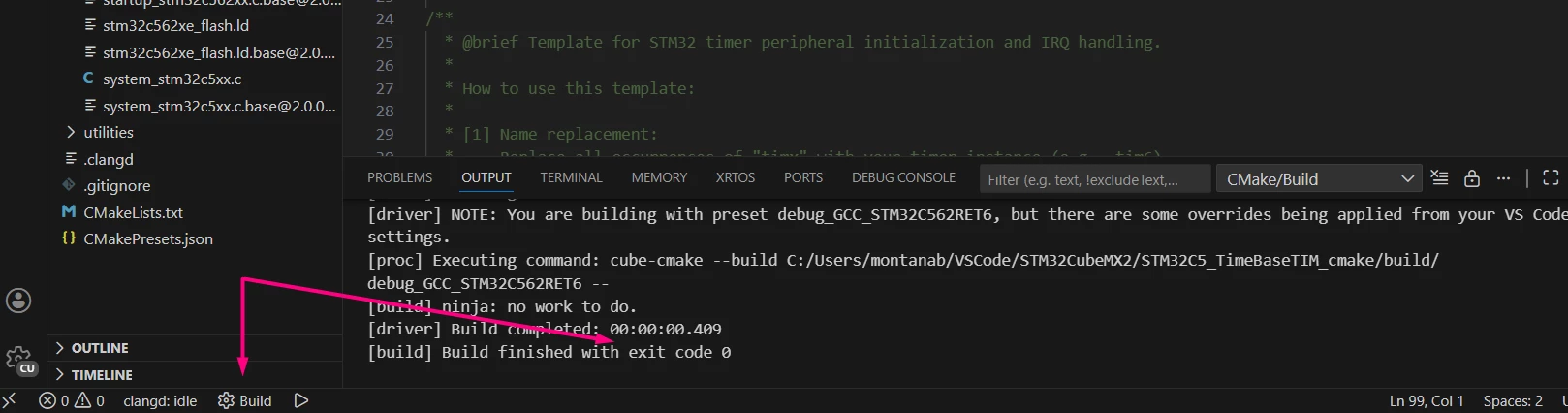
Open Visual Studio Code and open the project folder.
You are prompted with a selection. In case you miss click or that does not appear, press Ctrl+Shift+P, type CMake: Select Configure Preset, and choose your debug configuration.

Build the project to ensure everything is set, then proceed to code implementation.
2.1 Validation
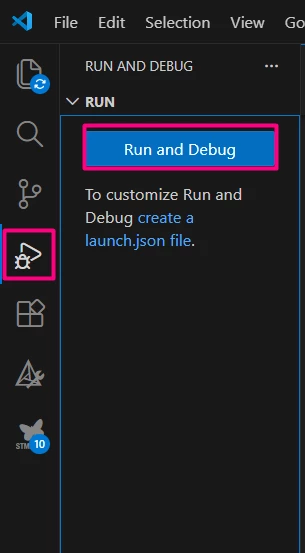
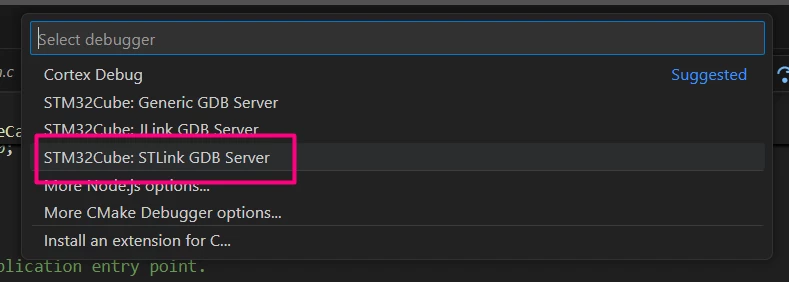
After building the application, locate the [Run and Debug] icon, create your debug session by selecting the STLINK GDB Server option:
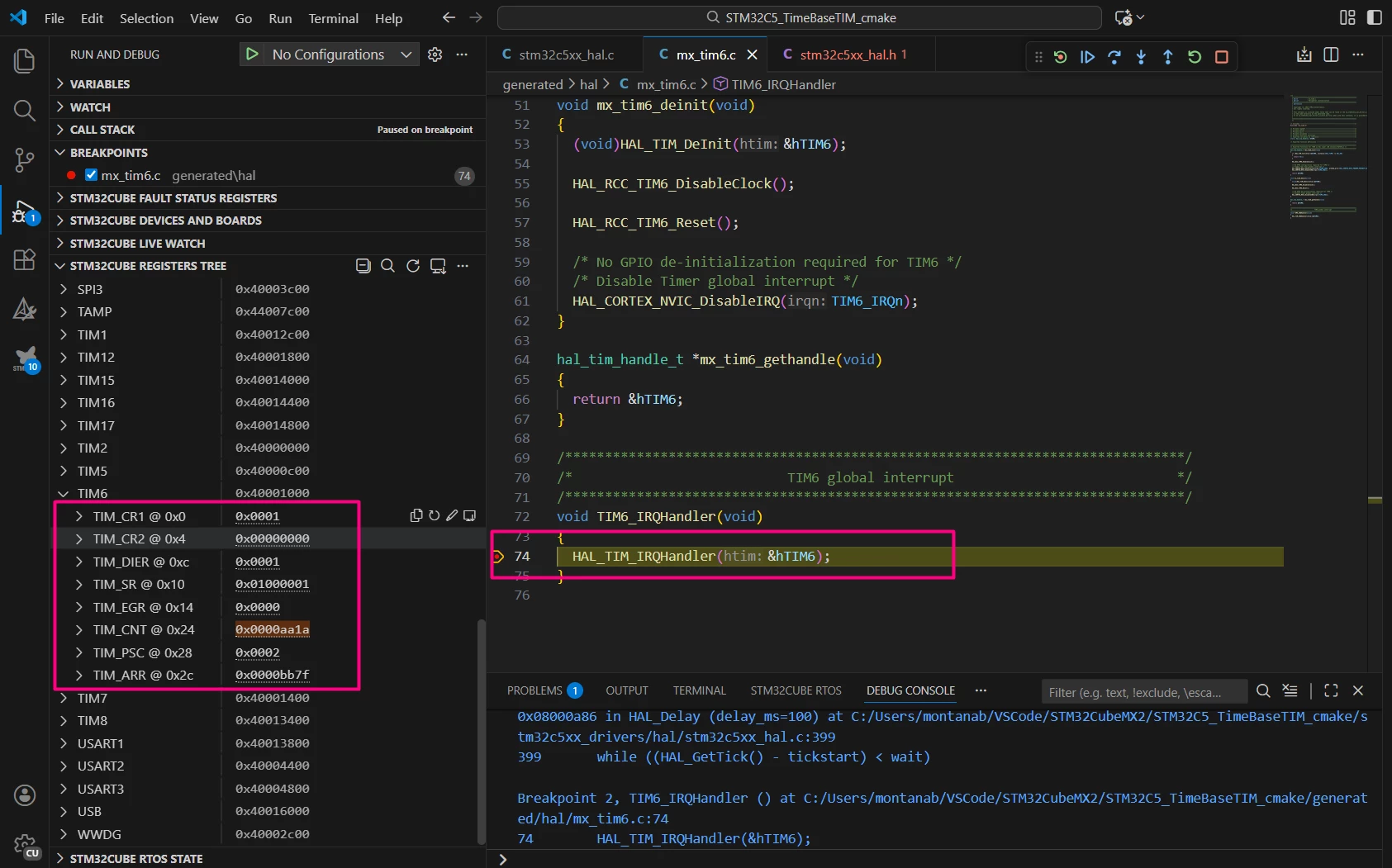
It's possible to check the TIM6 register and callback to confirm the timebase change.
It's also possible to track the workflow via callstack.
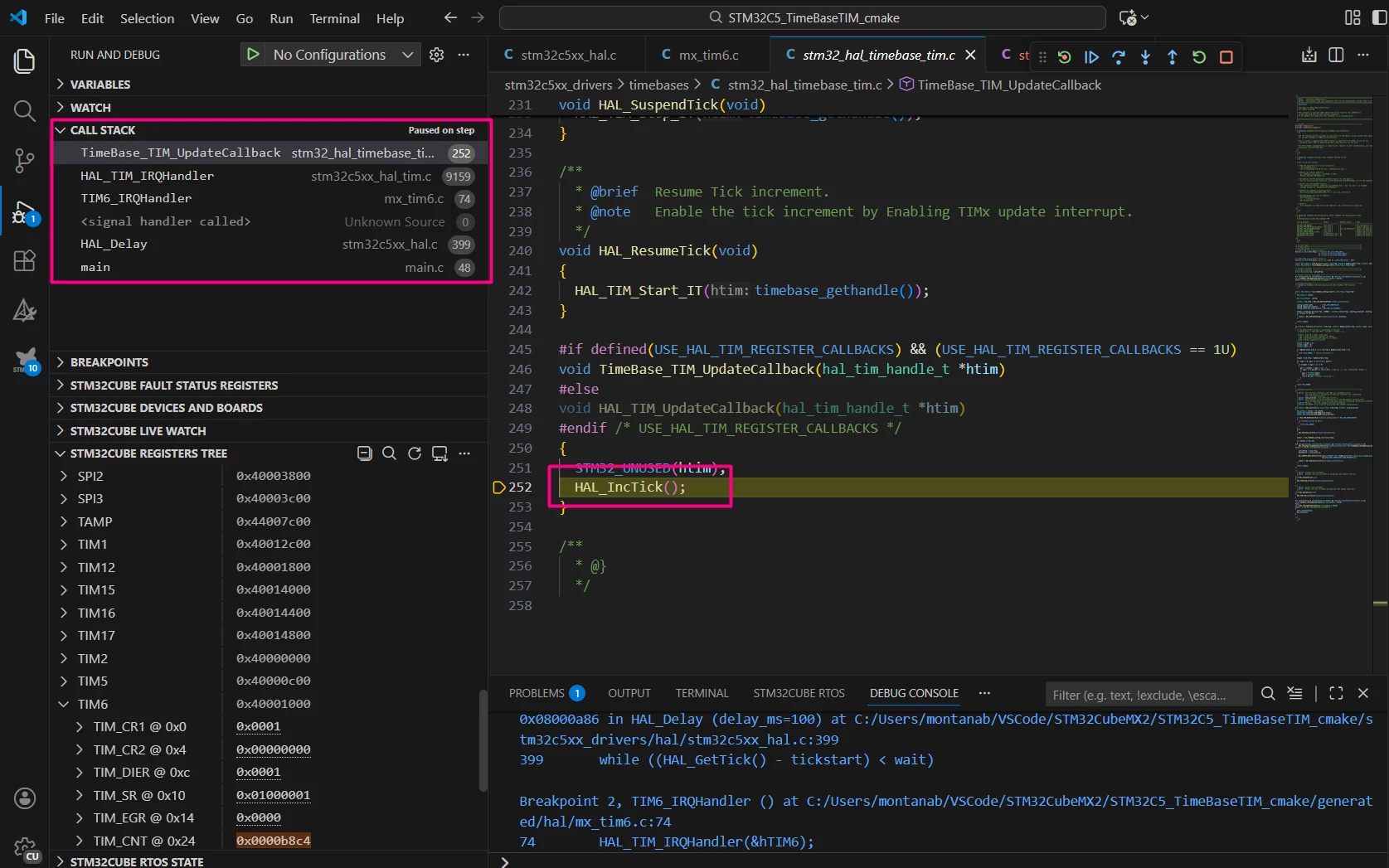
Once SysTick is unassigned from the HAL timebase, you can freely use the SysTick as an RTOS kernel clock. The hardware abstraction layer driver does not interfere anymore. This approach prevents conflicts with other timers.
Conclusion
Changing the HAL timebase clock source in STM32 microcontrollers is a straightforward process with STM32CubeMX2. This configuration allows you to tailor system timing to specific application requirements. By following the steps in this guide, you can configure any supported timer or the real-time clock (RTC) as the HAL timebase, freeing SysTick for other uses or optimizing your system for RTOS or low-power applications. This flexibility enhances the versatility of STM32 devices, enabling efficient and customized embedded solutions. Whether you use the NUCLEO-C562RE or another STM32 microcontroller, these principles remain the same and help you optimize your hardware resources.