


How to perform Asset tracking with the SensorTile.box and Unicleo app
Table of the contents
- Why it is important to monitor an Asset during transportation?
- Problem Scenario
- Sensor Configuration
- Data Collection
- Algorithm (MLC and FSM) Configuration
- Data visualization with the Unicleo GUI app
Why it is important to monitoring an Asset during transportation
Asset monitoring and tracking is an increasingly important application for the detection of the status of a good or commodity that can be transferred form one place to another one. The data can be progressively saved locally ("on the edge"), exploiting the . Since the power consumption is crucial in a battery-operated application such as the asset tracking one, in this article a SensorTile.box and the LSM6DSOX embedded low power Machine Learning Core (MLC) and Finite State Machine (FSM) are used.Problem Scenario
The SensorTile.Box can fit the needs of this application, since its form factor enables the positioning on the asset to be tracked, and the data can be stored locally on the onboard SD card.
This example combines Machine Learning Core (MLC) and Finite State Machine (FSM) capabilities to implement a Smart Asset Tracking algorithm able to detect and track the various states of a package (Stationary - Upright, Stationary - Not upright, In motion, Shaken) and detect some possible events (Impact, Free-fall).Sensor Configuration
Among the onboard sensor, the accelerometer is configured with ±16 g full-scale and 26 Hz output data rate in low-power mode. Sensor orientation is set as for the ENU convention (with Z-axis pointing up) in order to properly work.Data Collection
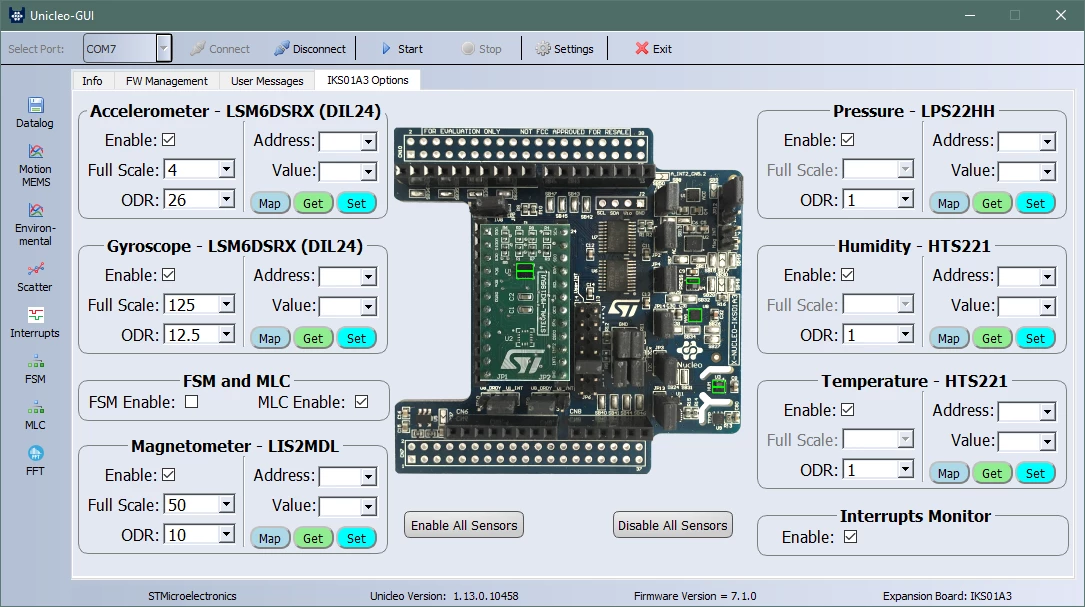
For the data acquisition, the SensorTile.box configured with the STBLE Sensor app can be used. The SensorTile.box has been configured the chosen sensor at ODR 026Hz, storing raw data on the onboard SD card. Please refer to this article for a detailed description of the configuration procedure.Another possibility for data collection, though less "IoT style", would be to use the X-NUCLEO-IKS01A3 board with Unicleo-GUI, configured as shown in the picture below:
Algorithm (MLC and FSM) Configuration (details)
Both the MLC and FSM are configured to process the accelerometer data at 26 Hz in low-power mode:
-
The MLC processes the accelerometer data in order to detect the package state by using three features (peak-to-peak and mean on the accelerometer norm, mean on the accelerometer Z-axis), computed every 13 samples (corresponding to 0.5 seconds). One decision tree with three nodes has been configured to detect the different classes. A meta-classifier has been set to reduce false positives.
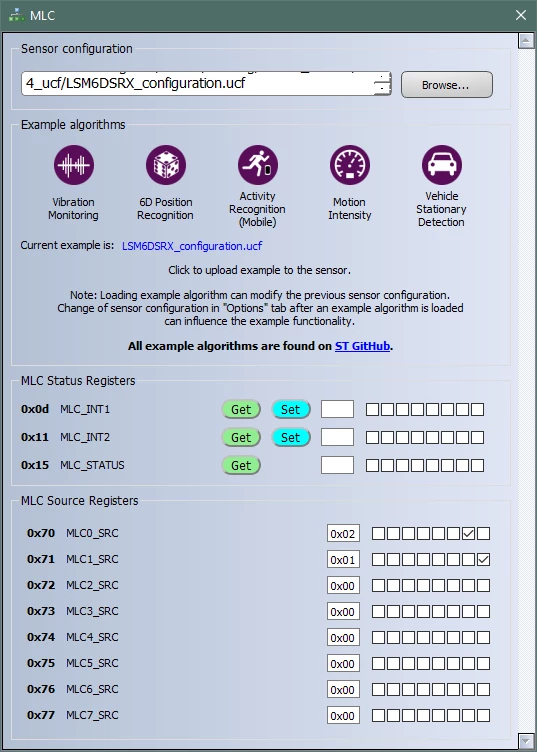
The output of the MLC can be read from the MLC0_SRC (70h) register:
- 00h = Stationary - Upright
- 04h = Stationary - Not upright
- 08h = In motion
- 0Ch = Shaken
The MLC also applies a high-pass filter on the accelerometer data which is used by the FSM. The configuration generates an interrupt (pulsed and active high) on the INT1 pin every time the register MLC0_SRC (70h) is updated with a new value (when the state detected by the MLC changes). The duration of the interrupt pulse is 38.5 ms in this configuration.
-
The FSMs process both the raw and filtered accelerometer data in order to detect the following states:
- Impact, detected by FSM #1
- Free-fall, detected by FSM #2
In this example, the threshold for impact detection is set to 0.5 g, and the angle for upright is set to 26°. The configuration generates an interrupt (pulsed and active high) on the INT2 pin when either a free-fall or an impact event is detected by the FSM. The free-fall interrupt remains active as long as the package is airborne. The FSM_STATUS_A (13h) register allows determining which FSM has generated the interrupt in order to distinguish between impact and free-fall events.
The overall current consumption is about 22 µA.
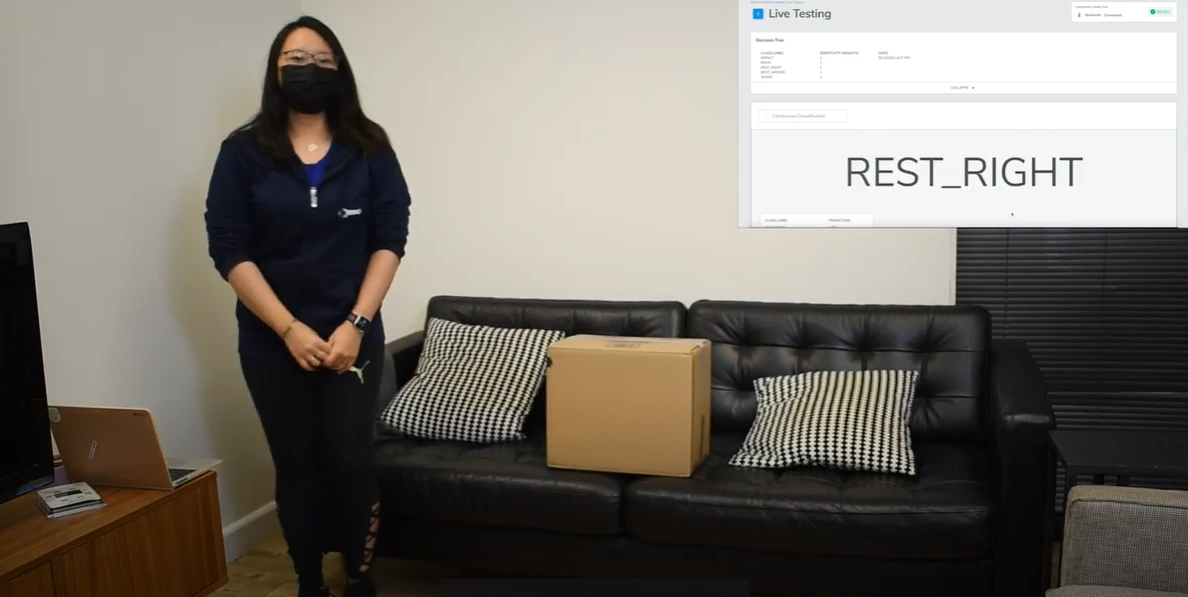
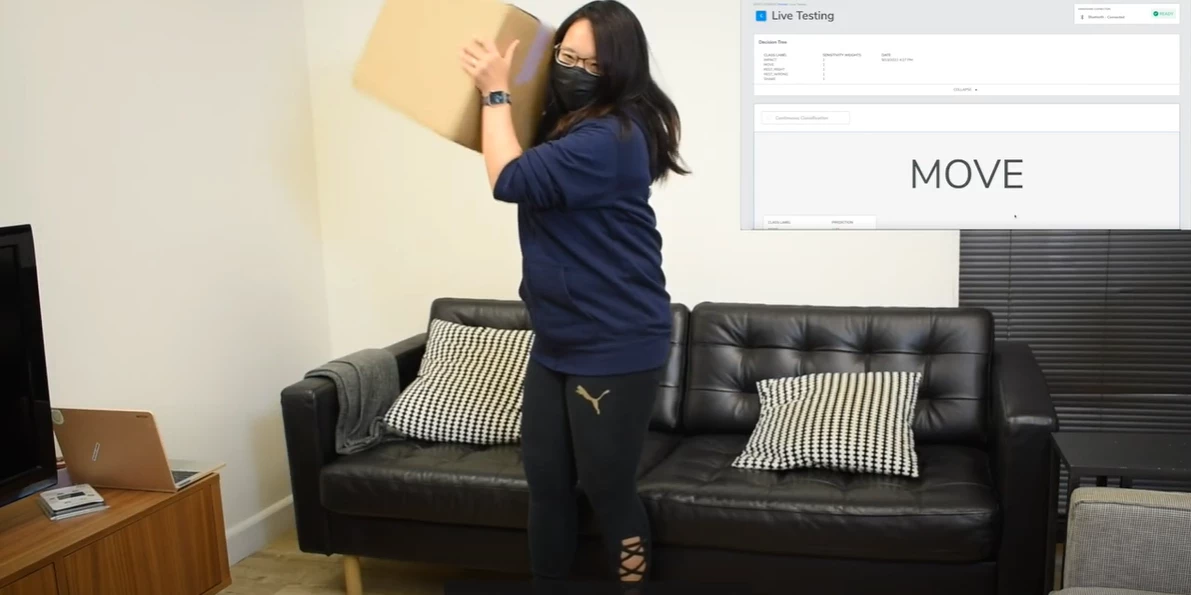
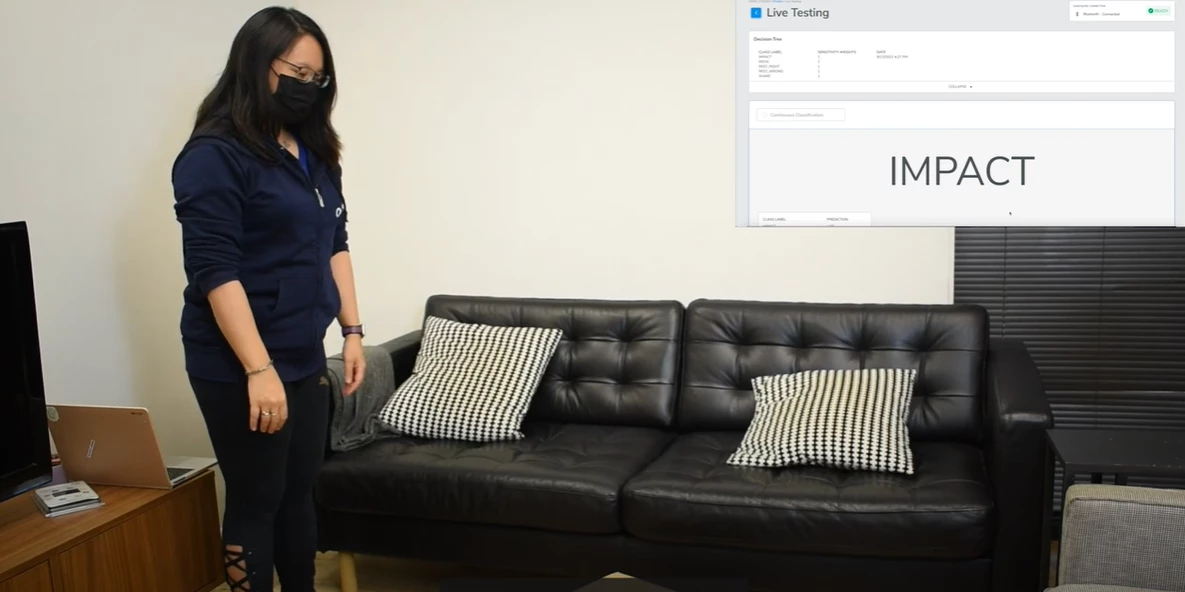
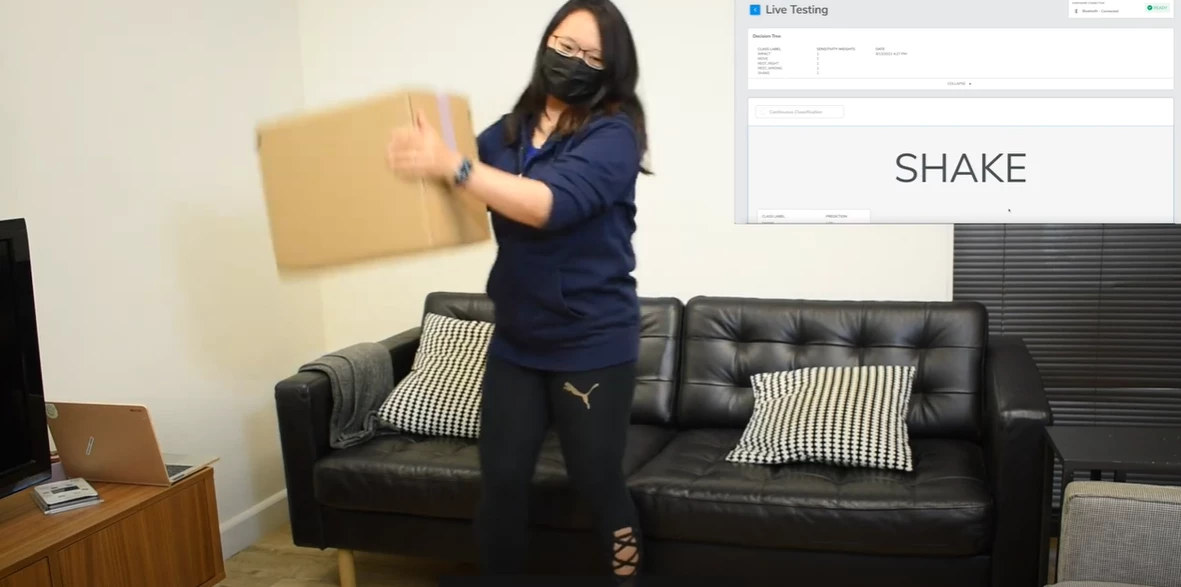
*credits to: https://qeexo.com/video/
Data visualization with the Unicleo GUI app
To test the decision tree and the FSM outputs, Unicleo-GUI PC app visualization method has been preferred. The value of the Decision Tree: 1 varies according to the class label described in the previous paragraphs.- Put the SensorTile.Box in DFU mode (Direct Firmware Upgrade): disconnect the battery and unplug the USB cable, press and hold the "DFU boot" button, connect the USB cable then release the button.
- Run STM32CubeProgrammer, select "USB" from the pull-down menu on the right, then press "Connect". Click on the Menu button in the top-left corner. Optionally perform a full chip erase. Select "Erase & Programming", browse to select the DataLogExtended binary that can be found in the FP-SNS-STBOX1 function pack, set the address to 0x800 0000, check "Run after Programming", then click "Start Programming".
- Run Unicleo GUI, connect to the device, click the checkbox to enable the MLC, then click on the MLC button in the left panel, browse and load the .ucf file, finally click the Start button.
Enjoy!