


How to use the STM32C5 with Segger J-Link
Summary
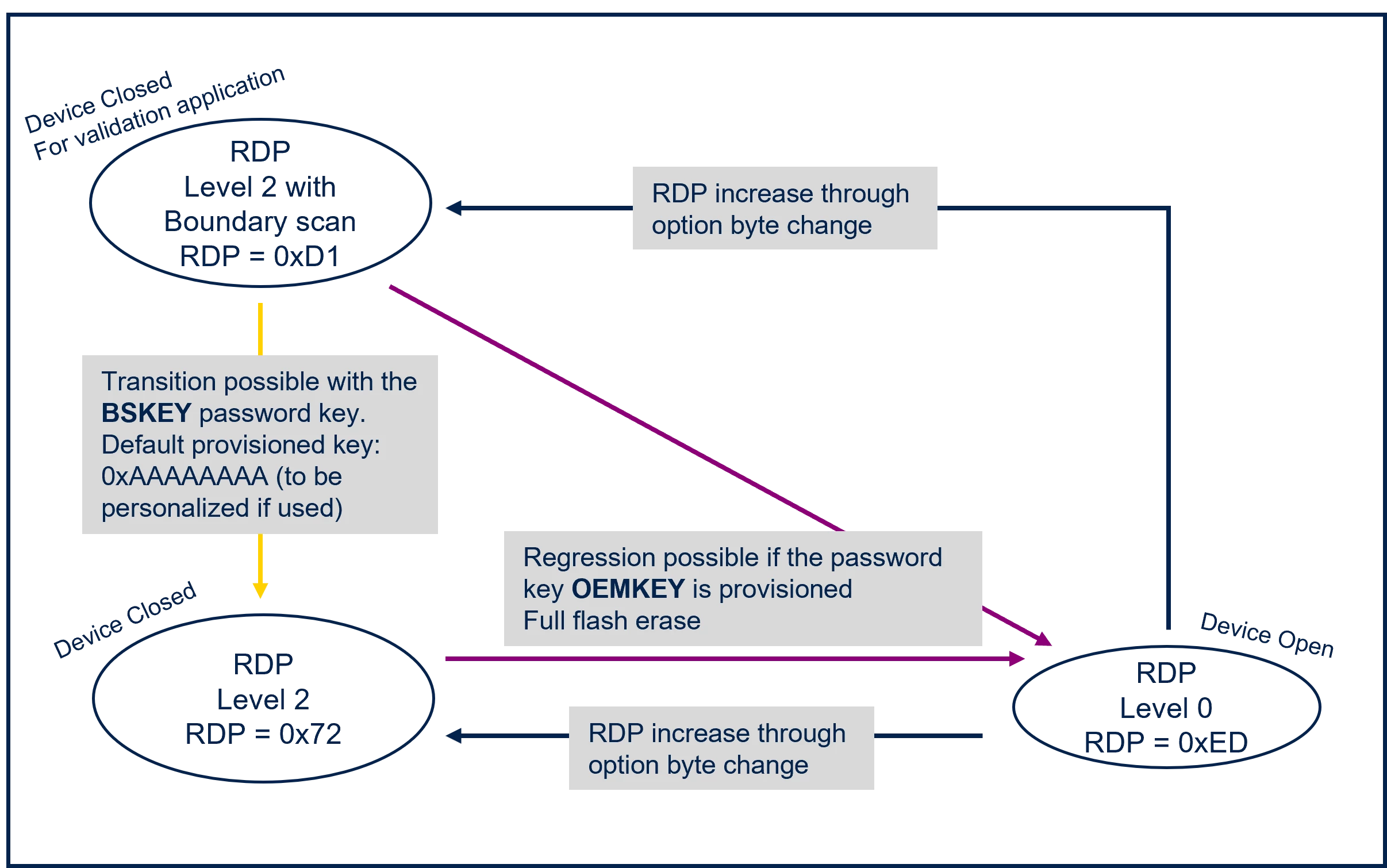
This article provides a step-by-step guide explaining how to transition a development setup from STM32C5 + ST-LINK to STM32C5 + Segger J-Link. It focuses on the complete RDP life cycle and including RDP regression with password based on OEM keys.
This guide also showcases the setup for the NUCLEO-C542RC, NUCLEO-C562RE, and NUCLEO-C5A3ZG boards.
- Summary
- Introduction
- 1. Software prerequisites
- 2. Setting up the Nucleo board with the Segger J-Link probe
- 2.1 NUCLEO-C542RC setup
- 2.2 NUCLEO-C562RE setup
- 2.3 NUCLEO-C5A3ZG setup
- 3. Provisioning the regression password key
- 4. Verifying the OEMKEY
- 5. Programming the binary image
- 5.1 Programming the NUCLEO-C542RC
- 5.2 Programming the NUCLEO-C562RE
- 5.3 Programming the NUCLEO-C5A3ZG
- 6. Closing the chip: transition from RDP level 0 to RDP level 2
- 7. Performing the regression from RDP level 2 to RDP level 0
- Related links
Introduction
Hello developer, and welcome to this article. If you’re working with STM32C5 and planning to move from an ST-LINK–based setup to a J-Link–based setup, this article is for you! Here, we guide you through the full RDP life cycle, including OEMKEY provisioning, flashing your binary image, closing the chip, and finally performing the password-based RDP regression.
This article assumes prior knowledge of STM32C5 security. All these prerequisites are covered in the STM32C5 security wiki using STM32CubeProgrammer and the STLINK interface: How to set the RDP password keys and levels on STM32C5 MCUs
This article complements the wiki by focusing on the J-Link–based workflow and the specific steps required to manage RDP and OEM keys:
- Software prerequisites
- Setting up the Nucleo board with the Segger J-Link probe (default state: RDP Level 0)
- Provisioning the regression password key (OEMKEY)
- Verifying the OEMKEY (new C5 feature, available in RDP level 0)
- Programming the binary image
- Closing the chip: transition from RDP level 0 to RDP level 2
- Performing the regression from RDP level 2 to RDP level 0
1. Software prerequisites
The Segger J-Link software version 9.32 or later is required.
You can download the J-Link software here: https://www.segger.com/downloads/jlink/
The J-Link software package contains several utilities. Two of them are used in this article:
- J-Link Commander (JLink.exe / JLinkExe), to program our binary image (https://kb.segger.com/J-Link_Commander).
- The Device Provisioner (DevPro), which allows you to perform all life cycle operations (https://kb.segger.com/Device_Provisioner).
2. Setting up the Nucleo board with the Segger J-Link probe
On an STLINK setup, both powering the board and debug signals are provided through the STLINK connector.
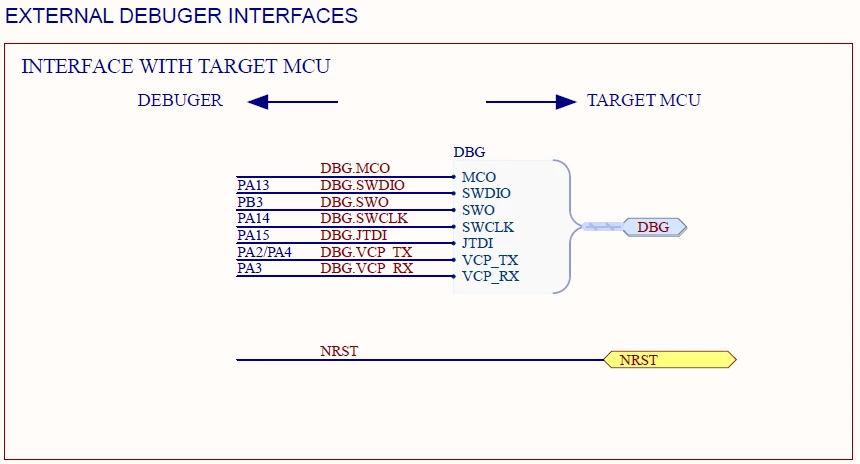
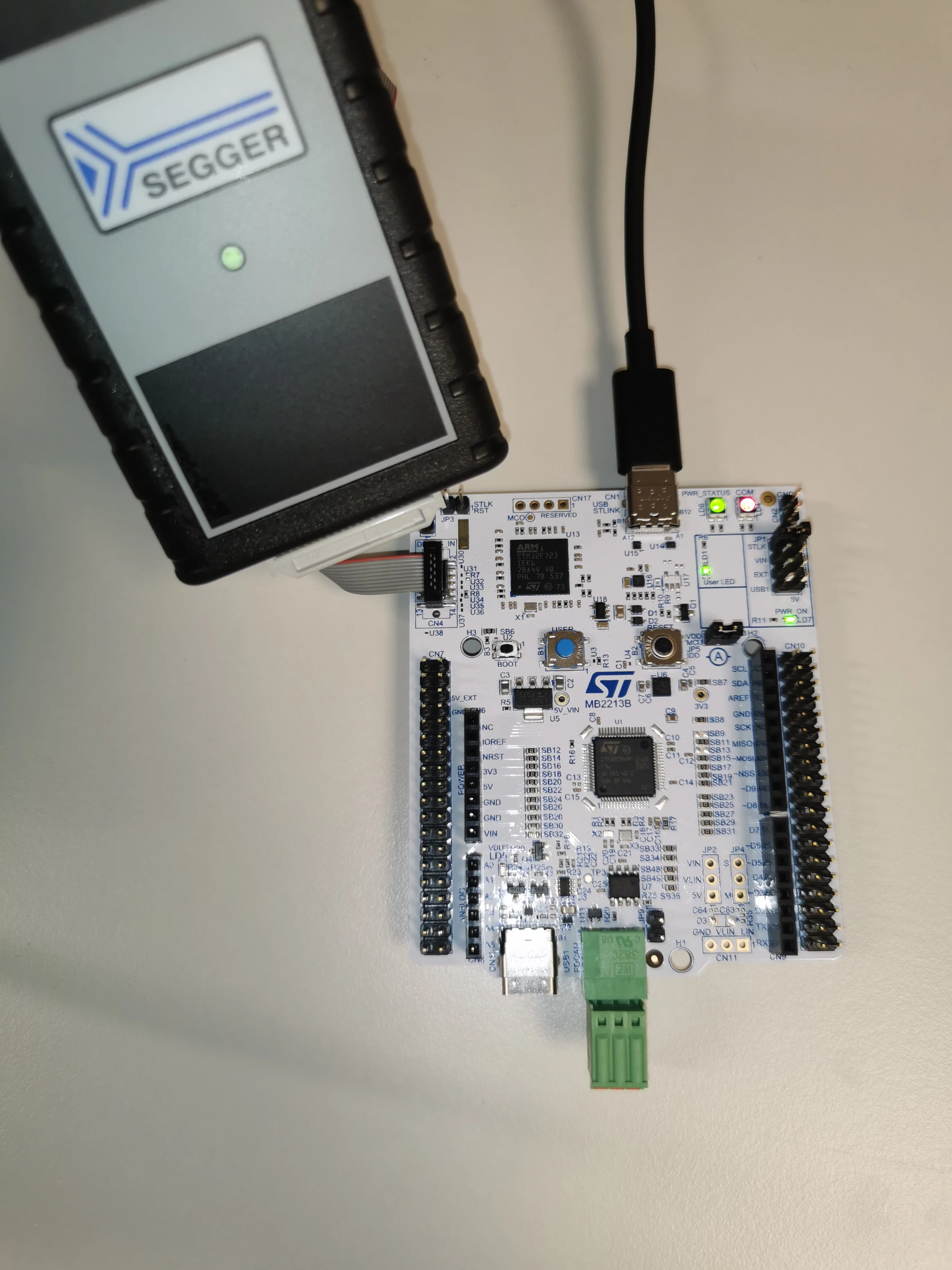
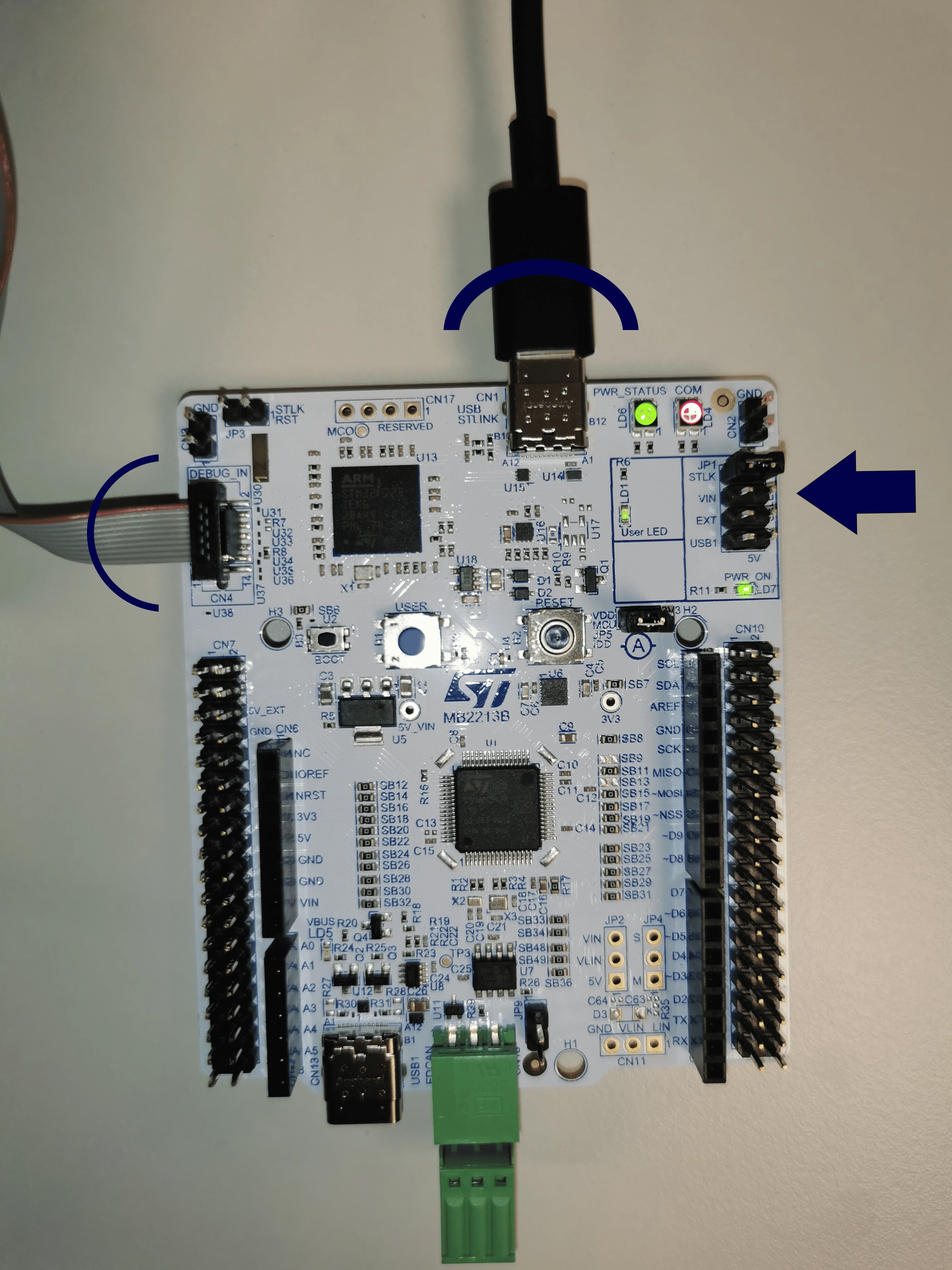
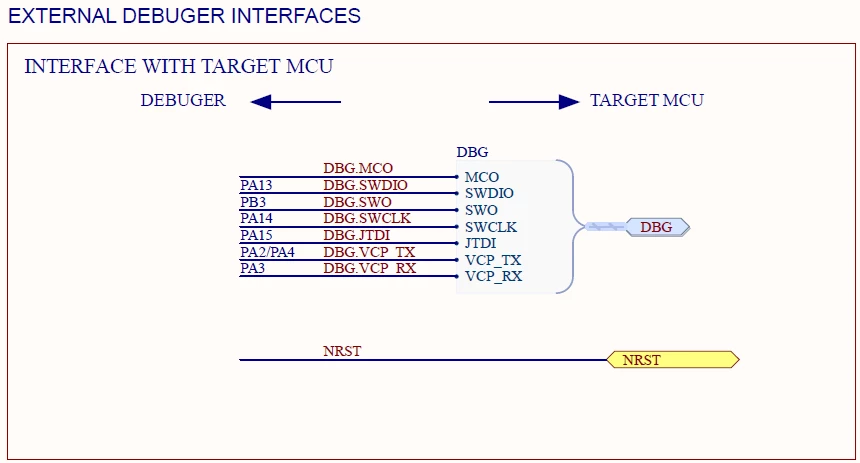
On a J-Link setup, that is, with an external probe, the debug signals are available through the "External Debug Interface" of the board. Its power supply remains available through the STLINK interface with the 5V selector jumper set to STLINK.
The next three sections showcase the setup for the following boards:
- NUCLEO-C542RC
- NUCLEO-C562RE
- NUCLEO-C5A3ZG
2.1 NUCLEO-C542RC setup
https://www.st.com/resource/en/schematic_pack/mb2213-c542rc-b02-schematic.pdf
2.2 NUCLEO-C562RE setup
https://www.st.com/resource/en/schematic_pack/mb2213-c562re-b02-schematic.pdf
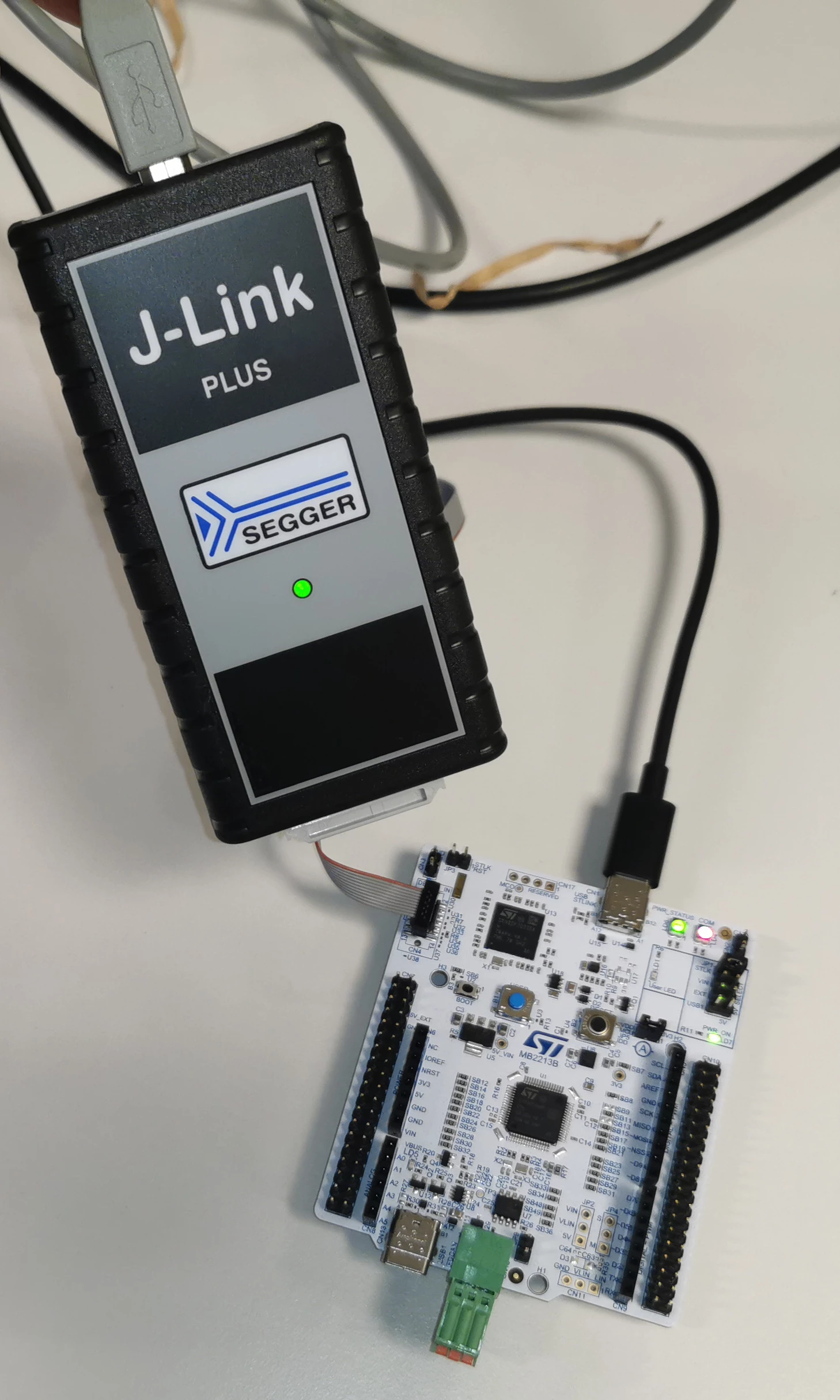
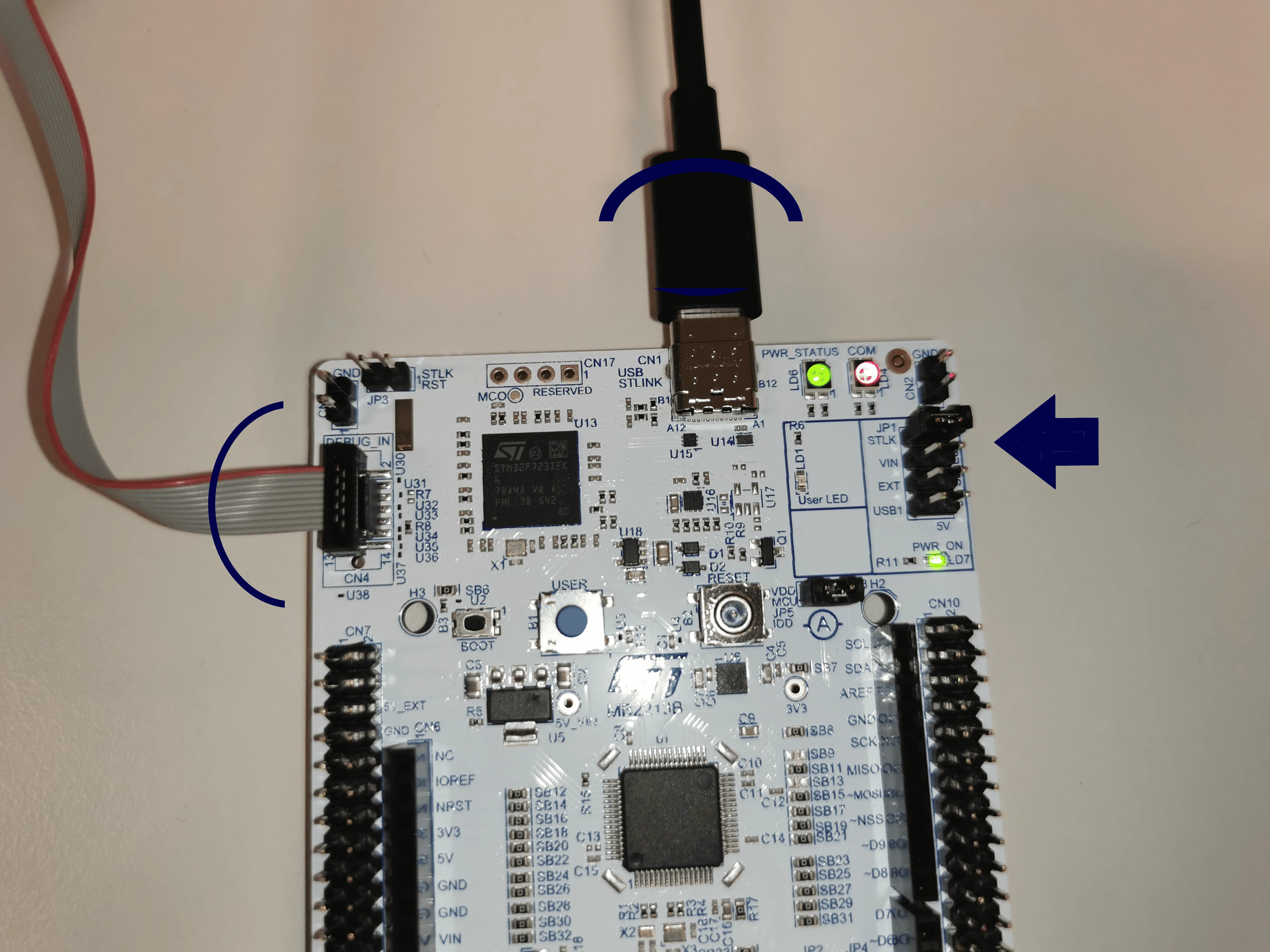
2.3 NUCLEO-C5A3ZG setup
https://www.st.com/resource/en/schematic_pack/mb2213-c562re-b02-schematic.pdf
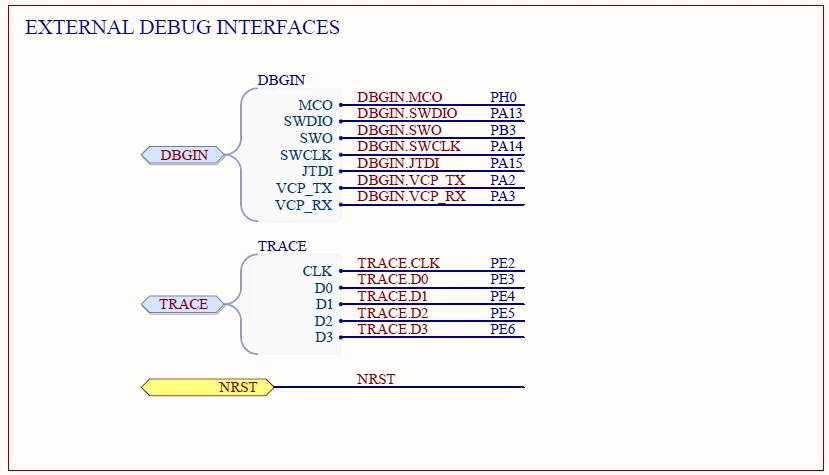
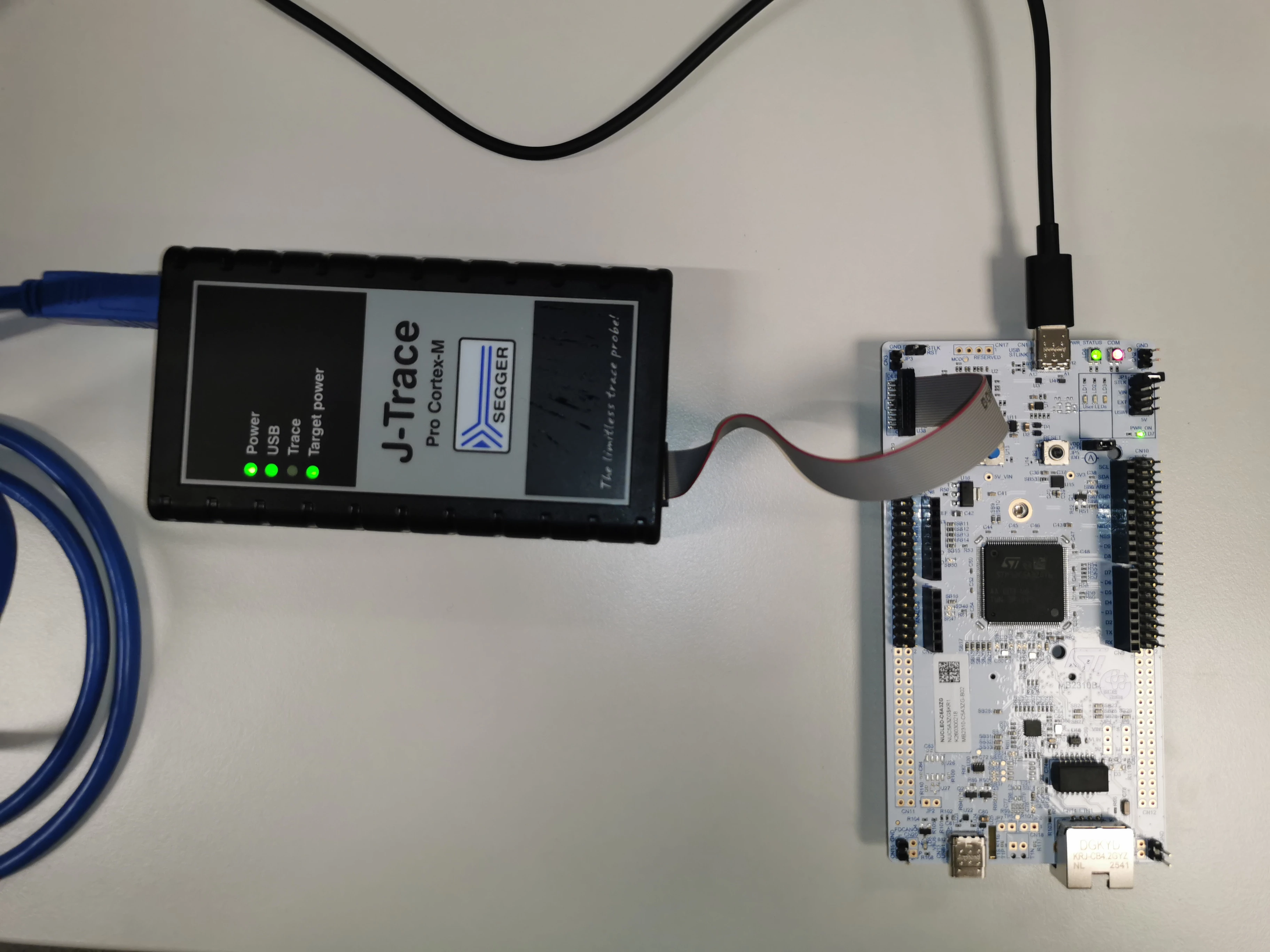
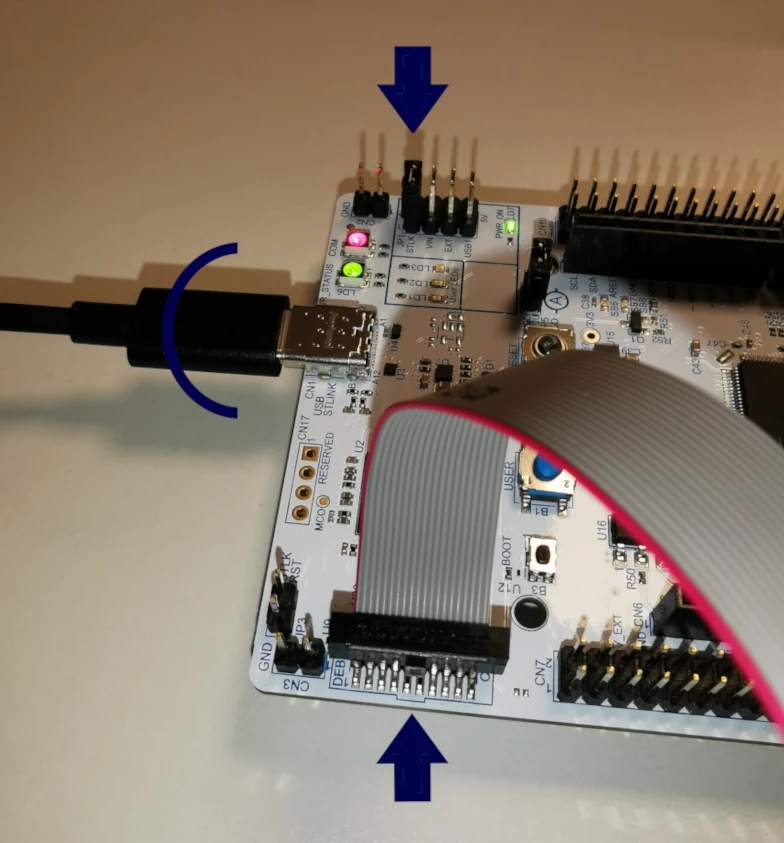
Note: Ensure that the MIPI‑20 ribbon cable is correctly oriented: the keyed notch on the connector must align with the key on the board header. Refer to the arrow at the bottom of the picture.
3. Provisioning the regression password key
Once our setup is functional, the first thing to do is to provision the OEMKEY.
The OEMKEY has a 128-bit length (16 bytes).
In this article, the key used is: 00112233445566778899AABBCCDDEEFF.
Important note:
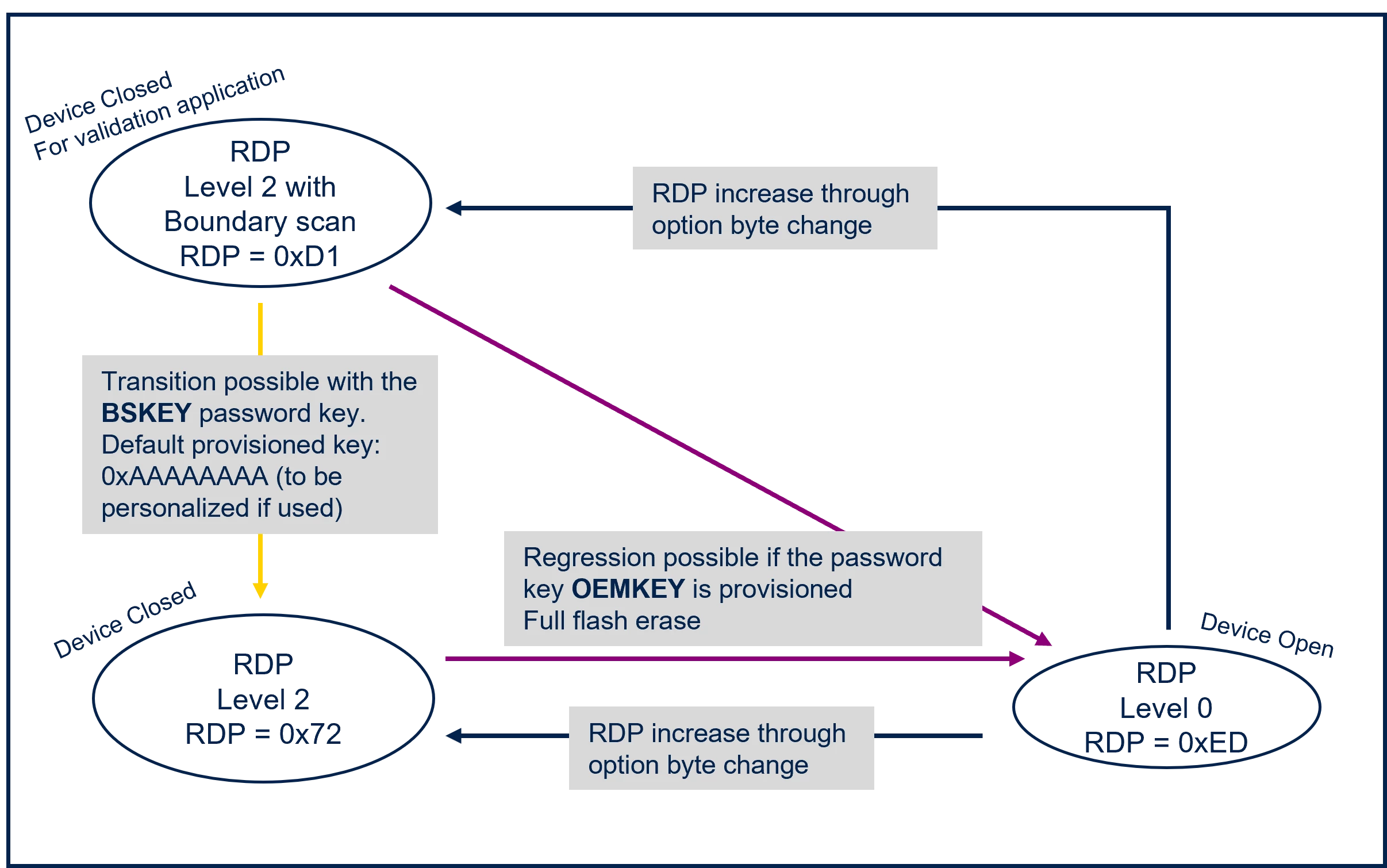
- If the RDP level 2 is set without provisioning the OEMKEY, the device remains locked in the RDP level 2 state.
- It is impossible to retrieve the regression OEMKEY in RDP level 2, so make sure to store this key safely and do not lose it.
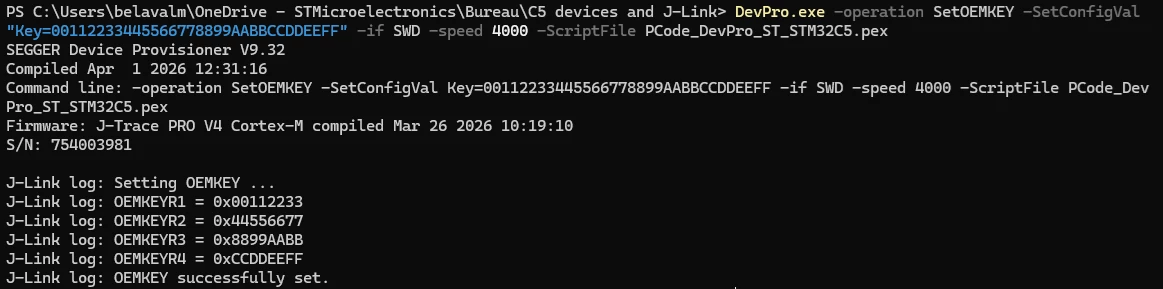
For all STM32C5 devices, the provisioning command to be executed is the same:
DevPro.exe -operation SetOEMKEY -SetConfigVal "Key=00112233445566778899AABBCCDDEEFF" -if SWD -speed 4000 -ScriptFile PCode_DevPro_ST_STM32C5.pexLog output:
4. Verifying the OEMKEY
For all STM32C5 devices, the verify command to be executed is the same:
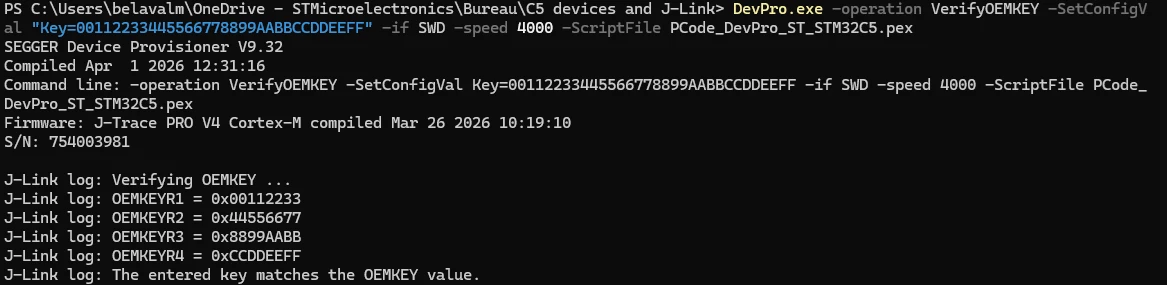
DevPro.exe -operation VerifyOEMKEY -SetConfigVal "Key=00112233445566778899AABBCCDDEEFF" -if SWD -speed 4000 -ScriptFile PCode_DevPro_ST_STM32C5.pexLog output if successful:
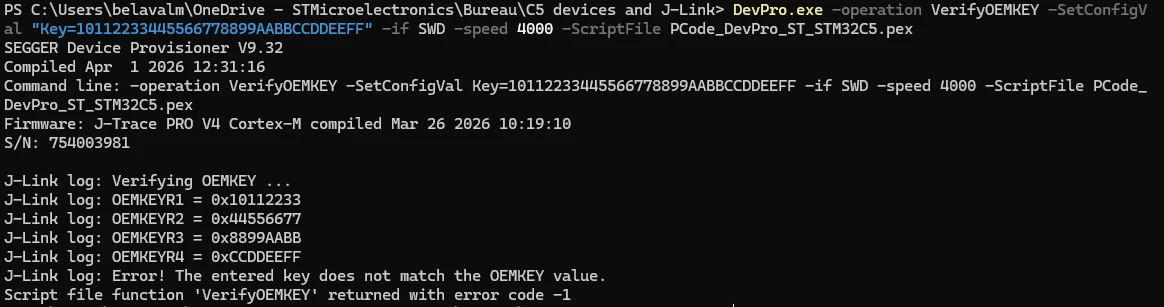
Log output if the key is not the one provisioned:
5. Programming the binary image
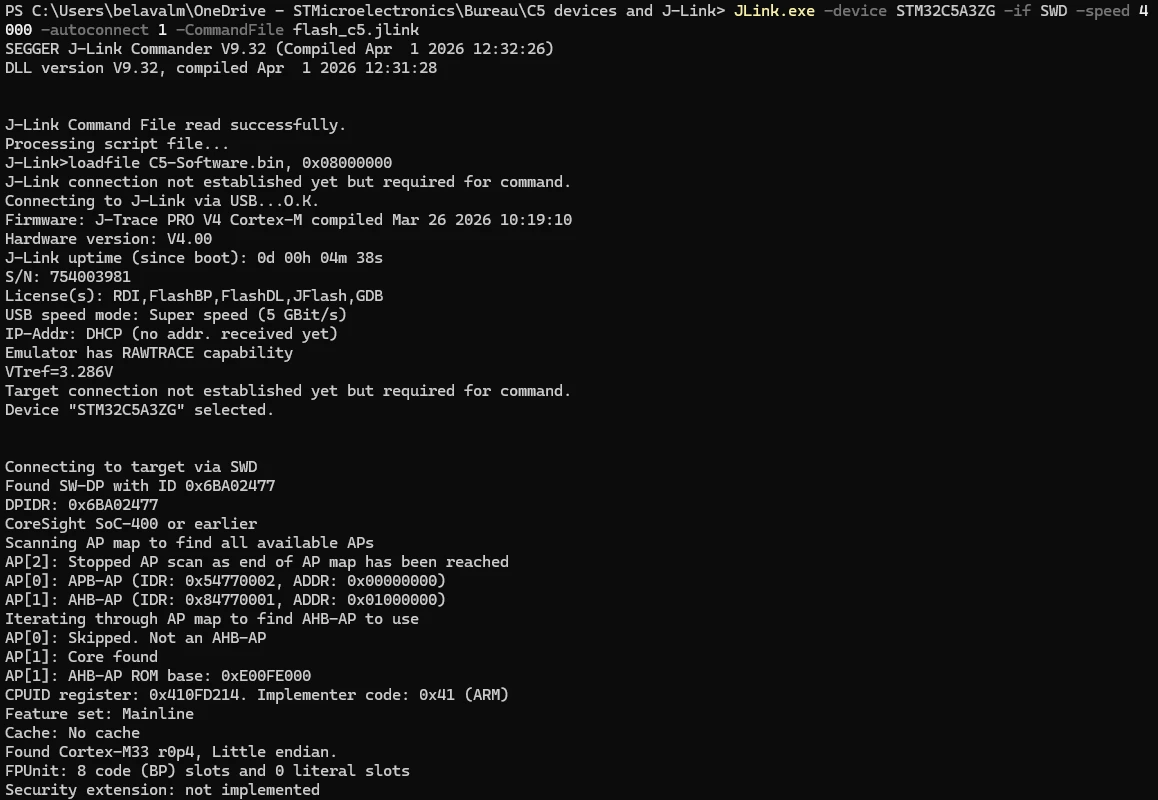
To program our binary image, we use a .jlink file, named “flash_c5.jlink” that contains all the information needed by J-Link Commander.
The content of this file is:
loadfile C5-Software.bin, 0x08000000
Reset
Go
Exit
The available options are all here: https://kb.segger.com/J-Link_Commander#Commands
- Reset performs a reset of the CPU.
- Go starts the CPU if it was halted.
- Exit closes the J-Link connection, allowing us to execute the next command.
5.1 Programming the NUCLEO-C542RC
Execute the following command:
JLink.exe -device STM32C542RC -if SWD -speed 4000 -autoconnect 1 -CommandFile flash_c5.jlink5.2 Programming the NUCLEO-C562RE
Execute the following command:
JLink.exe -device STM32C562RE -if SWD -speed 4000 -autoconnect 1 -CommandFile flash_c5.jlink5.3 Programming the NUCLEO-C5A3ZG
Execute the following command:
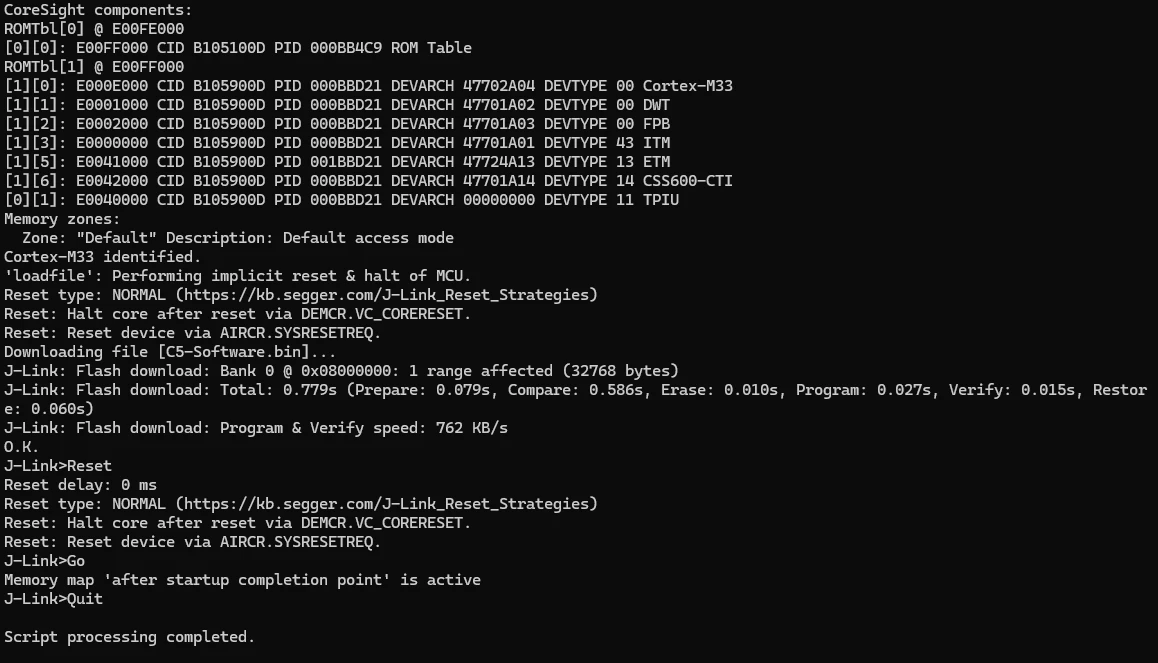
JLink.exe -device STM32C5A3ZG -if SWD -speed 4000 -autoconnect 1 -CommandFile flash_c5.jlinkLog output:
6. Closing the chip: transition from RDP level 0 to RDP level 2
For all STM32C5 devices, the lock command to be executed to set the RDP level to 2 is the same:
DevPro.exe -operation SetRDP -SetConfigVal “Level=RDP2” -if SWD -speed 4000 -ScriptFile PCode_DevPro_ST_STM32C5.pexImportant note:
- If the RDP level 2 is set without provisioning the OEMKEY, the device remains locked in the RDP level 2 state.
- It is impossible to retrieve the regression OEMKEY in RDP level 2, so make sure to store this key safely and do not lose it.
Log output:

7. Performing the regression from RDP level 2 to RDP level 0
In this article, the key used is: 00112233445566778899AABBCCDDEEFF.
For all STM32C5 devices, the unlock command to be executed to perform the RDP regression from Level 2 to Level 0 is the same:
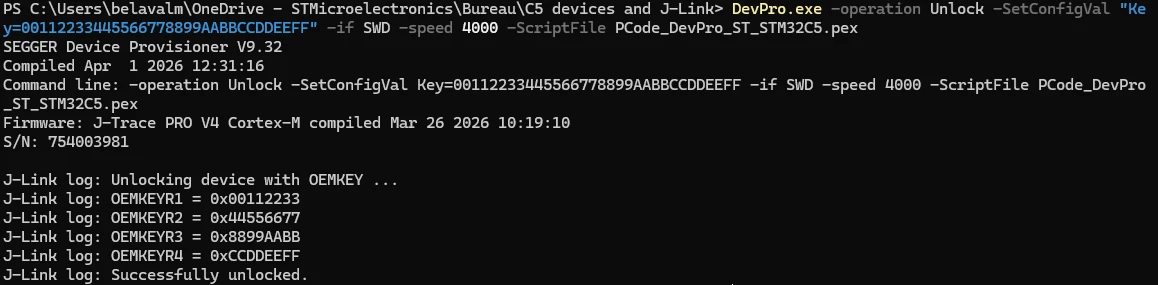
DevPro.exe -operation Unlock -SetConfigVal "Key=00112233445566778899AABBCCDDEEFF" -if SWD -speed 4000 -ScriptFile PCode_DevPro_ST_STM32C5.pexImportant note:
- The regression performs a mass erase of the chip.
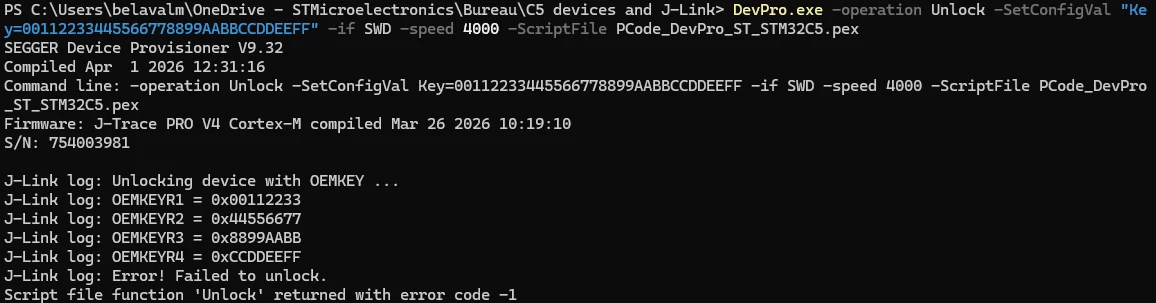
- After closing the chip, before executing the Unlock command, you must perform a power-off/power-on cycle to ensure that the regression completes successfully.
Log output when successful:
Log output when the key is correct but a power-off / power-on cycle is missing:
Related links