

How to create a new project with STM32CubeMX2
Summary
This guide describes how to create a new project using STM32CubeMX2. It explains the main features and functions of the application. The guide covers essential steps such as microcontroller unit (MCU) selection, pin configuration, clock setup, peripheral and middleware management, and project generation. This guide helps users navigate the development environment efficiently.
- Summary
- Introduction
- Prerequisites
- 1. Home page
- 2. Create application project from MCU
- 2.1 Pinout configuration tab
- 2.2 Clock configuration tab
- 2.3 Peripheral tab
- 2.4 Middleware & Utilities tab
- 2.5 Parts tab
- 2.6 Project settings and code generation
- 3. Conclusion
- Related links
Introduction
STM32CubeMX2 is a graphical tool designed to simplify the configuration and initialization of STM32 microcontrollers. The tool provides an interface for selecting MCUs, configuring pins, clocks, peripherals, and middleware. It accelerates the development process and reduces the complexity of embedded system design. This article describes the step-by-step process for creating a new project in STM32CubeMX2, highlighting its main features and demonstrating how to generate ready-to-use code for a preferred development environment.
Prerequisites
Install the following tools:
- STM32CubeMX2
- The latest STM32C5 HAL2 driver
- STM32CubeIDE extension for Visual Studio Code
The hardware used in this tutorial is the NUCLEO-C562RE board.
1. Home page
After opening STM32CubeMX2, the main page displays key buttons to help you start developing code. On the right side, several resources are available to assist you during development:
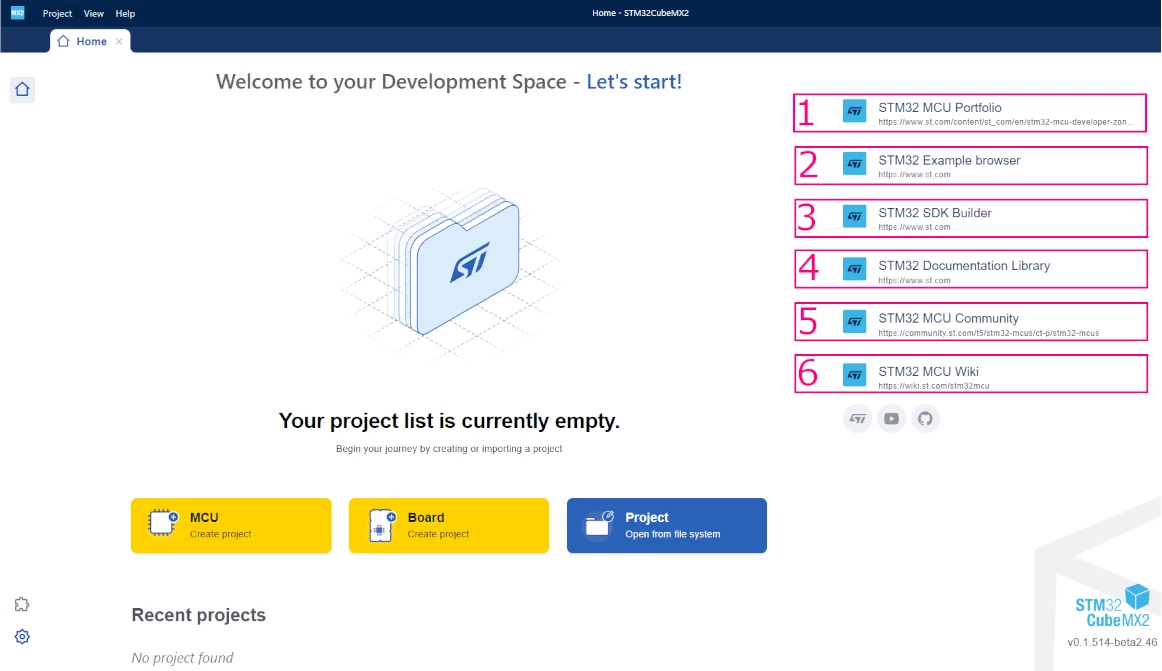
- STM32 MCU portfolio: Web page that helps you select the best STM32 microcontroller for your application.
- STM32 example browser: Collection of example projects to accelerate development.
- STM32 SDK builder: Tool for customizing and generating software development kits.
- STM32 documentation library: Technical documentation and reference materials.
- STM32 MCU community: Platform for community support and collaboration.
- STM32 MCU wiki: Knowledge base containing tutorials, frequently asked questions, and user guides.
In the lower-left corner of the STM32CubeMX2 main page, two icons help manage the development environment:
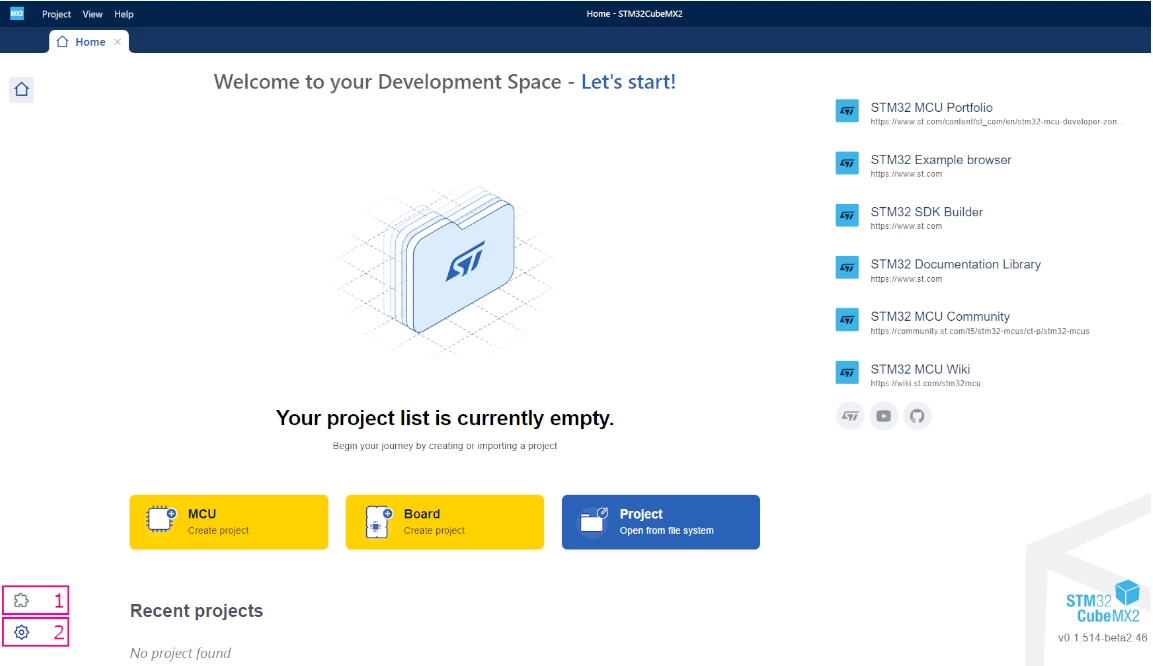
- Manages software packs, including downloading and updating device support packages and middleware components.
- Configures preferences and options for STM32CubeMX2.
At the center of the page, three main options are available to begin a project:
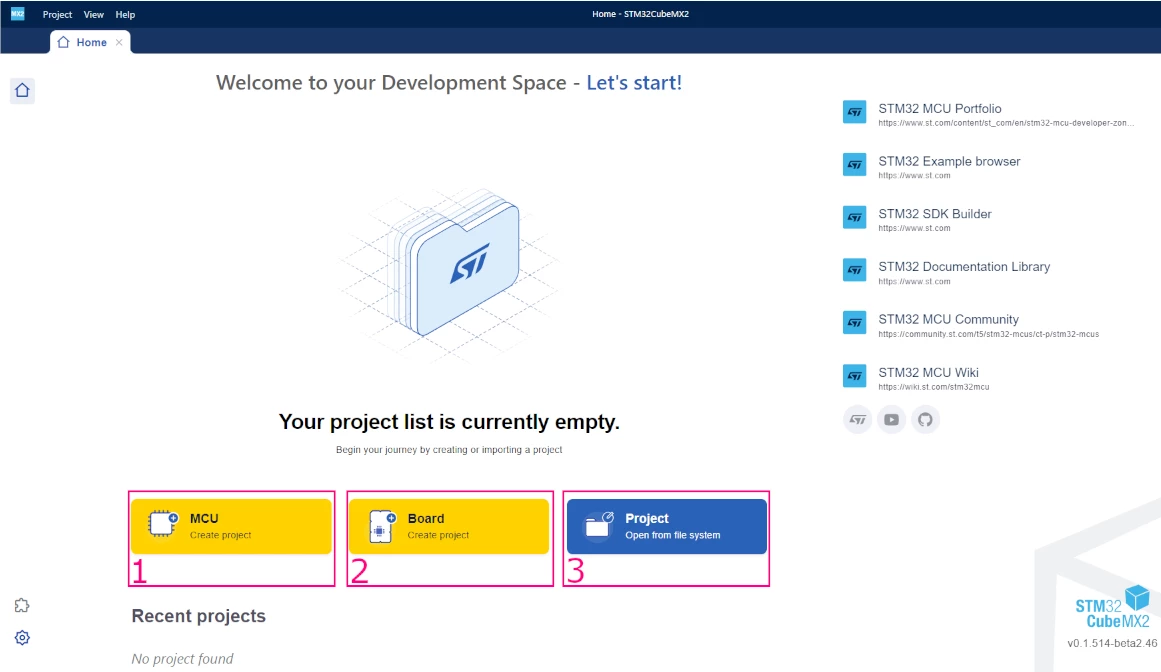
- MCU: Create a new project based on a microcontroller.
- Board: Create a new project based on a development board.
- Project: Open an existing project from the file system.
After selecting to create a project via MCU, a screen appears that allows you to choose an STM32 microcontroller from a searchable list to begin project setup.
2. Create application project from MCU
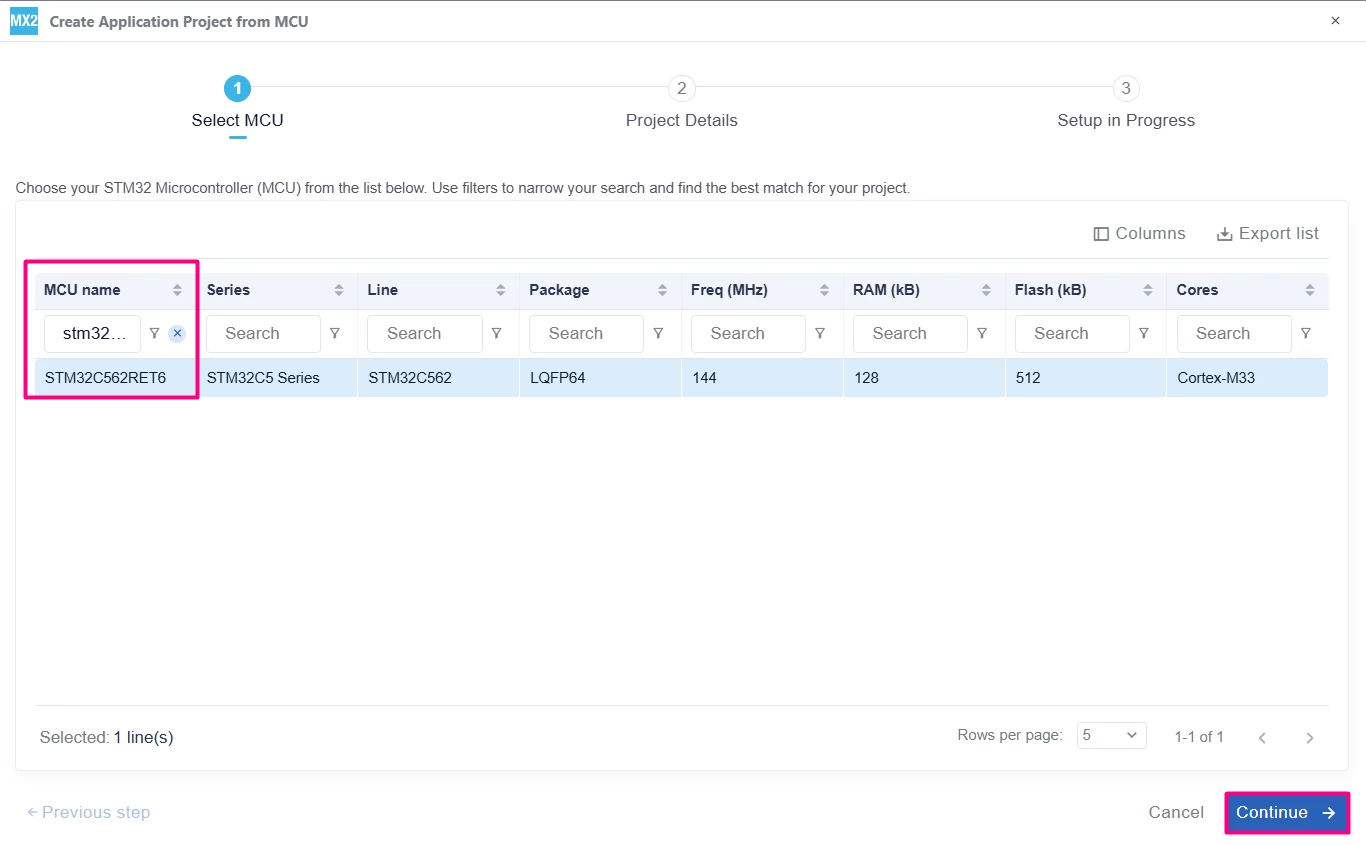
Type the MCU name, select the matching entry from the list, and click [Continue] to proceed.
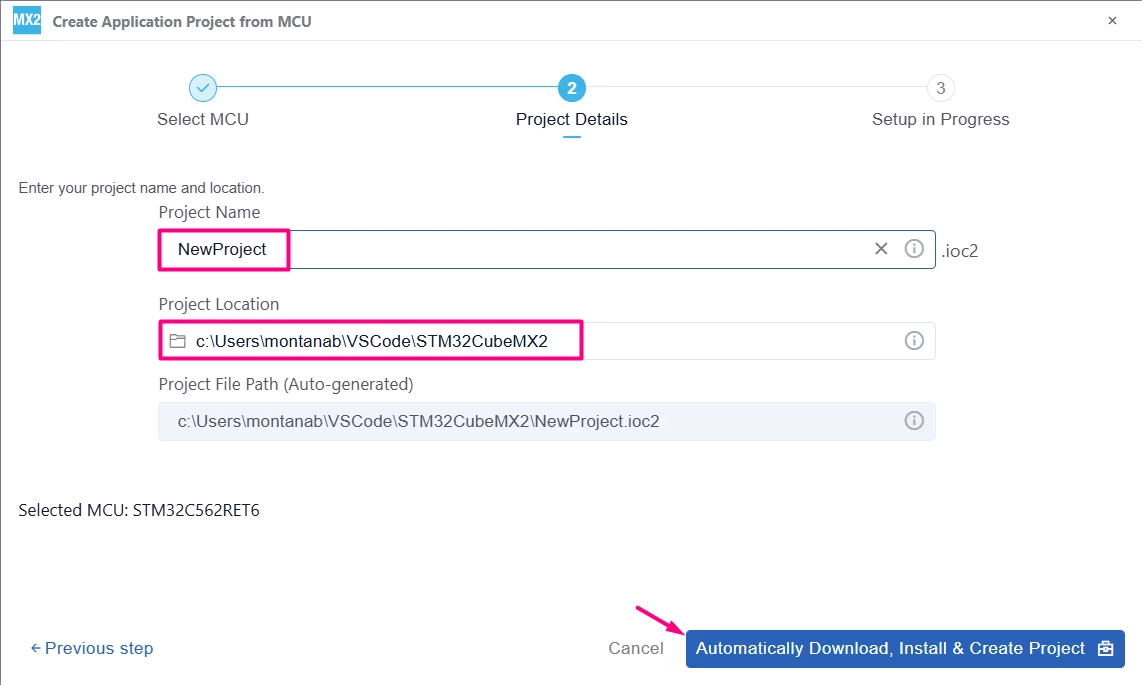
Enter a name for the project (for example, NewProject) and update the project location to the desired folder. The project file path is autogenerated based on these inputs. Once set, click the [Automatically Download, Install & Create Project] button to proceed.
With the project created, explore the following features in STM32CubeMX2:
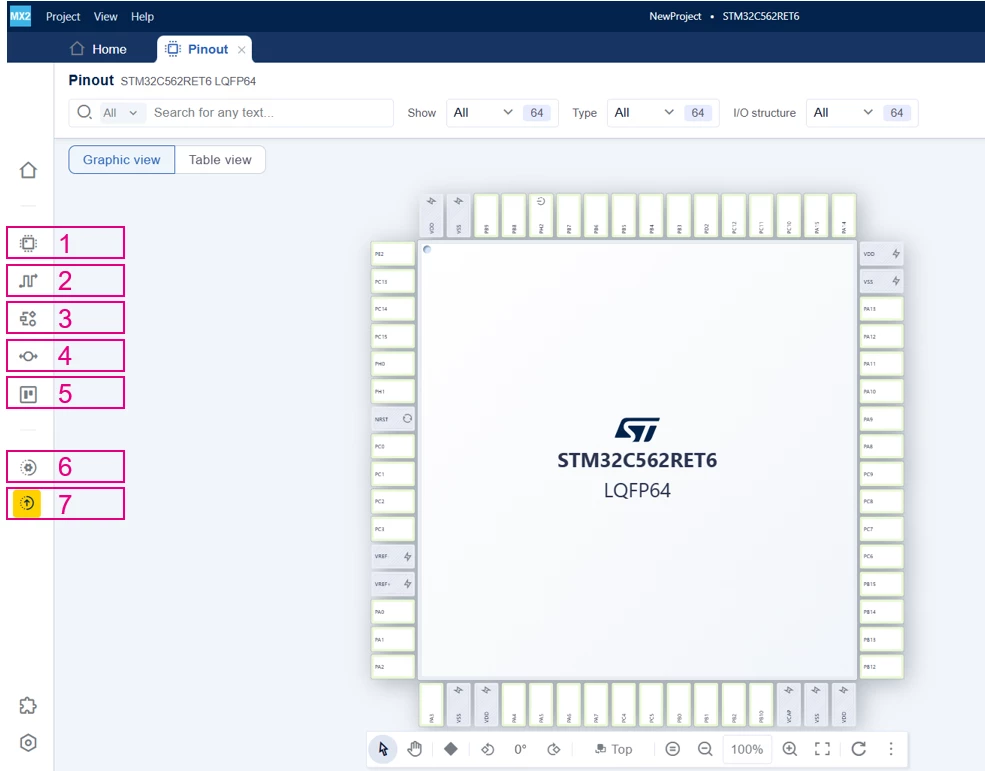
- Pinout: Configure the microcontroller pins and their functions visually.
- Clock: Configure the system and peripheral clocks.
- Peripherals: Enable and configure the hardware peripherals of the MCU.
- Middleware and utilities: Add and configure middleware components and utility libraries.
- Parts: View information about the MCU parts and package details.
- Project Settings: Configure the IDE, code generation, and HAL aspects, such as custom callbacks.
- IDE project generation: Manage settings related to generating the project for the chosen integrated development environment (IDE).
2.1 Pinout configuration tab
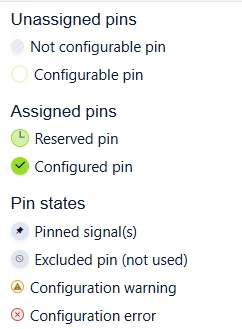
STM32CubeMX2 uses an updated color scheme compared to the previous version. The pin states are represented with new colors, as shown below:
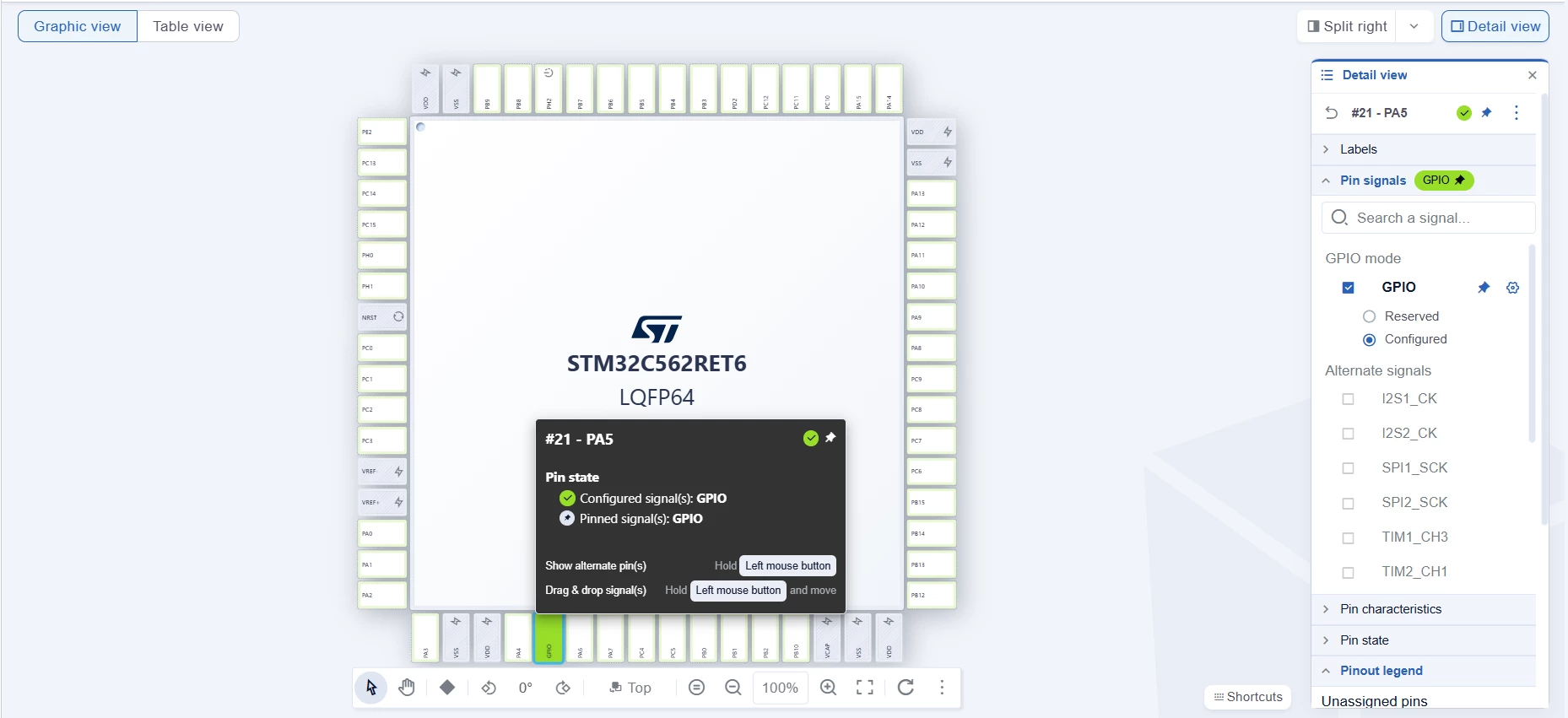
Continued illustration in the image below.
2.2 Clock configuration tab
Click the Clock tab to open the clock configuration interface. Customize the system and peripheral clocks according to project requirements. The graphical view presents a clock tree where you can adjust clock sources, prescalers, and multipliers.
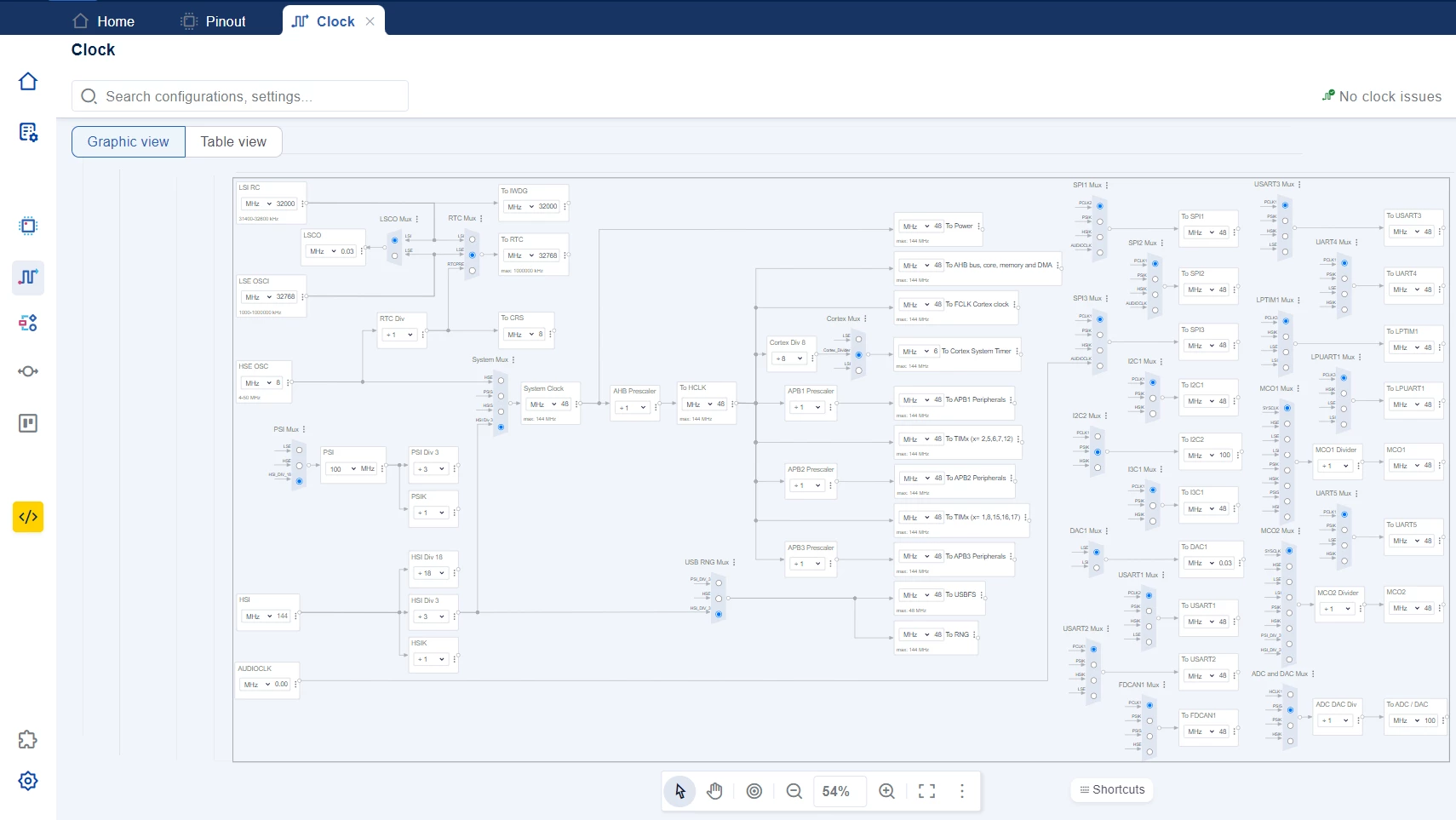
STM32CubeMX2 introduces a new shortcut scheme. For example, you can navigate the clock tree by clicking and holding the mouse wheel to drag. To zoom in or out, hold the Ctrl key while scrolling.
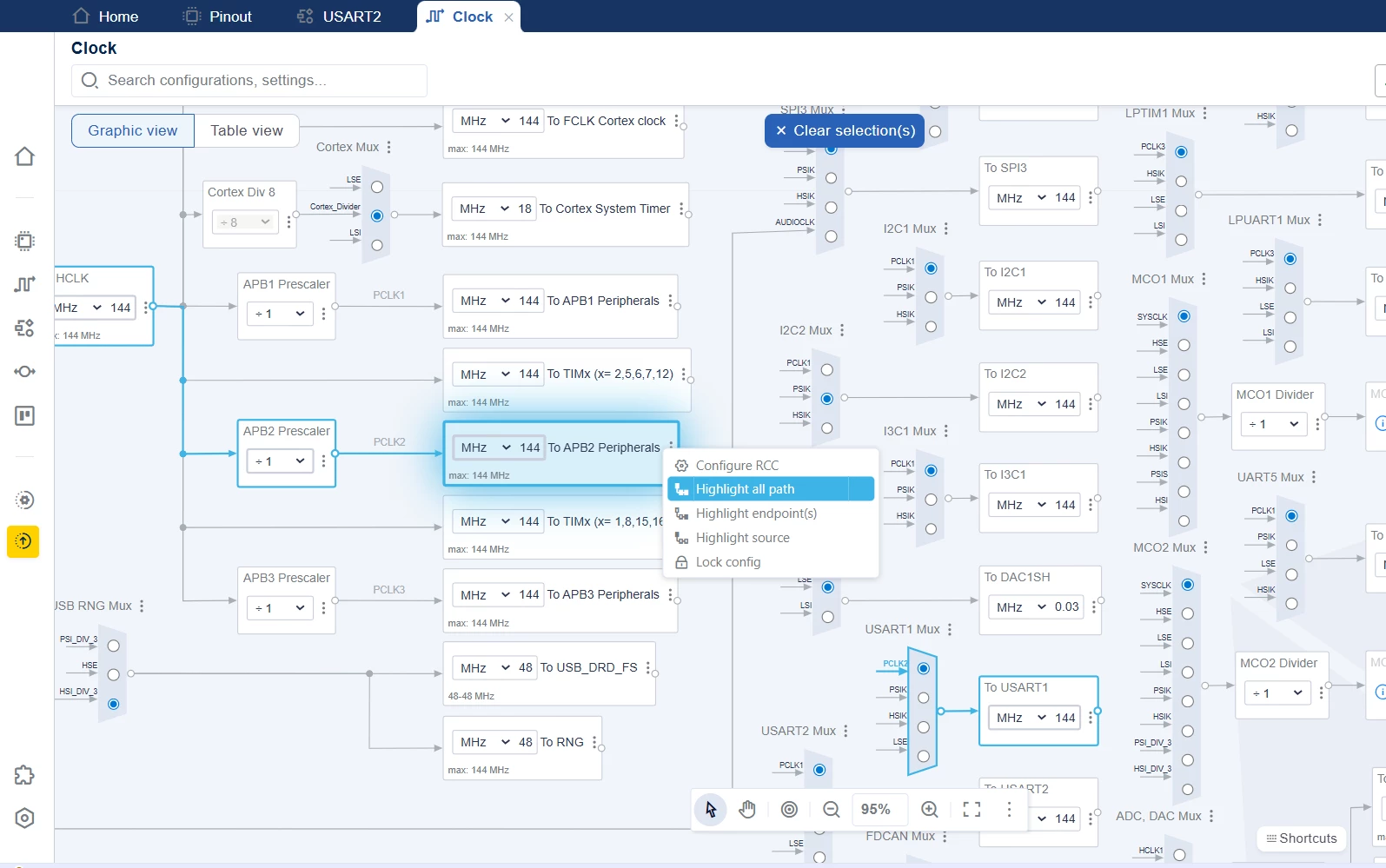
By clicking in a given clock box, it is now possible to highlight all paths from that clock, making it easier to see the relationship between resources and clock sources.
2.3 Peripheral tab
Click the [Peripherals] button to open a side tab for configuring the peripherals used in the project. This tab provides a searchable and categorized list of all available peripherals,
It's organized into groups such as Analog, Security, Computing, System, Cortex, Connectivity, I/O, Memory, and Timers.
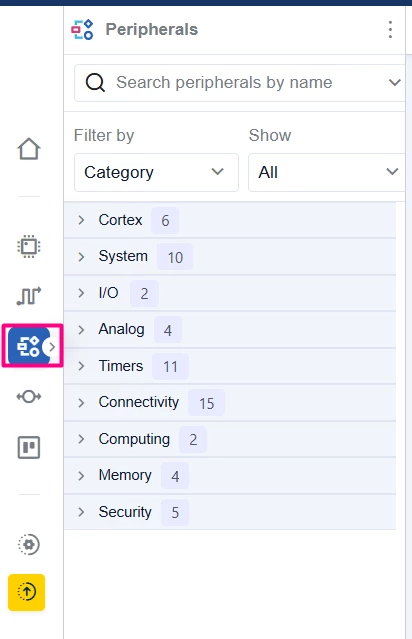
Select a category to display a list of available items. Click a specific item to open an interface for configuring its settings.
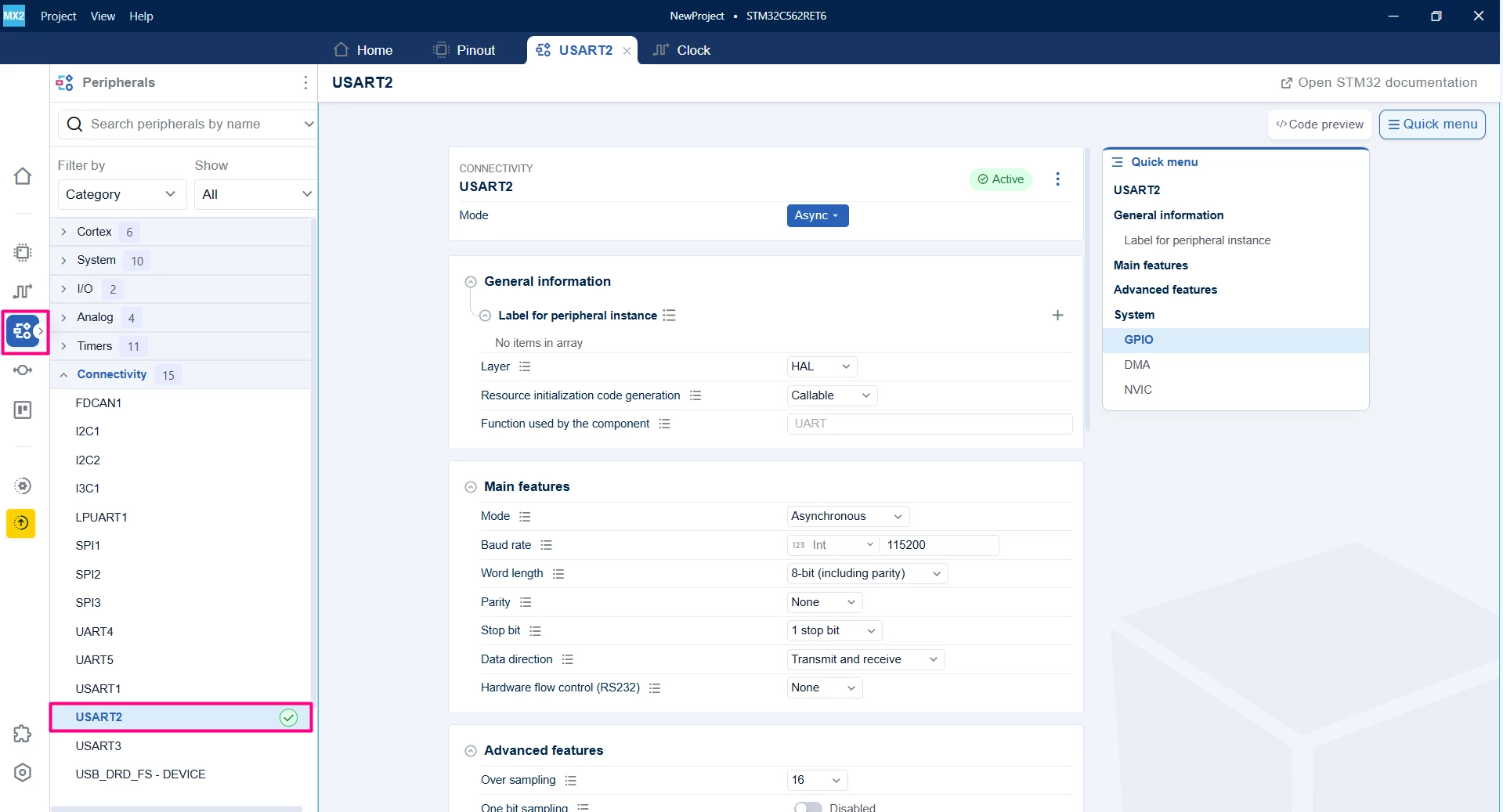
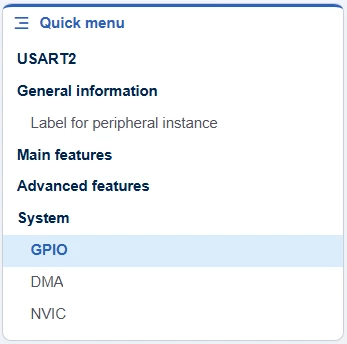
The "Quick menu" facilitates the navigation to locate the main points, such as selecting the GPIO(s) used by the select peripheral, the DMA, and interrupt.
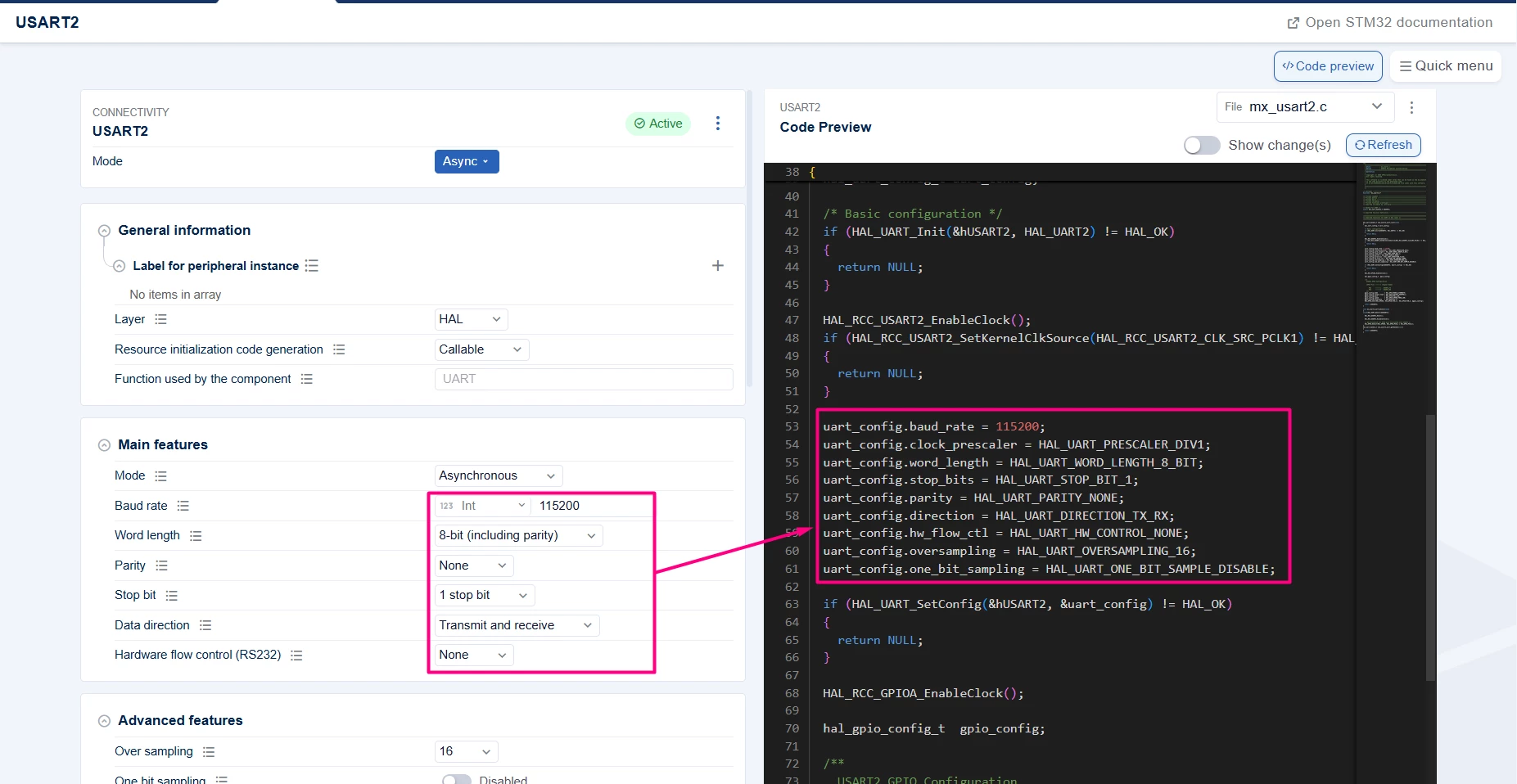
STM32CubeMX2 also introduces the concept of "Code Preview", allowing the developer to check and copy the code based on those given settings. It is also possible to compare the code preview with a previous generated code, quickly spotting the effect of changes without having to re-generate the entire project.
2.4 Middleware & Utilities tab
Click the [Middleware & Utilities] button to open a side tab for managing middleware and utility components. Click [Add middleware] to include middleware packages such as FreeRTOS™. Similarly, add utility components to create a customized set of tools and services. Selecting Add middleware opens the configuration interface.
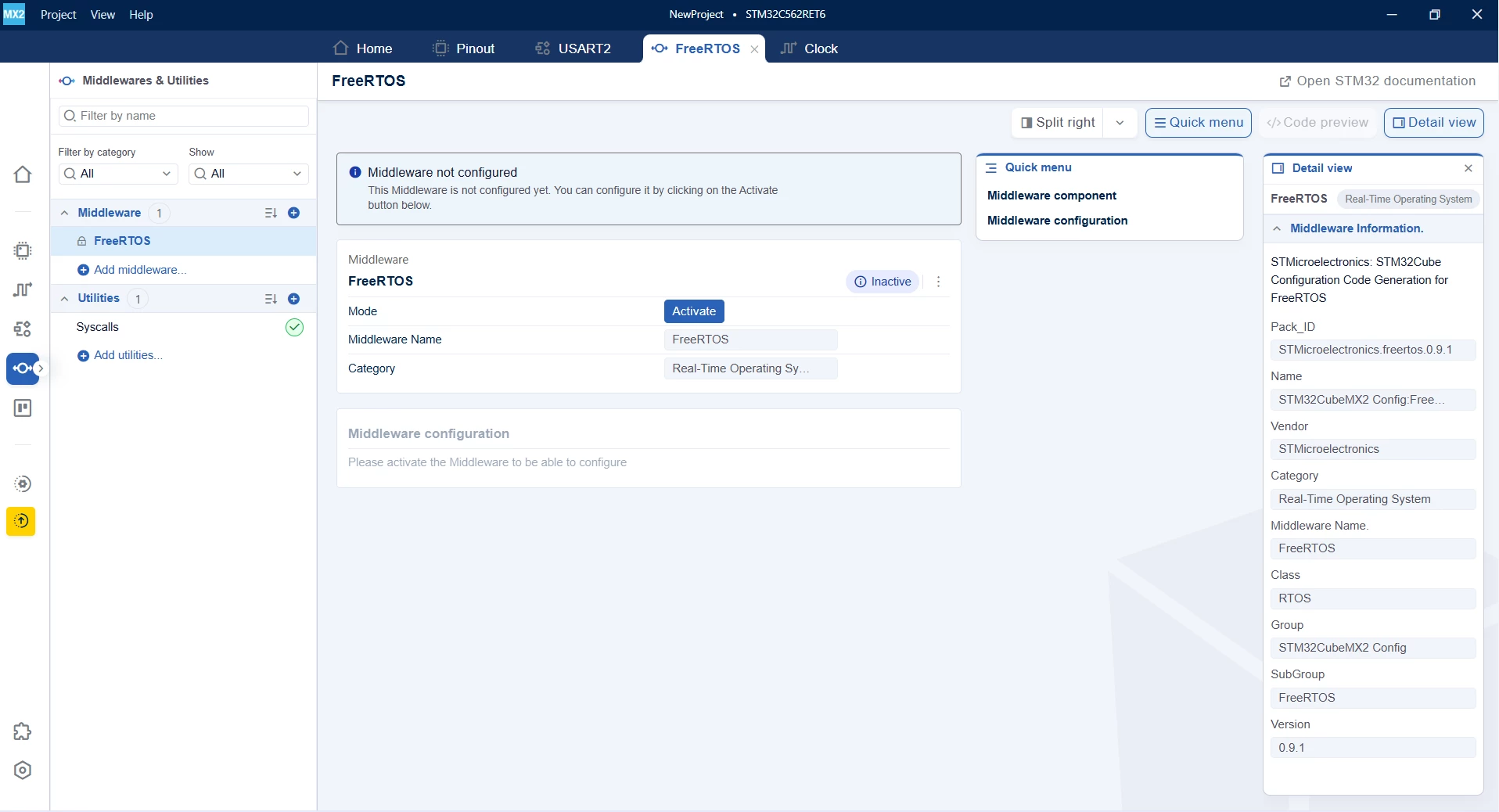
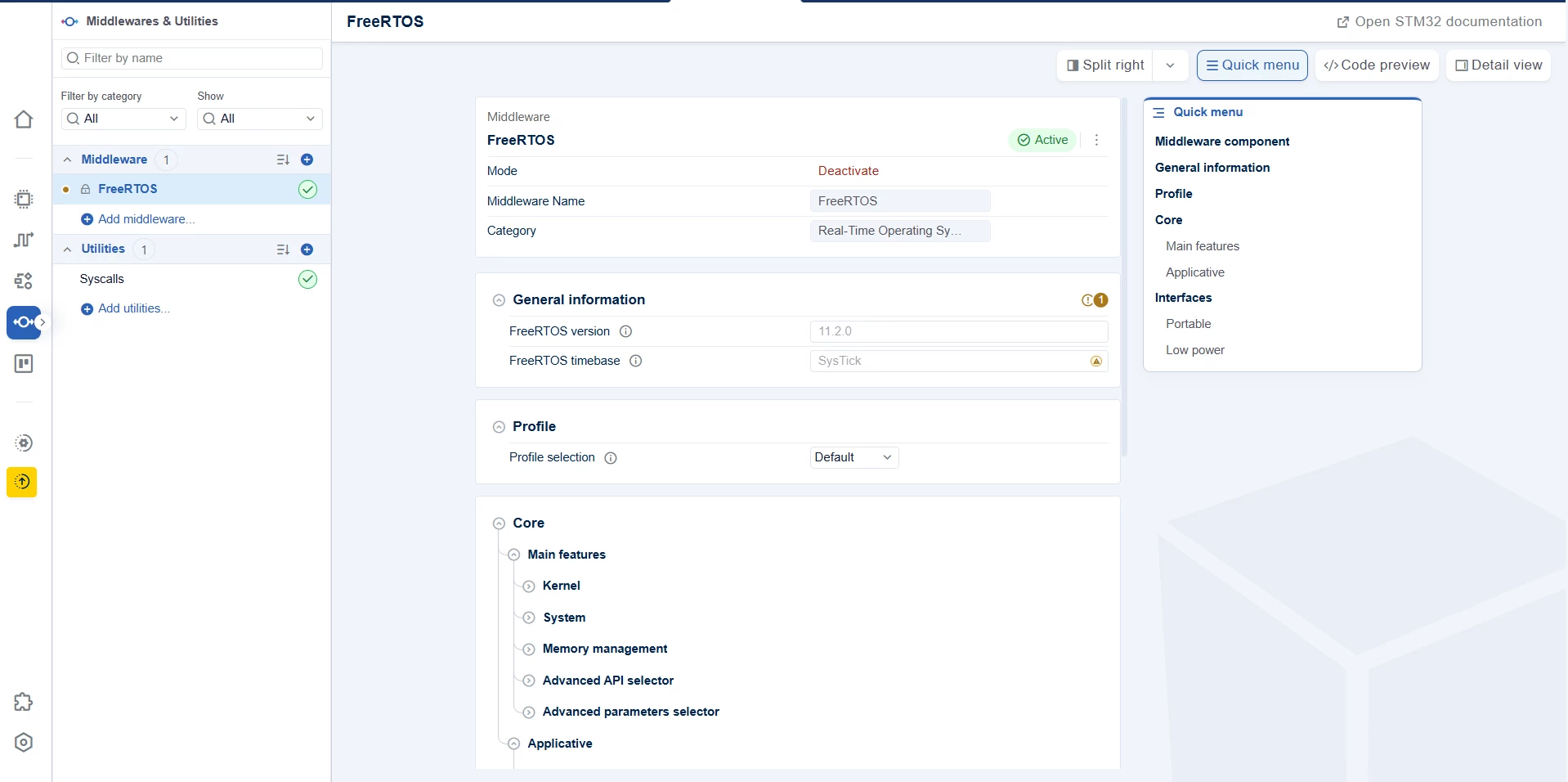
After activating one, such as FreeRTOS™, a new configuration tab becomes available, allowing you to select and activate the desired operating mode. Warning and
2.5 Parts tab
Click the [Parts] button to open a side tab to manage additional hardware parts. Click Add part(s) to include standalone parts to enhance the design.
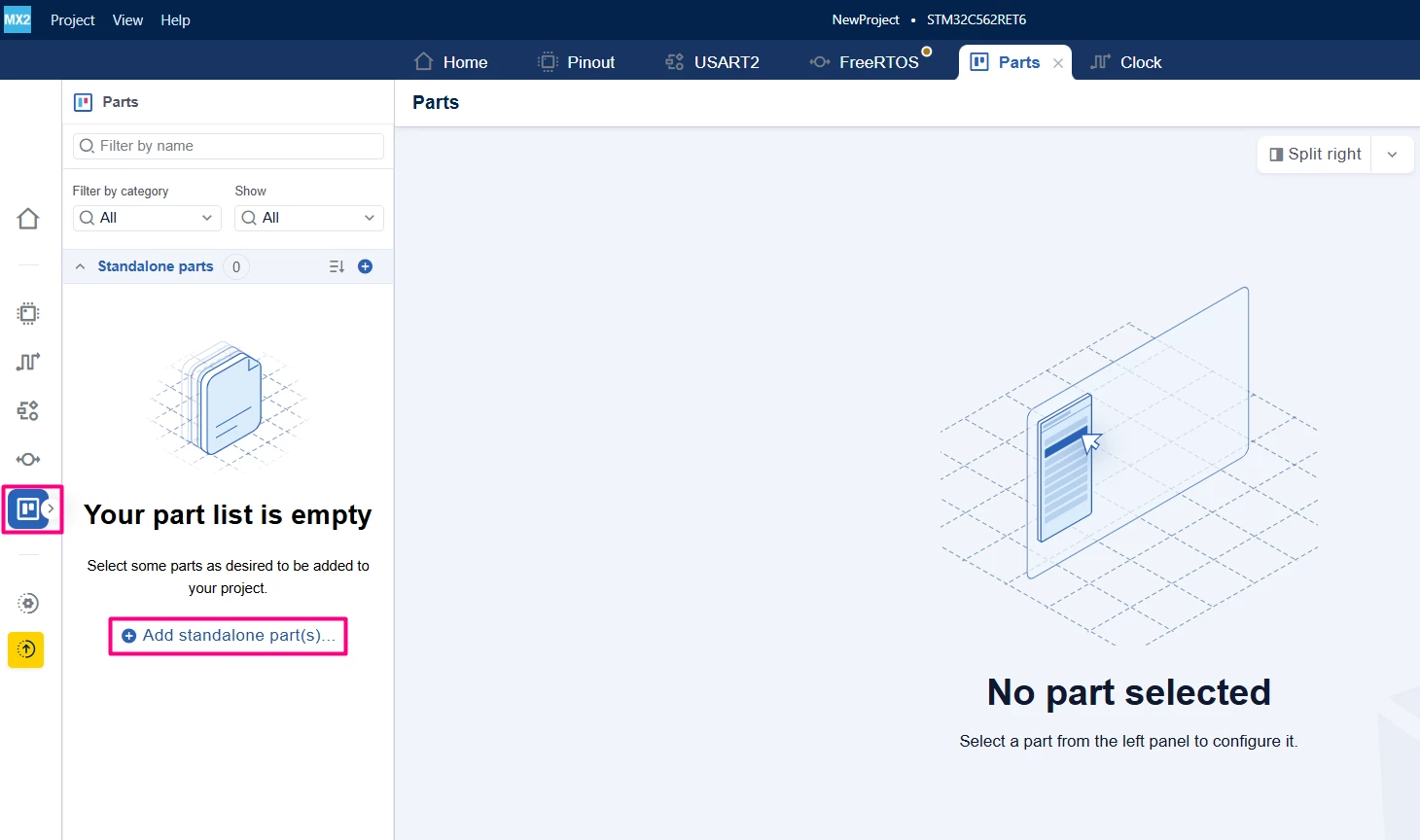
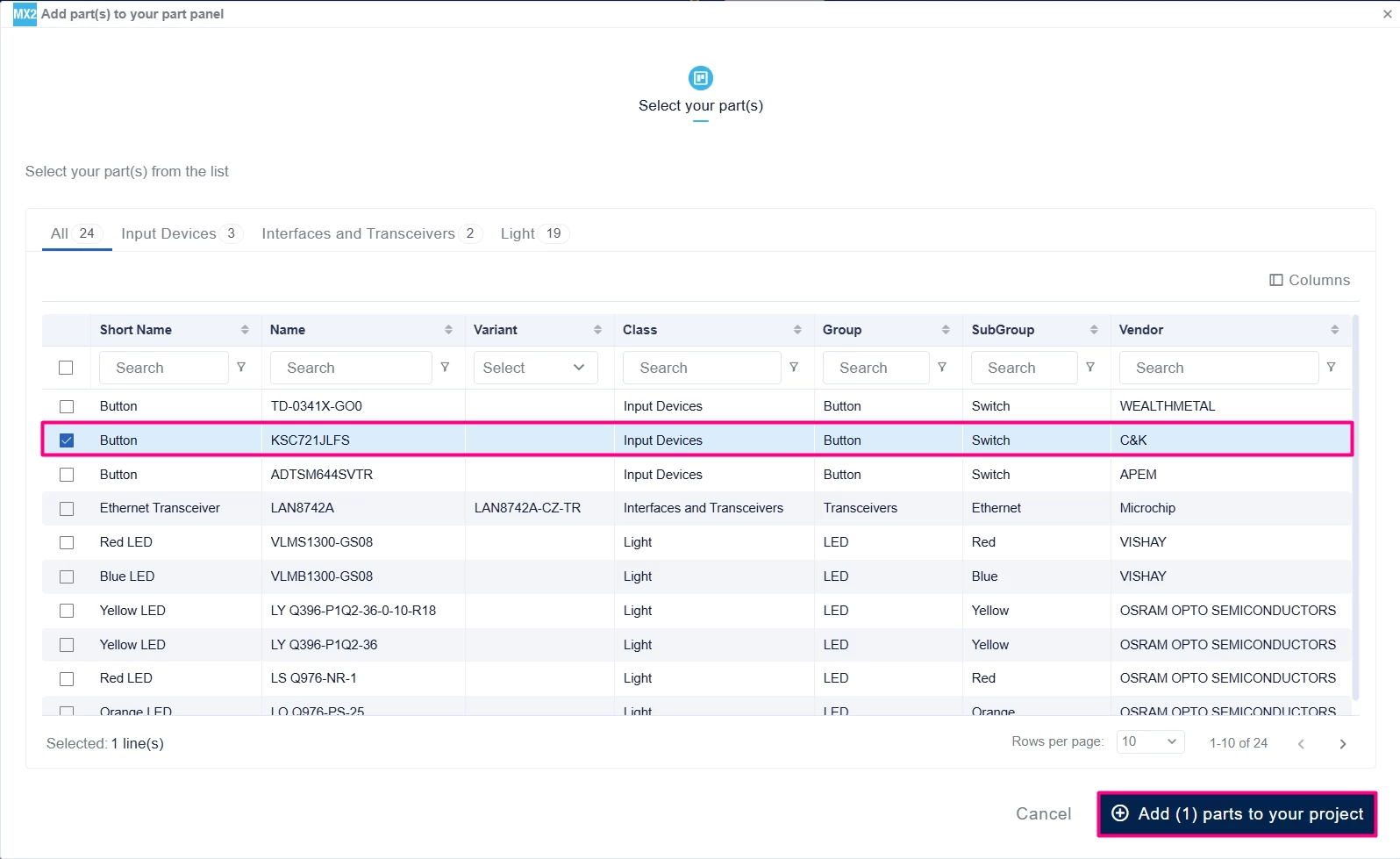
Selecting [Add part] opens the configuration interface.
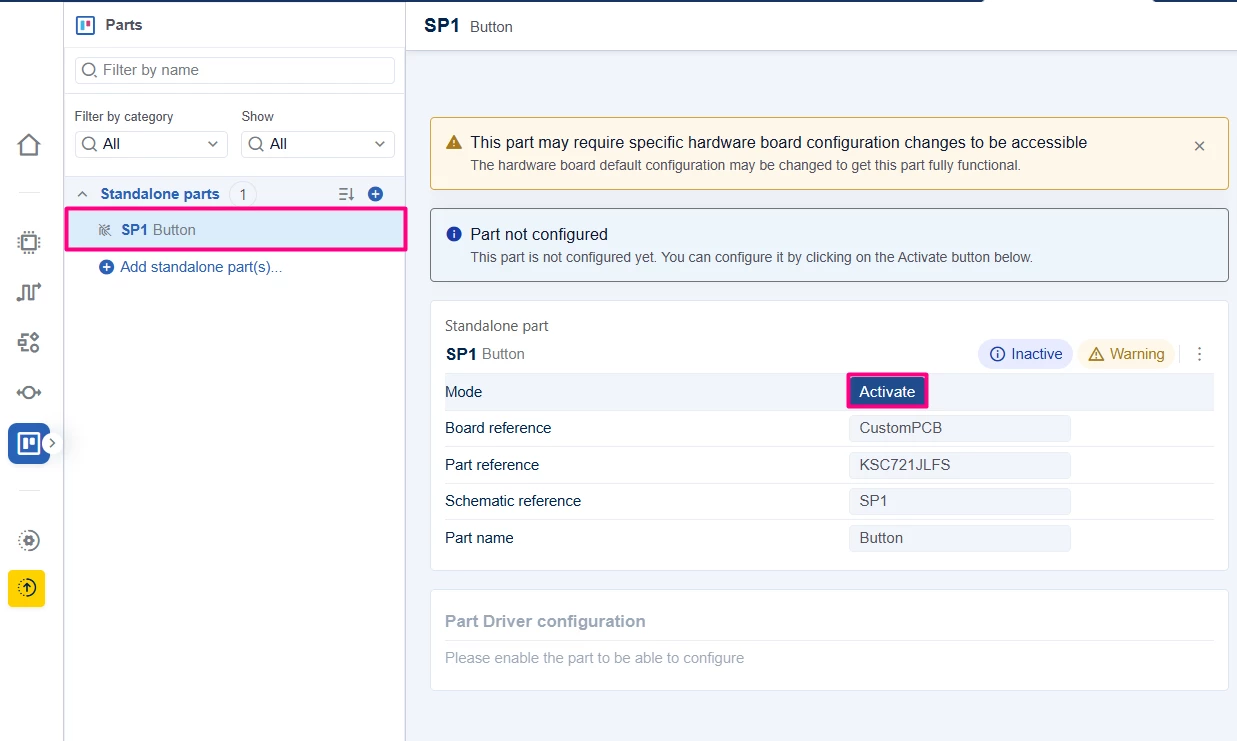
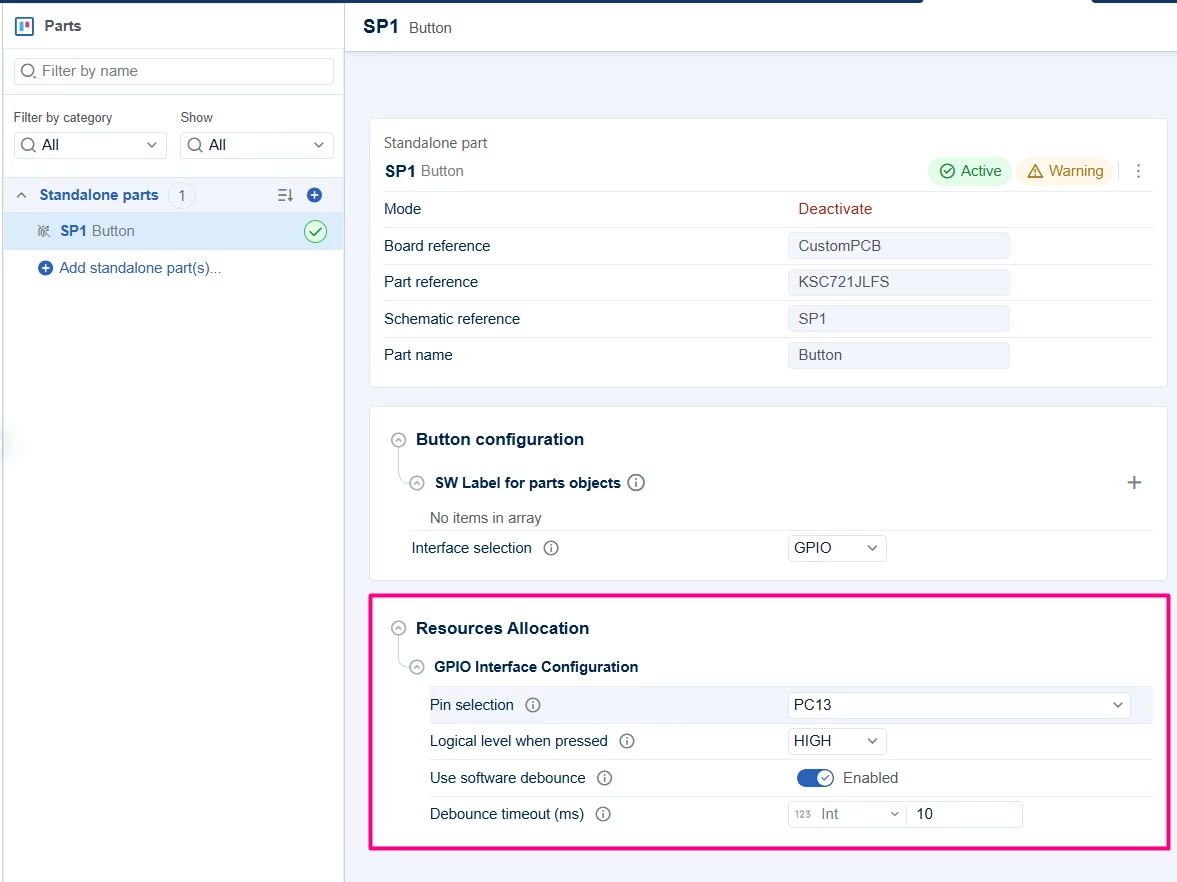
After integrating, a new configuration tab becomes available, allowing you to select and activate the desired operating mode.
2.6 Project settings and code generation
After configuring all the pins, click the Project Settings button at the upper right. Scroll to the IDE project generation section to select your IDE or toolchain preferences, including IAR, CMake or Keil® with Open-CMSIS. CMake is the format used by the STM32Cube Visual Studio Code extension.
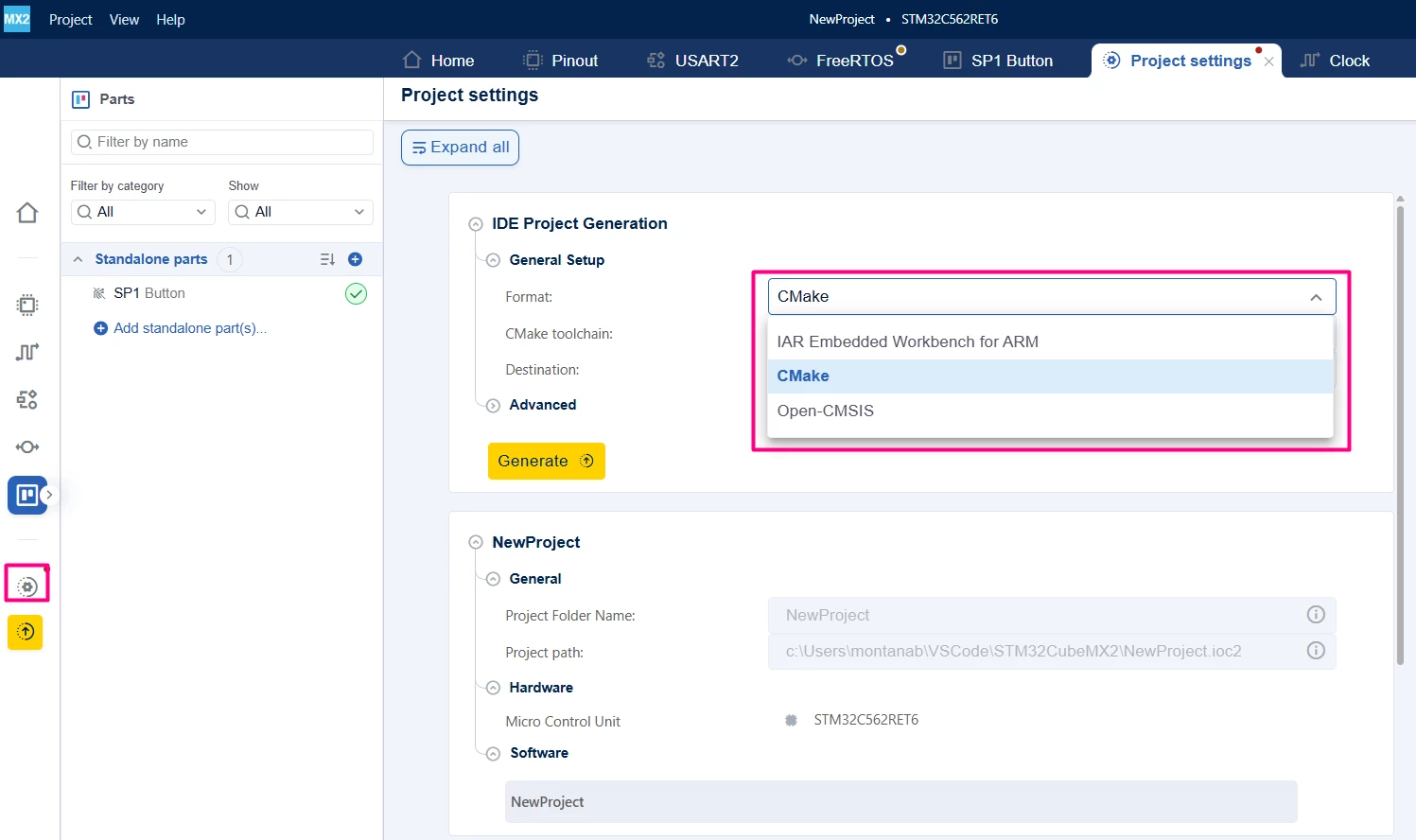
Click the [Generate] button to create the project files. Alternatively, click the yellow button on the lower left to generate the code directly.
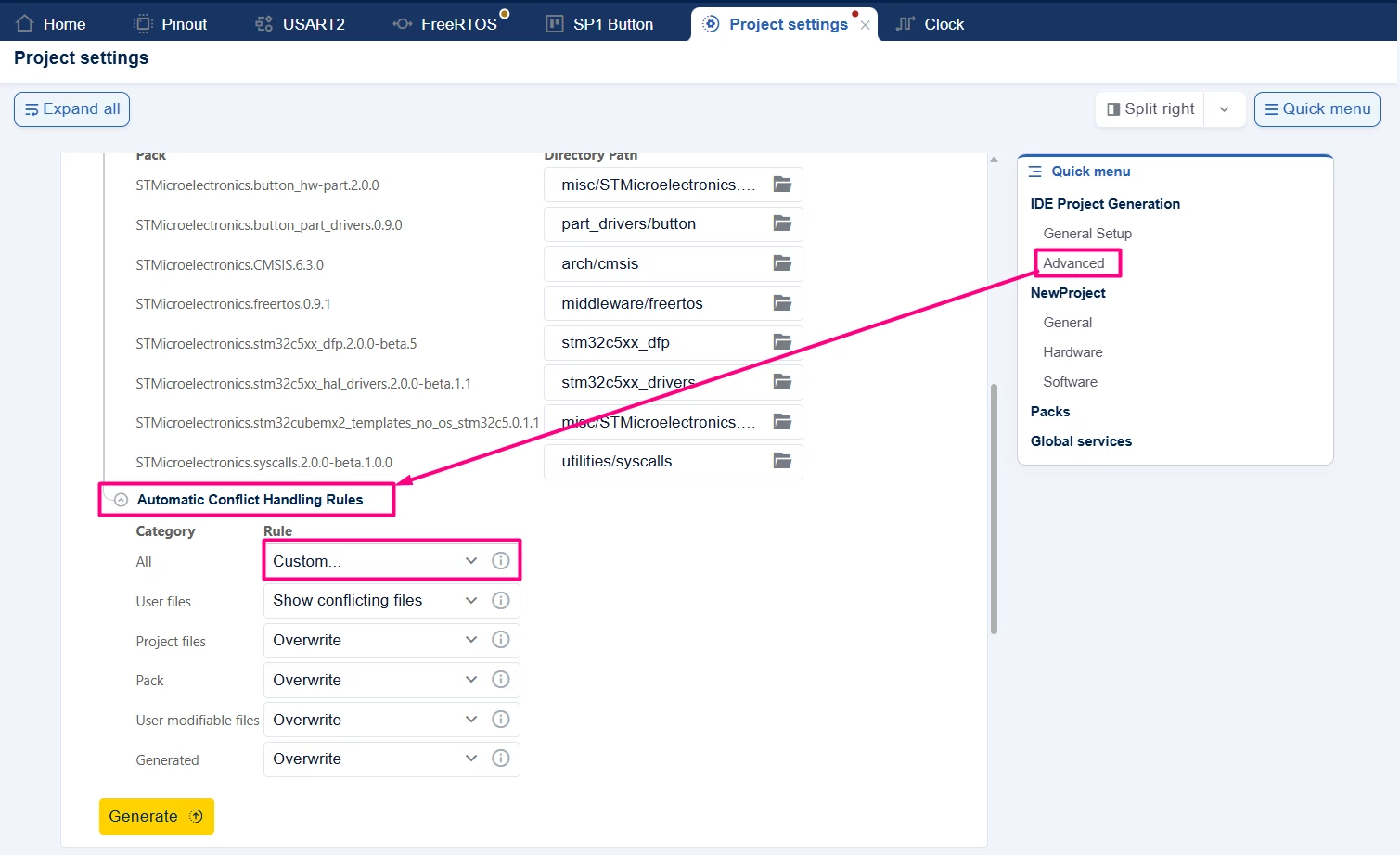
Using the [Advanced] button allows the developer to adjust how the code is generated and regenerated.
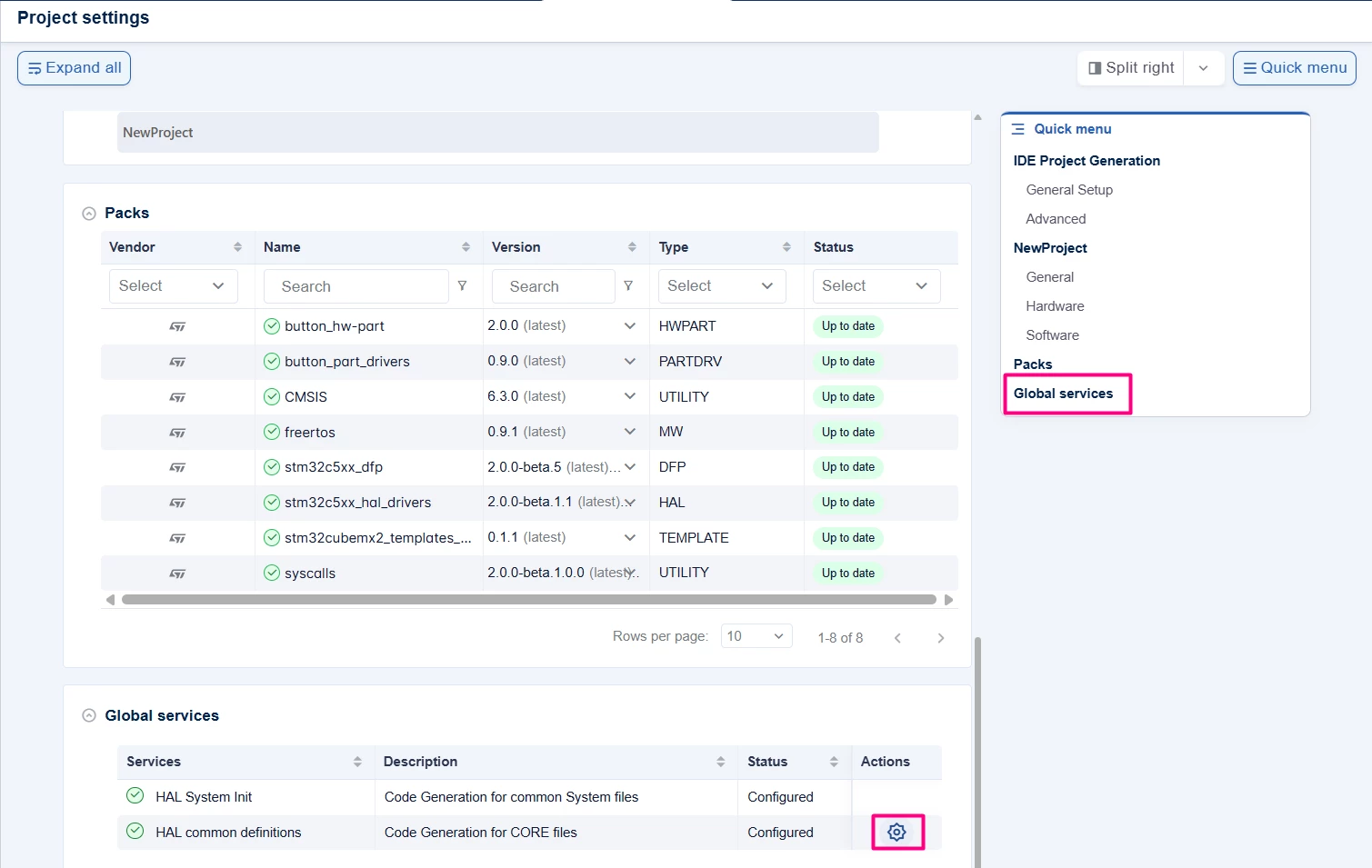
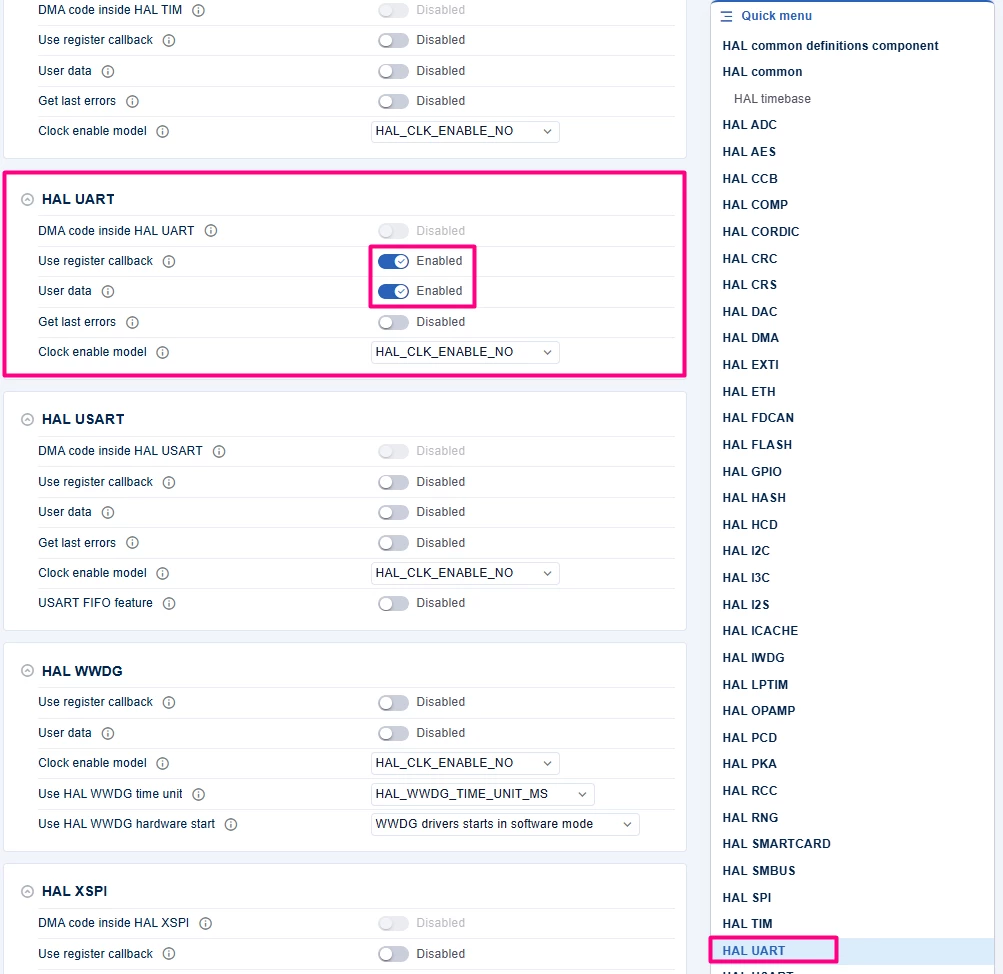
The Global services allow HAL changes, such as changing the HAL time base and the addition of custom callbacks for IRQs.
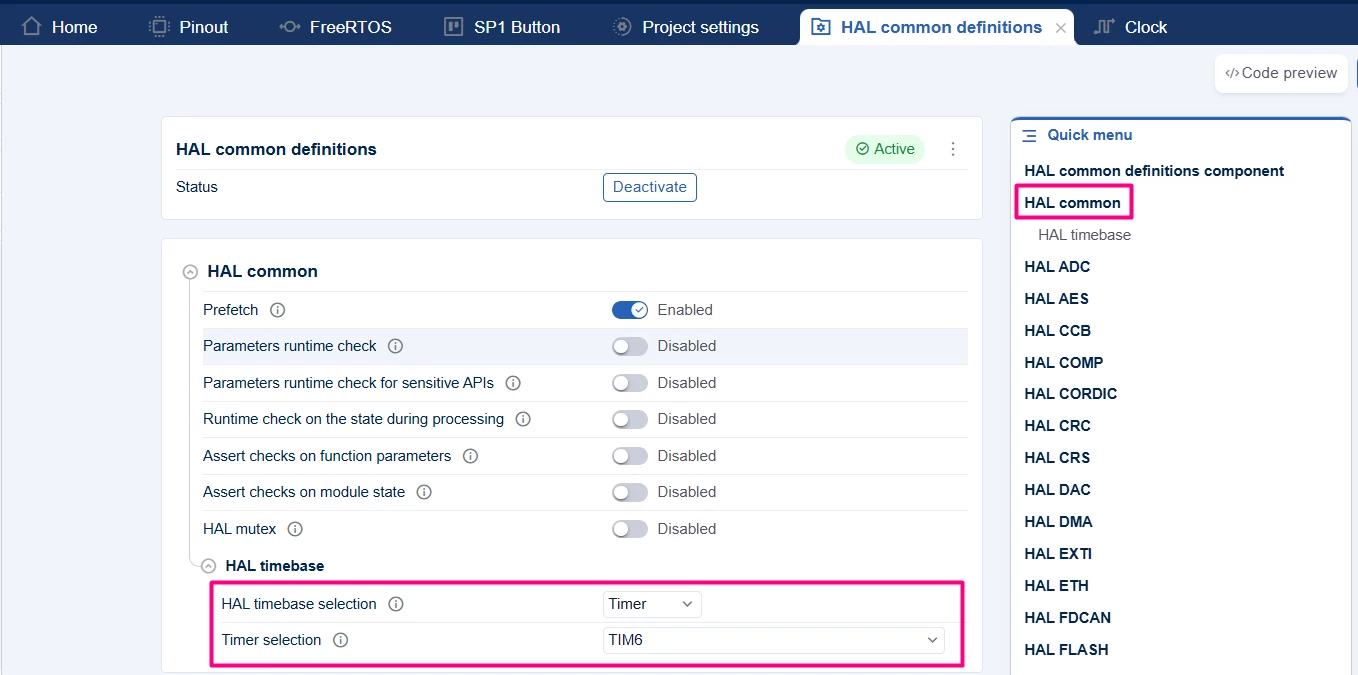
The custom callback can be added per peripheral. For example, with UART, locate it quickly via the quick menu and enable the [Use register callback].
3. Conclusion
This article provides a walkthrough for configuring and generating STM32 projects using STM32CubeMX2, focusing on the STM32C5 series. It guides users through essential steps such as MCU selection, pin configuration, clock setup, peripheral and middleware management, and project generation with the preferred IDE.
By following this approach, developers can efficiently set up the hardware and software environment, enabling streamlined development and integration of complex features. This foundation allows users to build scalable and optimized applications tailored to specific project requirements.
