ST AME Support NF
ST Employee
December 17, 2025

STM32CubeIDE 2.0.0 workflow tutorial

  • December 17, 2025
  • 13 replies
  • 14716 views

Introduction

STM32CubeIDE 2.0.0 is a major release. In this version, STM32CubeMX is removed from STM32CubeIDE. STM32CubeIDE and STM32CubeMX are now two separate products. This changes the workflow, which we describe and explain in this article. Click here if you would like to watch a video tutorial describing the new workflow. 

1. Background

In STM32CubeIDE1.x, STM32CubeMX was integrated into STM32CubeIDE:
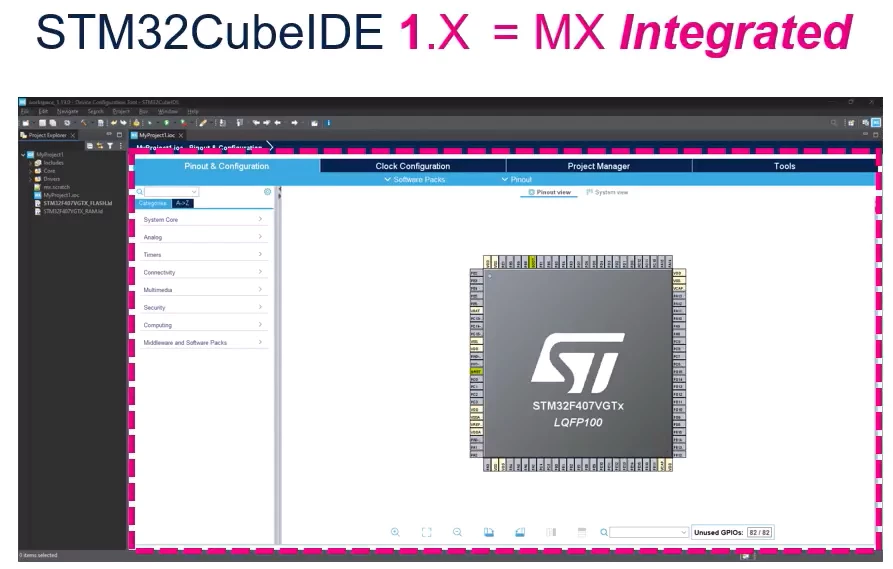
STAMESupportNF_30-1765834484525.png

In STM32CubeIDE 2.x, the STM32CubeMX was removed from STM32CubeIDE
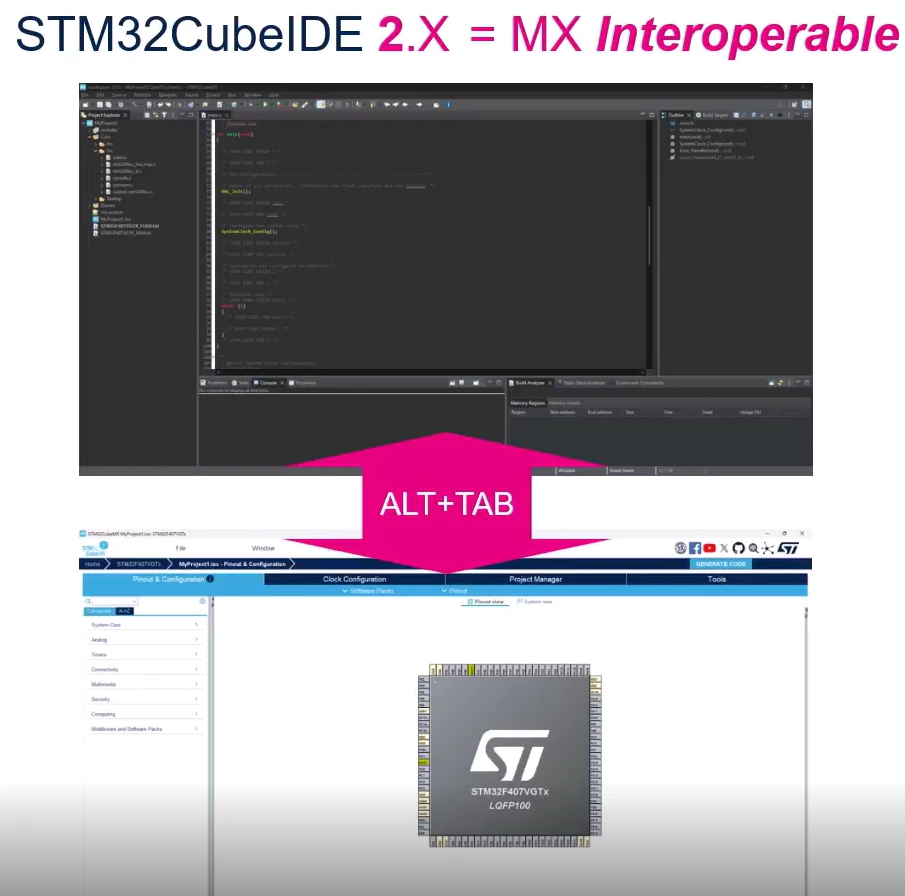
STAMESupportNF_31-1765834484537.png

2. New workflow with STM32CubeIDE

The new workflow consists in starting your project from STM32CubeMX, generating a project for STM32CubeIDE and then importing it in STM32CubeIDE.

The steps are described and explained in detail below. 

2.1 Create your project using STM32CubeMX

In the example below I have created a STM32CubeMX for a STM32U385 with a demonstration code.
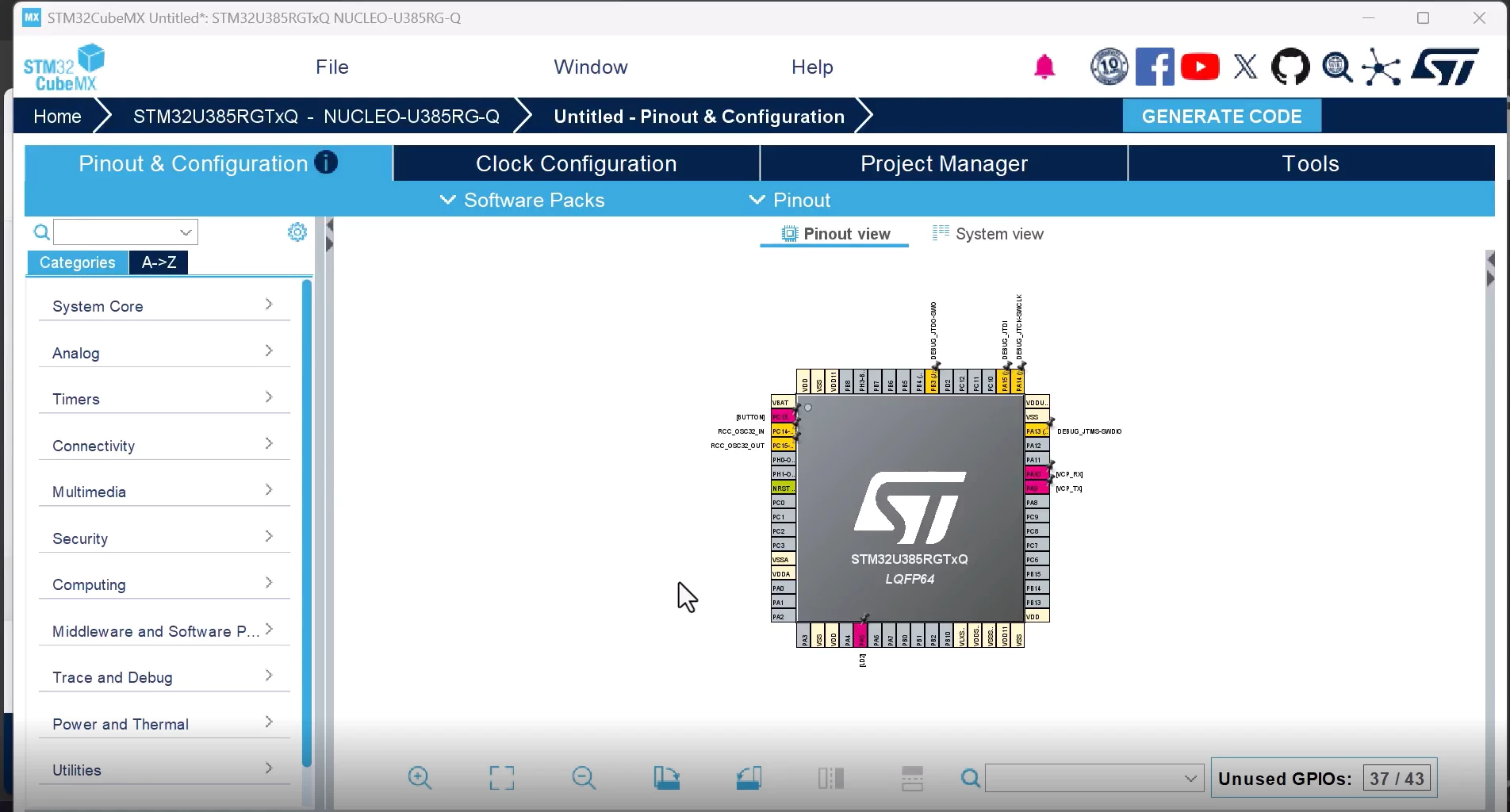
STAMESupportNF_32-1765834554194.png

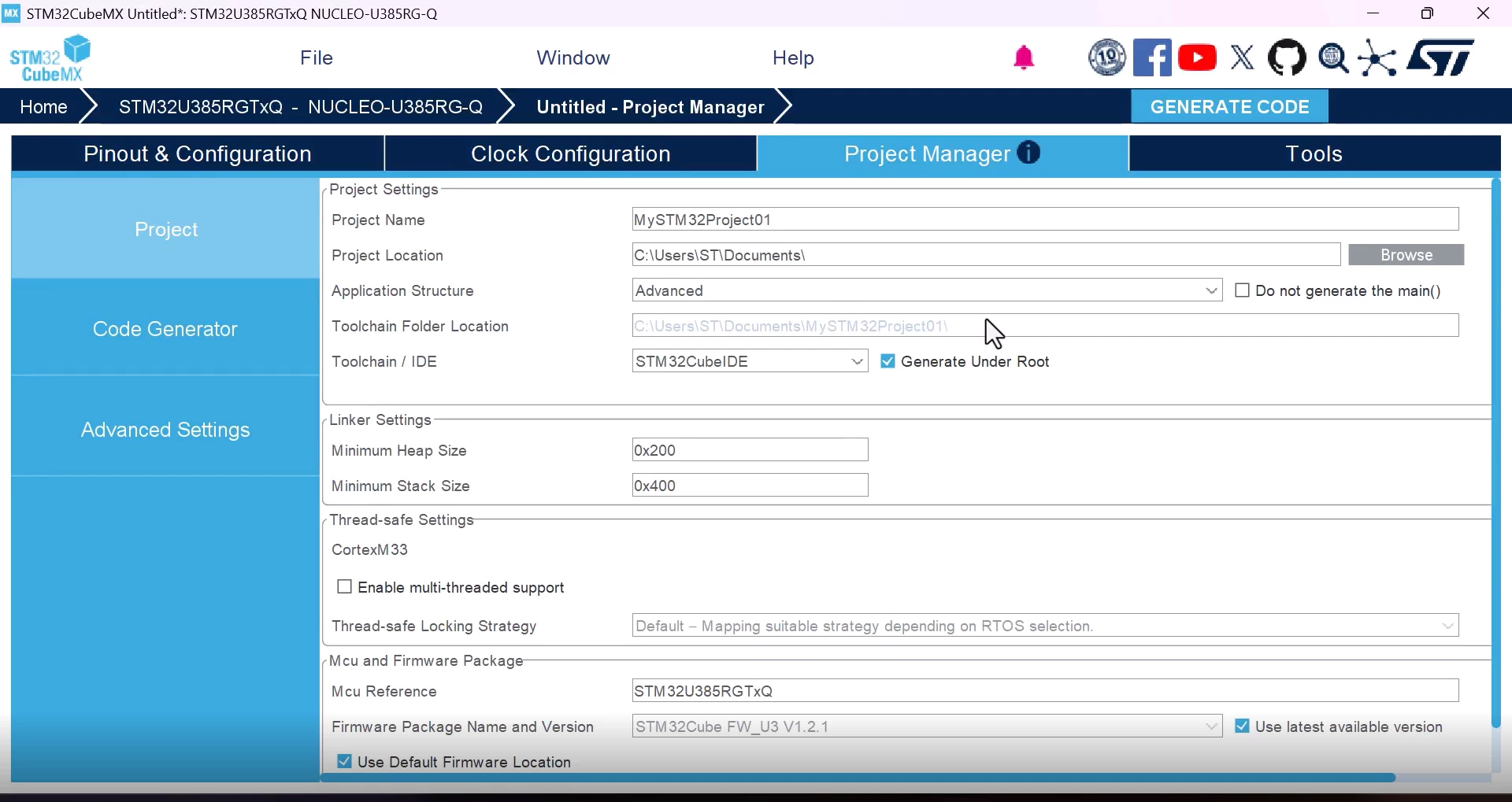
Once your project is completed (Pinout & Configuration and Clock Configuration fully configured), we go to the "Project Manager" tab to set up the project for STM32CubeIDE.

2.2 Set up the project for STM32CubeIDE

Go to "Project Manager" tab and input the following:

  • "Project Name:" give your project a name
  • "Project Location:" give the path where you want the project to be generated
  • "Toolchain:" select STM32CubeIDE

STAMESupportNF_33-1765834554212.png

2.3 Generate the project

Click on the [GENERATE CODE] icon

STAMESupportNF_34-1765834554213.png

Waiting for the project to be generated, you should see the following window once the project has been created successfully.
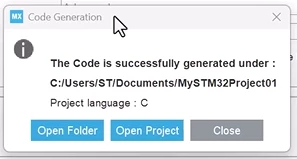
STAMESupportNF_35-1765834554215.png

You can now close the window (click [Close]).

2.4 Import the project in STM32CubeIDE

Switch to STM32CubeIDE 2.x and import the project we just created with STM32CubeMX.

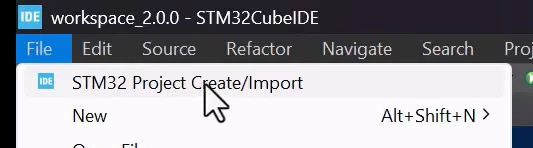
Click on [File][STM32 Project Create/Import]

STAMESupportNF_38-1765834693994.png

A window opens, select [STM32CubeMX/STM32CubeIDE Project] under “Import STM32 Project” and then click [Next] as seen below.
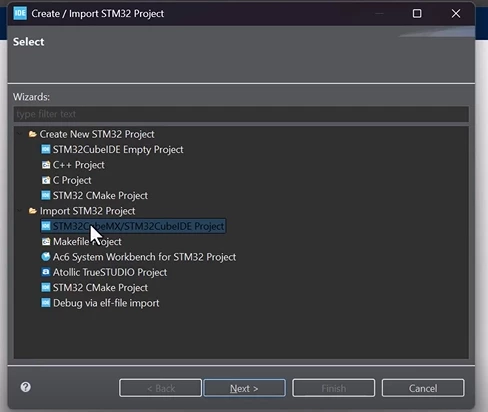
STAMESupportNF_39-1765834694007.png

A new window pops up and you give the path of the project you previously created and then click [Finish].
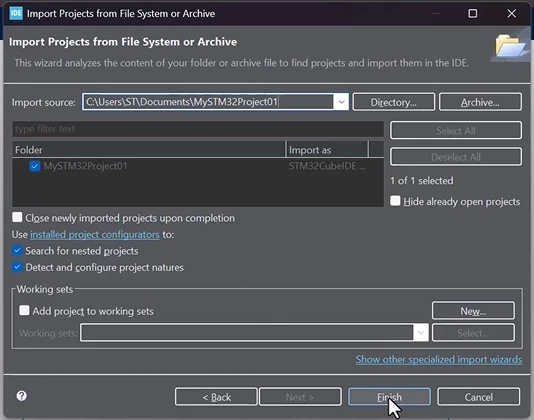
STAMESupportNF_40-1765834694013.png

The project is now imported.

We can close the "Information Center" tab if it was opened.
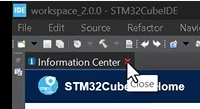
STAMESupportNF_41-1765834694014.png

You should see the project on the left side after expanding it:
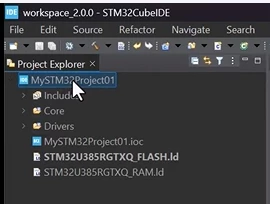
STAMESupportNF_42-1765834694017.png

2.5 Project modification in STM32CubeMX

Now, let's say that we want to modify our existing project in STM32CubeMX.

Go back to STM32CubeMX, and do the modifications you want to do.

For example, let’s say that we want to add a peripheral to our application (in my example, I am enabling I2C1):
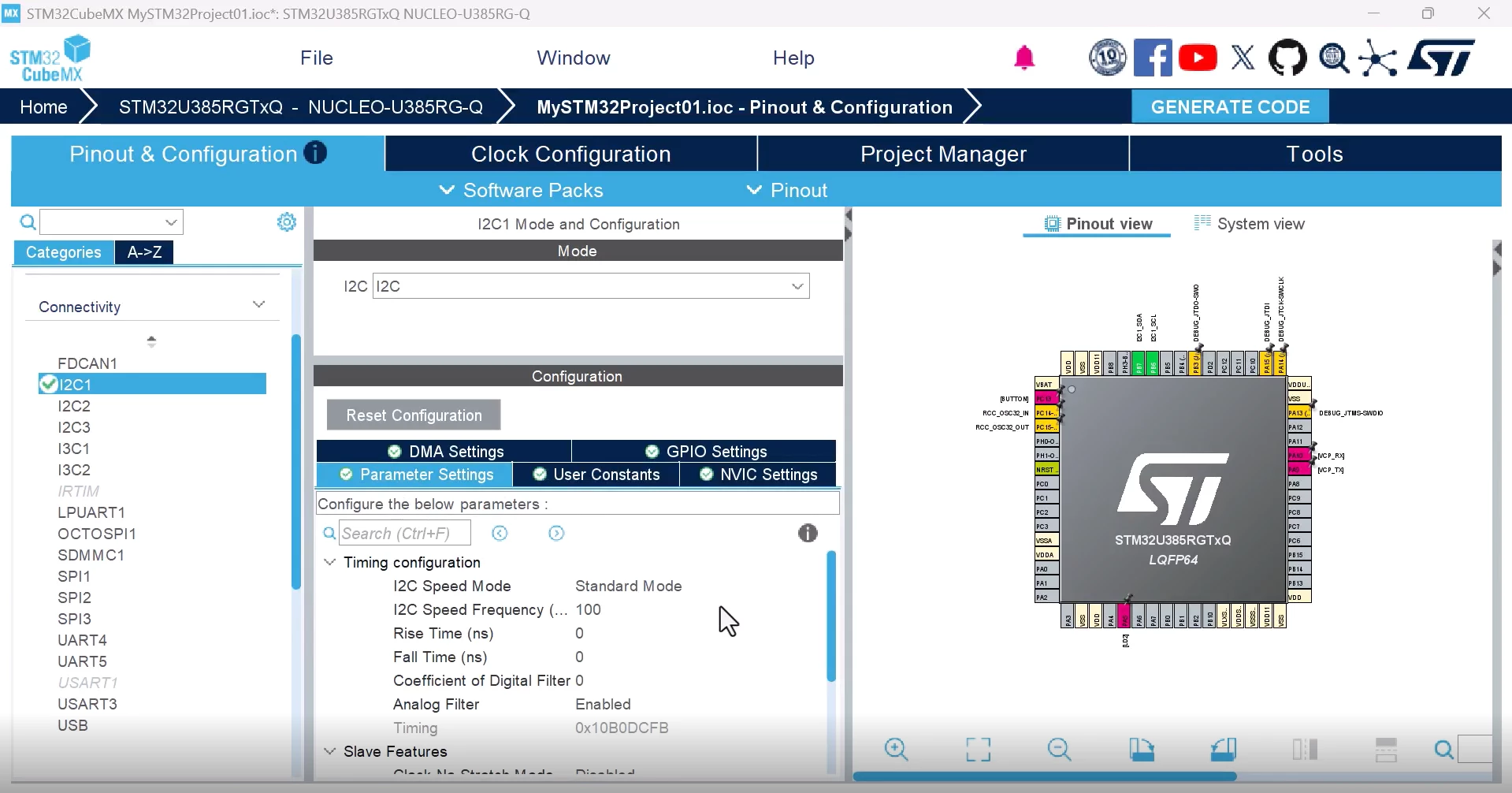
STAMESupportNF_49-1765834897610.png

Then, generate the code again by clicking [GENERATE CODE].

STAMESupportNF_51-1765834897615.png

Note: [GENERATE CODE] will save your project

Once the code is generated, go back to STM32CubeIDE.

To reflect the changes made in the project, you need to “refresh” the project by doing the following:

Click on [File] → [Refresh] or press [F5].
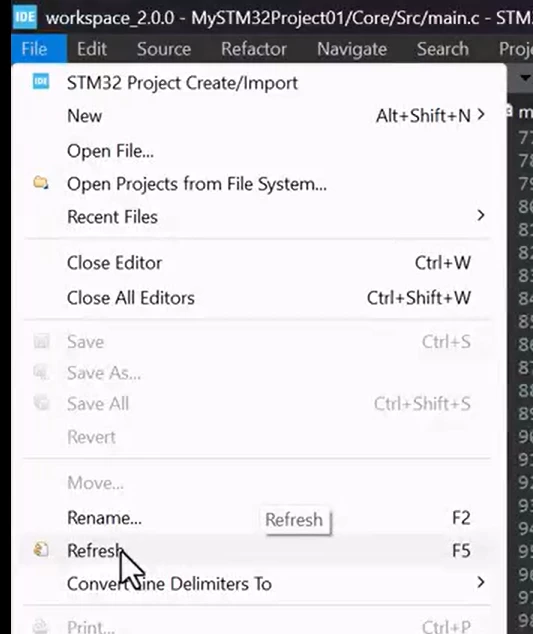
STAMESupportNF_52-1765834897625.png


Note: We also wanted to highlight the "auto-refresh" of the STM32CubeIDE file tree:
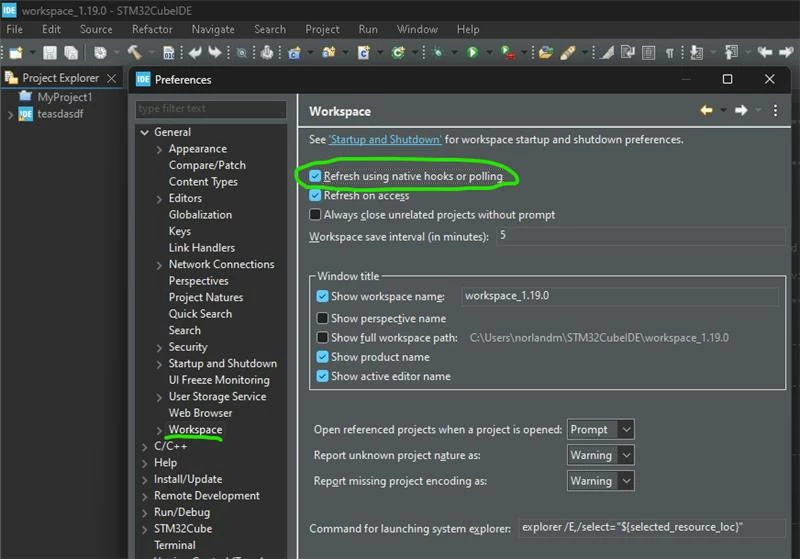
STAMESupportNF_0-1765906080370.jpeg

This is an Eclipse native feature which checks all projects inside the workspace for changes and update the file tree accordingly.

Now your project has been updated to STM32CubeIDE.  In my case, for example, I can see the configuration of the I2C1 I just did in STM32CubeMX.
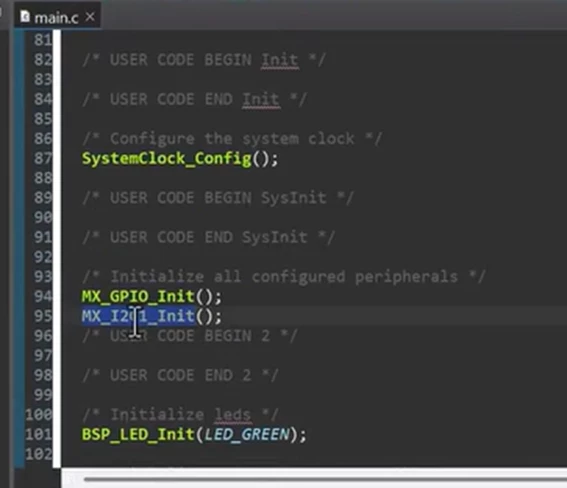
STAMESupportNF_58-1765835044762.png

3. Creating a new project with C++ as the target language

Many thanks to @TDK for providing this information in this thread.

Create the project in STM32CubeMX.

After you open it in STM32CubeIDE, right click the project and select "Convert to C++". This will add the C++ compiler and look for *.cpp files.

Add whatever *.cpp files you want and it'll work. You'll need to extern "C" the ones you call in main.c so the names don't get mangled. 

Related links


13 replies

Adailton Júnior
Associate
December 20, 2025

Great.


One of the best things was separating CubeMX and CubeIDE

m4l490n
Associate III
December 23, 2025

Thanks!!

I'm looking forward to the workflow using VSCode!!

Associate
February 6, 2026

After I convert the project into C++ Whether the CubeMX will also understand and edit C++ files only or it will create duplicate C files. 

Please add this information in the page above so that It can be taken care of at the very beginning of the project

isikli
Associate III
February 6, 2026

This post so usefull for juniors like me. Could you explain samely for the visual studio ? 
Thanks, and best regards :thumbs_up:

Associate III
February 13, 2026


In Ubuntu, I found I have to close STM32CubeIDE before running up STM32CubeMX, otherwise the latter just sits there hanging at launch because its waiting for a lock file to be released by STM32CubeIDE.

(Actually I prefer MX being integrated with the IDE, but if it makes ST app maintenance easier I can live with it).


Laurids_PETERSEN
Community Manager
February 13, 2026

Hi @isikli
I'm happy to hear this helped you!

A knowledge base article is in progress regarding this topic. 
I'll get back to you once it's published and link it here. 

Thanks,
Laurids

Visitor II
February 27, 2026

This is definitiv not a good idea.

Associate III
March 4, 2026

I am missing something here... For the first time in ages I tried to create a STM32 project from scratch using this new workflow but I just can't get it to give me a project thats buildable out of the box.

If I look at the Project Properties, under the "Builders" item, there are no builders configured for the project.

In my projects generated under the old integrated method, a project would list the following builders....

Screenshot From 2026-03-04 11-36-02.png

for which I could do a Build All to generate a firmware file.

How do I get the new workflow to generate me a buildable project that will result in an STM32 executable I can run on an STM32 board? (I have no idea what "project natures" means).


ST AME Support NF
ST Employee
March 5, 2026

@Bags can you please enter an online support ticket to us so we can look into this issue in more details? ols.st.com. Please include your stm32cubemx and stm32cubeide project so that we can do a review.


Associate III
March 5, 2026

BTW I can't get your "ols.st.com" link to work...."We can't log you in because of an issue with single sign-on. Contact your Salesforce admin for help."

I believe the build issue is due to a hidden file called ".project" being generated by CubeIDE. When following your workflow, there appears to be two ".project" files generated, one sat in a subfolder called "STM32CudeIDE" (that file generated by CubeMX appears to contain all the required settings), and a second ".project" file sat in a parent folder generated by CubeIDE - the contents of this latter file is minimal compared to the other one.

If I delete the minimal ".project" file and clear out my workspace and reload the project it then works as intended.


I just repeated the workflow to replicate the problem I am having....

CubeMX generates the following hidden files...

".mxproject", and a subfolder "STM32CubeIDE" containing hidden files ".cproject", ".project" -- all these appear to be valid contents.

Then running CubeIDE (starting with an empty workspace)... following the described workflow exactly, I browse to the folder containing the MX projects .ioc file.... and click "Finish"...

As a result CubeIDE has now generated a new hidden file ".project" located in the same folder as ".mxproject". However this ".project" file is almost empty...

<?xml version="1.0" encoding="UTF-8"?>
<projectDescription>
<name>test2</name>
<comment></comment>
<projects>
</projects>
<buildSpec>
</buildSpec>
<natures>
</natures>
</projectDescription>

As a result there are no builder defined for the imported project.

If I delete this bare ".project" file, clean out my workspace and do my normal "Open Projects from File System..." to reimport the project, it all then works fine.