

How to generate code for VS Code from STM32CubeMX2
Summary
This article provides a comprehensive guide on how to generate STM32 project code from STM32CubeMX2 specifically tailored for Visual Studio Code development. It covers creating and configuring the project in STM32CubeMX2, generating code compatible with VS Code, importing the project into the IDE, and setting up build and debug environments. By following this workflow, developers can efficiently leverage STM32CubeMX2 and VS Code to streamline embedded application development on STM32 microcontrollers.
- Summary
- Introduction
- Prerequisites
- 1. Creating the STM32CubeMX2 project
- 1.1 Configuring peripherals and pins
- 1.2 Setting the format for VS Code
- 2. Importing the generated project into VS Code
- 3. Building the project
- 4. Debugging the project
- Conclusion
- Related links
Introduction
STM32CubeMX2 is a powerful graphical tool that simplifies the configuration and initialization of STM32 microcontrollers by generating initialization code based on user-selected peripherals and middleware. When combined with Visual Studio Code, a lightweight and versatile IDE, and the STM32CubeIDE extension, developers gain a streamlined and integrated environment tailored for STM32 development.
The STM32CubeIDE extension for VS Code enhances the workflow by providing project import, build, and debug capabilities directly within VS Code, leveraging the familiar STM32Cube ecosystem. This integration allows developers to generate code rapidly with STM32CubeMX2 and efficiently manage their projects, builds, and debugging sessions all in one place.
This article guides you through the complete workflow of creating an STM32CubeMX2 project configured for VS Code. It includes generating the code, importing it using the STM32CubeIDE extension, and setting up the build and debug environments to accelerate your STM32 development.
Prerequisites
Before starting the STM32CubeMX2 workflow with Visual Studio Code, ensure that you have the following tools and components installed and configured:
- STM32CubeMX2
- The latest STM32C5 HAL2 driver
- STM32CubeIDE extension for Visual Studio Code
The hardware used in this tutorial is the NUCLEO-C562RE board.
1. Creating the STM32CubeMX2 project
This section guides you through creating a new STM32 project using STM32CubeMX2, configuring peripherals, and preparing the project for VS Code development.
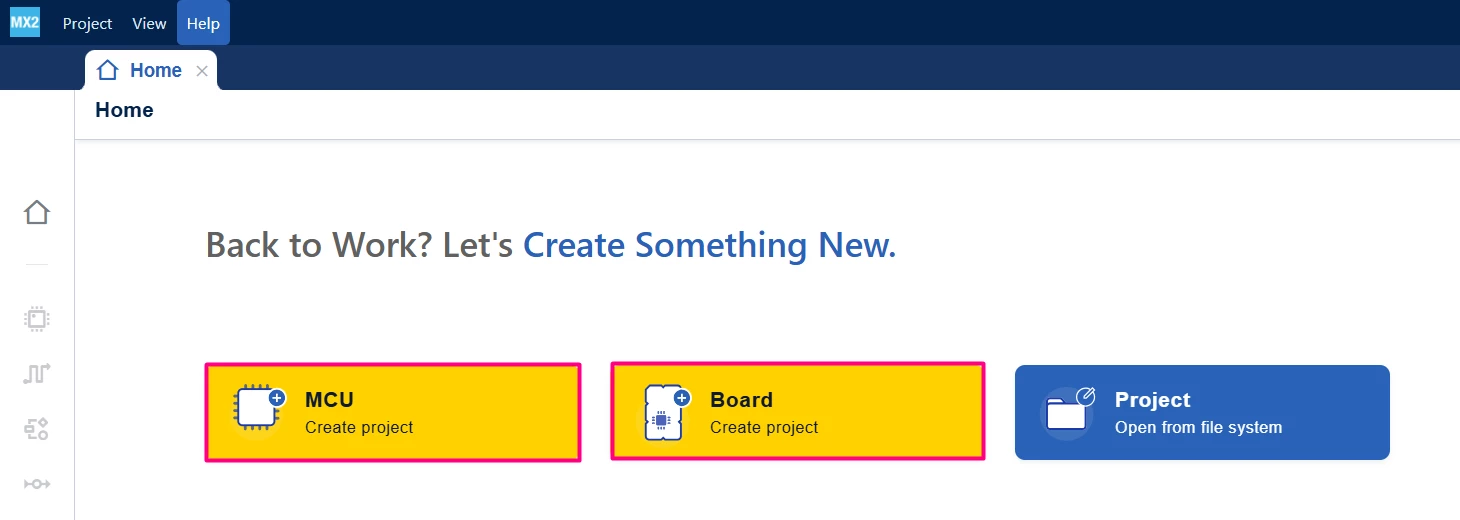
- Launch STM32CubeMX2.
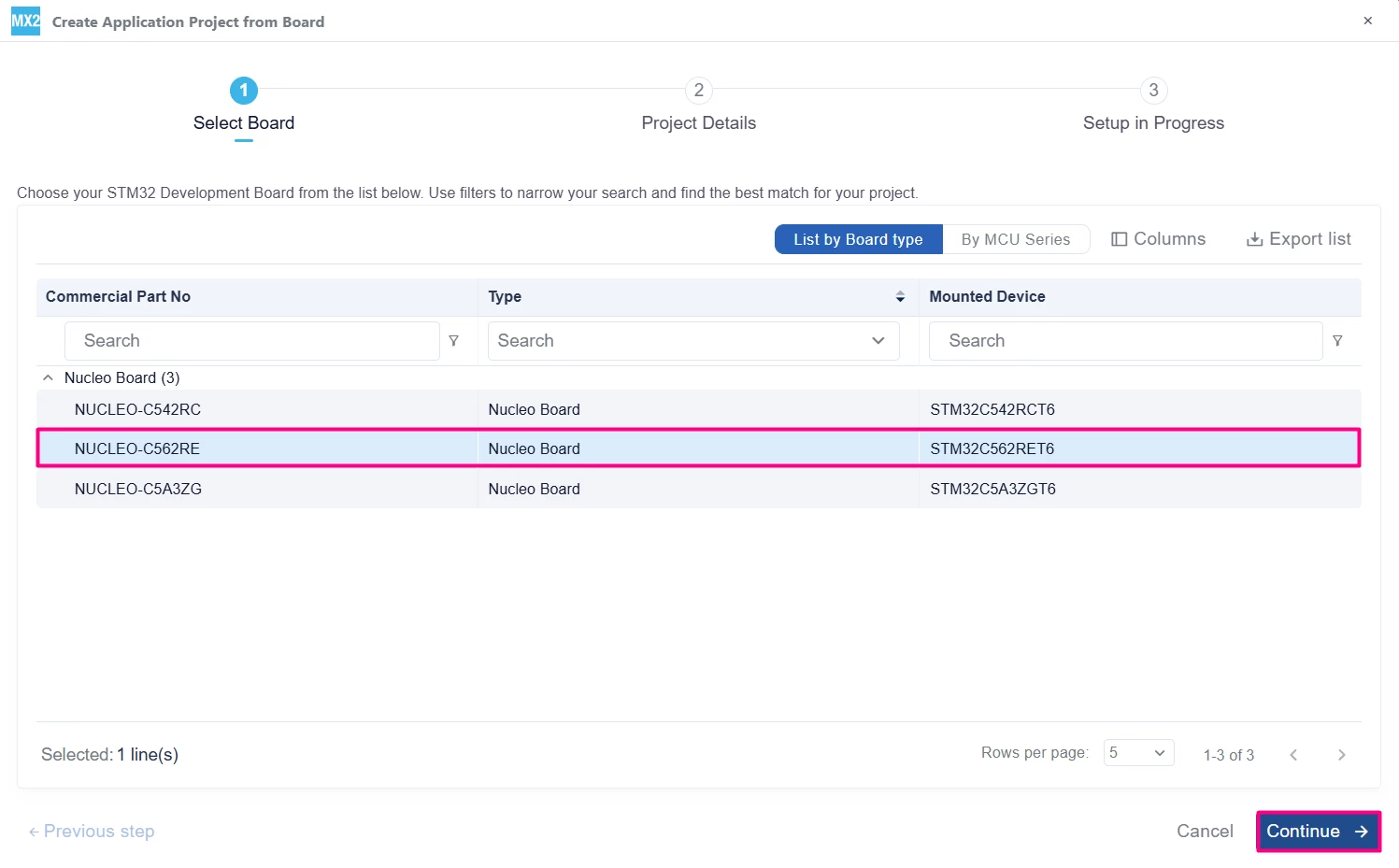
- Select your target STM32 microcontroller or development board from the list.
- Confirm the selection to proceed to the project configuration.
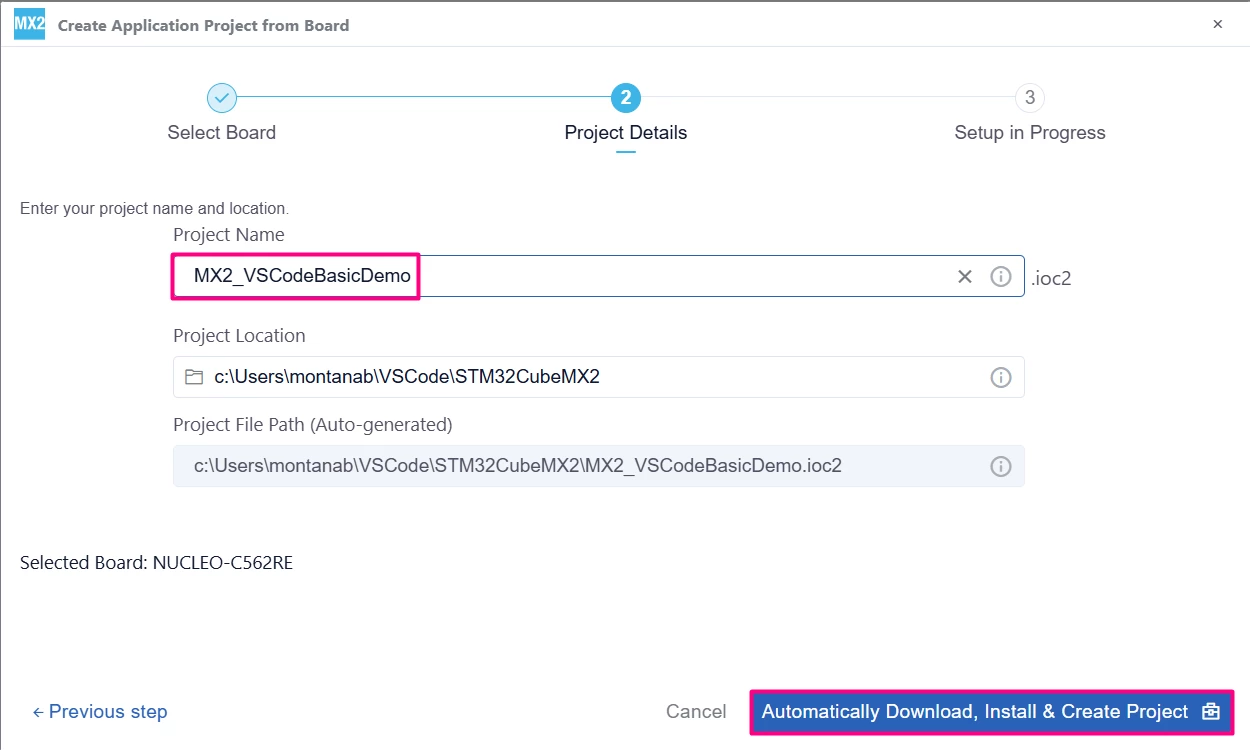
- Set the Project Name and Project Location.
- Continue with [Automatically Download, Install & Create Project].
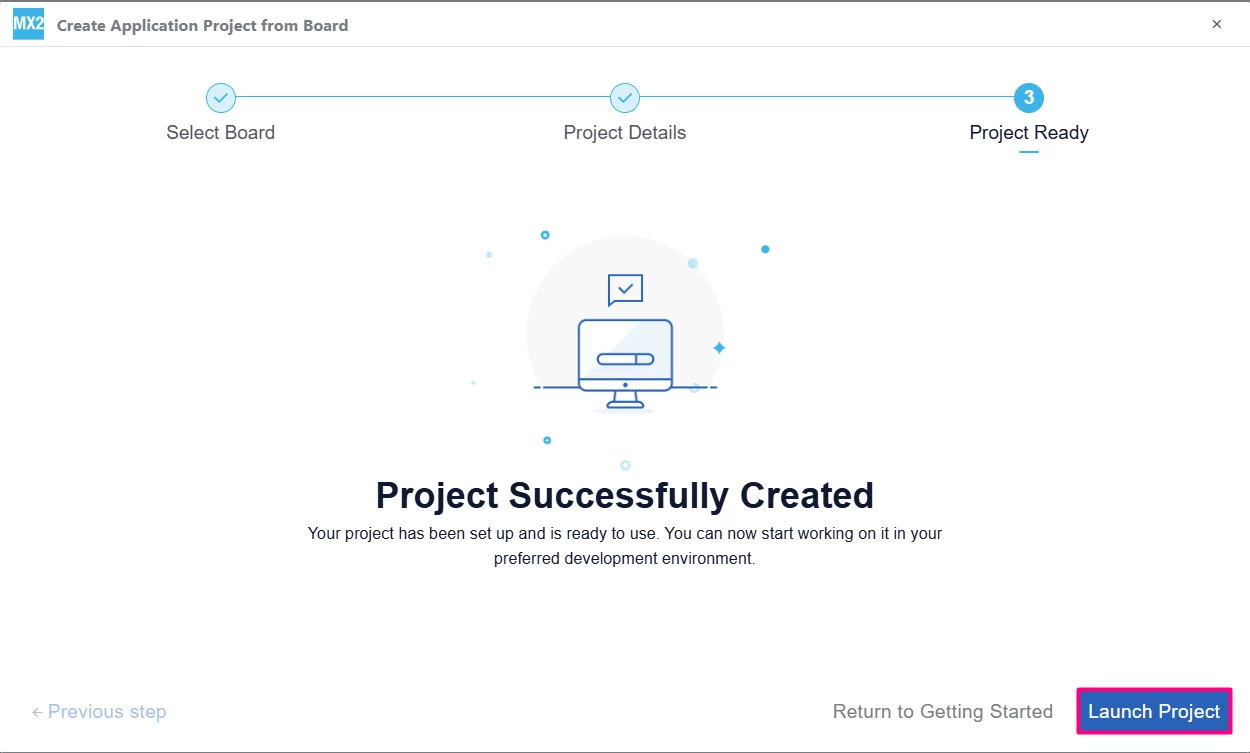
- Select [Launch Project] to start.
1.1 Configuring peripherals and pins
- Use the "Pinout" tab to configure the pins you use in your application. For example, to create a simple LED blink application on the [NUCLEO-C562RE] board, configure PA5 as a GPIO output, which corresponds to the user LED.
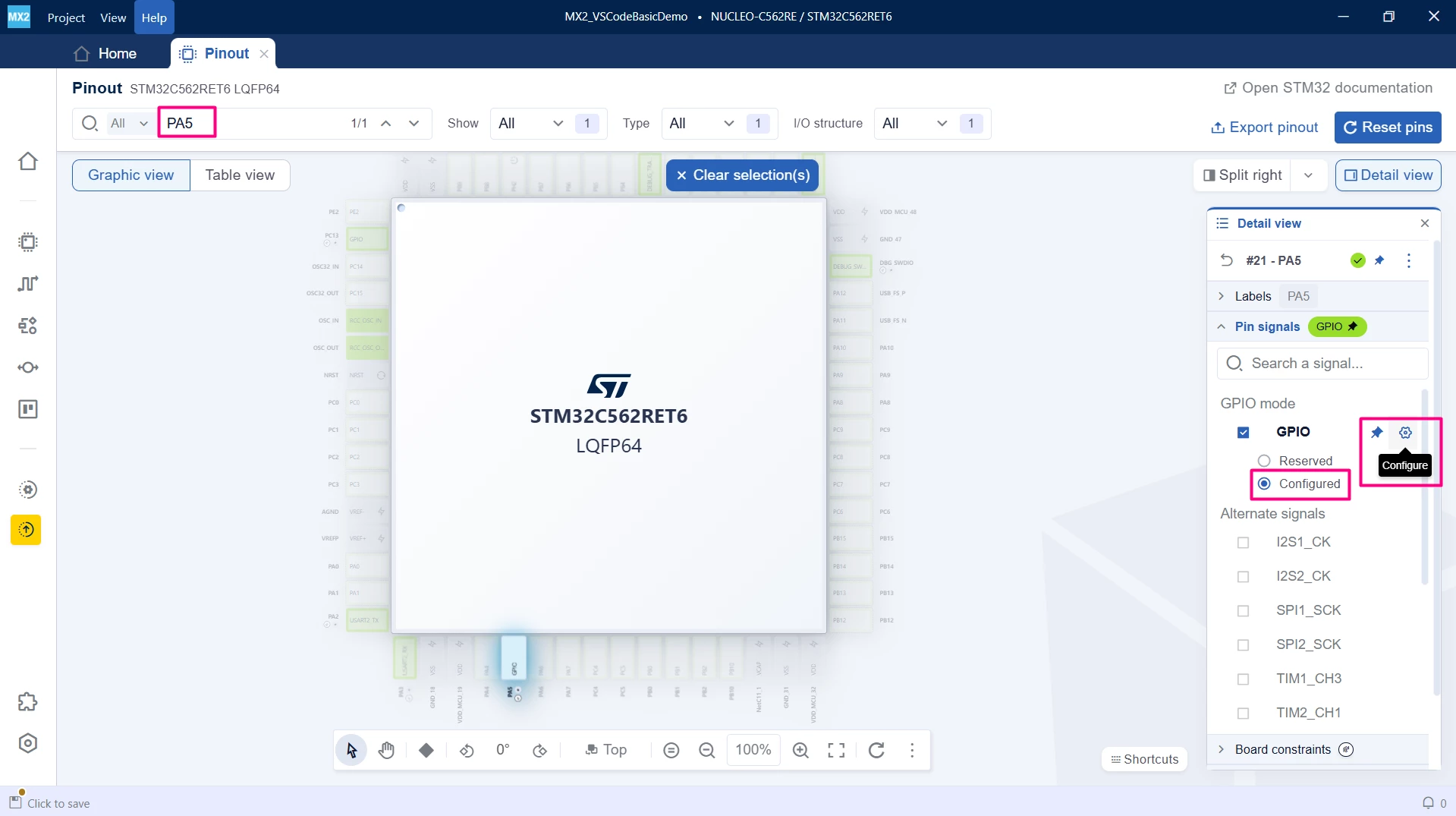
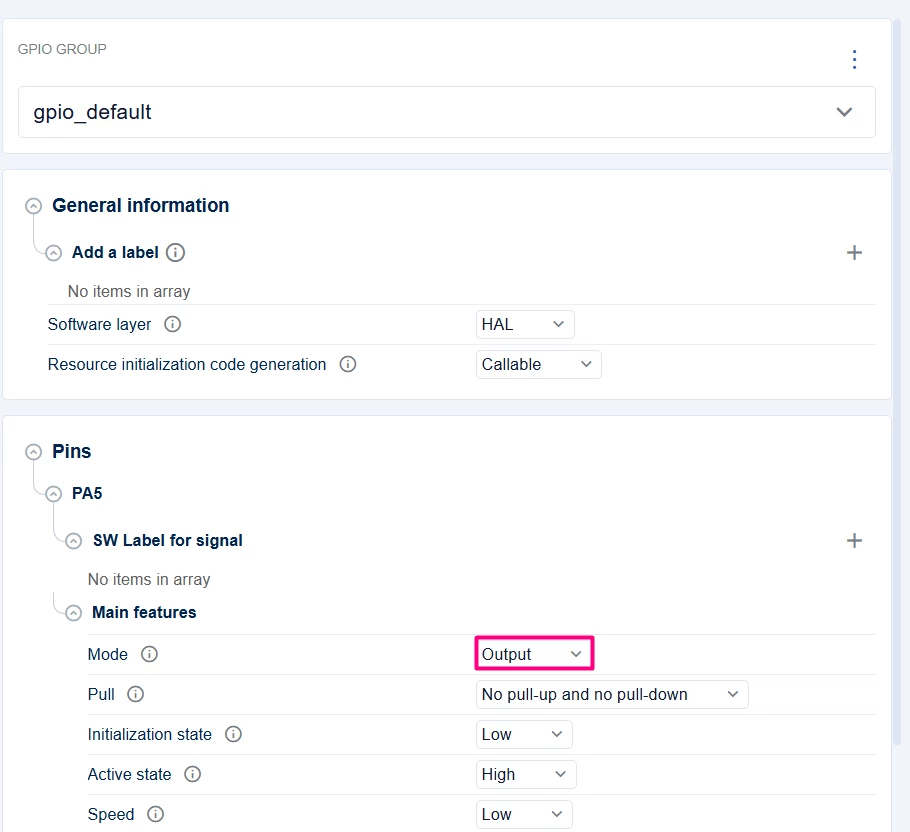
- In the [Clock] tab, review the clock settings. For this example, the default clock configuration is sufficient and does not require modification.
- In the [Peripheral] tab, configure the settings of the peripherals you intend to use. For this example, no additional peripherals are required beyond GPIO.
- Use the [Middleware] tab to enable and configure any middleware components if needed (for example, FreeRTOS™, USBX). For the LED blink example, middleware configuration is not necessary.
- The [Parts] tab allows you to configure part-specific drivers and settings. For this simple example, default settings are sufficient.
1.2 Setting the format for VS Code
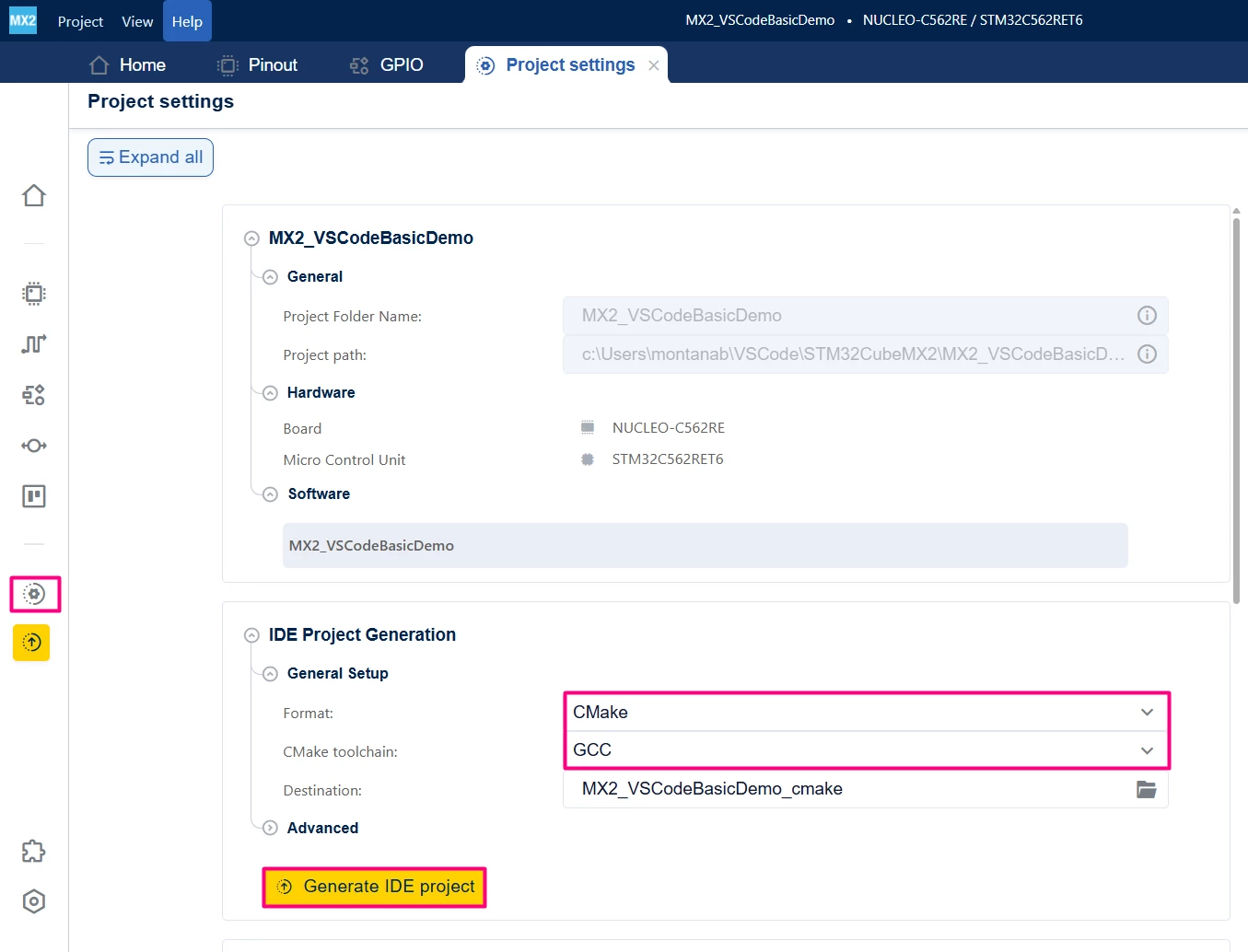
- In the [Project Settings] → [IDE Project Generation] → [General Setup] section.
- Ensure the Format is set to [CMake] and the CMake toolchain is set to [GCC].
- [Generate] the project.
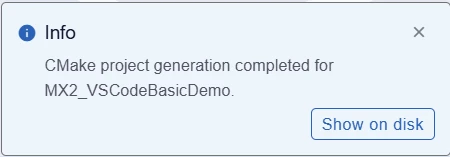
STM32CubeMX2 generates the source code, header files, and essential build configuration files such as CMakeLists.txt.
These files are structured to be compatible with VS Code and the STM32CubeIDE extension.
2. Importing the generated project into VS Code
After generating your STM32CubeMX2 project with the CMake format, follow these steps to import and set it up in Visual Studio Code for development.
Opening the project folder
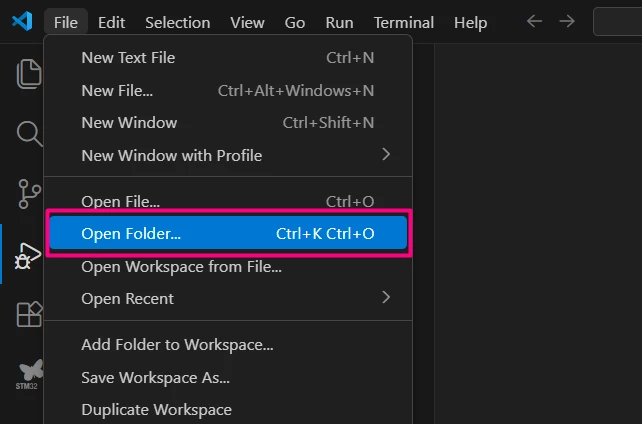
- Launch Visual Studio Code.
- Select [Open Folder...].
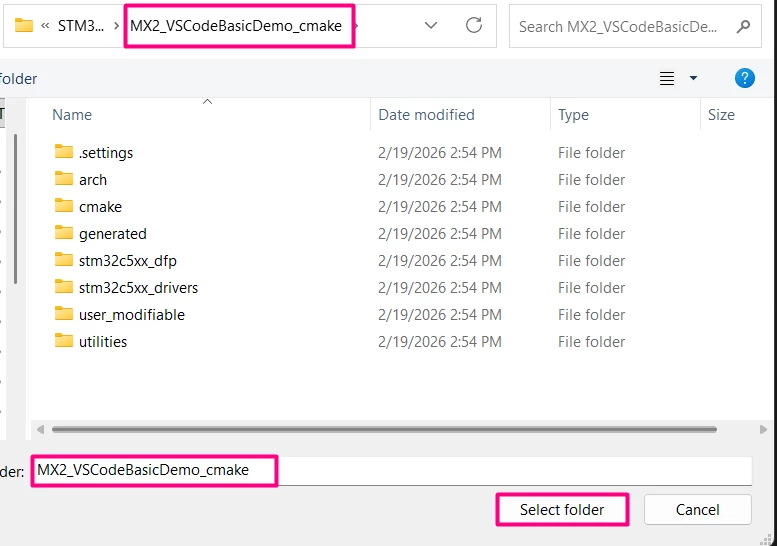
- Browse to and select the root folder of your generated STM32CubeMX2 project.
- Click [Select folder] to load the project into VS Code.
Ensuring required extensions are installed
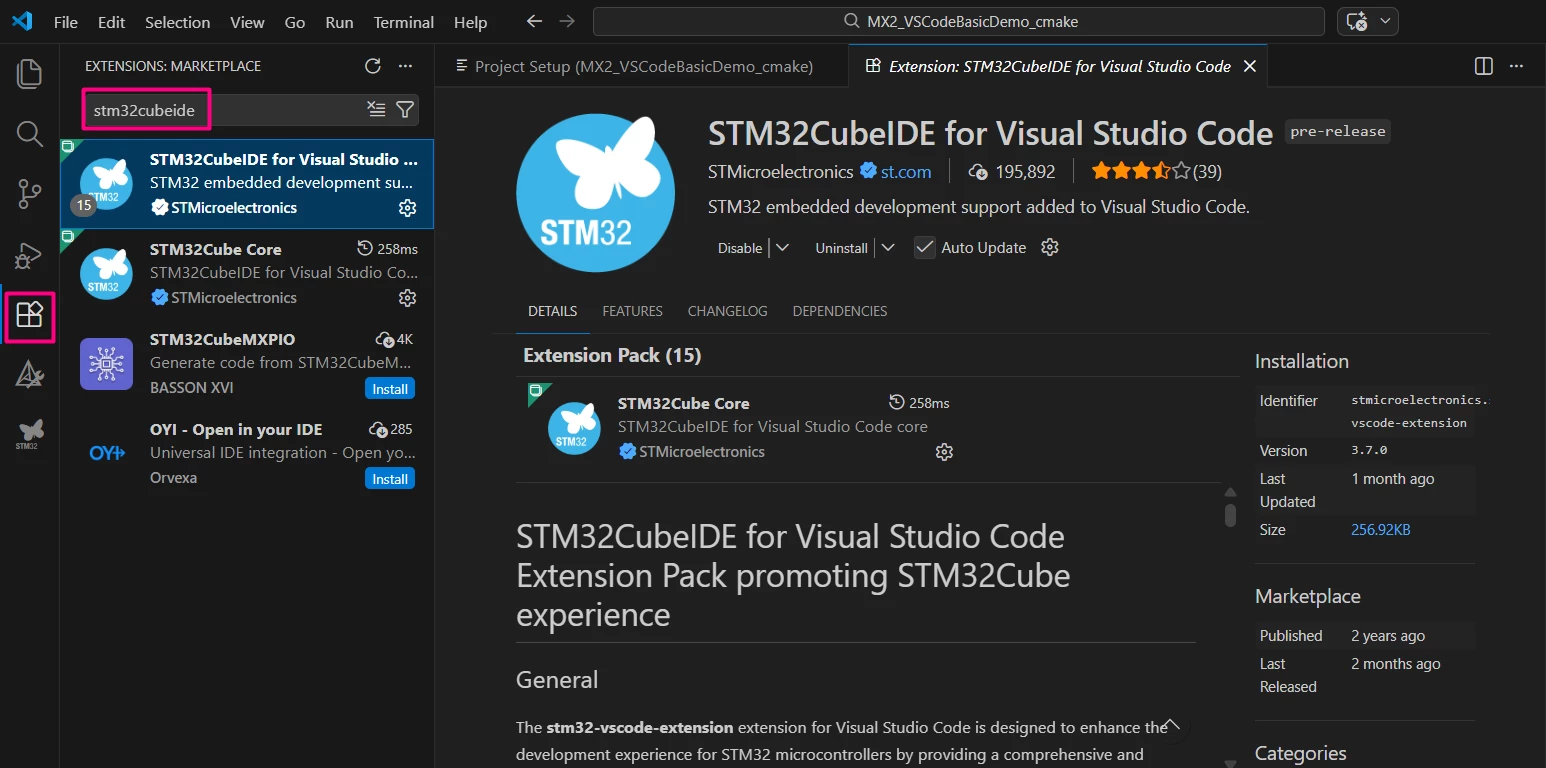
Verify that the STM32CubeIDE extension pack and CMake Tools extension are installed and enabled in VS Code.
Installing the STM32CubeIDE for Visual Studio Code extension pack automatically installs all necessary dependencies and related extensions required for STM32 development, simplifying setup.
To manage these extensions and maintain a clean development environment, consider creating a dedicated VS Code profile for MX2 projects.
You can follow the article How to create a profile for VS Code for detailed instructions on setting up and using profiles to streamline your workflow.
Configuring the build environment
Upon opening the project, VS Code detects the presence of CMakeLists.txt files and prompts you to configure the build environment. To set up the build configuration, you can use commands accessed via the Command Palette.
To open the Command Palette, press Ctrl+Shift+P (Windows/Linux) or Cmd+Shift+P (macOS). This allows you to run commands by typing their names.
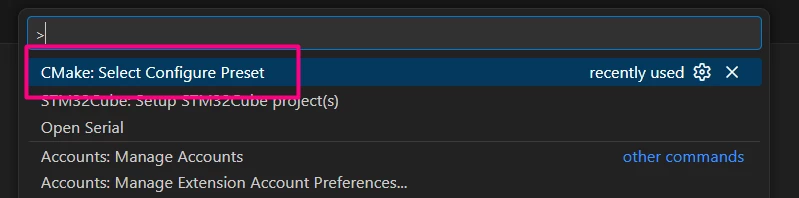
Select Configure Preset
Type and select [CMake: Select Configure Preset]. This command lets you choose a predefined build configuration preset.
Choose the debug preset:
You will see two options available, [debug] and [release], select [debug_GCC_NUCLEO-C562RE]. In this example, this preset is specifically tailored for debugging with the GCC toolchain on the NUCLEO-C562RE board, ensuring the correct compiler flags and debug symbols are enabled.

Set up the STM32Cube project:
Next, run the [STM32Cube: Setup STM32Cube project(s)] command from the Command Palette. This opens a configuration tab where you select the target Board/Device and Toolchain for your project.

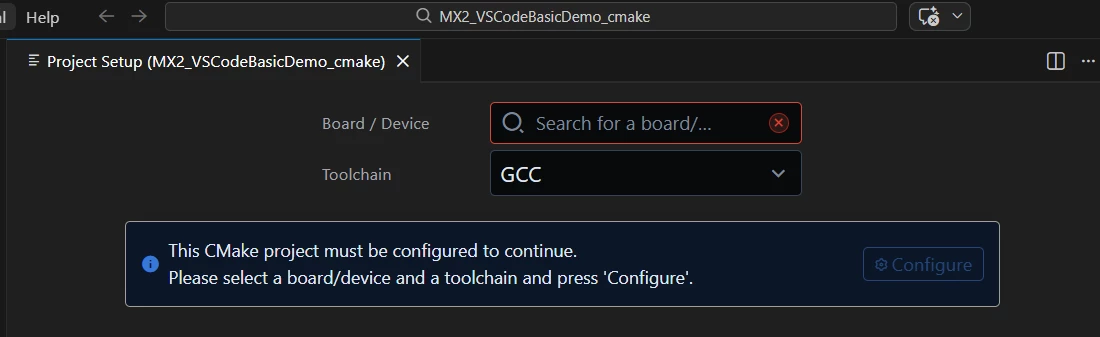
Modify the options according to your project, then [Save and close] to apply these settings.
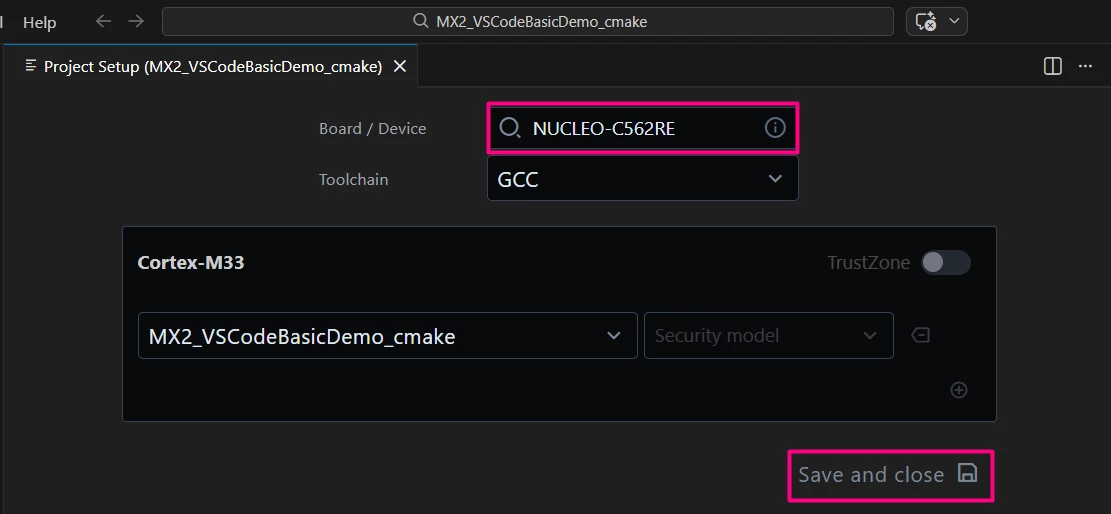
Completing these steps configures the CMake Tools and STM32CubeIDE extensions to build and debug your STM32CubeMX2 project with the correct toolchain and device settings.
3. Building the project
After importing and configuring your STM32CubeMX2 project in Visual Studio Code, you can proceed with building your application using the integrated tools.
Add a simple LED toggle code:
Before building, for this example, let us add a simple LED toggle implementation to verify the setup. Open the main.c file and add the following code inside the while (1) loop to toggle the user LED (PA5).
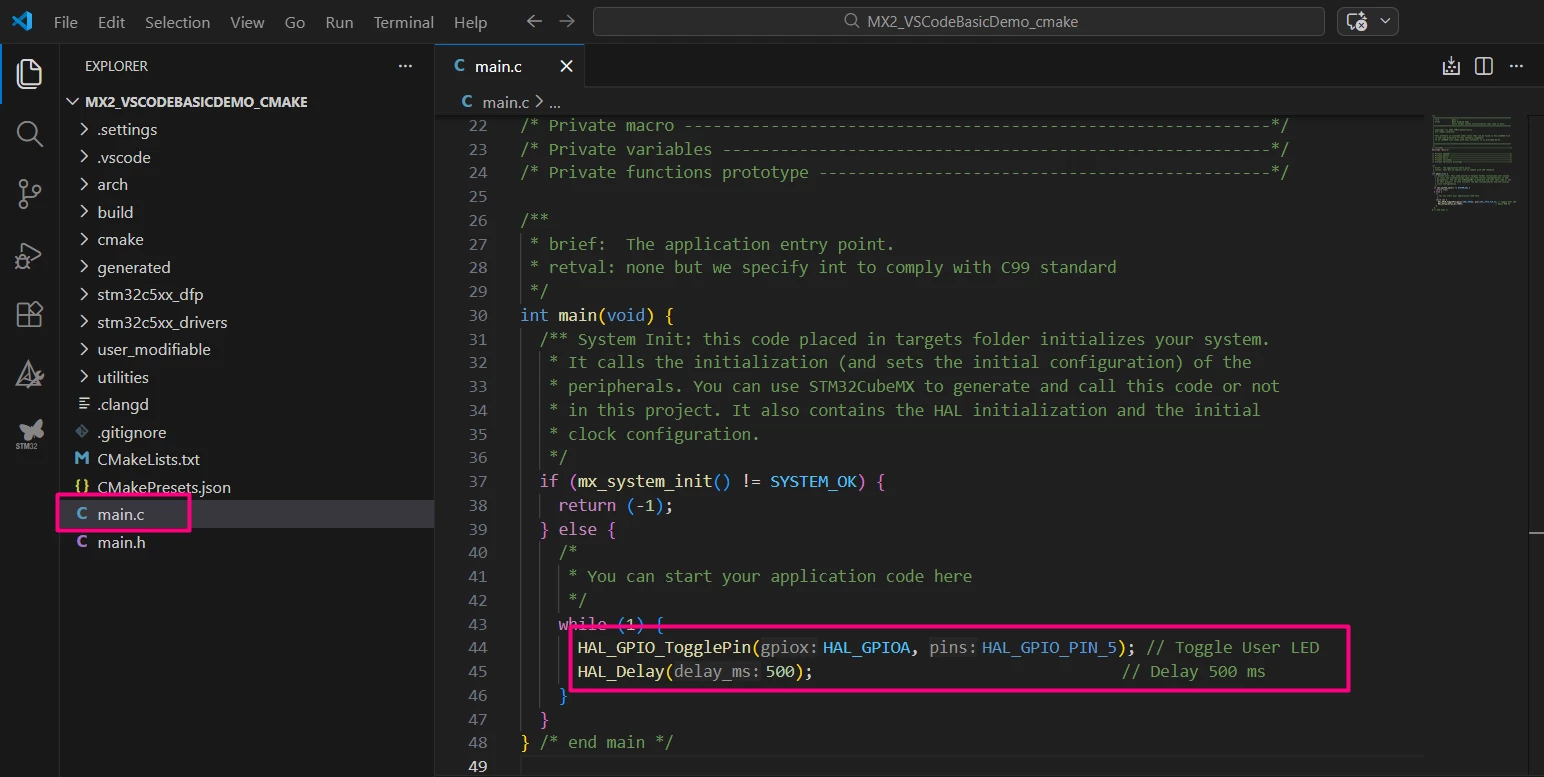
while (1) {
 HAL_GPIO_TogglePin(HAL_GPIOA, HAL_GPIO_PIN_5); // Toggle User LED
 HAL_Delay(500); // Delay 500 ms
 }
Build the project:
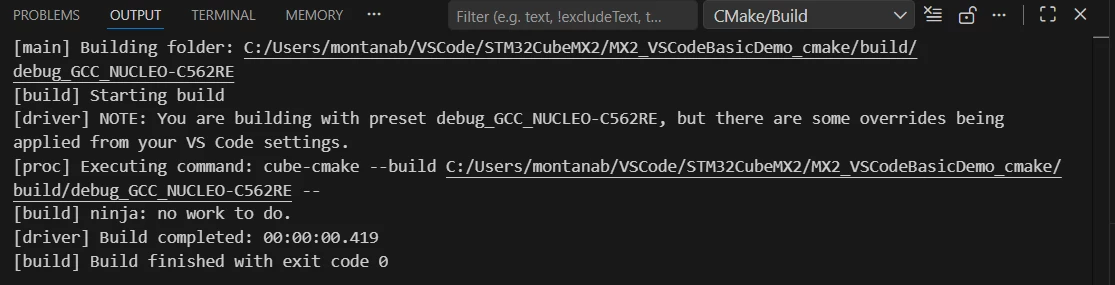
Press Ctrl+Shift+B to trigger the default build task, or open the Command Palette (Ctrl+Shift+P / Cmd+Shift+P) and run [CMake: Build] or press F7.
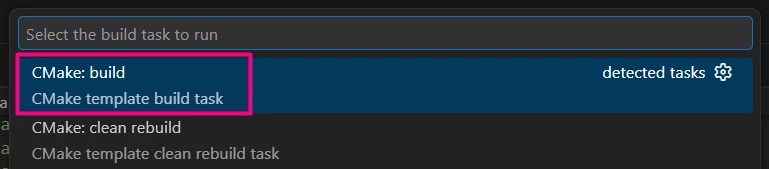
The build output appears in the terminal panel, showing compilation progress and any errors or warnings.
- Clean and rebuild
To do a clean build, use CMake: Clean Rebuild from the Command Palette. This removes previous build artifacts before rebuilding the project.
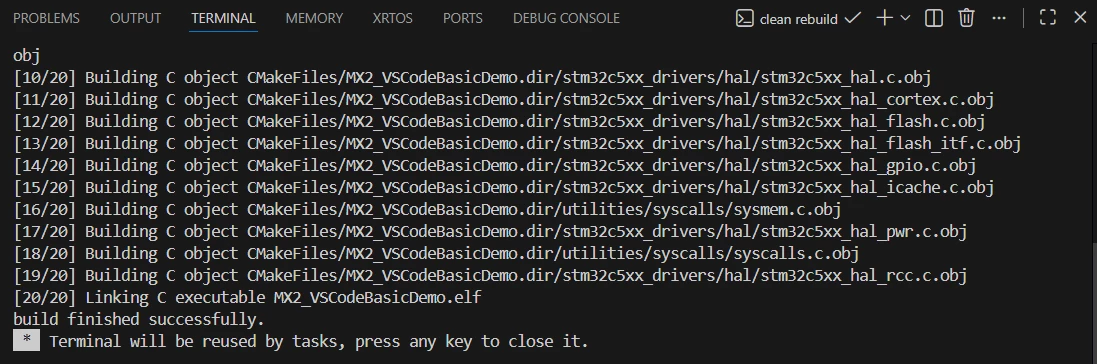 Build configuration files:
The build process uses the CMakeLists.txt files generated by STM32CubeMX2, ensuring all source files and dependencies are correctly included.
Select the build target:
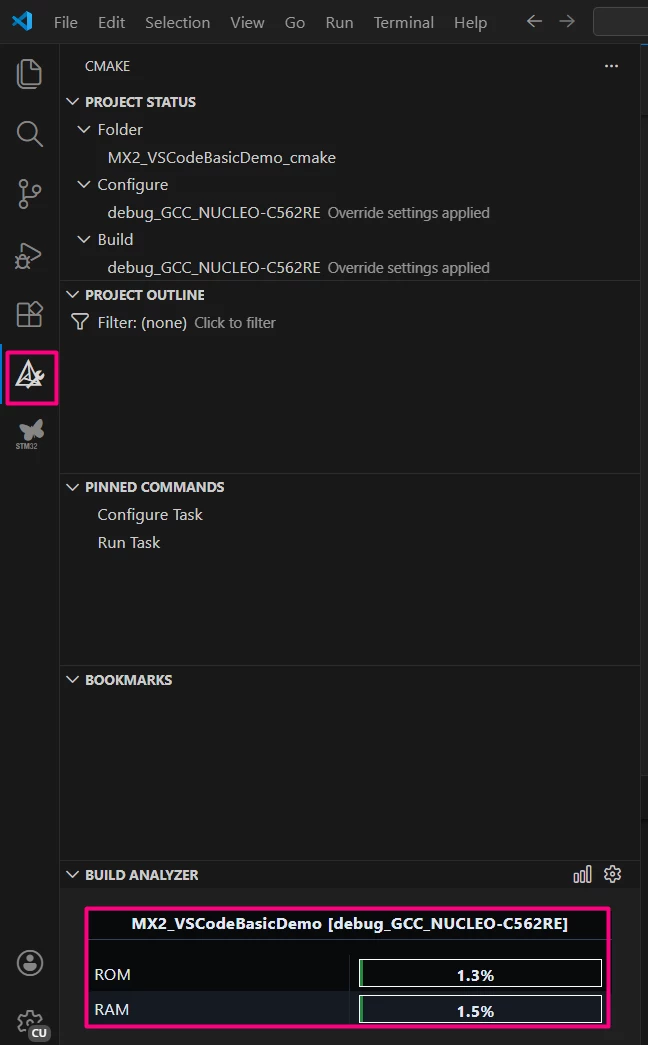
Use the CMake Tools extension project status bar at the left of the VS Code window to select the targets for Build, Debug and Launch and check the Build Analyzer.
4. Debugging the project
Effective debugging is crucial for embedded development. Visual Studio Code, combined with the STM32CubeIDE extension and CMake Tools, offers a powerful environment to debug STM32CubeMX2 projects.
Check bundle updates
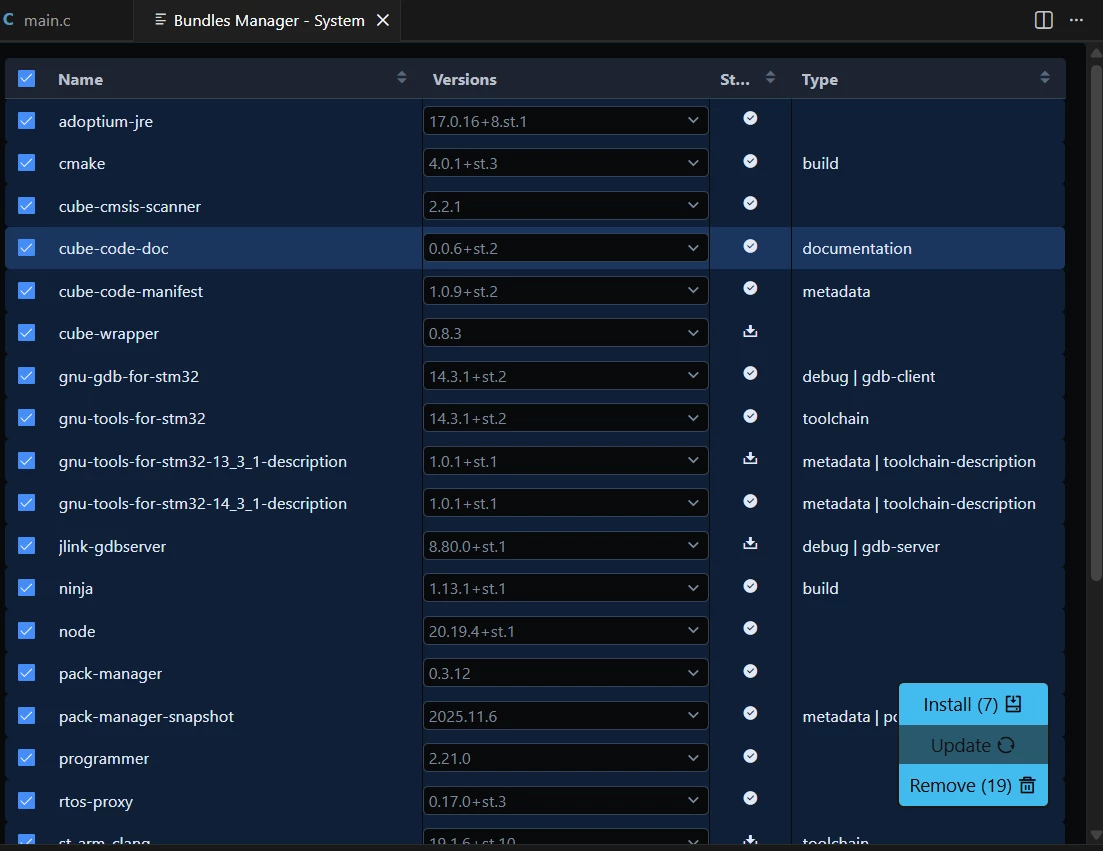
Ensure that your project bundles are up to date by checking the [Bundles Manager] section provided by the STM32Cube Extension. Keeping bundles updated guarantees compatibility and access to the latest debugging features.
Open the Command Palette (Ctrl+Shift+P / Cmd+Shift+P) and run [STM32Cube: Open System Bundles Manager].

 Connect the debugger:
Connect your STM32 board to your PC using the STLINK or compatible debug interface. Verify if the drivers and firmware are up to date for reliable communication.

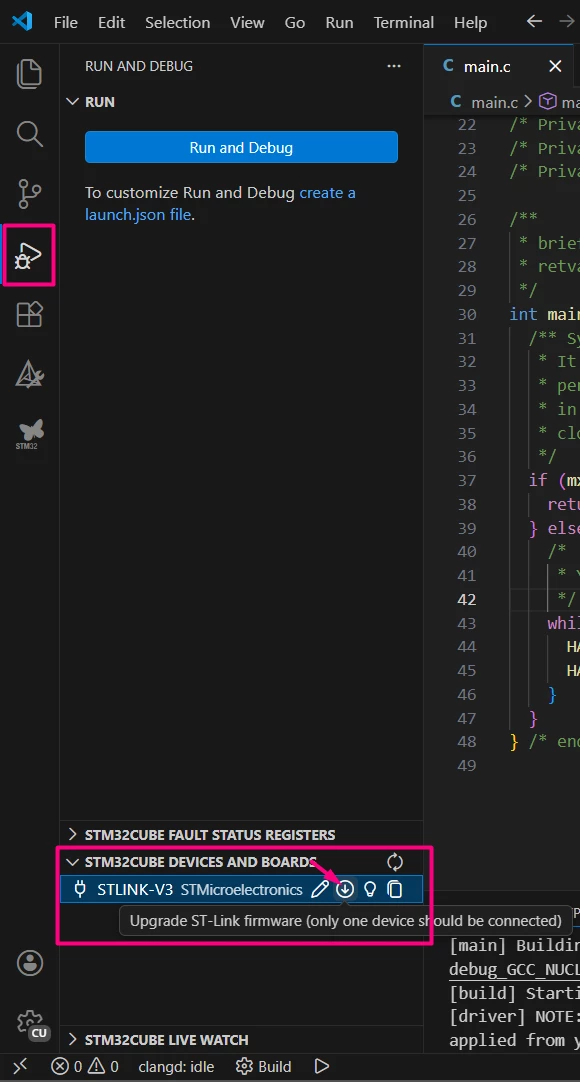
Select the debug configuration:
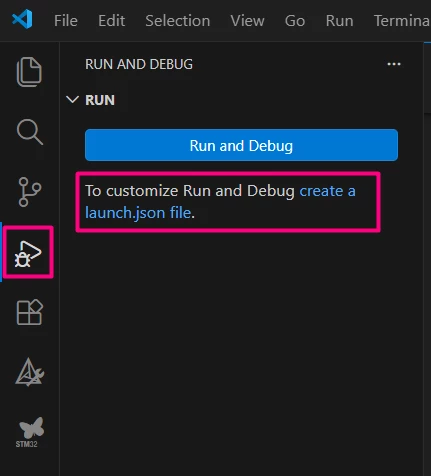
Open the Run and Debug panel (Ctrl+Shift+D).
Create a new debug configuration by clicking create a launch.json file.
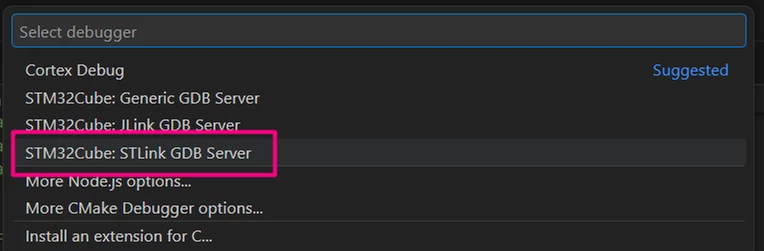
Select [STM32Cube: STLink GDB Server] or the appropriate debug environment provided by the STM32CubeIDE extension.
This generates a launch.json file configured for your STM32 project, enabling seamless debugging integration.
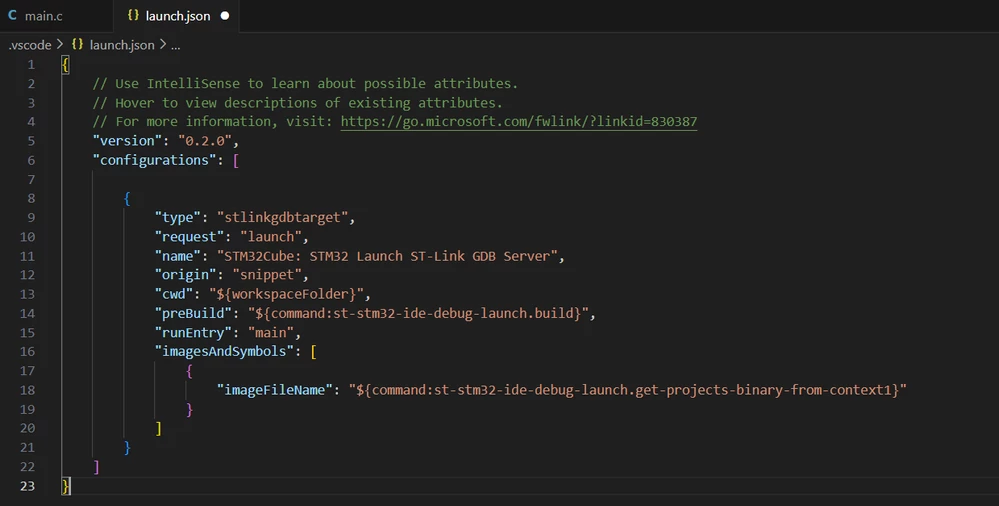
Pro tip: add live watch by simply adding the following line in the json:
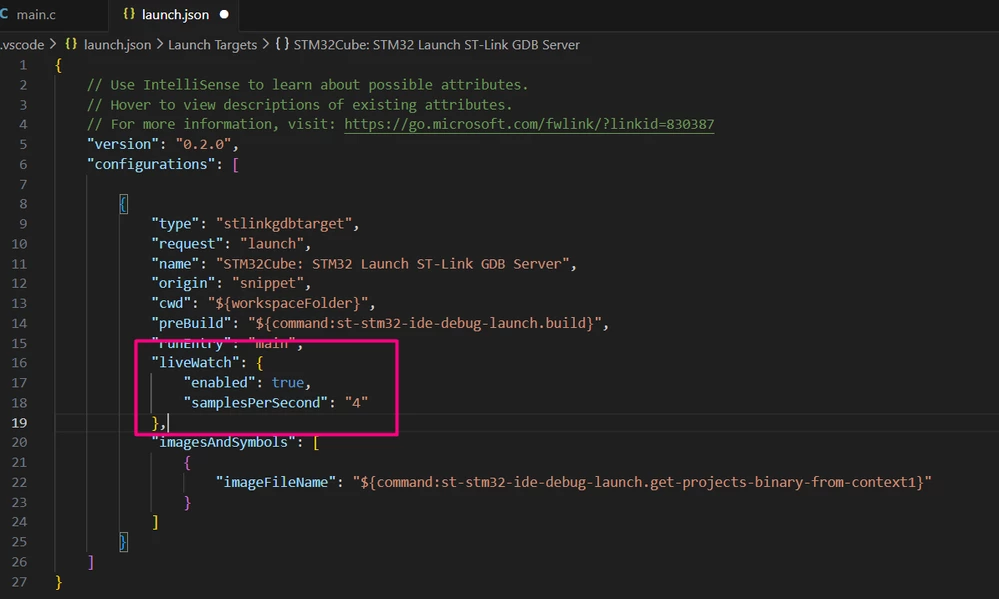
You can customize the launch.json to specify debug parameters such as executable paths, server loaders, and SVD files as well.
Start the debug session:
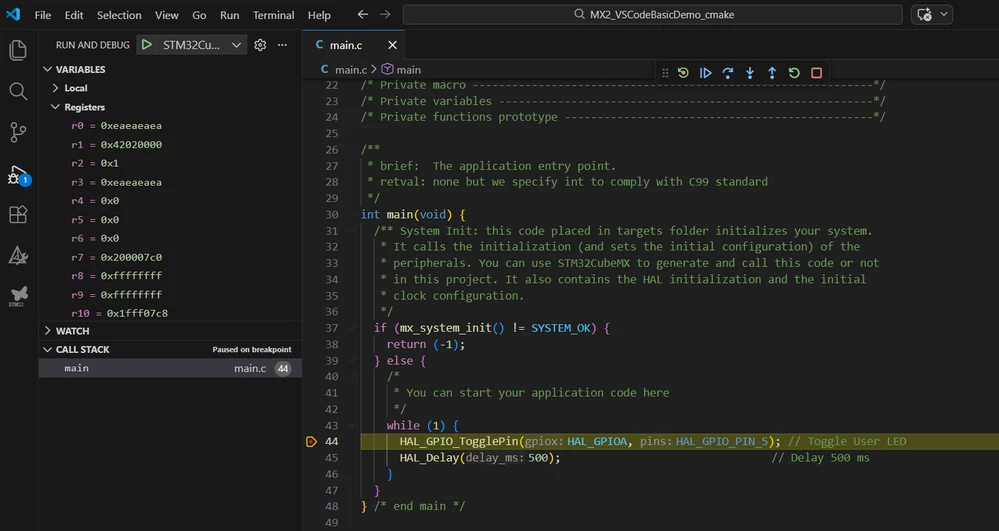
Press (F5) or click the green [Start Debugging] button. VS Code launches the debugger, program the device, and halts at the reset vector or the first breakpoint.

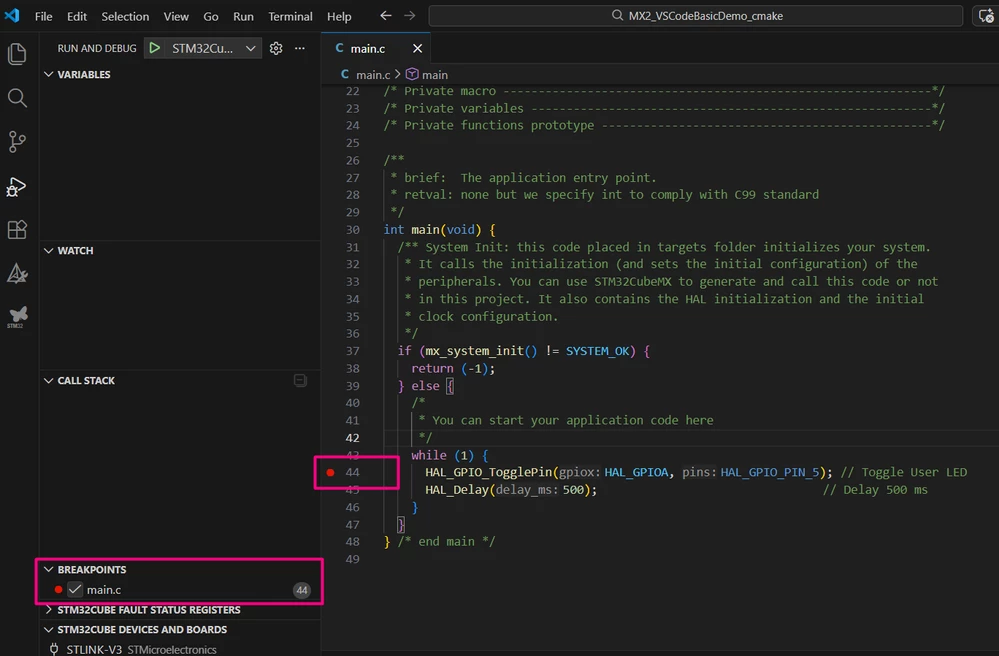
Set breakpoints:
Click in the gutter next to the code lines where you want execution to pause. This allows inspection of variables and program flow.
Step through code:
Use the debugging toolbar to:
- Step Over (F10) to execute the next line without entering functions.
- Step Into (F11) to dive into function calls.
- Step Out (Shift+F11) to exit the current function.
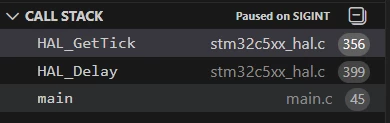
View call stack:
The call stack panel shows the sequence of function calls leading to the current execution point, aiding in debugging complex flows.
Inspect variables:
Use the Variables and Watch panels to monitor the values of variables and expressions during execution.
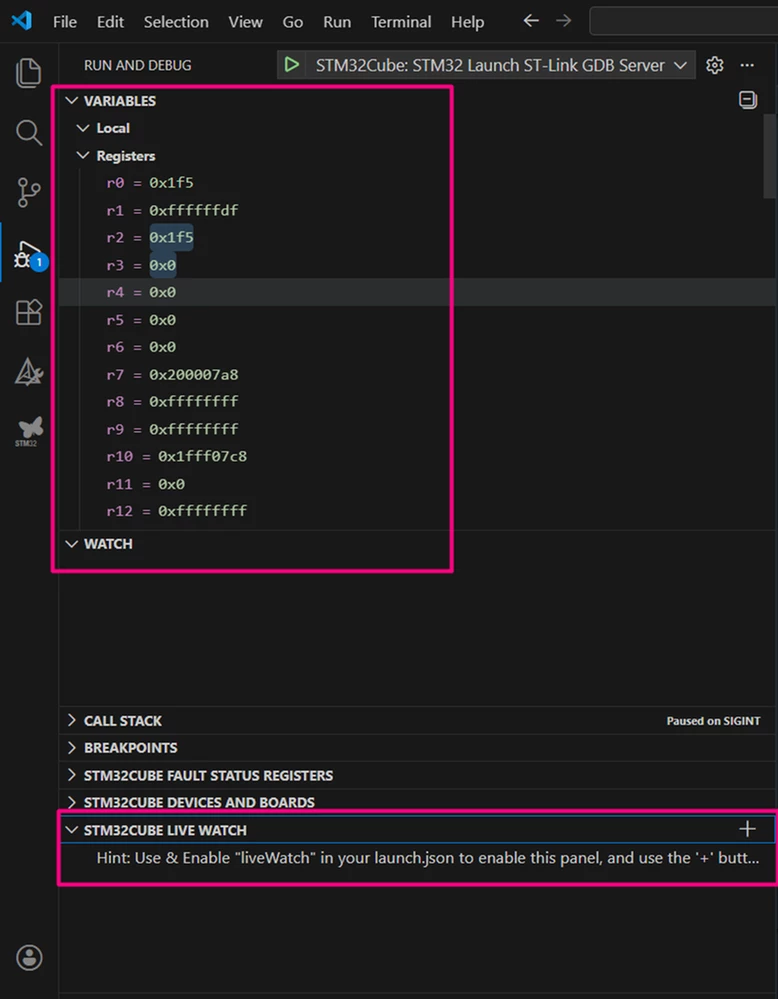
Inspect registers:
The Registers’ view allows low-level inspection and modification of CPU registers if needed.
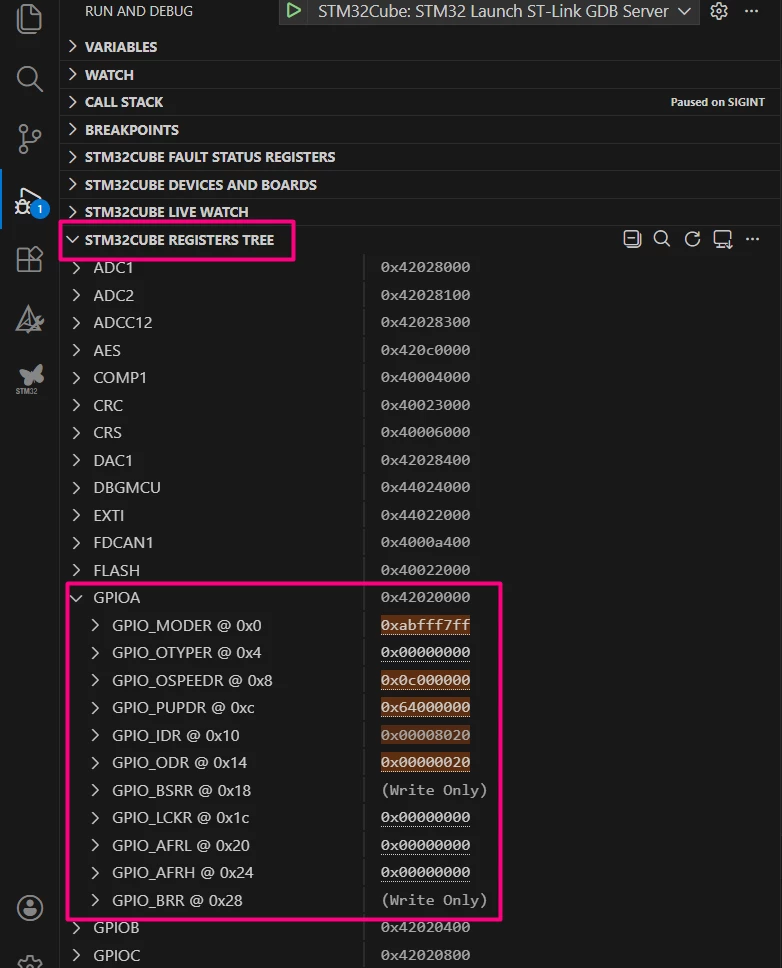
Inspect memory:
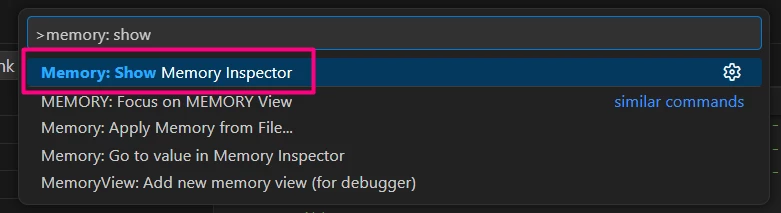
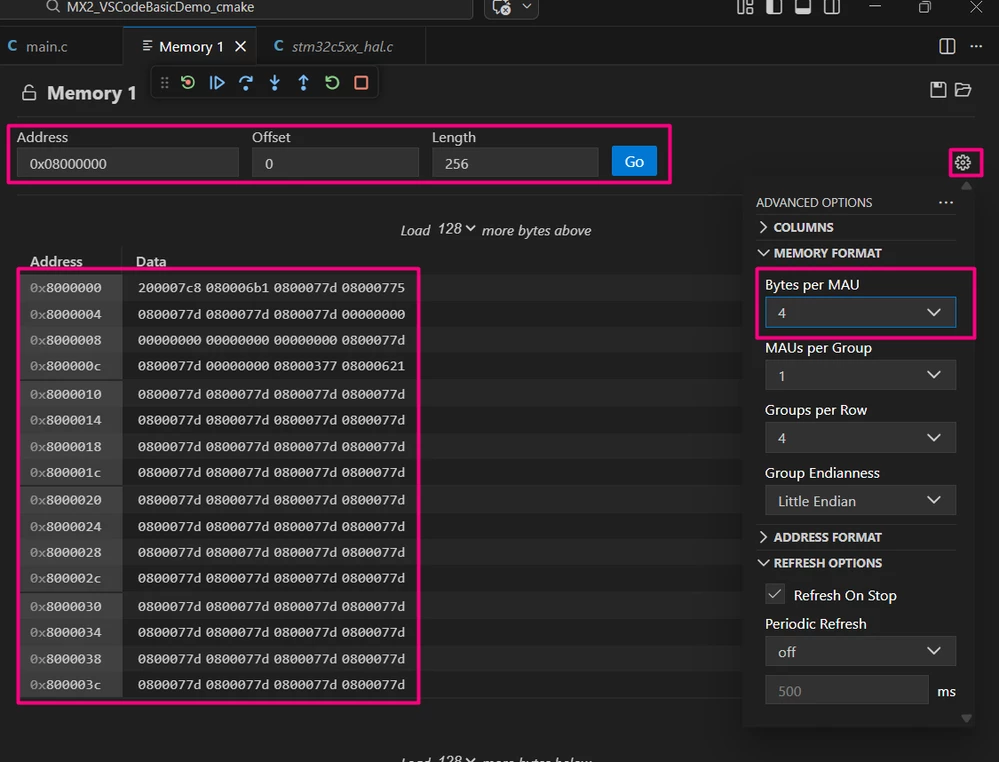
To inspect memory contents, use the Memory Inspector extension provided by Eclipse CDT Cloud.
Open the Command Palette (Ctrl+Shift+P / Cmd+Shift+P), run the command Memory: Show Memory Inspector, and enter the desired memory address to view its contents.
Serial monitor:
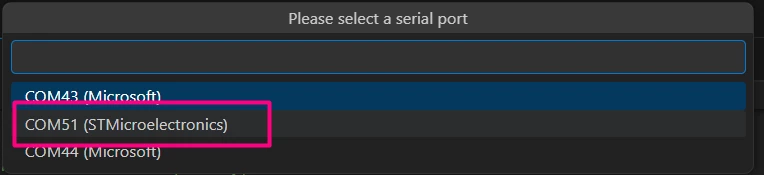
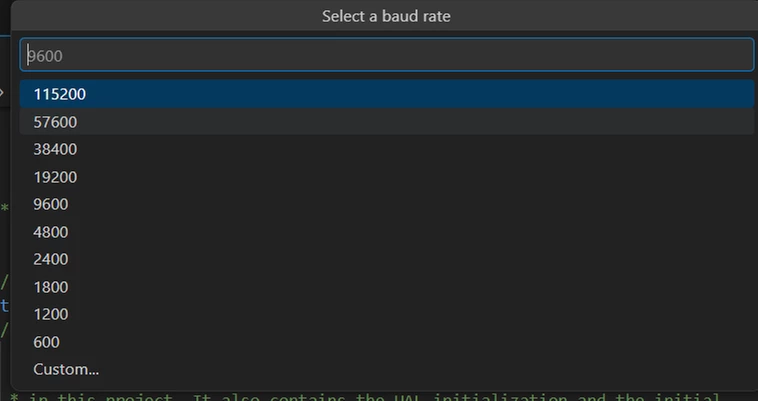
For serial communication, the Serial Monitor extension (also from Eclipse CDT Cloud) can be used.
Open the Command Palette and run the command [Open serial] to launch the serial monitor.

When opening the serial monitor, you will need to configure the COM port and baud rate to match your serial communication settings.

RTOS debugging (if applicable):
If your project uses FreeRTOS™ or other RTOS middleware, the STM32CubeIDE extension supports RTOS-aware debugging.
Open the RTOS view to monitor task states, priorities, and stacks in real time.

For a deeper understanding and detailed instructions on RTOS debugging, refer to our article How to use FreeRTOS™, which explains FreeRTOS debugging techniques extensively.
Conclusion
This article has provided a comprehensive guide to using STM32CubeMX2 with Visual Studio Code, covering project creation, code generation, importing, building, and debugging. By leveraging the STM32CubeIDE extension and CMake Tools within VS Code, developers can create an efficient and flexible development environment tailored for STM32 microcontrollers.
Following the outlined workflow and best practices ensures a smooth transition from STM32CubeMX2 configuration to active development and debugging, enhancing productivity, and reducing setup complexity. With the powerful integration of these tools, embedded developers can focus more on application design and less on environment configuration.
