


How to develop an external flash loader for IS25WX01G memory using the EMM custom driver on STM32N6
Summary
In this article, we go through the steps to create an external flash loader for the external NOR flash memory IS25WX01G. We use the custom driver of the external memory manager, which was first introduced in STM32CubeN6 version 1.3.0.
The fully modified source code is available in the STMicroelectronics GitHub organization (ST Hotspot):
1. Hardware considerations
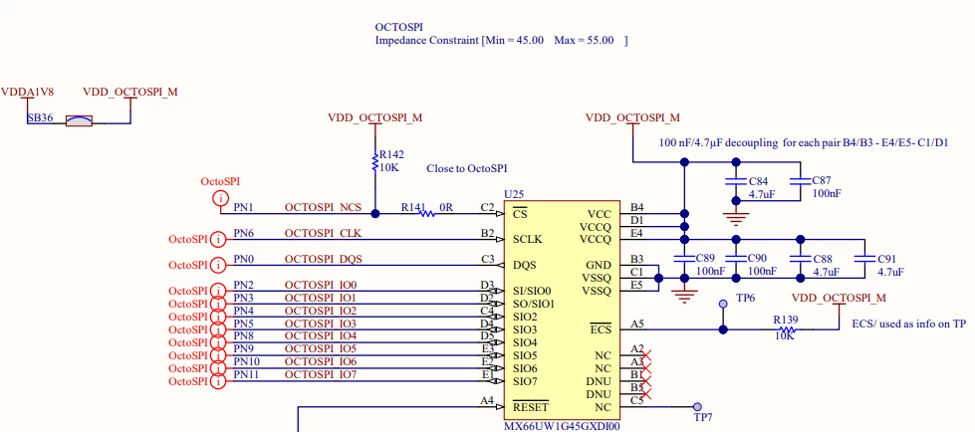
The IS25WX01G and MX66UW1G45G memories are pin-to-pin compatible, and both operate at 1.8 V, making it straightforward to swap the memories on STM32N6570-DK board. The figure below shows the hardware connections.
2. Software part
The STM32CubeN6 provides a template for the custom driver of the external memory manager (EMM). This template is located under
Projects\STM32N6570-DK\Templates\Template_FSBL_XIP_Custom
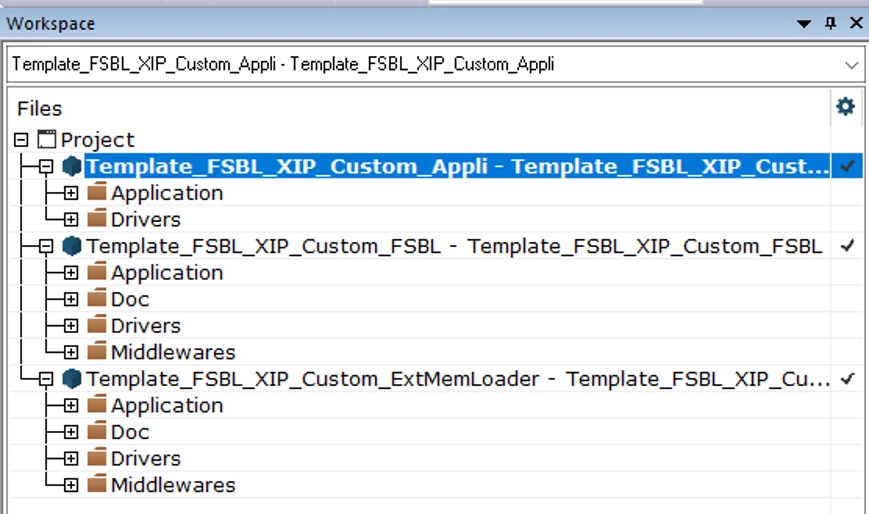
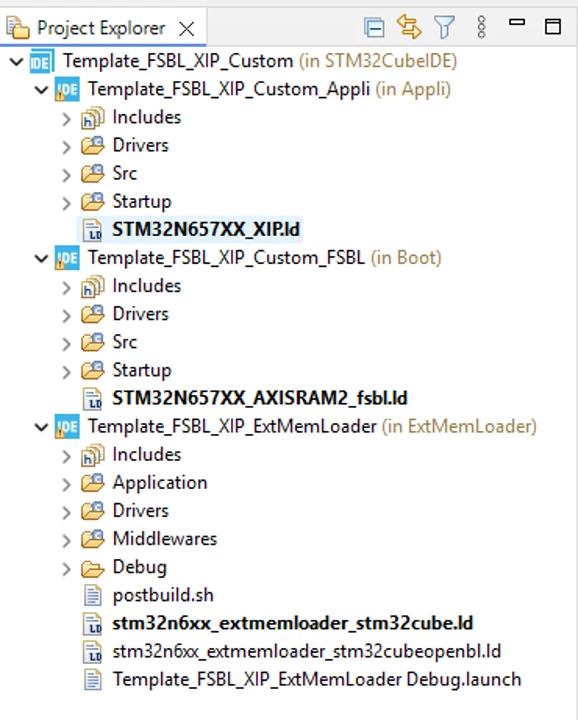
This template consists of three projects within the same workspace:
- Template_FSBL_XIP_Custom_ExtMemLoader
This project helps to generate an external flash loader (.stldr) that can be used STM32CubeProgrammer to read, write, and erase the external flash memory.
- Template_FSBL_XIP_Custom_FSBL
This project is the template for the first stage bootloader. The boot ROM loads the FSBL into the internal SRAM and starts the execution of FSBL, which needs to make the external flash memory ready to allow the application code (next project) to run.
Template_FSBL_XIP_Custom_Appli:
- This project is a template for an application that the FSBL jumps to. This project is a simple LED toggle.
The screenshot below shows the three projects in the Template_FSBL_XIP_Custom workspace of IAR EWARM:
The screenshot below shows the three projects in the Template_FSBL_XIP_Custom workspace of STM32CubeIDE:
First, we outline the changes required for Template_FSBL_XIP_Custom_ExtMemLoader and Template_FSBL_XIP_Custom_FSBL. Finally, we demonstrate how to run Template_FSBL_XIP_Custom_Appli without any modifications.
2.1 Customizing Template_FSBL_XIP_Custom_ExtMemLoader
We start by creating a copy of this template and making the required changes to make our custom EMM driver work with IS25WX01G.
For example, I renamed the copied template as Projects\STM32N6570-DK\Templates\Custom_IS25WX
2.1.1 Editing stm32_extmemloader_conf.h
Start by modifying stm32_extmemloader_conf.h under ExtMemLoader\Inc. It is a configuration file that defines important information that the custom EMM driver needs and later for STM32CubeProgrammer to work properly.
The device name is typically composed of two parts separated by an underscore. The first part is the memory part number. The second part is the name of the STM32 board on which that memory is available.
In our example, the memory part number is IS25WX01G, and the board name is STM32N6550-DK. This device needs to match the name of the stldr file as explained later after we get to the step where we generate the external flash loader.

The device type is the category of external memory for which we are creating the external flash loader. In our example, the device type is NOR flash, since the IS25WX01G is a NOR flash device.

The device address is 0x7000 0000 size because we are using an XSPI2 instance, which is mapped to 0x7000 0000 as shown in Table 2. Memory map and peripheral register boundary addresses of RM0486.

The device size of IS25WX01G is 1 Gb meaning 128 MBytes.

The IS25WX01G memory, like most NOR memories, the erase operations can be partitioned into different sector sizes: 128 KB, 32 KB, and 4 KB. One option is to define the memory as 32,768 sectors of 4 Kbytes each.
Note: The STM32CubeProgrammer GUI version displays only the first 4000 sectors.

As for write operations, like most of the serial NOR memories the IS25WX01G write page size is 256 bytes.
The list of changes is shown below:
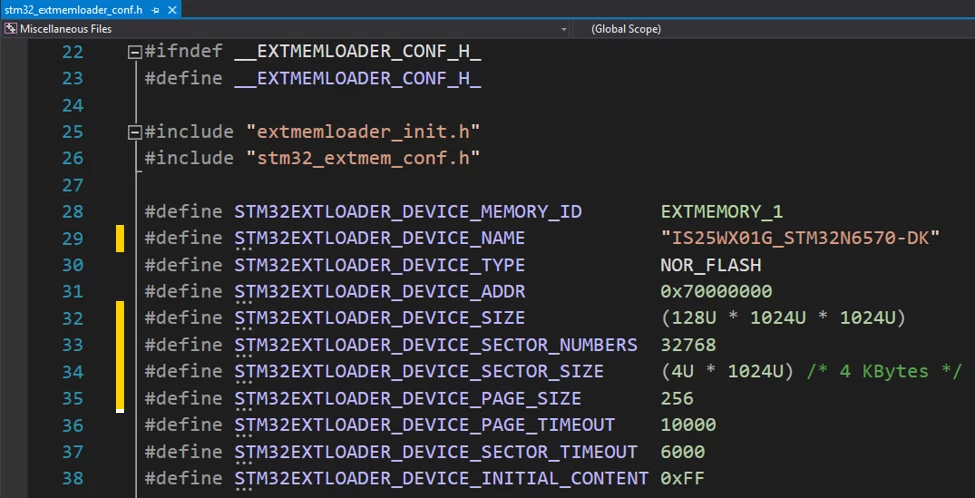
The changes above are reflected in STM32CubeProgrammer. The external loader displays the different information: name, board, start address. More about this later.

2.1.2 Adapting the custom EMM driver
The folder ExtMemLoader\Inc\ contains the header file stm32_mx66uw1g45g.h, which is the custom driver header of MX66UW1G45G NOR flash memory. This memory comes soldered in the board.
We want to make the necessary changes to support IS25WX01G, assuming it was soldered on the STM32N6570-DK.
Change the name of the driver from stm32_mx66uw1g45g.h to stm32_is25wx01g.h to reflect the driver we are developing is now for IS25WX01G memory.
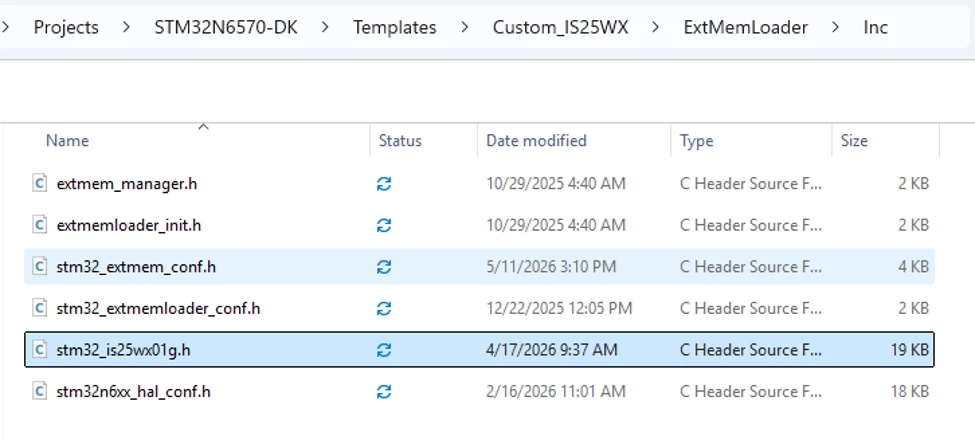
Edit the file and start the modification as explained below.
Replace every occurrence of mx66uw1g45g with is25wx01g, preserving the original letter casing (for example, Mx66uw1g45g → Is25wx01g, MX66UW1G45G → IS25WX01G).
Changing basic configuration fields
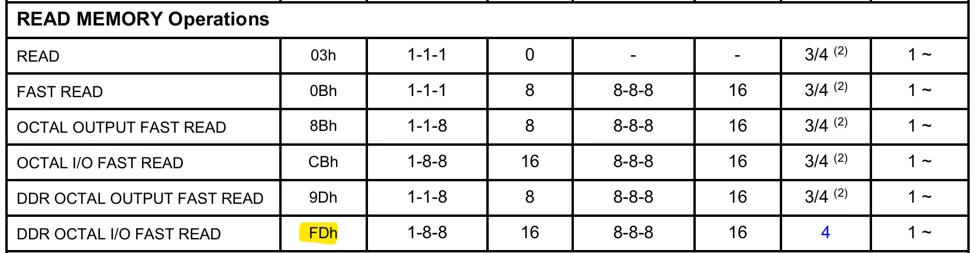
Based on Table 8.1 Command Set of the datasheet of is25wx01g, we need to change the read data command to 0x03,
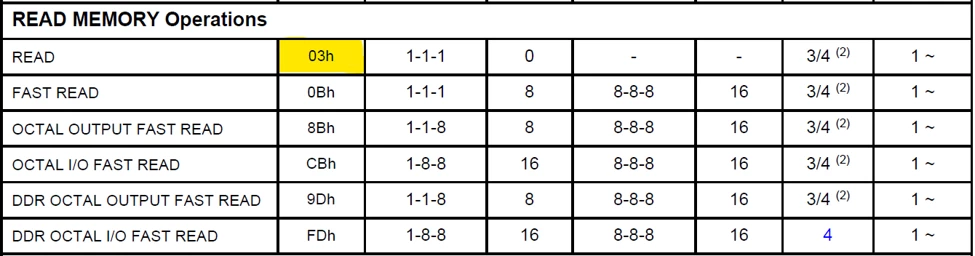
the write command or the program command to 0x02,

and the number of dummy cycles for read register to 8.

The changes are shown below:

The read/write commands, the read/write dummy cycles, and the read/register dummy cycles shown above are used to access the memory at startup. For example, as defined in StartupConfig.AccessMode field of configuration structure, 1S_1S_1S in this case. We use these defines in the StartupConfig field later on.
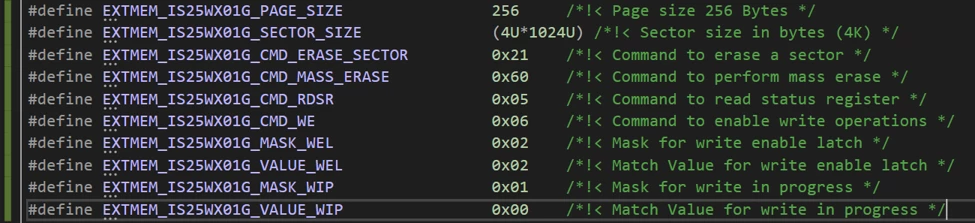
The page size, sector size, erase command, mass erase command, read status register command, enable write operation command, and WIP and WEL bits positions are the same as those used in case of MX66UW1G45G.
Adapting memory configurations steps
To bring the memory to its final configuration, EMM custom driver executes configuration steps as described in stm32_is25wx01g.h configuration file
The MX66 driver uses the command codes: 0x71 and 0x72 for read/write configuration registers. However, IS25LX/WX01G uses:
- 81h to write to volatile configuration register (section 8.9, Table 8.8).
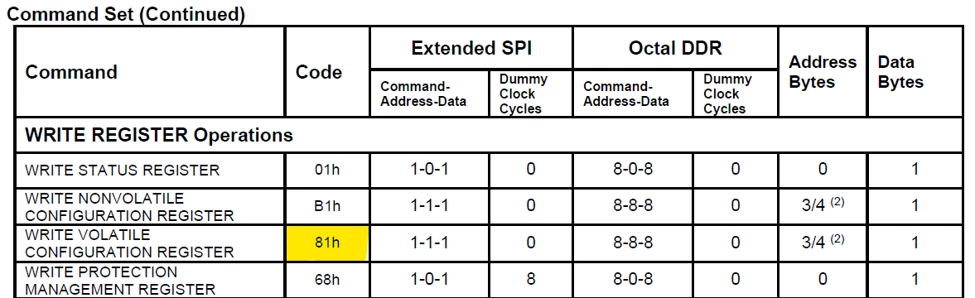
- 85h to read from volatile configuration register (section 8.8, Table 8.7).
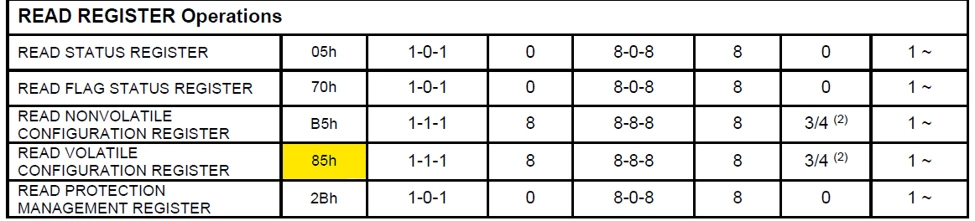
The steps to configure the IS25WX01G memory are stated below and each config step is defined according to a type of operation (ex: Read/Write, Read/Write/Read, ...): selection to be done in the .ConfigStepType field of the config step description.
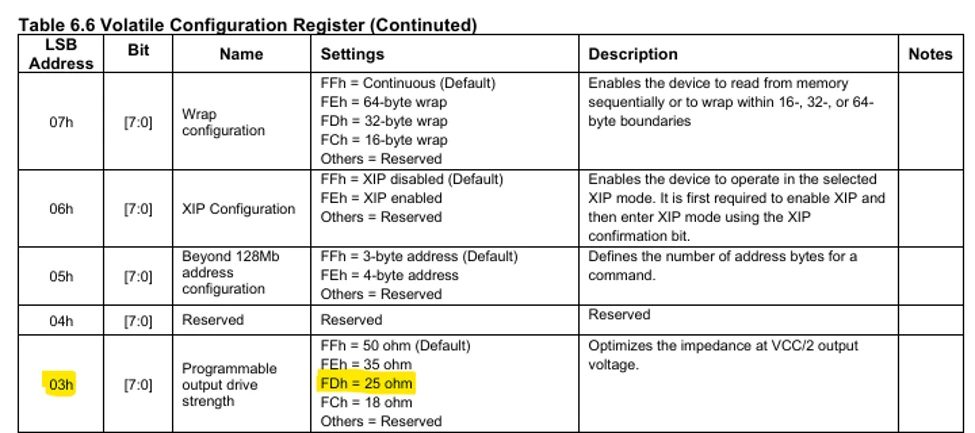
- Step 1: Set the drive strength as needed.
We need to define the following:
- The read command.
- The write command.
- The read-after-write command.
- The address of the volatile configuration register to write to.
- The value to write and the mask of the bitfield we are writing to.
This is shown below as step 1.
The read command and read-after-write command are both set to 0x85.
The write command is set to 0x81.
The address is 0x03 as shown by Table 6.6. Volatile Configuration Register.
The read-after-write command is useful to verify the written value was indeed the expected one. Some memories have different commands for read-after-write, that is why we are defining it separately here.
Note: The drive strength for the high-speed signals between the microcontroller and the memory device are important for reliability and should be adjusted based on the hardware implementation. The value of 25 Ohms that corresponds to 0xFD is used based on bench tests at room temperature and not on characterization tests. This topic is beyond the scope of this article.
The screenshot below shows the changes to the drive strength configuration step:

- Step 2: Set the dummy cycles.
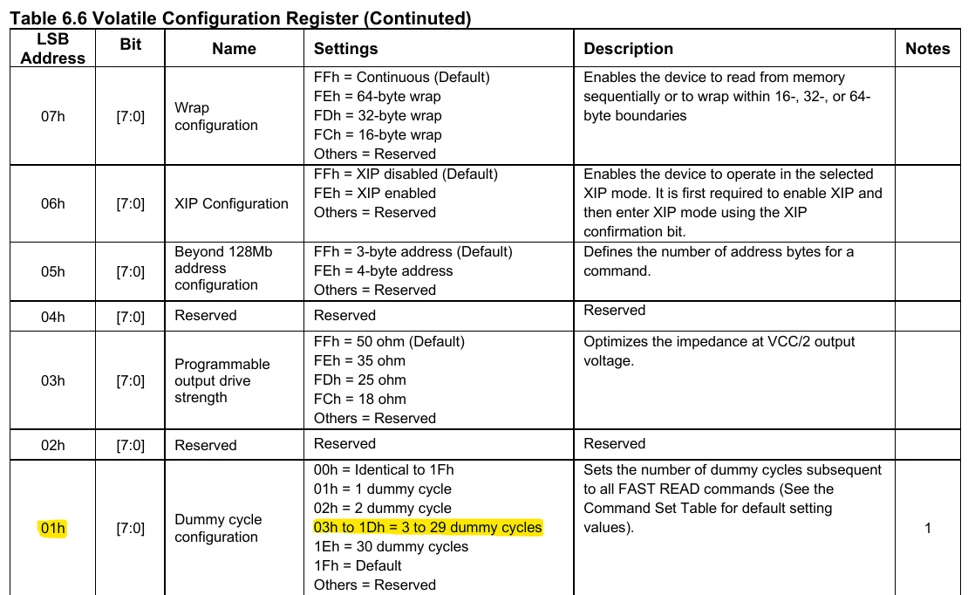
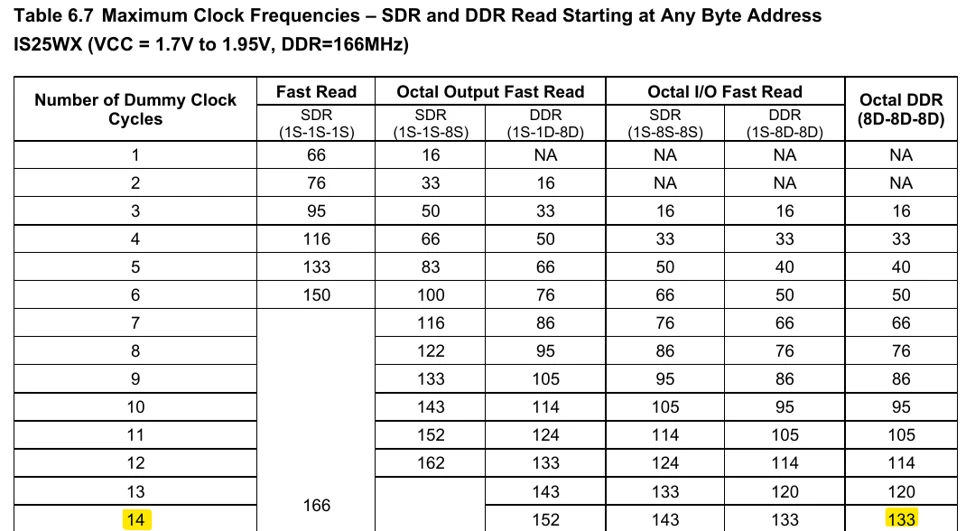
Adjust the dummy cycles based on the XSPI clock frequency is the recommended approach. In this example, the XSPI clock frequency is 125 MHz, so the appropriate dummy cycles configuration is 14. Table 6.7 of the memory datasheet shows the number of dummy clock cycles per operating clock frequency.
The read command, write command, and read-after-write command are the same as the ones used with drive strength configuration. However, the address is 0x01 as shown by Table 6.6. Volatile Configuration Register.
The screenshot below shows the changes to the dummy cycles configuration step:

- Step 3: Set the memory is25wx01g into octal DDR mode.
The read command and write command are the same as the ones used with drive strength configuration. However, we have omitted the read-after-write step. The reason is a protocol mismatch: the memory switches to Octal DDR right after the write, and the custom driver does not support the read back when the format changes. That is not the case with setting the drive strength and the dummy cycles: the write did not change the format, so it was possible to read back.
The screenshot below shows the changes to the octal DDR mode configuration step:

Defining the octal commands
Referring to Table 8.1 Command Set in the memory datasheet, we see the sector erase and the mass erase commands are the same as one used by MX66UW1G45G.
Then we need the following:
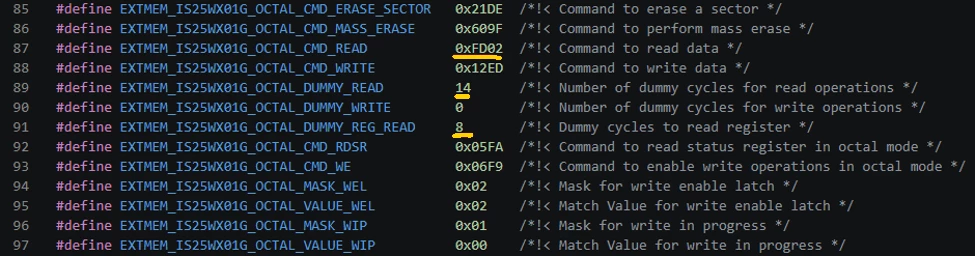
Define the DDR octal command as 0xFD as shown in the memory datasheet.
Set the dummy cycles for read registers in octal mode to 8 cycles as shown in the memory datasheet table 8.1.

Set the dummy cycles to 14 as discussed above and as shown in the memory datasheet table 6.6. This value is written in the XSPI internal registers while EXTMEM_IS25WX01G_CMD2_VALUE_CFG2 defined earlier is written in the volatile configuration register of the memory. The two values must match.
The screenshot below shows the three changes:
Updating EXTMEM_IS25WX01G_INIT
At this stage, we make the necessary changes to the EXTMEM_IS25WX01G_INIT structure:
- Change the memory standard to Micron as shown below. Refer to this article for more information:
.MemStandard = EXTMEM_CUSTOM_STD_MICRON,
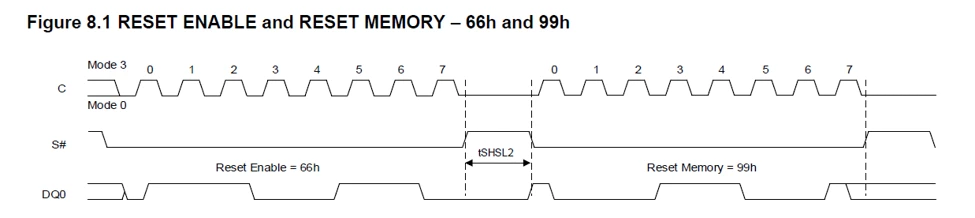
- Keep the reset method to 6699 as the figure 8.1 in the datasheet of is25wx01g shows that is what is supported by the is25wx01g memory:
.ResetMethod = EXTMEM_CUSTOM_RESET_METHOD_6699_9966,
- Change the startup address size to 24-bit as shown below. Please refer to this article link for more details about this:
.StartupConfig.AddressSize = EXTMEM_CUSTOM_ADDRESS_24_BITS,/* address size*/
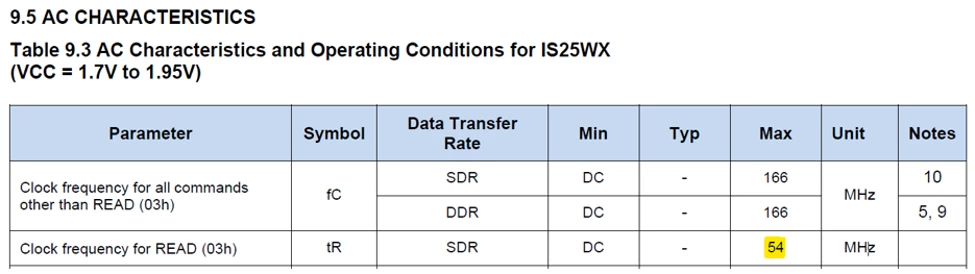
- Change the startup frequency to 54 MHz as the maximum frequency that the read command (03h) support is 54 MHz as shown by table 9.3 of is25wx01g datasheet:
.StartupConfig.Frequency = 54000000, /*!< Operating frequency in Hz*/
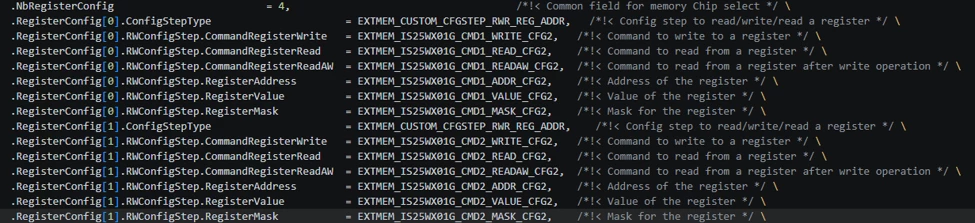
- Change the number of register configurations to 4 to tell the EMM driver that there are exactly 4 steps in the initialization sequence. RegisterConfig[X]: These are the individual "instructions" or steps for the memory configuration.
.NbRegisterConfig = 4
- Steps 0 and 1: Read-Write-Read (RWR) Verification: RegisterConfig[0] and RegisterConfig[1]
Steps 0 and 1 use the EXTMEM_CUSTOM_CFGSTEP_RWR_REG_ADDR type. This is a "safe" configuration method:
- Read the current register value.
- Apply a mask (keeping certain bits while changing others).
- Write the new value.
- Read-after-write (ReadAW) to verify the change was successful.
These two steps are used to configure drive strength or dummy cycles where you want to verify the hardware accepted the change before moving on.
The screenshot below shows the changes regarding RegisterConfig[0] and RegisterConfig[1]
- Step 2: Read-Write (RW) No Verification: RegisterConfig[2]
Step 2 switches the type to EXTMEM_CUSTOM_CFGSTEP_RW_REG_ADDR. There is no read after the write.
This is the step that switches the memory into Octal DDR mode. Because the protocol changes immediately after the "Write," the driver cannot perform the "Read-After-Write" (ReadAW) because it is no longer the same format. That is why CommandRegisterReadAW is not defined here.
The screenshot below shows the changes regarding RegisterConfig[2]

- Step 3: Execute Optional Configuration: RegisterConfig[3]
RegisterConfig[3] is set to EXTMEM_CUSTOM_CFGSTEP_EXEC_OPT_CFG: This final step triggers the driver to apply any high-level optional settings once the basic register setup from the first three steps is complete. At this stage, the EMM driver sets up the maximum clock frequency specified in the frequency field, writes the read/write instructions into the XSPI registers and then switches to memory mapped mode.
Change the frequency field .Frequency to 125000000 (125 MHz): This tells the EMM driver the maximum clock speed that it should use. At 125 MHz in DDR mode, we can achieve high throughput because data is sampled on every clock edge.
.OptionalConfig.Frequency = 125000000, /*!< Operating frequency in Hz*/
Change the max 4-K sector erase time out MaxSectorEraseTime to 400 ms to match is25wx01g datasheet – excerpt below from AC Characteristics and Operating Conditions table.
This is the maximum time that the driver waits for a single 4-K sector to be erased.

Change the max full memory erase .MaxChipEraseTime to 180 s. This is the timeout for a mass erase command, which erases the entire 1 Gbit (128 MB) memory array at once. The excerpt above from the AC characteristics and operating conditions table shows that the max chips erase time tBE is 180 s.

2.1.3 Editing extmem_manager.c
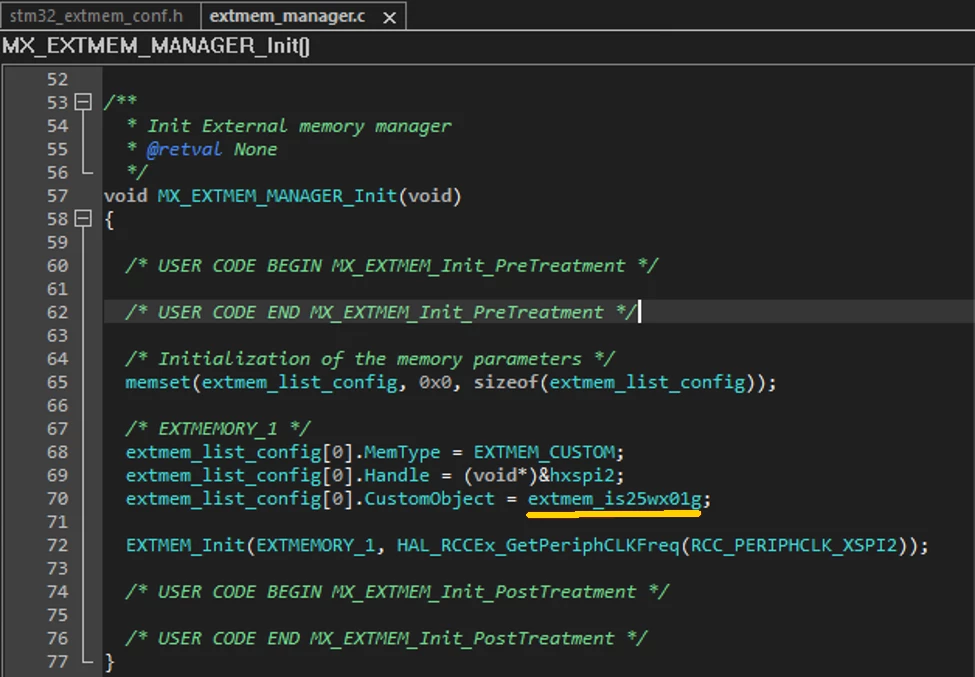
In ExtMemLoader\Src\extmem_manager.c change the CustomObject field to extmem_is25wx01g as shown below:
2.1.4 Editing stm32_extmem_conf.h
In ExtMemLoader\Inc\stm32_extmem_conf.h, make the necessary change to include the IS25WX01G header file created in the step where we changed the memory driver from stm32_mx66uw1g45g.h to stm32_is25wx01g.h
2.1.5 Editing extmemloader_init.c
As we are using the ISWX01G memory at 125 MHz at 1.8 V, we need to change the XSPI clock frequency to 125 MHz. To do so we can use PLL2 clocked by HSI, then use the M divider set to 8, set the multiplier N to 125, and set dividers P1 to 4 and P2 to 2.
We need as well to set the IC3 clock source to be PLL2 instead of PLL1 with a divider of 1 instead of 4. This clock configuration is shown below by the STM32CubeMX clock tree and the snippet code following it:
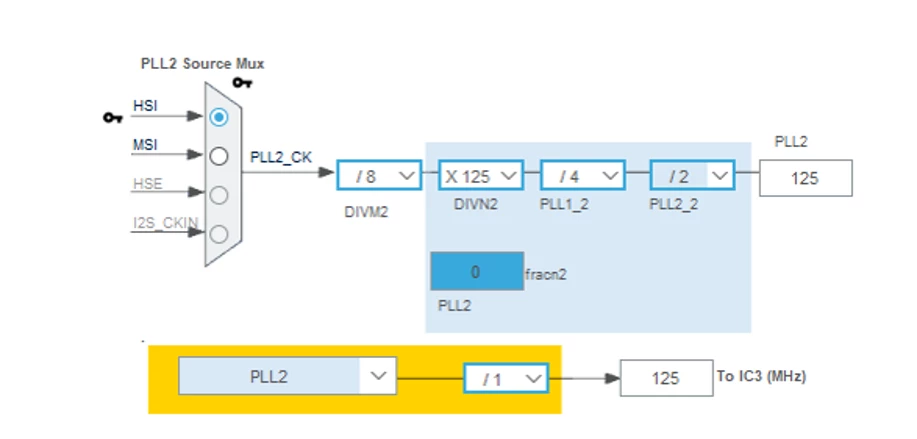
Note: STM32CubeMX is not used in the project and this figure above gives a graphical view of the XSPI clock source configuration to get 125 MHz.
Change the PLL2 configuration as shown in the snippet code below from extmemloader_init.c
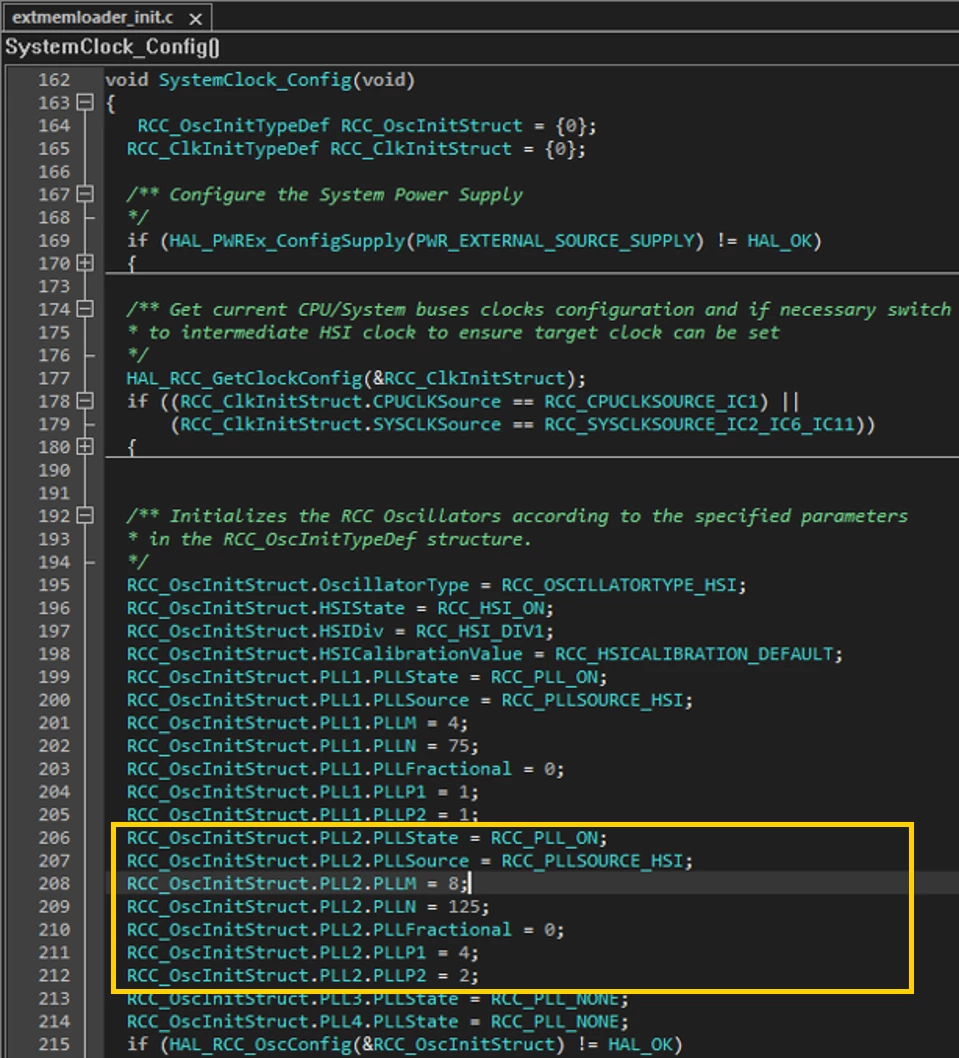
The code snippet below is the same as above, but provided for easier copying:
RCC_OscInitStruct.PLL2.PLLState = RCC_PLL_ON;
RCC_OscInitStruct.PLL2.PLLSource = RCC_PLLSOURCE_HSI;
RCC_OscInitStruct.PLL2.PLLM = 8;
RCC_OscInitStruct.PLL2.PLLN = 125;
RCC_OscInitStruct.PLL2.PLLFractional = 0;
RCC_OscInitStruct.PLL2.PLLP1 = 4;
RCC_OscInitStruct.PLL2.PLLP2 = 2;
2.1.6 Editing stm32n6xx_hal_msp.c
Change the XSPI clock source configuration source to IC3 and that PLL2 is selected at its input mux as shown by the snippet code below:
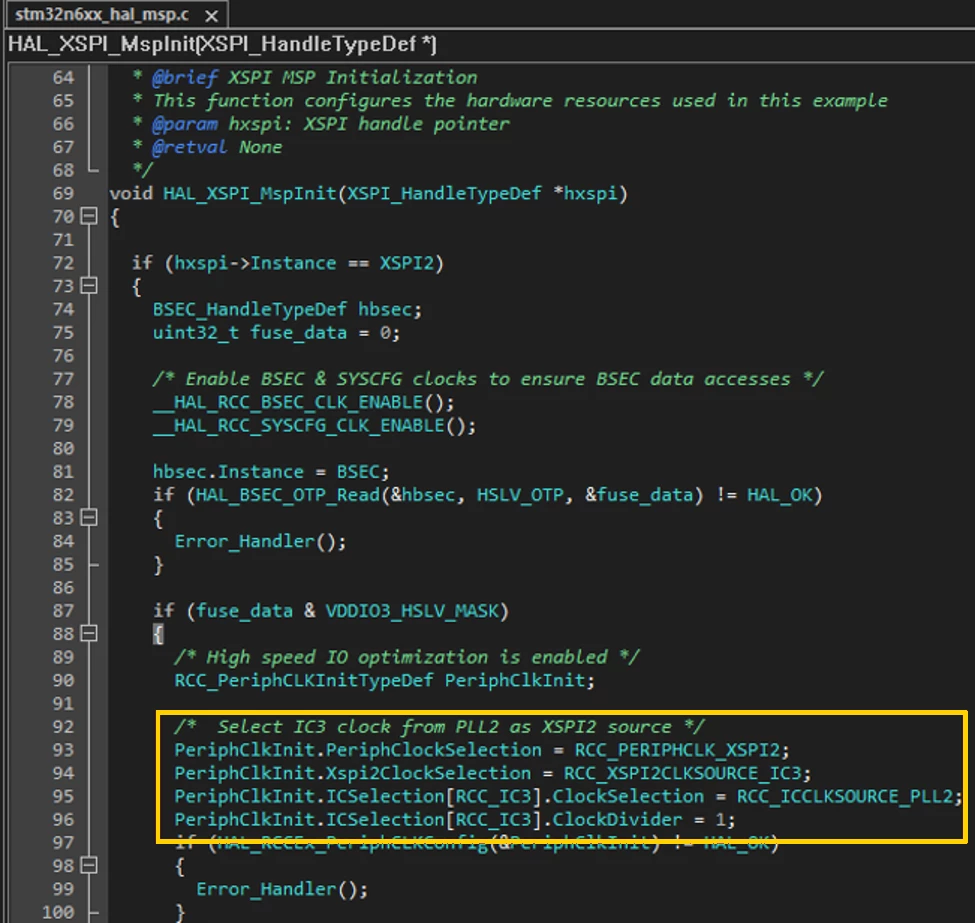
The code snippet below is the same as above, but provided for easier copying:
/*  Select IC3 clock from PLL2 as XSPI2 source */
PeriphClkInitStruct.PeriphClockSelection = RCC_PERIPHCLK_XSPI2;
PeriphClkInitStruct.Xspi2ClockSelection = RCC_XSPI2CLKSOURCE_IC3;
PeriphClkInitStruct.ICSelection[RCC_IC3].ClockSelection = RCC_ICCLKSOURCE_PLL2;
PeriphClkInitStruct.ICSelection[RCC_IC3].ClockDivider = 1;
Enabling the debug
Enabling debug messages during external NOR flash memory operations is essential for effective troubleshooting. It provides real-time insights into the system’s behavior, helping to identify and diagnose configuration/read/write/erase issues quickly.
The first step is to define EXTMEM_DRIVER_CUSTOM_DEBUG_LEVEL and set to 1 (or uncomment line 14). This is useful during development or troubleshooting to get comprehensive insights into the behavior of the external memory layers.
Then always in stm32_extmem_conf.h. define EXTMEM_MACRO_DEBUG, used by the EMM driver, as EXTMEM_TRACE that will be defined later in extmemloader_init.c and line 116 is to tell the compiler that the EXTMEM_TRACE is defined in a different file.

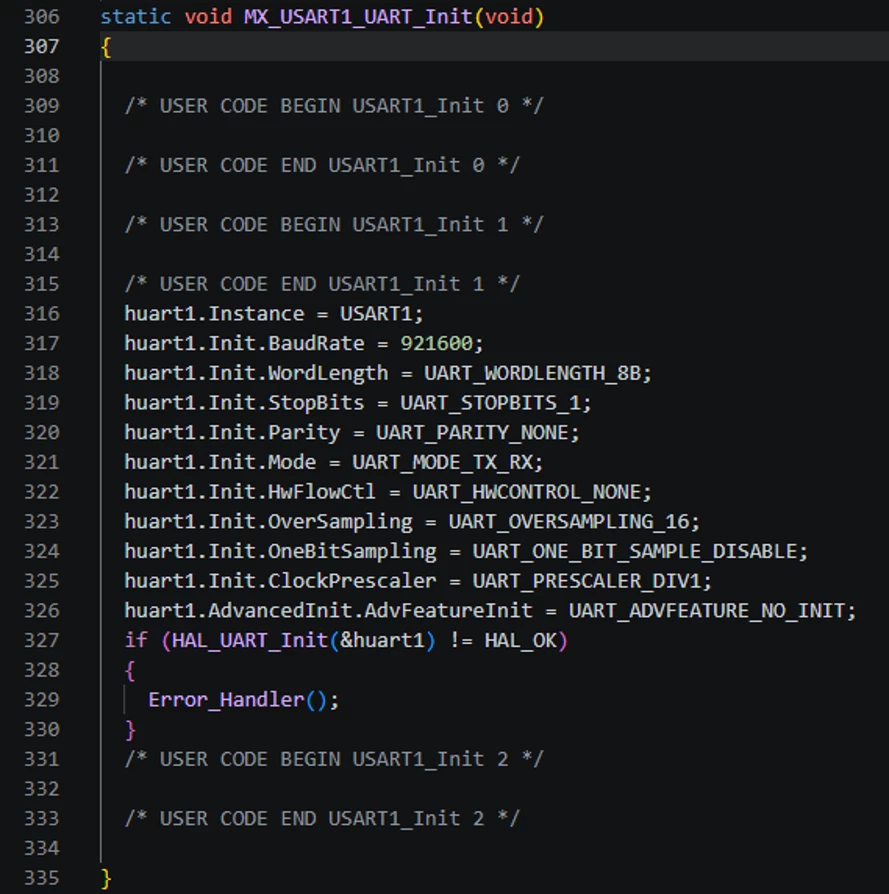
Then in extmemloader_init.c, define the UART initialization function to set up the following parameters:
- Instance: Uses USART1 peripheral.
- Baud rate: Set to 921600 bps (high-speed communication).
Using a high baud rate for UART communication significantly reduces the time required to transmit debug messages, minimizing the overhead caused by printing.
- Word length: 8 bits per data frame (UART_WORDLENGTH_8B).
- Stop bits: 1 stop bit (UART_STOPBITS_1).
- Parity: No parity check (UART_PARITY_NONE).
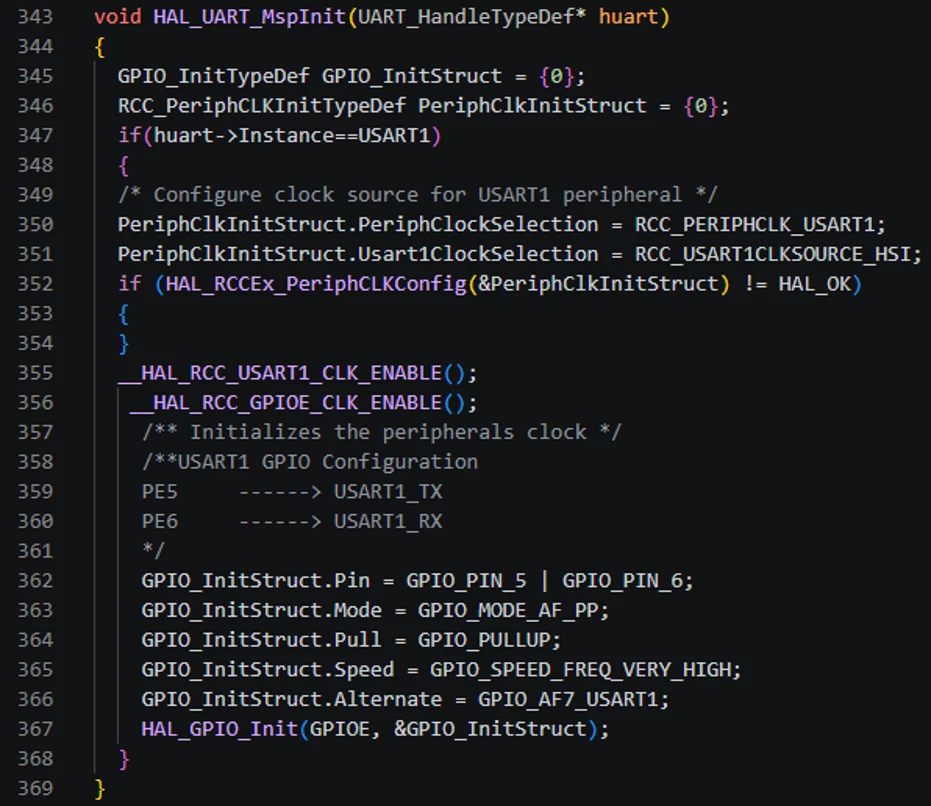
Then define the HAL_UART_MspInit() function that performs the UART MSP (MCU support package) initialization. It configures the low-level hardware resources required by the UART peripheral, specifically for USART1 in this example. On the STM32N6570-DK board, USART1 uses pins PE5 and PE6 connected to the STLINK. This makes it easy to see debug messages directly through the built-in debugger.
In extmemloader_init.c, always define the implementation of EXTMEM_TRACE(). The screenshot below shows that the UART is used to trace the output messages:

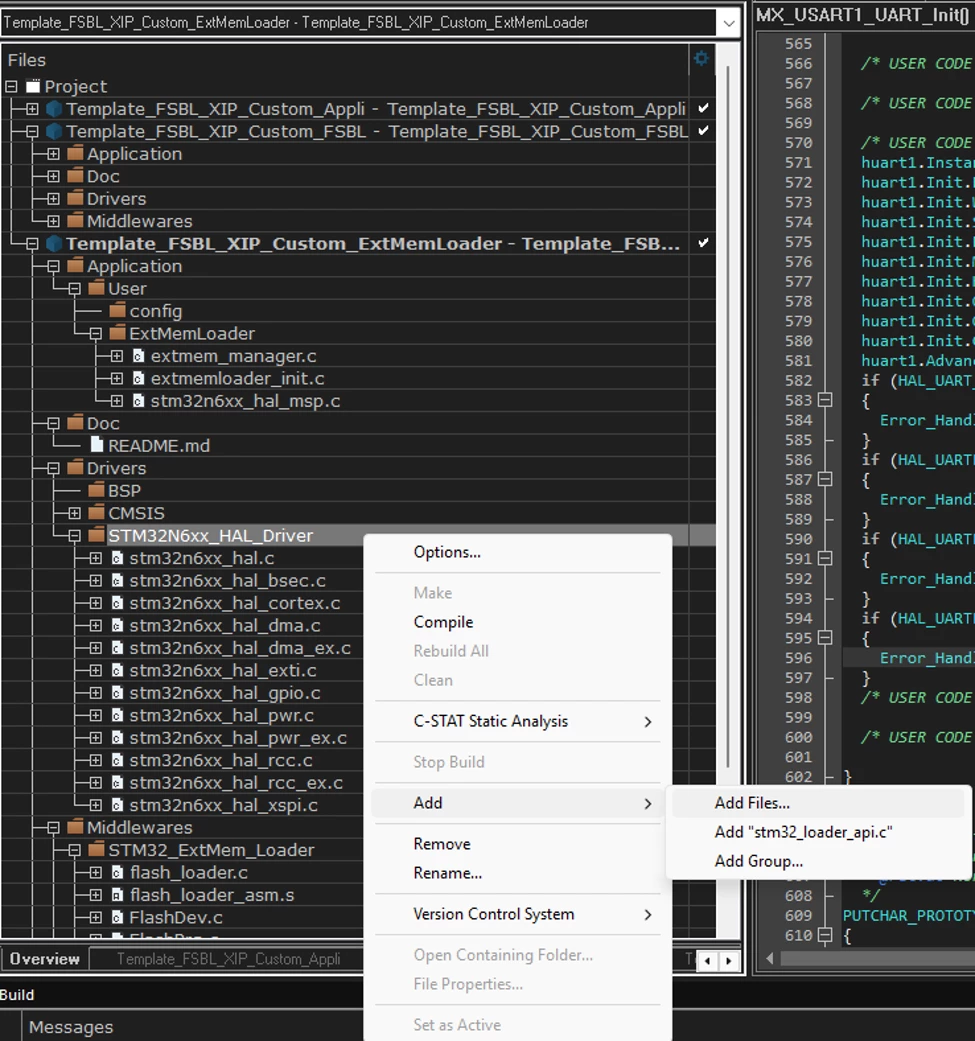
Add the UART driver stm32n6xx_hal_uart.c and stm32n6xx_hal_uart_ex.c to the Template_FSBL_XIP_Custom_ExtMemLoader project.
The screenshot shows how to add the UART driver to IAR EWARM.
Using STM32CubeIDE, open the file explorer and navigate to STM32Cube_FW_N6_V1.3.0\Drivers\STM32N6xx_HAL_Driver\Src
Drag and drop stm32n6xx_hal_uart.c and stm32n6xx_hal_uart_ex.c into the STM32N6xx_HAL_Driver folder with the project “Template_FSBL_XIP_ExtMemLoader” in the “Project Explorer” window in STM32CubeIDE.
Select [Link to files] to keep files outside the project directory as shown below:
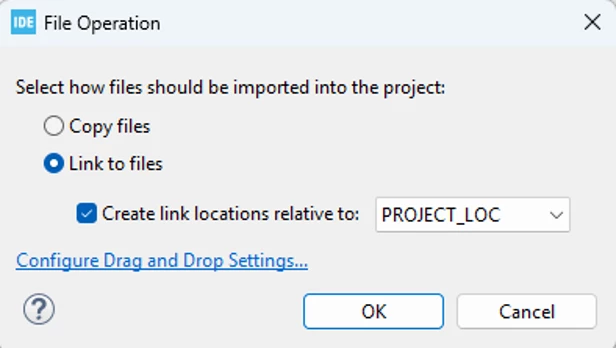
Right-click on the project name “Template_FSBL_XIP_ExtMemLoader” and select Refresh (or press F5) to ensure the STM32CubeIDE detects the new added files.
2.1.7 Building the project and start using the external flash loader
Build using EWARM
In IAR EWARM, make sure to select the project Template_FSBL_XIP_Custom_ExtMemLoader and then build the project from the project menu as shown below:
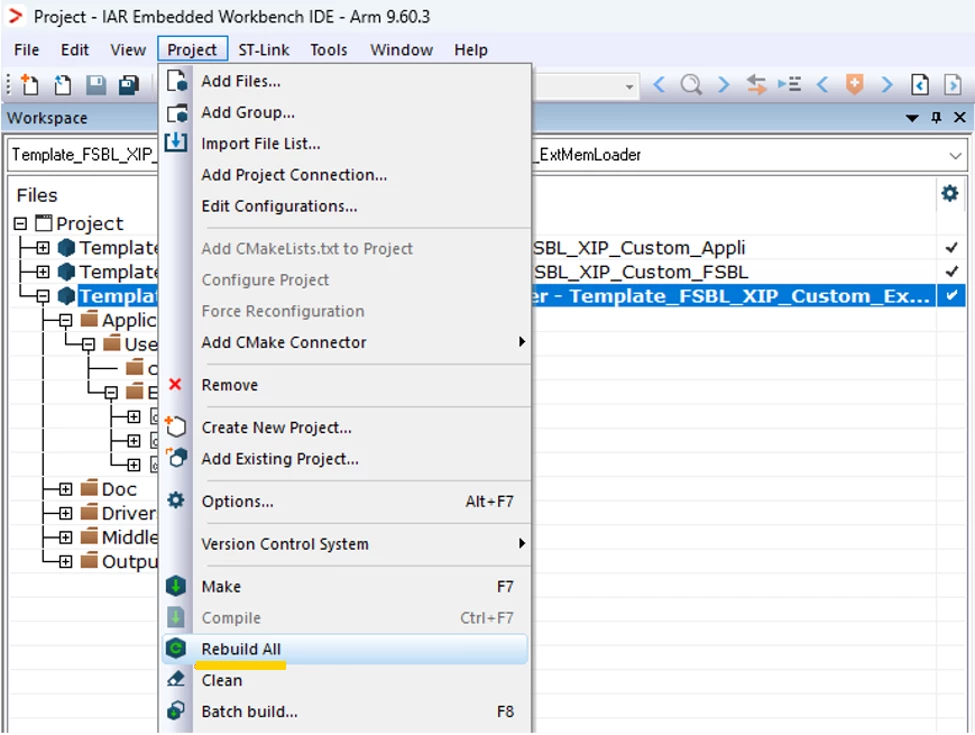
One the build succeeds, navigate to Projects\STM32N6570-DK\Templates\Custom_IS25WX\EWARM\ExtMemLoader\Template_FSBL_XIP_Custom_ExtMemLoader\Exe and rename Template_FSBL_XIP_Custom_ExtMemLoader.out into IS25WX01G_STM32N6570-DK.stldr
Build using STM32CubeIDE
If STM32CubeIDE is used, right click on Template_FSBL_XIP_ExtMemLoader and click [Build Project] as shown below:
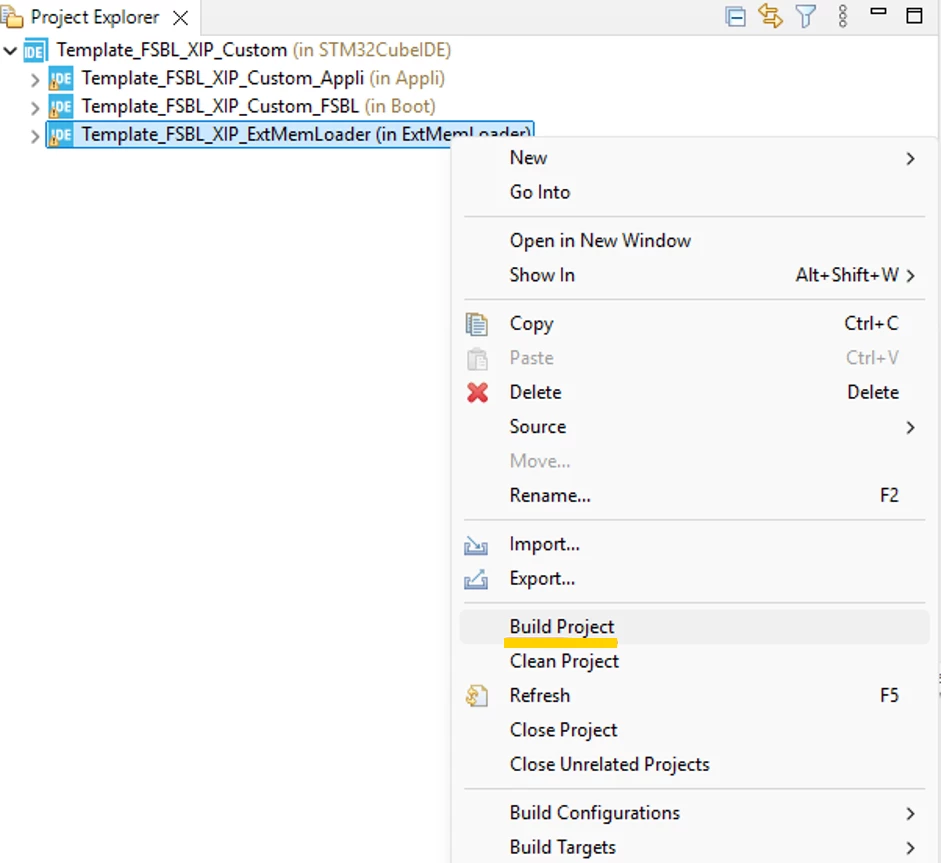
One the build succeeds, navigate to Projects\STM32N6570-DK\Templates\Custom_IS25WX\EWARM\ExtMemLoader\Template_FSBL_XIP_Custom_ExtMemLoader\Exe and Rename Template_FSBL_XIP_ExtMemLoader.elf into IS25WX01G_STM32N6570-DK.stldr
Then copy the IS25WX01G_STM32N6570-DK.stldr and paste it under C:\[INSTALLATION_PATH]\STM32CubeProgrammer\bin\ExternalLoader
Note: The file name should be the same as the one used in the stm32_extmemloader_conf.h – shown below:

2.2 Customizing Template_FSBL_XIP_Custom_FSBL
2.2.1 Update the XSPI clock
The FSBL (first stage bootloader) project sets up the XSPI clock to 200 MHz. In this example with is25wx01g, we need to set it up to 125 MHz.
We need to implement the same changes we did in Custom_IS25WX\ExtMemLoader\Src\extmemloader_init.c in Custom_IS25WX\FSBL\Src\main.c: Enable PLL2, use the M divider set to 8, set the multiplier N to 25 and set the dividers P1 to 4 and P2 to 2. These are the same changes that we did in section 2.1.5 Editing extmemloader_init.c
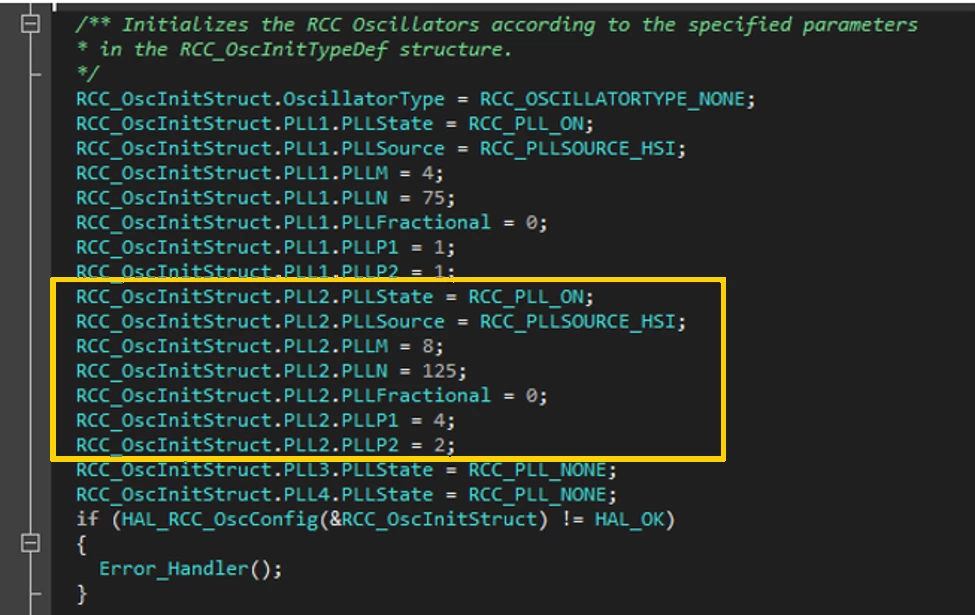
The code snippet below is the same as above, but provided for easier copying:
RCC_OscInitStruct.PLL2.PLLState = RCC_PLL_ON;
RCC_OscInitStruct.PLL2.PLLSource = RCC_PLLSOURCE_HSI;
RCC_OscInitStruct.PLL2.PLLM = 8;
RCC_OscInitStruct.PLL2.PLLN = 125;
RCC_OscInitStruct.PLL2.PLLFractional = 0;
RCC_OscInitStruct.PLL2.PLLP1 = 4;
RCC_OscInitStruct.PLL2.PLLP2 = 2;
Ensure the XSPI2 clock source is coming from PLL2. This is what we already did in section 2.1.6 Editing stm32n6xx_hal_msp.c. Do the same in the FSBL project in Custom_IS25WX\FSBL\Src\stm32n6xx_hal_msp.c
Change the XSPI clock source configuration source to IC3 and that PLL2 is selected at its input mux as shown by the screenshot below:
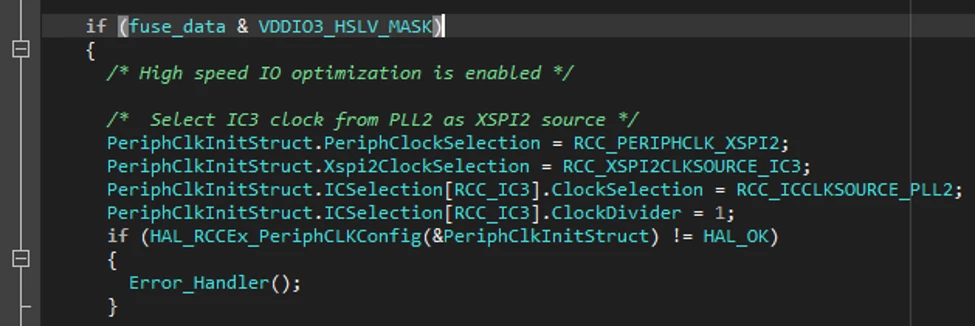
The code snippet below is the same as above, but provided for easier copying:
/*  Select IC3 clock from PLL2 as XSPI2 source */
PeriphClkInitStruct.PeriphClockSelection = RCC_PERIPHCLK_XSPI2;
PeriphClkInitStruct.Xspi2ClockSelection = RCC_XSPI2CLKSOURCE_IC3;
PeriphClkInitStruct.ICSelection[RCC_IC3].ClockSelection = RCC_ICCLKSOURCE_PLL2;
PeriphClkInitStruct.ICSelection[RCC_IC3].ClockDivider = 1;
2.2.2 Update the external memory driver
Copy the external flash memory driver that we created under Template_FSBL_XIP_Custom\ExtMemLoader\Inc to Template_FSBL_XIP_Custom\FSBL\Inc. This is to ensure that the FSBL uses the right driver header file of the external flash memory. In this case, it is the stm32_is25wx01g.h
Ensure the source code of FSBL uses the right header file. In Template_FSBL_XIP_Custom\FSBL\Src\extmem_manager.c change the CustomObject field to extmem_is25wx01g as shown below:
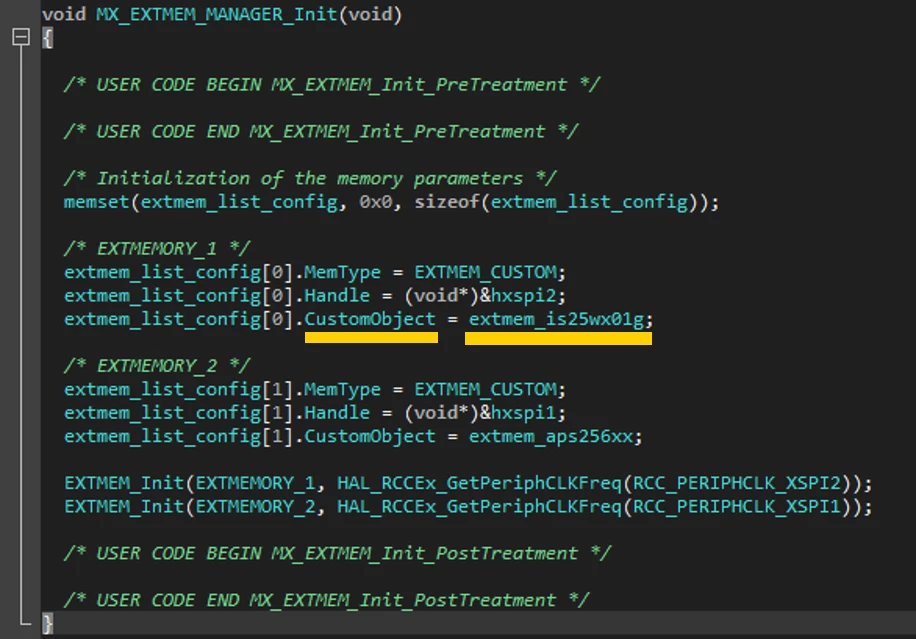
In Template_FSBL_XIP_Custom\FSBL\Inc\stm32_extmem_conf.h, make the necessary change to include the IS25WX01G header file created. This was described in the step where we changed the memory driver from stm32_mx66uw1g45g.h to stm32_is25wx01g.h
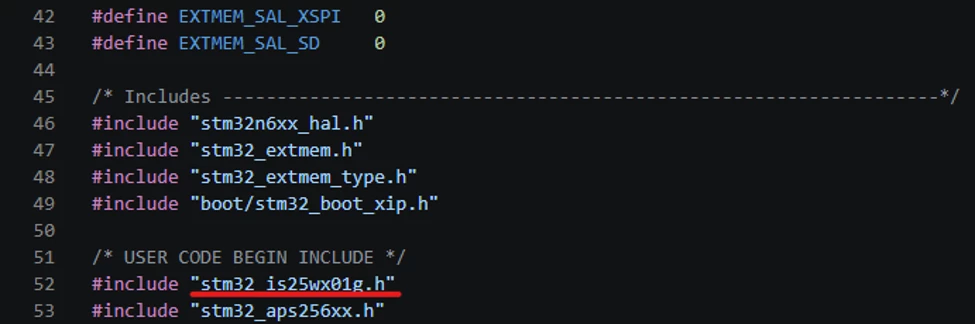
At this stage, we can build Template_FSBL_XIP_Custom
2.3 Running Template_FSBL_XIP_Custom_Appli
The last step is to run the actual application. There are no changes to be done to this template. We can build it and then do the following:
Set the boot mode to development mode (BOOT1 switch position is 1-3; BOOT0 switch position does not matter).
Use the STM32 signing tool to add a header to the generated FSBL binary under the Binaries folder:
STM32_SigningTool_CLI.exe -bin Template_FSBL_XIP_Custom_Appli.bin -nk -of 0x80000000 -t fsbl -o Template_FSBL_XIP_Custom_Appli-trusted.bin -hv 2.3 -dump Template_FSBL_XIP_Custom_Appli-trusted.bin -align
Use the STM32 signing tool to add a header to the generated application binary under the Binaries folder:
STM32_SigningTool_CLI.exe -bin Template_FSBL_XIP_Custom_FSBL.bin -nk -of 0x80000000 -t fsbl -o Template_FSBL_XIP_Custom_Appli-trusted.bin -hv 2.3 -dump Template_FSBL_XIP_Custom_FSBL-trusted.bin -align
Use STM32Cubeprogrammer to load the application Template_FSBL_XIP_Custom_Appli-trusted.bin at address 0x7010 0000
Use STM32Cubeprogrammer to load the FSBL Template_FSBL_XIP_Custom_FSBL-trusted.bin at address 0x7000 0000
Set the boot mode to boot from external Flash (BOOT0 switch position is 1-2 and BOOT1 switch position is 1-2).
Press the reset button. The code toggling the green led LED1 then executes in boot from external flash memory.
2.4 Use the external flash loader with STM32CubeProgrammer
Open STM32CubeProgrammer, select External Loader (EL) from the bottom left-hand side, type in the search field “is2”, and then select the external flash loader.
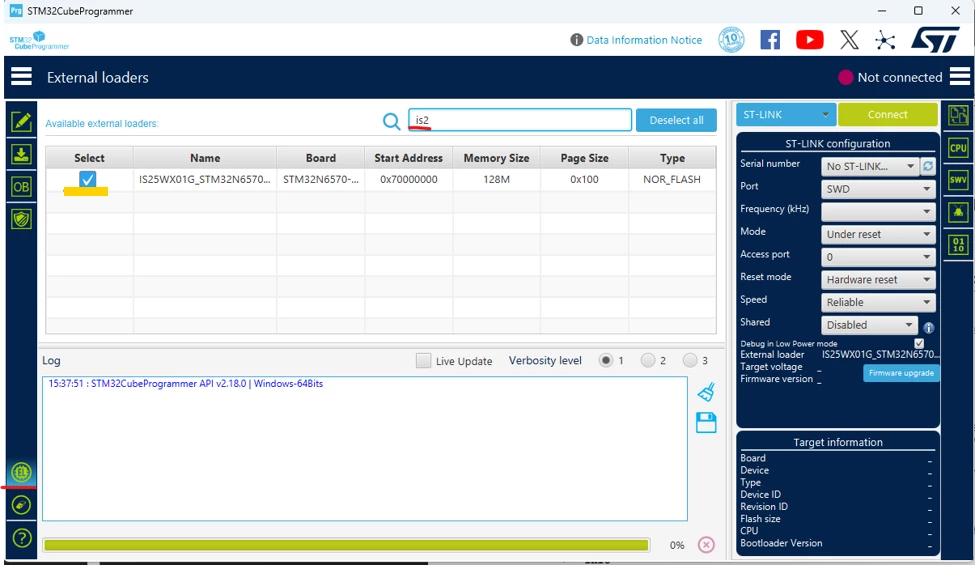
At this stage you can read, write, and erase the is25wx01g memory from the STM32CubeProgrammer GUI interface as well as from the CLI interface.
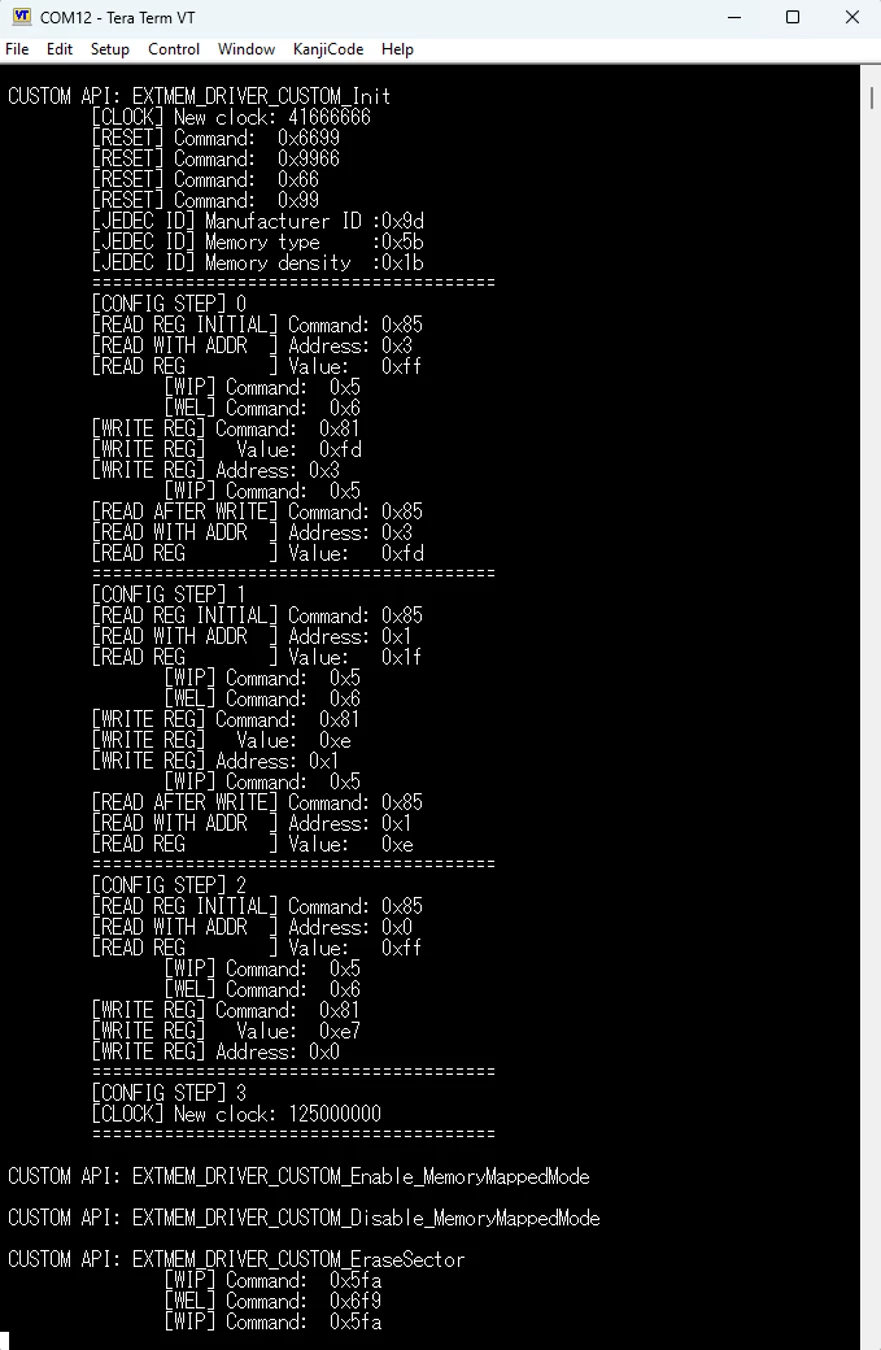
The screenshot below shows the expected debug (when enabled) messages in a successful sector erase case. It basically shows:
Initialization: The driver starts by resetting the memory device and reading its JEDEC ID to verify the manufacturer, memory type, and density.
Register read and write verification: For each configuration step (except the third one), the driver reads the initial value of a register and writes a new value to it. Finally, it reads back the register to confirm the write was successful.
Conclusion
This article explains how to create an external flash loader for the IS25WX01G NOR flash memory using the STM32CubeN6 external memory manager (EMM) custom driver. It covers hardware compatibility, software templates, and step-by-step customization of the external memory loader and first stage bootloader (FSBL) projects. The last step is to run the application template (LED toggle) using the external flash loader created for the IS25WX01G.