


How to configure SBSFU firmware update with Minicom
Summary
This article provides a guide to configuring YMODEM firmware updates using Minicom. It also covers some of the issues encountered when building SBSFU on Linux and the corresponding workarounds.
As an example we are using the SBSFU 2_images example available in the application for NUCLEO-L476RG, however this should work on any SBSFU example and STM32 target.
This article is not a getting-started guide for SBSFU. The user is expected to be familiar with SBSFU. For more information, refer to the Related links section for additional SBSFU resources.
Introduction
X-CUBE-SBSFU is a secure boot and firmware update solution for legacy STM32 products, also referred to as SBSFU (secure boot and secure firmware update).
It provides:
- Secure boot.
- Secure firmware update.
- Secure services, including cryptography and secure key management.
YMODEM is a file-transfer protocol commonly used to transfer firmware or other binary files between a host computer and an embedded device over a serial (UART) connection.
It provides mechanisms for:
- Transferring binary files into packets.
- Detecting transmission errors using checksums or CRC.
- Acknowledging received packets and retransmitting corrupted packets.
- Transferring the file name and size before the actual data.
- Supporting different packet sizes, commonly 128-byte and 1-KB packets.
Minicom is a text-based serial communication program commonly used on Linux systems. It
is employed to perform YMODEM firmware updates on SBSFU projects.
At the time of writing this article, the following system configuration was used:
- Python: v3.12.3
- Ubuntu: 24.04.4 LTS
- STM32CubeCLT: v13.3.1
- STM32CubeIDE: v2.2.0
- X-CUBE-SBSFU: v2.8.0
For the hardware requirements, the NUCLEO-L476 is used.
1. Getting started
Start by importing the project to STM32CubeIDE:
File → STM32 Project Create/Import → STM32CubeMX/STM32CubeIDE Project → Next, then copy the project path.
x-cube-sbsfu-v2-8-0/STM32CubeExpansion_SBSFU_V2.8.0/Projects/NUCLEO-L476RG/Applications/2_Images
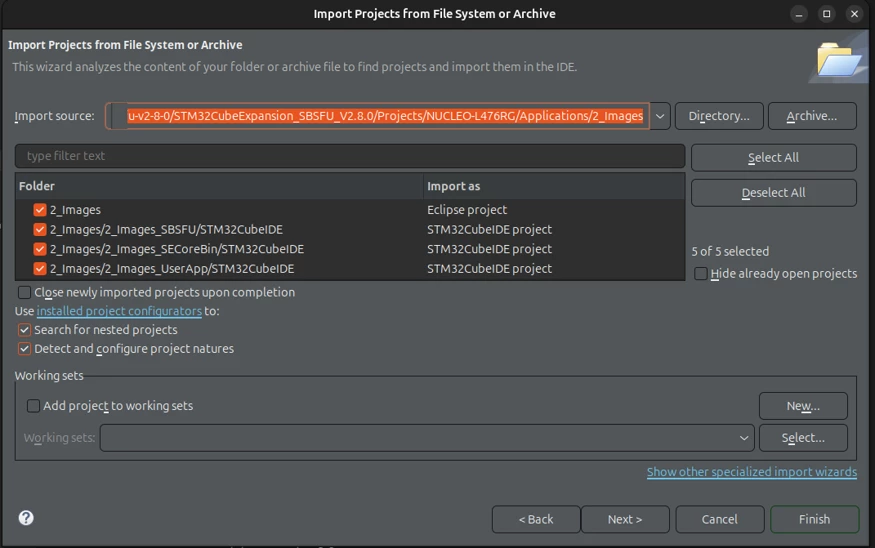
Click finish, the imported project is shown:
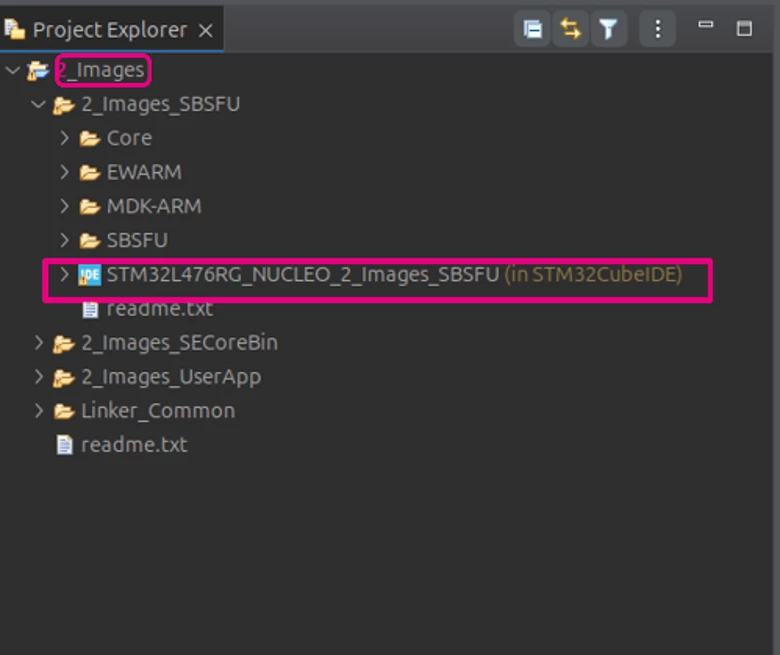
1.1 SBSFU general overview
To build the project, follow this specific process:
- Build the 2_images_SECoreBin project.
- Build the 2_images_SBSFU project.
- Flash the SBSFU.elf file using STM32CubeIDE.
- Build the user application. This generates a UserApp.sfb file under 2_images_UserApp/Binary.
- Using Minicom, upload the user application to the device.
To build or flash the project, click on the STM32CubeIDE project highlighted by the red rectangle in the image before performing the corresponding step
For ease of development, configure SBSFU to disable all security features initially, and enable them later once the basic functionality has been validated. To do so, go to 2_images_SBSFU/APP/app_sfu.h and uncomment the following line:
#define SECBOOT_DISABLE_SECURITY_IPSWhen building on Linux, refer to the section below, Building SBSFU on Linux.
However, it is also possible to follow the same steps when building on Windows. It is possible to use WSL (Windows Subsystem for Linux) on Windows or alternatively share the generated UserApp.sfb file with the Linux machine and perform the firmware upload from there.
1.2 Building SBSFU on Linux
- Install the necessary tools
sudo apt update
# lrzsz installs two commands sb (send) and rb (receive) are commands used by minicom to transfer and receive data using the YMODEM protocol.
sudo apt install lrzsz
# add the user to the dialout group
sudo usermod -aG dialout $USER
# install minicom
sudo apt install minicom- Launch Minicom
minicom -D /dev/ttyACM0 -b 115200The -D indicates the USB port, to check which USB port ran.
ls /dev/tyy*Usually, the USB ports in Linux are either ACMx or USBx.
- To exit Minicom, press: Ctrl + A followed by X
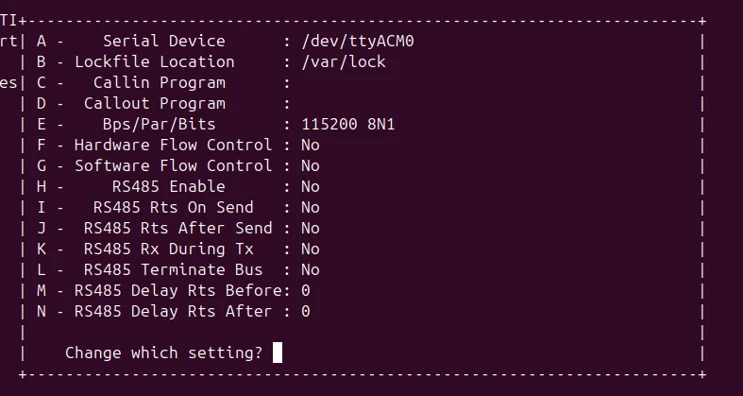
- Configure the serial port Ctrl + A followed by O.
- Serial device: /dev/ttyUSBx or /dev/ttyACMx
- Bps/Par/Bits: match the above
- Hardware flow control: No
- Software flow control: No
- Using the keyboard clicks the escape key to exit the configuration menu
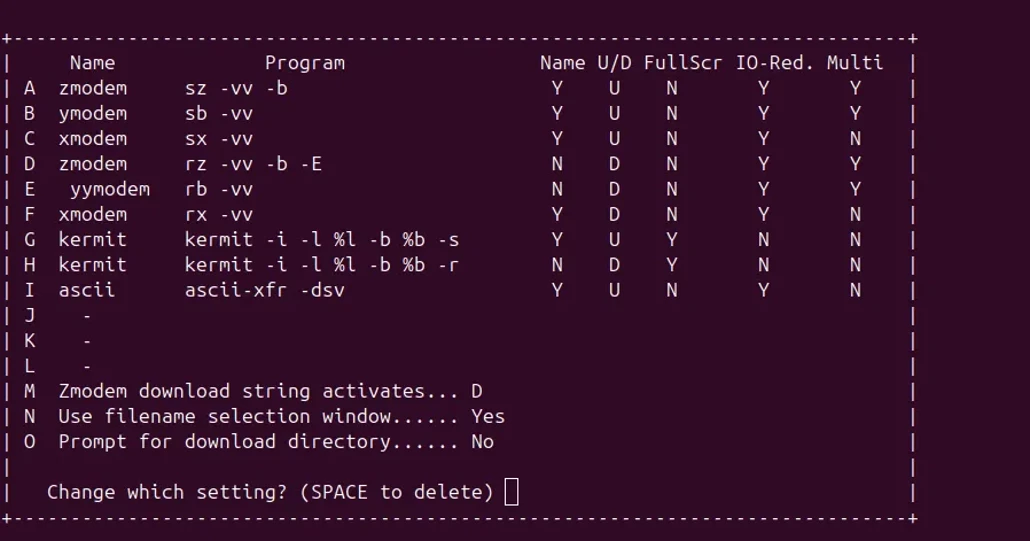
- Configure file transfer protocols: Ctrl+A then O, then set: ymodem sb -vv.
The configuration should be as the figure below.
1.3 Patching SBSFU for minicom YMODEM firmware update
- First enable MINICOM_YMODEM in the 2_images_SBSFU/APP.
- To improve compatibility with Minicom's YMODEM implementation, two changes are required in the SBSFU YMODEM reception code.
- Adjust the download address in SFU_COM_YMODEM_DataPktRxCpltCallback() (2_images/2_images/SBSFU/sfu_loader.c)
m_uDwlAreaAddress += SE_FW_HEADER_TOT_LEN - 128;Note: There are two implementations of the SFU_COM_YMODEM_DataPktRxCpltCallback() function: one for Minicom and one for Tera Term. The two implementations are separated using #if / #else preprocessor directives. Make sure to use the implementation corresponding to minicom when applying the modifications described in this section. The Tera Term related section uses #ifndef MINICOM_YMODEM.
- Adapt packet reception in ReceivePacket() (2_images/2_images/SBSFU/sfu_com_loader.c)
Update the packet-reception loop so that the expected packet size is determined from packet_size rather than being fixed to the 1 KB YMODEM packet size:
while ((SFU_SUCCESS == eRetStatus) && ( (myIdx + SFU_COM_YMODEM_PACKET_NUMBER_INDEX) < packet_size+ SFU_COM_YMODEM_PACKET_DATA_INDEX +  SFU_COM_YMODEM_PACKET_TRAILER_SIZE) )
{
	eRetStatus = SFU_LL_UART_Receive(&pData[SFU_COM_YMODEM_PACKET_NUMBER_INDEX + myIdx], 1U, uTimeout);
	myIdx++;
}
The changes adapt the SBSFU YMODEM receiver to the packet format and addressing behavior used by Minicom.
The patch modifies the download-address calculation and makes packet reception use the actual packet_size, fixing YMODEM firmware-update.
- Rebuild the project:
- SECoreBin
- SBSFU project
- UserApplication
1.4 Update software using Minicom
- To upload a file using Minicom, press Ctrl A + S.
- A small list appears, select ymodem.
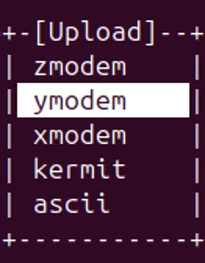
• Provide the path for the sfb file using two methods:
Method one. Navigating to the location of the sfb file using the arrow key.
Method two. Providing the path to the location of the sfb file.
The image below demonstrates method one, navigating to the file:
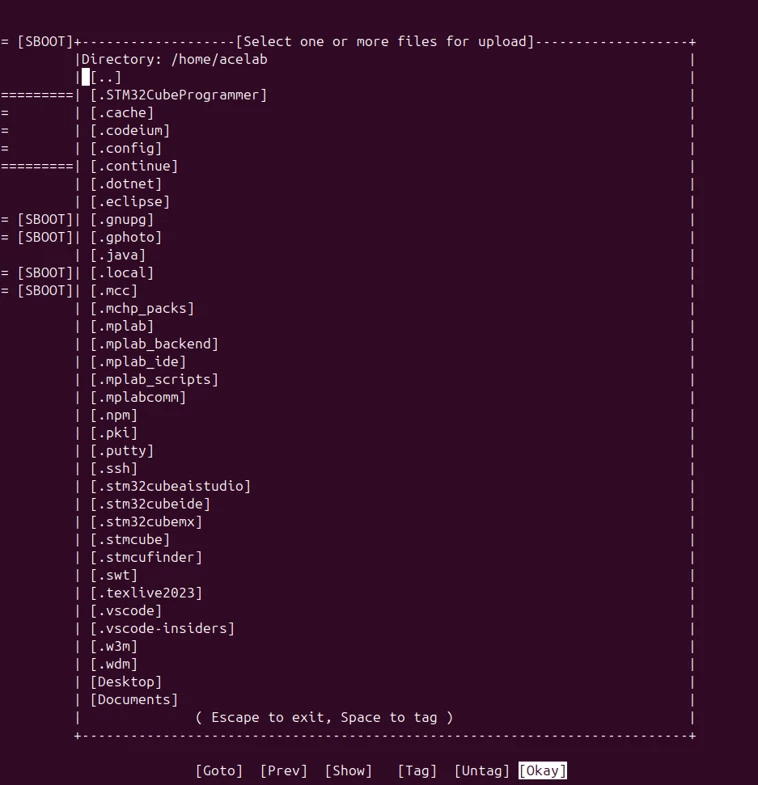
The image below demonstrates the second method.
• Select [Goto] by navigating using the arrow ->, then specify the directory location of the sfb file.
HOME_DIR_PATH/x-cube-sbsfu-v2-8-0/STM32CubeExpansion_SBSFU_V2.8.0/Projects/NUCLEO-L476RG/Applications/2_Images/2_Images_UserApp/Binary
Remember to change the HOME_DIR_PATH.
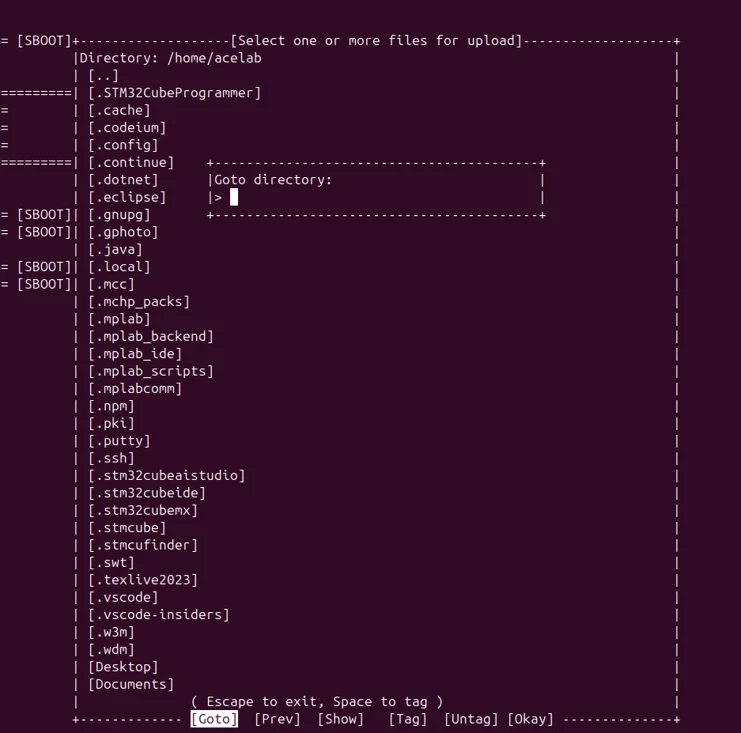
- Using keyboard arrows, navigate to the file to upload. Press [space] to select the file, and hit enter.
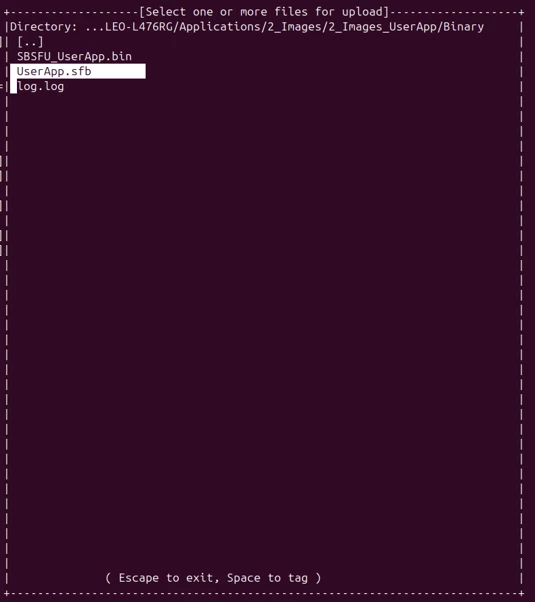
- The transfer starts.
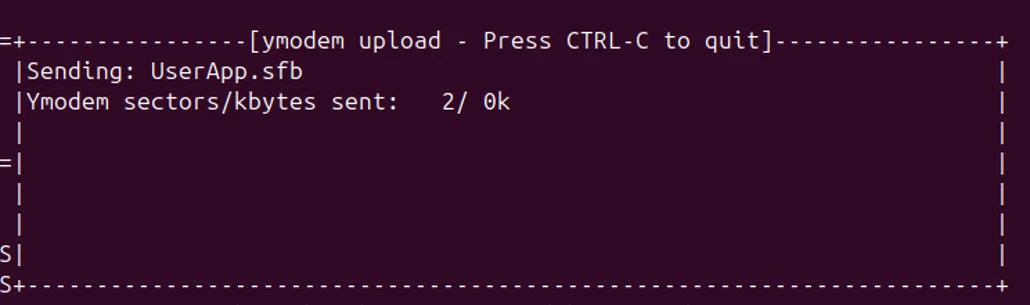
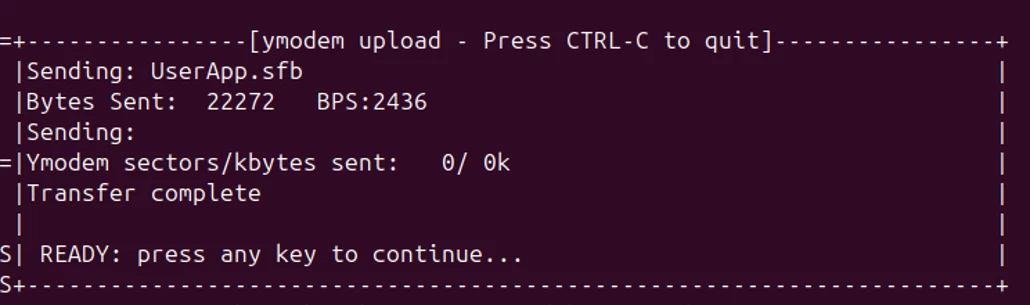
- After the transfer is completed, a transfer complete message is shown. Hit any key and the SBSFU boots to the new application if the verification process is ok.
2. Issues when building SBSFU on Linux and workarounds
When building the SBSFU examples on Linux, issues related to shell-script permissions, line endings, Python configuration, and the Arm GNU toolchain may appear. This section summarizes the issues and provides workarounds.
2.1 Script permission issue
- Permission denied error. This is because the bash scripts (.sh) do not have the right permissions.
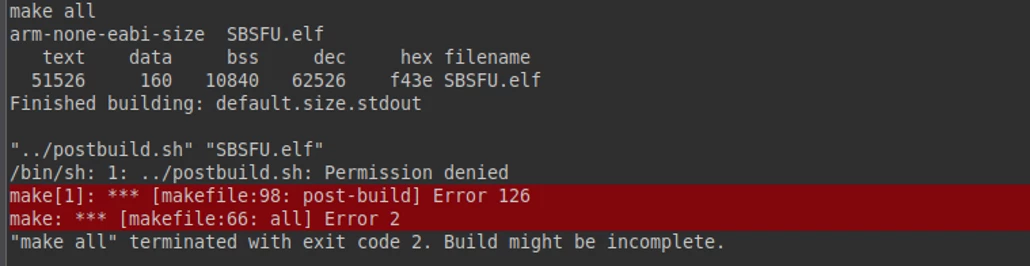
- To fix this issue, we add the execute permission.
cd x-cube-sbsfu-v2-8-0/STM32CubeExpansion_SBSFU_V2.8.0/Projects/NUCLEO-L476RG/Applications/2_Images/2_Images_SECoreBin/STM32CubeIDE
chmod +x *.sh
cd x-cube-sbsfu-v2-8-0/STM32CubeExpansion_SBSFU_V2.8.0/Projects/NUCLEO-L476RG/Applications/2_Images/2_Images_SBSFU/STM32CubeIDE
chmod +x *.sh
We perform the same operation for all the other scripts .sh files located in the 2_images example.
- Another issue appears as shown in the image below:

- The issue is caused by incorrect line endings. The script is configured with Windows line endings (CRLF, \r\n), which can cause Bash syntax errors on Linux. To fix the issue, convert the file endings to Linux format (LF, \n). The command below removes the (\r) characters from the end of each line.
cd x-cube-sbsfu-v2-8-0/STM32CubeExpansion_SBSFU_V2.8.0/Projects/NUCLEO-L476RG/Applications/2_Images/2_Images_SECoreBin/STM32CubeIDE
sed -i 's/\r$//' *.sh
cd x-cube-sbsfu-v2-8-0/STM32CubeExpansion_SBSFU_V2.8.0/Projects/NUCLEO-L476RG/Applications/2_Images/2_Images_SBSFU/STM32CubeIDE
chmod +x *.sh
2.2 Python configuration
- The scripts also incorporate a python command. On Linux the command should be python3 instead of python, the picture below shows the error produced:
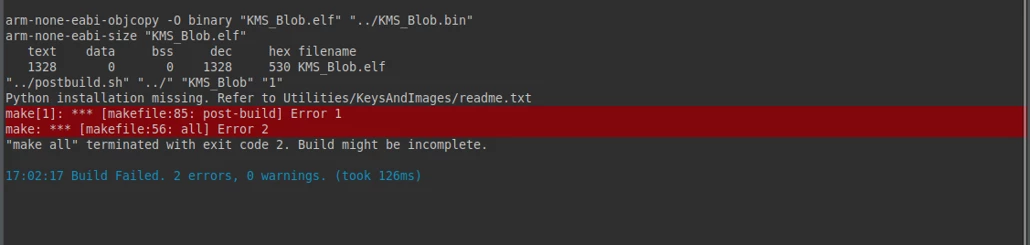
- Implentations are shown below:

- Update all the.sh files located in the 2_images example (attached at the end of this article).
- Additionally, SBSFU requires installing python packages on the system.
cd x-cube-sbsfu-v2-8-0/STM32CubeExpansion_SBSFU_V2.8.0/Middlewares/ST/STM32_Secure_Engine/Utilities/KeysAndImages
pip3 install -r requirements.txt --break-system-packages
2.3 Compilation process
A separate issue can occur when building the SECoreBin project with Arm GCC 14. In the tested environment, GCC 14.3.1 produced linker errors in the secure engine components, as shown in the image below:
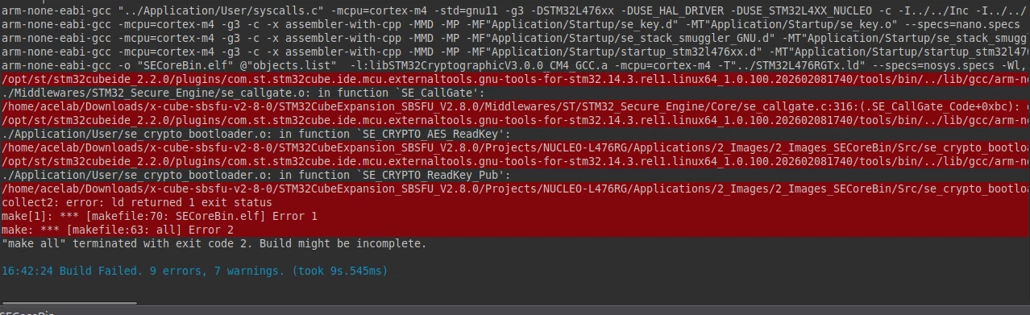
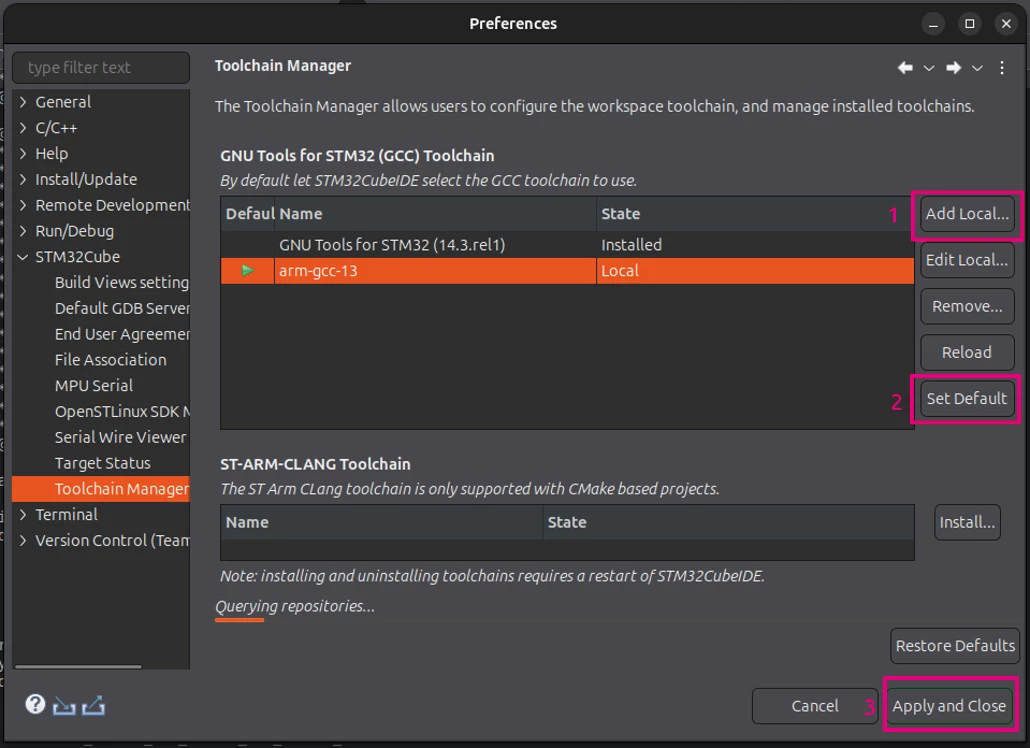
The tested workaround is to build the SBSFU project with an Arm GNU toolchain version earlier than GCC 14. An older STM32CubeCLT v1.118 release can be used. It provides a compatible Arm GCC toolchain (arm-gcc 13).
We updated the STM32CubeIDE toolchain to point to the new arm-gcc toolchain. Go to Window → Preferences → STM32Cube → Toolchain Manager.
3. Using the attached project
Below, we provide the full project in a zip file, to use it, follow these instructions:
- Unzip the project
- Copy the project to x-cube-sbsfu-v2-8-0/STM32CubeExpansion_SBSFU_V2.8.0/Projects/NUCLEO-L476RG/Applications
- Import the project as we have shown earlier.
- Build and run the project.
Note: When extracting the ZIP file, it creates a directory. Do not copy that directory, copy only the root folder containing the SBSFU projects.
Conclusion
In this article, we presented the patches required to enable YMODEM firmware updates with Minicom and described the firmware update process. We also discussed potential issues that may be encountered when building SBSFU on Linux and provided the corresponding workarounds.
Related links
For more information about SBSFU, refer to these resources:
- User manual UM2262: Getting started with the X-CUBE-SBSFU STM32Cube Expansion Package:
- Application note AN5056: How to integrate the X-CUBE-SBSFU STM32Cube Expansion Package:
- Read the readme attached with each example.
- Follow the STM32 MOOC: Security Part 6, STM32 security ecosystem.
Related community posts: