


Andrew Neil
Super User
February 23, 2021
Question

CubeIDE: Imported Eclipse 'C' Project incorrectly defines __cplusplus

  • February 23, 2021
  • 4 replies
  • 12310 views

STM32 CubeIDE v1.5.1; Build: 9029_20201210_1234 (UTC)

The same Eclipse Project as:

https://community.st.com/s/question/0D53W00000Y2lIsSAJ/cant-usecreate-debug-config-for-oss7-stack

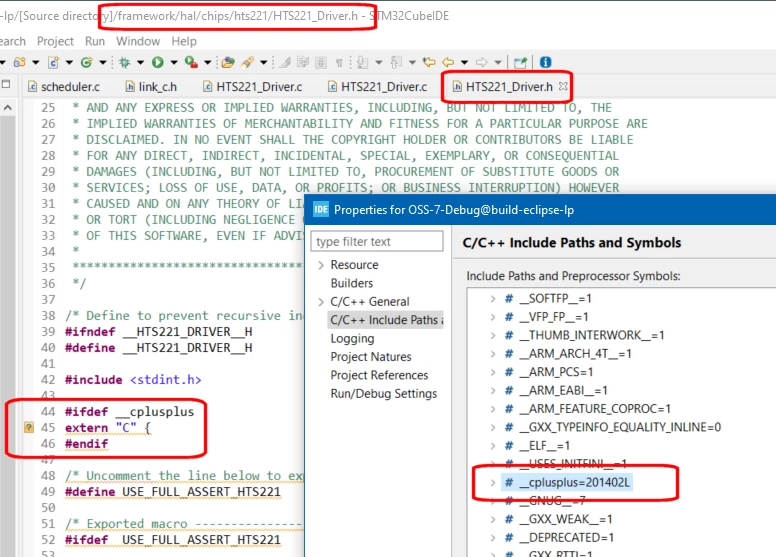
It is a 'C' Project, but the CubeIDE defines __cplusplus:
0693W000007ZDYEQA4.png 

Which, as you can see, messes-up the codes checks to see if C++ is being used!

If I manually delete that definition, all is fine.

The problem does not happen when opening the project in a "normal" Eclipse Neon 3.

So why is CubeIDE adding this?

This topic has been closed for replies.

4 replies

mattias norlander
ST Employee
February 24, 2021

Looked at your links but was still not able to find the project. Could you provide direct link to download project?

Q1: If you open the .project-file in the original project (before importing it into CubeIDE). Does it contain the node: <nature>org.eclipse.cdt.core.ccnature</nature> ??

  • cnature is only C project
  • ccnature is a C/C++ project

Q2: If you import the project into CubeIDE. Now open the .project-file, does it now contain the ccnature node?

If CubeIDE for some reason adds C++ to the project file, then it sounds like a bug. If it is part of the original content, then I would guess this is expected?!

If ccnature. then the C++ compiler is also setup for the project, and then the C++ compiler would set up the symbol "__cplusplus=201402L", assuming you are using -std=gnu++14.

Need som more info/answers...

Andrew Neil
Super User
February 25, 2021

You're right: it's not supplied as a "ready to go" project - you have to create the project by running CMake.

I'll take a look at the ccnature thing, and make a project to upload...

A complex system that works is invariably found to have evolved from a simple system that worked.A complex system designed from scratch never works and cannot be patched up to make it work.
Andrew Neil
Super User
February 25, 2021

OK, the freshly-created Eclipse Project contains:

	<natures>
		<nature>org.eclipse.cdt.make.core.makeNature</nature>
		<nature>org.eclipse.cdt.make.core.ScannerConfigNature</nature>
		<nature>org.eclipse.cdt.core.ccnature</nature>
		<nature>org.eclipse.cdt.core.cnature</nature>
	</natures>

So, yes: it does contain a "ccnature" - and also a "cnature"

I just opened this in CubeIDE by double-clicking the .project - and this time it has not defined __cplusplus !

Projects attached:

  • .orig suffix are originals as generated by CMake;
  • .cube suffix are after being opened by CubeIDE.

A complex system that works is invariably found to have evolved from a simple system that worked.A complex system designed from scratch never works and cannot be patched up to make it work.
mattias norlander
ST Employee
March 1, 2021

I am not sure that the approach is good to start with. CMake does have some support to generate Eclipse project. But to my understanding this part of CMake is not well-maintained. If I do a quick google on "CMake generate Eclipse projects" most search hits are a decade old...

It may be more safe to have CMake generate only a makefile and create a CubeIDE project that uses this "CMake managed makefile" to build your resources. Removes one layer of complexity, maybe at the cost of adding another ;)

This approach should be possible in CubeIDE 1.6.0. First as always make back-up of your project....

Then try this:

  1. File > New > Makefile project with Existing Code
    1. Give a name
    2. Point to the project location
    3. Select MCU ARM GCC
  2. OK - you will now have to make sure that the makefile is found by the build system.
    1. Hint, check: Project Properties > C/C++ Build > Builder Settings > Build directory
  3. Once you have a working makefile you probably want to debug as well...
  4. To make debug work the debugger integration needs to know which MCU you are targeting. Because of a known issue in CubeIDE 1.6.0, you have to perform a little stunt:
    1. Project Properties > C/C++ Build > Builder Settings > Check "Generate Makefiles automatically".
    2. Click Apply
    3. WARNING: Do NOT build your project until step 7 is finished!! If you do, the managed build system will overwrite your makefiles!
    4. This will expose a hidden GUI:
    5. Project Properties > C/C++ Build > Settings > Tool Settings > MCU Settings > Select.
      1. Browse for your MCU select it and click Apply.
    6. Go back to Project Properties > C/C++ Build > Builder Settings > and Uncheck "Generate Makefiles automatically".
    7. Click Apply.
  5. All done. If you create a debug config now you should be able to debug the target... If you instead tried to launch the debug session without performing step 4 you will get tons of errors messages...

Is this a better way forward? It may have both pros and cons. We are always interested in feedback...

Made some edits to clarify the process after reading @Pavel A.​  post. Will see if i can setup a virtual Ubuntu machine in home office to re-produce.

Pavel A.
March 2, 2021

Hi @mattias norlander​ 

Your advise unfortunately does not work here on Ubuntu...

We have an existing makefile project.

Checked "Generate Makefiles automatically".

0693W000007ZvQnQAK.png 

But this does not enable " MCU Settings"

0693W000007ZvQOQA0.pngPlease advise ? Is this working only on Windows or only for newly created makefile projects?

0693W000007ZvS5QAK.png 

Thanks,

Pavel

Pavel A.
March 3, 2021

Answering my own question...

* The trick to specify the MCU requires to create a new CubeIDE makefile project, as in the Mattias' post above.

* Folks who have any other Eclipse makefile - based projects, can take them and *** **** up their *** ****.

* The binary should be located under the project directory. Could not make the GUI recognize any build variables or linked resource paths to specify the binary to debug.

Anyway this is definitely a progress.

Thanks!

-- pa

Update:

Re. point #2 about existing makefile projects: there still is a way to salvage them.

Create a new dummy makefile project in CubeIDE and specify the correct MCU as explained above in Mattias' post.

Build the dummy project to produce an .elf file, create a debug launch config for it.

Then transplant the real .elf created by the real makefile onto the dummy project:

On the Startup tab, add the real elf. Specify for it download and load symbols. but not build. The green arrow should point to this real file.

For the dummy .elf, uncheck load and load symbols.

Now, you should be able to debug it.

mattias norlander
ST Employee
April 30, 2021

Hi Andrew,

About folder vs source folder.

In your project "OSS7-Make" the very project root folder is setup as a "source folder". It means the that the build system will scan for c-files recursively from project root.

It may be more common practice to instead define certain folders contain c-files and only let build system scan these. This is what the "source folders" let you do. If you add a regular "folder" it is not considered by the build system when scanning for c-files.

There is however always a BUT... Here goes: BUT, if you have the project root folder as a source folder, then all child folder MUST be only "folders". Otherwise Eclipse/CDT will be confused and visualise a folder named "stack" as "OSS7/src/stack".

Old Eclipse/CDT bug... Not something we plan to try to fix, so many other more important things where we can contribute in CDT...

You can determine if a folder is a "source folder" or a normal "folder" by looking at if the icon is decorated with a small blue/white C. Your screenshots provide good examples with the project root vs the OSS7/src/stack. This folder should be re-created as a normal folder...

Second issue:

"If you have an Eclipse project, you still can't get that into CubeIDE and get debug working."

It should be possible to make this work too... I have this working on my machine. Or I missunderstand the use case in some way.

So my understanding is that you have a normal Eclipse/CDT vanilla project. You want to build and debug it in CubeIDE.

It should work both with managed (auto-generated makefiles) and unmanaged mode (relying on your makefile).

Could you describe how you imported the project in CubeIDE? In your case you should be doing just a file > Open projects from filesystem... should work!

If relying on your own makefile you have to perform the "little stunt" in step 4.1-4.7...

If relying on managed build with auto-generated makefiles you will still need to select our toolchain integration and the correct MCU to be able to debug.

Andrew Neil
Super User
October 22, 2021

@mattias norlander​ : "To make debug work the debugger integration needs to know which MCU you are targeting. Because of a known issue in CubeIDE 1.6.0, you have to perform a little stunt" (March 4, 2021 at 3:30 PM)

We're now up to CubeIDE v1.7.0 - is the "little stunt" still required ?

A complex system that works is invariably found to have evolved from a simple system that worked.A complex system designed from scratch never works and cannot be patched up to make it work.
mattias norlander
ST Employee
October 25, 2021

Hi Andrew,

Yes, unfortunately the stunt will still remain required.

There is no easy way to get rid of "the little stunt" without making more substantial changes.

Those changes are not justified by the moderate usage numbers we see related to CDT projects.

Kind regards, Mattias

Andrew Neil
Super User
October 25, 2021

OK, thanks

'Liked' as an honest answer :thumbs_up:

the outcome - not so much :\

Cheers,

Andy.

A complex system that works is invariably found to have evolved from a simple system that worked.A complex system designed from scratch never works and cannot be patched up to make it work.