

How to implement an air blower state recognition with IIS2DULPX

5. Creating the MLC configuration
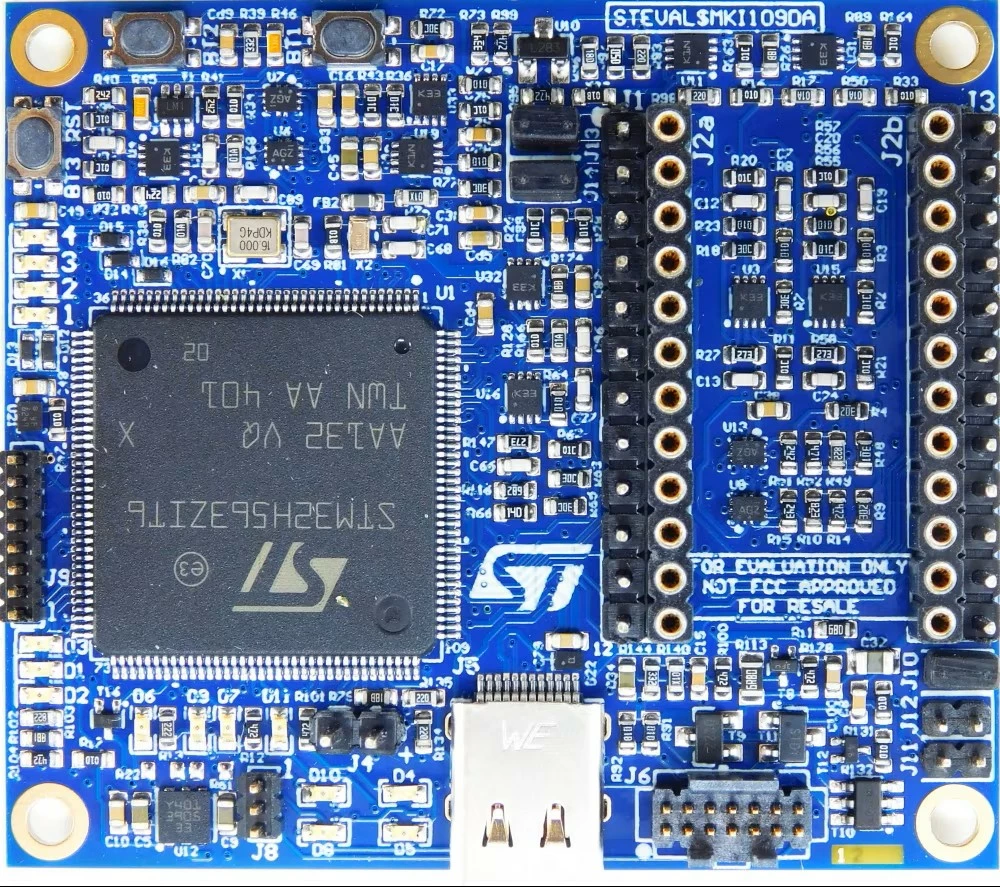
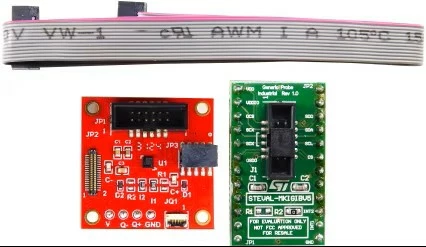
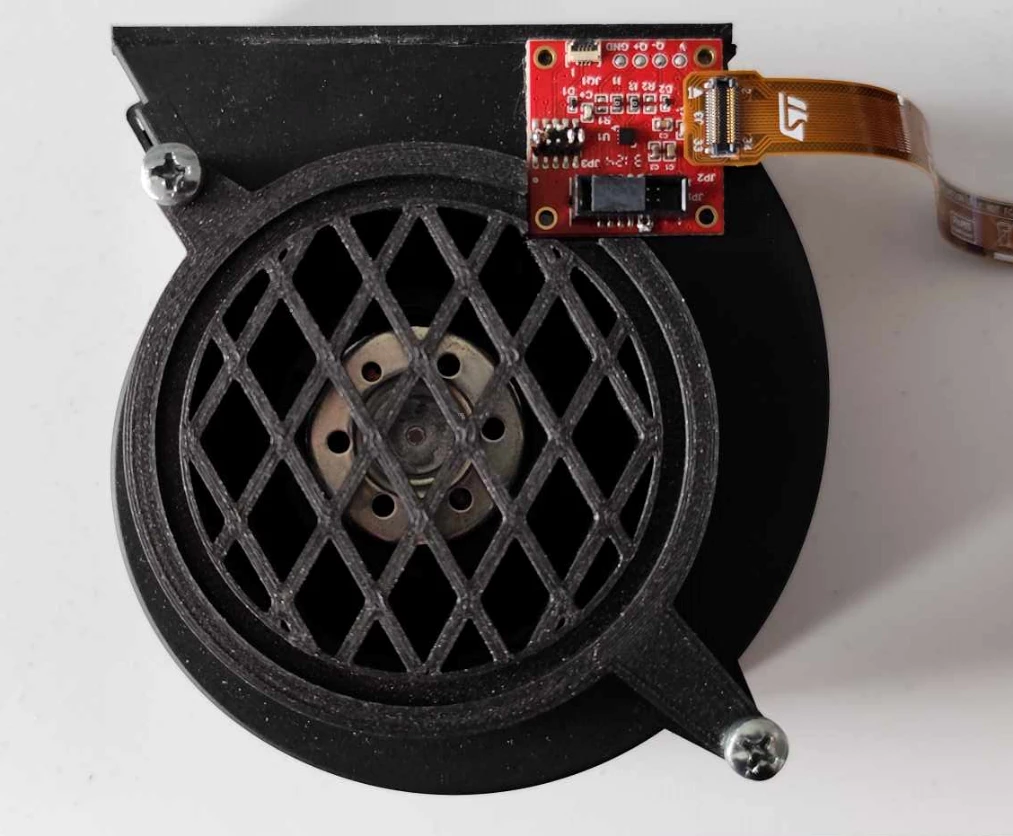
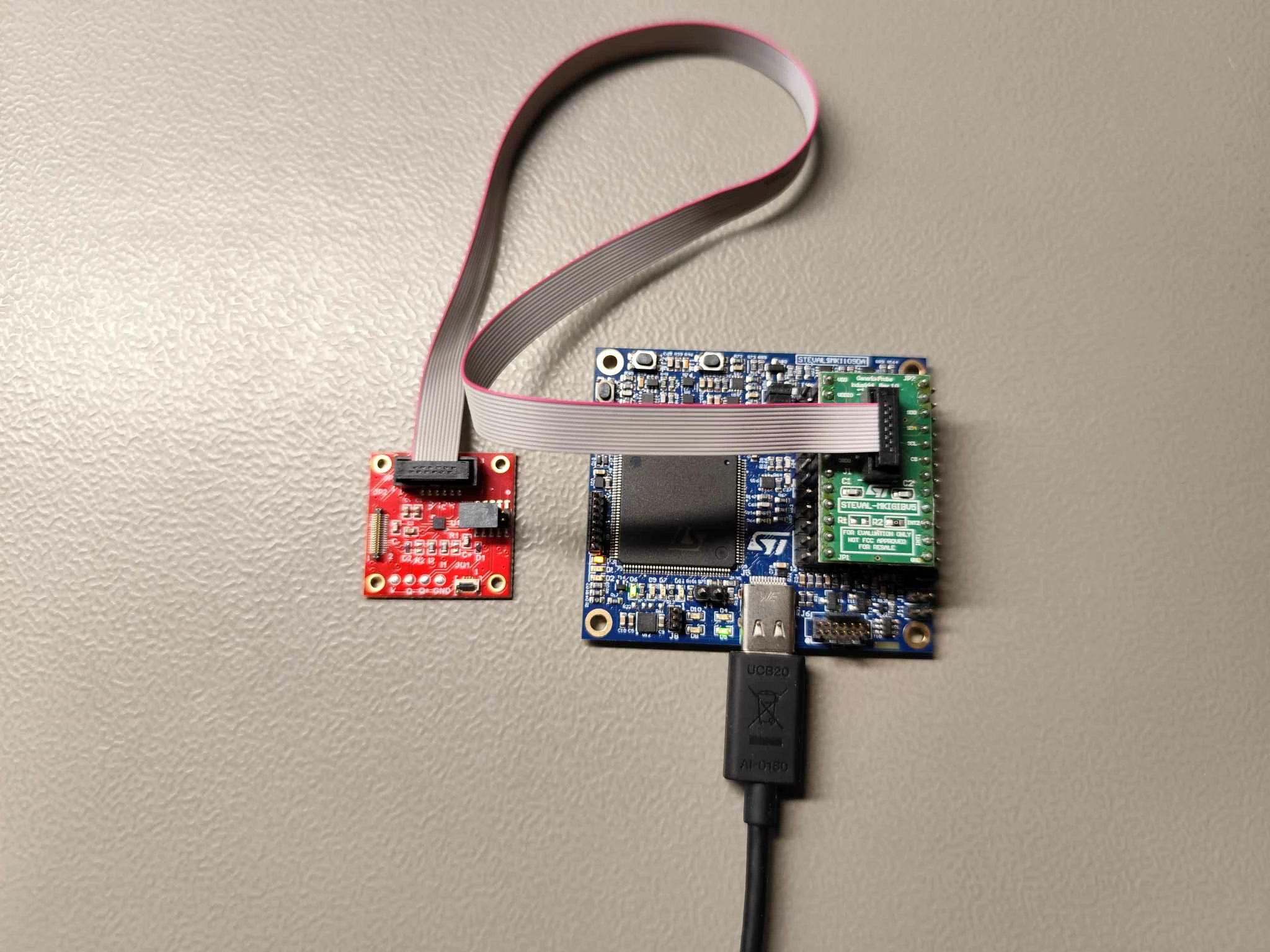
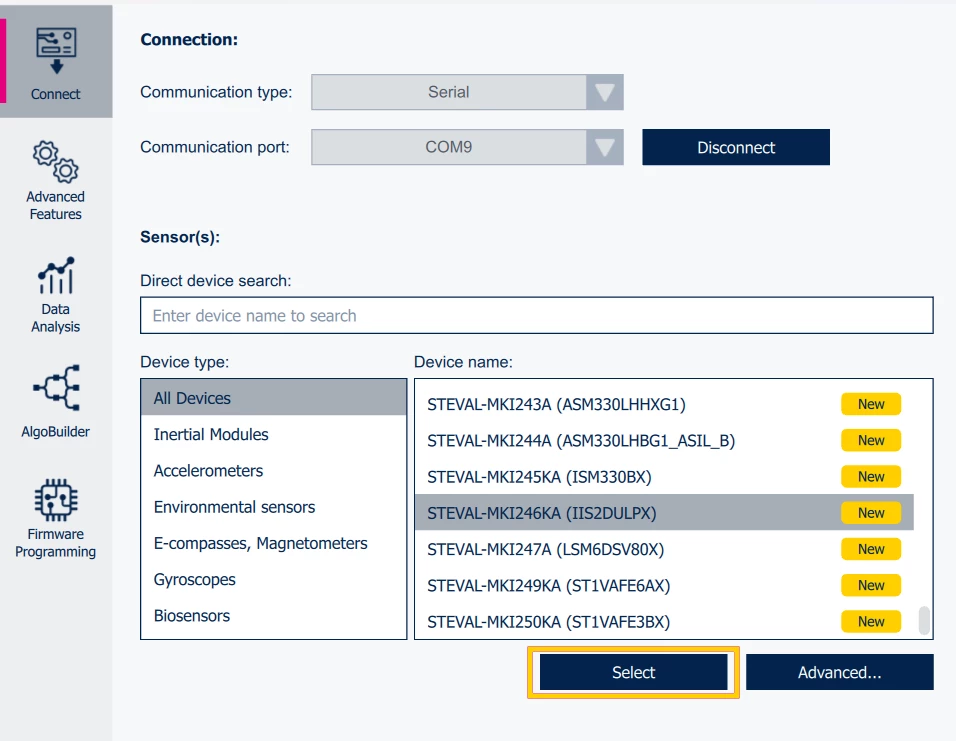
The "Advanced Features" page in MEMS Studio is used to generate the MLC configuration. While it is not necessary to have the STEVAL-MKI246KA connected during the MLC configuration creation phase, it is required for subsequent evaluation (debugging, data injection). Keeping the STEVAL-MKI246KA connected is recommended.
6. Data patterns
This step loads individual data patterns from the dataset and assigns a *class name* to each group of these patterns. Multiple data patterns can be loaded to describe a single activity (class.) For simplicity, this example utilizes only one data pattern per class.
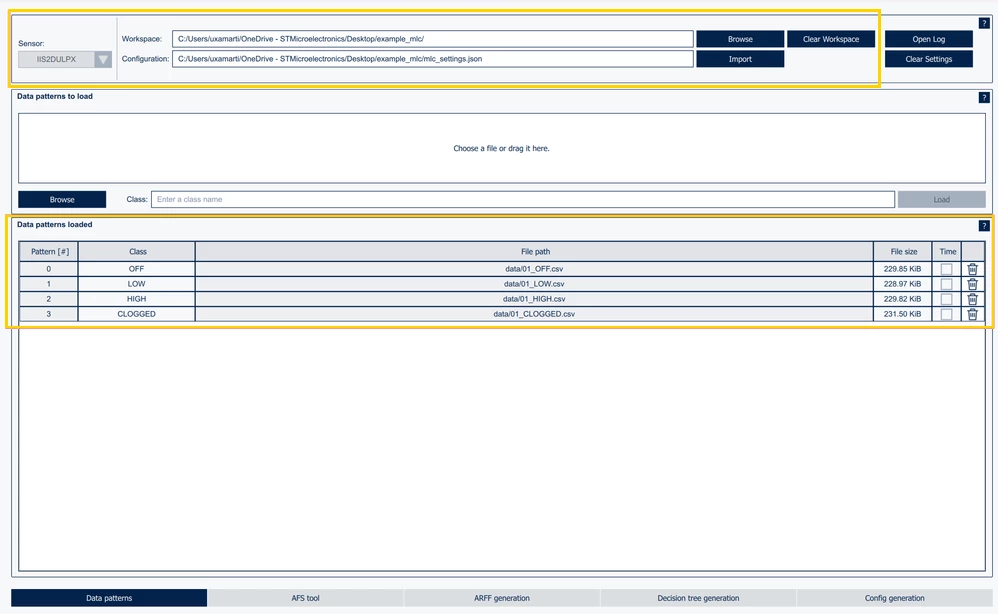
Open MEMS Studio, go to "Advanced Features" → "MLC" and select data patterns tab. In the "Workspace" option, specify a path to the desired output folder for the configuration. In the "Sensor" option, select [IIS2DULPX]. This action initializes the workspace and creates the workspace settings JSON file within the specified folder. Use the "drag and drop" feature, or the [Browse] button in the "Data patterns to load window" to load the individual data patterns. For each loaded data pattern, specify a class name and then click the [Load] button.
The result of the previous steps should look similar to this (including the workspace settings above):
7. AFS tool
The AFS tool processes the specified data patterns and user-defined settings and recommends window length, filters, and features that can be used for decision tree generation. Such features and filters can then be reviewed and applied to the configuration, primarily influencing ARFF file generation.
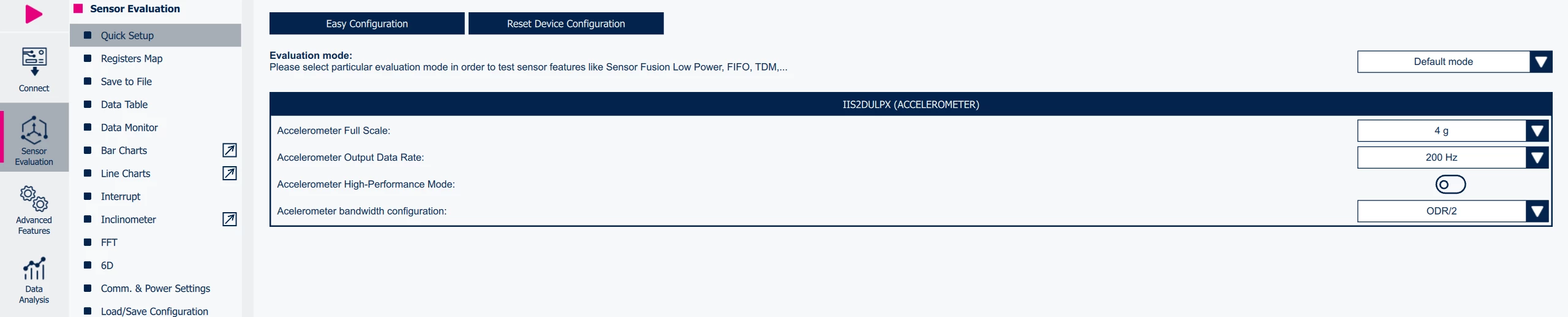
Open the "AFS tool" tab. Specify the "Inputs" window selection (in accordance with the values used during data acquisition): accelerometer_only, FS: 4 G, ODR: 200 Hz. Specify the "machine learning core ODR"(which must be less than or equal to the sensor ODR), in this case it is 200 Hz. Click the [run] button to start the calculation. Once the calculation is complete, the features and filters can be applied to the settings using the Apply to Setting button.
This configuration should result in the message "MLC settings updated". See the screenshot below of the tab after completion for orientation:
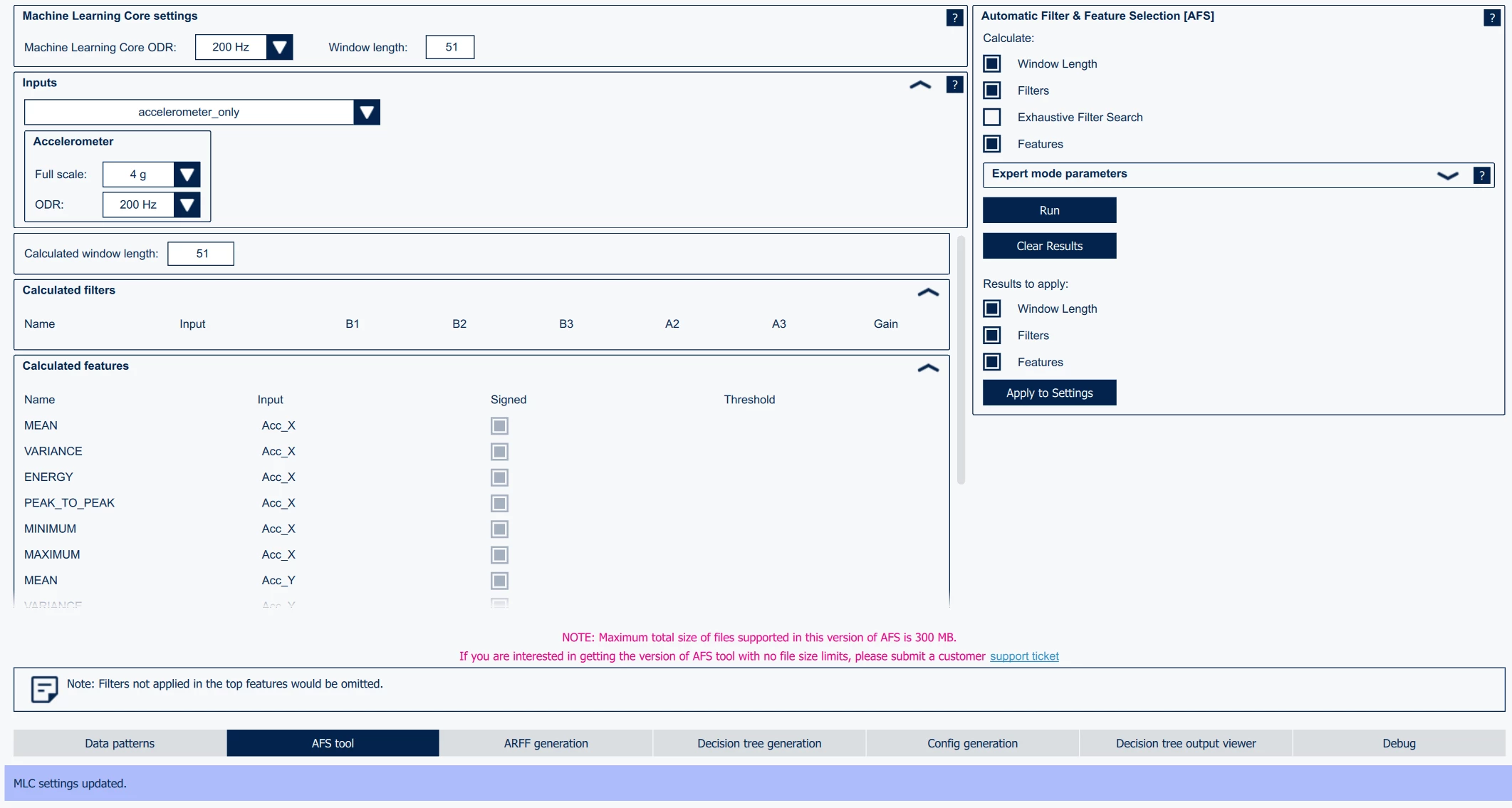 Figure 11: MEMS Studio - AFS tool
8. ARFF generation
This tab displays the features and filters previously recommended by the AFS tool; each can be individually modified, deleted, or new ones can be added. The sole step on this tab is to click the [Generate ARFF File] button (there is no need to specify a path). The ARFF file will then be created and stored in the workspace.

9. Decision tree generation
Decision tree specifications can be modified on this page. For the purpose of this example, the default values are selected. Click the [Generate Decision Tree] button. This action generates a decision tree based on the ARFF file and stores it in the workspace. A workspace can contain multiple decision trees.
10. MLC configuration generation
This tab enables the setting of output values for each class, the specification of end counters, and the generation of the final MLC configuration file. If your dataset differs from this example, adjust the values according to your preferences. If you are using the dataset from the data folder, select values as shown in the screenshot below:
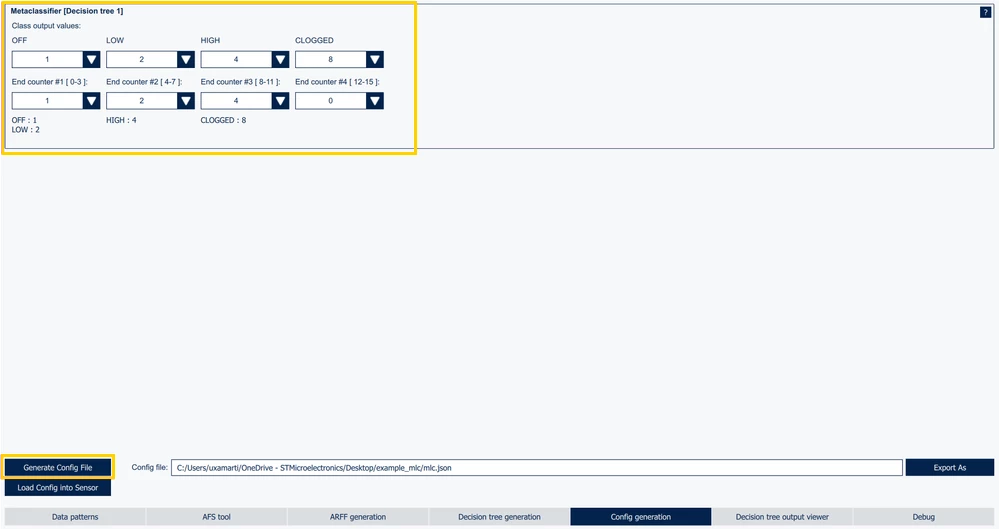 Figure 13: MEMS Studio - MLC configuration generation
Note: The configuration file can be exported to a C header file using the [Export As] button. This file can then be included in a C project for straightforward MLC configuration.
11. MLC configuration evaluation
There are two easy ways to evaluate the new MLC configuration.
11.1 Decision tree output viewer tab
This option allows for the display of the MLC output from the currently connected device. The data are visualized graphically and updated in real time as the MLC evaluates the sensor data. It is a prerequisite that the device (in this case, STEVAL-MKI246KA) is connected and that the MLC configuration to be evaluated is loaded onto the device. The configuration can be loaded from the "Config Generation" tab and clicking the [Load Config into Sensor] button.
The ▶ button must be enabled to start the evaluation.
11.2 Debug tab
The debug tab option also operates with a connected device but does not utilize live data from the sensor. Instead, it processes a datalog, extracting data (for example, acceleration) and submits it to the MLC. The output of this process is another datalog. It contains the original sensor data along with the MLC's "result" or "reaction" to that data in the form of MLC output.
This functionality enables the capture of data (for example, acceleration), saving into a log file, and subsequent utilization of this log file to evaluate an MLC configuration. This feature is demonstrated in the following steps. Each individual datalog in the dataset located in the "data" folder was created during an air blower demonstration. It is not possible to access the demo to evaluate the configuration "live". However, the data_validate folder contains a log named Test_data.csv. This log contains measured data (accelerometer only) from a brief demonstration of the demo's capabilities, making it suitable for evaluating the MLC configuration.
Navigate to the "Debug" page under "Advanced Feature" → "MLC".
In the "Device configuration" path, you can select [Default] (which loads the configuration from the current workspace) or [Browse] for a specific configuration to evaluate. Select the path to the file data_validate/Test_data.csv as your log file. Set the "Number of decision tree set" option to [1] (in accordance with the decision trees in your configuration). Click [Run].
A progress bar is displayed. Processing this data might take some time. The process should look similar to the screenshot below:
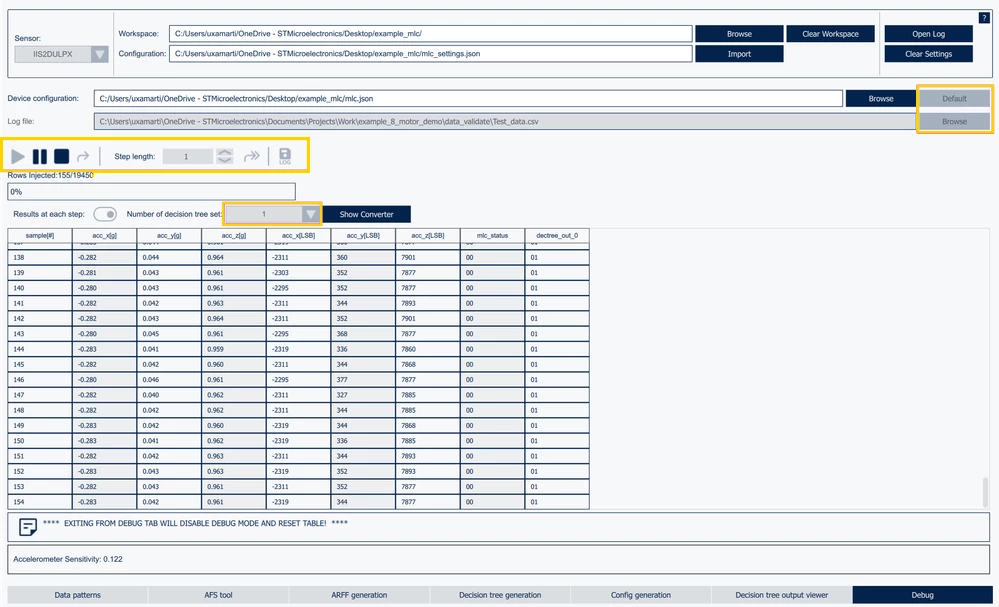 Figure 14: MEMS Studio - MLC Debug
Once the process is complete, select the [LOG] option from the menu to save the data. Reference process result can be found at data_validate/Test_data_result.csv.
Note: If you exit the tab, the process stops and the table with result data is discarded. Remember to save using the LOG option.
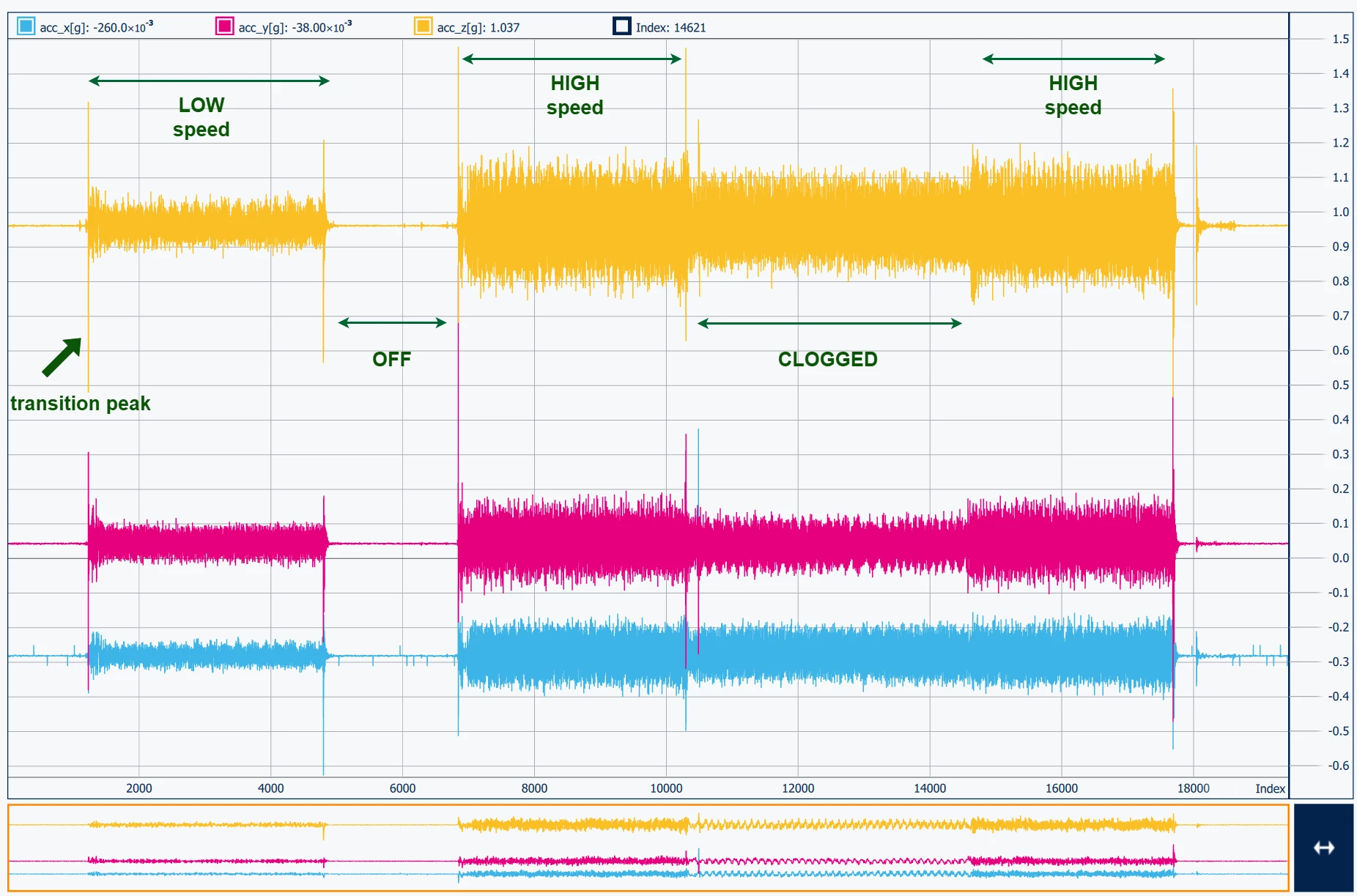
You should now have a datalog containing the results from the MLC. The "Data Analysis" page can be utilized to visualize the data. While this page offers numerous options for data visualization, the "Time Domain" option is the most straightforward option. In this tab, you can specify the result log file path in the "Log file name" option and visualize only the MLC data (or any desired data) by disabling all values except dectree and mlc_status.
An example of "Data Analysis" with each activity described is described below. If you used the same dataset and submitted the same testing datalog, you should have the same result as in the picture.
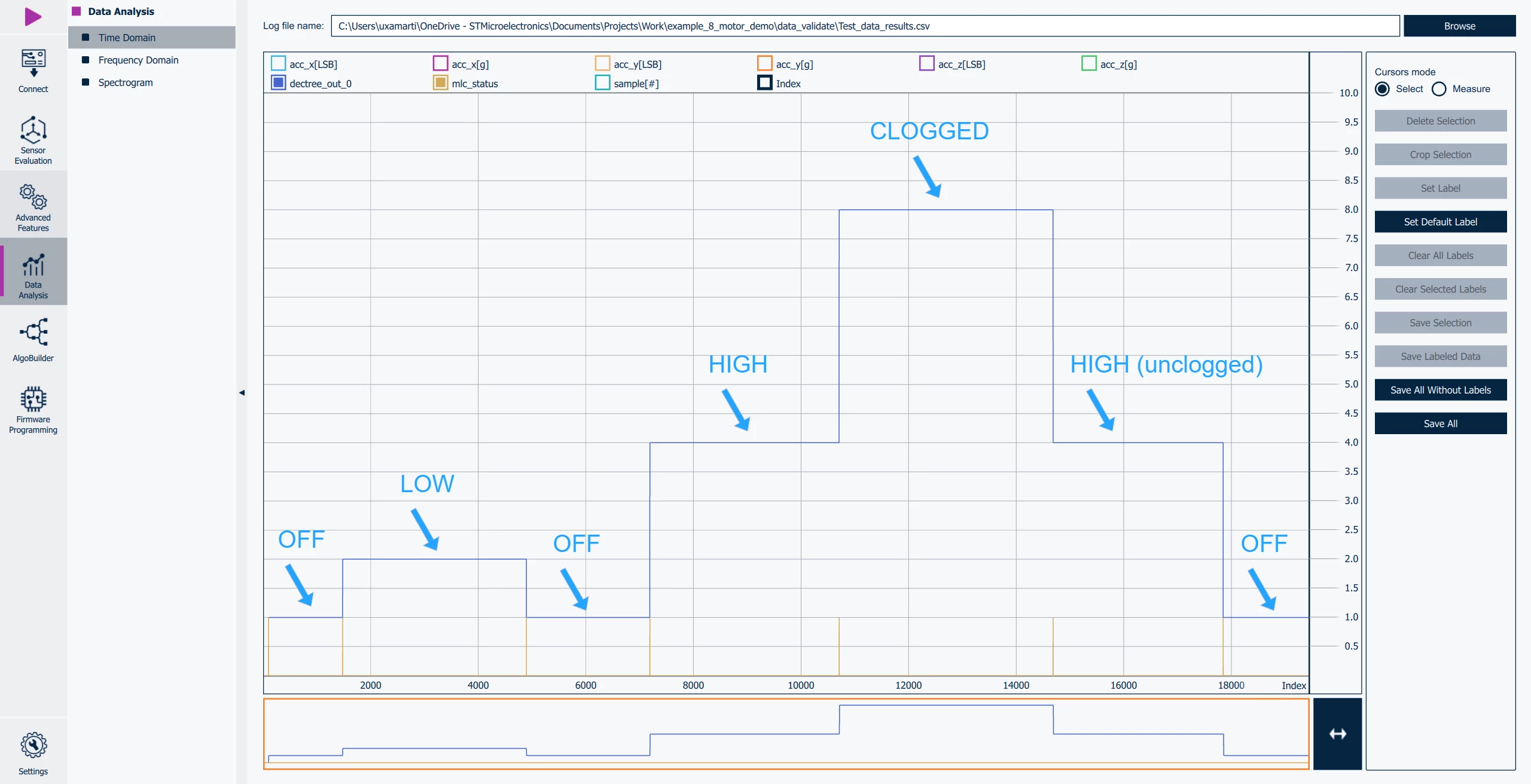 Figure 15: Data analysis - result
Conclusion
The showcased solution facilitates monitoring air blower performance and detecting potential issues, enhancing predictive maintenance capabilities. It is particularly valuable in industrial and HVAC systems where continuous monitoring of equipment health is essential. By accurately identifying the blower’s state, it enables early detection of potential issues, reducing unexpected downtime and maintenance costs.
Embedding the model within the MLC allows for on-device processing, minimizing latency and reliance on external systems. This results in more efficient, reliable, and cost-effective predictive maintenance strategies, ultimately extending equipment lifespan and improving overall system performance.
Related links