

Getting started with Smart Asset Tracking on ST AIoT Craft
- 0 replies
- 474 views
Introduction
The "Smart Asset Tracking" project on ST AIoT Craft enables precise monitoring of a physical item's condition. An example could be a package, to determine whether it’s stationary, moving, or experiencing excessive shaking.
This rapid classification detects brief events, providing real-time insights into the item's status.
Users can customize the model to suit specific needs, making it more sensitive for fragile items or adjusting the 'shaken' class for stronger motions.
 Figure 1: Smart asset tracking application
1. Key highlights of the Smart Asset Tracking project
To begin, click on the Smart Asset Tracking project example. A pop-up window appears with a brief description.
This reveals that the project uses a single AI model named smart_asset_tracking, targeting the SensorTile.box PRO and the IMU LSM6DSV16X with machine learning core.
The model classifies data into four categories: stationary_upright, stationary_not_upright, motion, and shaken.
You can evaluate the AI model either through the web application or via the mobile app. If you choose the mobile app, QR codes for installation are provided.
For now, let's focus on evaluating the AI model directly on the web application using the SensorTile.box PRO.
2. Real-time monitoring
The project rapidly classifies the item's condition into four categories:
- Stationary upright
- Stationary not upright
- Motion
- Shaken
3. Customizable sensitivity
Users can adjust the model to suit specific needs, making it more sensitive for fragile items or adjusting the "shaken" class for stronger motions.
4. Setup
Initializing the Smart Asset Tracking project is straightforward. Let's get started.
4.1 Choose your environment
Select [Web browser] or [ST AIoT Craft mobile app].
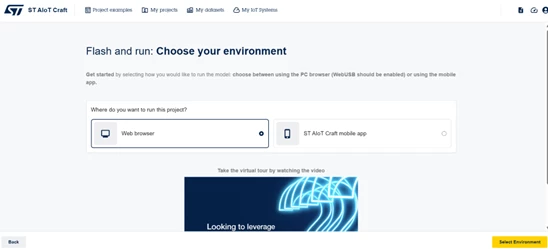 Figure 2: Choose your environment (web browser or mobile app)
4.2 Firmware update
Connect the SensorTile.box PRO to your PC though a USB Type-C® cable, turn on the board in DFU mode.
If needed, refer to section 2.2 “How to program the SensorTile.box PRO in “DFU mode (via USB)" of the user manual UM3133 about SensorTile.box PRO).
Click the [Flash firmware] button to download and stream the firmware binary to the board. Ensure that your browser detects the connected SensorTile.box PRO.
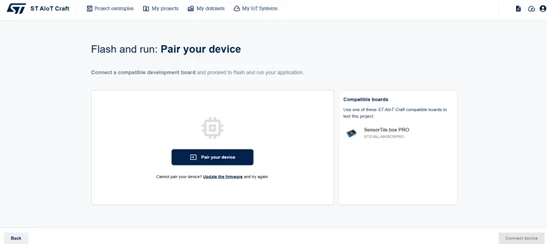 Figure 3: Pair your device
Once the firmware update is complete, establish a connection with the board by clicking on [Connect device].
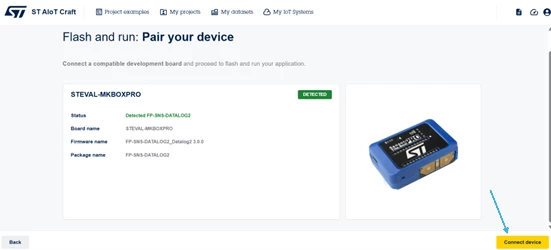 Figure 4: Connect the device
4.3 Enable sensors
The AI model is downloaded and programmed onto the SensorTile.box PRO. The IMU LSM6DSV16X is configured as follows:
- Accelerometer configured with ODR = 30 Hz and FS = 16 g
- Machine learning core enabled
4.4 The evaluation phase
Click the [Start] button to begin evaluating the AI model. The SensorTile.box PRO recognizes the following states based on its placement and movement:
- Shaken: Recognized when the board is shaken.
- Stationary upright: Recognized when the board is stationary and upright.
- Stationary not upright: Recognized when the board is stationary but not upright
- Motion: Recognized when the board is moved.
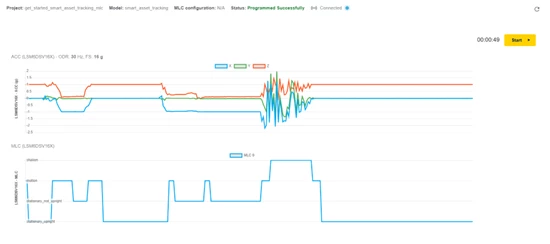 Figure 5: Start evaluating the AI model
5. Mobile app evaluation
For wireless tracking, the ST AIoT Craft mobile app can be used.
You can download the app using the QR codes provided for easy installation which appear when you choose ST AIoT Craft mobile app as the working environment (see Figure 2).
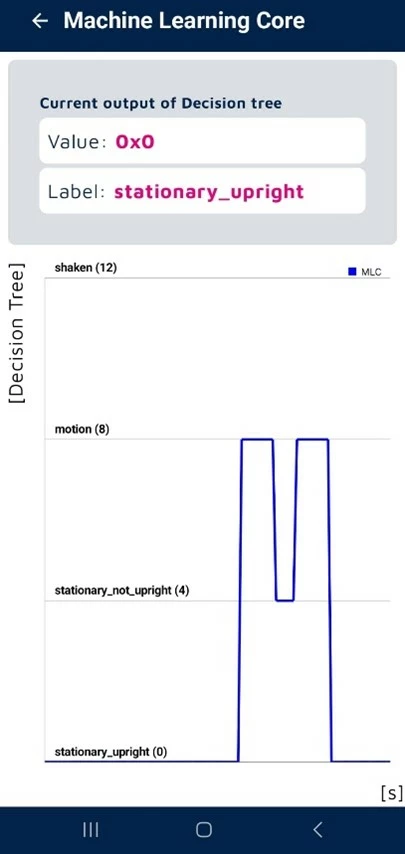 Figure 6: Evaluate the AI model via the mobile app
Conclusion
You can effectively track and classify the state of your physical items using the Smart Asset Tracking project example on the ST AIoT Craft platform.
Try out the Smart Asset Tracking project with ST AIoT Craft tool and share your experience.
Create your own solution exploring the "My datasets" section and the "My Projects" section.
 Figure 7: Explore My datasets and My Projects sections
Stay tuned for more insights on how to leverage ST AIoT Craft for your projects!
Related links
- ST AIoT Craft
- Documentation: ST AIoT Craft
- SensorTile.box PRO
- ST blog: ST AIoT Craft
- Knowledge article: How to get started with ST AIoT Craft to develop your IoT solution
- Knowledge article: How to develop an end-to-end IoT solution with ST AIoT Craft
- Knowledge article: How to get started with ST AIoT Craft mobile app to develop your IoT solution
- Knowledge article: Discover MLC expert mode in ST AIoT Craft