How to install and import a software expansion package with STM32CubeMX
Introduction
ST and its partners offer software expansion packages that enable the use of specific features or external devices with the STM32 MCU. These can be installed locally and included in projects using STM32CubeMX.
This article demonstrates how to download the X-CUBE-MEMS1 package, which enables the use of external MEMS sensors with the MCU, and include it in an STM32CubeMX project.
1. Download the package through STM32CubeMX
First, it is necessary to download and install the X-CUBE-MEMS1 package through the STM32CubeMX Embedded Software Packages Manager, available by selecting Help -> Manage embedded software packages as shown below: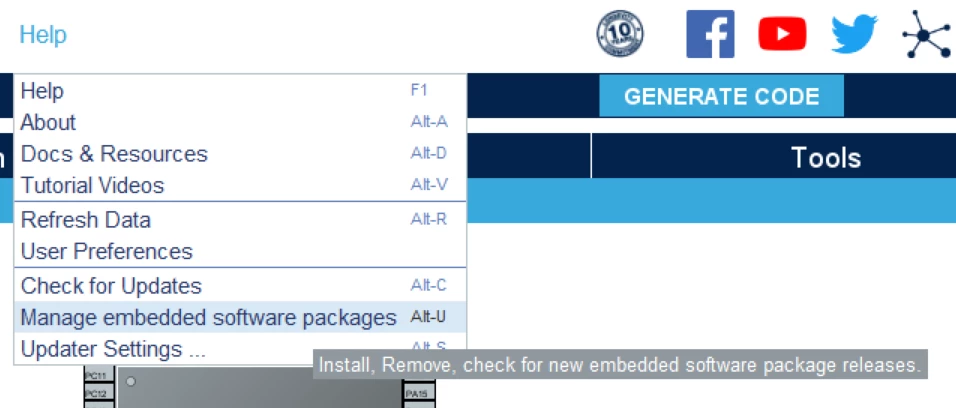
Selecting this option opens the Embedded Software Packages Manager. This is where the user installs STM32 MCU packages, and ST or partner-provided expansions. The X-CUBE-MEMS1 package is provided by ST, and is located in the STMicroelectronics tab.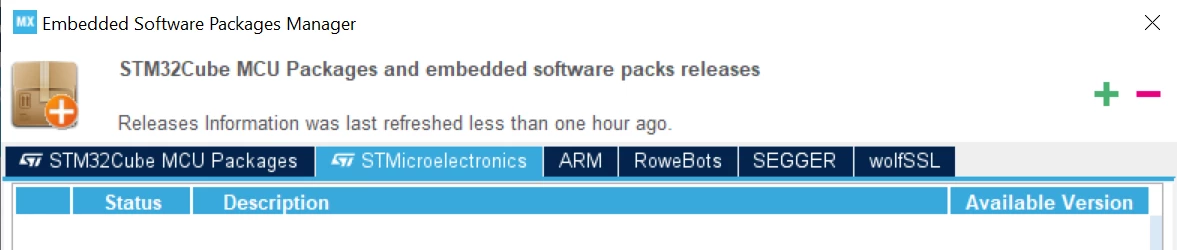
In the package list, locate the X-CUBE-MEMS1 package. Clicking on the dropdown button to the left of its name reveals the list of available versions of the package that the user can include in their projects through STM32CubeMX.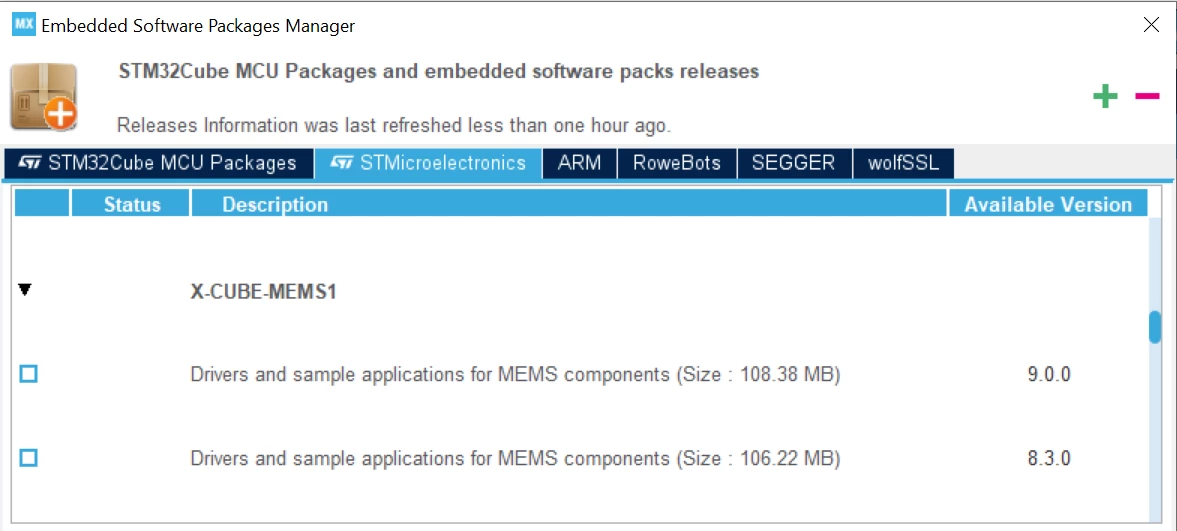
Select the latest version of the package by checking the blue box on the left side and then click Install Now: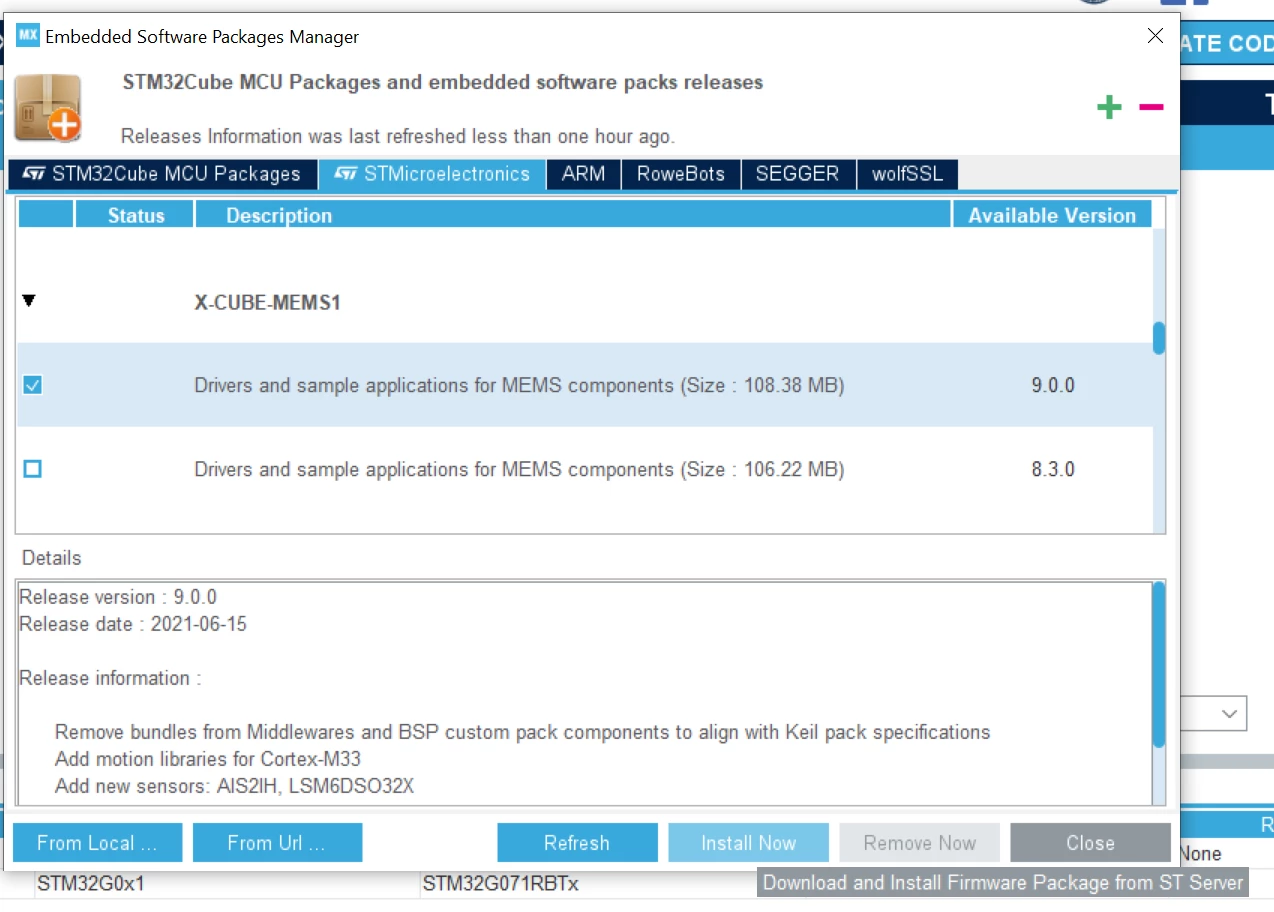
Once downloaded, acknowledge the licensing agreement and press Finish: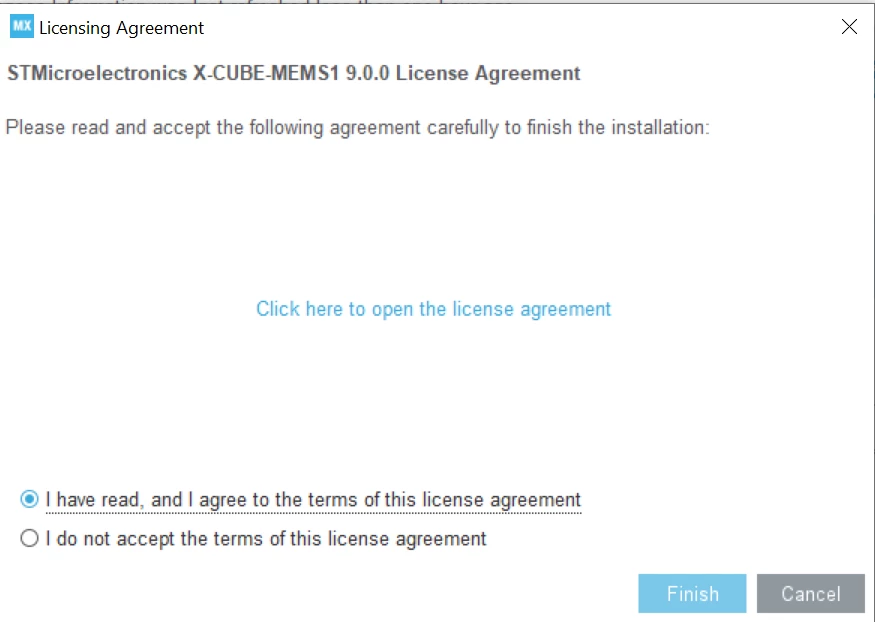
A green box next to the package version's row indicates that it is now locally installed and can be used in projects. The Embedded Software Packages Manager can be closed now.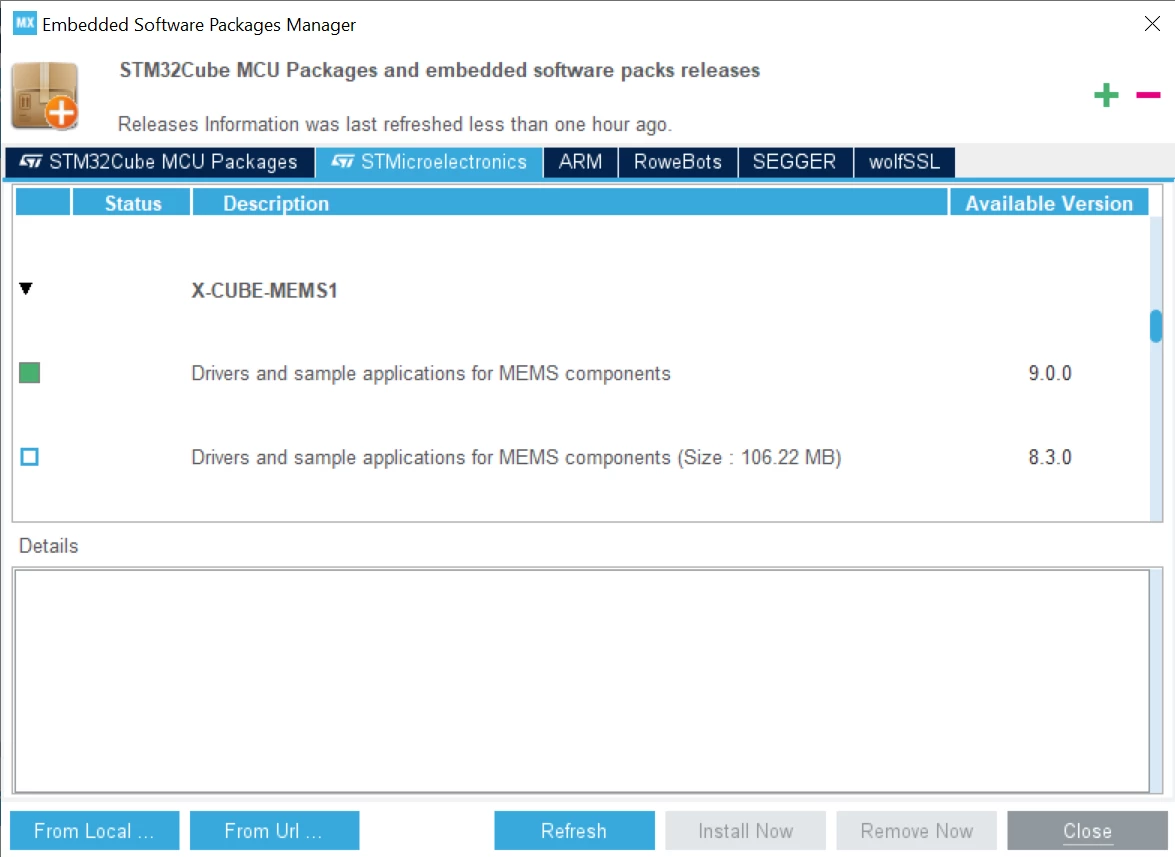
2. Import the package into an STM32CubeMX project
For the purposes of this example, create an empty project based on the STM32G071RBTx MCU.
In the Pinout and Configuration tab of the opened project, the Software Packs -> Select Components option will reveal the Software Packs Component Selector, which allows management of the expansion packs that are included in the project: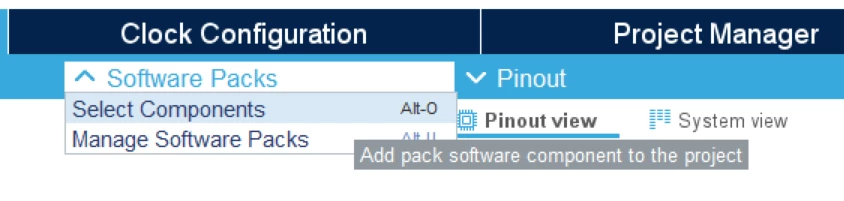 For the purposes of this example, we will add the drivers for a LSM6DSL device using an I2C interface to the project. To do this, expand the X-CUBE-MEMS1 dropdown as shown below, and select LSM6DSL with the I2C interface option. Once this is done, save the changes and close this window by clicking Ok.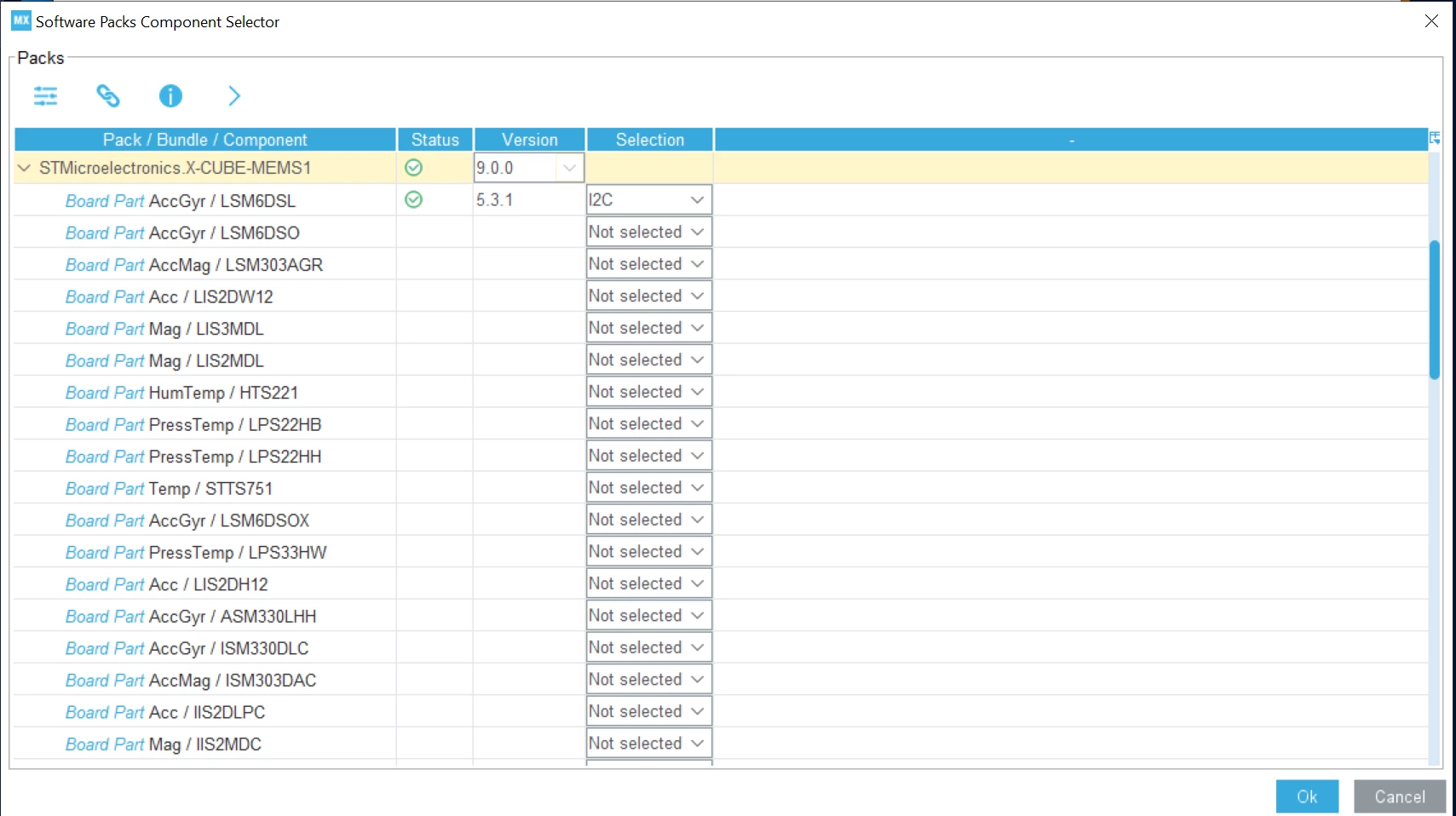
In the Pinout & Configuration tab, enable the I2C peripheral that will be used to interface to MEMS. In the case of this example, enable I2C1: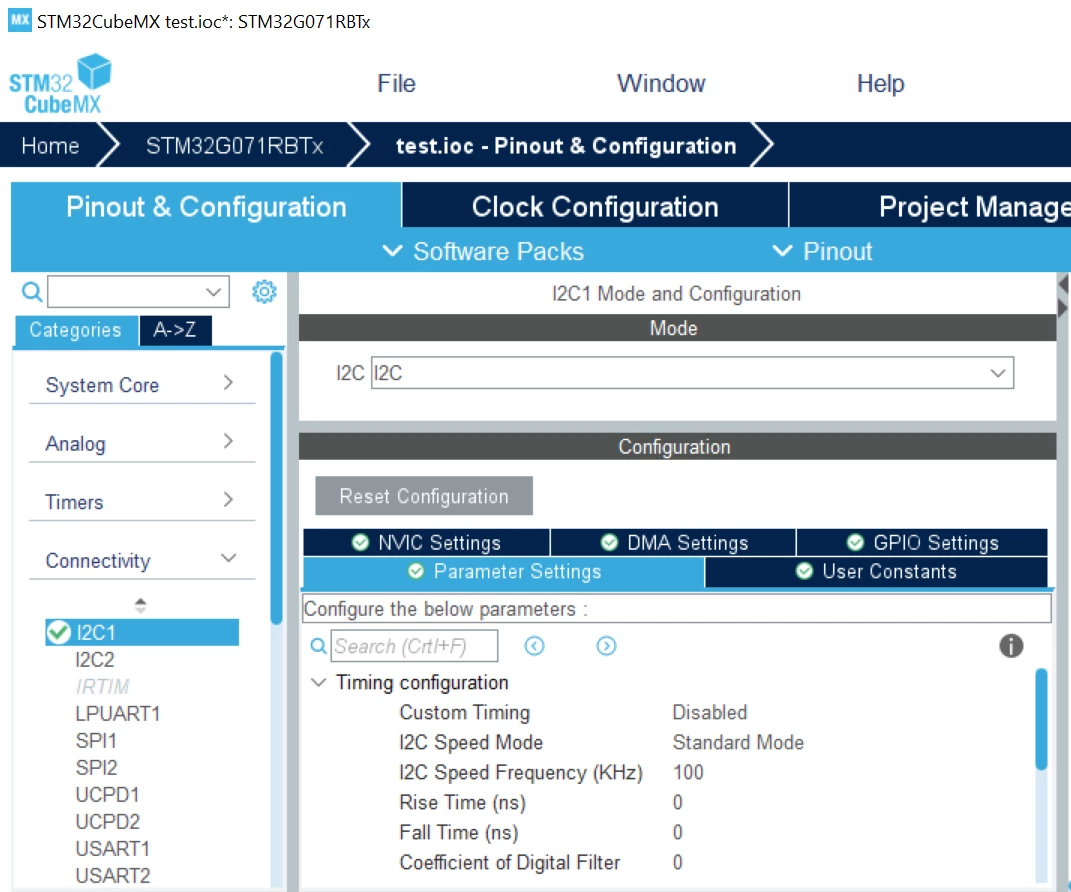
In the component list on the left, the Software Packs category shows which expansions are included in the project. For the X-CUBE-MEMS1 package, enable the Board Part AccGyr option in the Mode section. This component is further configured in the Configuration section, where for this example "I2C1" will be selected as the solution for the driver in Platform Settings: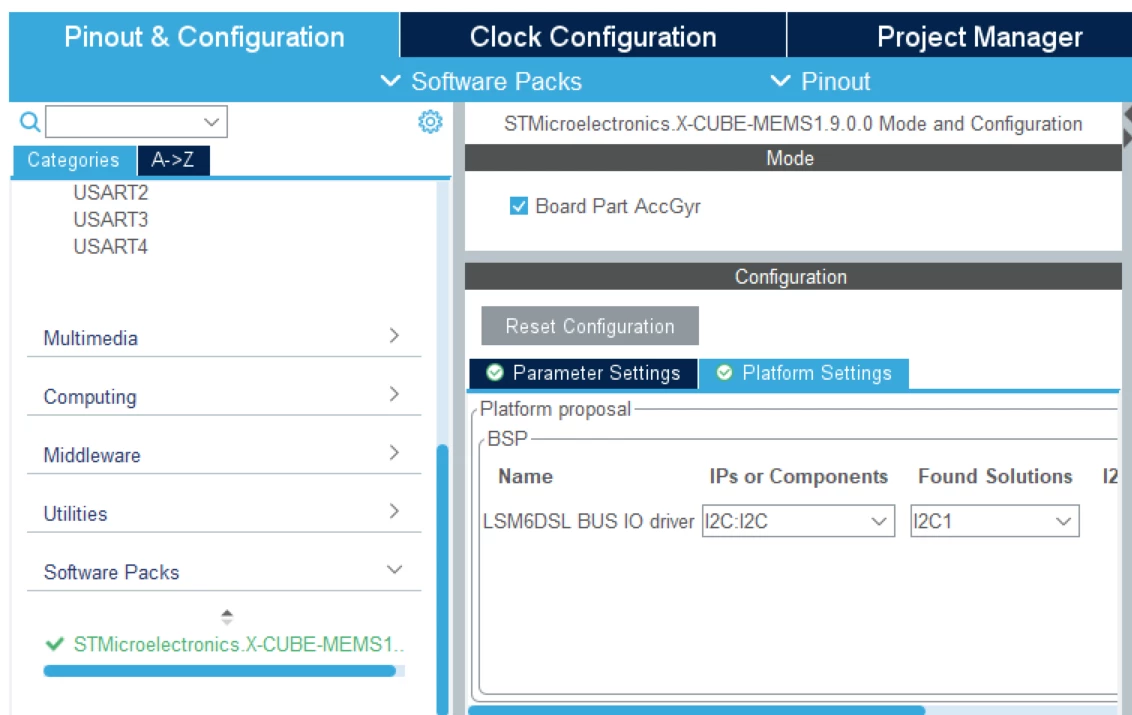
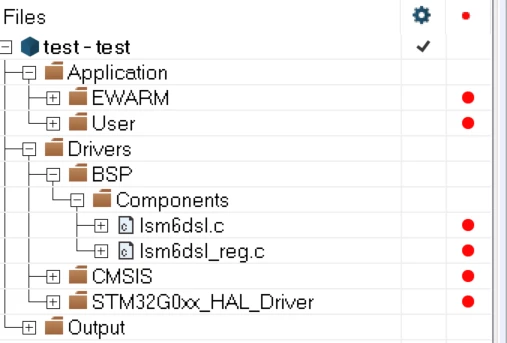
After configuration is done, generate the code with the Generate Code button. The additional drivers are added to the file structure of the project, and the provided functions can be used in application code: