


How to import a STM32CubeMX2 CMake project into STM32CubeIDE
Summary
This guide explains how to take an existing STM32CubeMX2 project, generate a CMake project from it, and then import it into STM32CubeIDE.
Prerequisites
1. Generate a CMake project from STM32CubeMX2
- Create an STM32CubeMX2 .ioc project.
- In Project Manager → IDE Project (IDE Project Generation area), set:
- Format: CMake
- CMake toolchain: GCC
- Destination: a folder where the CMake project should generate.
- Click Generate IDE project.
When generation completes, verify that the destination folder contains:
- CMakeLists.txt
- Core/, Drivers/, and other generated folders.
- The .ioc file.
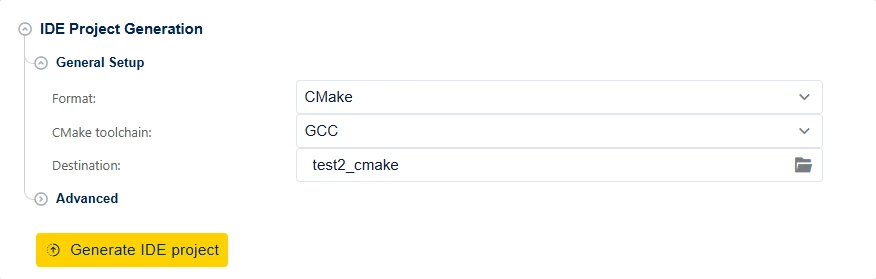 Figure 1. IDE project generation
2. Open the STM32CubeMX2 CMake project in STM32CubeIDE
- Launch STM32CubeIDE V2.1.1 and select your workspace.
- From the main menu, choose:
[File] → [New] → [STM32 Project] → [STM32 Project Create/Import].
Select [STM32CubeMX2 project] under [Create New STM32 Project].
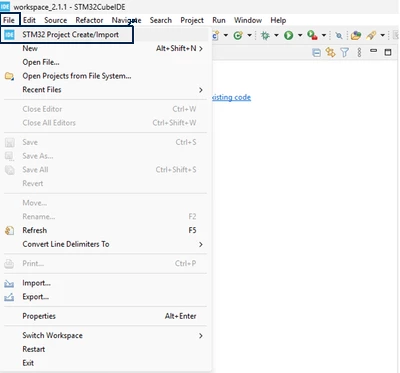 Figure 2. Import STM32 project
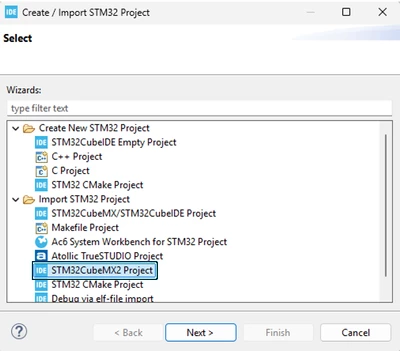 Figure 3. Import STM32CubeMX2 project
3. Point the project to the existing CMake sources
You are now on the Project with existing CMake sources page. Fill in the fields as follows:
- Project name
Enter a name for your STM32CubeIDE project. - Source directory
Click [Browse...], and select the folder generated in section 1.
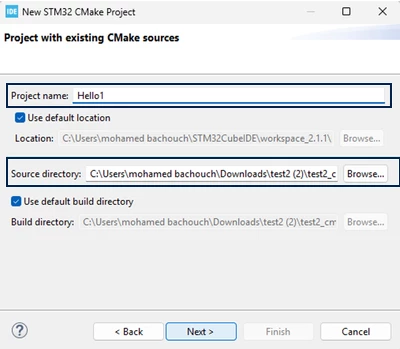 Figure 4. Point the project to the existing CMake sources
4. Configure the toolchain and MCU
The wizard opens the "Configure default tool‑chain settings for the project" page.
- Configure:
- Toolchain: MCU ARM GCC (or matching your setup).
- MCU: Select the same device as in the STM32CubeMX2 project.
- Example used: STM32C562VETx.
- Click Finish.
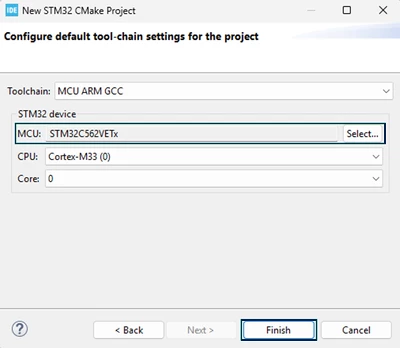 Figure 5. Configure the toolchain and MCU
5. Build and use the imported project
In "Project Explorer", the new STM32 CMake project should be visible:
- CMakeLists.txt at the root.
- Core/, Drivers/, and other generated folders.
[Right‑click] the project → [Build Project].
STM32CubeIDE runs CMake, configures the build system, and compiles the code.