

How to create a Thread using AzureRTOS and STM32CubeIDE
Using the software package available in the STM32Cube ecosystem is straight forward, all steps and a demo code are provided in this article.
- Goal: The purpose of this article is to give you a first overview of how the AZURE-RTOS ThreadX is supported in the STM32Cube ecosystem
Although the example is using the NUCLEO-H723ZG, you can use the same steps for other STM32H7 based boards. The main differences are usually pinout and clock configuration.
This article will show you how to start a project from scratch, with the goal of getting an LED to blink in a few clicks, while using a simple thread to do it.
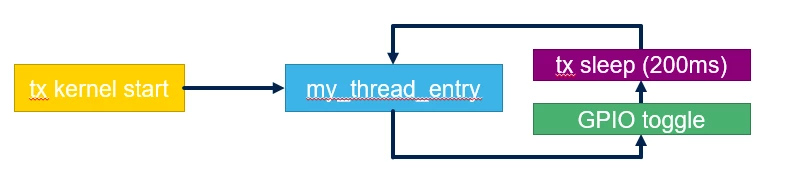
Demo block diagram:
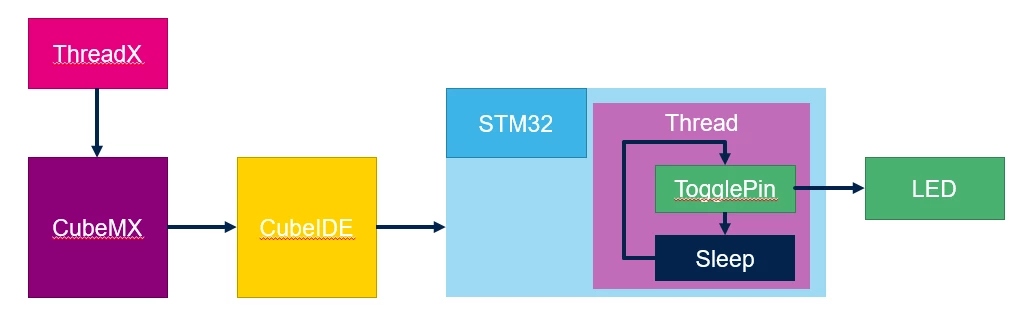
This article will show you how to start a project from scratch, with the goal of getting an LED to blink in a few clicks, while using a simple thread to do it.
Demo block diagram:
- STM32CubeIDE – step by step demo:
- Launch STM32CubeIDE (version used 1.7.0)
- Select your preferred workspace, click on Launch
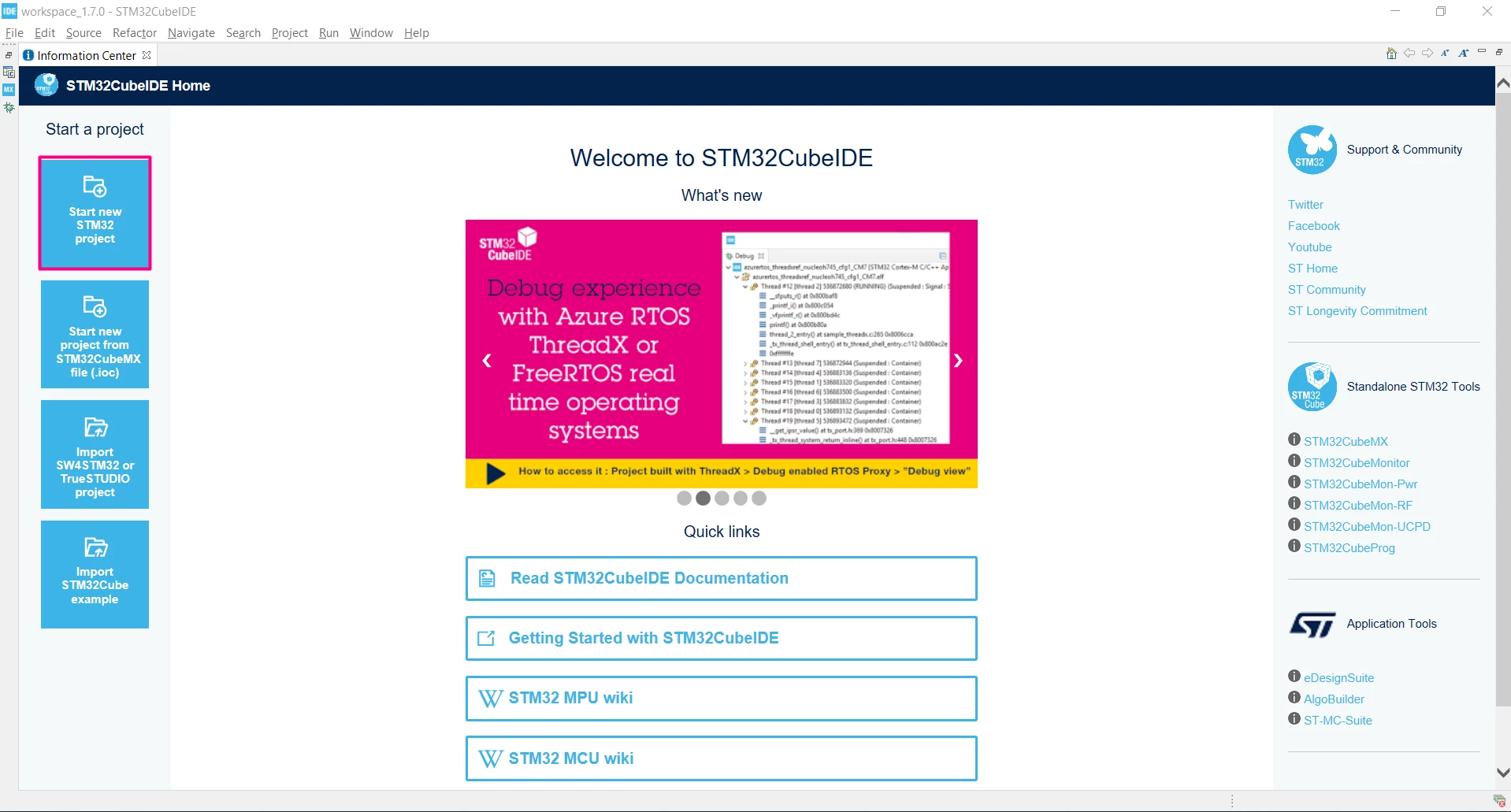
- In the information Center, select to Start New STM32 Project
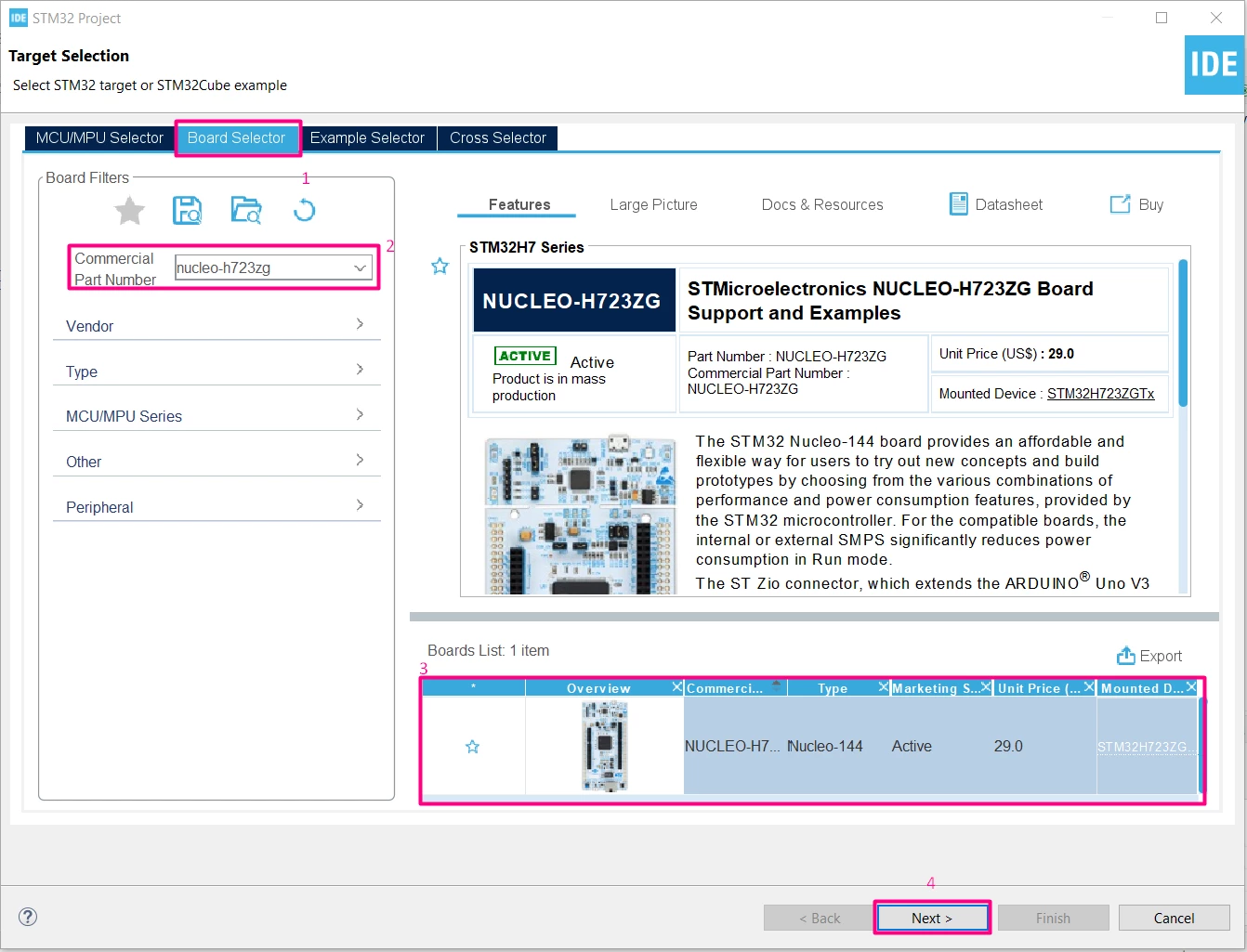
- For this demo in particular, we’ll use the NUCLEO-H723ZG as the starting point:
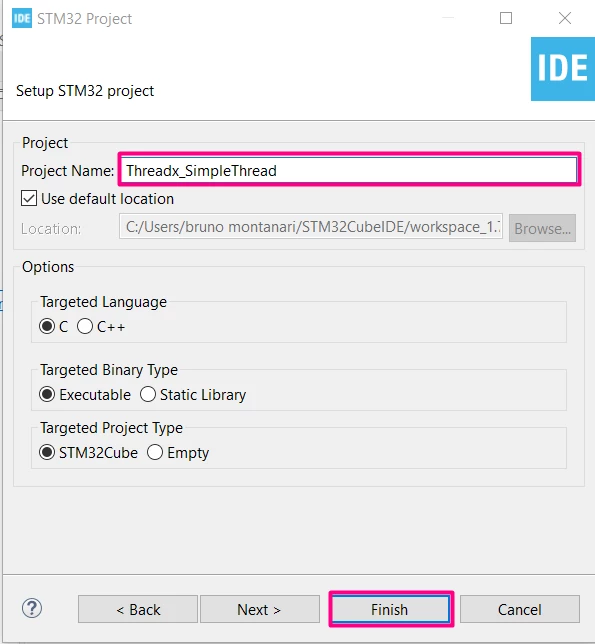
- Give your project a name, just remember to avoid space and special characters – if you are missing any libraries, the STM32CubeIDE will automatically start the download now
A pop up asking if we should initialize the peripherals in the default mode, click yes:
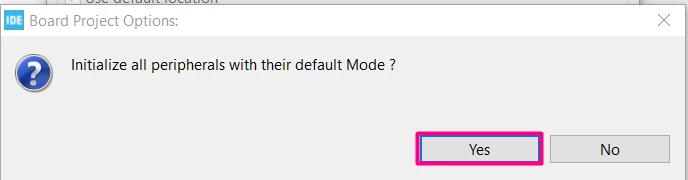
Then second popup to ask to open device configuration perspective, click yes again:
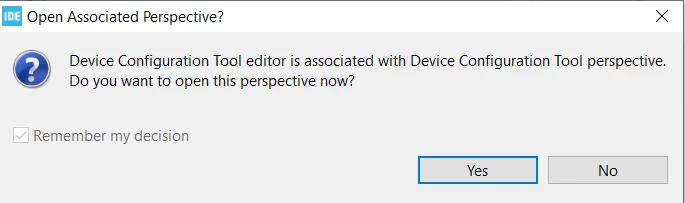
Then second popup to ask to open device configuration perspective, click yes again:
- Now you should have a view of the MCU with some of its peripherals configured, and on the left side you’ll have the initial code, yet without the ThreadX added
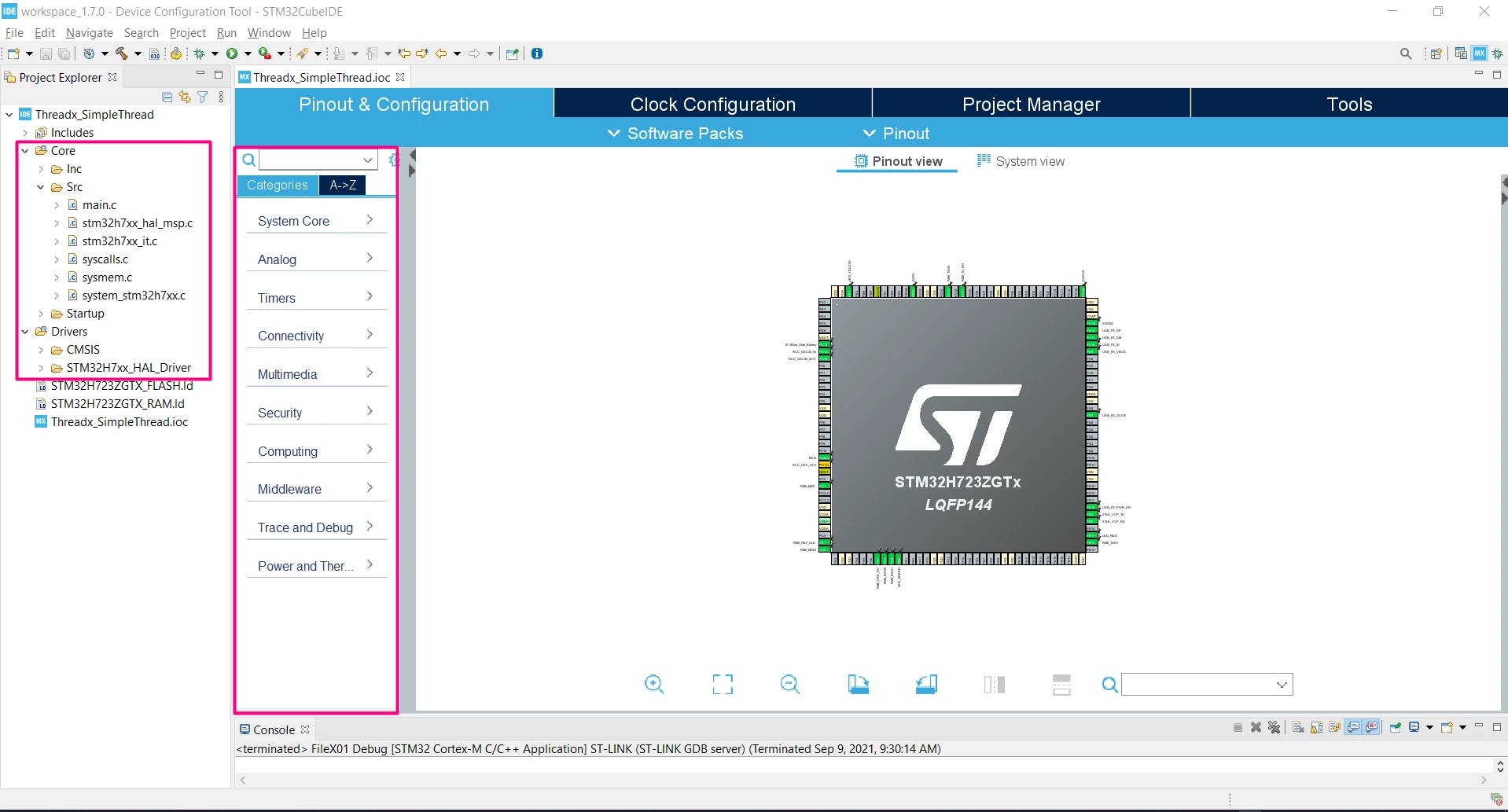
Time to add the software pack:
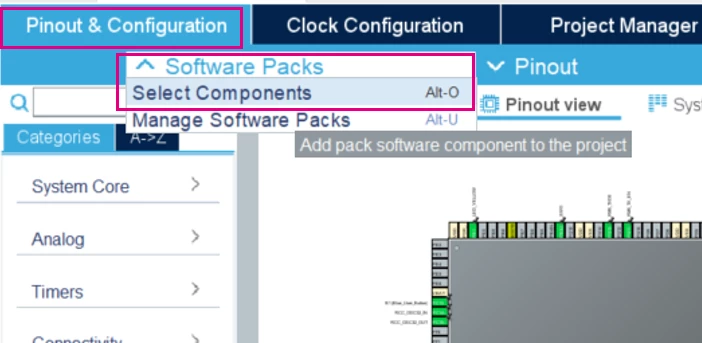
- Browse and locate the AzureRTOS pack in the component selection window:
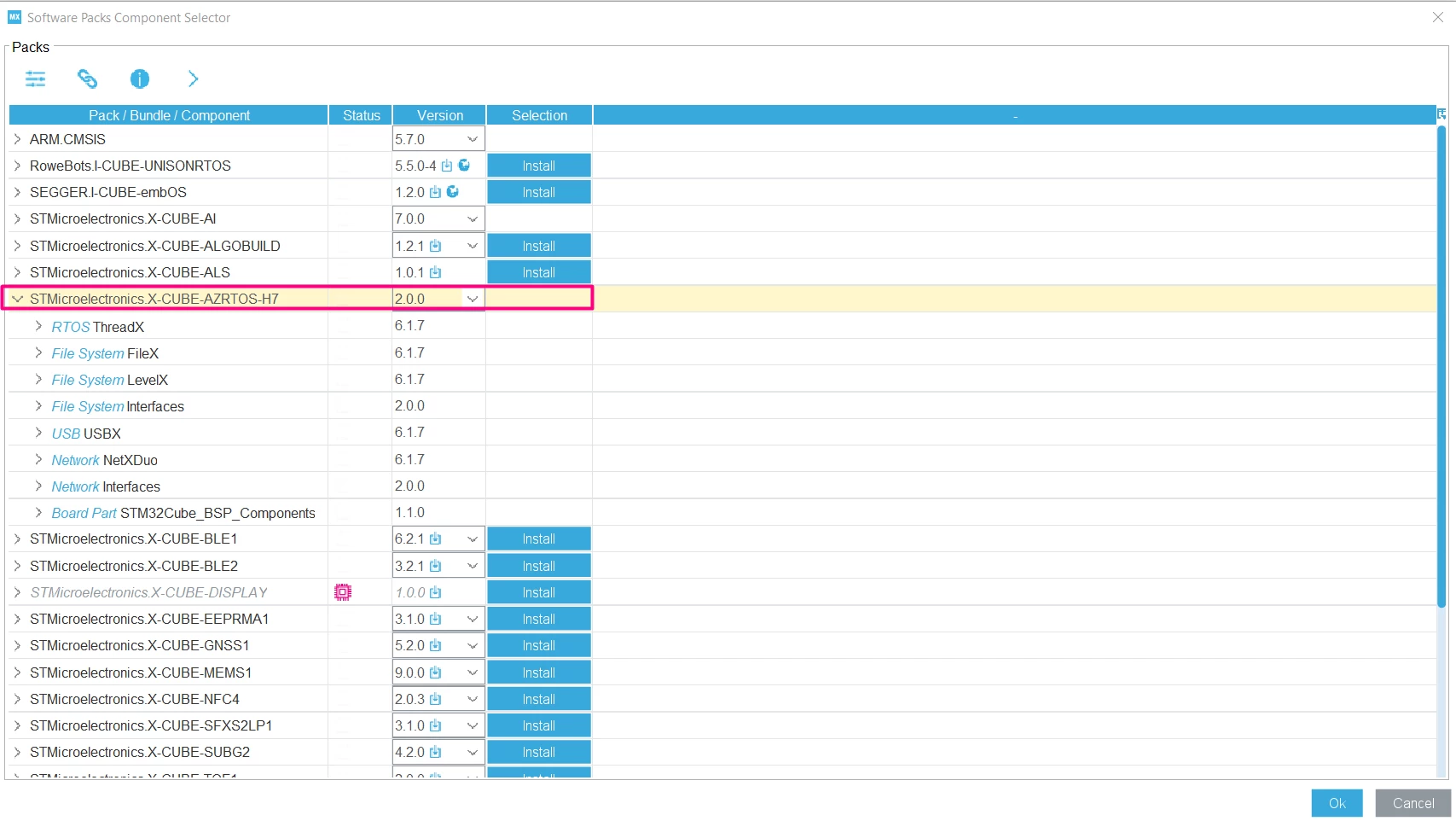
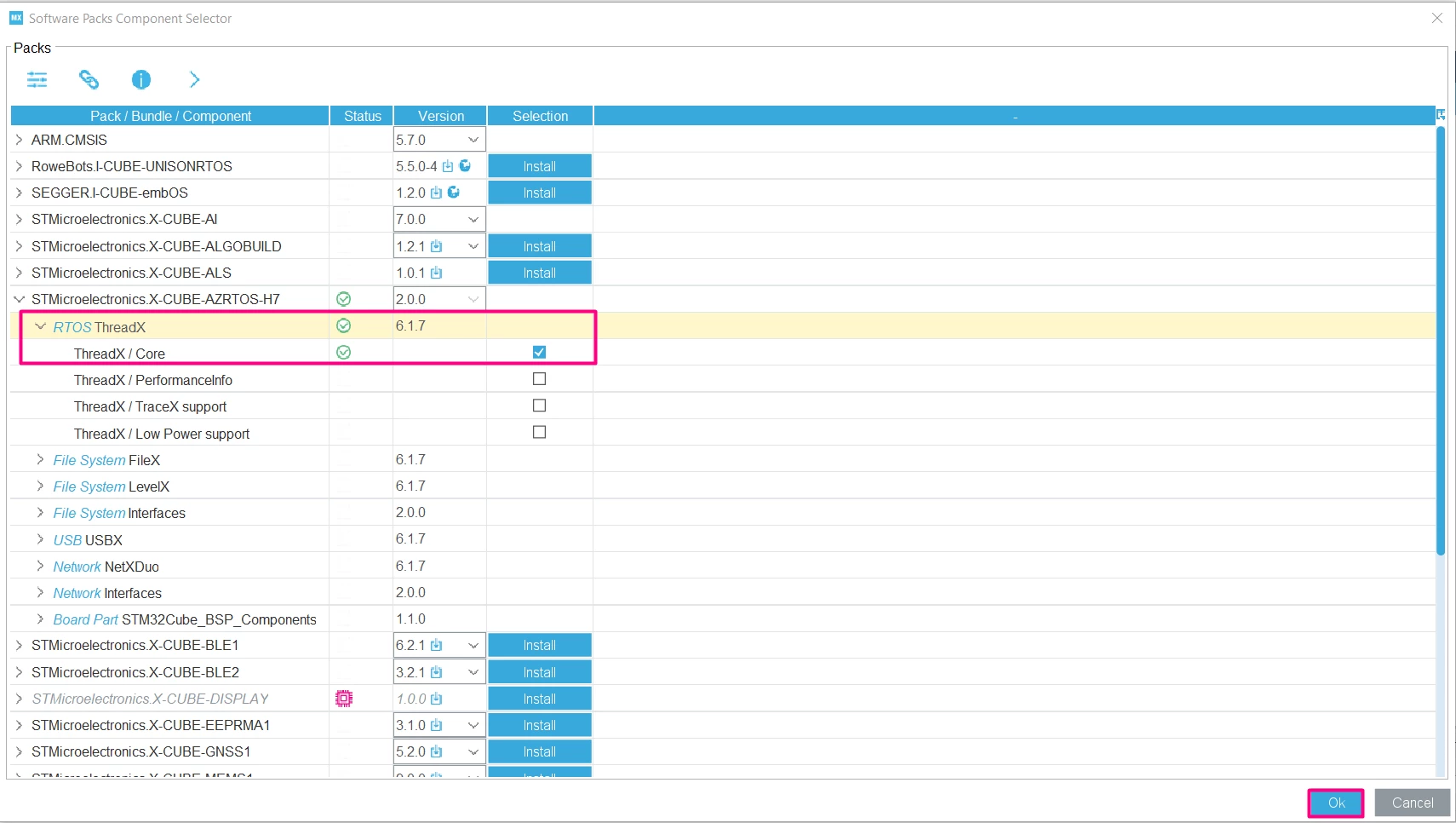
- Open the RTOS ThreadX and check the Core box and click OK
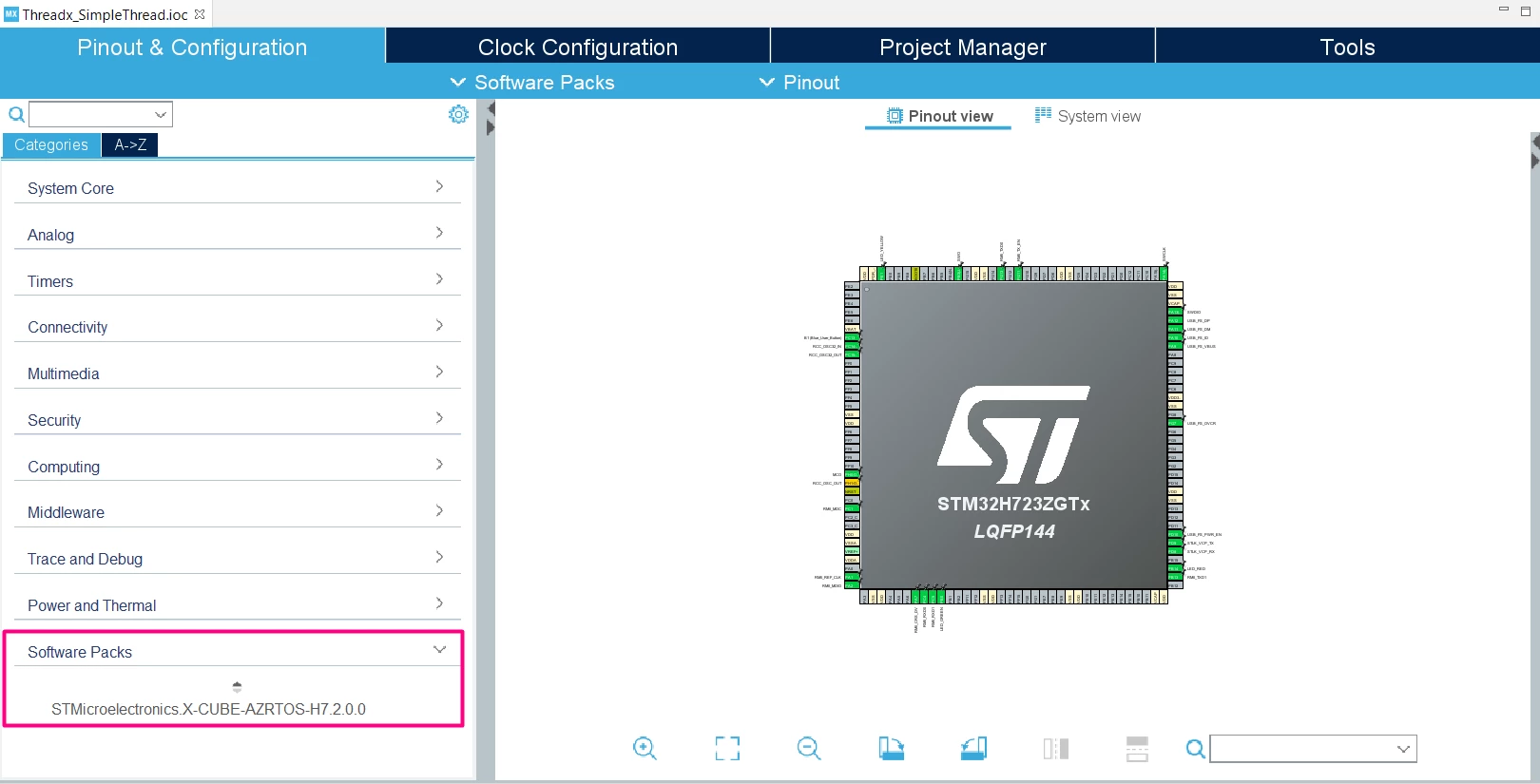
- This will add the Software Pack in the lower part of the Categories:
- Now, by clicking on it, you can add the RTOS ThreadX box, this will show the configuration options for the AzureRTOS application
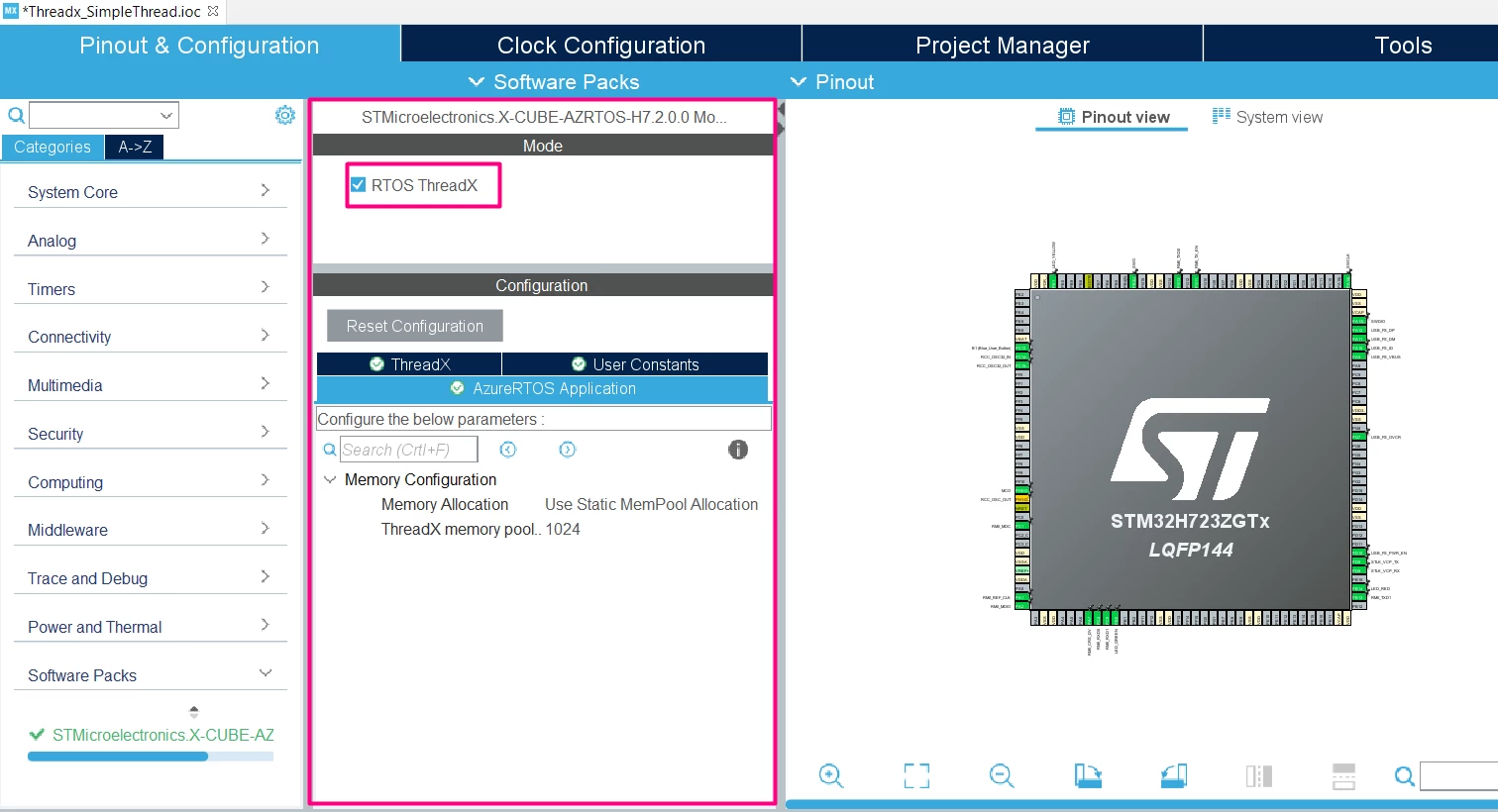
- As this demo is just meant to blink an LED, the default settings are all set, but we do need to do one other modification. By default, the HAL driver will use the Systick as its primary time base, but this timer should be left to the AzureRTOS only.
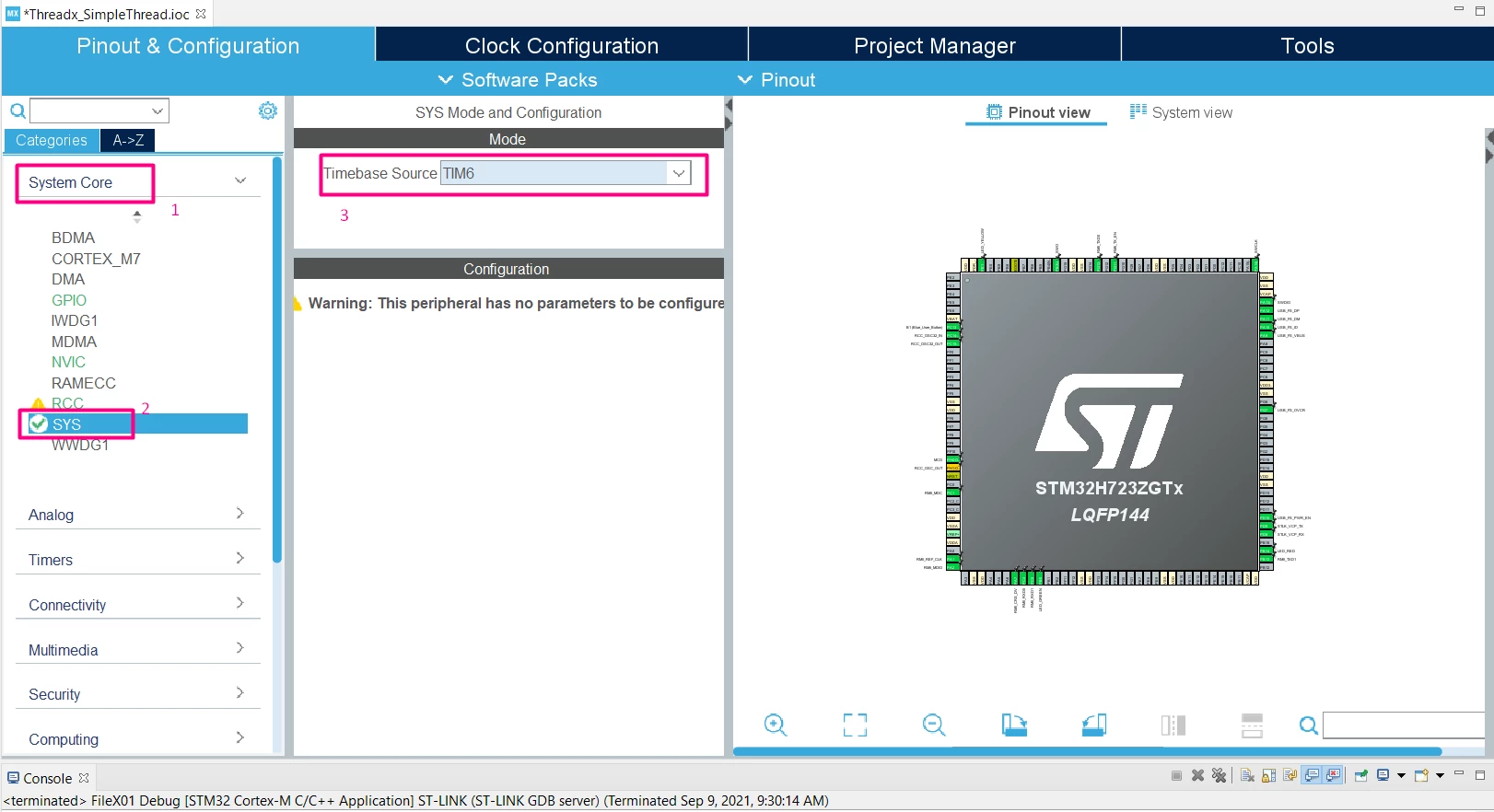
If the HAL library doesn’t have a separate time source, the compilation will fail because both libraries want to use the SysTick_Handler interrupt. To prevent this, we can simply select a different timebase for the HAL by clicking in the System Core/SYS and selecting the time base Source as TIM6:
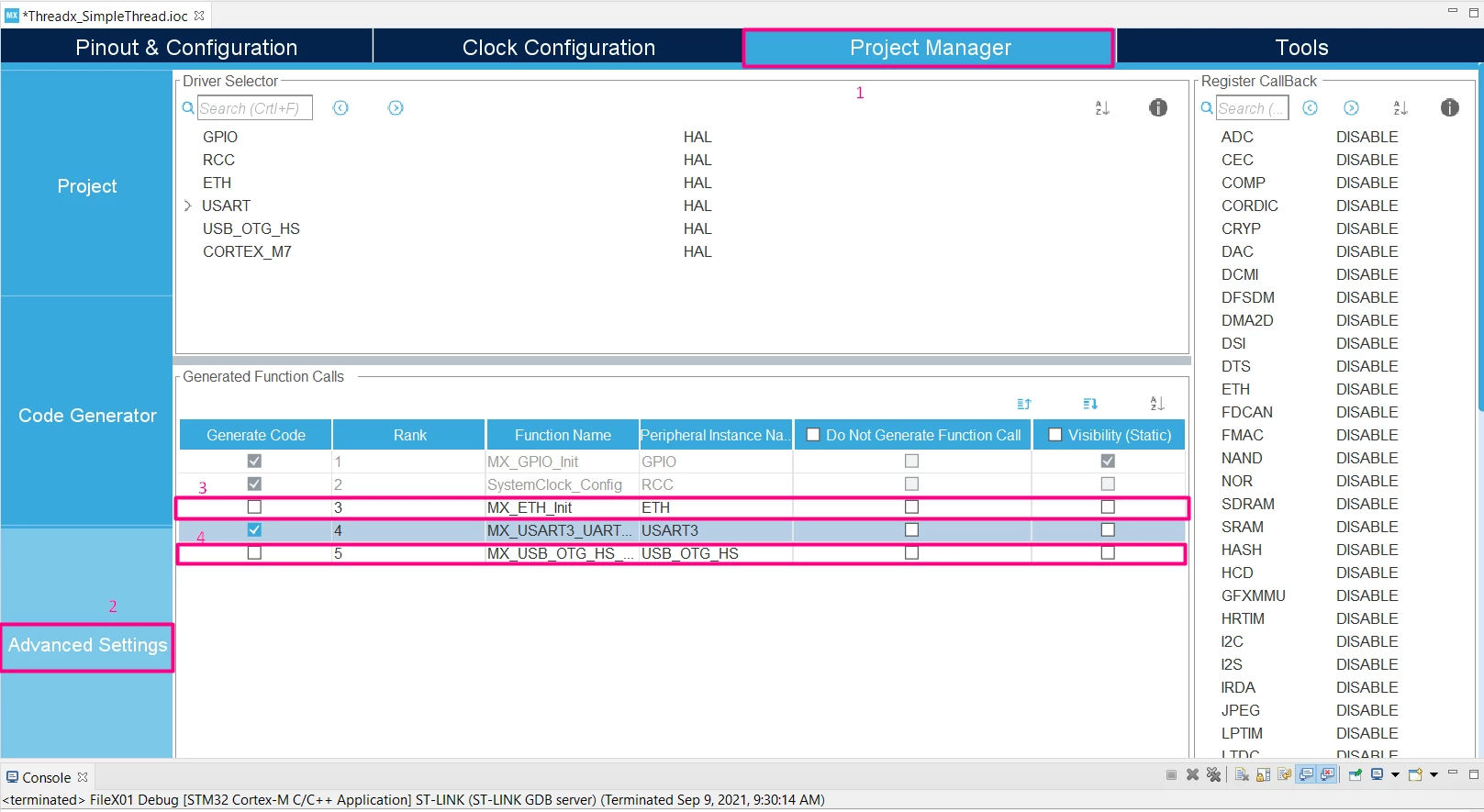
- One final modification, to prevent generating too much unused code, we can decide to not create the functions for USB and Ethernet, as they were natively added when we created the design based on the board, this can be done by removing the Generate Code for them:
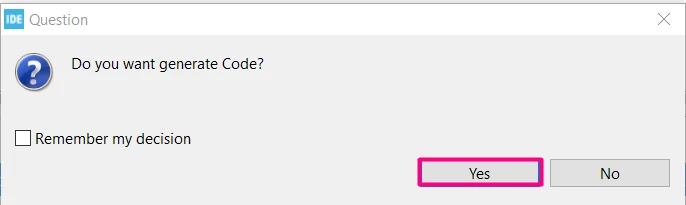
- All set, we can press Alt+K to generate the code and Ctrl+S to save it:
The project now has a new set of folders:
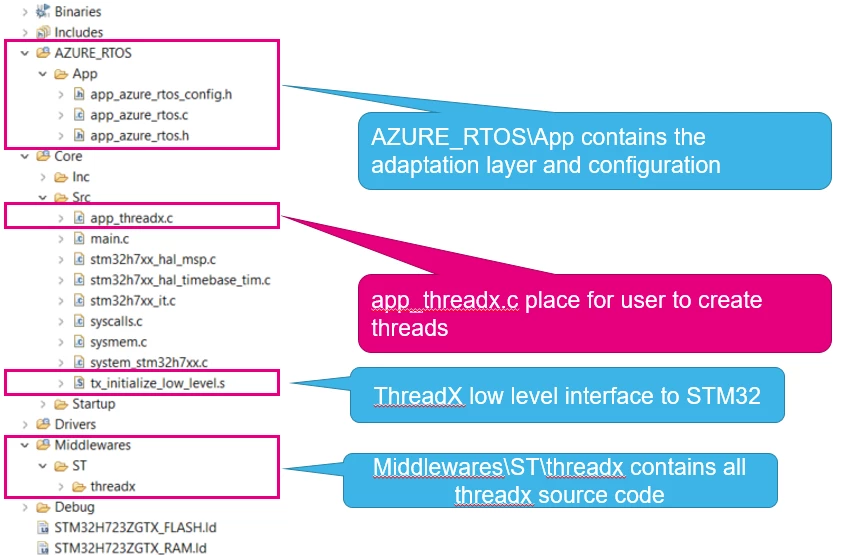
This is a detail on the code structure:
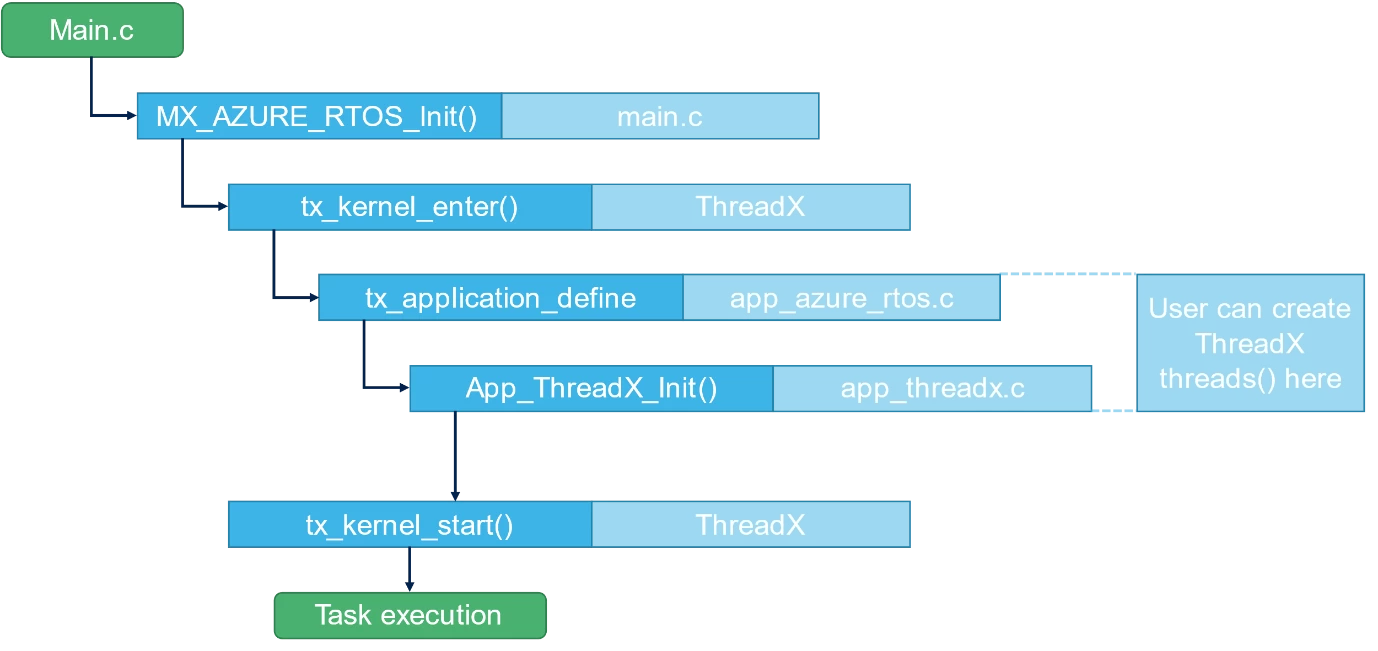
This is a detail on the code structure:
- The last part is to create the first thread:
- Open Core\Src \app_threadx.c and start adding the code at around line 37, use the comments to find the proper place for the following code:
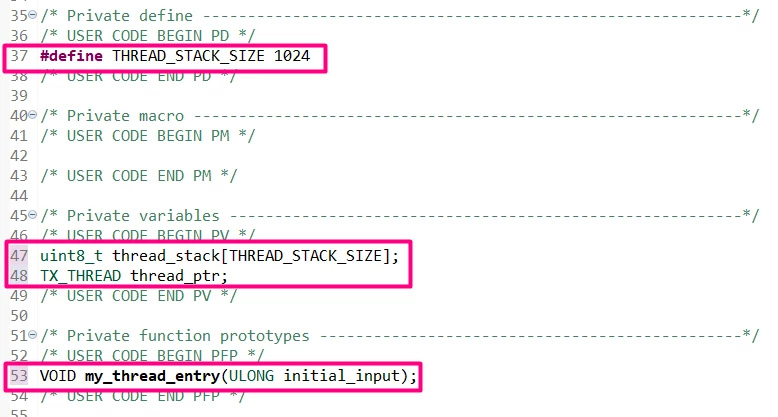
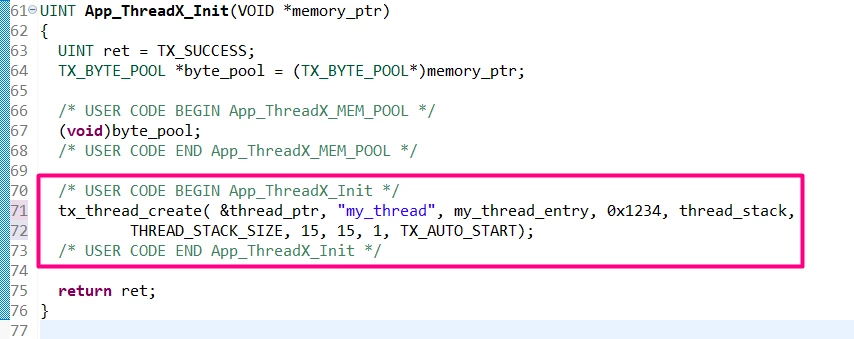
- After the stack is allocated, we can create the thread inside the function App_ThreadX_Init:
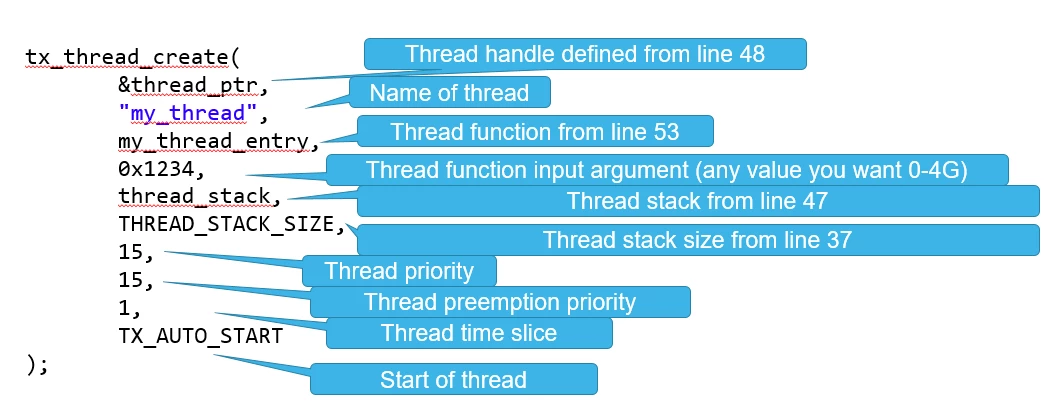
Some notes on what we just added:
- Create the thread’s main function
First, as we want access to LED definitions, we need to include main.h, still in the same app_threadx.c file:

And finally our thread:
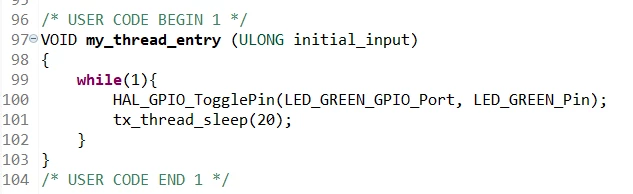
It might not have been clear up until this point, but the default time base is 10ms, so by having the tx_thread_sleep(20) will actually wait for 200ms
And finally our thread:
It might not have been clear up until this point, but the default time base is 10ms, so by having the tx_thread_sleep(20) will actually wait for 200ms
- From this point, press Ctrl+B to build and you should see 0 errors and 0 warnings.
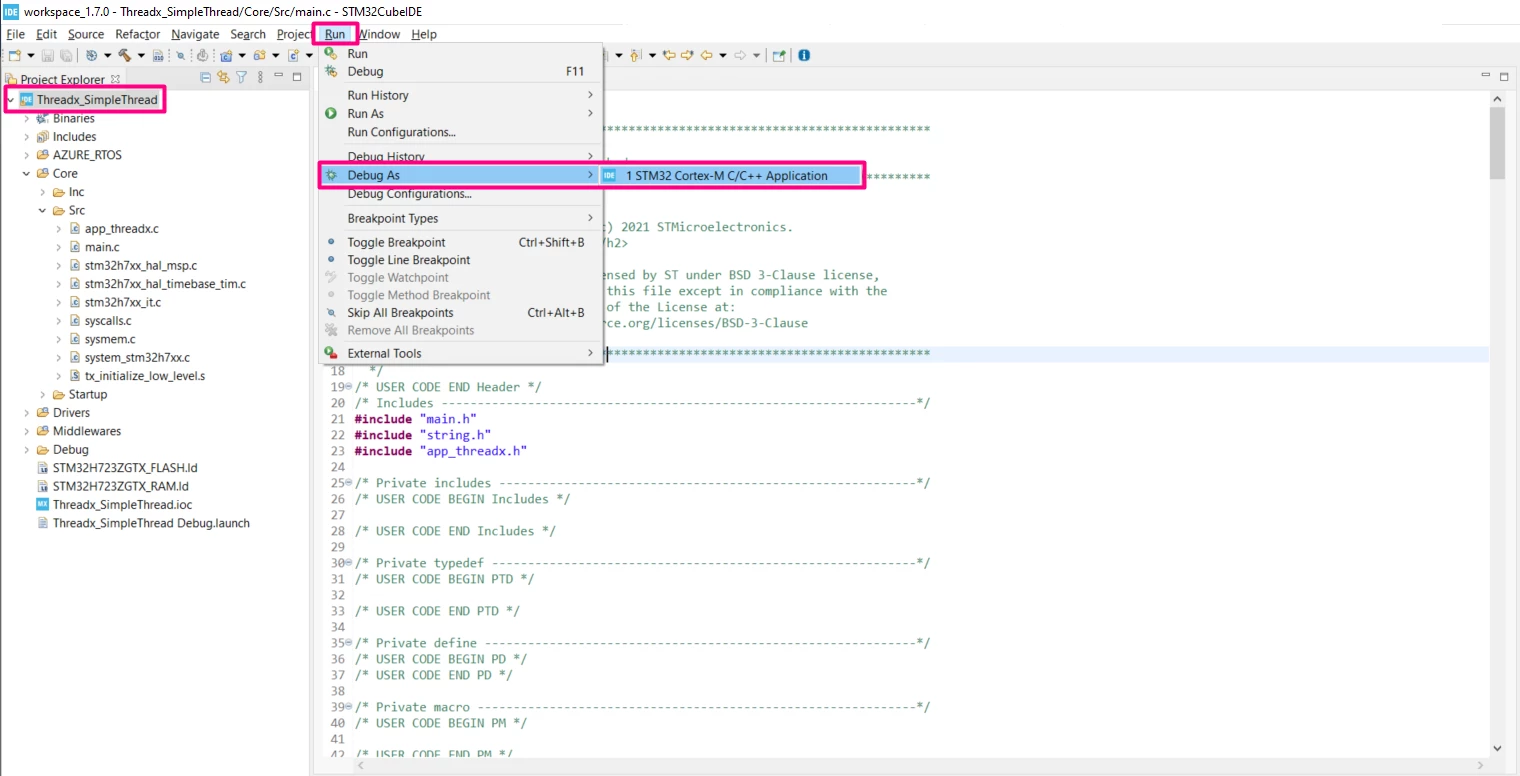
- Connect the board to the computer and enter in debug mode by first clicking in the project name, then menu Run/Debug As/STM32:
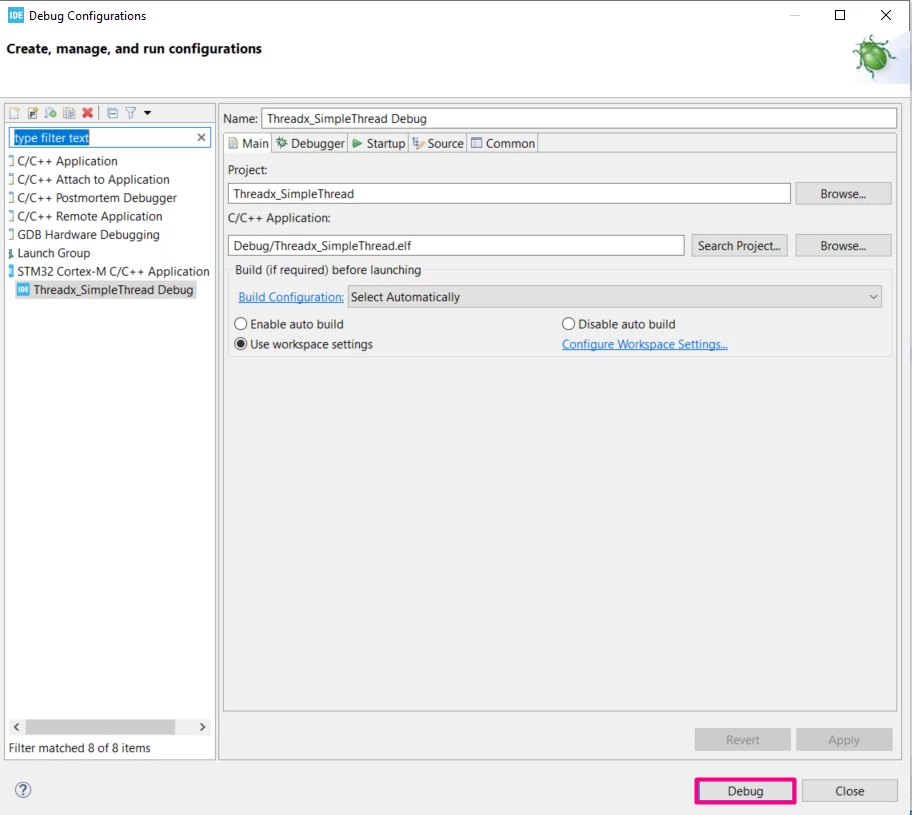
In Edit Configuration window, click Debug:
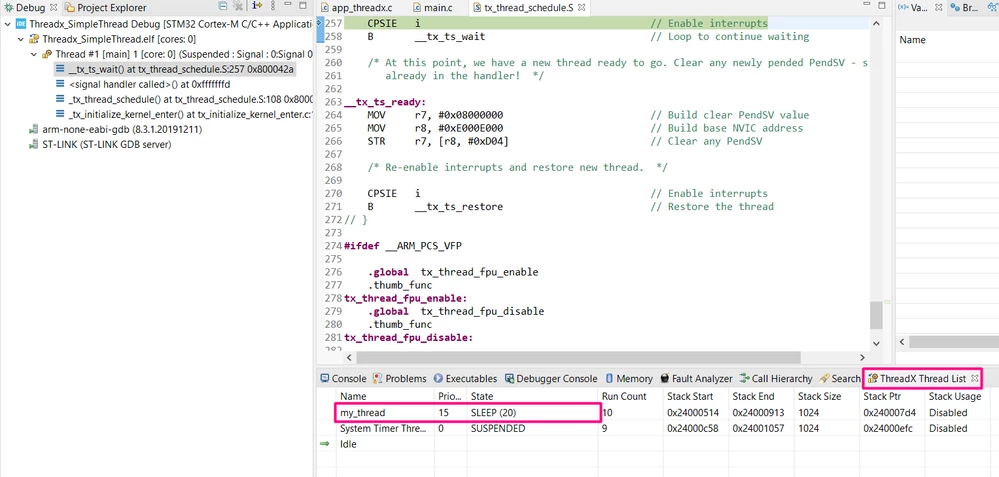
- Once in the Debug perspective, hit play to enjoy your blinking LED with ThreadX. You can also use the Window/Show View/ThreadX/ThreadX Thread List
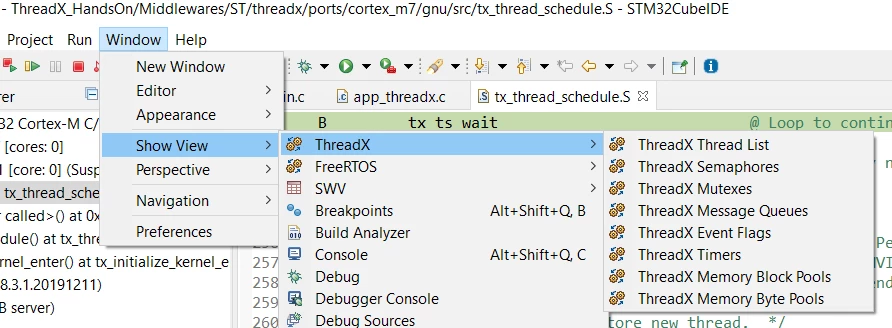
To enhance the overall debugging options (the thread list will be automatically loaded once the application runs for a bit and is paused):
- Useful links:
- STM32CubeIDE: https://www.st.com/en/development-tools/stm32cubeide.html
- NUCLEO-H723ZG: https://www.st.com/en/evaluation-tools/nucleo-h723zg.html
- ThreadX user guide https://docs.microsoft.com/en-us/azure/rtos/threadx/about-this-guide
- ThreadX api description https://docs.microsoft.com/en-us/azure/rtos/threadx/chapter4
- Github: https://github.com/STMicroelectronics/x-cube-azrtos-h7
- Wiki: https://wiki.st.com/stm32mcu/wiki/STM32CoreMW_overview
- Conclusion:
Adding ThreadX application to a bare metal project consists in:
-
- Adding the ThreadX component in STM32CubeMX/STM32CubeIDE
- Adapt ThreadX configuration in STM32CubeMX/ STM32CubeIDE
- Generate the code from STM32CubeMX/ STM32CubeIDE
- This will update the project structure with all needed files
- Use ThreadX API to create ThreadX components thread, mutex, etc
