

Visitor II
August 4, 2023
Question

Why can't I see the include directories in STM32CubeIDE 1.13.0?

When I open projects from STM32CubeH5 in the IDE, all the include directories and header files are not shown in the workspace. Compiling succeeds, so the paths are correctly set in the project settings. However, there is obviously somewhere a filter setting or similar that makes the include directories invisible. Does anybody knows how to make them visible again?
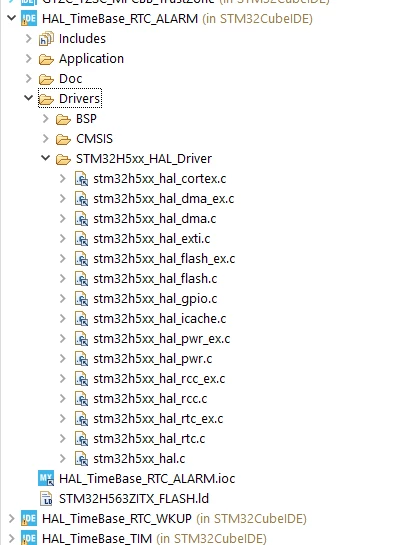
 

stm32cubeide_no_inc_folders.PNG


    This topic has been closed for replies.

    7 replies

    Stassen.C
    ST Employee
    August 4, 2023

    Hello Rooney,

    It has been done this way to improve the user experience. You can always find your .h file in the outline subwindow.

    For example in your main.c, you will find a tab Outline on the GUI of STM32CubeIDE (usually on the top right). Alternatively you can open this window by Window > Show View > Outline

    StassenC_0-1691142264652.png

    You just need to double click the main.h to open it.

    I hope this helps.

    Regards,

    Stassen

    To give better visibility on the answered topics, please click on Accept as Solution on the reply which solved your issue or answered your question.
    TDK
    August 4, 2023

    @Stassen.C Are you saying that if I upgrade to v13.0, I will no longer see include directories in the Project Explorer?

    "If you feel a post has answered your question, please click ""Accept as Solution""."
    Pavel A.
    August 4, 2023

    Three lines above "Drivers" you see "includes". There are all your include directories. This is how Eclipse CDT designers made it.

    TDK
    August 4, 2023

    @Pavel A. I can see include directories in my Project Explorer, outside of the general "Includes" folder. Can you not? There has to be a setting or configuration somewhere that would explain the difference. Google isn't helping here, but there are common complaints similar to the poster.

    TDK_1-1691160842195.png


    "If you feel a post has answered your question, please click ""Accept as Solution""."
    Pavel A.
    August 4, 2023

    @TDK Eclipse CDT is very flexible. You can just put the files and sub-dirs around the project dir, press F5 and let Eclipse find everything. Or you can add source dirs in the project, define filters, or add linked resources and "virtual directories"... The project tree will look differently. IMHO it is important to stay cool and resist distraction. The Eclipse folks have their own agenda, we should stay focused on our projects. Not that we should not report apparent bugs... 

    TDK
    August 4, 2023

    Agreed. Just think it's weird that the behavior is different here. I don't remember configuring anything different in my project.

    "If you feel a post has answered your question, please click ""Accept as Solution""."
    bb1
    Explorer
    August 8, 2023

    There are at least two locations where filters could be applied:

    1. At the project explorer level:
      bb1_0-1691519975972.png
    2. At the project/folder level: right click > Properties > Resource > Resource Filters