

Senior
March 19, 2024
Solved

Installing X-CUBE-TCPP v4.0.0 in STM32CubeIDE

I have installed the example USB-C projects using the General/Import Projects from Folder or Archive option targeting the NUCELO-G474RE:

DRP1M1_DRP

SNK1M1_Sink

SNK1M1_Source

What do I need to do to make these regular STM32 projects such that the Build All, Build Project and Clean options are available (currently they are greyed out)?



    This topic has been closed for replies.
    STTwo-32
    STTwo-32Best answer
    ST Technical Moderator
    March 19, 2024

    Hello @alw and welcome to the ST Community :smiling_face_with_smiling_eyes:.

    I suggest you to follow those steps:

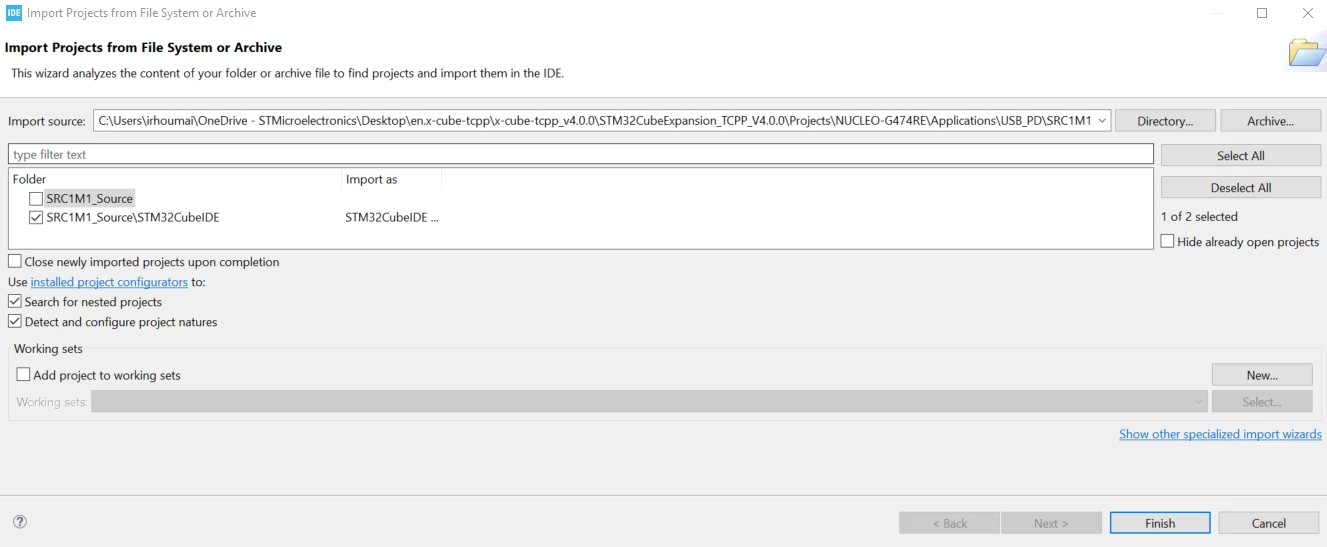
    • Select File-> Open Projects From File System...
    • On the import Source: select the Source of your project  (for example : "Desktop\en.x-cube-tcpp\x-cube-tcpp_v4.0.0\STM32CubeExpansion_TCPP_V4.0.0\Projects\NUCLEO-G474RE\Applications\USB_PD\SRC1M1_Source").
    • Select Just the STM32CubeIDE project as shown here:

    STTwo32_0-1710832460934.png

    • Click on Finish.
    • The Project is generated, you can Now compile it.

    Best Regards.

    STTwo-32


    To give better visibility on the answered topics, please click on Accept as Solution on the reply which solved your issue or answered your question.

    2 replies

    STTwo-32
    STTwo-32Best answer
    ST Technical Moderator
    March 19, 2024

    Hello @alw and welcome to the ST Community :smiling_face_with_smiling_eyes:.

    I suggest you to follow those steps:

    • Select File-> Open Projects From File System...
    • On the import Source: select the Source of your project  (for example : "Desktop\en.x-cube-tcpp\x-cube-tcpp_v4.0.0\STM32CubeExpansion_TCPP_V4.0.0\Projects\NUCLEO-G474RE\Applications\USB_PD\SRC1M1_Source").
    • Select Just the STM32CubeIDE project as shown here:

    STTwo32_0-1710832460934.png

    • Click on Finish.
    • The Project is generated, you can Now compile it.

    Best Regards.

    STTwo-32


    To give better visibility on the answered topics, please click on Accept as Solution on the reply which solved your issue or answered your question.
    alwAuthor
    Senior
    March 19, 2024

    Thanks very much, it all works ok now