

Visitor
August 9, 2026
Solved

Build button is gray no matter what I do

  • August 9, 2026
  • 15 replies
  • 115 views

I bought an stm32f103c8t6 recently, and just wanted to write a simple test C/C++ program for it. It has been 3 days - I have tried multiple combinations of cubemx and cubeide versions and everytime there is the same issue - it just doesn’t let me build the imported project. On this site I found a similiar question on this topic and people said that the problem is caused by system username containing non-english characters. I changed my windows profile name to contain only english characters and the problem persists.

I am a bit lost

Here is a photo of my project, just generated by MX.
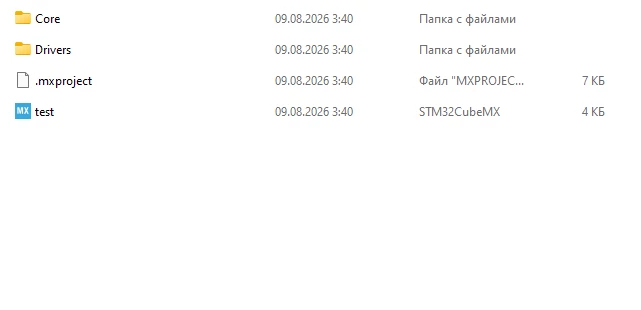
 

inside the project folder

And here is how it looks after i open it in the IDE
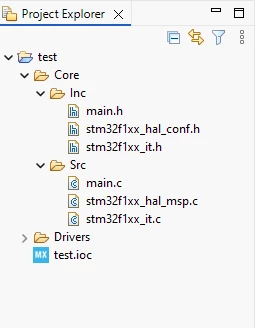


I have tried to manually set the nature to C/C++ but it doesnt solve the issue at all. it just make a small “C” appear over only the upper folder.

Best answer by Richard Li

Your problem most like FW package issue.


15 replies

Richard Li
Senior
August 9, 2026

When you create new project for CUBEMX, first thing is select toolchain for STM32IDE, 

When I forgot this, even change it later, still got trouble.

So first select  toolchain for STMCUBEIDE.

I hope this can help you.


V_G_Author
Visitor
August 9, 2026

Thank you for trying to help, but as I said it’s been days - therefore I studied cubemx and cubeide enough to try every obvious solution, including the one you offered. I also tryed to switch the “generate under root option”. Everytime I failed I relaunched everything, deleted the project, created a new one and tried different settings in cubemx. Honestly I think the problem may be in my system, but I have no idea what it could be. I am using windows 11

MM..1
Super User
August 9, 2026

Hmm in your folder must MX create .project file. Try start from clean. 

  1.  Create empty folder on C: for example test01 = C:\test01  (no spaces or special chars)
  2. Copy ioc file here and open it … generate code after set right Toolchain
  3. close MX and chcek .project file exist 
  4. open IDE (directly no click on .project) remove from workspace previous project or open new empty workspace, leave IDE open 
  5. go back in C:\test01 n explorer or other file manager an double click .project file
  6. IDE report success import project. Then click on project name in Project explorer = BUILD icon enabled or right mouse click and choice build project

And ofcourse you require valid ST login in MX for download repository and PC online...

Visitor
August 9, 2026

One specific detail in your post jumped out at me: changing your Windows account display name in Settings usually does not rename the actual user directory path on your drive (C:\Users\<YourName>).

If your original Windows username had non-English or special characters, that path still contains those characters. STM32CubeIDE (and the underlying GCC toolchain/Eclipse CDT) will silently fail to parse toolchain paths if there are non-ASCII characters or complex accents anywhere in the workspace/project path, which leaves the project uninitialized and keeps the Build button grayed out.

To test if your user path is the culprit, try keeping everything completely away from C:\Users\...:

  1. New Workspace: Launch STM32CubeIDE and set your workspace directory directly to the root of your drive, e.g., C:\STM32_Workspace (no spaces, no special characters).

  2. New Project Location: In CubeMX, set your Project Location directly under C:\ as well, like C:\Projects\f103_test.

  3. Generate & Open: Generate code with Toolchain/IDE set to STM32CubeIDE, then open the project in CubeIDE.

  4. Select Project Root: In the Project Explorer sidebar on the left, click once directly on the root folder of your project to give it focus. (Eclipse will keep the hammer/build icon disabled if the active focus isn't on a valid project root).

If it builds cleanly from C:\Projects\f103_test, then the non-ASCII path inside C:\Users\... was definitely causing the silent failure!

V_G_Author
Visitor
August 9, 2026

Here is how my path looked when I first published my question:


But, just in case, I changed it to this:
​​​


And my path to the project in CubeMX is now C:\STM32_Projects\test_project

I double-checked that the toolchain in mx is set to STM32CubeIDE.

I did exactly what you said, and the problem didn’t go away yet.

Richard Li
Senior
August 9, 2026

I try duplicate your process, in CUBEMX, there one step as attached:


If you didn’t download the FW package, will show:


If you did download, after push “create code” button  , will show:


Then click Open project, windows 11 will open IDE for this project.


Richard Li
Senior
August 9, 2026

Attached MX create test project under :


V_G_Author
Visitor
August 9, 2026

My cubeIDE builds your project just fine, so I think the problem is connected with cubeMX.

About the last screenshot you sent, is this how the project supposed to look when MX creates it before importing to IDE? In my case, ld file, debug folder, .settings, .cproject, .project files are missing. But if i disable “generate under root”,  .settings and .project appear in a folder “stm32cubeide” inside the project folder, which still doesnt solve the issue, even if I move them into the main project folder.

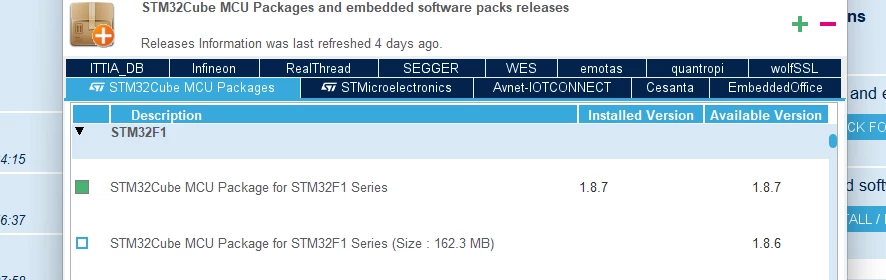
I think my FW 1 8 7 download may be corrupted. Can you send me yours from repository?

Richard Li
Richard LiBest answer
Senior
August 9, 2026

Your problem most like FW package issue.