

Visitor II
July 7, 2025
Solved

failing to connect to the WB55 Nucleo using the STM32CubeMonitor-RF

  • July 7, 2025
  • 2 replies
  • 646 views

Hi, 

I flashed the nucleo-stm32wb55RG with the binary BLE_TransparentMode_reference.hex (location: C:\ST\STM32CubeWB_package\STM32CubeWB\Projects\P-NUCLEO-WB55.Nucleo\Applications\BLE\BLE_TransparentMode\Binary) using the STM32CubreProgrammer (version 2.20.0). I followed the instructions of UM2288 Rev 19, section 2 (connection to target). But in STM32cubemonitor-rf, when I click 'connect' button, I get a pop-up message: 'Device under test not responding COM port closed'.

Before flashing BLE_TransparentMode_reference.hex, I installed stm32wb5x_FUS_fw.bin and stm32wb5x_BLE_Stack_full_extended_fw.bin using the STM32CubreProgrammer. Here is the screenshot showing the FUS and stack versions:
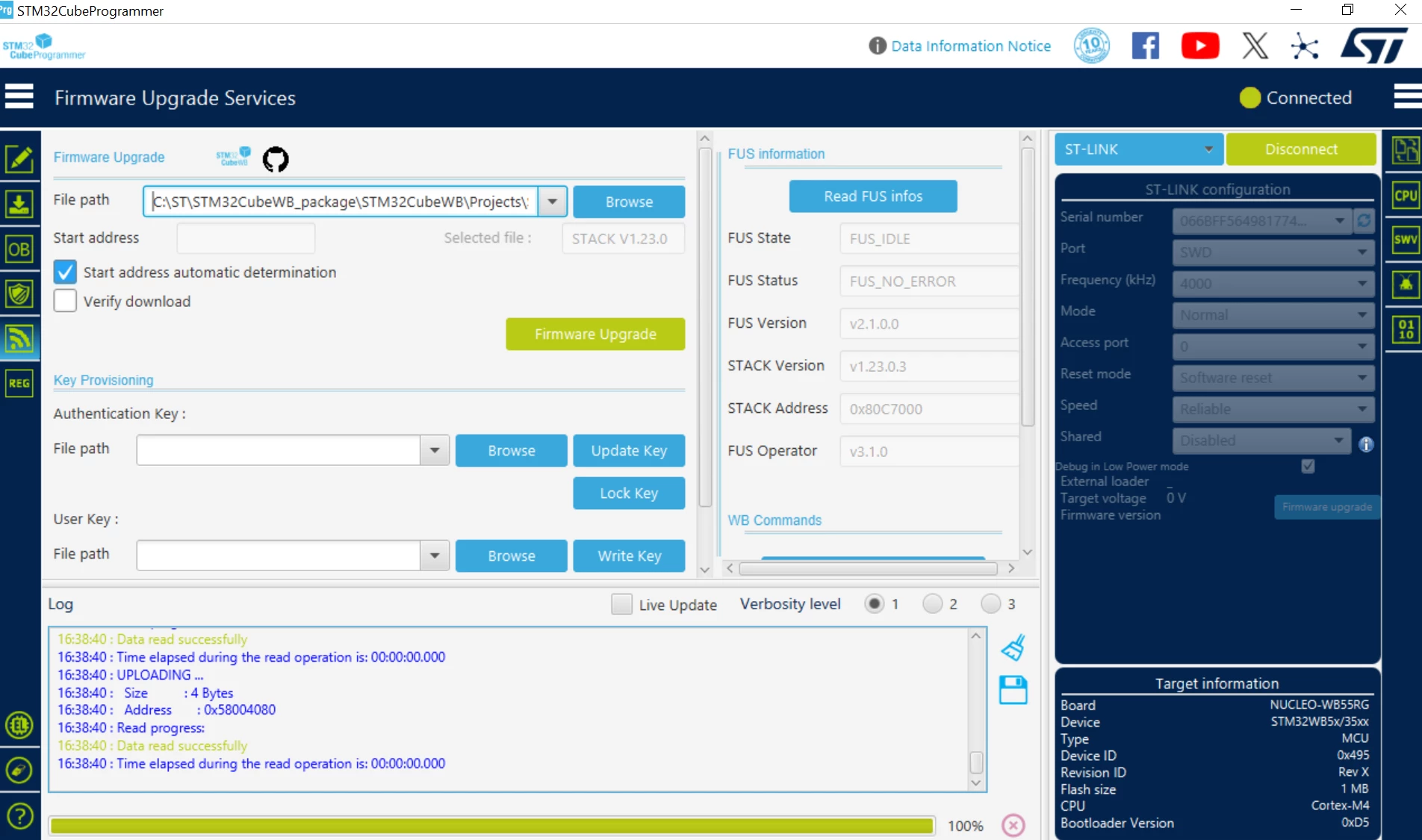
fmunoz_0-1751920825596.png

The device manager shows COM3 for the nucleo-wb55:
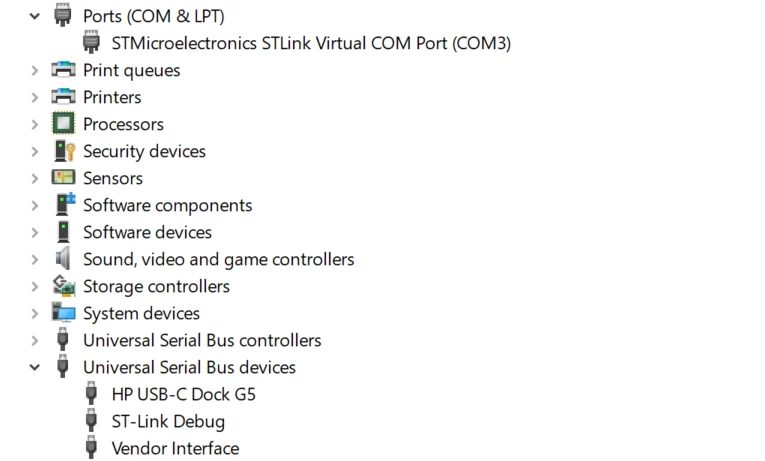
fmunoz_1-1751920934033.png

However, I am not able to connect to the nucleo using the cube monitor-rf tool as shown below:
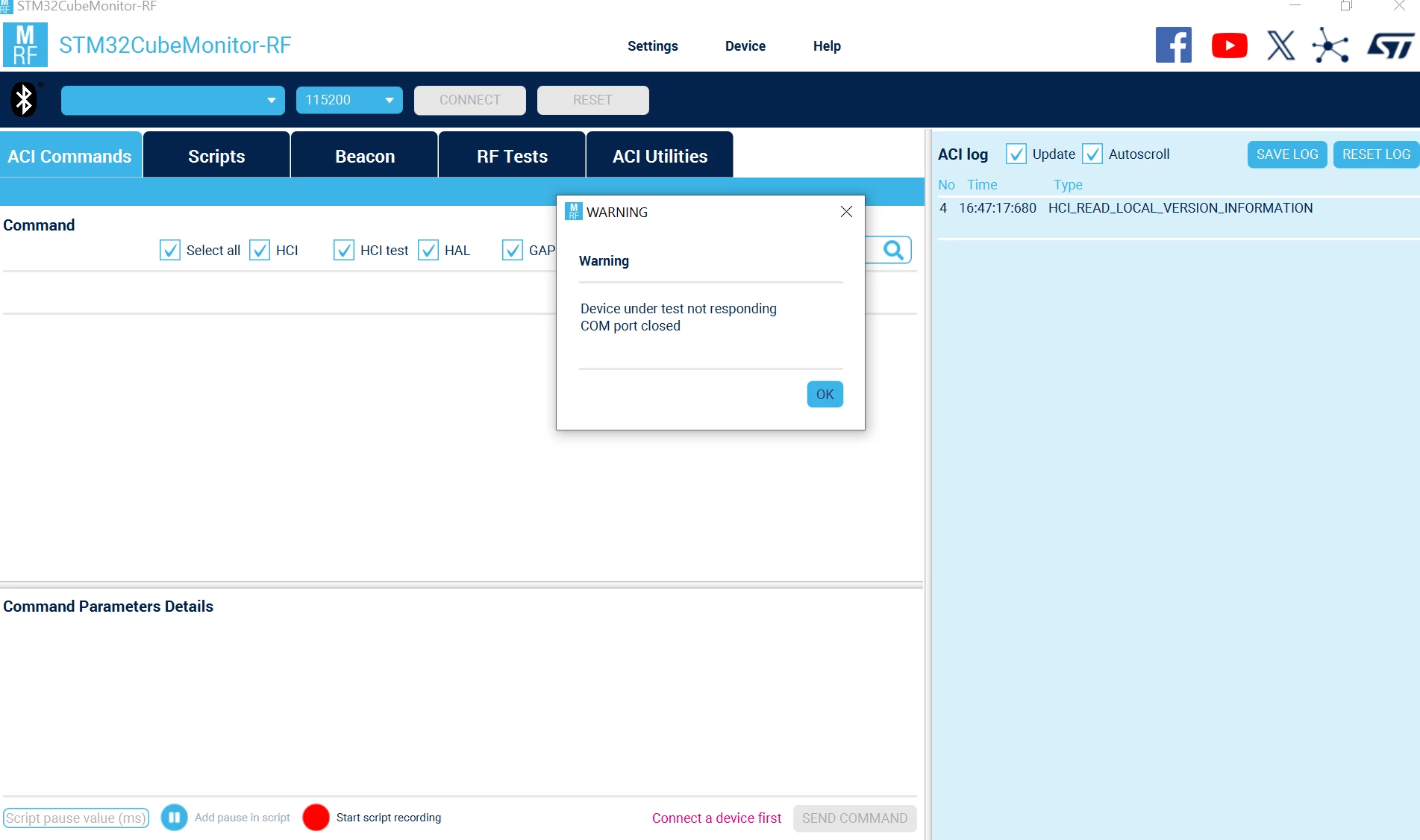
 

fmunoz_2-1751921338539.png


 Can you please provide further guidance to fix this issue? 

Thank you 

Best answer by STTwo-32

Hello @fmunoz 

Could you please try to:

  • Connect the board to the STM32Cube programmer V2.20.0.
  • Click on the button ‘Read FUS infos’.
  • Click on the button ‘Start Wireless Stack’.
  • Open the BLE_Transparent mode example From the STM32CubeWB V1.23.0 using the STM32CubeIDE V1.19.0.
  • Compile and upload the code to your Board.
  • Open the STM32CubeMONITOR-RF V2.18.0. 
  • Set the correct COM port and set 115200 as baudrate.
  • Click on Connect button.

That should work.
Best Regards.

STTwo-32

2 replies

STTwo-32
STTwo-32Best answer
Technical Moderator
July 8, 2025

Hello @fmunoz 

Could you please try to:

  • Connect the board to the STM32Cube programmer V2.20.0.
  • Click on the button ‘Read FUS infos’.
  • Click on the button ‘Start Wireless Stack’.
  • Open the BLE_Transparent mode example From the STM32CubeWB V1.23.0 using the STM32CubeIDE V1.19.0.
  • Compile and upload the code to your Board.
  • Open the STM32CubeMONITOR-RF V2.18.0. 
  • Set the correct COM port and set 115200 as baudrate.
  • Click on Connect button.

That should work.
Best Regards.

STTwo-32

To give better visibility on the answered topics, please click on Accept as Solution on the reply which solved your issue or answered your question.
Billy OWEN
ST Employee
July 10, 2025

Hi @fmunoz 


This post has been escalated to the ST Online Support Team for additional assistance.  We'll contact you directly.


Regards,

Billy