

PGarg.1
Associate II
March 29, 2022
Solved

Can't generate code succesfully with CubeMx

  • March 29, 2022
  • 3 replies
  • 2051 views

Im' following this tutorial of STM32WB55: https://www.youtube.com/watch?v=CKYWy7LKL68&list=PLnMKNibPkDnG9JRe2fbOOpVpWY7E4WbJ-&index=19&ab_channel=STMicroelectronics

All is fine until I try to generate code. It gets stuck at the moment of "Copying libraries files...".
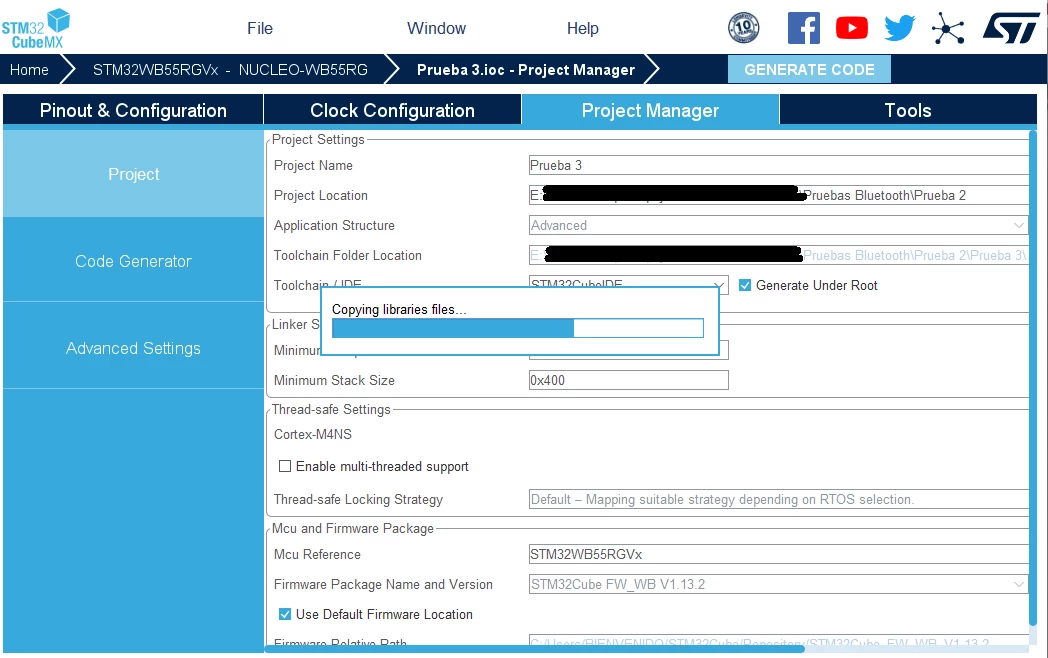
0693W00000Lw9YWQAZ.pngWhat I have tried is not to generate code Under Root. But the problem after doing this is that I can't compile the project. And returns to me 9 errors, all of them sayng that one of the files has "Invalid arguments".
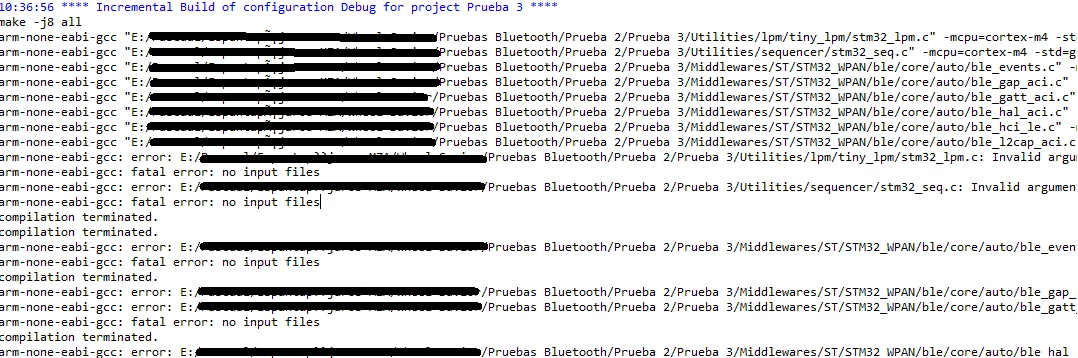
0693W00000Lw9WaQAJ.pngIs this a problem of CubeMX? I have tried it with the same versions that the tutorial use:

-Cubeide 1.7

-CubeMx 6.3

-STM32Cube_FW_WB_V1.12.0

And I also tried it with all the latest versions

-Cubeide 1.9

-CubeMx 6.5

-STM32Cube_FW_WB_V1.13.2

And I always have the same results.

This topic has been closed for replies.
Best answer by TDK

Perhaps try using a directory without spaces or non-ascii characters.

3 replies

TDK
TDKBest answer
Super User
March 29, 2022

Perhaps try using a directory without spaces or non-ascii characters.

"If you feel a post has answered your question, please click ""Accept as Solution""."
PGarg.1
PGarg.1Author
Associate II
March 29, 2022

Thanks TKD!!! I've been many days with this and you solutionated it in two seconds. I put the project in this directory and worked: E:\Prueba_BLE

Paul1
Senior III
March 29, 2022

May I suggest:

  1. Uninstall the ST Tools (MX, IDE, Libs)
  2. Do a full reboot.
  3. Reinstall with defaults (Tools installed under C:)
  4. When creating first project use default paths
  5. Test that this works
  6. Future projects you can change the path, including putting projects under a path on E:, generated code will go in here.
  7. When you got it all working, then you can mess with things one at a time so you know what breaks it.

My projects are under D:, but all the tools are installed under default paths usually on C:. This also makes automatic updating of the tools easier. Found this to be easiest with many tools, lots of tools are built with libraries or options that just aren't friendly to changing drives/paths.

It also makes backups easier: only need to update my work on D:, not the installed packages on C:

Paul

PGarg.1
PGarg.1Author
Associate II
March 29, 2022

Thanks for the tips!
