
jchernus-fikst
Senior
February 26, 2025
Solved

Using images with transparency in flex buttons

  • February 26, 2025
  • 4 replies
  • 1771 views

Hey there!

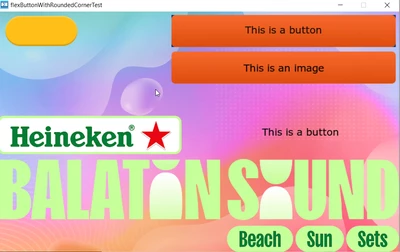
I'm trying to design a TouchGFX GUI using a background image that has some placeholder 'boxes' (that will eventually hold status of things) and custom flex buttons. I'd like these buttons to have rounded edges, so I am using PNGs with transparency around the edges. However, TouchGFX seems to ignore the alpha of 0 and fill that space with blue - see screenshots of the buttons below:
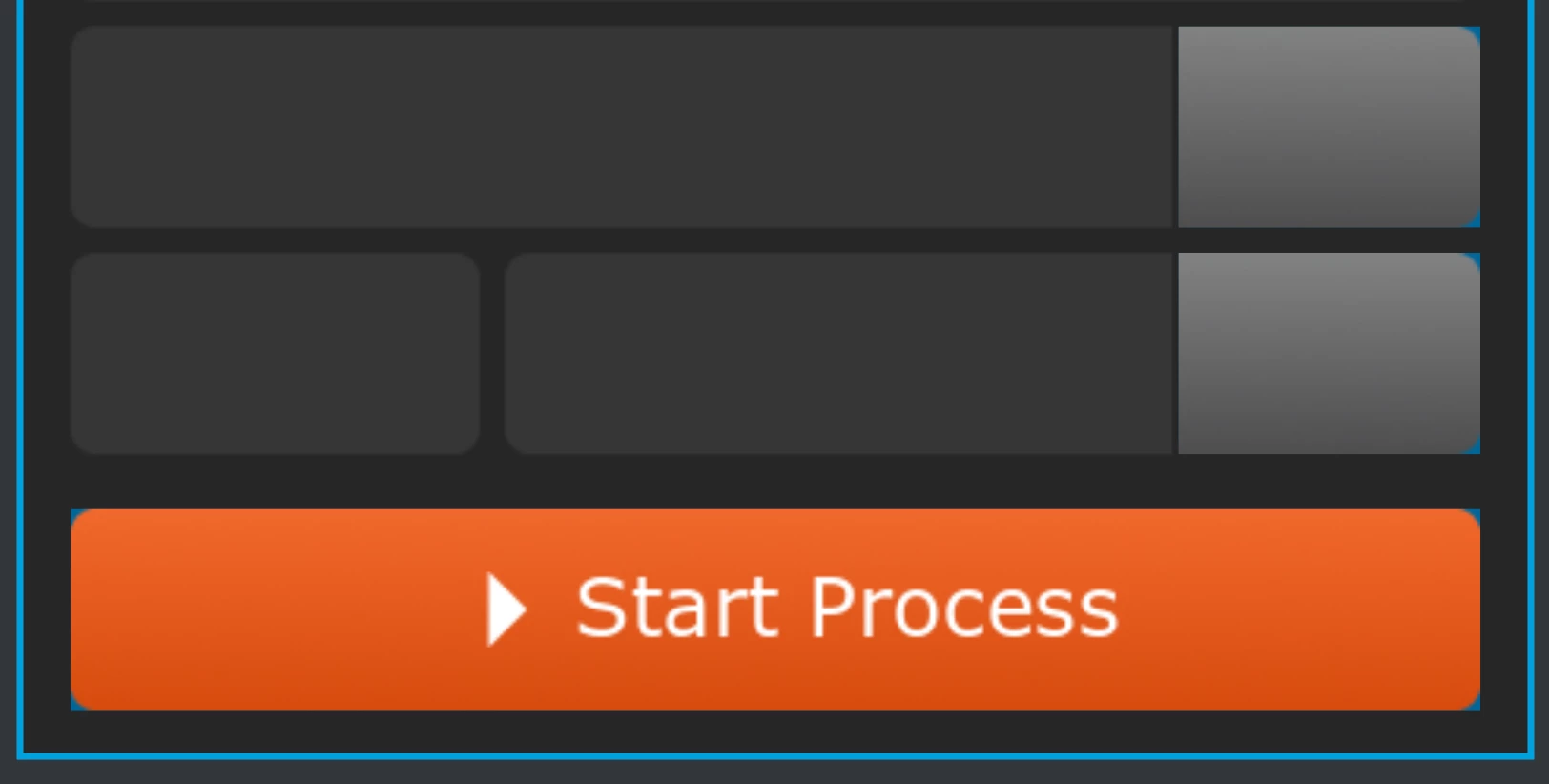
jchernusfikst_0-1740589025720.png

They appear the same way in the simulator. Am I doing something wrong? 

Thanks for your help!


Julia

    This topic has been closed for replies.
    Best answer by GaetanGodart

    Hello @jchernus-fikst ,


    Thank you for providing your project.

    I have looked at it, the fix is very easy.

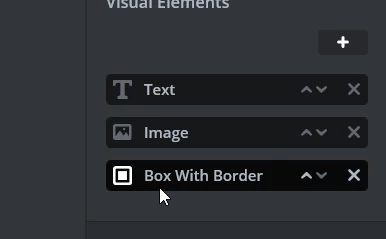
    When a flexbutton is created, by default it will have a blue box as background, you then added your image with transparency (and sometimes a text) but did not remove the blue box :

    GaetanGodart_0-1740734595405.png

    Simply deleting the "Box with border" element fix the issue (here I only did it to the Heineken image):

    GaetanGodart_1-1740734641846.png


    Regards,

    4 replies

    GaetanGodart
    ST Employee
    February 27, 2025

    Hello @jchernus-fikst and welcome to the community!


    Unfortunately, I am not able to reproduce the error.
    For me it displays correctly both on the simulator and on the board :

    GaetanGodart_0-1740649885292.png

    Here is what I have done :

    1. add a background image
    2. add a flexbutton
    3. add an image to that flexbutton
    4. select an image with rounded corner and transparency from the TouchGFX Stock
    5. remove the initial box of the flexbutton


    I am using TouchGFX 4.24.2, what about you?

    Can you share a simple project with the error? (or at least the png file so I can test it).

    Find attached my project.


    Regards,

    Gaetan GodartSoftware engineer at ST (TouchGFX)
    jchernus-fikst
    Senior
    February 27, 2025

    Thanks for looking into this, Gaetan! 

    Here are the buttons I was trying to place in the example above:

    Btn_Home_Gray.png

    Btn_Small_Orange.png

    My button behaves the same way in your project. I noticed that your images are generated, where as I'm importing the graphic.


    I've tried importing other transparent graphics I've found online. They all behave the same way - if I add them to TouchGFX as an image, they are transparent as you'd expect. If I add them as an image to a button, they are blue below the transparency - I included this random image to really emphasize the effect:

    jchernusfikst_1-1740671384971.png

    I have included the modified project so you can take a look.

    Thanks,

    Julia

    GaetanGodart
    GaetanGodartBest answer
    ST Employee
    February 28, 2025

    Hello @jchernus-fikst ,


    Thank you for providing your project.

    I have looked at it, the fix is very easy.

    When a flexbutton is created, by default it will have a blue box as background, you then added your image with transparency (and sometimes a text) but did not remove the blue box :

    GaetanGodart_0-1740734595405.png

    Simply deleting the "Box with border" element fix the issue (here I only did it to the Heineken image):

    GaetanGodart_1-1740734641846.png


    Regards,

    Gaetan GodartSoftware engineer at ST (TouchGFX)
    jchernus-fikst
    Senior
    February 28, 2025

    Thanks, yu're right - this worked!

    I actually tried to remove that border as soon as I added the flex button, but it wouldn't let me so I dropped it's size to 0 and hoped that was the equivalent. I see now that after you add another item (image/text/icon), you can delete the border - but that seems like a poor user experience. 

    Appreciate your help!