Junde
Senior III
December 18, 2024
Solved

How to use SVG in TouchGFX?

  • December 18, 2024
  • 4 replies
  • 2622 views

Hi there,

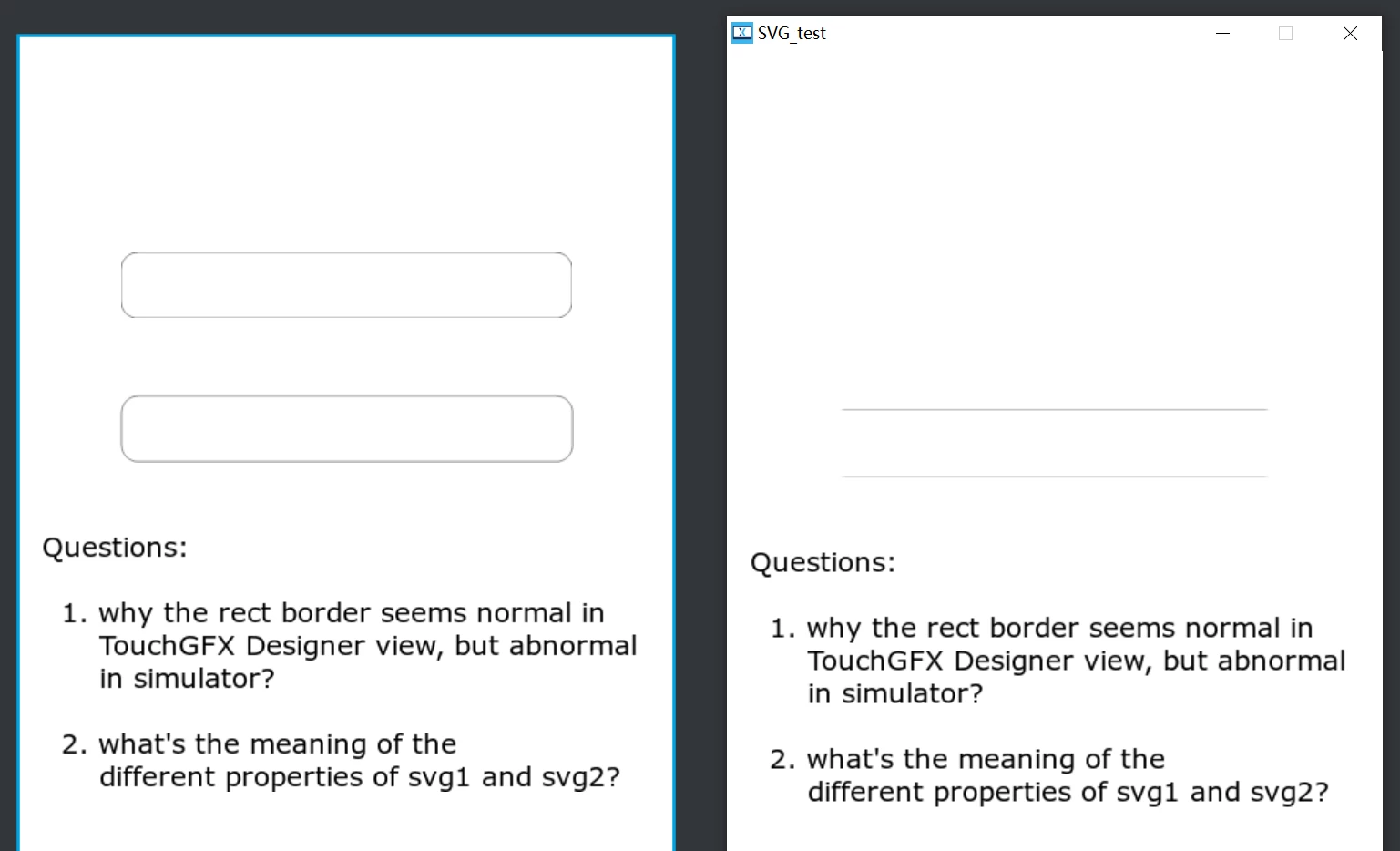
I am trying to use an SVG in my project, but the views between the TouchGFX and the simulator differ.

please refer to the project in the attachment.

Junde_0-1734502333538.png

My questions are on the page:

1. why the rect border seems normal in the TouchGFX Designer view, but abnormal in the simulator?
2. what's the mean of the different properties of svg1 and svg2?

Thanks for your help.


    This topic has been closed for replies.
    Best answer by GaetanGodart


    Hello @Junde ,


    1. why the rect border seems normal in the TouchGFX Designer view, but abnormal in the simulator?


    This is not supposed to happen.
    We will investigate to fix it.


    2. what's the mean of the different properties of svg1 and svg2?

    We made a video about it .
    "Fit to size" will resize the SVG to fit the size of the SVG widget. This allows you to quickly resize the SVG.
    You can also make sure that the SVG image is centered in the SVG widget .
    You can also set the rotation point (rotation center) and the rotation angle.


    After investigating, we found that the issue happens when the display rotation is set to portrait.

    We do not have a quick fix yet but note that it is only the stroke that is not visible, so if you put a background that is of a different color, you will see the shape correctly with the rounded corners.


    Regards,

    4 replies

    GaetanGodart
    GaetanGodartBest answer
    ST Employee
    December 19, 2024


    Hello @Junde ,


    1. why the rect border seems normal in the TouchGFX Designer view, but abnormal in the simulator?


    This is not supposed to happen.
    We will investigate to fix it.


    2. what's the mean of the different properties of svg1 and svg2?

    We made a video about it .
    "Fit to size" will resize the SVG to fit the size of the SVG widget. This allows you to quickly resize the SVG.
    You can also make sure that the SVG image is centered in the SVG widget .
    You can also set the rotation point (rotation center) and the rotation angle.


    After investigating, we found that the issue happens when the display rotation is set to portrait.

    We do not have a quick fix yet but note that it is only the stroke that is not visible, so if you put a background that is of a different color, you will see the shape correctly with the rounded corners.


    Regards,

    Gaetan GodartSoftware engineer at ST (TouchGFX)
    Junde
    JundeAuthor
    Senior III
    December 20, 2024

    Hi @GaetanGodart 

    Thanks for your so detailed reply.

    After some tests, I find:

    1. when I draw a horizontal input box with a border in SVG format, I can see all the borders when I rotate it 90 degrees;

    2. when I draw a vertical input box with a border in SVG format, I can see all the borders without rotation. And abnormal when rotating it 90 degrees...

    That's very strange to me because based on result 1, test 2 might be able to do what I want to do. hahaha...


    GaetanGodart
    ST Employee
    January 7, 2025

    Hello @Junde ,


    We have fixed the issue and the fix will be live in the incoming 4.25.0 release.
    For now, you can prevent the issue by increase the canvas buffer size (check the "Override default buffer size").

    GaetanGodart_0-1736258275475.png


    Regards,

    Gaetan GodartSoftware engineer at ST (TouchGFX)
    Junde
    JundeAuthor
    Senior III
    January 9, 2025

    @GaetanGodart 

    Thank you for the information.

    Good job.