Associate
October 23, 2024
Solved

How could I select the voltage scaling range for the NUCLEO-G432RB MCU

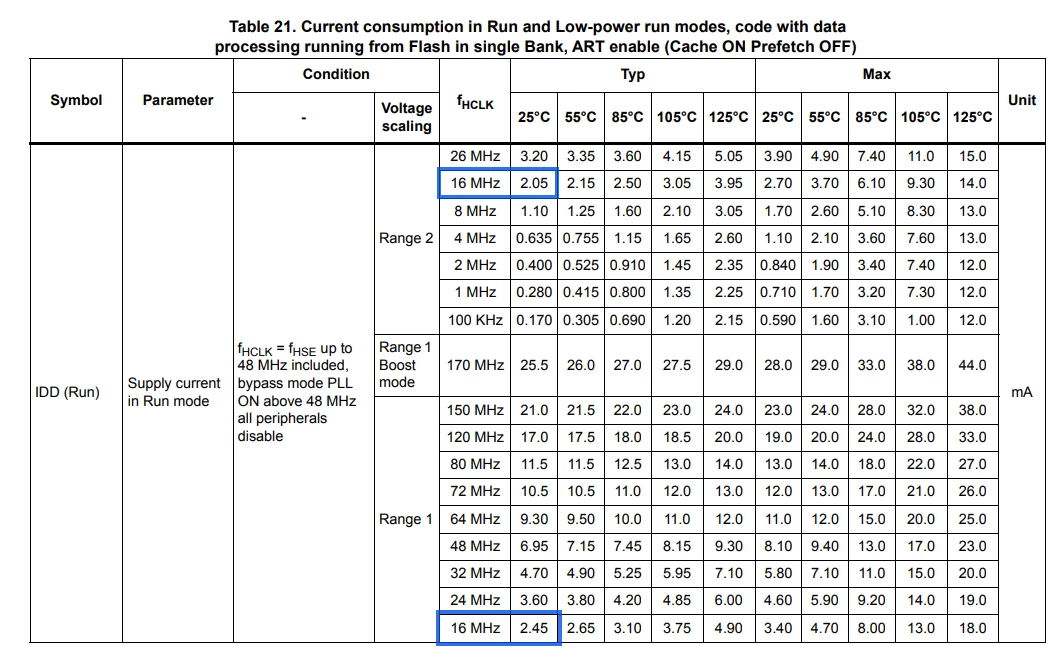
I have the NUCLEO-G432RB, which has the STM32G431RB MCU. The datasheet states that the MCU could operate in different ranges to reduce power consumption. For my application, I need to know how much power the MCU consumes, so connecting a multimeter to JP6 (IDD) allowed me to monitor the current consumption. However, I do not know how to make the MCU operate in different ranges to observe the change in the current consumption. First I thought that selecting the range required selecting the frequency (f HCLK) only. However, there are common frequencies between ranges 1 and 2.
Hussain_0-1729667747553.png

If anyone knows how to handle this issue please inform me.

Note that I am using STM Cube IDE to program the MCU.

This topic has been closed for replies.
STTwo-32
STTwo-32Best answer
ST Technical Moderator
October 23, 2024

Ahlan @Hussain and welcome to the ST Community.

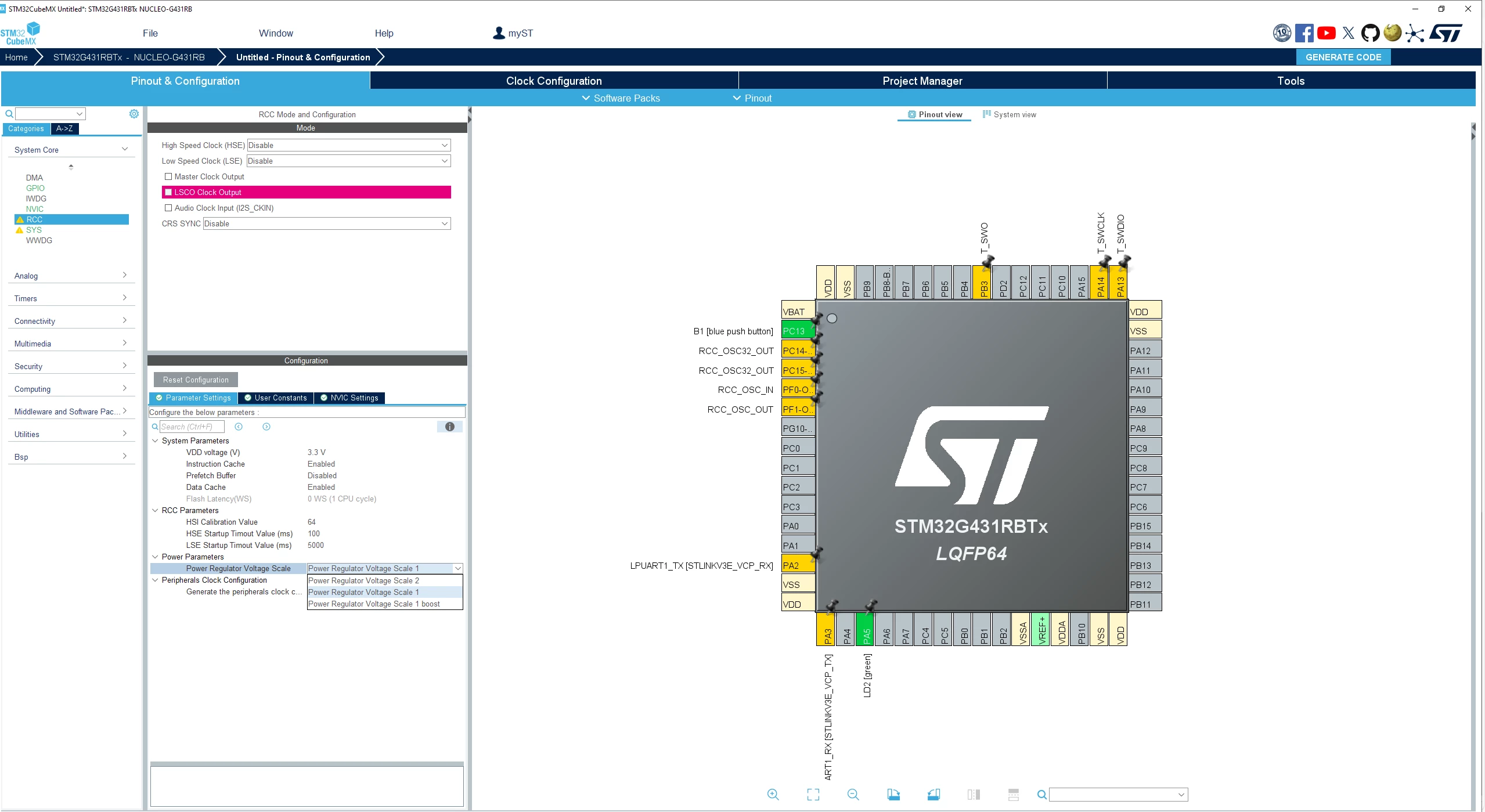
The easy way to do this is to create an MX project based on the Board or MCU, go to the Clock Configuration and select a SYSCLK on the range where the power scale that you want to use is available and go to RCC>Configuration>Power Parameters> Power Regulator Voltage Scale and select the range that you want to use.

STTwo32_0-1729670506633.png

Marhaban

STTwo-32

To give better visibility on the answered topics, please click on Accept as Solution on the reply which solved your issue or answered your question.

2 replies

STTwo-32
STTwo-32Best answer
ST Technical Moderator
October 23, 2024

Ahlan @Hussain and welcome to the ST Community.

The easy way to do this is to create an MX project based on the Board or MCU, go to the Clock Configuration and select a SYSCLK on the range where the power scale that you want to use is available and go to RCC>Configuration>Power Parameters> Power Regulator Voltage Scale and select the range that you want to use.

STTwo32_0-1729670506633.png

Marhaban

STTwo-32

To give better visibility on the answered topics, please click on Accept as Solution on the reply which solved your issue or answered your question.
Andrew Neil
Super User
October 23, 2024