


ST Technical Moderator
February 17, 2026
STM32CubeIDE for VS Code debug configuration (launch.json)
- June 4, 2026 at 4:13 PM
- 2 replies
- 4194 views
Summary
This article details the configuration options for debugging STM32 projects in VS Code using the STM32CubeIDE extension.
- Summary
- 1. STM32Cube: STM32 launch STLINK GDB server
- 2. STM32Cube: STM32 launch OpenOCD
- 3. STM32Cube: STM32 launch J-Link GDB server
- 3.1 Notes
- 4. Examples
- 4.1 STM32 STLINK GDB server
- 4.2 STM32 J-Link GDB server
- 4.3 STM32 OpenOCD
- 5. Tips
- 5.1 How to debug a secure project
- 5.2 How to debug a dual-core project (for example, STM32H7)
- 5.3 How to debug a project with an external loader
- 5.4 Advanced debug launch configuration tips
- 5. Support
- Related links
These are the three main debug configurations that you may need with STM32CubeIDE for VS Code extension.
1. STM32Cube: STM32 launch STLINK GDB server
Type: "stlinkgdbtarget"
- Uses the STLINK GDB server (provided by STM32CubeProgrammer).
- Suitable for official STLINK hardware probes.
Key parameters:
| Parameter | Type | Description |
|---|---|---|
| type | string | Must be "stlinkgdbtarget". Specifies the debugger type. |
| request | string | "launch" to start a new debug session, or "attach" to connect to a running target. |
| name | string | User-friendly configuration name |
| cwd | string | Working directory for the debug session. |
| preBuild | string | Command to run before starting the debug session (for example, build task). |
| runEntry | string | Entry point symbol to run to after reset (for example, "main"). |
| serverExtLoader | array | List of external loader objects for external flash (see below for object structure). |
| imagesAndSymbols | array | List of objects specifying images (binaries) and their symbols to load (see below). |
| device | string | STM32 device part number (optional, for example, "STM32H7R3ZI"). |
| interface | string | Debug interface, typically "swd" or "jtag" (optional). |
| stopAtEntry | boolean | If true, stops at the entry point after reset (optional). |
| svdFile | string | Path to SVD file for peripheral register view (optional). |
| serverArgs | array | Additional arguments to pass to the STLINK GDB server (optional). |
| gdbPath | string | Path to the GDB executable (optional). |
| gdbArgs | array | Additional arguments for GDB (optional). |
| postRestartCmds | array | GDB commands to execute after restart (optional). |
| postAttachCmds | array | GDB commands to execute after attach (optional). |
serverExtLoader object:
| Field | Type | Description |
|---|---|---|
| loader | string | Path to the external loader file (.stldr). |
| initialize | boolean | Whether to initialize the loader at session start. |
imagesAndSymbols object:
| Field | Type | Description |
|---|---|---|
| imageFileName | string | Path to the binary/ELF file to load. |
| symbolsFileName | string | Path to the symbols file (optional, if separate from image). |
2. STM32Cube: STM32 launch OpenOCD
Type: "openocdtarget"
- Uses OpenOCD as the debug server.
- Flexible for various debug probes and custom scripts.
Key parameters:
| Parameter | Type | Description |
|---|---|---|
| type | string | Must be "openocdtarget". Specifies the debugger type. |
| request | string | "launch" or "attach". |
| name | string | User-friendly configuration name. |
| cwd | string | Working directory for the debug session. |
| preBuild | string | Command to run before starting the debug session. |
| openOCDConfigFiles | array | List of OpenOCD config files (for example, interface, target, board). |
| openOCDSearchDirs | array | Directories to search for OpenOCD scripts. |
| runEntry | string | Entry point symbol to run to after reset (for example, "main"). |
| imagesAndSymbols | array | List of objects specifying images (binaries) and their symbols to load. |
| device | string | STM32 device part number (optional). |
| interface | string | Debug interface, typically "swd" or "jtag" (optional). |
| stopAtEntry | boolean | If true, stops at the entry point after reset (optional). |
| svdFile | string | Path to SVD file for peripheral register view (optional). |
| serverArgs | array | Additional arguments to pass to OpenOCD (optional). |
| gdbPath | string | Path to the GDB executable (optional). |
| gdbArgs | array | Additional arguments for GDB (optional). |
| postRestartCmds | array | GDB commands to execute after restart (optional). |
| postAttachCmds | array | GDB commands to execute after attach (optional). |
3. STM32Cube: STM32 launch J-Link GDB server
Type: "jlinkgdbtarget"
- Uses SEGGER J-Link GDB server.
- For SEGGER J-Link hardware probes.
Key Parameters:
| Parameter | Type | Description |
|---|---|---|
| type | string | Must be "jlinkgdbtarget". Specifies the debugger type. |
| request | string | "launch" or "attach". |
| name | string | User-friendly configuration name. |
| cwd | string | Working directory for the debug session. |
| preBuild | string | Command to run before starting the debug session. |
| jlinkDevice | string | Device name for J-Link (for example, "STM32H7R3ZI"). |
| interface | string | Debug interface, typically "swd" or "jtag". |
| runEntry | string | Entry point symbol to run to after reset (for example, "main"). |
| imagesAndSymbols | array | List of objects specifying images (binaries) and their symbols to load. |
| stopAtEntry | boolean | If true, stops at the entry point after reset (optional). |
| svdFile | string | Path to SVD file for peripheral register view (optional). |
| serverArgs | array | Additional arguments to pass to the J-Link GDB server (optional). |
| gdbPath | string | Path to the GDB executable (optional). |
| gdbArgs | array | Additional arguments for GDB (optional). |
| postRestartCmds | array | GDB commands to execute after restart (optional). |
| postAttachCmds | array | GDB commands to execute after attach (optional). |
3.1 Notes
- The
"type"field determines the debug server:"stlinkgdbtarget","openocdtarget","jlinkgdbtarget"or other type. - Use
"serverExtLoader"for external flash loaders if needed. "imagesAndSymbols"allows specifying multiple binaries or symbol files.- Adjust
"preBuild","cwd", and other fields as needed for your project.
4. Examples
4.1 STM32 STLINK GDB server
{
 "type": "stlinkgdbtarget",
 "request": "launch",
 "name": "STM32Cube: STM32 Launch ST-Link GDB Server",
 "cwd": "${workspaceFolder}",
 "preBuild": "${command:st-stm32-ide-debug-launch.build}",
 "runEntry": "main",
 "serverExtLoader": [
 {
 "loader": "C:/Users/gharbin/AppData/Local/stm32cube/bundles/programmer/2.21.0-a10/bin/ExternalLoader/MX25UW25645G_NUCLEO-H7S3L8.stldr",
 "initialize": false
 }
 ],
 "imagesAndSymbols": [
 {
 "imageFileName": "${command:st-stm32-ide-debug-launch.get-projects-binary-from-context1}"
 },
 {
 "imageFileName": "${command:st-stm32-ide-debug-launch.get-projects-binary-from-context2}"
 }
 ],
 "device": "STM32H7R3ZI",
 "interface": "swd",
 "stopAtEntry": false,
 "svdFile": "${workspaceFolder}/Drivers/CMSIS/Device/ST/STM32H7RSxx/Include/STM32H7R3.svd"
}
4.2 STM32 J-Link GDB server
{
 "type": "jlinkgdbtarget",
 "request": "launch",
 "name": "STM32Cube: STM32 Launch J-Link GDB Server",
 "cwd": "${workspaceFolder}",
 "preBuild": "${command:st-stm32-ide-debug-launch.build}",
 "jlinkDevice": "STM32H7R3ZI",
 "interface": "swd",
 "runEntry": "main",
 "imagesAndSymbols": [
 {
 "imageFileName": "${command:st-stm32-ide-debug-launch.get-projects-binary-from-context1}"
 }
 ],
 "stopAtEntry": false,
 "svdFile": "${workspaceFolder}/Drivers/CMSIS/Device/ST/STM32H7RSxx/Include/STM32H7R3.svd"
}
4.3 STM32 OpenOCD
{
 "type": "openocdtarget",
 "request": "launch",
 "name": "STM32Cube: STM32 Launch OpenOCD",
 "cwd": "${workspaceFolder}",
 "preBuild": "${command:st-stm32-ide-debug-launch.build}",
 "openOCDConfigFiles": [
 "interface/stlink.cfg",
 "target/stm32h7x.cfg"
 ],
 "openOCDSearchDirs": [
 "C:/OpenOCD/scripts"
 ],
 "runEntry": "main",
 "imagesAndSymbols": [
 {
 "imageFileName": "${command:st-stm32-ide-debug-launch.get-projects-binary-from-context1}"
 }
 ],
 "device": "STM32H7R3ZI",
 "interface": "swd",
 "stopAtEntry": false,
 "svdFile": "${workspaceFolder}/Drivers/CMSIS/Device/ST/STM32H7RSxx/Include/STM32H7R3.svd"
}
5. Tips
5.1 How to debug a secure project
- Create a launch.json.
- Add a second image to be loaded.
- Change the context for the new created image.
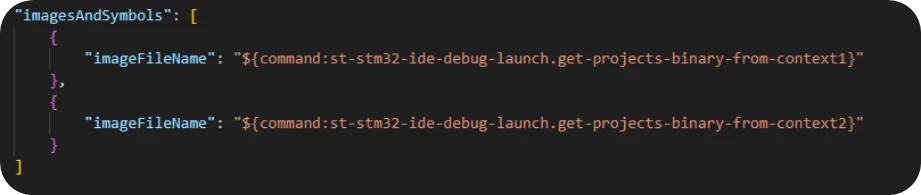
- When launching the debug, the selected bin must follow the order nonsecure then secure.
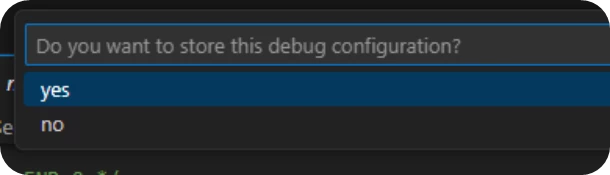
- Save your presets for later use if needed.
5.2 How to debug a dual-core project (for example, STM32H7)
- Create a launch.json.
- Add a new image context and change its number for the second binary to be loaded.
- Add "serverShared" parameter with the value set as true.
- Add "serverHaltAllCores" parameter with the value set as true.
This configuration is dedicated to the CM7 core.
Let us create a new configuration for the CM4 core.
- Create another config by pressing the [add configuration] button displayed in the launch.json.
- Remove the existing image and replace it by a symbol file name parameter as the second configuration will be used for attaching debug without flashing the device.
- Add server shared parameter with the value set as true.
- Add the server AP ID with value 3, which represents the port ID for the CM4 core.
- Add the server port with 61239 value for the GDB port for the second core.
- Set the reset value to “none” to avoid resetting the core while attaching to it.
- For the flashing order requested by the debugger (CM7 config), select the first one to start as the latest one to be flashed, in this case you select CM4, then CM7.
- For the second configuration (CM4) select the CM4 binary to load the symbols from it.
The order of debug launch will be:
- Launch the CM7 debug
- Launch the CM4 debug
5.3 How to debug a project with an external loader
- In your current launch.json, add a "serverExtLoader" parameter to configure the external loader.
- Add "loader" in "serverExtLoader" and set the extloader path.
- Keep "initialize" set to false.

5.4 Advanced debug launch configuration tips
- Attach without reset
Reset mode “none” ImageAndSymbols: only SymbolFileName - Reset mode control
"serverReset": "Connect under reset", - TCP Console (semihosting)
"serverSemihosting": { "enabled": true, "mode": "console", "port": "61260" }, - liveWatch
"liveWatch": { "enabled": true, "samplesPerSecond": "4" }, - Prebuild command
"preBuild": "${command:st-stm32-ide-debug-launch.build}", - RTOS view
"serverRtos": { "enabled": true, "port":"60000", "driver": "freertos" }
5. Support
For support, visit our VS Code product forums:
STM32CubeIDE for Visual Studio Code product forums.