


How to use DMA in circular mode with STM32CubeMX2
Summary
This article shows how to enable and configure DMA in circular mode using STM32CubeMX2. The example uses the NUCLEO-C562RE board to generate a sawtooth waveform with the DAC, fed continuously by the DMA.
Introduction
Direct memory access (DMA) moves data between memory and peripherals, or between memory regions, without CPU intervention. The CPU stays free to run other code while the transfer happens in the background.
In circular mode, when the DMA reaches the end of the buffer, it automatically starts again from the beginning. The transfer never stops, so there is no need to restart it by software. This is useful for continuous data streams, such as waveform generation with DAC or continuous ADC sampling.
On the STM32C5, the DMA is the low-power DMA (LPDMA). While most STM32 families with DMA have a dedicated CIRC bit to enable circular mode, the LPDMA uses linked lists instead, and circular mode is a linked list that points back to its first item. Handling this manually is not needed: when “Circular transfer” is selected in STM32CubeMX2, the tool and the HAL2 drivers build the circular linked list for you.
1. Prerequisites
Install the following tools:
- STM32CubeMX2
- Visual Studio Code.
- The latest STM32C5 HAL2 driver
- STM32CubeIDE extension for Visual Studio Code
The hardware used in this tutorial is the NUCLEO-C562RE board. To see the waveform, you also need an oscilloscope or a similar instrument.
2. Project setup
Follow these steps to create an application project for the NUCLEO-C562RE board. The hands on creates a sawtooth waveform on the DAC output, using DMA in circular mode.
2.1 Project creation
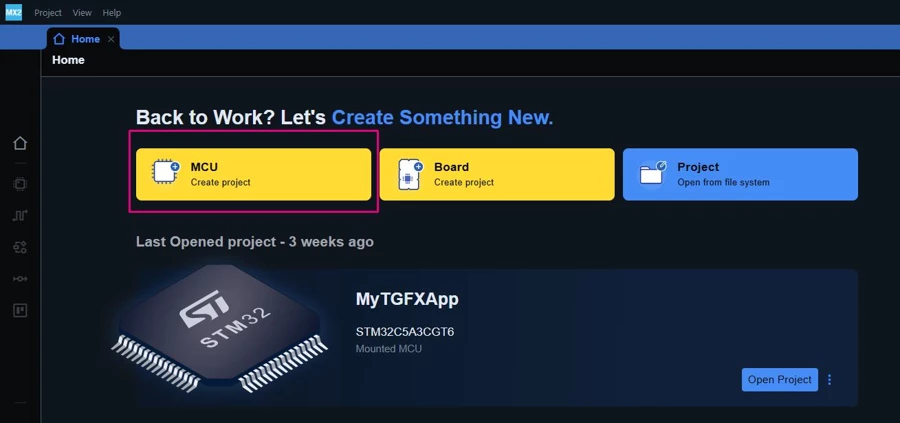
Open STM32CubeMX2. On the Home tab or icon, click the MCU button to create a new project.
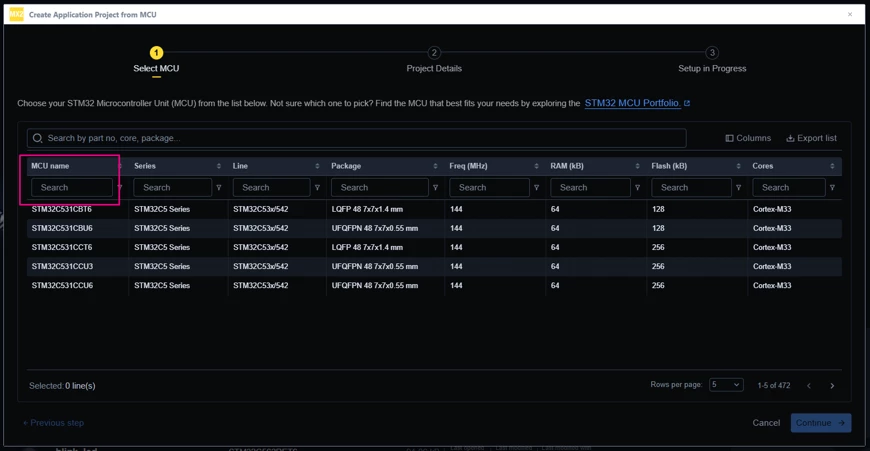
In the search field under MCU name, enter STM32C562RE and select the MCU. Click [Continue].
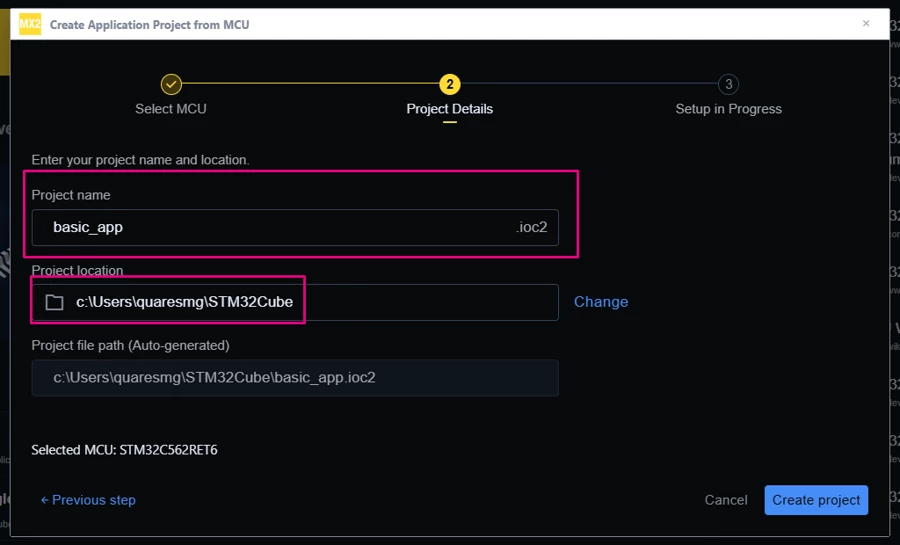
Enter the project name and location. Click [Automatically Download, Install & Create Project] to finish project creation. Select [Launch Project] to start.
2.2 Enabling DMA
To configure DMA in STM32CubeMX2:
- In the Peripherals tab, open the System drop-down list and select [DMA].
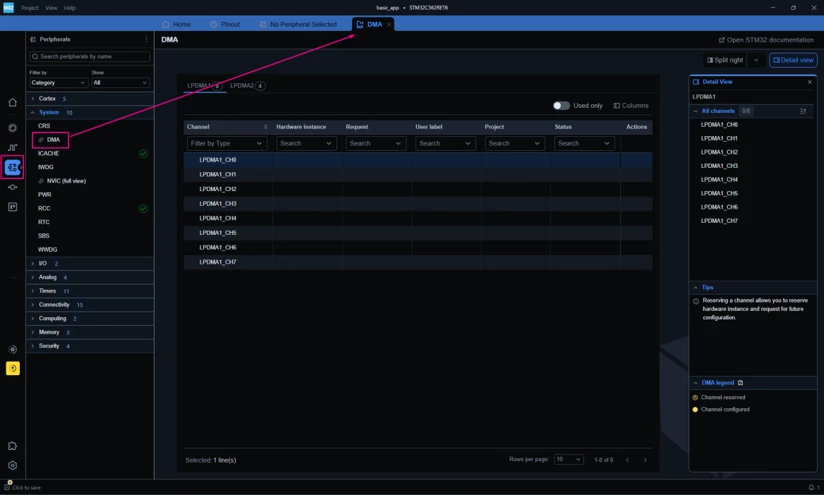
- In the DMA System View page, go to the LPDMA1 tab and select channel [LPDMA1_CH0]. Then click [dac1_ch1_dma] to assign the channel to the DAC.
This example uses the DAC, but circular mode works with many other peripherals, such as the ADC or the UART.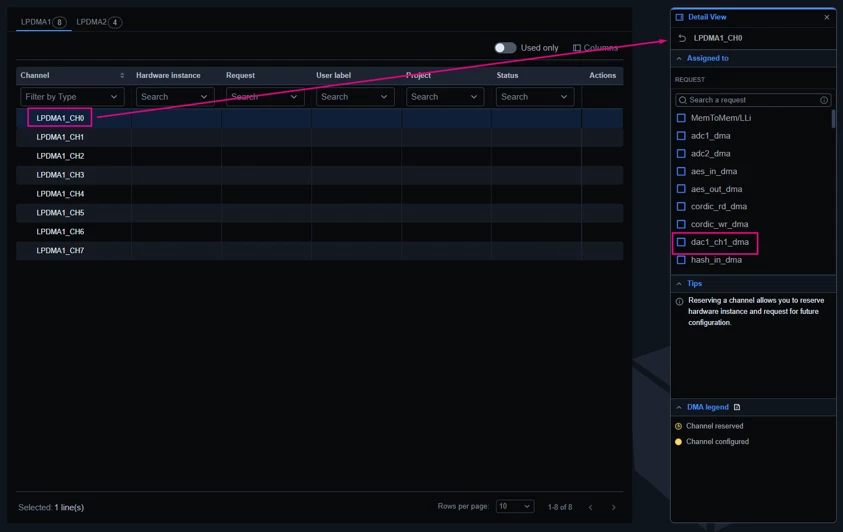
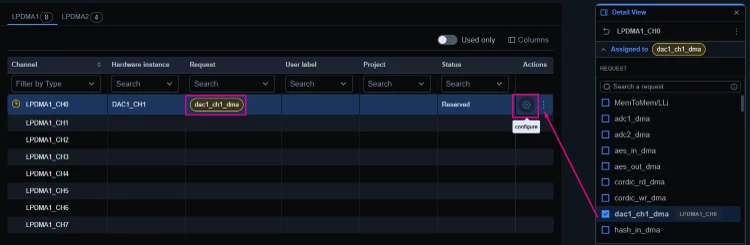
- Click the gear icon next to dac1_ch1_dma, or click Actions, to configure the channel.
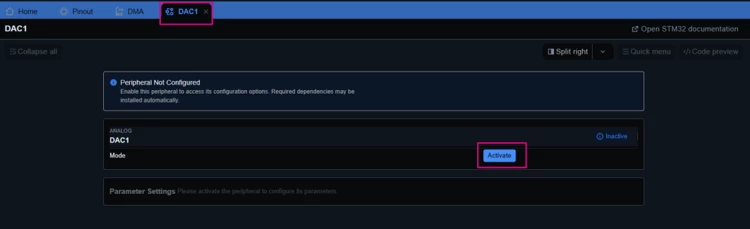
- In the DAC1 page, click [Activate].
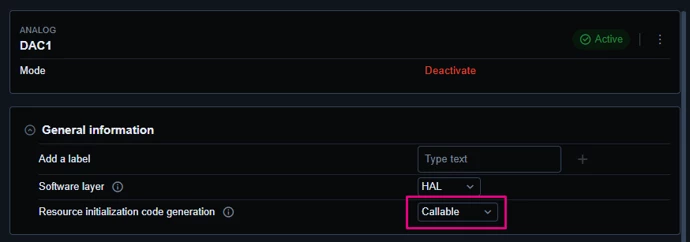
- In the General information tab, set Resource initialization code generation to [Callable].
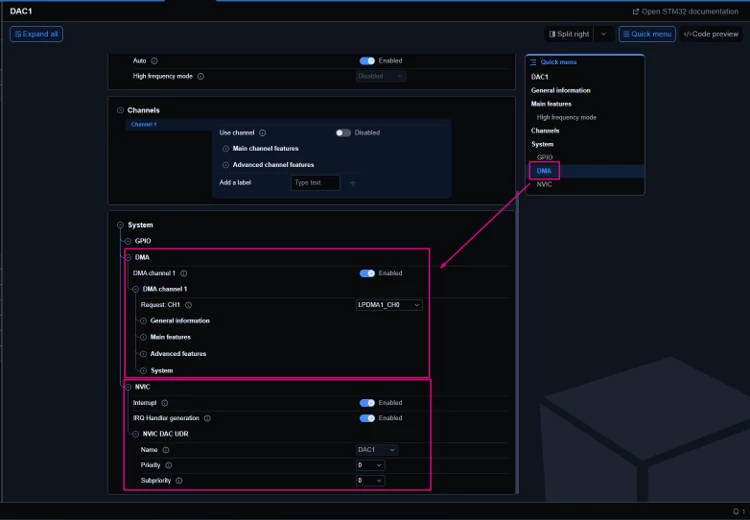
- Go to System → DMA → DMA channel 1 and toggle the switch on to enable it.
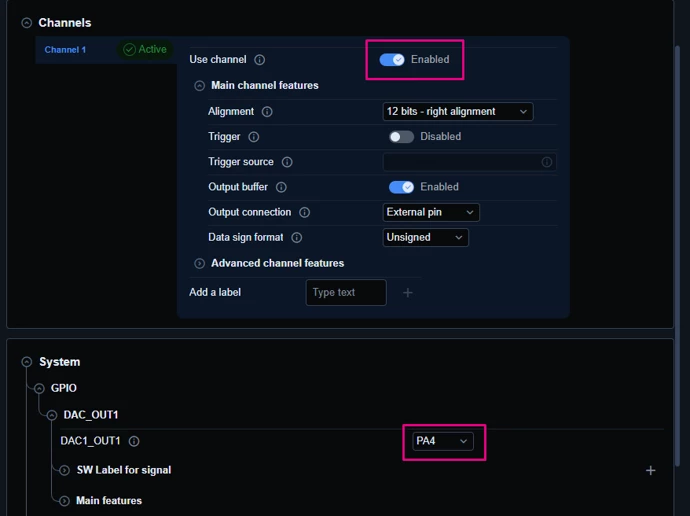
- Enable DAC channel 1 in Channels → Use channel. The assigned pin is seen in System → GPIO → DAC_OUT1. It is typically PA4.
- Go to System → DMA → Main features → Mode and select Circular transfer.
Keep the other default settings: the direction is Memory to peripheral, the source address is incremented so the DMA walks through the buffer. The destination address is fixed because the DMA always writes to the same DAC register.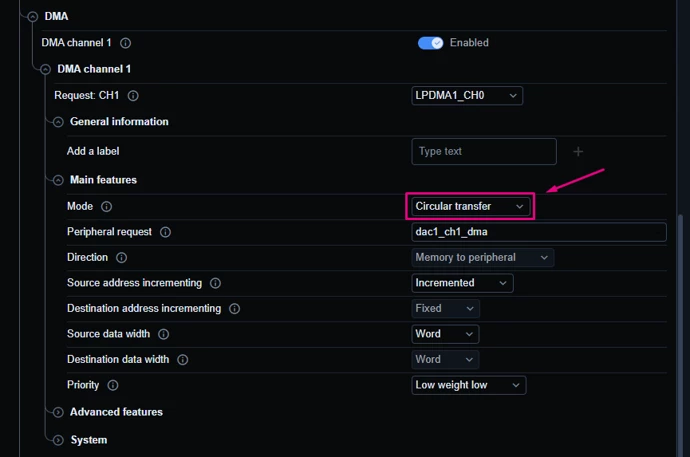
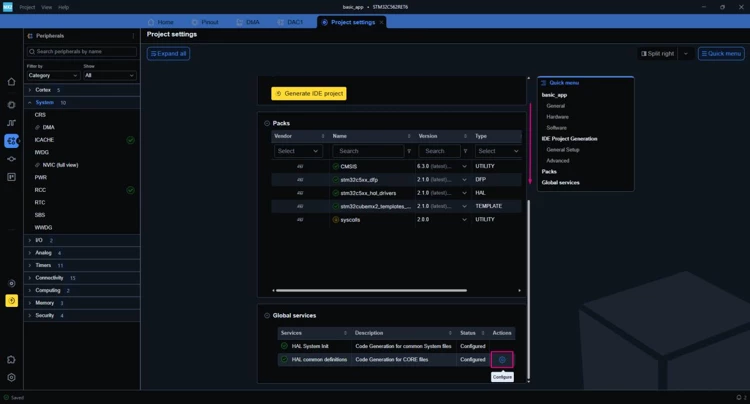
- Select the [Project settings] icon. In Global services, click the gear icon next to HAL common definitions.
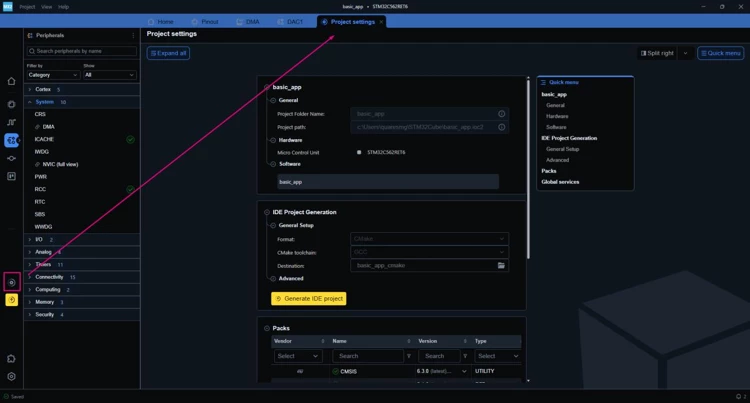
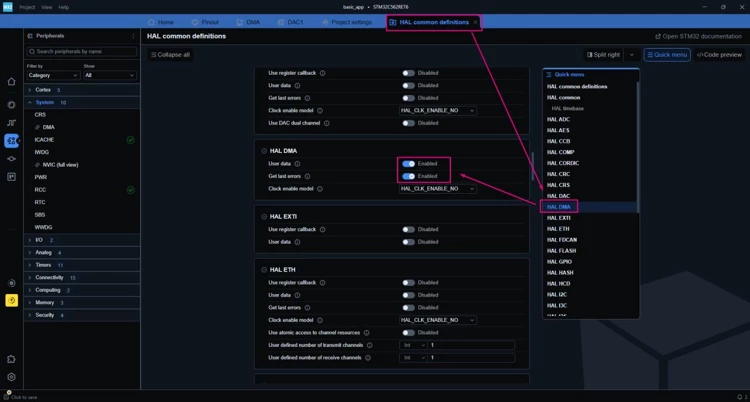
- Use the quick menu to locate the HAL DMA category, and enable [User Data] and [Get Last Errors].
The NVIC interrupt (System → NVIC) is not required for this example, because the code does not use any DMA callback. Enable it only if your application needs to know when the DMA reaches the end of the buffer, for example to update the buffer contents while the transfer runs.
2.3 Configuring the DAC trigger and TIM6
In this example, TIM6 sets the output rate. Each TIM6 update event triggers the DAC, and the DAC asks the DMA for the next sample. Without a trigger, the DMA has nothing to pace it.
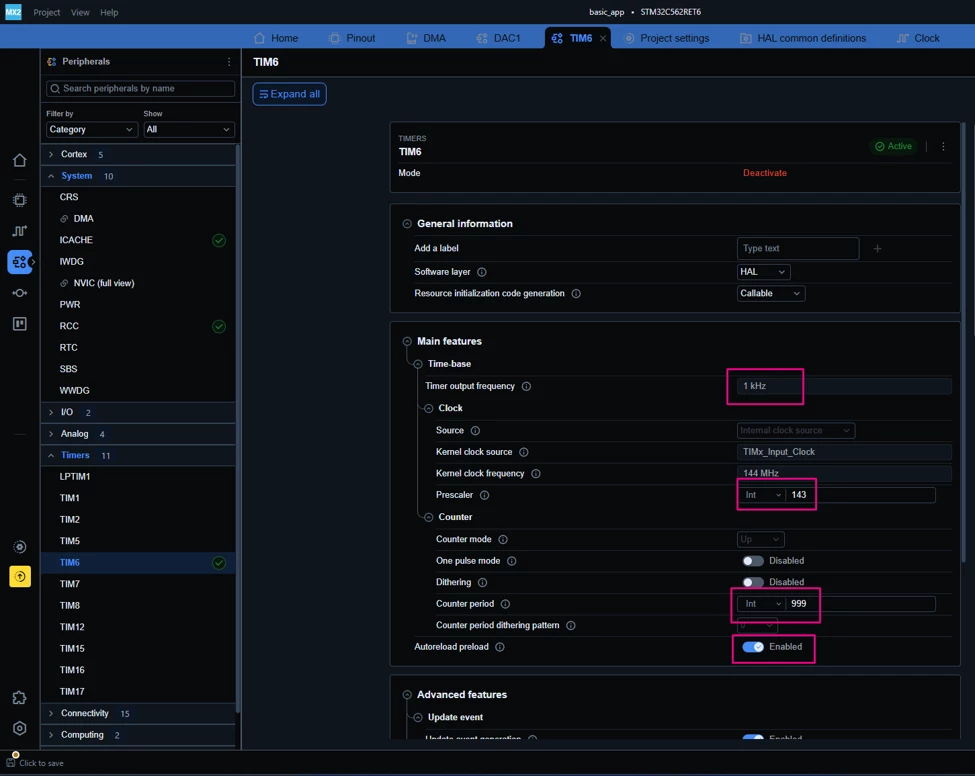
First, configure TIM6 to generate an update event every 1 ms (1 kHz):
- In the Peripherals tab, open the Timers drop-down list and select [TIM6]. Click [Activate].
- Check the TIM6 input clock in the Clock tab. TIM6 is a basic timer, so this is the only clock you need to know.
- Set Prescaler and Period to get 1 kHz. The update frequency is: timer clock / ((Prescaler + 1) × (Period + 1)). For example, with a 48 MHz timer clock, set Prescaler to 47 and Period to 999: 48 MHz / (48 × 1000) = 1 kHz.
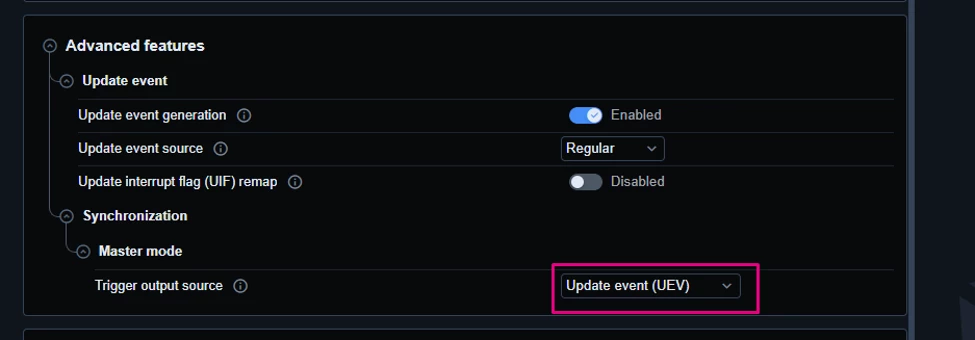
- Set Trigger output (TRGO) to Update event. With this setting, TIM6 sends a trigger signal at each update event.
Connect the DAC to this trigger:
-
Go back to the DAC1 page and open Channels → Main channel features.
- Enable Trigger.
- Set Trigger source to TIM6.
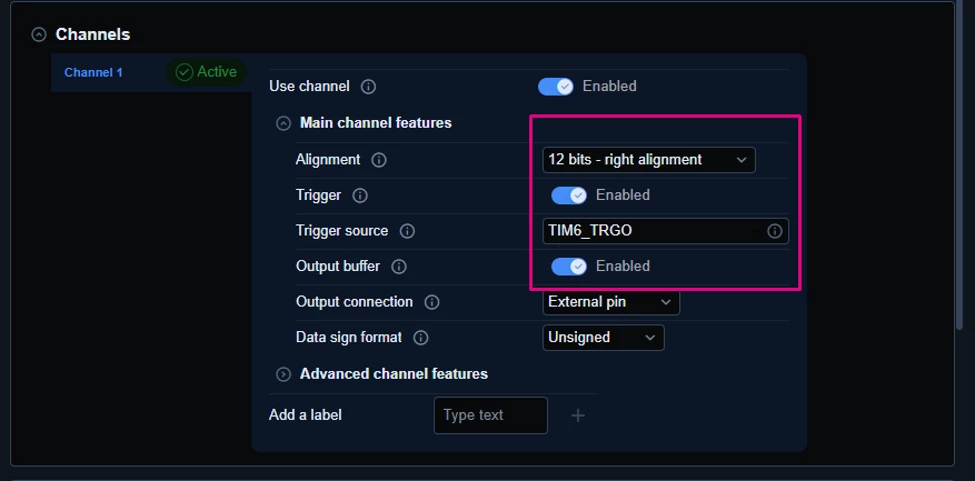
Now, the DAC converts a new value only when TIM6 sends a trigger. The output rate depends only on TIM6: to change the frequency of the waveform, you only need to change the TIM6 period.
2.4 Code generation
To generate the code:
- Click the [Project settings] icon.
- Click [Generate IDE project].
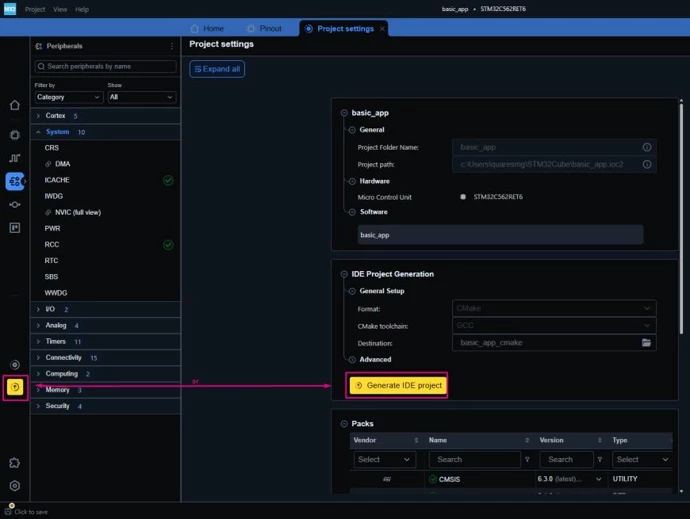
3. Configuring the project in Visual Studio Code
Open Visual Studio Code and open the project folder.
If prompted, select the configuration. If not prompted, press Ctrl+Shift+P, type CMake: Select Configure Preset, and choose the debug configuration.

Build the project to make sure that everything is set, and then move on to the code.
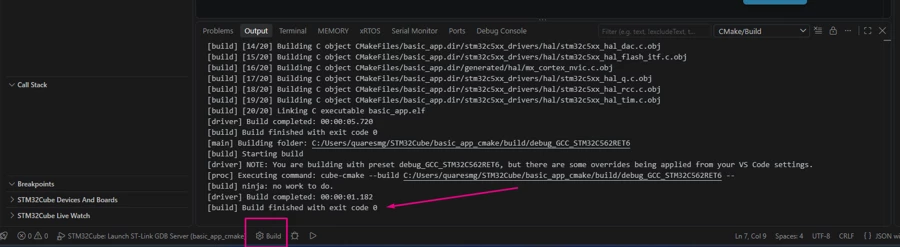
3.1 Code editing
Open the main.c file and add the following code in the indicated sections. The application sends a 32-sample sawtooth buffer to the DAC, using DMA in circular mode. The entire main.c is provided below for reference.
/**
 ******************************************************************************
 * file           : main.c
 * brief          : Main program body
 *                  Calls target system initialization then loop in main.
 ******************************************************************************
 *
 * Copyright (c) 2025 STMicroelectronics.
 * All rights reserved.
 *
 * This software is licensed under terms that can be found in the LICENSE file
 * in the root directory of this software component.
 * If no LICENSE file comes with this software, it is provided AS-IS.
 *
 ******************************************************************************
 */
/* Includes ------------------------------------------------------------------*/
#include "main.h"

/* Private typedef -----------------------------------------------------------*/
/* Private define ------------------------------------------------------------*/
#define N_SAMPLES 32U

/* Private macro -------------------------------------------------------------*/
/* Private variables ---------------------------------------------------------*/
hal_dac_handle_t *pDAC;

/* Sawtooth: 0, 128, 256, ..., 3968 (step of 128 LSB, about 103 mV) */
uint32_t saw[N_SAMPLES] = {
    0,    128,  256,  384,  512,  640,  768,  896,
    1024, 1152, 1280, 1408, 1536, 1664, 1792, 1920,
    2048, 2176, 2304, 2432, 2560, 2688, 2816, 2944,
    3072, 3200, 3328, 3456, 3584, 3712, 3840, 3968};

/* Private functions prototype -----------------------------------------------*/

/**
 * brief:  The application entry point.
 * retval: none but we specify int to comply with C99 standard
 */
int main(void)
{
  /** System Init: this code placed in targets folder initializes your system.
   * It calls the initialization (and sets the initial configuration) of the
   * peripherals. You can use STM32CubeMX to generate and call this code or not
   * in this project. It also contains the HAL initialization and the initial
   * clock configuration.
   */
  if (mx_system_init() != SYSTEM_OK)
  {
    return (-1);
  }
  else
  {
    /*
     * You can start your application code here
     */
    pDAC = mx_dac1_gethandle();

    /* Load the first sample and calibrate the DAC output buffer */
    HAL_DAC_SetChannelData(pDAC, HAL_DAC_CHANNEL_1, saw[0]);
    HAL_DAC_CalibrateChannelBuffer(pDAC, HAL_DAC_CHANNEL_1);

    /* Start TIM6: each update event triggers one DAC conversion */
    HAL_TIM_Start(mx_tim6_gethandle());

    /* Start the DAC with DMA. Size in bytes: 32 samples x 4 = 128 */
    HAL_DAC_StartChannel_DMA(pDAC, HAL_DAC_CHANNEL_1, saw, sizeof(saw));

    while (1)
    {
      /* Nothing to do here: the DMA keeps feeding the DAC in circular mode */
    }
  }
} /* end main */
3.2 How it works
After the start, the CPU does not touch the DAC anymore. The hardware runs this loop by itself:
- TIM6 generates an update event every 1 ms.
- The update event triggers the DAC.
- The DAC asks the DMA for a new sample, and the DMA copies the next value from the saw buffer to the DAC.
- After the last sample, circular mode makes the DMA go back to the first one, without any CPU action.
Note that the DMA is started only once, before the main loop. In normal mode, you would need to restart the transfer each time the buffer ends. In circular mode, this is not necessary.
The result is a sawtooth with 32 steps of about 103 mV, from 0 V to about 3.2 V. Each step lasts 1 ms, so the full ramp repeats every 32 ms.
3.3 Validation
After building the application, select the [Run and Debug] icon. Create a debug session by selecting the [STLINK GDB Server] option.
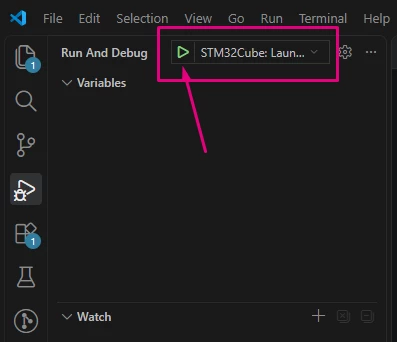
Run the code and connect an oscilloscope probe to PA4 (CN8 pin 3) and GND. You can see the sawtooth waveform, with each step updated at the TIM6 frequency.
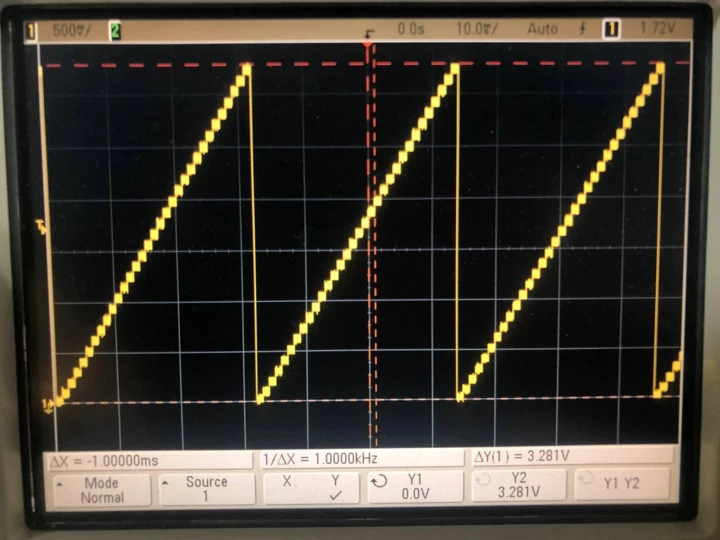
The waveform keeps running even though the main loop is empty. This shows the DMA restarting the buffer by itself in circular mode.
Conclusion
This article showed how to configure DMA in circular mode with STM32CubeMX2 on the NUCLEO-C562RE board. With the LPDMA set to circular transfer and the DAC triggered by TIM6, the DMA feeds the DAC continuously and the waveform runs with no CPU load. The same approach works for other continuous data streams, such as ADC sampling or UART reception.