


How to enable RDP-like product state flash protection in STM32H5 microcontrollers
Summary
This article describes methods to protect code from unauthorized external access in the STM32H5 series. It introduces the new product state feature, which functions similarly to the readout protection (RDP) feature available in other STM32 series, and provides a robust layer of security.
Introduction
This article is intended for developers working with the STM32H5 microcontroller series who require resources to protect code from external access. The STM32H5 series introduces significant changes to device life cycle management to support enhanced security features. The traditional readout protection (RDP) feature found in other STM32 series is now replaced by the product state feature. Although the mechanism differs, product states serve as the RDP equivalents for STM32H5: Open ≈ RDP0, Closed ≈ RDP2 with regression, and Locked ≈ RDP2 without regression. Users familiar with RDP will find that product states offer equivalent security levels. The following list describes the new states available for this microcontroller series:
1. Product state
- Open: Development state with no protection. Users can debug, test, and develop applications without restrictions.
- Provisioning: Keys and secure firmware are installed, and option bytes are set.
- TZ-Closed: Security is enforced. Developers can only work within the nonsecure domain.
- Closed: Debug access is disabled, securing the microcontroller and its program memory from external access.
- Locked: Similar to the closed state, but regression is not possible.
The open state corresponds to RDP level 0, and the locked state is equivalent to RDP level 2. There is no direct equivalent to RDP level 1; however, the closed state combines the advantages of level 2 (blocking debug access) with the benefits of level 1 (allowing regression to the open state).
In previous STM32 series, the user manual indicated whether a mass erase occurred during RDP regression. For STM32H5, this behavior is now associated with product state regression and the debug authentication workflow, as detailed in the regression section.
The TZ-Closed state pertains to TrustZone® applications, which are not the primary focus of this article. However, the steps outlined may still be useful for TrustZone® applications.
The following image presents a simplified chart with the available paths and possible ways to perform a regression:
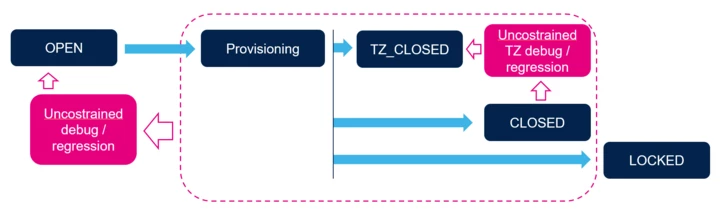
To perform a regression from the closed state, a debug authentication process is required. This process requires a password key stored within the microcontroller for non-TrustZone® applications. Provision a password before transitioning to the closed state. Failure to do so results in permanent loss of debug access, making regression impossible.
This article outlines the procedure for:
- Generating a password
- Securing it within the microcontroller
- Enabling the product state to ensure protection equivalent to traditional readout protection (RDP), as well as regression to the open state
Note: At the time of this update, STM32CubeProgrammer supports J-Link without security features. This procedure is intended for use with an ST-LINK tool. For further information about STM32 security implementation over J-Link, refer to the Segger Knowledge base: ST STM32H5 Security Product Lifecycle - SEGGER Knowledge Base
Continue to the following section for a detailed step-by-step guide on the implementation.
1.1 Installing the tools and preparing the environment
To create a password for debug authentication in STM32H5, install the STM32TrustedPackageCreator software. This software is included in the STM32CubeProgrammer installer, which can be downloaded from the following link:
During installation, select the checkbox to install STM32TrustedPackageCreator.
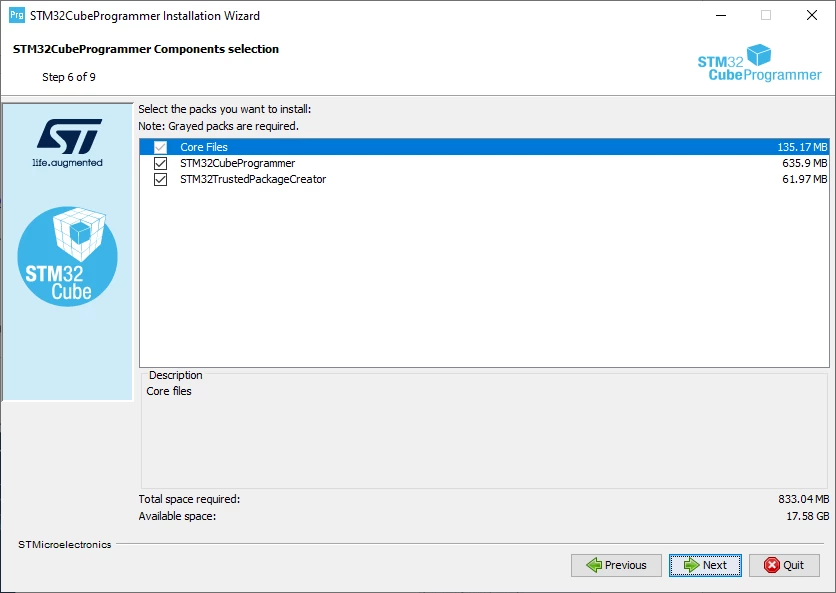
After installation, open the software. In the main window, navigate to the security menu and open OBkey.
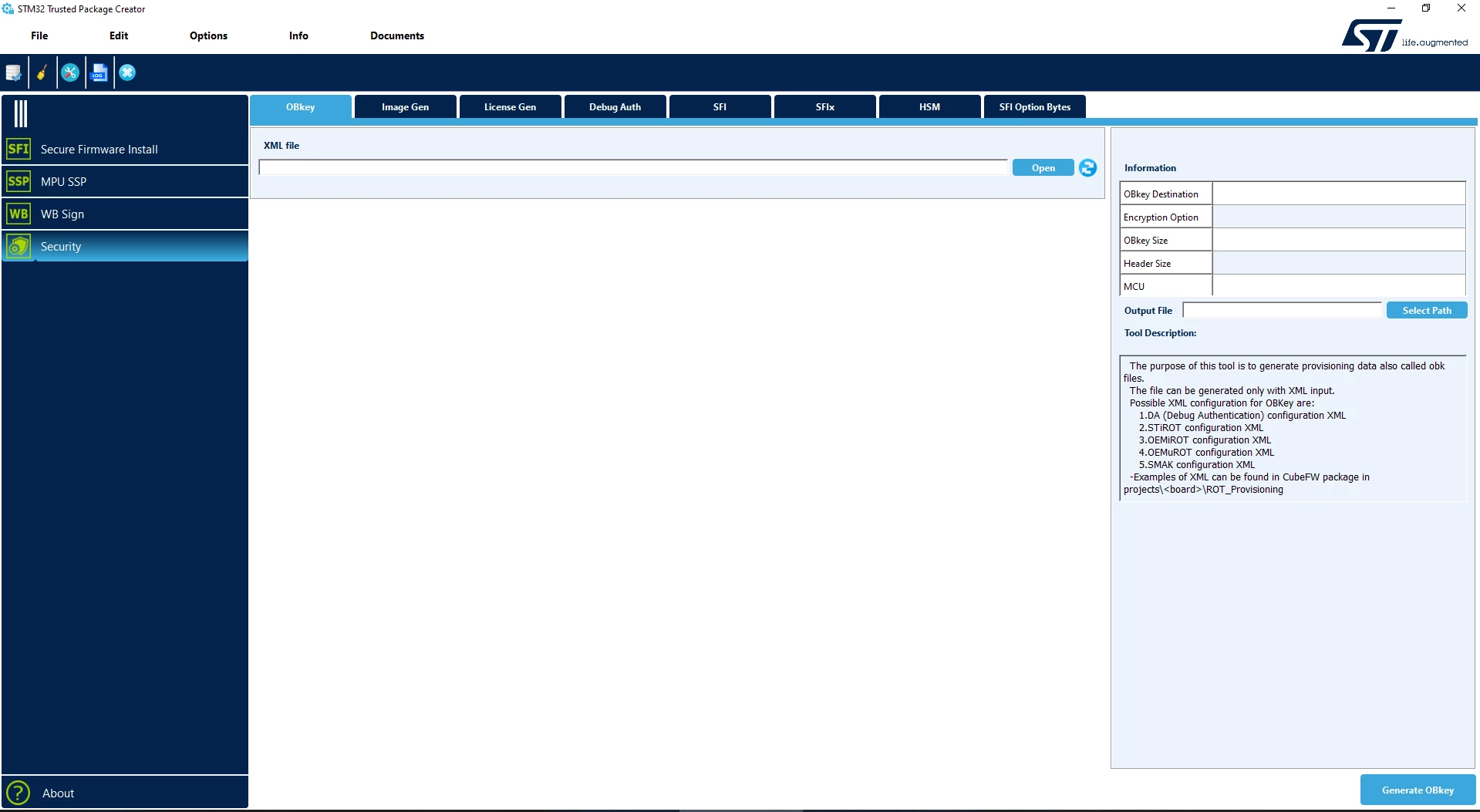
In this menu, provide an XML file with the key and implementation parameters. This article demonstrates the process without exploring all parameters. For further details, refer to appendix A of UM2238 - STM32 Trusted Package Creator tool software description.
To facilitate implementation, use the XML template available in the STM32CubeH5 package at the following path (adapt as needed):
STM32Cube_FW_H5_Vx.x.0\Projects\STM32H573I-DK\ROT_Provisioning\DA\ConfigOpen the DA_ConfigWithPassword.xml file with a text editor.
Before proceeding, note that steps differ for each STM32H5 product line. Refer to the appropriate section below.
1.2 STM32H5 lines without cryptographic features (STM32H503, STM32H523, STM32H562, STM32H563, STM32H5E4, STM32H5E5)
Important note: The STM32H503 flash memory interface does not provide OBKeys. An OTP (one-time programmable) memory is used to provision the hash of the password. Once provisioned, the password cannot be changed. For other STM32H5 lines, the password can be changed by performing a regression and provisioning the device again.
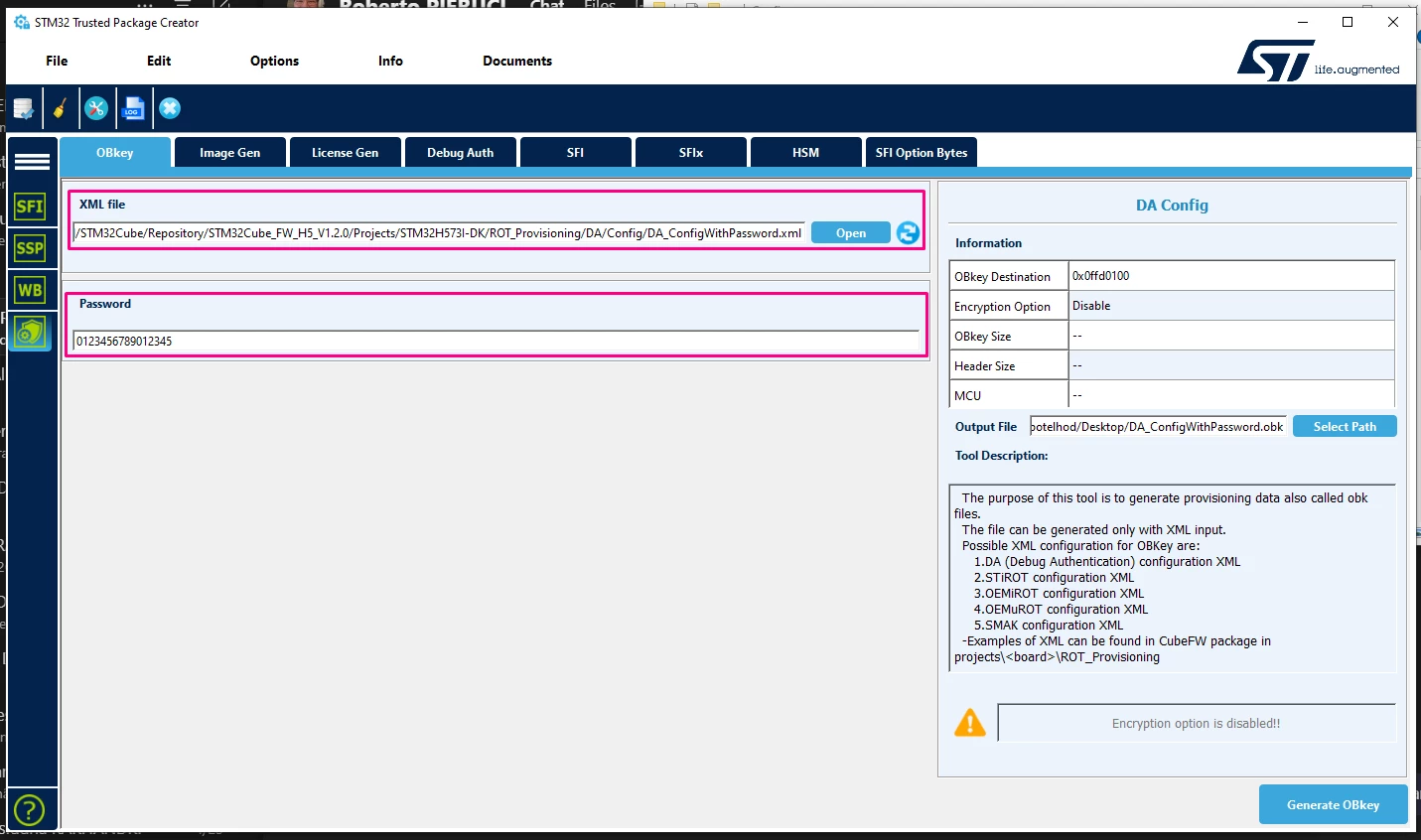
For STM32H5 lines without extended cryptographic features, provision a non-encrypted password. Set the DoEncryption parameter to 0 in the DA_ConfigWithPassword.xml file. Update the value field in the password section with the chosen password.
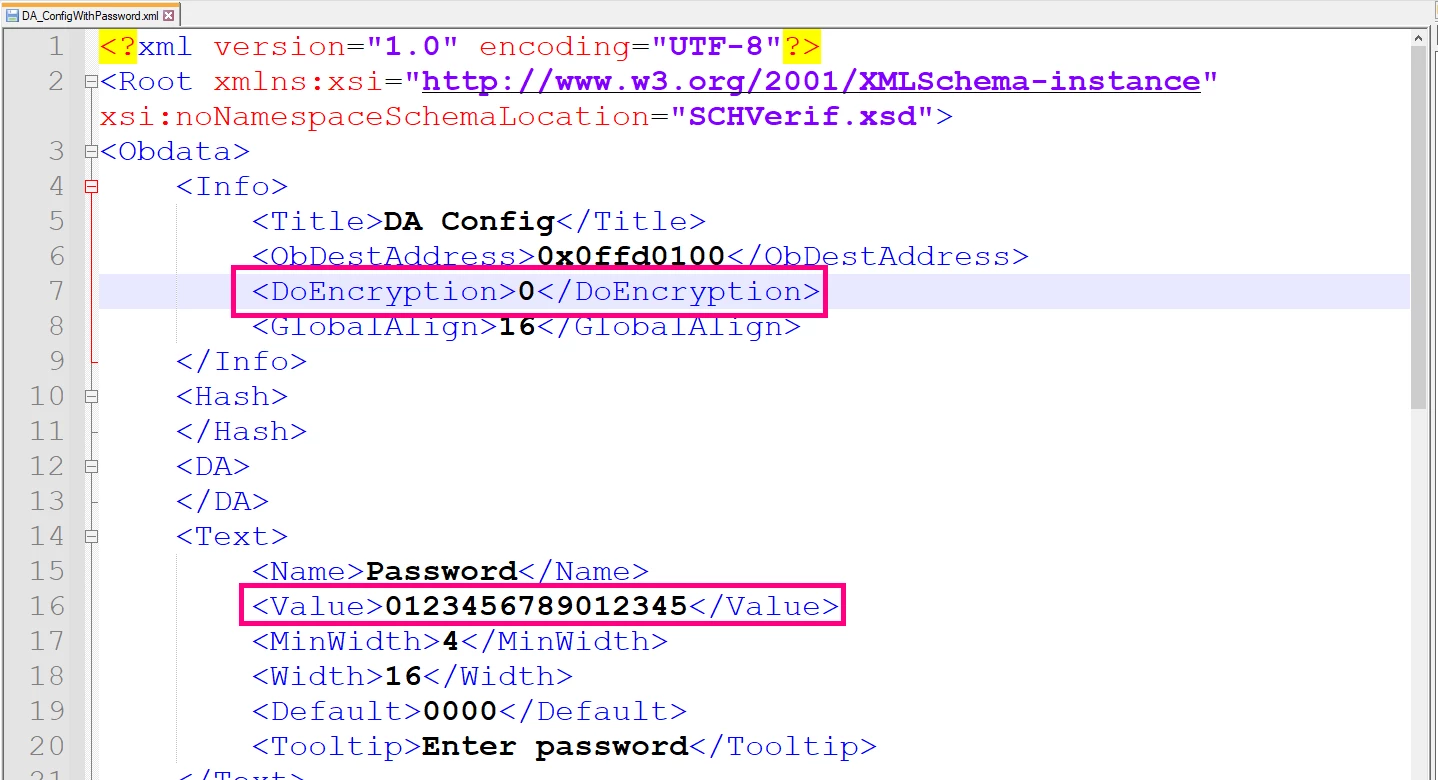
Save and close the file, then return to STM32TrustedPackageCreator. Import the XML file; the password appears in the field below.
1.3 STM32H5 lines with cryptographic features (STM32H533, STM32H573, STM32H5F4, STM32H5F5)
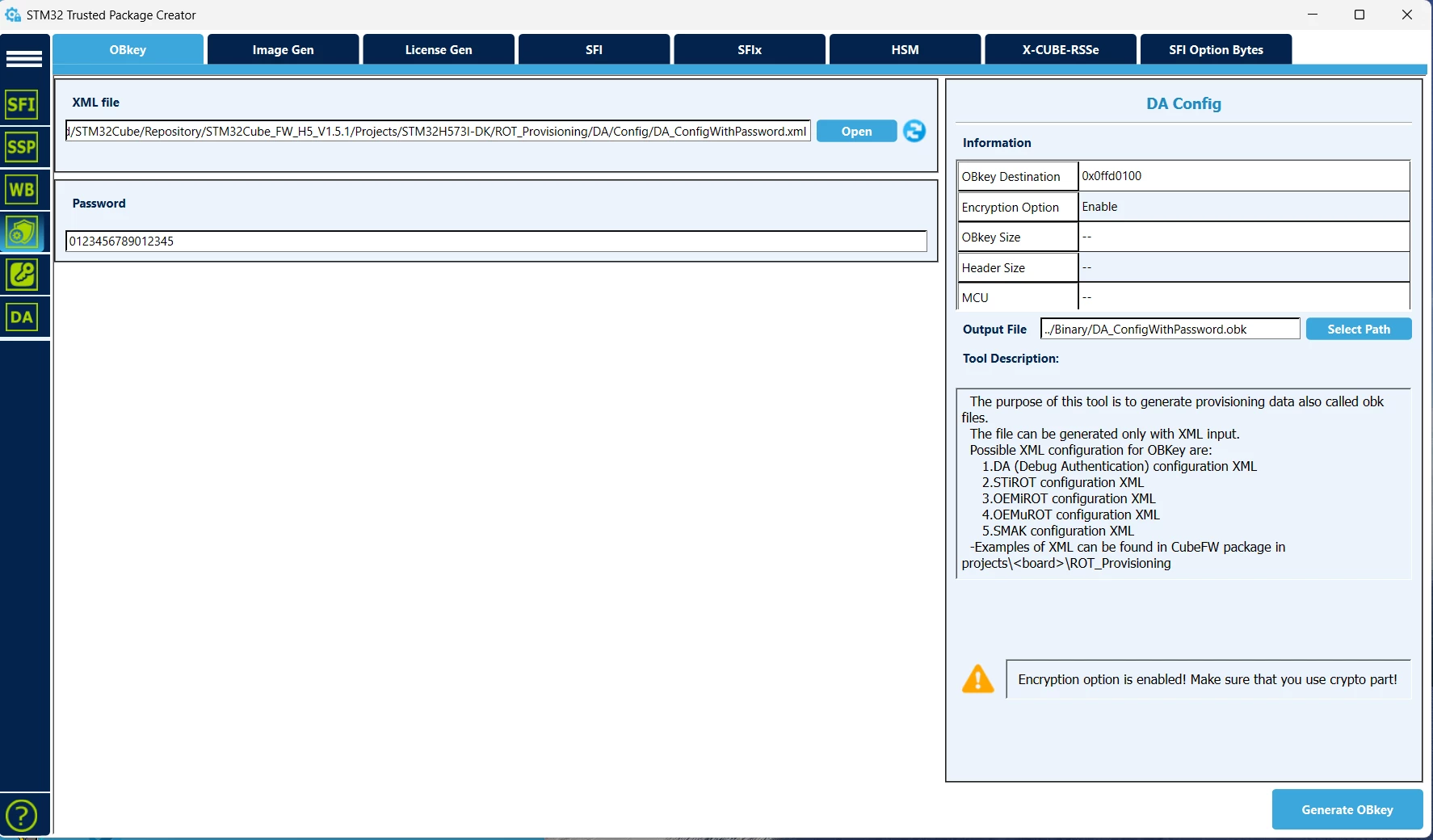
For STM32H5 lines with extended cryptographic features, provision an encrypted password. Set the DoEncryption parameter to 1 in the DA_ConfigWithPassword.xml file. Update the value field in the password section with the chosen password.
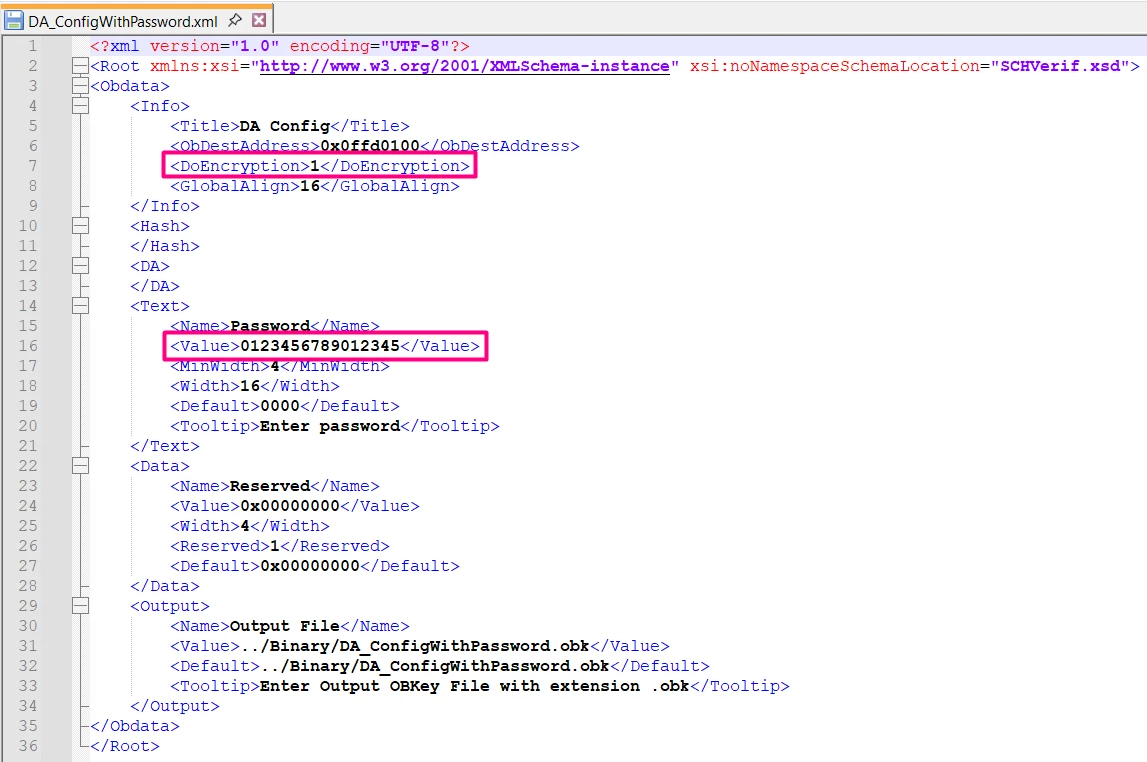
Save and close the file, then return to STM32TrustedPackageCreator. Import the XML file; the password appears in the field below.
1.4 Provisioning the device
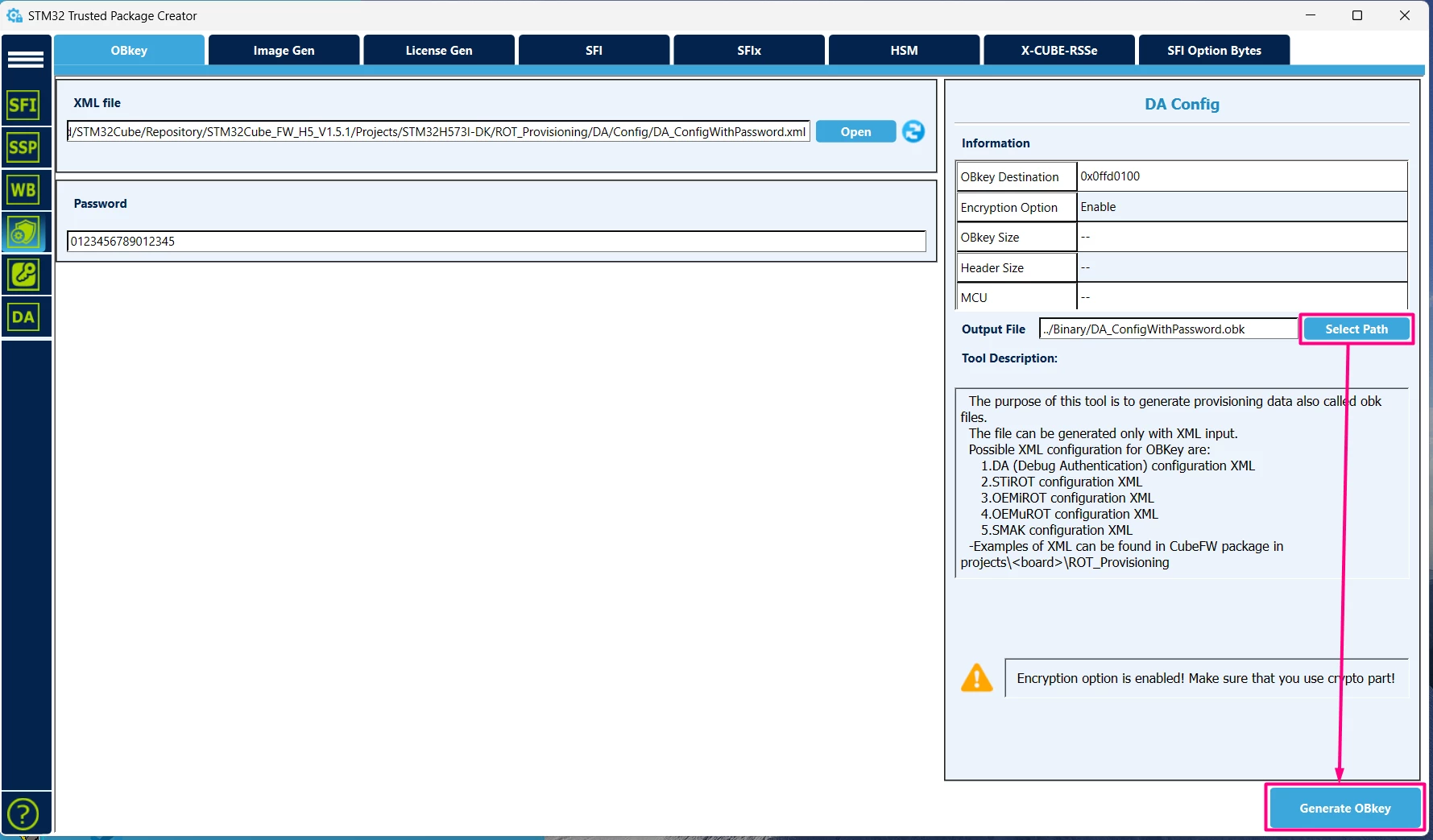
Select an output path to store the generated key files. Click [Select Path], determine the path, and click [Generate OBkey].
Two files are generated in the specified path:
- The .obk file contains the password for provisioning the STM32H5.
- The .bin file contains the password for debug authentication.

The .obk file holds the password intended for provisioning to the STM32H5, while the .bin file contains the password which in this instance is used to perform debug authentication.
After generating the password, change the product state of the STM32H5 to protect the device.
First, flash the firmware image into the microcontroller using the preferred toolchain. Open STM32CubeProgrammer, connect to the microcontroller, navigate to the [Option Byte] menu, and open the [Product State] drop-down menu.
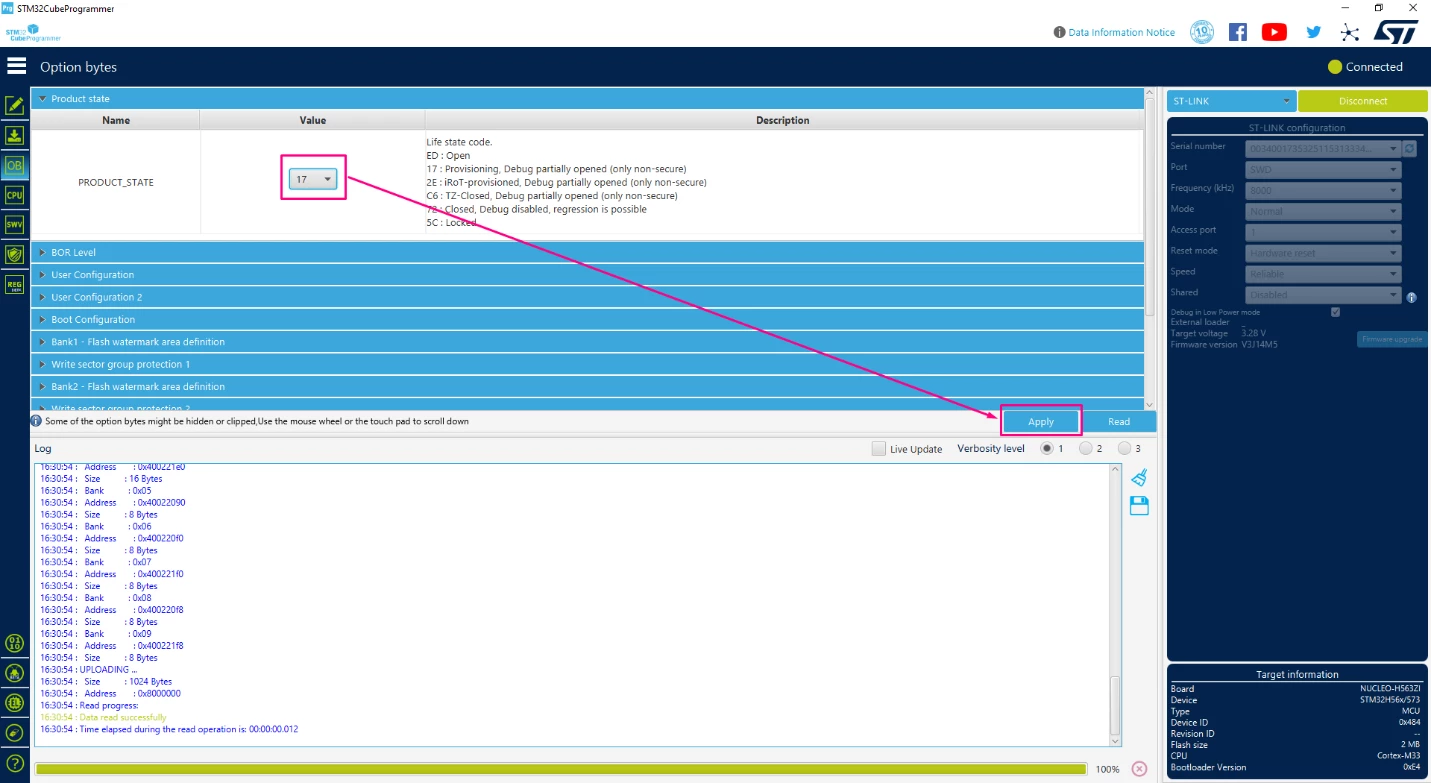
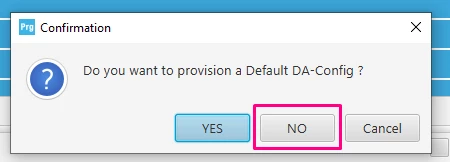
Change the PRODUCT_STATE option to 17, then press [Apply]. When prompted to apply the default DA-Config, select [No].
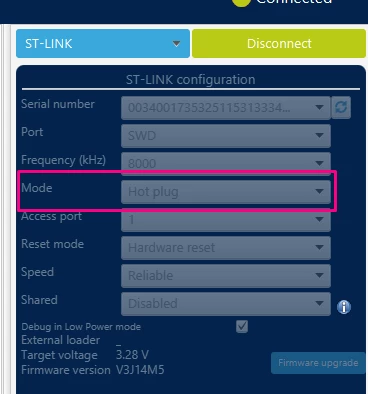
The microcontroller enters provisioning mode, and STM32CubeProgrammer disconnects from the device. To reconnect, change the connection mode to hot plug and reconnect to the target.
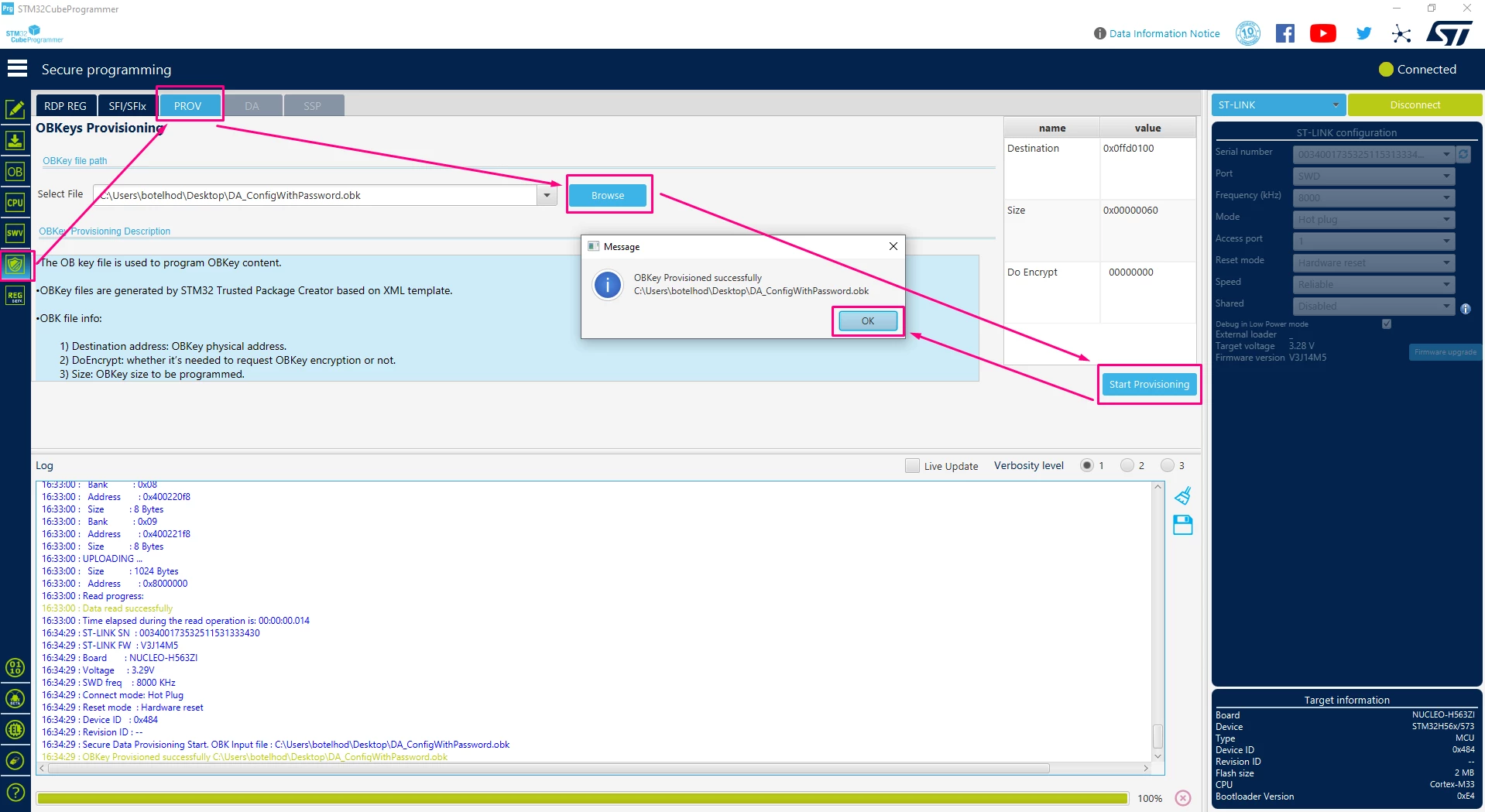
After connecting, navigate to the [Secure Programming Menu] and open the [Provisioning] tab. Import the .obk file and click [Start Provisioning]. Upon completion, a confirmation menu appears.
1.5 Flashing the code
At this point, the STM32H5 device has the keys installed and remains in the provisioning state. Download the firmware to the board. While in provisioning state, the STM32H5 does not execute user code. The code executes only after changing the product state to Closed or Locked.
1.6 Closing the device
With the password provisioned, change the product state to Closed (value 72) under the Option Bytes menu.
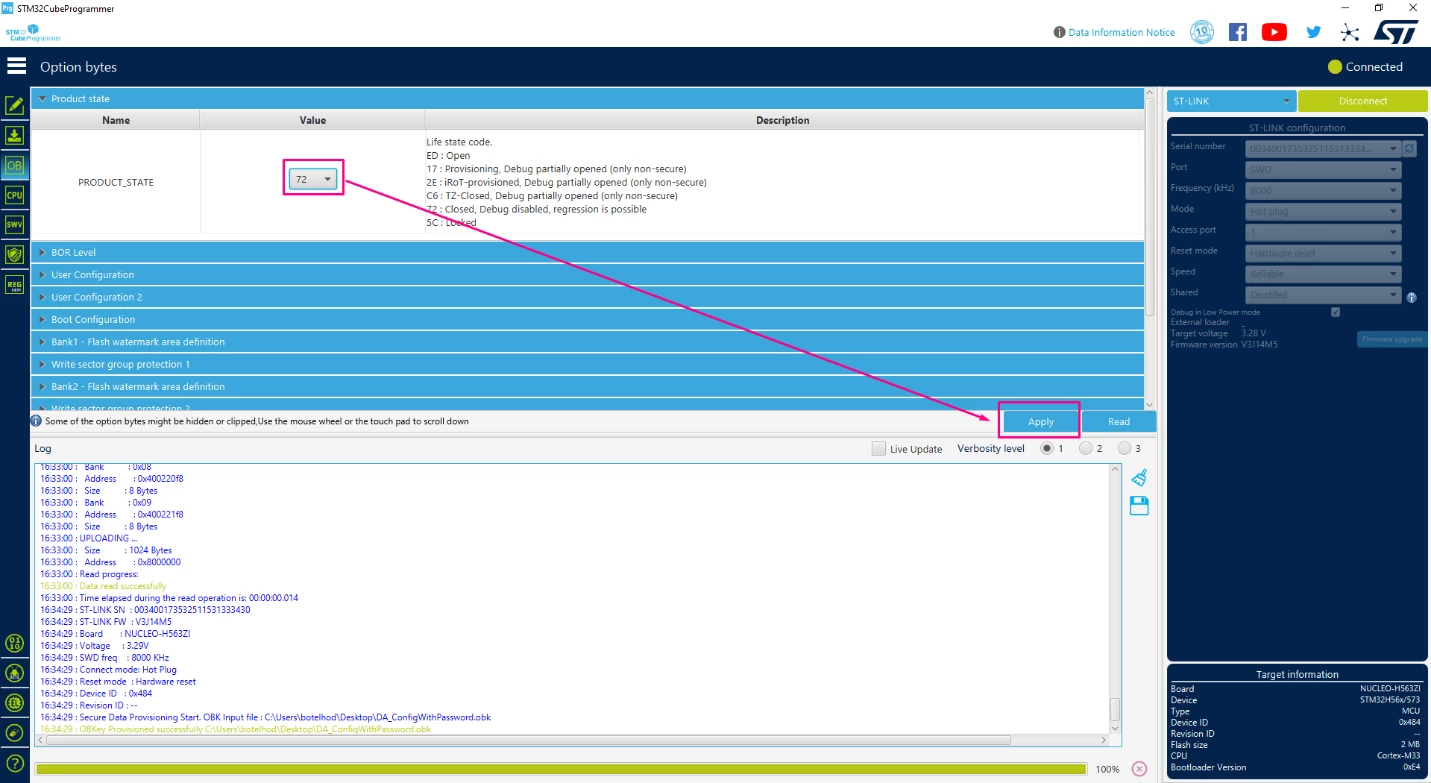
STM32CubeProgrammer disconnects as the microcontroller enters a protected state. This state blocks external access through the debug port, similar to RDP level 2 protection, but still allows regression.
1.7 Performing regression:
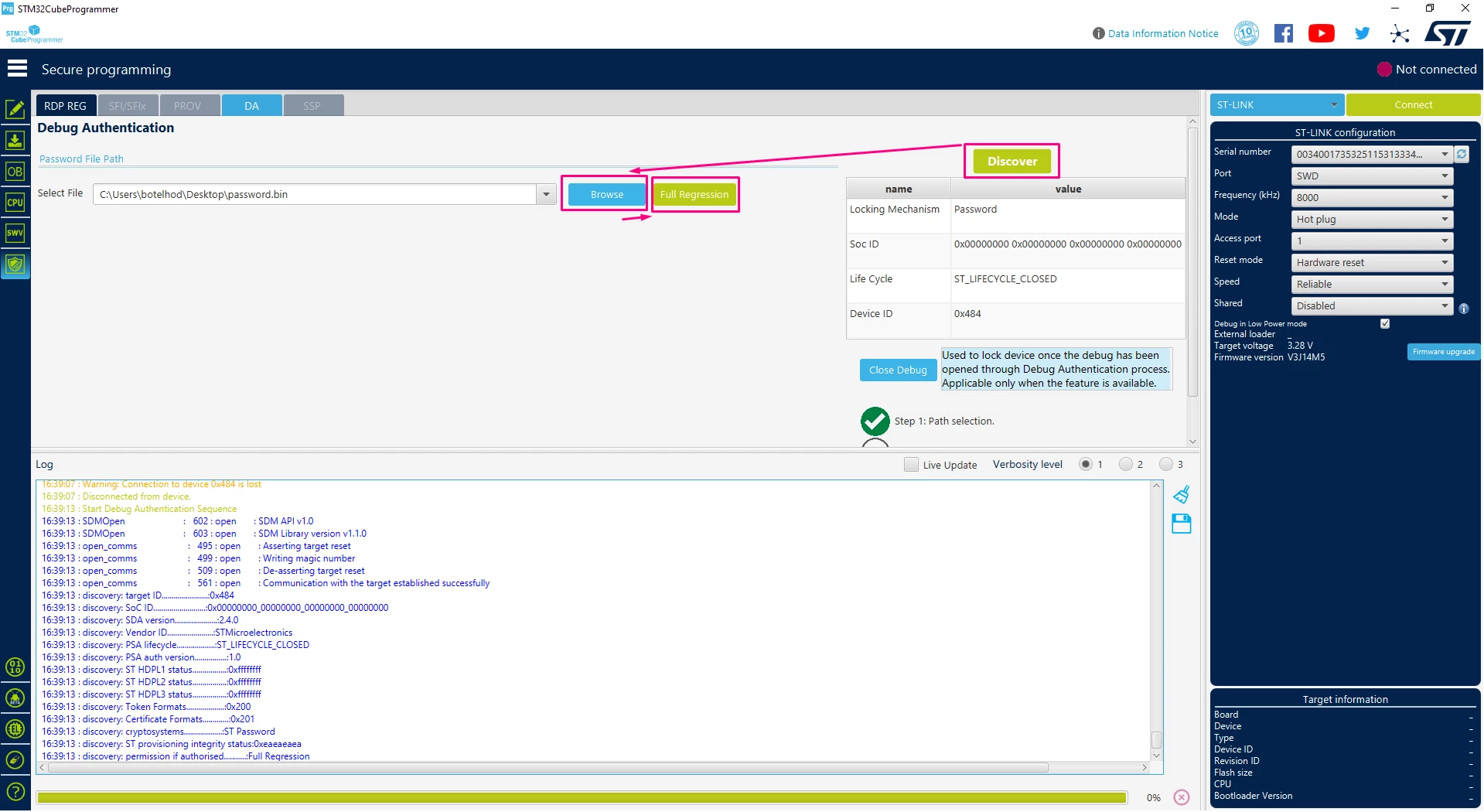
To perform a regression and recover debug access, connect the debugger to the computer and the target microcontroller. Open STM32CubeProgrammer, navigate to the [Secure Programming] menu, and open the [Debug Authentication] menu.
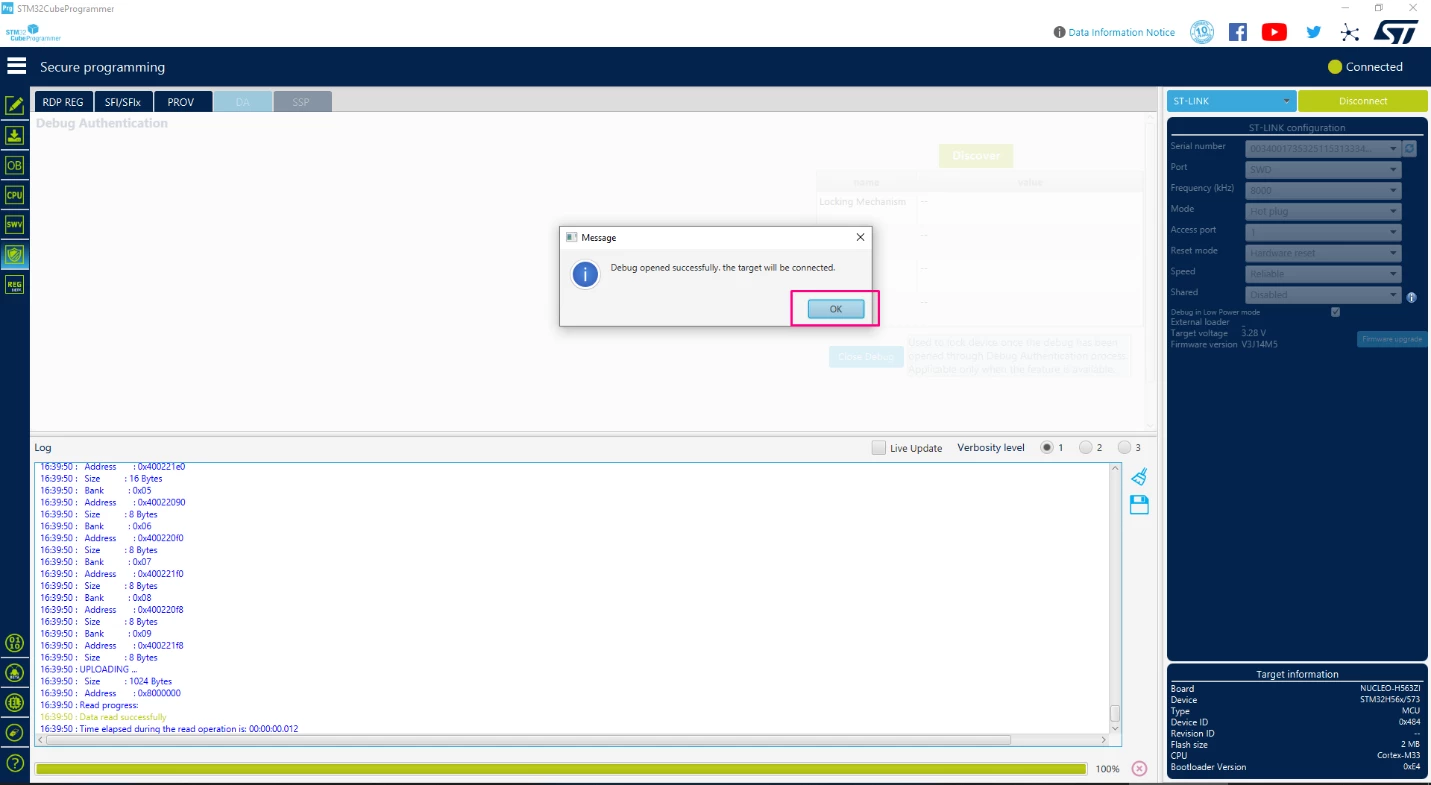
Click [Discover]. If the target is connected, the table displays the product status and additional information. Click [Browse] and import the .bin file generated earlier. Click [Full Regression] and wait for the process to complete.
When the process finishes, click [OK].
After this process, debug access is restored and the microcontroller returns to the open state.
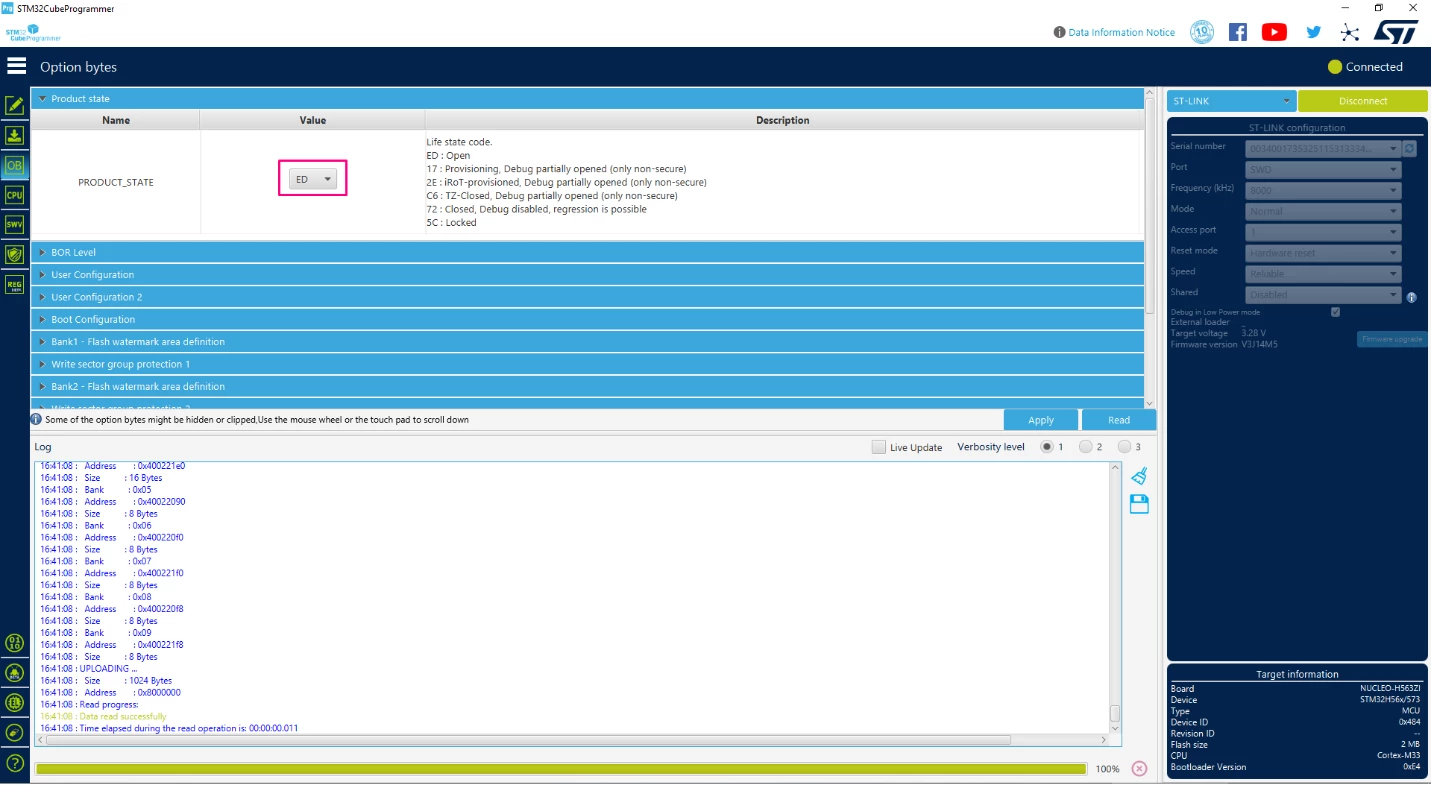
Product state regression erases embedded memories (SRAM2, flash) and resets all peripherals, including OTFDEC and all cryptographic engines.
Now you know how to protect your code on the STM32H5, as well as to provision a password to perform a regression and get access back to the microcontroller!
2. Automating the process with STM32CubeProgrammer CLI
The above steps are required to protect memory and code in STM32H5 microcontrollers, which may complicate production line processes. To streamline the procedure, use the STM32CubeProgrammer CLI (command-line interface) to create scripts that execute all necessary steps.
STM32CubeProgrammer CLI is part of a comprehensive ecosystem for managing automated programming workflows. It also supports integration with other platforms, including Python. For further information, refer to the STM32CubeProgrammer documentation: STM32CubeProgrammer software description - User manual
To create a script, open a text editor and add the following code:
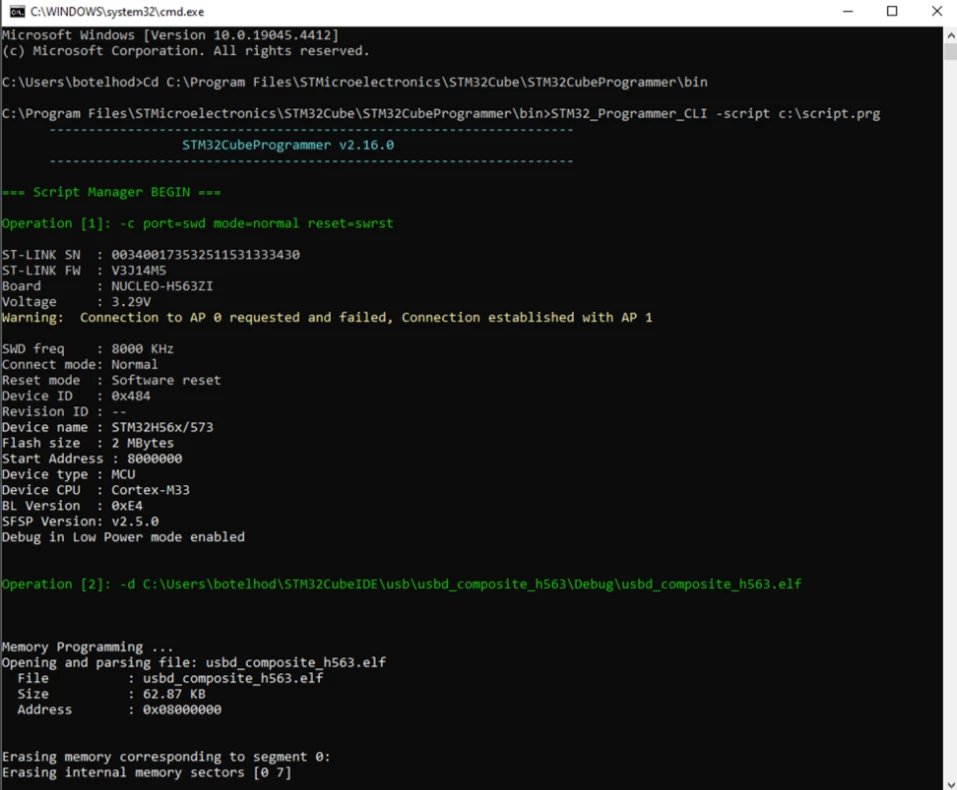
-c port=swd mode=normal reset=swrst -d C:\Users\botelhod\STM32CubeIDE\usb\usbd_composite_h563\Debug\usbd_composite_h563.elf -ob PRODUCT_STATE=0x17 --scriptdisconnect -c port=swd mode=hotplug reset=swrst -sdp C:\Users\botelhod\Desktop\DA_ConfigWithPassword.obk -ob PRODUCT_STATE=0x72 The script opens SWD connection by the -c command. Then it downloads an .elf file given by the command -d followed by the image path. After that, it changes the PRODUCT_STATE to the provisioning state by issuing the -ob command. And finally, disconnects (--scriptdisconnect).
In the next step, the script starts a new connection but now using the hot plug mode. Then it provisions the password by the -sdp and finally changes the product state to the closed state, doing all the steps presented in this tutorial.
To proceed with the execution of this script by using the STM32CubeProgrammer, save the code with the .prg extension. Remember to update the lines that contain the path to the .elf and .obk files in the script to the right paths on your own machine.
Then open your terminal (like CMD, if using MS Windows), and navigate to the STM32CubeProgrammer installation folder. It can be done by issuing the following command:
cd C:\Program Files\STMicroelectronics\STM32Cube\STM32CubeProgrammer\binJust remember to update the command to refer the proper installation path on your computer. Once the terminal is in the STM32CubeProgrammer installation path, call the tool with the following command:
STM32_Programmer_CLI -script c:\script.prgReplace “c:\script.prg” with the correct script path.
Conclusion
This article describes how to implement readout protection on STM32H5 series microcontrollers using the product state feature, which serves as a legacy RDP equivalent. This feature provides protection equivalent to RDP level 2, blocking access through the debug port while allowing regression to an unprotected state with a password. This approach protects code from unauthorized reading and modification.
For questions or support, contact ST through the ST Community or Online Support.
Hope you enjoyed the article and that it has contributed to your knowledge base and our best wishes for your developments!
Related links
Here are some useful links that contain material that was used to build this article and can be helpful in your development:
- Security features on STM32H5 MCUs: ST Wiki
- Introduction to Manufacturing for STM32H5: ST Wiki
- How to start with DA on STM32H5: ST Wiki
- STM32H5 Online Training - STMicroelectronics
- STM32 Trusted Package Creator tool software description - User manual
- STM32CubeProgrammer software description - User manual