

ST Technical Moderator
March 18, 2026
How to change the color theme in STM32CubeMX2
- March 18, 2026
- 0 replies
- 302 views
Introduction
To customize the interface for projects, use the options provided by STM32CubeMX2 to personalize the appearance of files. To change the default settings and apply a personal touch, follow the procedure below.
Changing the color theme in STM32CubeMX2
With the launch of STM32CubeMX2, a new feature allows developers to change the color theme for the integrated development environment (IDE) and the code generation tool.
Follow one of the three methods described below:
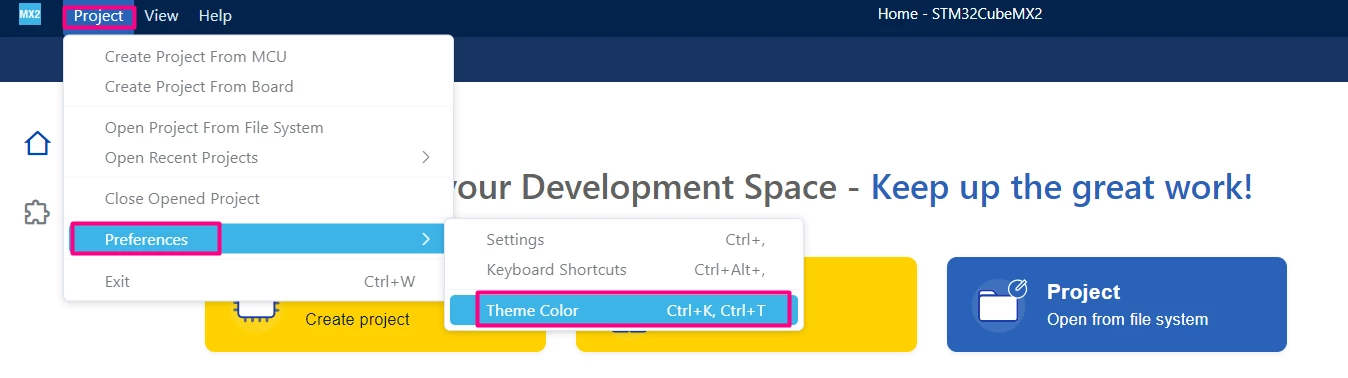
Method 1. Open STM32CubeMX2 and click [Project] →[Preferences] → [Theme Color]
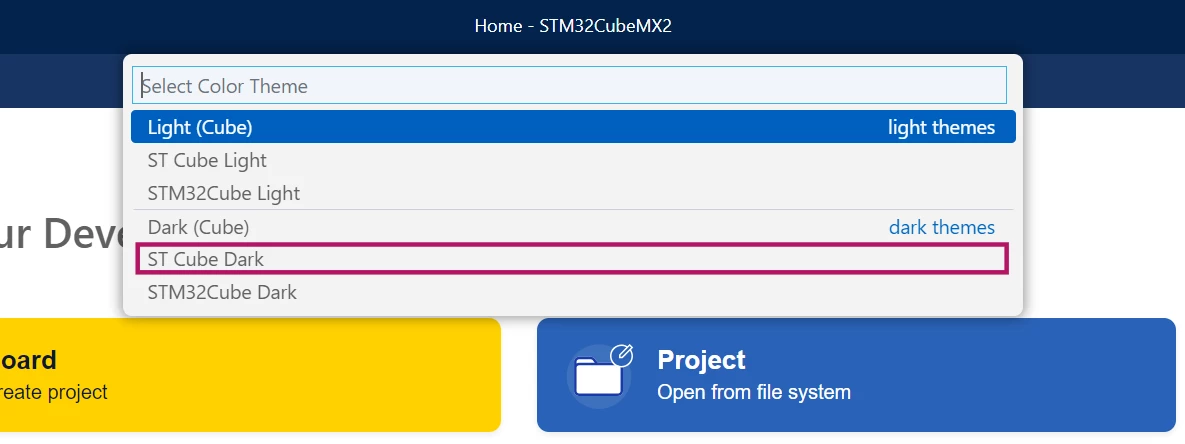
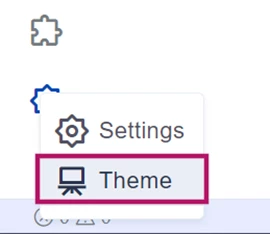
Method 2. Using the lower left corner gear icon, then select [Theme].
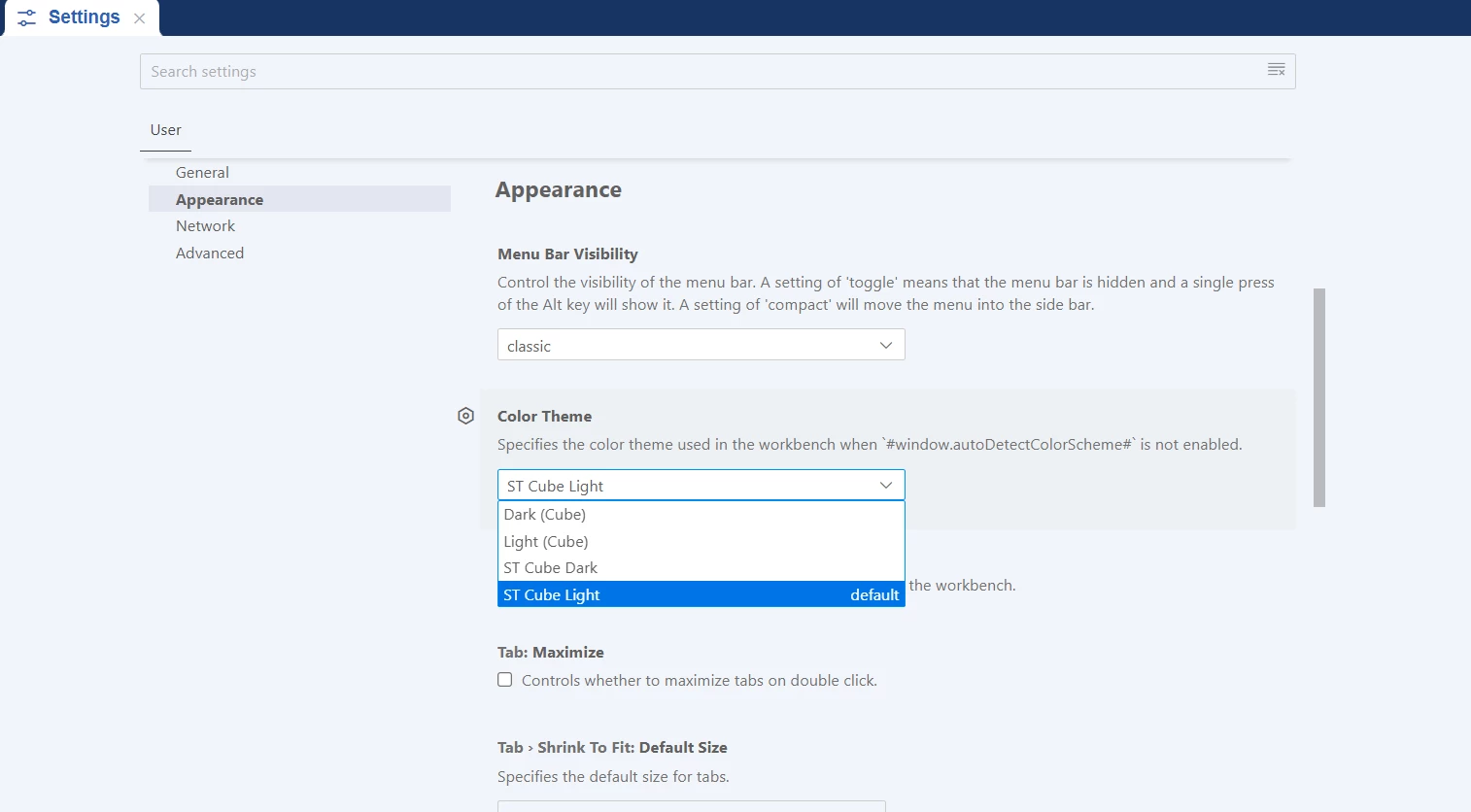
Method 3 Clicking on the Gear Icon, followed by [Settings] will also allow you to change the appearance:
End result
The interface updates to reflect the selected theme:
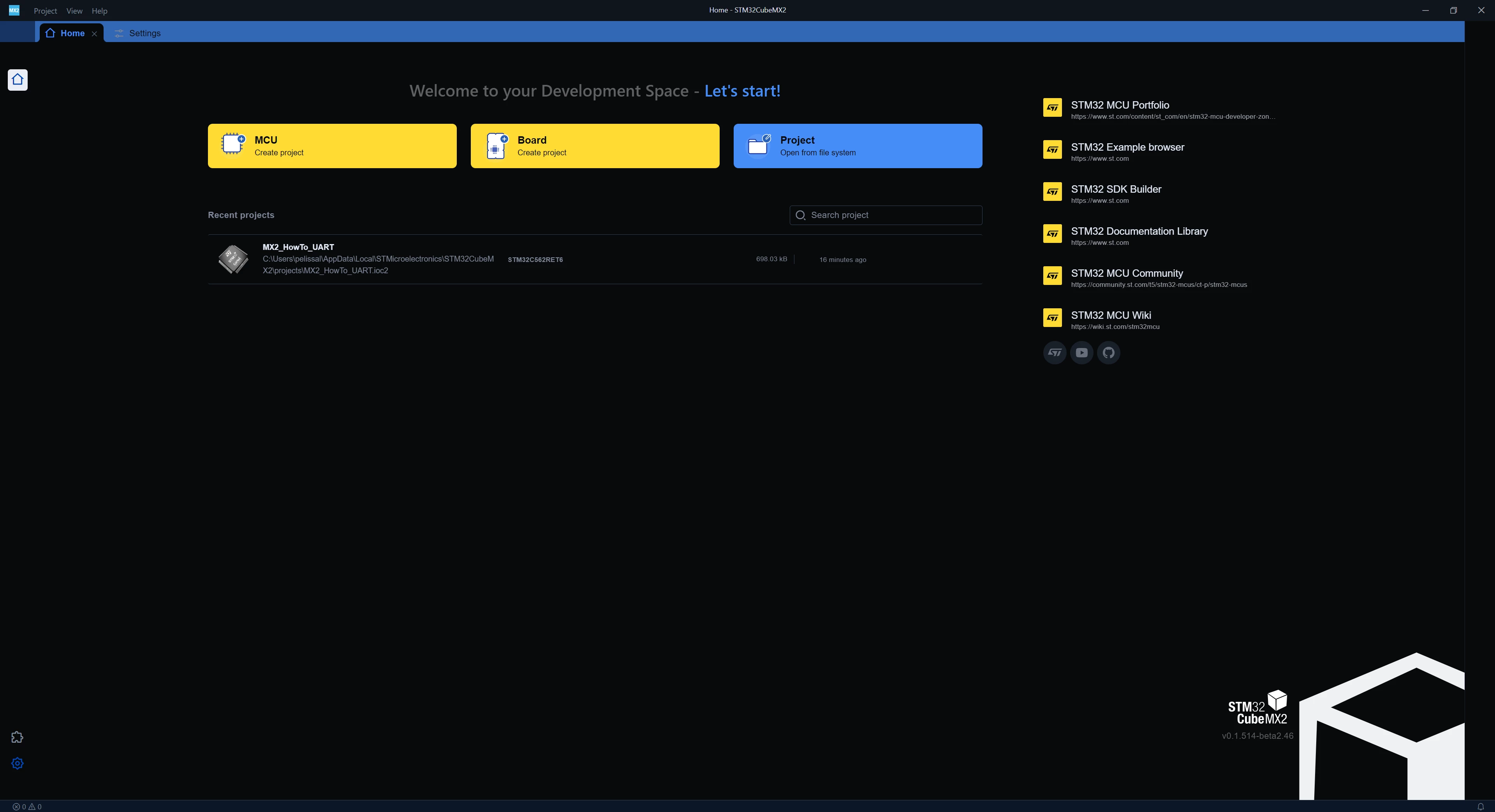
You now have a personalized STM32CubeMX2 interface.
