

How to add a BSP to an STM32CubeIDE project
Introduction
STMicroelectronics offers BSPs (Board Support Packages) for all STM32 Evaluation and Nucleo boards as well as Discovery Kits. This article shows how to add a BSP to your STM32CubeIDE project.
1. Prerequisites
- Hardware:
- Mini USB cable to power and program the board
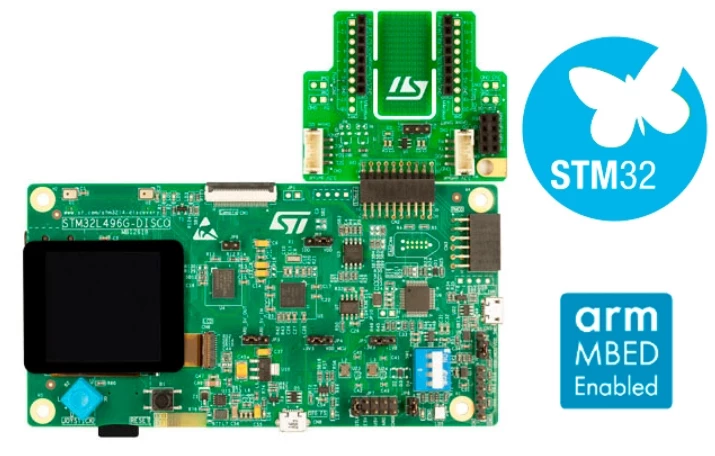
- STM32L496G-DISCO (rev. B)
- Software: STM32CubeIDE
2. Theory
All ST STM32 boards include the microcontroller and basic components such as button switches and LEDs, as well as advanced devices such as sensors and displays. For details, see the documentation for the specific board. To ease the use of the additional components, ST offers specific drivers in the BSPs for each board. These BSPs are included in each STM32 Cube Firmware Library.
In this article we will learn how to add a BSP to an STM32CubeIDE project. We will use the STM32L496G-DISCO kit and will see how to add the BSP, specifically the drivers for the display that is on the board.
We will then develop a short application that will initialize the LCD and display a message on it.
3. Steps
-
Open STM32CubeIDE
-
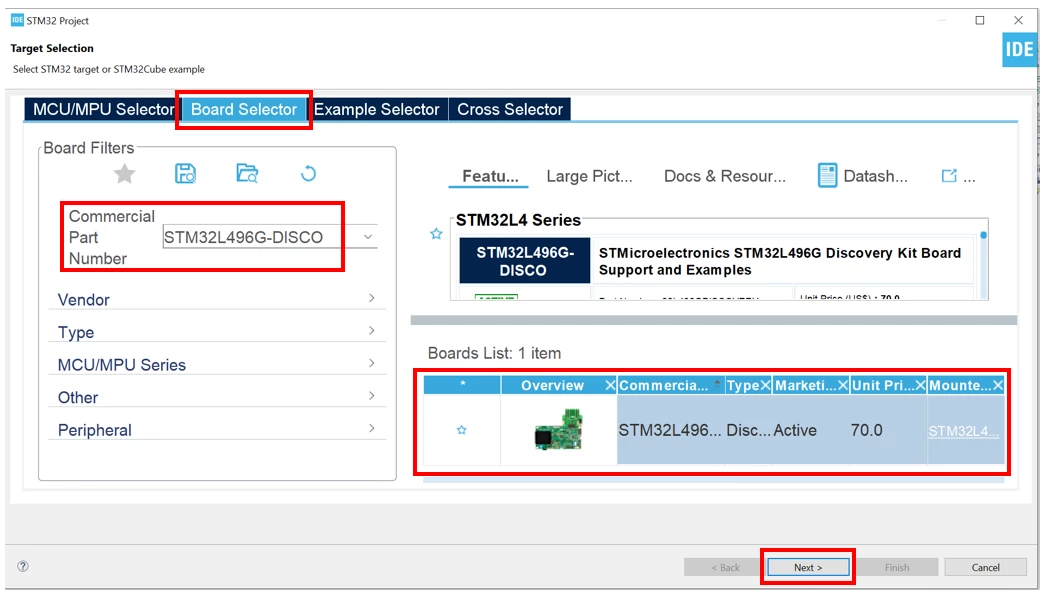
Create a new project using the STM32L496G-DISCO
-
Give a name to the project
For this article I will call my project “AddBSP”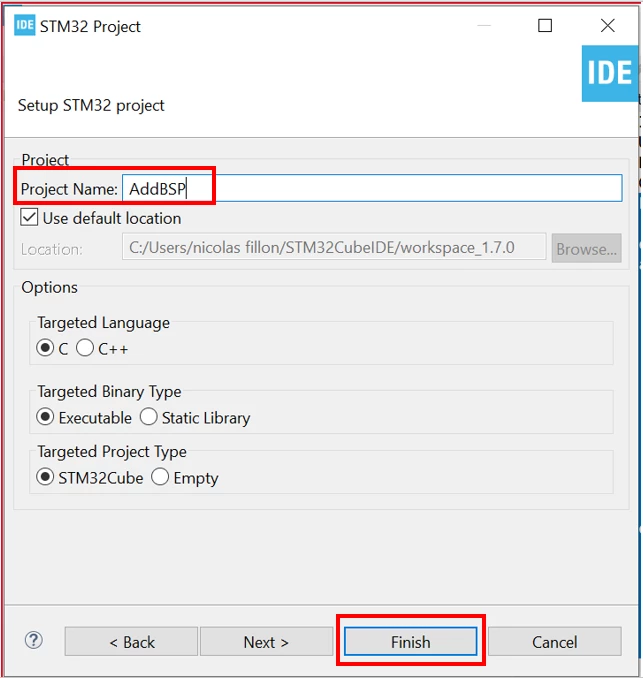
-
Initialize all peripherals with their default settings:
To do this please click on Yes below: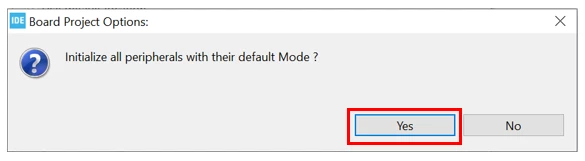
This will create our template project.
-
Add BSP
During this step we will add the BSPs drivers we need for the STM32L496G-Discovery Kit to be able to have an application using the display in our case.
First open the directory where the project has been created. To find out where the project was created go to File -> Open Projects from File System: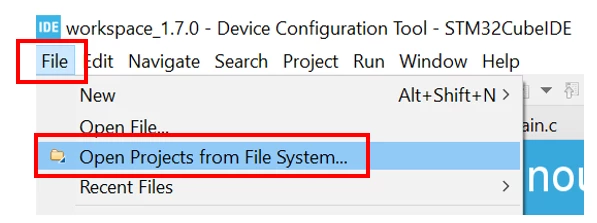
This will open a window that indicates where the project is located, in my case: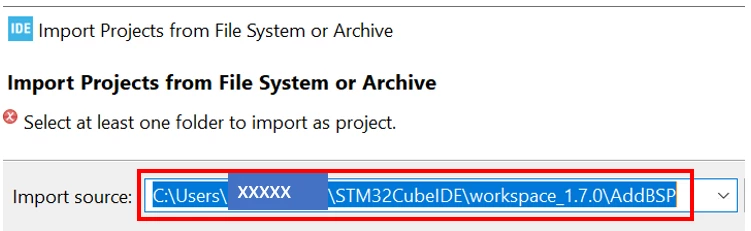
“xxxxx” indicates the username in my case.
Now with an explorer open the directory where the project is located. The structure of the project should look like this: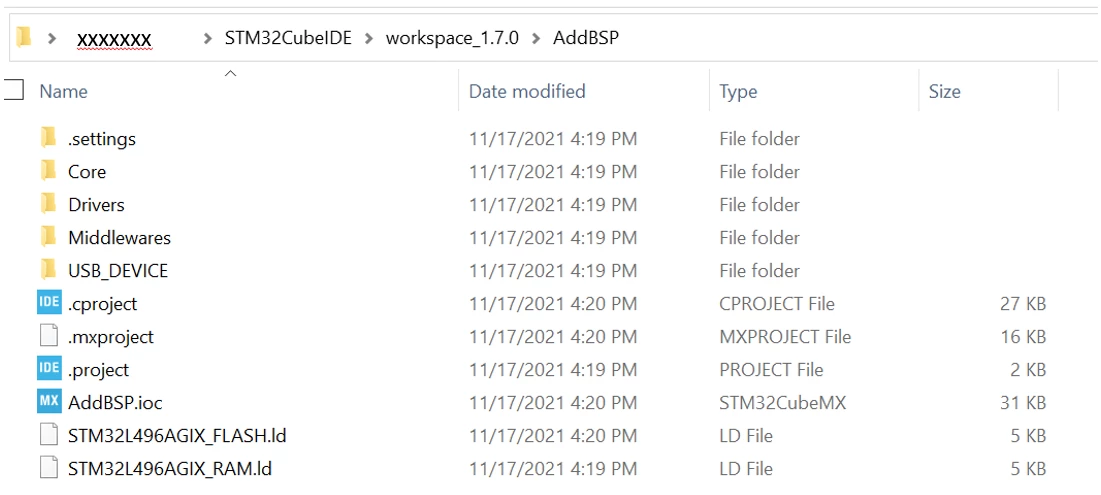
Now go to the “Drivers” directory.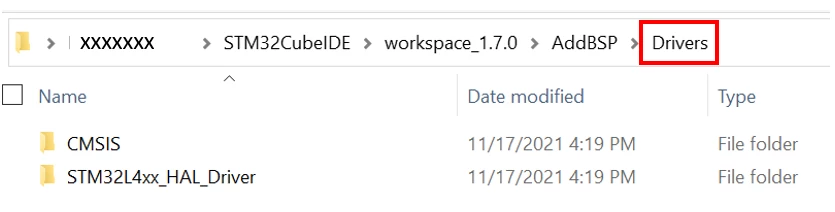
This is where we will be adding the BSP files.
In a second explorer window open the STM32CubeL4 FW Library folder that should be in the following location on your disk:
C:\Users\xxxxxxxxxx\STM32Cube\Repository\STM32Cube_FW_L4_Vx.y.z
Where “xxxxxxxxxx” is your username if you are using Windows and “Vx.y.z” is the version of the STM32Cube Library, in my case I am using the version 1.17.0.
In the STM32CubeL4 directory go to the Drivers directory to find the BSP: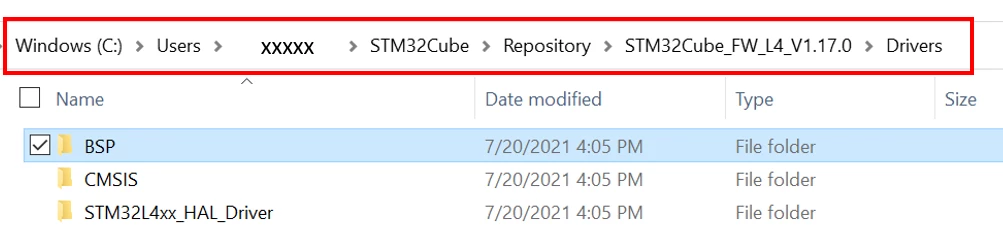
Now copy this directory and paste it into the Drivers folder of your Project in the other window: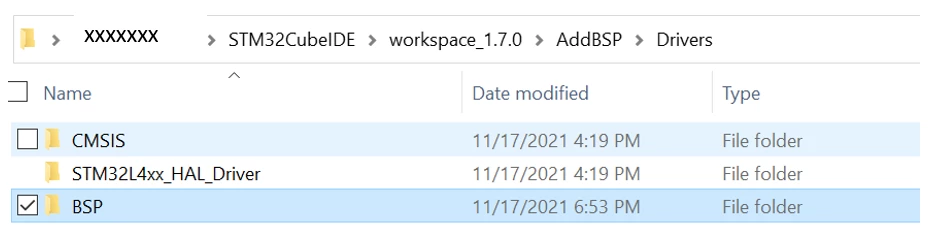
Delete the rest of the folder and keep only these ones which are relative to the STM32L496-Discovery Kit.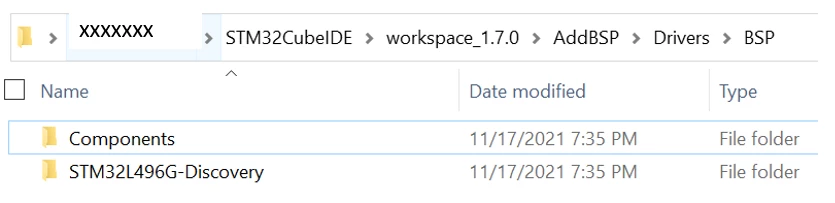
Now go to the Components directory and keep only the following components: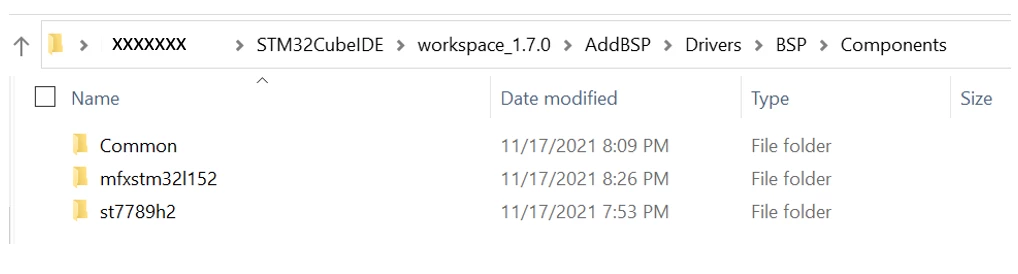
“Common” includes all the components that are available for any evaluation board. The folder, “mfxstm32l152”, is a companion of the STM32L4 which is required to be included due to dependencies in the drivers and “st7789h2” contains the components for the display on the STM32L496G-Discovery.
In the STM32L496G-Discovery we will keep only these files as we won't use all of the features of the board, we will use the display for this example.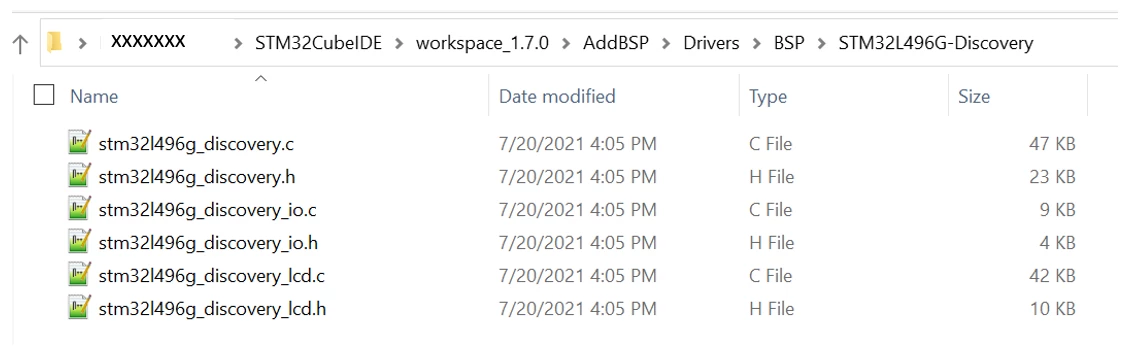
Listed above are the absolute minimum files to have to be able to use the display drivers from the BSP.
We will also add the Utilities folder from the STM3Cube Library to our project because the BSP uses some of the files form this folder. You will find the Utilities folder of the at the root directory of the STM32L4Cube FW Library as shown below: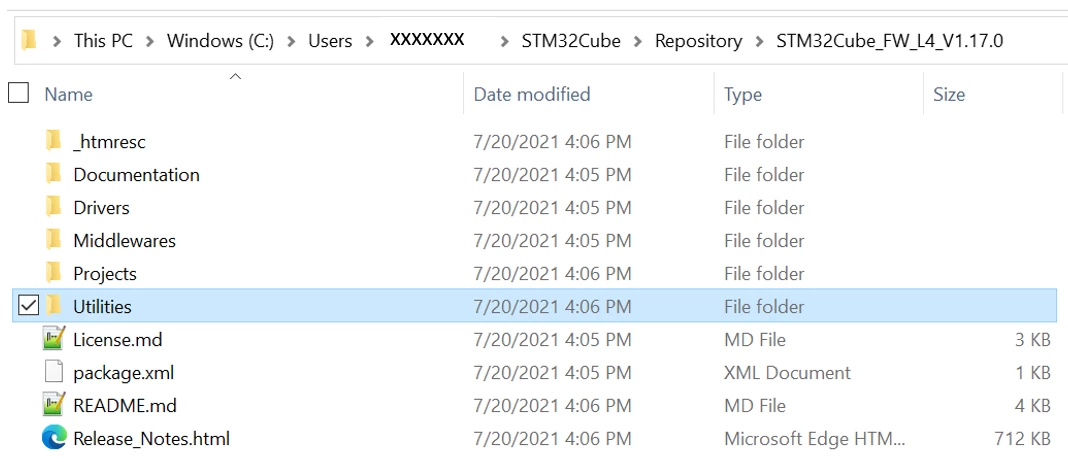
Copy and paste the folder into your Project directory like this: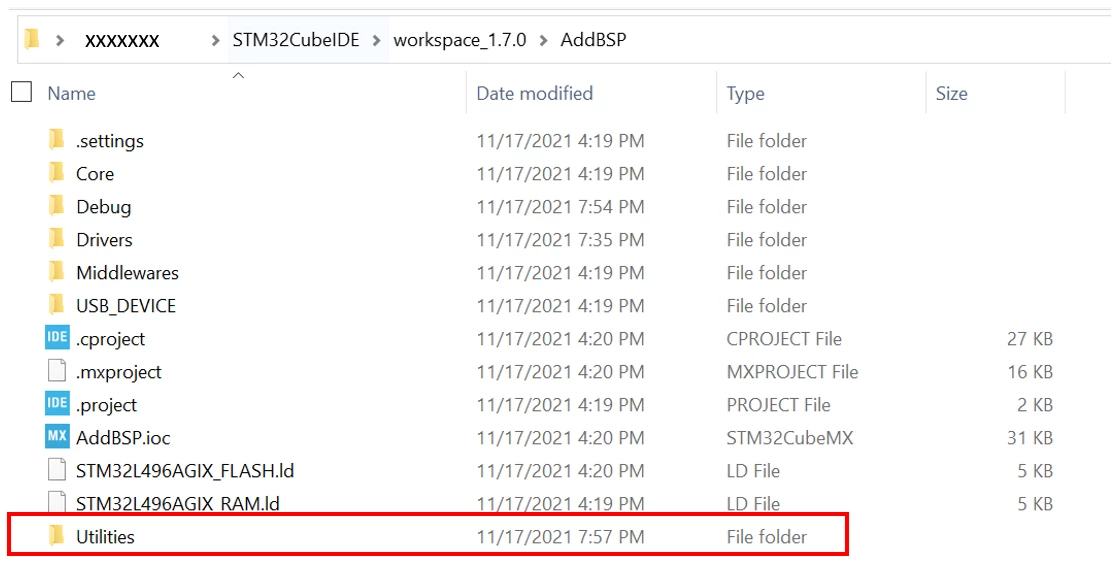
Now go back to STM32CubeIDE. The project structure should be like this in the Project Explorer Window: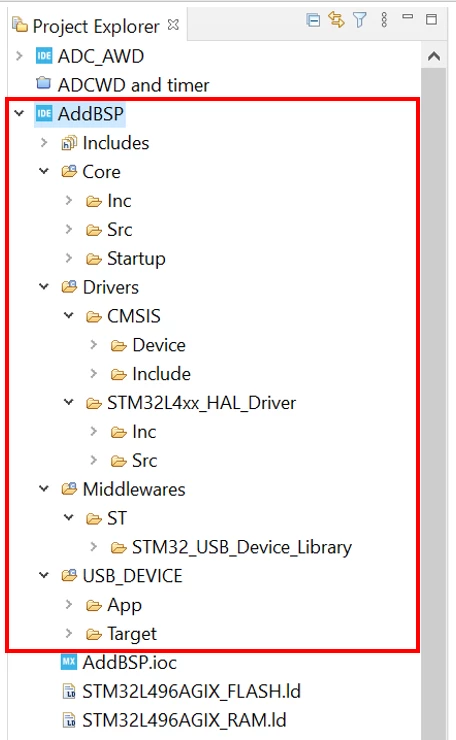
Now refresh the project by left clicking on the Project Name and selecting Refresh: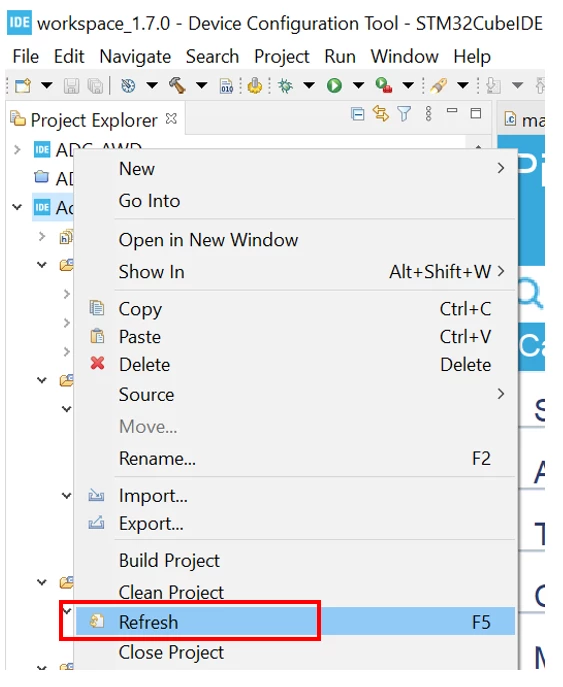
This will add the BSP folder and subfolders and all the source files to our project.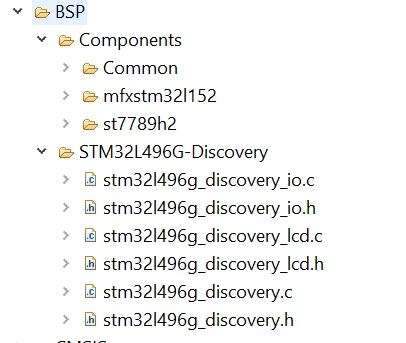
-
Project modification
Because of some drivers’ dependencies we need to add the timer HAL drivers from the HAL Configuration file. Open stm32l4xx_hal_conf.h file located Under Core -> Inc from the Project Explorer and define HAL_TIME_MODULE_ENABLED to include the timer drivers used by the BSP: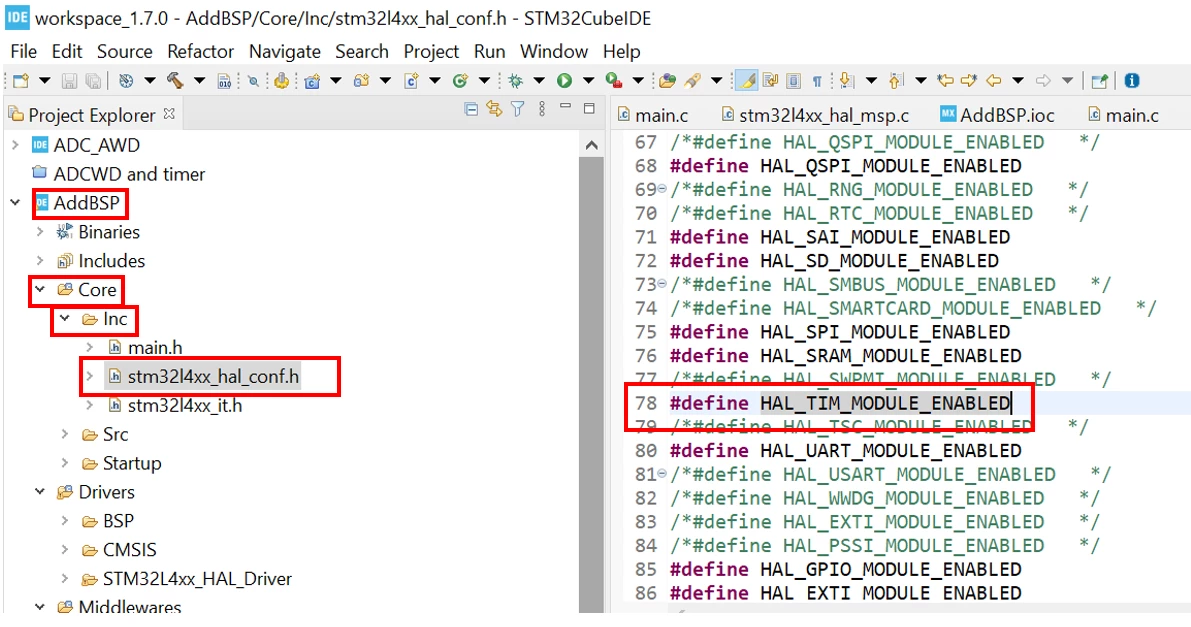
-
Adding code
We are going to add some functions provided by the BSP to use the on-board display. We will initialize the display and then use some of the BSP function to display a sentence on the display.
/* USER CODE BEGIN Includes */
#include "../../../Drivers/BSP/STM32L496G-Discovery/stm32l496g_discovery.h"
#include "../../../Drivers/BSP/STM32L496G-Discovery/stm32l496g_discovery_lcd.h"
/* USER CODE END Includes */
…
 /* USER CODE BEGIN 2 */

 /* LCD Init */
 if (BSP_LCD_InitEx(LCD_ORIENTATION_PORTRAIT) == LCD_ERROR)
 {
 /* Initialization Error */
 Error_Handler();
 }

 BSP_LCD_DisplayStringAt(0, 240 - 65, (uint8_t *)"BSP Example", CENTER_MODE);

 /* USER CODE END 2 */
Note: if you don’t have an SD card inserted in the SD card slot of the Discovery Kit you will need to comment the initialization of the SDMMC peripheral (//MX_SDMMC1_SD_Init();):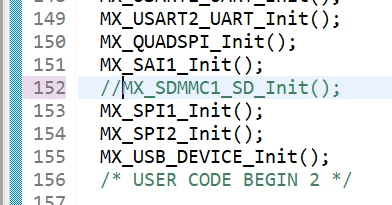
-
Now build the code, load it, and reset the board to start execution.
After the LCD is initialized, the text, “BSP Example”, will be displayed.
Related links
- Datasheet DS11585: STM32L496xx - Ultra-low-power Arm® Cortex®-M4 32-bit MCU+FPU, 100 DMIPS, up to 1 MB Flash, 320 KB SRAM, USB OTG FS, audio, external SMPS
- Reference manual RM0351: RMSTM32L47xxx, STM32L48xxx, STM32L49xxx and STM32L4Axxx advanced Arm®-based 32-bit MCUs
- STM32CubeIDE
- 32L496GDISCOVERY: Discovery kit with STM32L496AG MCU
- STM32CubeL4: STM32Cube MCU Package for STM32L4 series and STM32L4 Plus series (HAL, Low-Layer APIs and CMSIS, USB, TouchSensing, File system, RTOS, Graphic - and examples running on ST boards)
- User manual UM2298: STM32Cube BSP drivers development guidelines