Summary
This article aims to introduce STM32 developers to the basics of CMake, focusing on practical use cases that simplify the learning curve and help avoid common pitfalls during onboarding.
Introduction
In the rapidly evolving world of embedded development, efficient and reliable build systems play a crucial role in accelerating product development and ensuring code quality. For STM32 developers, grasping the build process is fundamental to fully leveraging the power of STM32 microcontrollers and their extensive ecosystem.
CMake has emerged as a modern, versatile, and widely adopted build system generator that addresses many challenges faced by embedded developers today. Unlike traditional IDE-specific project formats, CMake provides a unified, flexible, and portable approach to managing builds across different platforms, toolchains, and environments.
1. Why learn CMake for STM32 development?
1.1 IDE independence and choice
STM32CubeIDE and Eclipse/CDT offer excellent GUI-based development solutions. However, to meet the growing demand for automation and modern engineering practices, we are expanding our offering to fully support flexible, CLI-based workflows and robust CI/CD integration.
Our command-line tools (CLT) are the first step in this transition. We are fundamentally embracing CMake because it provides the necessary foundation for true flexibility. CMake enables developers to easily generate project files for a variety of IDEs or compile code directly via the command line, ensuring maximum freedom and tool choice.
1.2 Improved project portability and scalability
CMake uses simple, text-based configuration files (CMakeLists.txt) that are easy to version control, share, and maintain. This is not the case with IDE-specific project files that are often bulky and difficult to manage. As STM32 projects grow in complexity, CMake’s modular approach helps maintain a clean and scalable build system.
1.3 Compiler abstraction
CMake’s toolchain abstraction can allow developers to switch seamlessly between toolchains without rewriting build scripts. This flexibility allows STM32 developers to more easily port projects between toolchains.
1.4 Automation and continuous integration ready
In modern embedded development, automated builds and testing pipelines are key to maintaining code quality and accelerating delivery. CMake’s command-line driven workflow integrates naturally with continuous integration (CI) systems, enabling STM32 teams to automate builds, run tests, and deploy firmware efficiently.
1.5 Software component and library integration
Many STM32 software components, middleware, and libraries now provide native CMake support or integration examples. Learning CMake empowers developers to take full advantage of these resources, reducing integration effort.
By understanding and adopting CMake, STM32 developers gain a powerful skillset that enhances productivity, fosters collaboration, and future-proofs their projects. This article will guide you step-by-step through essential CMake concepts and practical examples tailored to STM32 development, ensuring a smooth and confident onboarding experience.
This article is not an intended to be full training on all CMake concepts and usage. To learn more, visit the official CMake online documentation link.
2. How to generate a CMake project and open it in STM32Cube for Visual Studio Code
2.1 Project generation from STM32CubeMX
To generate a CMake project, follow these steps:
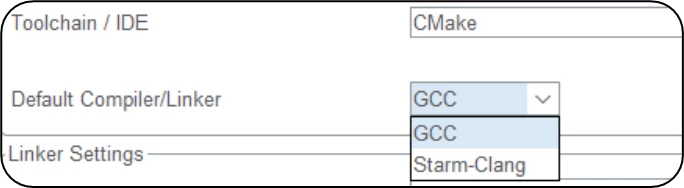
- After configuring your project, select CMake in the STM32CubeMX toolchain configuration and choose [GCC] or [Clang] as compiler/linker.
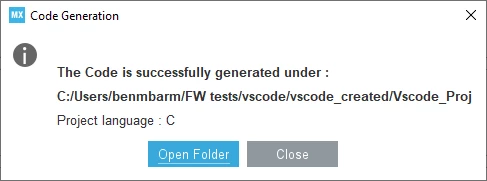
- After generating the project, click on [Open Folder] to open the project in the file explorer.
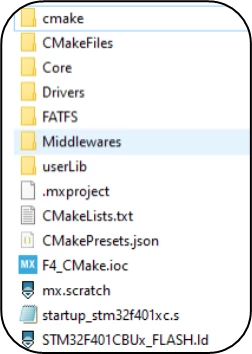
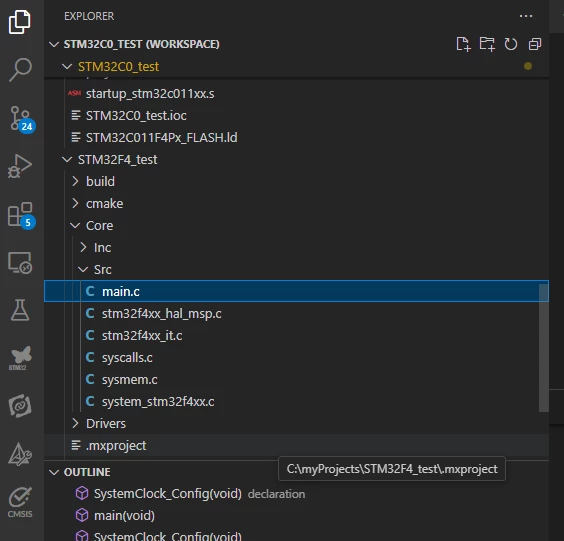
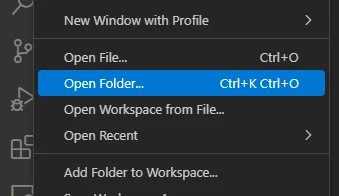
- Open VS Code and click on the [File] menu, then click [Open Folder] to import the created project
The selected folder must contain only one Project (CMakeLists.txt). If you want to open multiple projects in your workspace, you must add them one by one using “File → Add Folder to Workspace…” menu.
2.2 Project generation from STM32CubeMX2
To generate a CMake project, follow these steps:
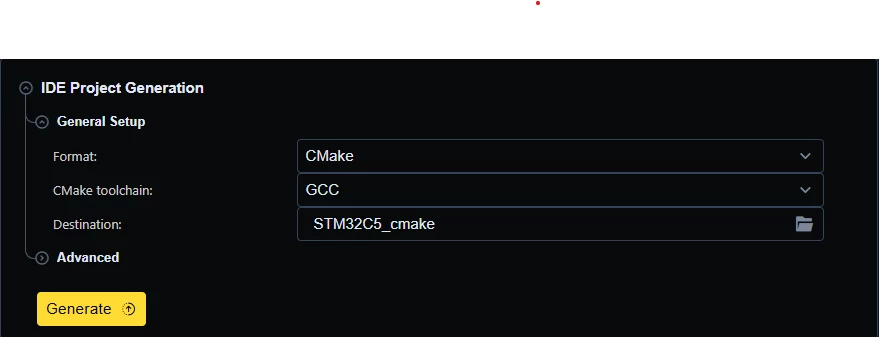
- After configuring your project, select CMake in the STM32CubeMX2 "IDE Project Generation" settings.
- For STM32CubeMX2 only [GCC] is available as CMake toolchain.
- then click on the generation button (yellow button)
- After the generation complete you can open the destination folder by the "show on disk" button in the info popup
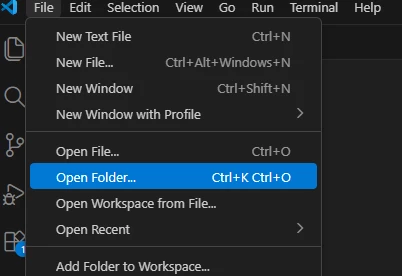
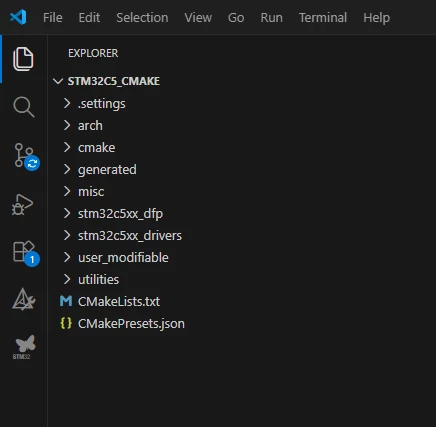
- Open the project in VSCode using the "open folder" menu
2.3. Project conversion from STM32CubeIDE
To convert an already existing project under STM32CubeIDE (eclipse version):
- Open STM32CubeIDE for VSCode extension menu
- Select "Convert Eclipse STM32CubeIDE Project"
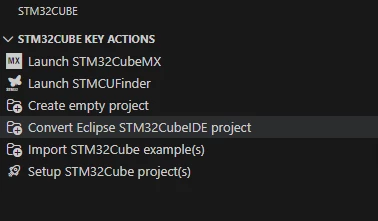
- You will now be prompted by a message asking you to select a source and a destination folder
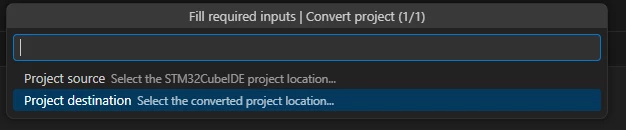
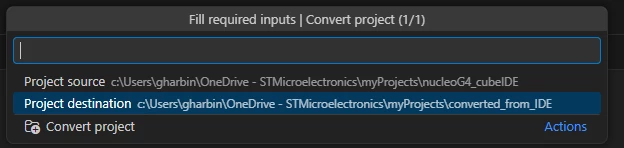
- After selecting both folders you can press the convert action and get your project to be used under VSCode
3. STM32CubeMX generated files
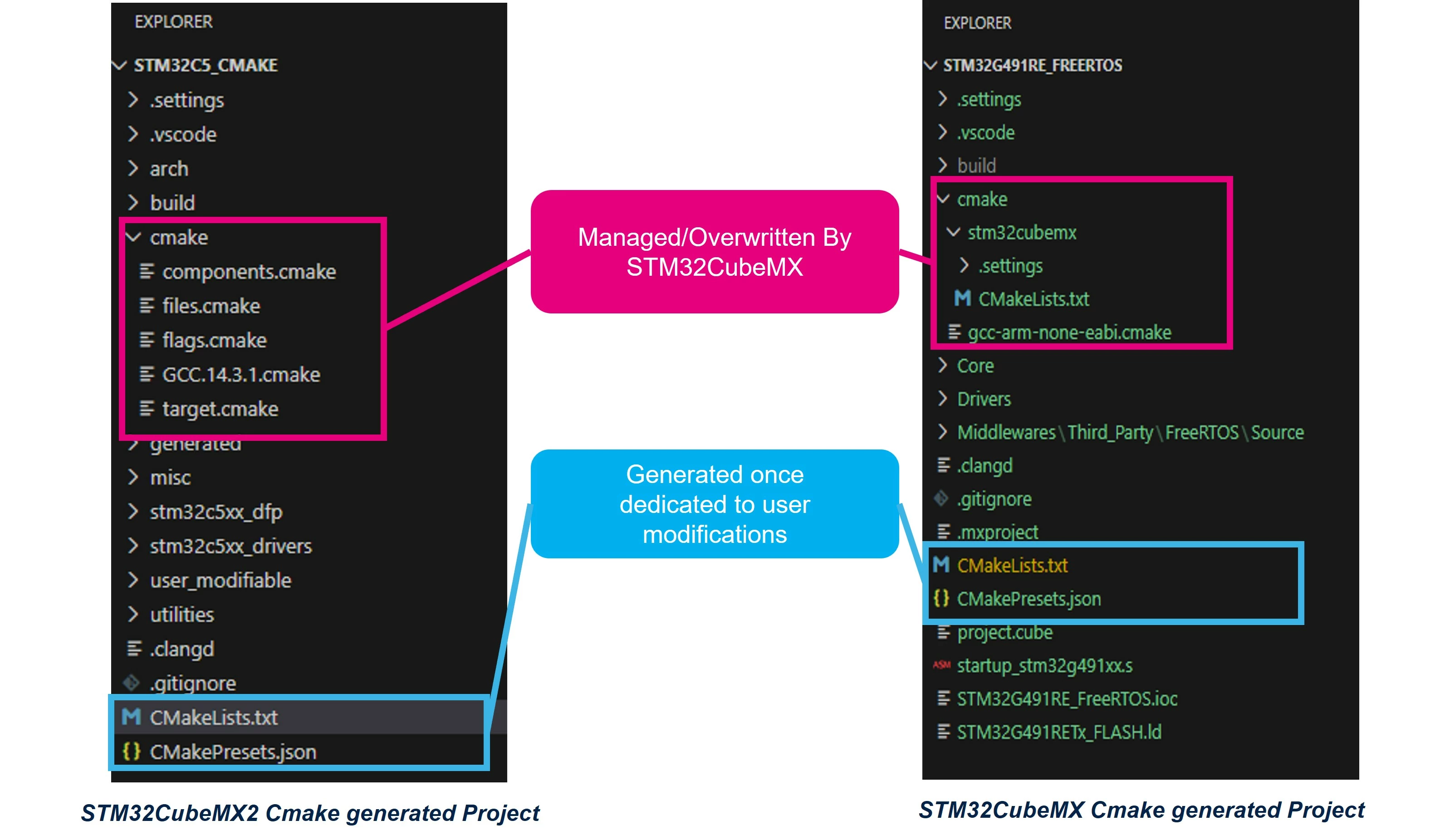
STM32CubeMX/STM32CubeMX2 will generate two types of CMake files:
- Tool-owned files - do not modify, these will be overwritten by STM32CubeMX/STM32CubeMX2
- User-owned files - owned and modified by the user to manage builds.
4. Generated files
4.1 How to create a configuration preset
You can create or add your own configuration and build preset in the CMakePresets.json file
This is an example of a preset configuration:
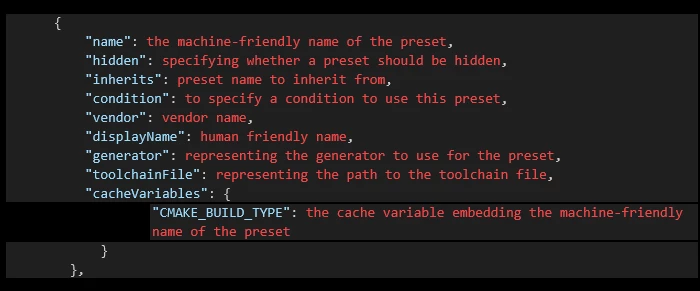
For more details about the parameters, visit https://cmake.org/cmake/help/latest/manual/cmake-presets.7.html
After creating the config preset, a build preset must be created in the same file example:
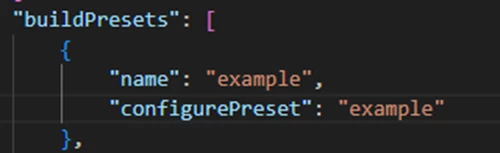
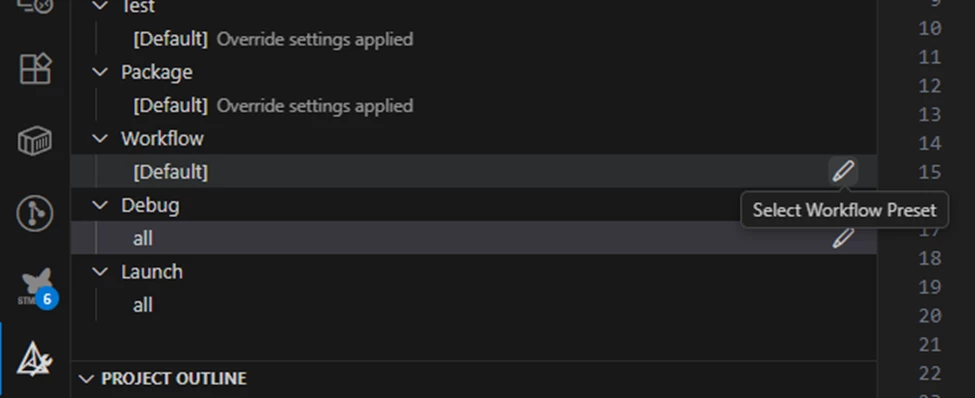
To use this configuration preset you can select it from the “Project Status” tab of the CMake extension interface as following, or via the command line with --preset=example:
You can also use the CMAKE_BUILD_TYPE as a condition to build/include files.
4.2 CMakeLists.txt
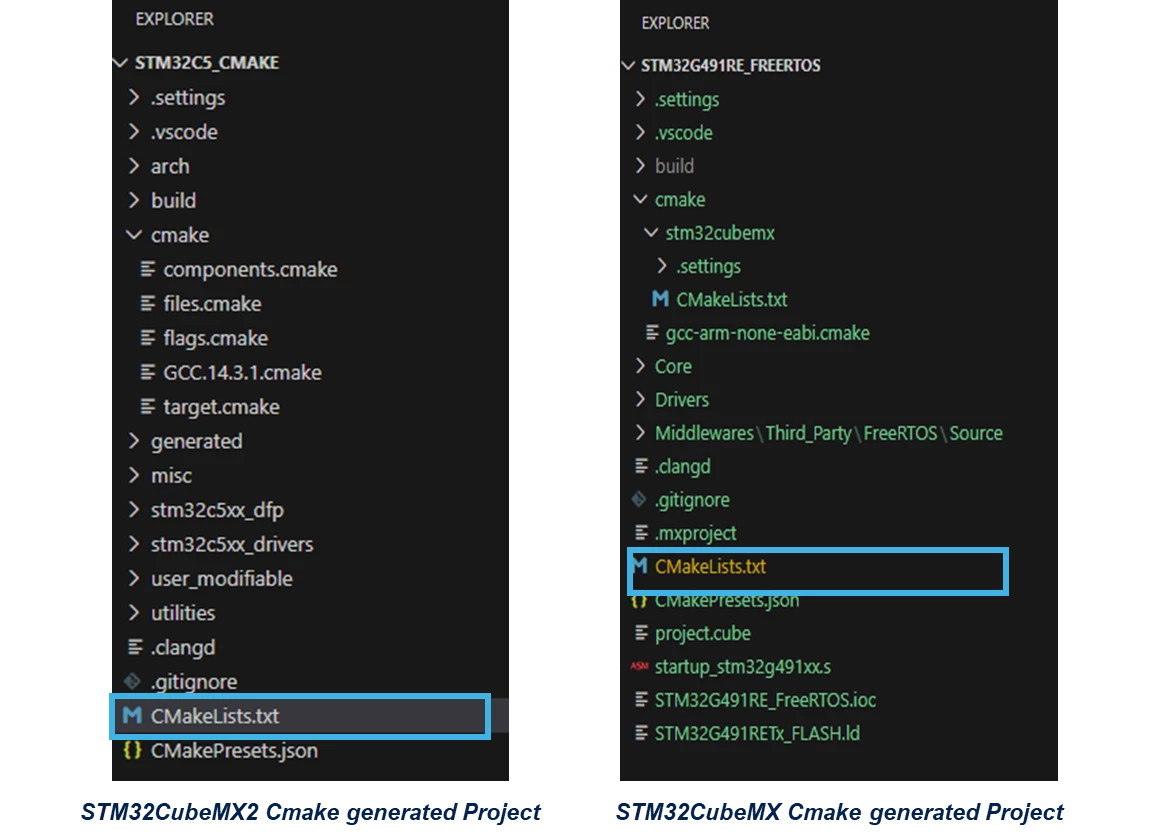
Multiple CMakeLists.txt files are available in your project:
- STM32CubeMX-generated CMakeLists.txt containing the project configuration. These files are overwritten at each project generation.
- One generic CMakeLists.txt generated once, in the project root folder where the user should add any modification.
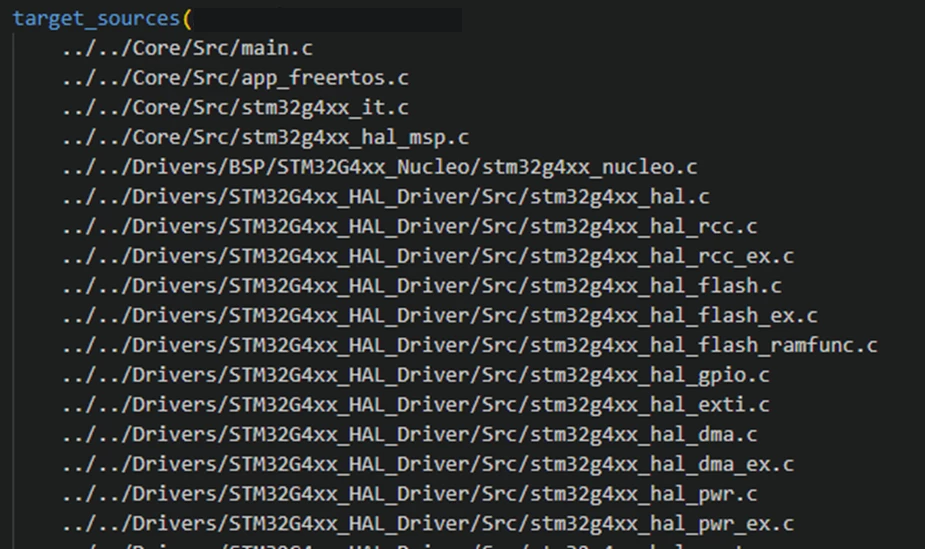
4.2.1 How to add source files
We advise using relative paths instead of full path to help share your project across development environments.
To add source files, use the "target_sources" node as shown below:
4.2.2 How to add include files/folders
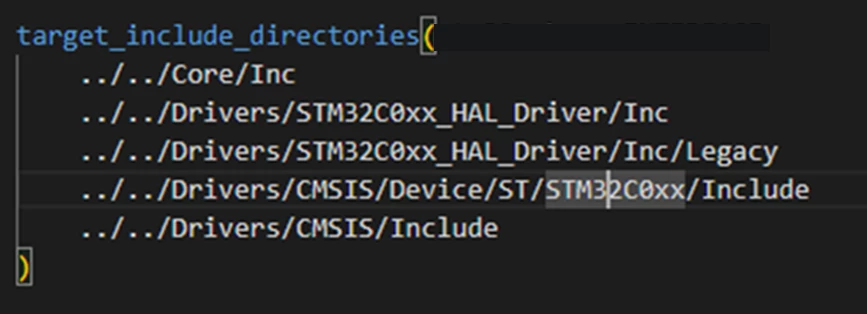
- CMakeLists.txt in the root folder is a one generated time file, so any user change will be kept after project regeneration.
- The build engine is able to search for your include files in the user-added directories.
To add header folders, use the "target_include_directories" node:
4.2.3 How to add symbols
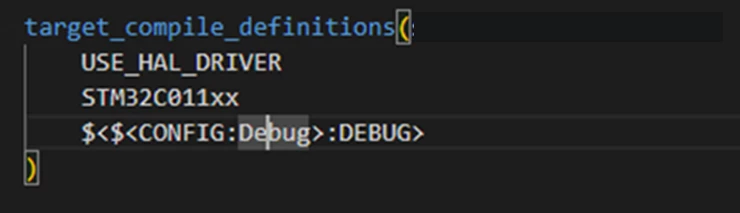
- CMakeLists.txt is a one time-generated file, so any user change will be kept after project regeneration.
- The build engine is then able to use the user added symbols when building the project.
To add symbols, you can use the "target_compile_definitions" node:
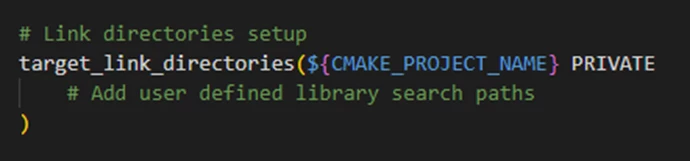
4.2.4 How to add libraries
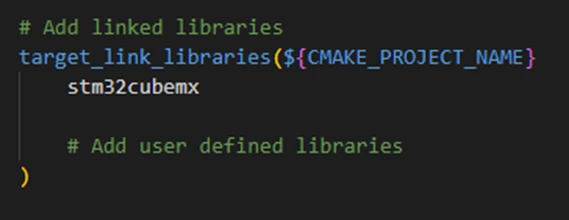
- CMakeLists.txt allows you by the two tags in the left side to add libraries to your project and specify a custom folder to search for them.
Each change must be done in the CMakeLists.txt under the CMAKE folder which is managed by STM32CubeMX.
To add library files, use the "target_link_libraries" node for the lib name and "target_link_directories" for the lib path:
4.3 Toolchain files
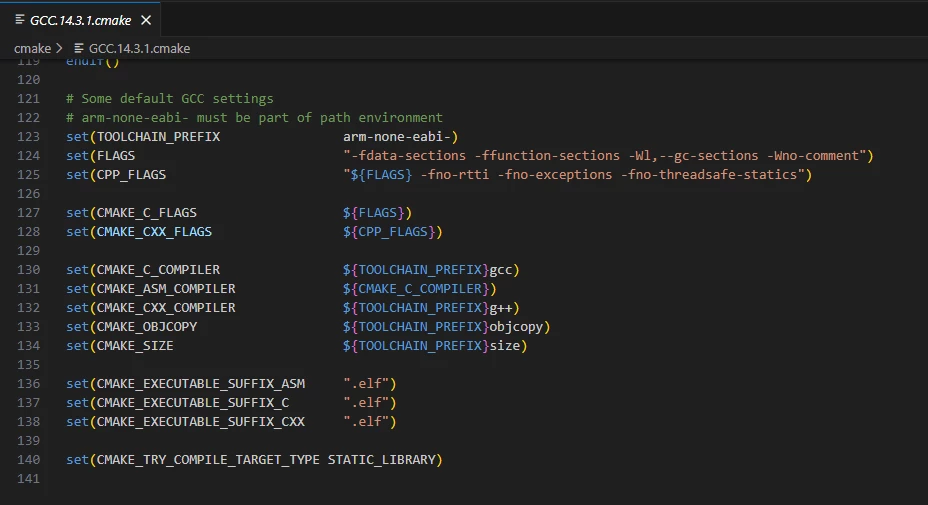
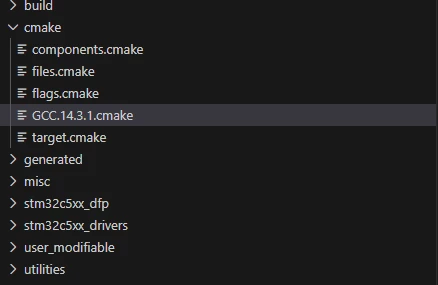
Toolchain files are for GCC and starm-clang.cmake for llvm. Both files embed the parameters, but the configuration differs from one toolchain to another.
When creating a new project from extension, you have the choice between GCC LLVM or a hybrid environment with both LLVM and GCC. In the hybrid environment, both files are present in the project.
Please note that LLVM will be available later for STM32CubeMX2, only GCC is available for the moment.
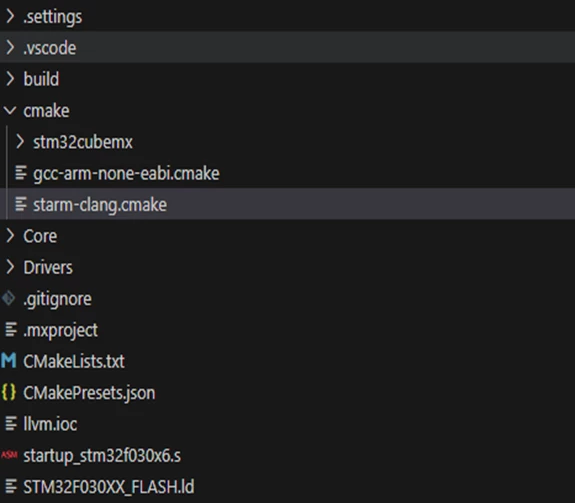
4.3.1 Compiler settings
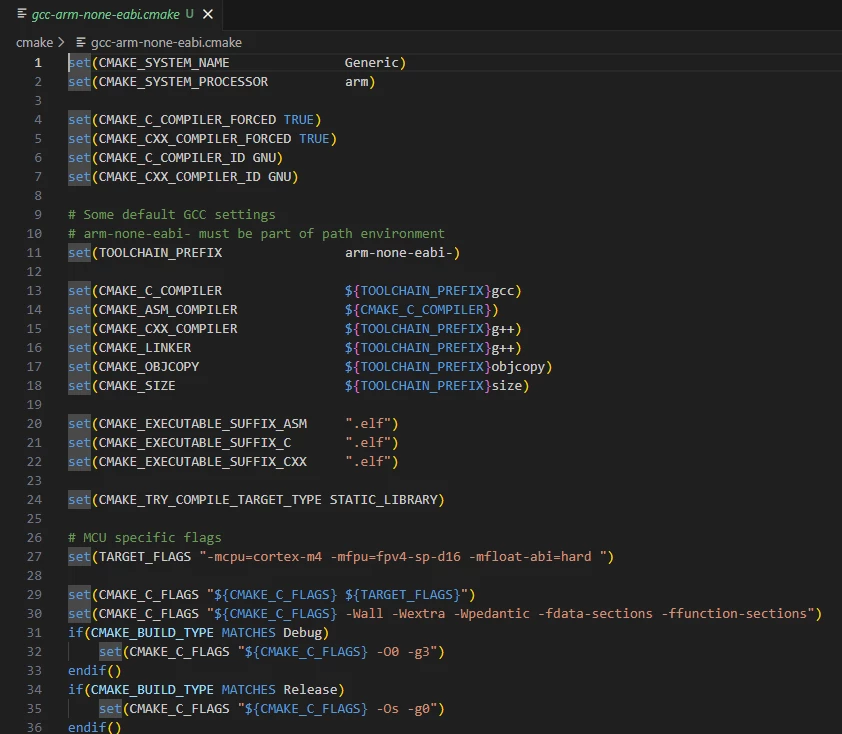
You can change your compiler settings from this batch of parameter
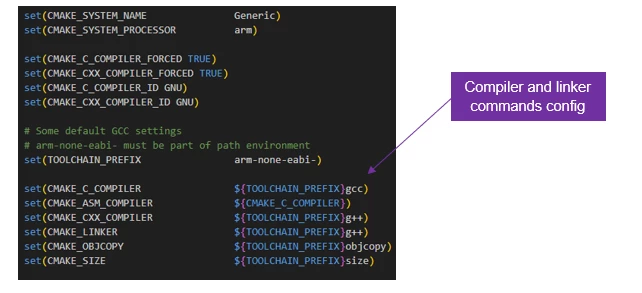
4.3.2 Build output suffix
You can change your output settings from this batch of parameter
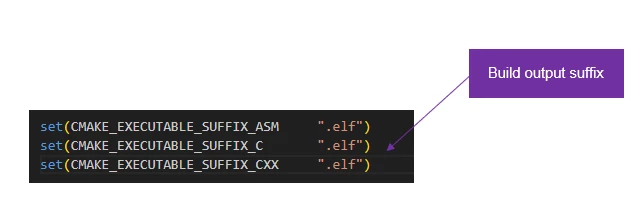
4.3.3 Cortex settings
You can change your cortex settings for the compiler from this batch of flags
4.3.4 Build optimization settings
The settings depend on the selected context. By default, only release and debug are available. If you have an additional build context, you can add more configurations in this area.
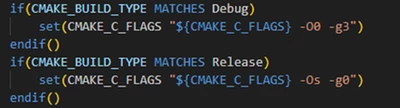
The compiler supports the following optimization levels:
- -O (same as -O1)
- -O0 (do not optimize, the default if no optimization level is specified)
- -O1 (optimize minimally, favoring compilation time)
- -O2 (optimize more, without speed/size trade-off)
- -O3 (optimize even more, favoring speed)
- -Ofast (optimize very aggressively to the point of breaking standard compliance, favoring speed. May change program behavior)
- -Og (Optimize debugging experience.
-Og enables optimizations that do not interfere with debugging. It should be the optimization level of choice for the standard edit-compile-debug cycle, offering a reasonable level of optimization while maintaining fast compilation and a good debugging experience.)
-Os enables all -O2 optimizations that do not typically increase code size. It also performs further optimizations designed to reduce code size. -Os disables the following optimization flags: -falign-functions -falign-jumps -falign-loops -falign-labels -freorder-blocks -freorder-blocks-and-partition -fprefetch-loop-arrays -ftree-vect-loop-version)
4.3.5 ASM configuration
You can change your ASM compiler settings from this batch of parameter

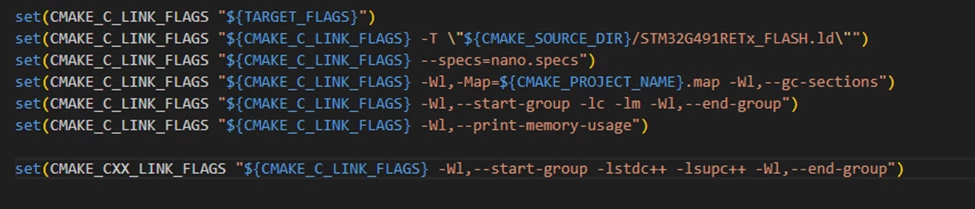
4.3.6 Linker configuration
You can change your Linker settings from this batch of parameter
5. STM32CubeMX generated project structure
Two types of projects can be generated, single context projects and multicontext projects.
A multicontext project is generated for:
- Dual core products
- Flash less products
- Secure products
In the figure below you can see the difference between these two types of projects.
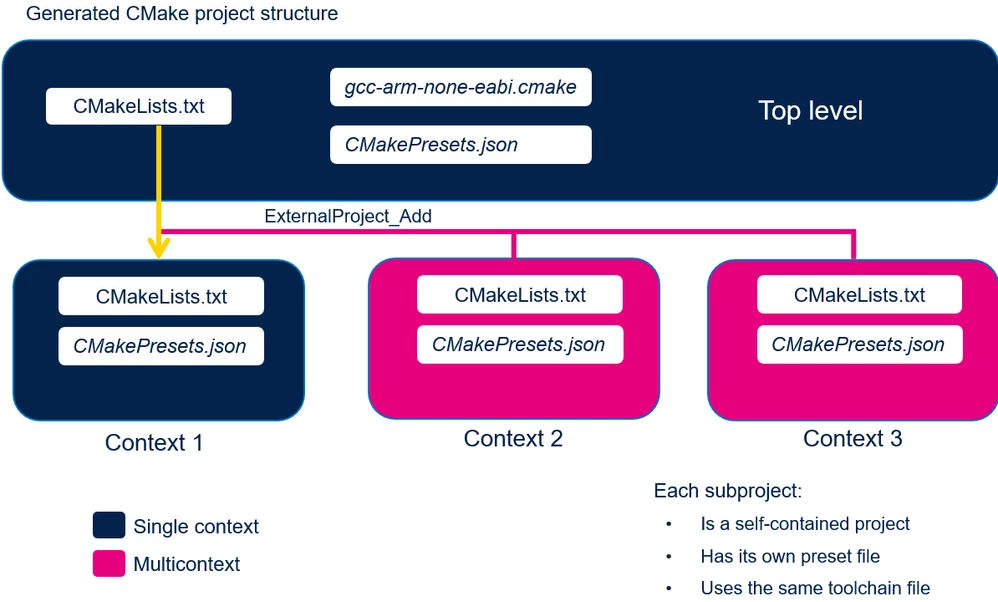
For the multicontext projects, you find the same described files before in single projects but with more specificity:
- Top-level Cmakelists.txt and CMakePresets.json. (All subprojects will inherit from those two files.)
- Specific cmakelists.txt and CMakePresets.json for each sub project where you can add/modify settings for only the related subproject.
Get additional support
For additional help, visit our VS Code forum board below and ask your question there:
https://community.st.com/t5/stm32cubeide-for-visual-studio/bd-p/stm32-vscode-extension-mcus