

FAQ: GUI on STM32F469-Discovery boards using CubeMX and STemWin
When selecting an ST development board such as the STM32F469-Discovery one some default settings are suggested (i.e. some peripherals are enabled and configured).
If all the peripherals required for a GUI (Graphical User Interface) are then enabled their configuration need some adaptation, moreover some useless peripherals, as far as a GUI application is concerned, are also enabled.
Finally the generated code also needs to be updated to cope with some known limitation in CubeMX.
This article will guide the customer with these 3 steps:
- disable not needed peripherals
- adapt configuration of required ones
- fix the generated source code
This tutorial applies to CubeMX 5.3.0, notably step 3 maybe become unnecessary in future versions.
The following steps are divided into 2 sections, the first one is common to all IDEs.
For Atollic, AC6 System Workbench and CubeIDE you may also follow the second section steps.
1. All IDEs
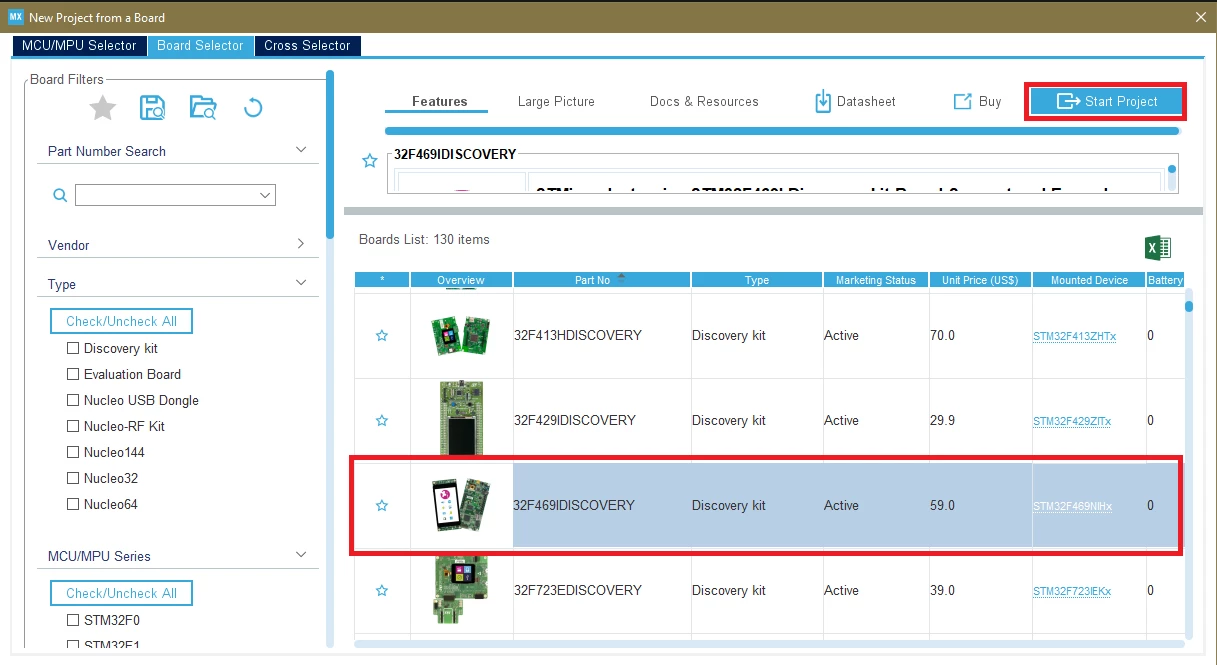
1.1. Launch CubeMX and select the STM32F469-Discovery from the Board Selector list, then click on "Start Project"
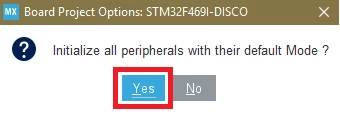
1.2. Agree to initialize peripherals to their default settings clicking "Yes" in the dialog box
1.3. Change the peripherals list to A->Z filtering
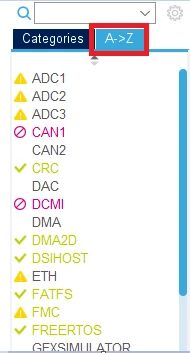
1.4. Start disabling some useless (for a GUI application perspective) peripherals
I2C1 : set to "Disable"
I2C2 : set to "Disable"
SAI1 : Set SAI A mode to "Disable"
SDIO : Set mode to "Disable"
USART3 : Set mode to "Disable"
USART6 : Set mode to "Disable"
USBHOST : Set Class for FS IP to "Disable"
USB_OTG_FS : Set Mode to "Disable"
1.5. Update the configuration of some peripherals
LTDC - Configuration - Parameter Settings : set Active Width to 400
LTDC - Configuration - Layer Settings : set Layer 0 Window Horizontal Stop to 400
LTDC - Configuration - Layer Settings : set Layer 0 Color Frame Buffer Line Length to 400
DSIHOST - Configuration - Display Interface : set Maximum Command Size to 400
GRAPHICS - Mode - Graphics Framework : select "STemWin"
GRAPHICS - Mode - Display Interface : select "Display Serial Interface using LTDC-DSIHOST"
GRAPHICS - Configuration - Parameter Settings: set "User GUIBuilder Tool" to "Enable"
GRAPHICS - Configuration - Parameter Settings: set Physical Display Size - X Size to "800"
GRAPHICS - Configuration - Platform Settings: select PH7 as LCD Reset Pin
1.6. Select your IDE from the list in the Project Manager -> Project section
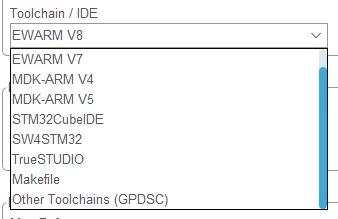
1.7. Generate the code once

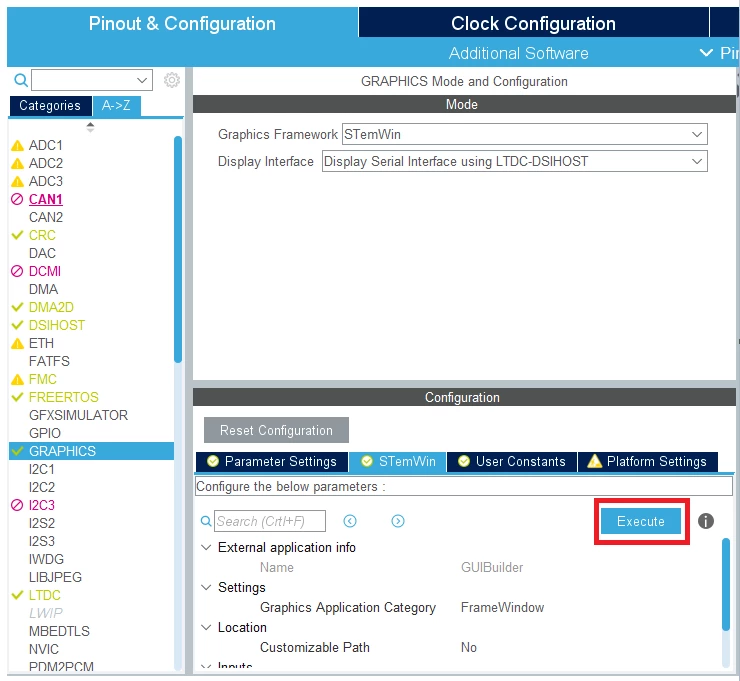
1.8. Go back to pinout & Configuration then in the GRAPHICS peripheral
In the Configuration launch GUIBuilder by clicking Execute
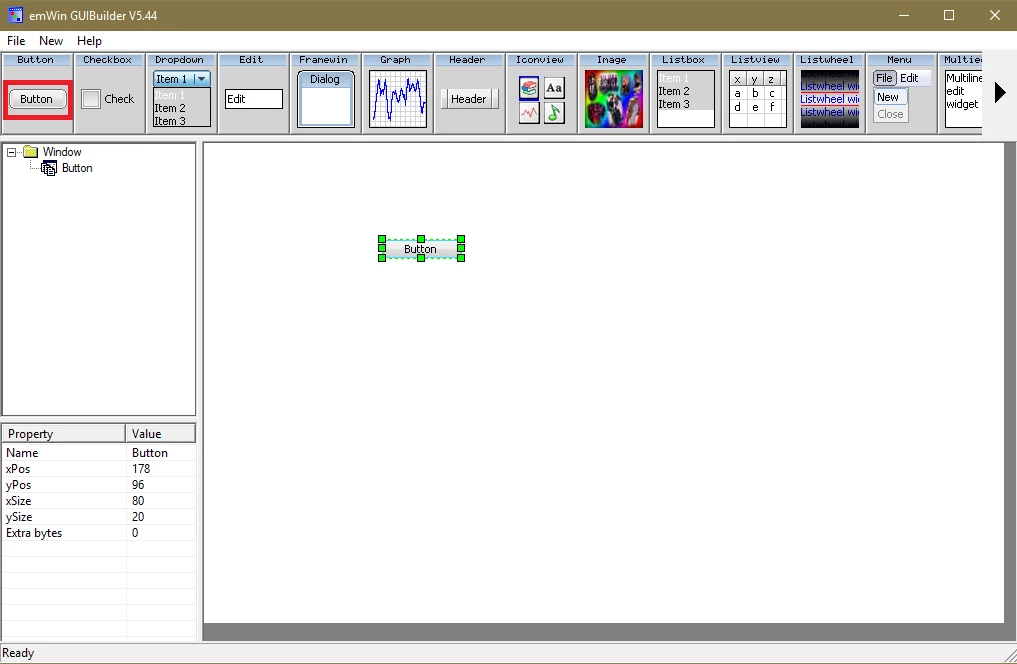
1.9. In GUIBuilder let's just add a buttton
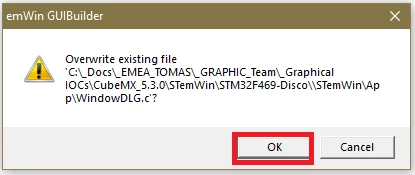
1.10. Select "File->Save", agree to overwrite existing file
1.11. Close GUIBuilder and generate the code again

2. Code editing
Update needed:
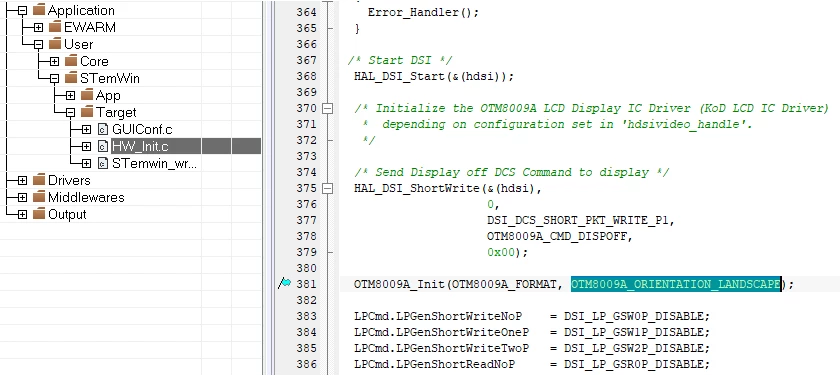
So as far as LTDC and DSI are concerned the width of the display is set to 400 instead of 800.
Unfortunately the parameter specifying the display orientation that will be transferred to the display low-level driver is based on the ratio between width and height extracted from LTDC configuration.
In this case width is smaller than height so PORTRAIT mode is selected and LANDSCAPE is greyed-out :
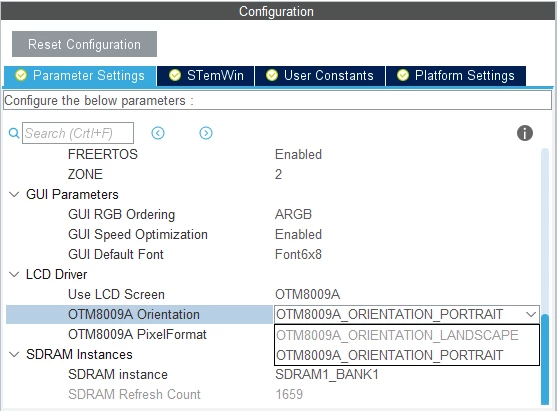
that is why the modification must be done directly in the source code and must be done again each time the code is re-generated from the CubeMX.
3. Eclipse-based IDEs (Atollic, AC6 System Workbench, CubeIDE)
Open Stemwin_wrapper.c file, look for the LCD_LL_Reset(void) function declaration and replace it by:
static void LCD_LL_Reset(void)
{
/* Activate XRES active low */
HAL_GPIO_WritePin(GPIOH, GPIO_PIN_7, GPIO_PIN_RESET);
HAL_Delay(20); /* wait 20 ms */
/* Desactivate XRES */
HAL_GPIO_WritePin(GPIOH, GPIO_PIN_7, GPIO_PIN_SET);
/* Wait for 10ms after releasing XRES before sending commands */
HAL_Delay(10);
}
Then in the GRAPHICS_HW_Init() function, call the function :
void GRAPHICS_HW_Init(void)
MX_FMC_Init();
MX_SDRAM_InitEx();
/* USER CODE BEGIN LCD_reset_pin */
LCD_LL_Reset();
/* USER CODE END LCD_reset_pin */
MX_LCD_Init(); /* LTDC struc, layer struct */
MX_DMA2D_Init();
DMA2D_Init();
MX_DSI_Init();
}
This is the end of this tutorial, I hope it will be helpful.
