

How to get started with ST AIoT Craft mobile app to develop your IoT solution
- 0 replies
- 2318 views
Summary
This article showcases how to get started with ST AIoT Craft mobile app to develop your IoT solution.
Introduction
ST AIoT Craft allows you to create an end-to-end solution. This means that you can create a complete project based on sensor nodes, gateway which provides to the cloud what we usually call the “meaningful data”.
You can experience ST AIoT Craft either on the web portal with the web app or on your smartphone with the mobile app.
1. Prerequisites
- SensorTile.box PRO
- microSD™ card reader to read it directly on your smartphone
- Your smartphone on which you install ST AIoT Craft mobile app, available both on Google Play Store and Apple Store
2. Exploring the ST AIoT Craft mobile app
Let’s have a look at ST AIoT Craft mobile app. Follow these steps:
- Open the app
- Accept the License Agreement by clicking on [I Agree]
- A brief overview of the features of the app appears. Click on [Close].
- Select your level of expertise (I’m a beginner / I am an expert) and click on [Next]
- Select your profile, for example, AI developer, firmware developer, university researcher, FAE or sales serson, other, and click on [Done].
The following figure displays the main page of the app: in this view there are three main tabs, [Projects Examples], [My Projects], and [My Datasets].
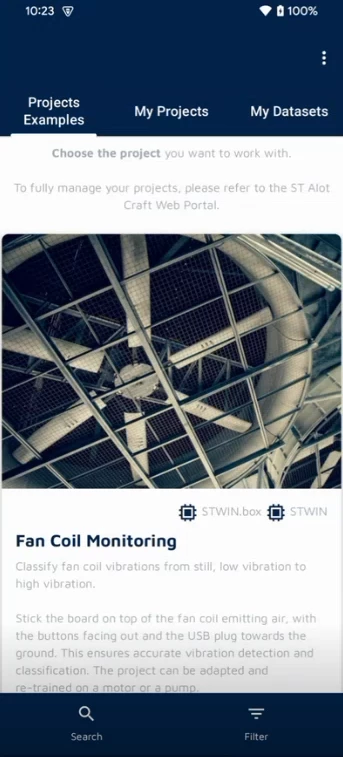 Figure 1: ST AIoT Craft mobile app main page
3. AI model validation flow
Inside the [Projects Examples] tab there’s a list of projects coming from the web portal.
For each project, there’s a title, a project description, and tags where there are the labels of the AI model output (horizontal, vertical, idle board position). Additionally, the boards that are compatible with each project.
You can select a particular project, try the pretrained model, validate it, and customize it.
Scroll through the projects present inside the section [Projects Examples]and select the [Smart Asset Tracking] project. Give the permissions required (location and Bluetooth) for the app to function. Now, you see a list of boards compatible to that specific project which are available around you. Select your board and rename your device to be able to recognize it later.
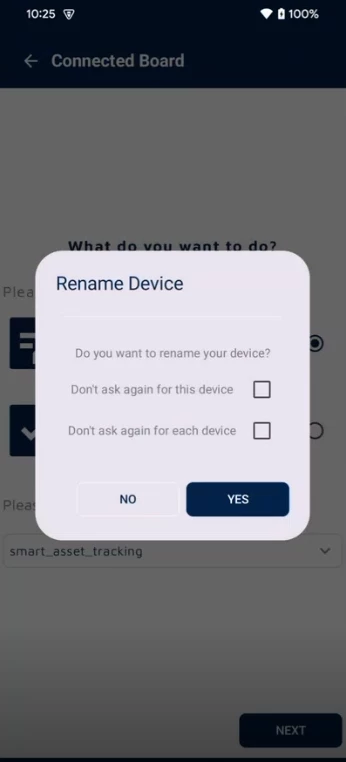 Figure 2: Rename device
The download for the model initializes and when it finishes, the mobile app sends the pretrained model to the board.
You can play with the model by checking the correct detection of the different classes, as shown in the following figure.
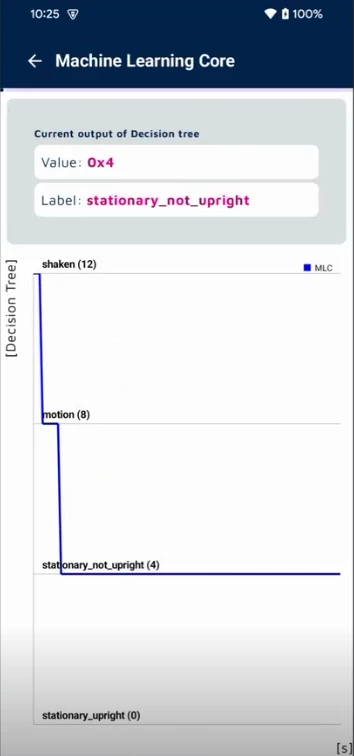 Figure 3: Machine Learning core: output of the decision tree
4. The data logging flow
Coming back to the main page, go to the [My Projects] tab. Here you need to login because your personal projects will be displayed. You can authenticate by either signing in with MyST login, based on your email and password, or by signing in with a QR code.
To sign in with the QR code, you can select your profile in the bottom right corner on the web portal (available at the following link: ST AIoT Craft), login with your MyST credentials, then you can click on sending QR code to the mobile app.
In this section, there are projects which you have previously cloned.
Select the asset tracking project, which has been cloned before and select your board, for example, your SensorTile.box PRO. In the following view you can select the [Datalogging] option, because we want to log new data. This new data will be uploaded to the dataset associated to that specific project to be able to retrain the project and revalidate the model.
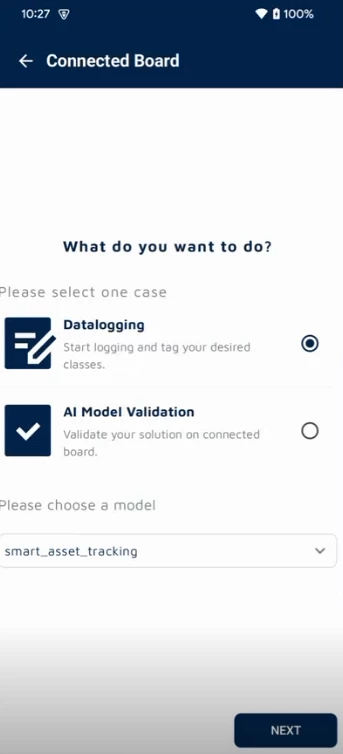 Figure 4: Connected Board - Datalogging
If you click on [Next], there’s a list of sensors placed on your board and for each sensor you can select a specific output data rate (ODR) and full scale (FS).
In this case, select the accelerometer of LSM6DSV16X with ODR = 30 Hz and FS = 16 g and the gyroscope of LSM6DSV16X. After that, press the [Play] button.
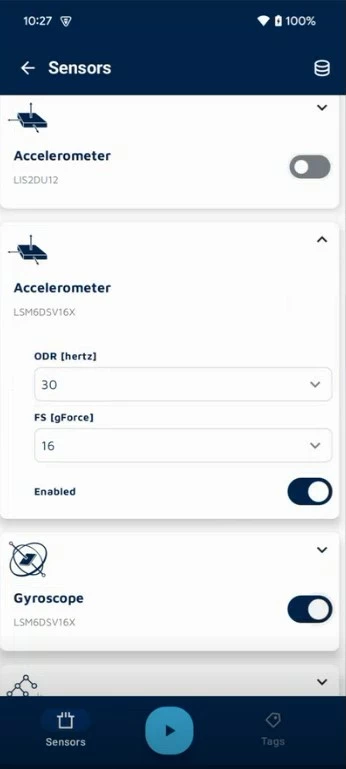 Figure 5: Enabling the Accelerometer and Gyroscope of LSM6DSV16X
Now, the device is logging. If you select for example the accelerometer of LSM6DSV16X, lsm6dsv16x_acc, you can see the real-time data in a graphical way.
The plotted data is the accelerometer data coming from the board.
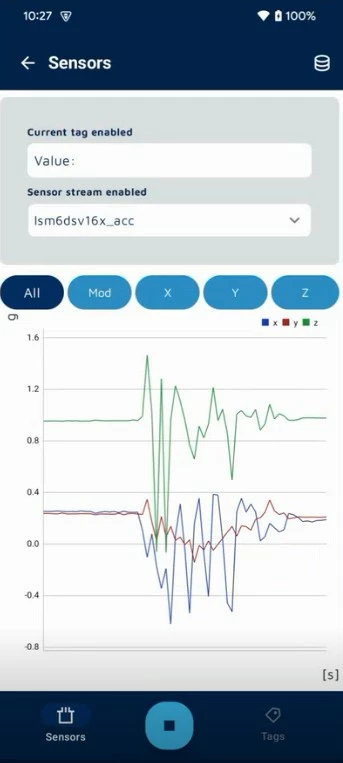 Figure 6: Plotting LSM6DSV16X accelerometer and gyroscope data with tagging enabled
You can also select the [Tags] tab in the bottom right corner where you can tag your data.
For example, suppose that the board is still in stationary_upright state. You can flag the stationary_upright tag as shown in the following figure.
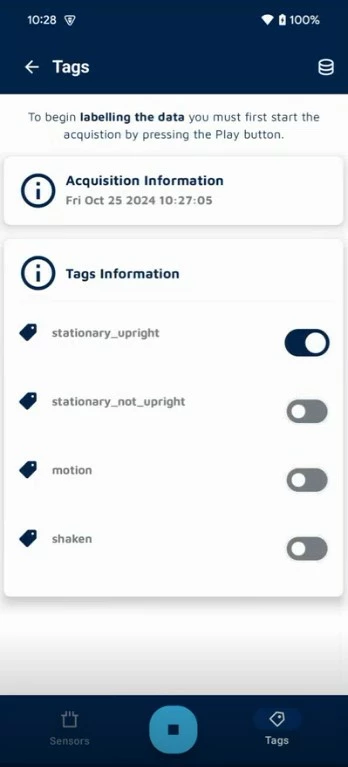 Figure 7: Labelling data
Similarly, if you move your board by shaking it, you can flag the shaken tag.
Finally, you can stop the log, by clicking on the stop button.
Now, you have a log stored in your SensorTile.box PRO microSD™ card.
5. The data flow upload
To put the data on the web portal, first you need to extract the microSD™ card from your SensorTile.box PRO and read its content using a microSD™ card reader, as shown in the following figure. By selecting the [My Datasets] tab, you can see ClonedATR that is the dataset associated to this project. Click on the pictogram of the silos, then on [Data Upload] in the pop-up window.
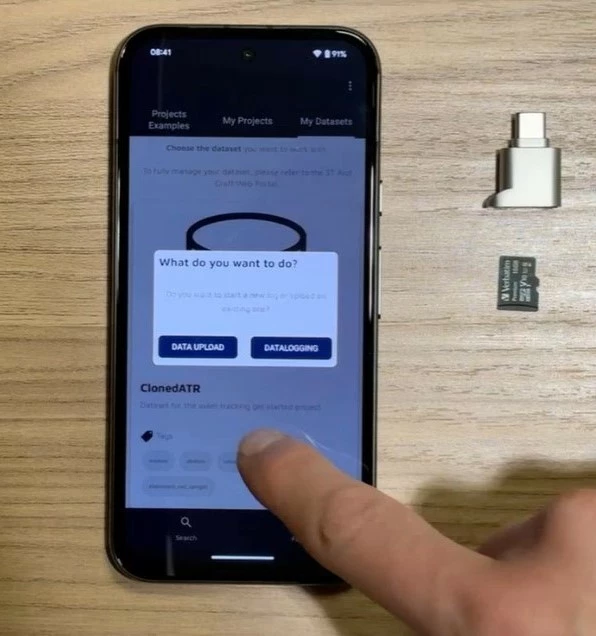 Figure 8: Data Upload
Follow the steps described to perform the data upload:
- Insert the microSD™ card into the card reader;
- Connect the microSD™ card reader inside the smartphone;
- Click on the [Connect] and [Select Root] button.
- Select the microSD™ card, click on [Allow] to allow ST AIoT Craft to access files in Mass USB drive.
- Choose the datalog to be uploaded and upload it by clicking the uploading button near the datalog name. When the process is completed, a light-blue badge associated to that specific log appears near to the datalog name, as shown in the following figure.
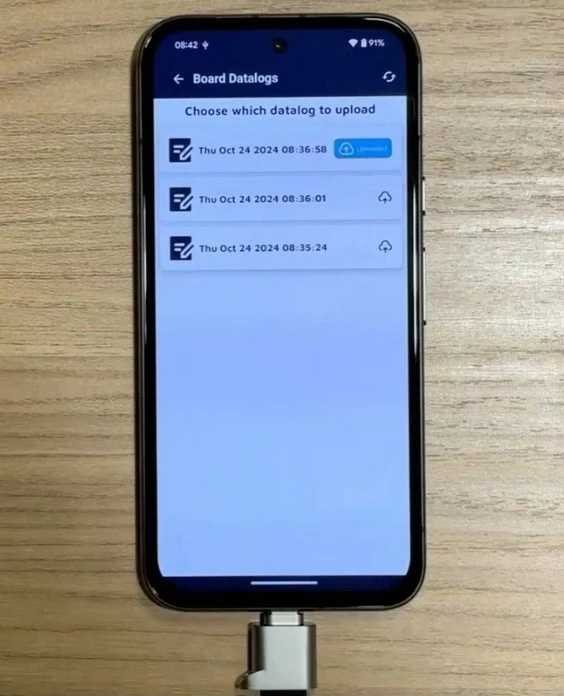 Figure 9: Choose which datalog to upload
Conclusion
In this article you got started with ST AIoT Craft mobile app, which offers the three main features:
- AI model validation flow
- The data logging flow
- The data flow upload
Related links
- ST AIoT Craft tool
- Documentation about ST AIoT Craft tool
- ST blog article about ST AIoT Craft tool
- SensorTile.box PRO
- ST AIoT Craft mobile app, both available on Google Play Store and Apple Store
- Knowledge article: How to get started with ST AIoT Craft to develop your IoT solution
- Knowledge article: How to develop an end-to-end IoT solution with ST AIoT Craft