Summary
This article showcases how to get started with ST biosensors ST1VAFE3BX and ST1VAFE6AX.
Introduction
ST1VAFE3BX and ST1VAFE6AX are the new family of ST biosensors for healthcare and well-being applications. In this article, you discover them and their ecosystem.
1. Hardware setup
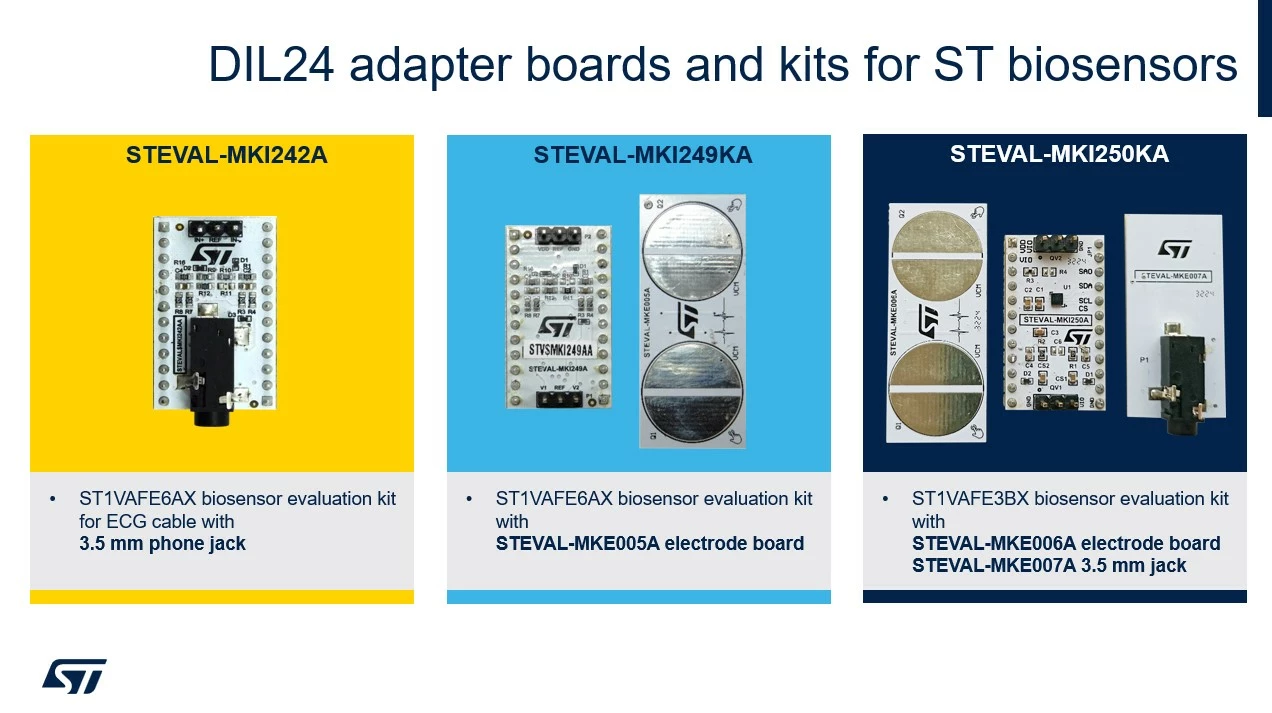 Figure 1: DIL24 adapter boards and kits for ST biosensors
ST1VAFE3BX and ST1VAFE6AX are available in three different adapter boards to allow the evaluation with different type of electrodes.
- STEVAL-MKI242A is a board for evaluating the 6-axis biosensor connecting a 3.5 mm jack for the electrodes.
- STEVAL-MKI249KA is another evaluation kit for the 6-axis biosensor. It includes an electrode board (without jack in this case).
- The last kit instead, called STEVAL-MKI250KA, contains the 3-axis biosensor ST1VAFE3BX, the jack connector, and the electrode board, so you can choose what kind of electrodes you want to use depending on the application.
All these adapter boards can be mounted on top of the professional MEMS tool board, called STEVAL-MKI109D. This board can be plugged to the PC through a USB Type-C® cable.
Let’s now use the boards STEVAL-MKI250KA and STEVAL-MKI109D for this demo.
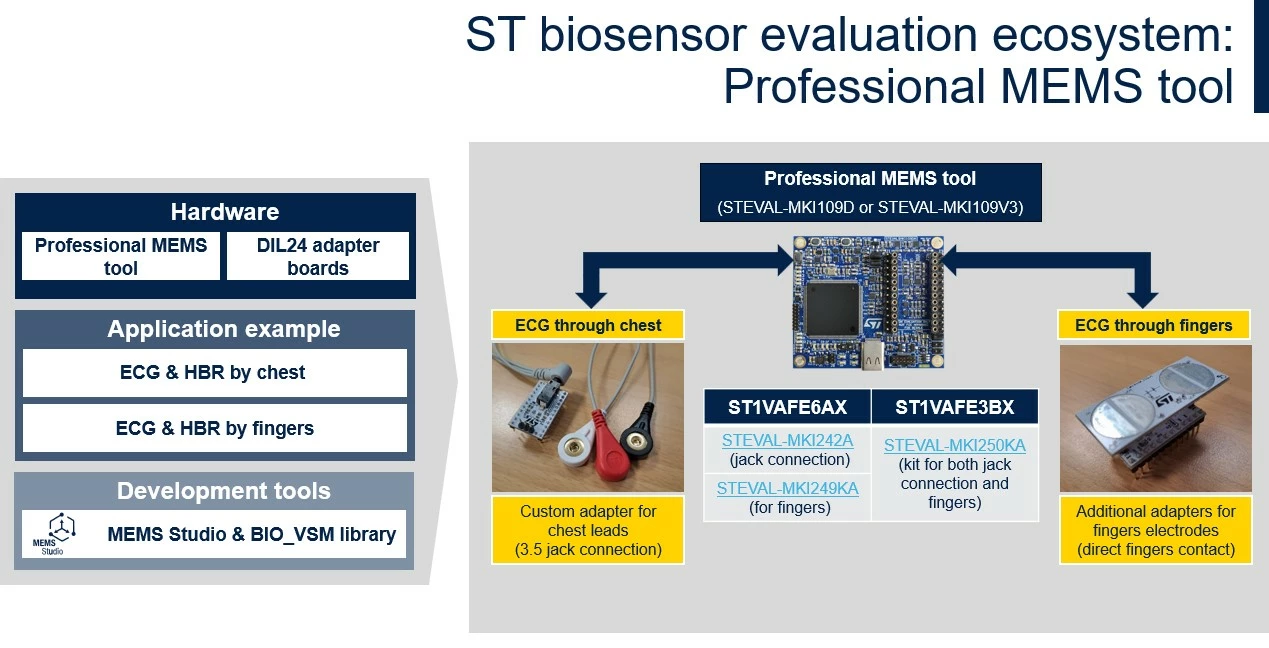 Figure 2: ST biosensor evaluation ecosystem2. BioVSM, the vital signs monitoring library
Download, install, and open MEMS-Studio software.
This software tool embeds a library for vital signs monitoring.
MEMS-Studio allows showing the biosensor outputs in a graphical user interface. It performs data logging and data analysis, and allows for easy sensor configuration setup or configuring the advanced features of the biosensors.
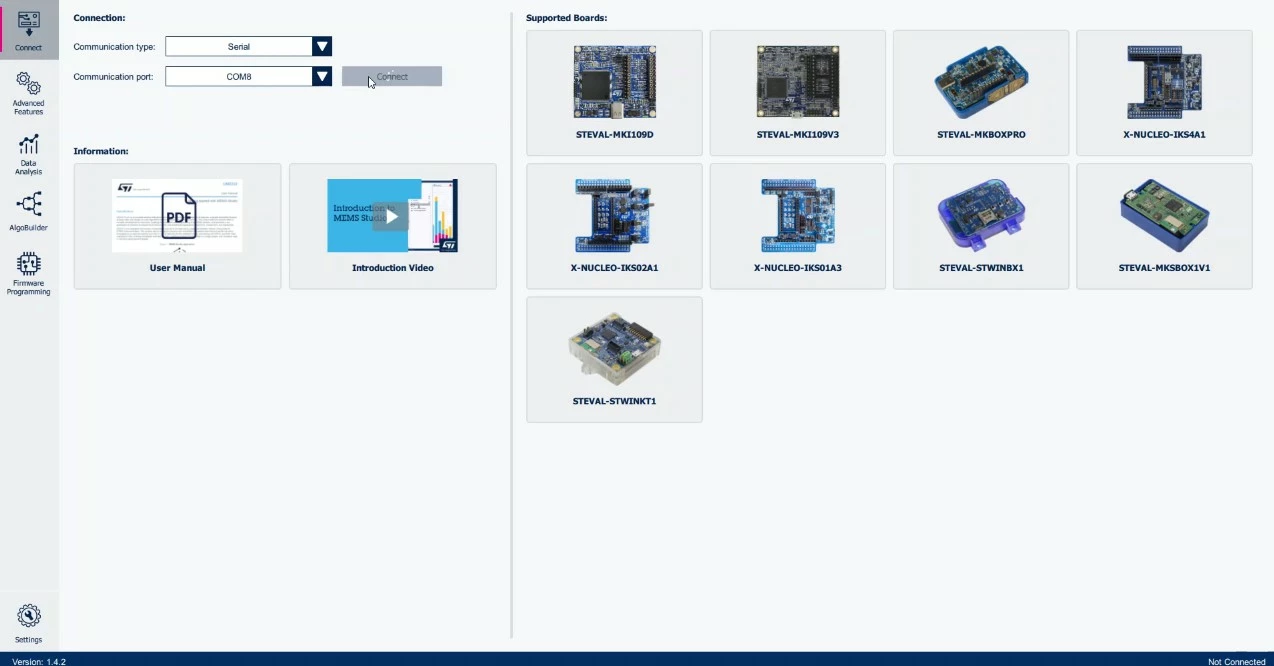 Figure 3: Connecting STEVAL-MKI109D to MEMS Studio
Once the professional MEMS tool board is connected to the PC, you can select the sensor you’re evaluating and configure it. Let’s use the ST1VAFE3BX as an example.
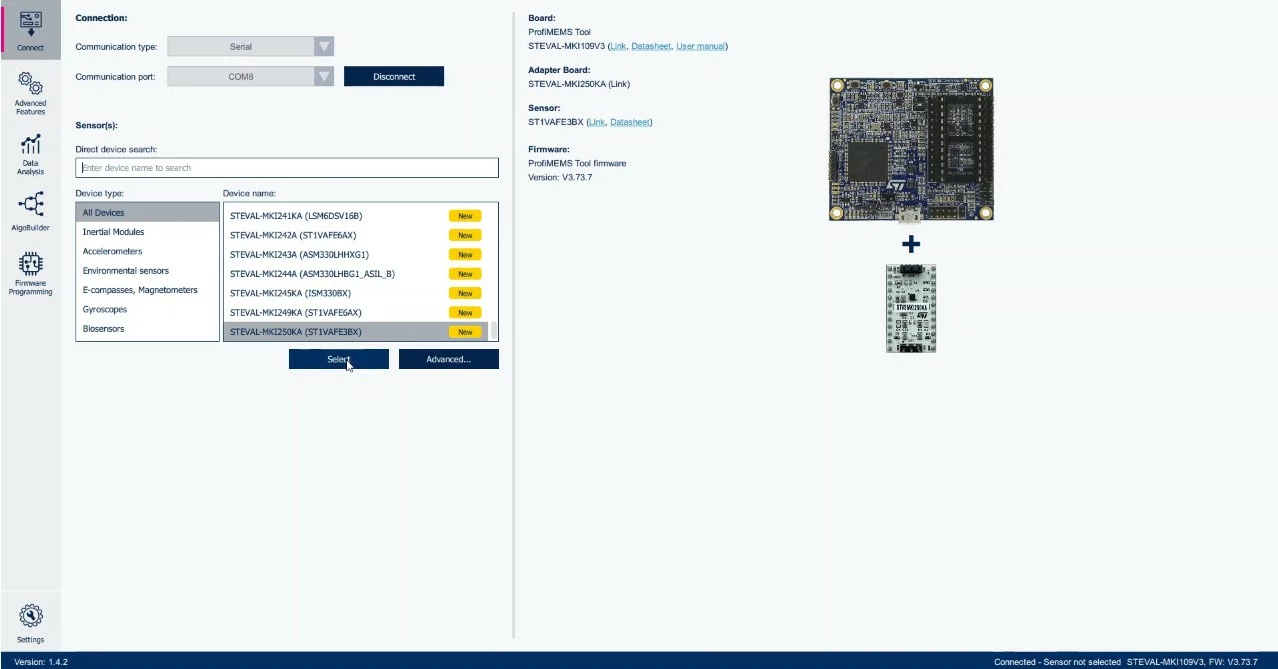 Figure 4: Selecting the biosensor you are evaluating in MEMS Studio
After concluding the initialization step, in the “Features Demo” section you can evaluate the vital sign algorithm using data coming from the biosensor.
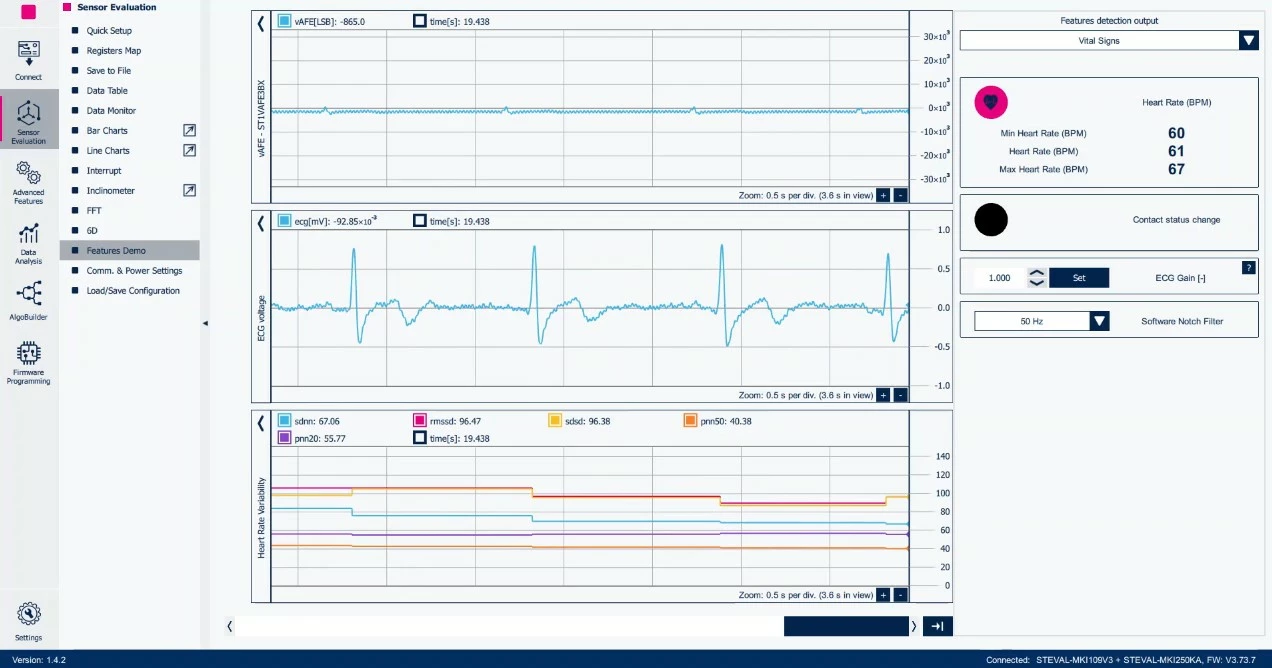 Figure 5: MEMS Studio - Features Demo, Vital Signs
This vital signs monitoring library integrated in MEMS-Studio is called
BioVSM.
BioVSM can detect the contact status change with respect to the exposed electrodes.
In fact, after an initialization phase with the fingers placed to the electrodes, the heart rate measurement will appear.
Three plots are available in this MEMS-Studio window:
- vAFE signal read by the output registers of the sensor.
- ECG voltage.
- Heart rate variability computed by the "vital signs monitoring library".
The vital signs monitoring library acquires vertical analog front end data from the sensors and calculates some indexes. The main library features are:
- BioVSM library provides ECG, heart rate and heart rate variability indexes.
- The library is available for different Arm® Cortex® architectures.
- It performs an R-peak through the Pan-Tompkins algorithm.
- Heart rate indexes, based on the distance between consecutive R-peaks.
Heart rate variability indexes can also provide additional parameters which you can find in the section 2.2.2 of the user manual called UM3471.
The following graphic summarizes the main features of the BioVSM library:
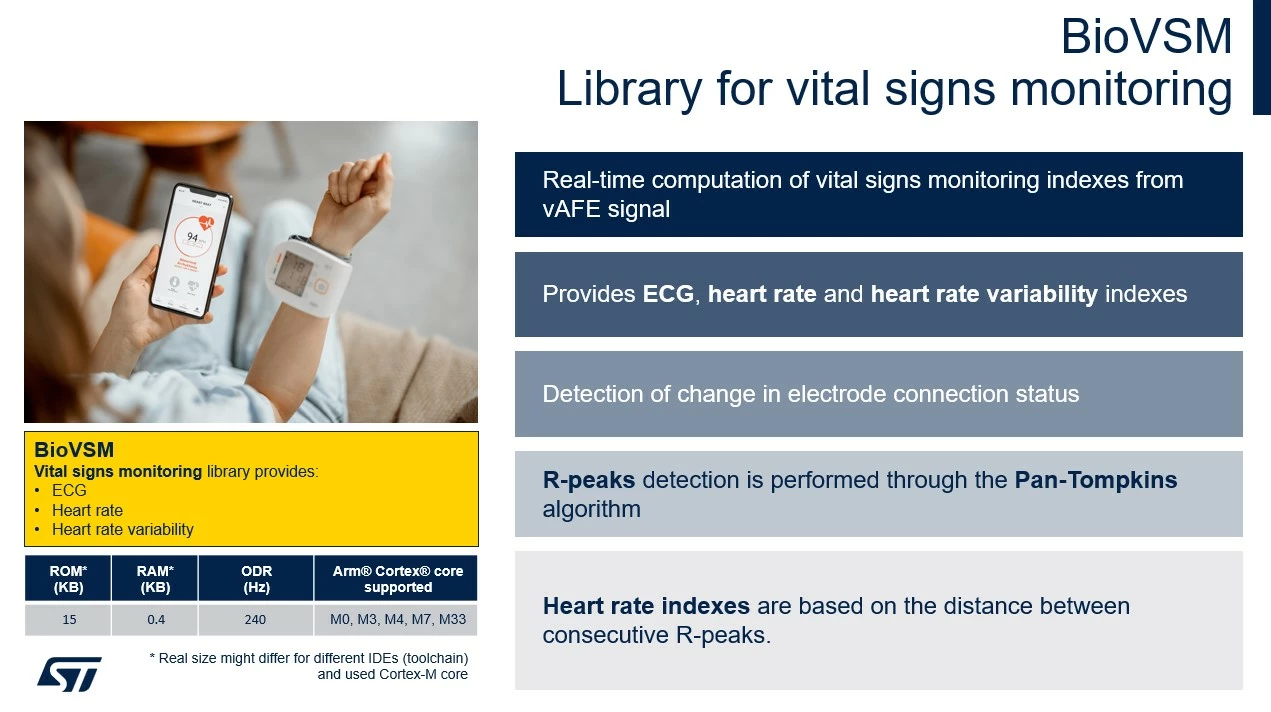 Figure 6: BioVSM - Library for vital signs monitoring
The BioVSM library is available in the software expansion package called
X-CUBE-MEMS1. You can download the package, which includes BioVSM and additional libraries. Once you download the package, you can navigate to the “Middlewares” folder and look for the STM32_BioVSM folder, which contains the library for different STM32 architectures.
Now, it’s your turn to try it!
Conclusion
The MEMS ecosystem for ST’s biosensors, both hardware and software, makes any design fast and help you to reduce the time-to-market. This article can be considered as a reference on getting started with our biosensors.
Related links

