
Harold Vogel
Associate II
January 16, 2018
Solved

cubemx interrupt

  • January 16, 2018
  • 3 replies
  • 2069 views
Posted on January 16, 2018 at 21:37

I am new to CubeMX. 

How do I configure a pin as and interrupt? 

Also how do I setup Low Power sleep mode to wake up with WFI using CubeMX?

    This topic has been closed for replies.
    Best answer by Szymon PANECKI
    Posted on January 16, 2018 at 22:01

    Hello Harold,

    Here are the steps, which you need to follow in order to configure the pin as EXTI (External Interrupt).

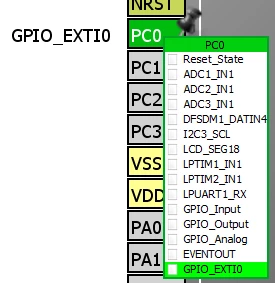
    1. In Pinout tab of STM32CubeMX please click with left mouse button on the pin, which you want to configure. From the menu please select EXTI option. For example below I attached a picture, which shows how to configure PC0 pin as EXTI0.
    0690X00000609KUQAY.png

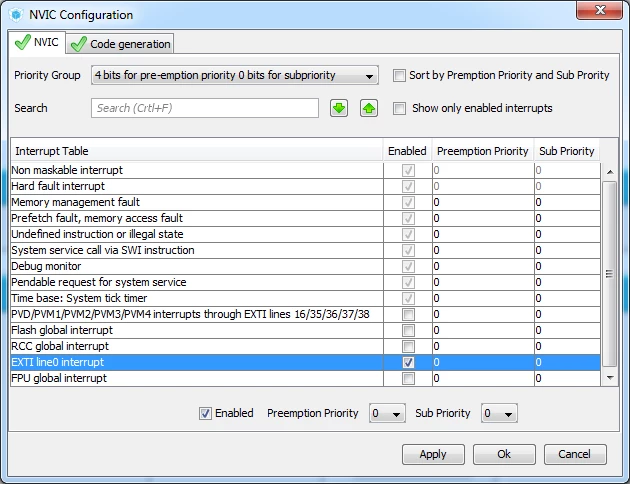
    2. In Configuration tab of STM32CubeMX click on NVIC brick. As a result a window with available interrupts will be opened. From the list please enable EXTI line assigned to the pin. In our case it is EXTI line 0.
    0690X00000609KfQAI.png

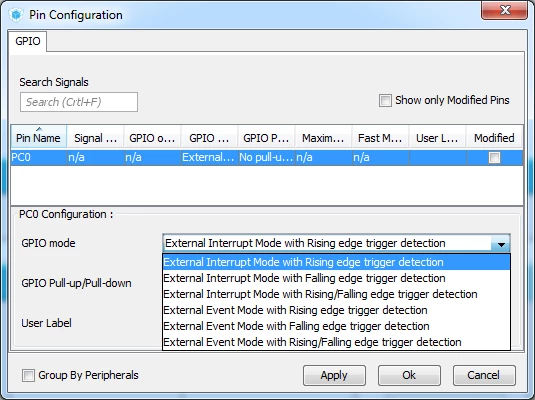
    3. Optionally if you would like to configure parameters to trigger this interrupt, in the same tab (Configuration) click on GPIO brick. From the list select PC0 and you will be able to select for example edge of signal, which will trigger the interrupt.
    0690X00000609KjQAI.png

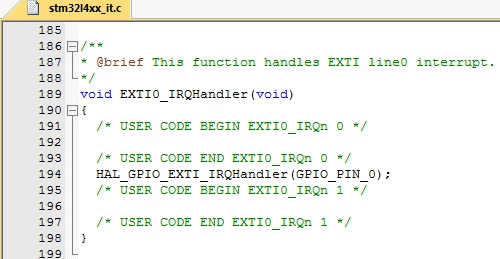
    4. Now you can geenrate a project for IDE. In the generated code please refer to the file with interrupt handlers. It is named stm32[name of the family]xx_it.c. Inside this file you can find a handler to your interrupt, where you can put your user code.
    0690X00000609N9QAI.png

    Regarding your second question:entering low power modes is not managed from STM32CubeMX. You should implement it in code of your application. For example in order to enter Sleep or Low power Sleep mode you need to call function:

    HAL_PWR_EnterSLEEPMode(PWR_LOWPOWERREGULATOR_ON, PWR_SLEEPENTRY_WFI);�?

    Now you can develop asimple application, in which MCU will enter low power mode (Sleep or Low power Sleep) and leave iton EXTI interrupt :)

    Regards

    Szymon

    3 replies

    Szymon PANECKI
    Szymon PANECKIBest answer
    Senior III
    January 16, 2018
    Posted on January 16, 2018 at 22:01

    Hello Harold,

    Here are the steps, which you need to follow in order to configure the pin as EXTI (External Interrupt).

    1. In Pinout tab of STM32CubeMX please click with left mouse button on the pin, which you want to configure. From the menu please select EXTI option. For example below I attached a picture, which shows how to configure PC0 pin as EXTI0.

    0690X00000609KUQAY.png

    2. In Configuration tab of STM32CubeMX click on NVIC brick. As a result a window with available interrupts will be opened. From the list please enable EXTI line assigned to the pin. In our case it is EXTI line 0.

    0690X00000609KfQAI.png

    3. Optionally if you would like to configure parameters to trigger this interrupt, in the same tab (Configuration) click on GPIO brick. From the list select PC0 and you will be able to select for example edge of signal, which will trigger the interrupt.

    0690X00000609KjQAI.png

    4. Now you can geenrate a project for IDE. In the generated code please refer to the file with interrupt handlers. It is named stm32[name of the family]xx_it.c. Inside this file you can find a handler to your interrupt, where you can put your user code.

    0690X00000609N9QAI.png

    Regarding your second question:entering low power modes is not managed from STM32CubeMX. You should implement it in code of your application. For example in order to enter Sleep or Low power Sleep mode you need to call function:

    HAL_PWR_EnterSLEEPMode(PWR_LOWPOWERREGULATOR_ON, PWR_SLEEPENTRY_WFI);�?

    Now you can develop asimple application, in which MCU will enter low power mode (Sleep or Low power Sleep) and leave iton EXTI interrupt :)

    Regards

    Szymon
    Harold Vogel
    Associate II
    January 17, 2018
    Posted on January 17, 2018 at 12:36

    Thank you very much for your help.

    Tesla DeLorean
    Guru
    January 17, 2018
    Posted on January 17, 2018 at 14:28

    Please mark Szymon's answer correct rather than your own, that way the metrics are scored properly.

    Tips, Buy me a coffee, or three.. PayPal Venmo (See Profile) Up vote any posts that you find helpful, it shows what's working..